Managing your store’s domain is an essential step to present your online store professionally. Whether you use a custom domain or the default domain provided by Salla, the domain settings give you full control over how customers access your store.
What is a domain and why is it important?
A custom domain is the unique web address of your online store. For example, Salla’s domain is: www.salla.sa
Having a custom domain is important because it:
- Gives your store a distinct brand identity
- Makes it easier for customers to find and remember your store
- Enhances your store’s professional appearance and credibility
📌 Article overview
- Steps to register a new custom domain for your store
- Recommendations and tips
- Frequently asked questions
Steps to register a new custom domain
- From the main menu, go to Store & Sales Channels, then click Store Domain.
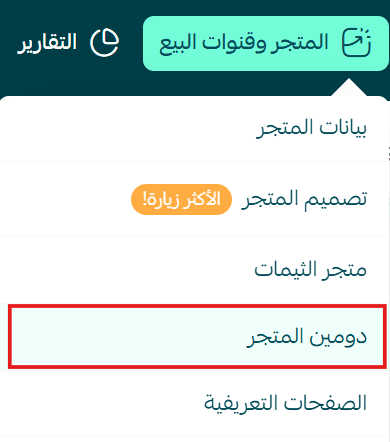
2. On the Store Domain Management page, click Register Custom Domain, then follow the steps to activate your domain.

Note: After upgrading your store plan, you may receive a free domain.
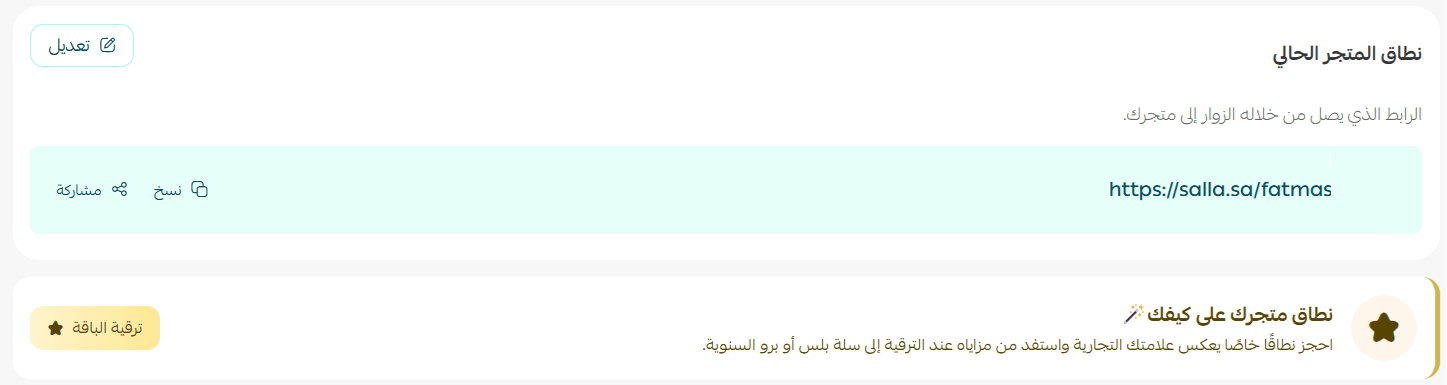
Click Register Custom Domain to claim it.

3. Enter your desired domain name followed by .com.
The domain name may include only:
- English letters
- Numbers
- Periods (.)
- Hyphens (-)
Then click Search to check if the domain is available.
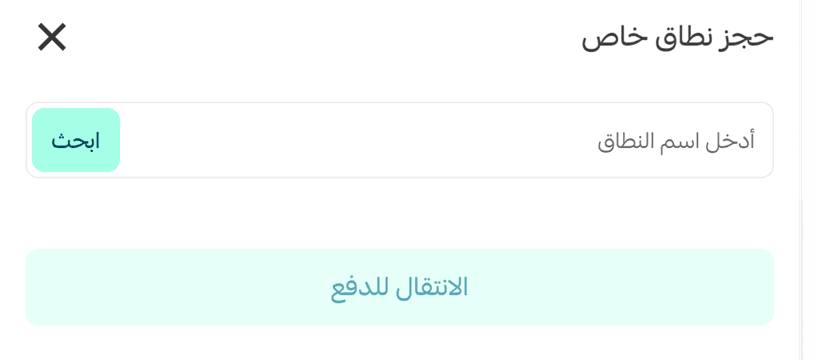
If the domain is not available, try another name.
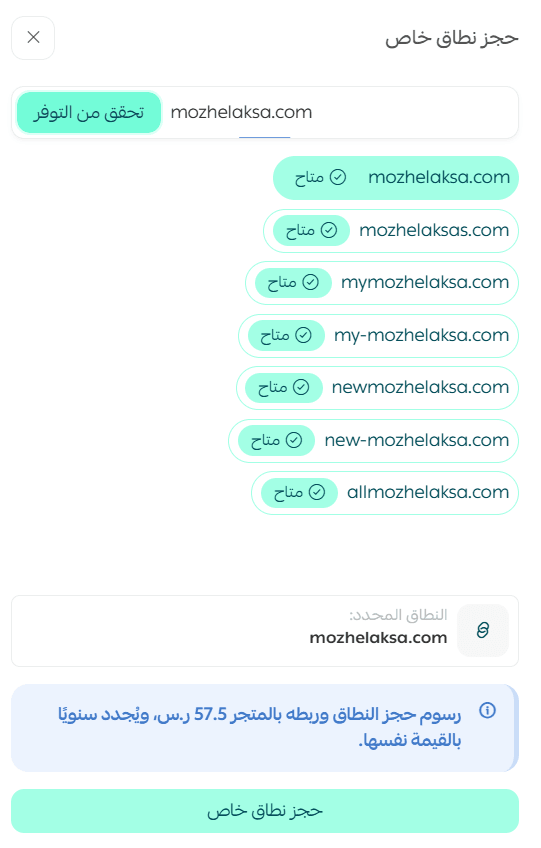
4. Complete the payment for the domain using your preferred payment method, then click Confirm.
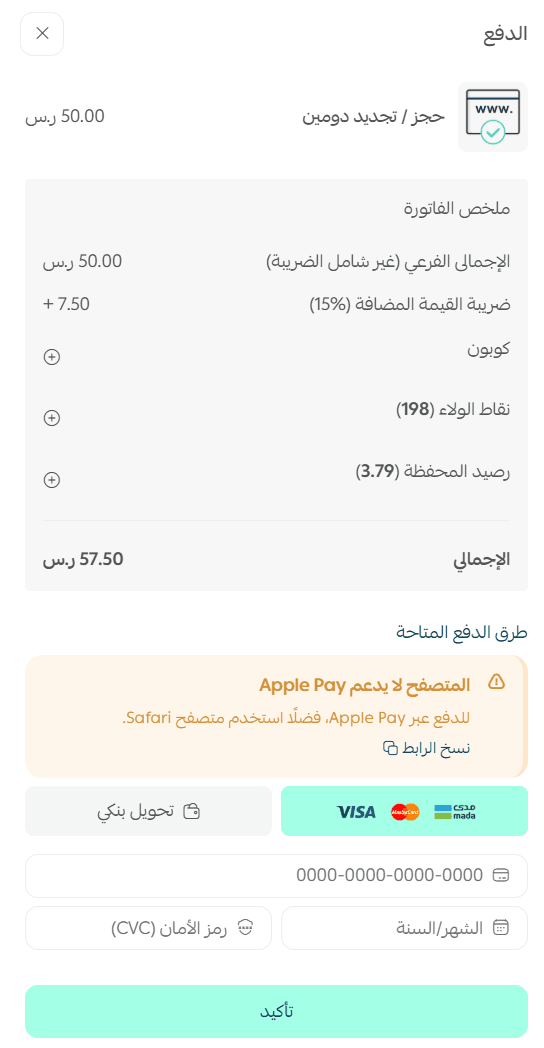
🎉 Congratulations! Your store will be redirected to the new domain within 24 hours at most.
Note: When registering a domain through the platform, you must verify your domain contact information to confirm ownership of the domain.
Recommendations and tips
✨ Choose a domain name that clearly reflects your business activity.
✨ Avoid using numbers in the domain name (for example: www.shop-2024.com), especially if they represent a specific year.
✨ Shorter domain names are easier for customers to remember.
Frequently asked questions
What completes the domain registration task?
The task is completed when the domain is successfully added and activated.
Can this task be completed if my store is on the Basic plan?
No. The Basic plan does not support completing this task.
I added the domain, but the step still shows as incomplete. Why?
Please wait up to 24 hours for the domain activation process to complete.
Can I complete the task later if I skip it?
Yes. You can return and complete the task at any time after skipping it.
Support Services
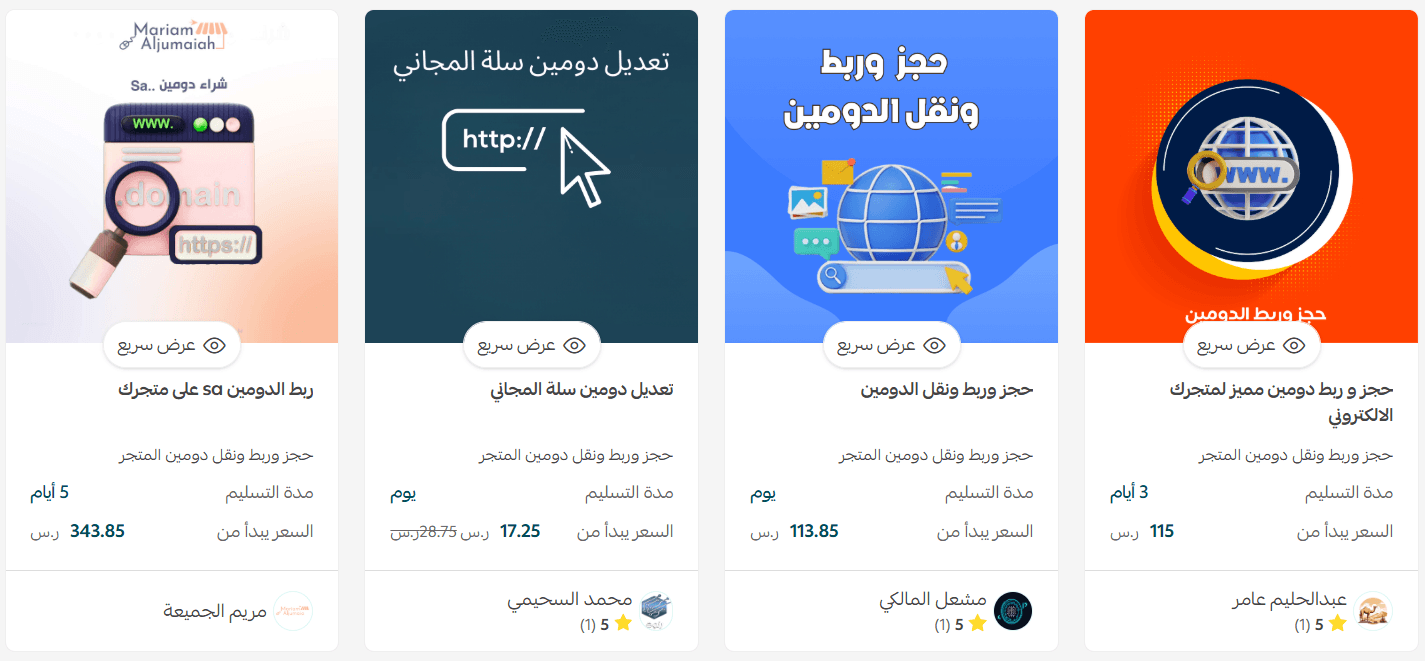
If you need help choosing, purchasing, or connecting a domain, you can rely on trusted specialists who provide professional domain setup and connection services from start to finish.