Looking for a free theme that handles multiple languages properly and still leaves room for your own design touches?
The Raed theme is the second Salla theme with full multi-language support, a customizable footer menu, and a long list of design tools on top. It hands you control over the header, the footer, and a set of homepage components built to make your storefront look more finished. In this guide, you'll learn how to install the Raed theme, what the header and footer options add, which new homepage components ship with it, and how to switch on the dark top bar.
To apply the Raed theme, open (Theme store) from your dashboard's side menu, open the free Raed theme page, and click (Install). Once it's installed, go to (Store design) to customize the header, the footer, the homepage components, and dark mode until the storefront matches your brand.
📌 Article overview
- How to install the Raed theme on your store
- Header and footer options in the Raed theme
- New homepage components in the Raed theme
- Theme settings
- Frequently asked questions
🚀 How to install the Raed theme on your store
1. From the side menu of your dashboard, click (Theme store).
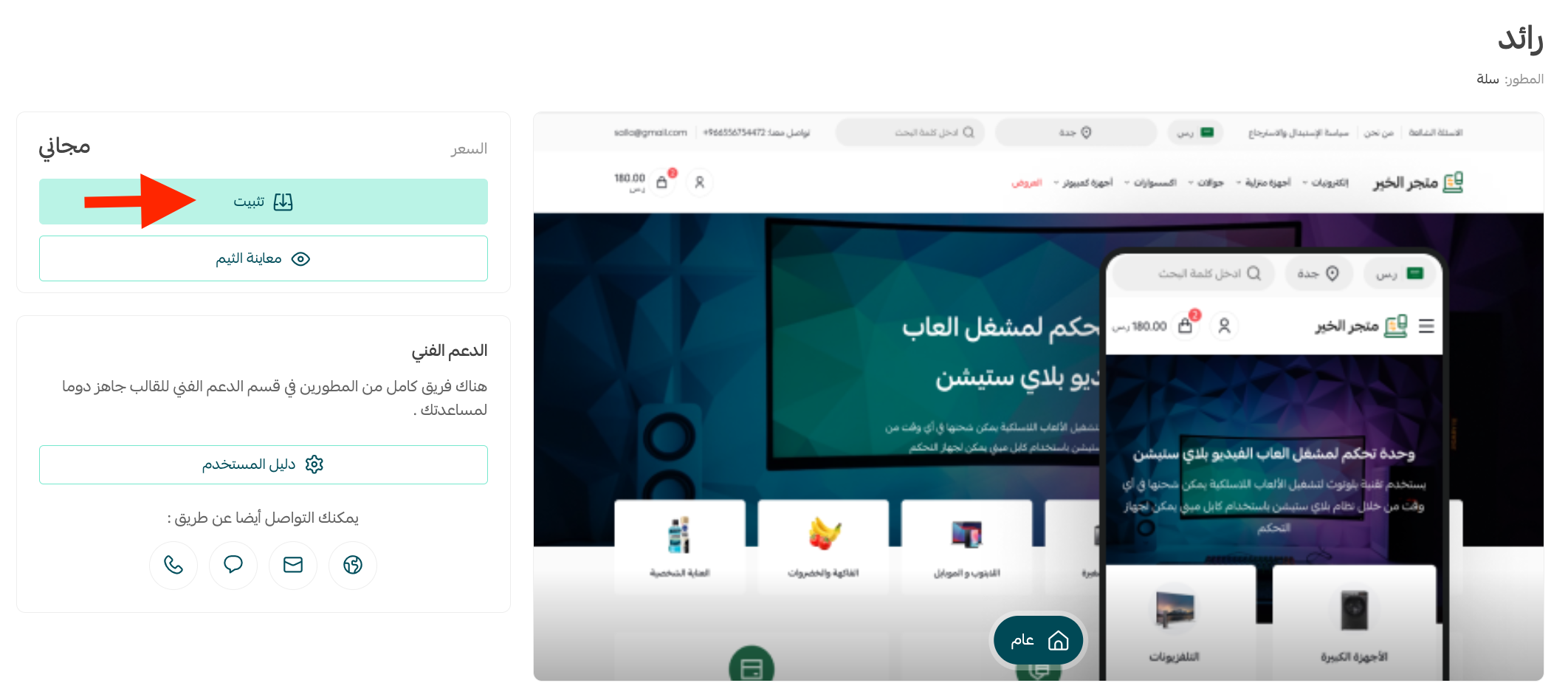
2. From the details page of the free Raed theme, click (Install).
3. Once the theme is installed, open the (Store design) page and customize it however you like.
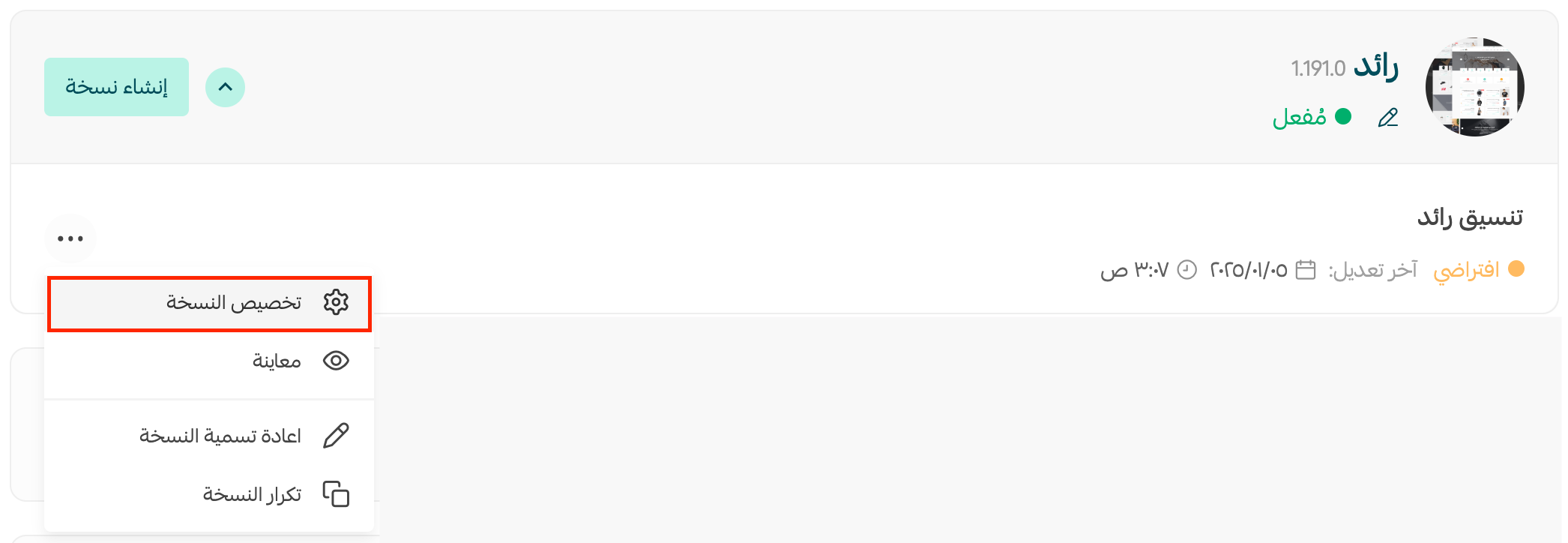
The theme customization page also lets you preview how your store will look before you commit to the change.
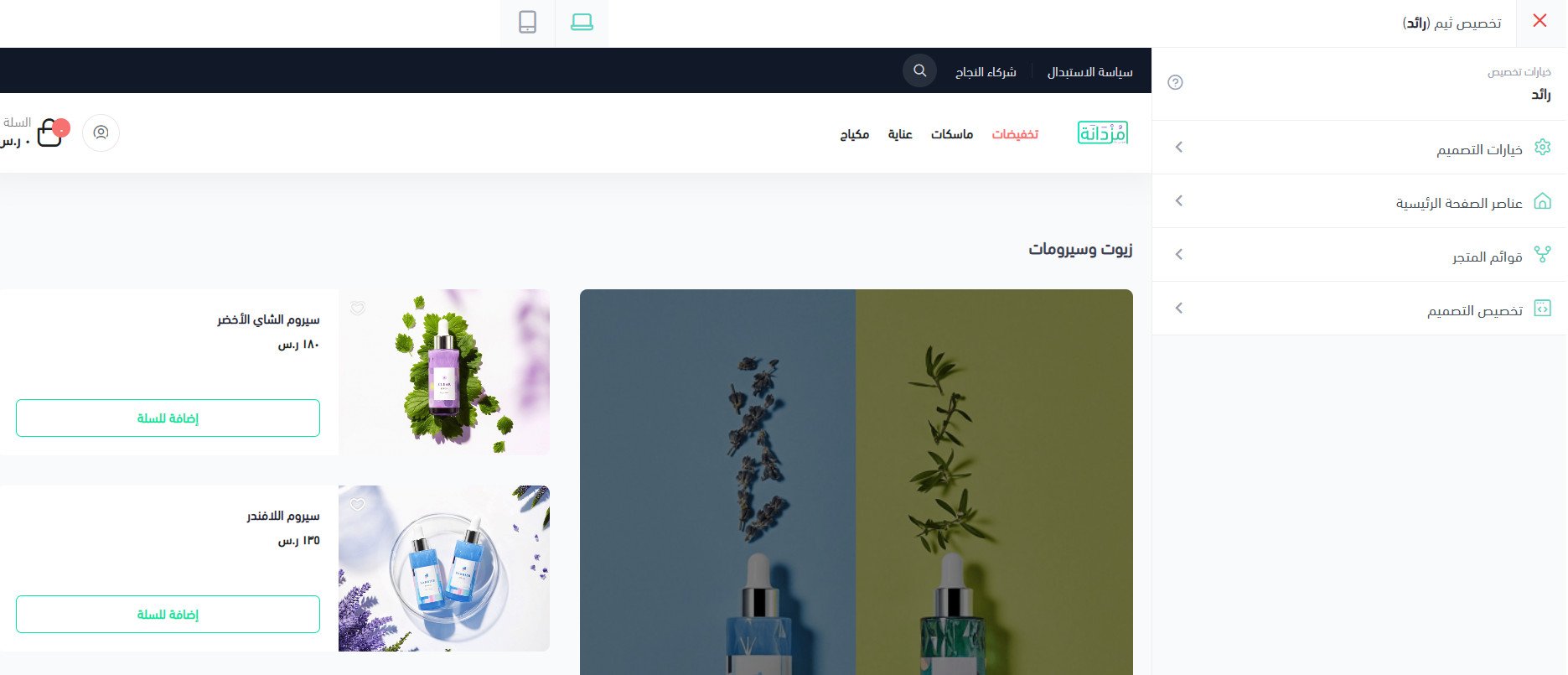
To see a live example, visit the demo store running the Raed theme.
For more details, see managing the theme store and store design.
For more details, see customizing your store design.
✅ Header and footer options in the Raed theme
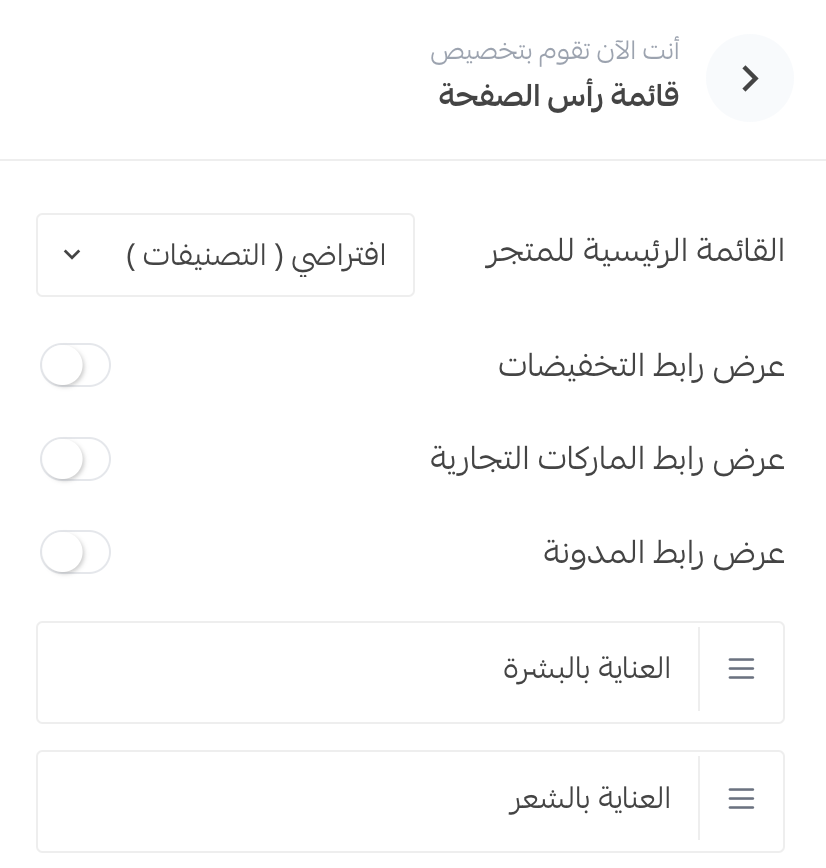
1. On the Raed theme customization page, open the (Header and footer) section and click (Header menu). Pick (Categories) from the menu, then choose which header elements appear in your store.
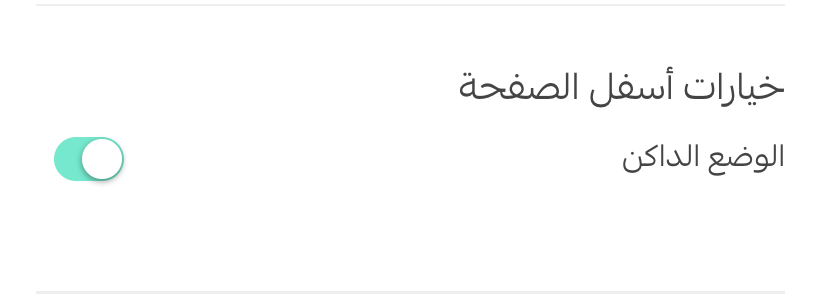
2. For the footer, open the (Design options) section and go to (Footer options), where you can turn dark mode on or off.
🎯 New homepage components in the Raed theme
Raed ships with a set of homepage components that make your store look more professional and hold a visitor's attention for longer.
To add them, open the Raed theme customization page and click (Homepage components).
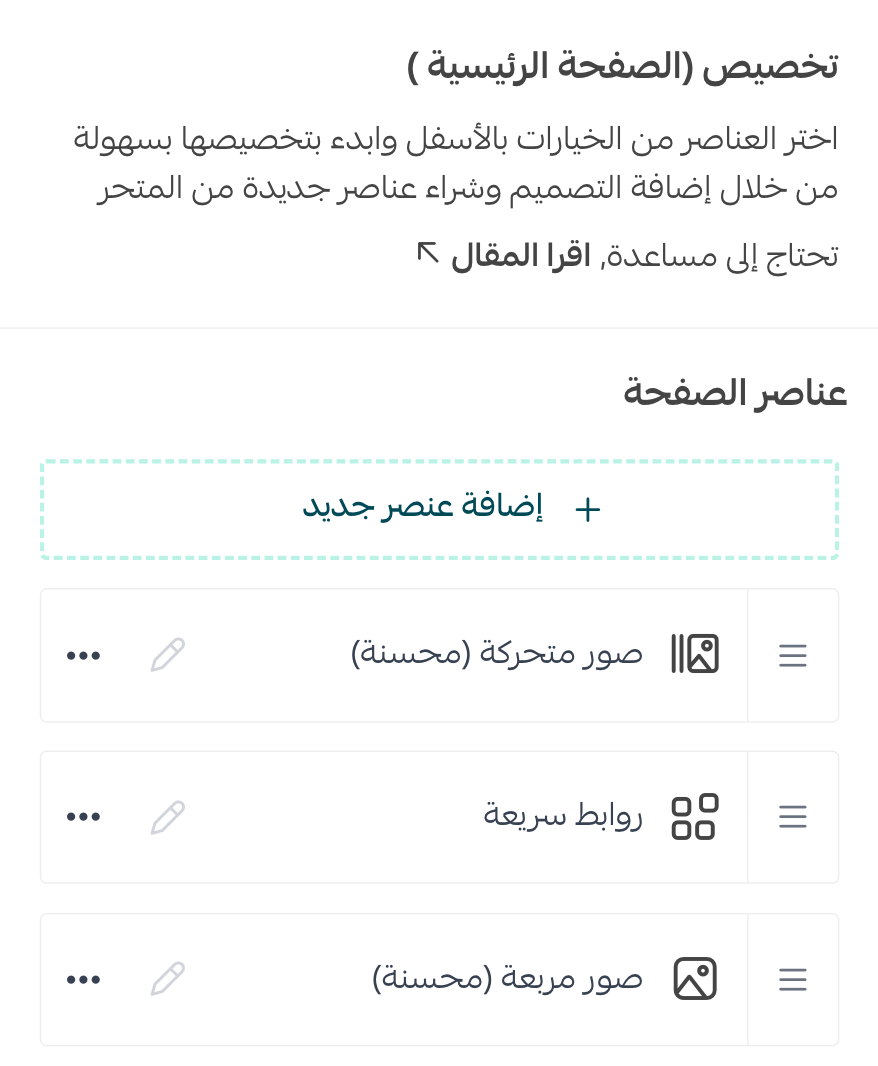
Then click (Add new component) to see everything you can add to your store.
📝 Important notes
The components that belong to this theme are the ones marked with a star.
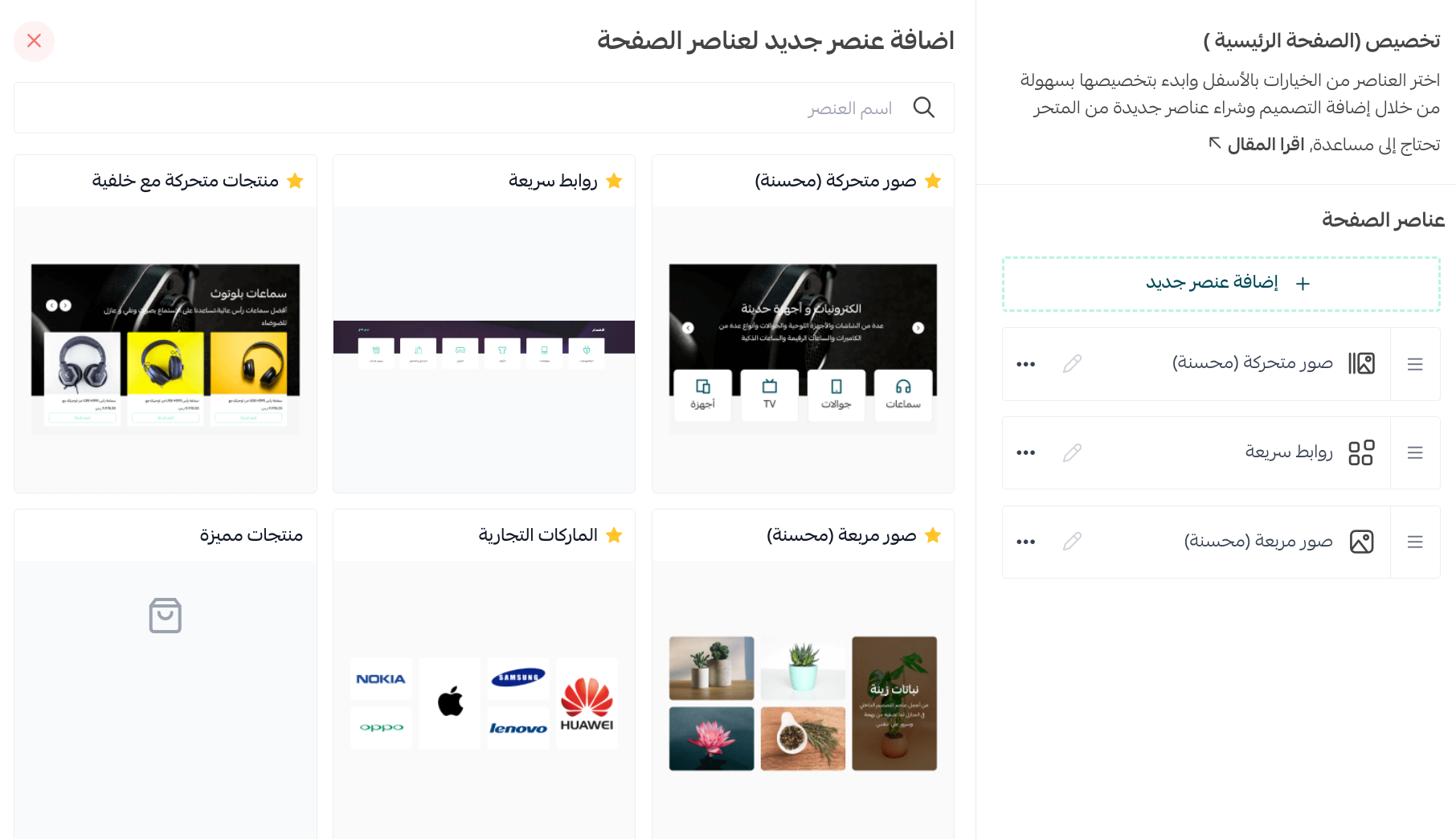
Here's a closer look at each one.
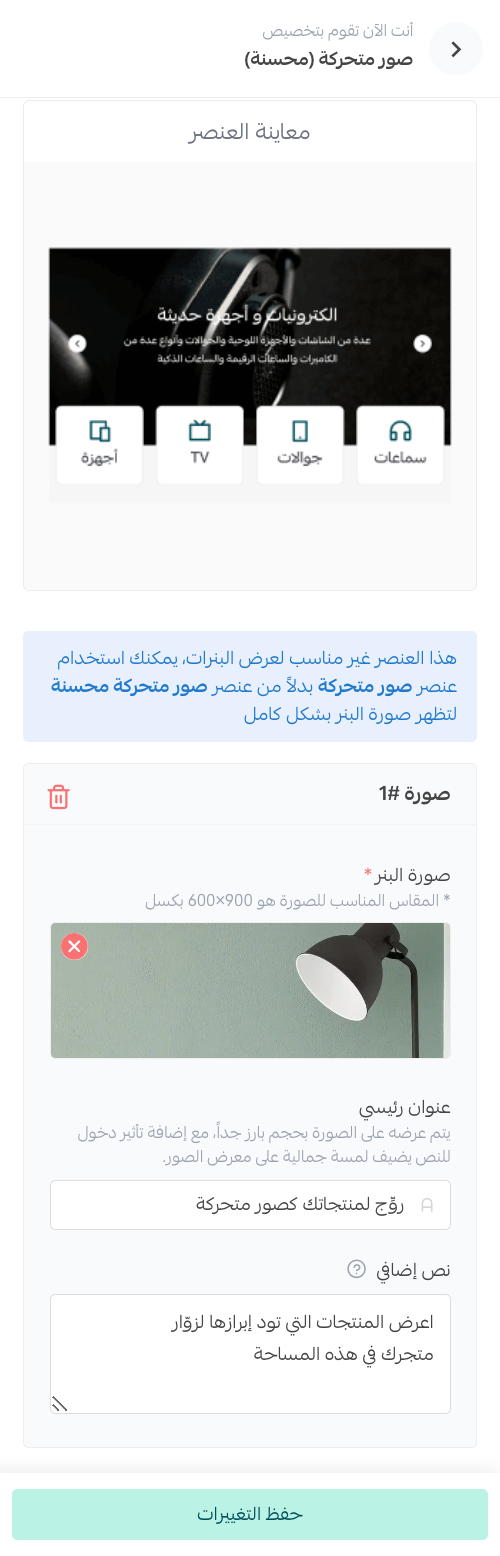
1. Enhanced animated images
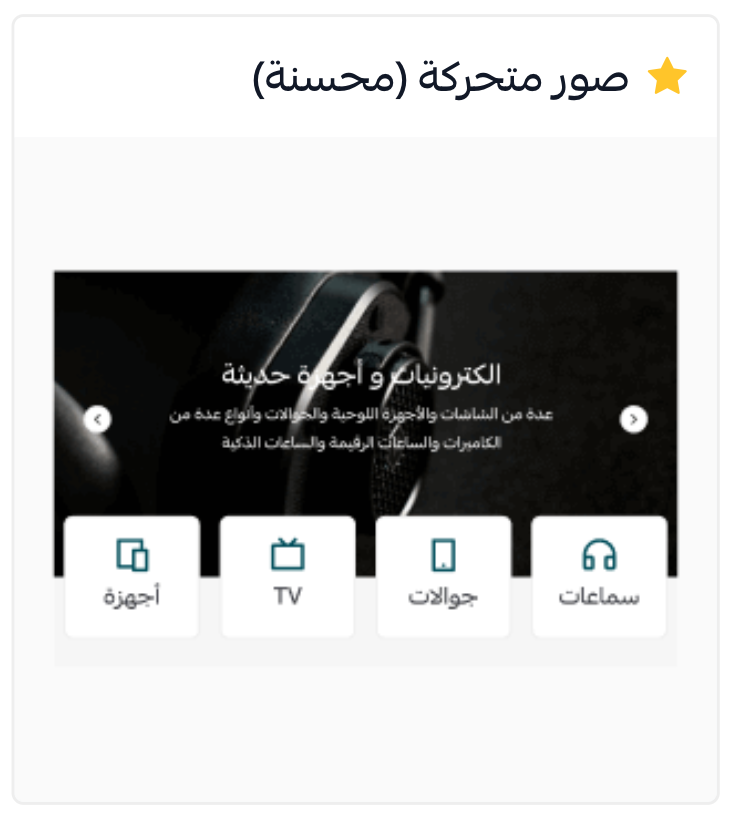
Add up to 10 image slides, each with its own title, description, color, and destination link.
2. Quick links
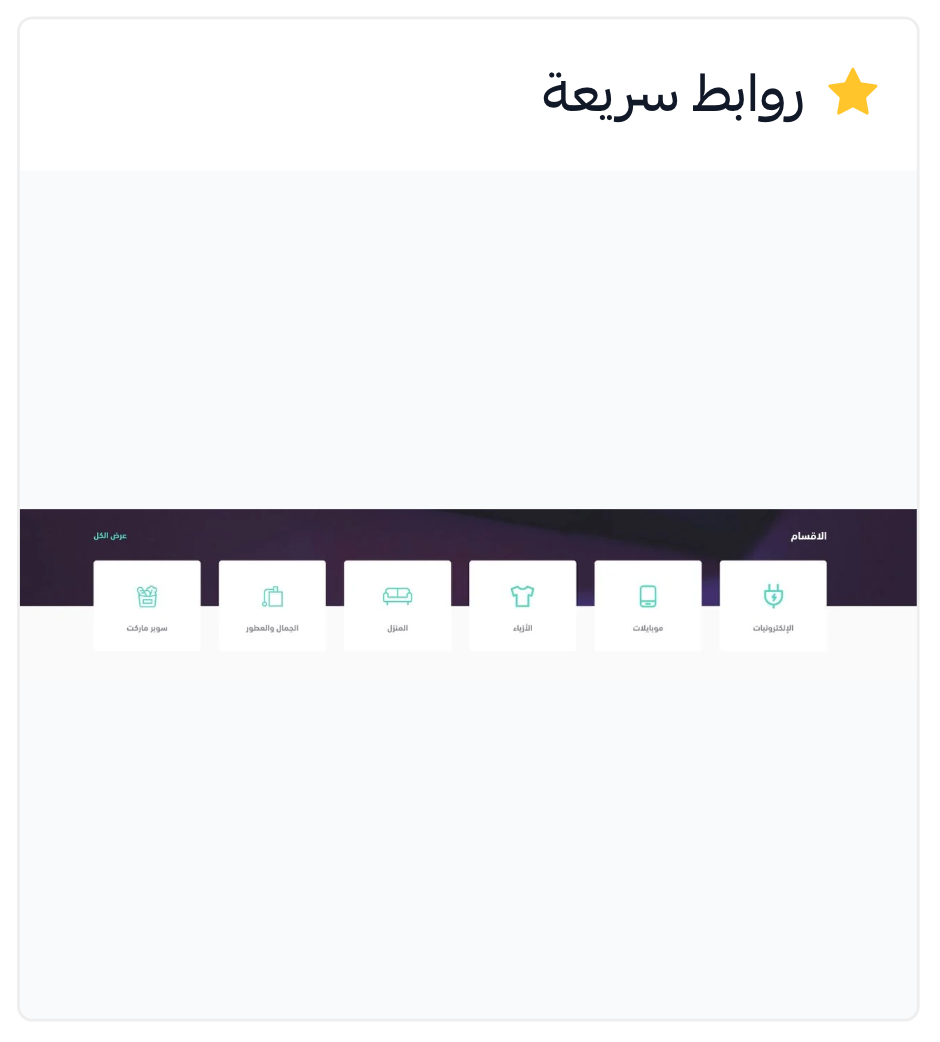
You need to enter at least three links.
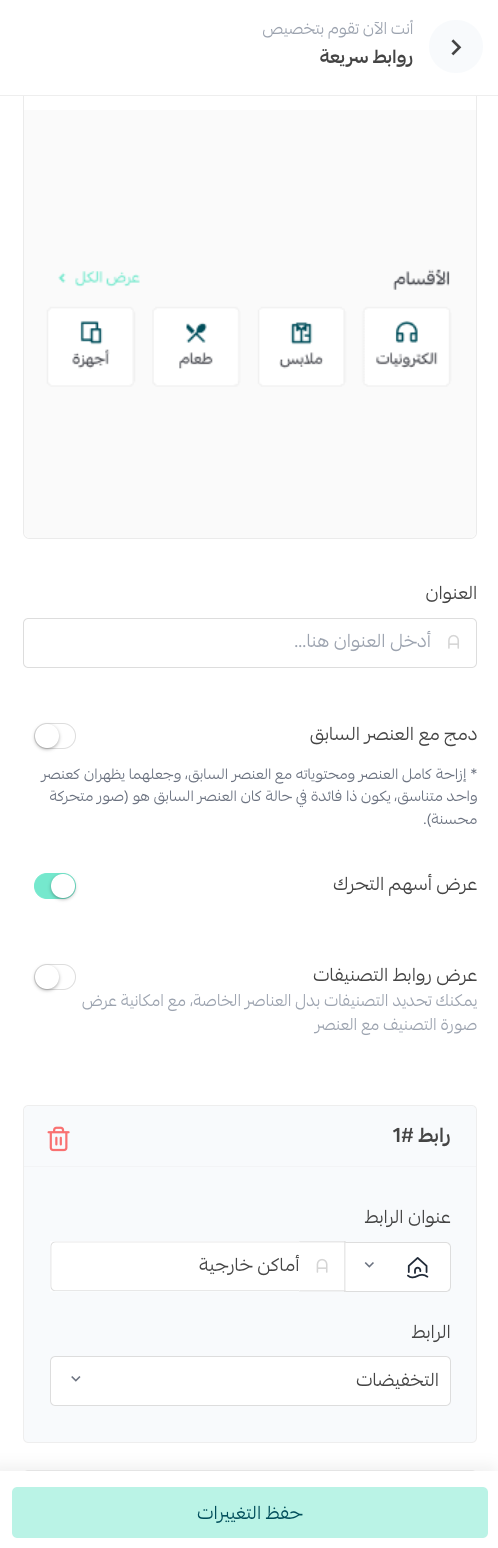
Here's how they show up in your store:

3. Animated products with a background
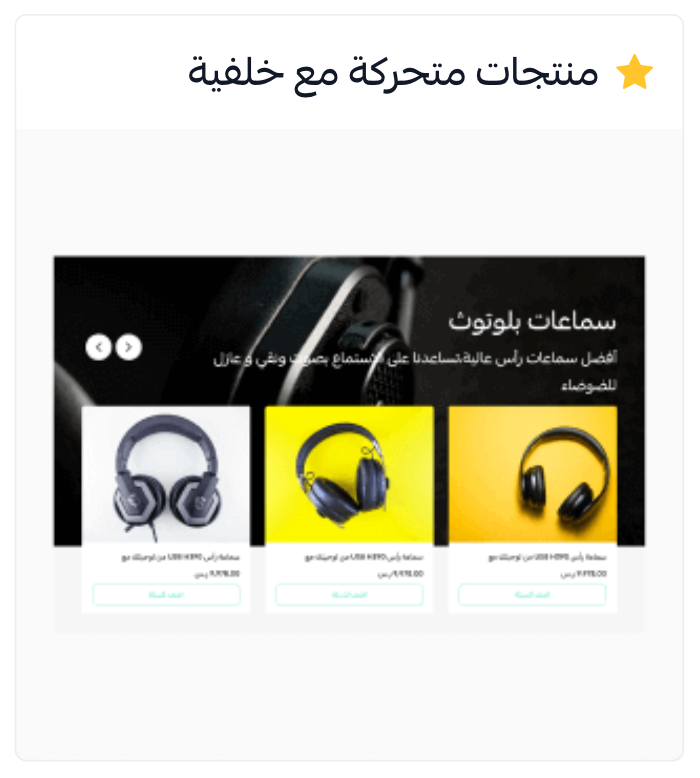
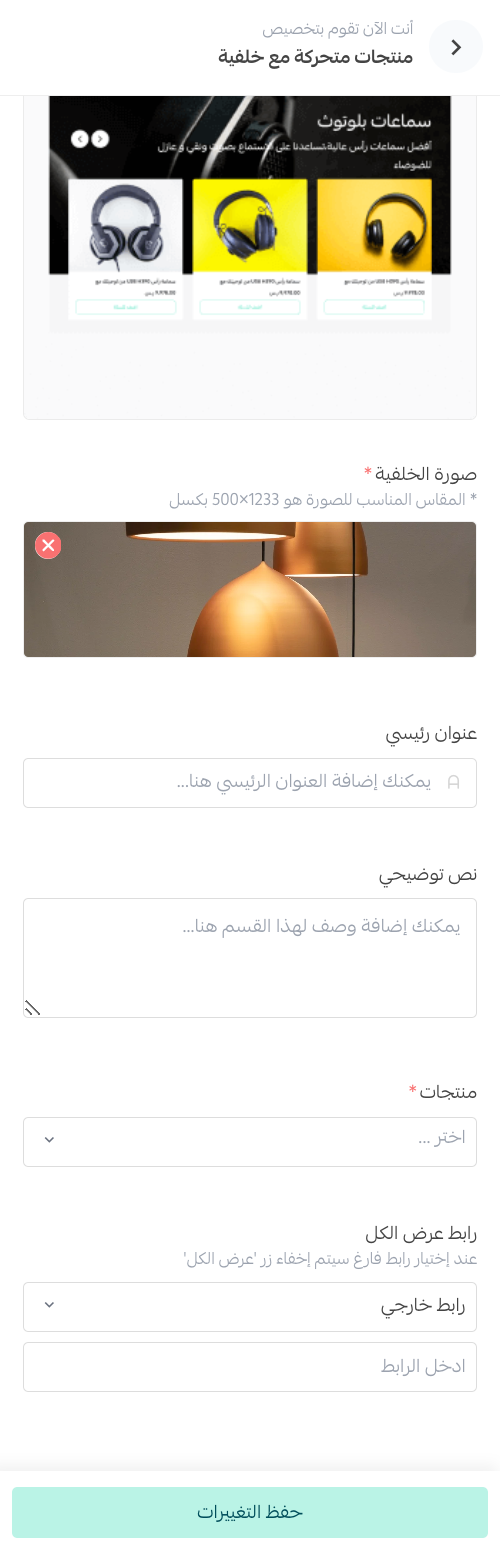
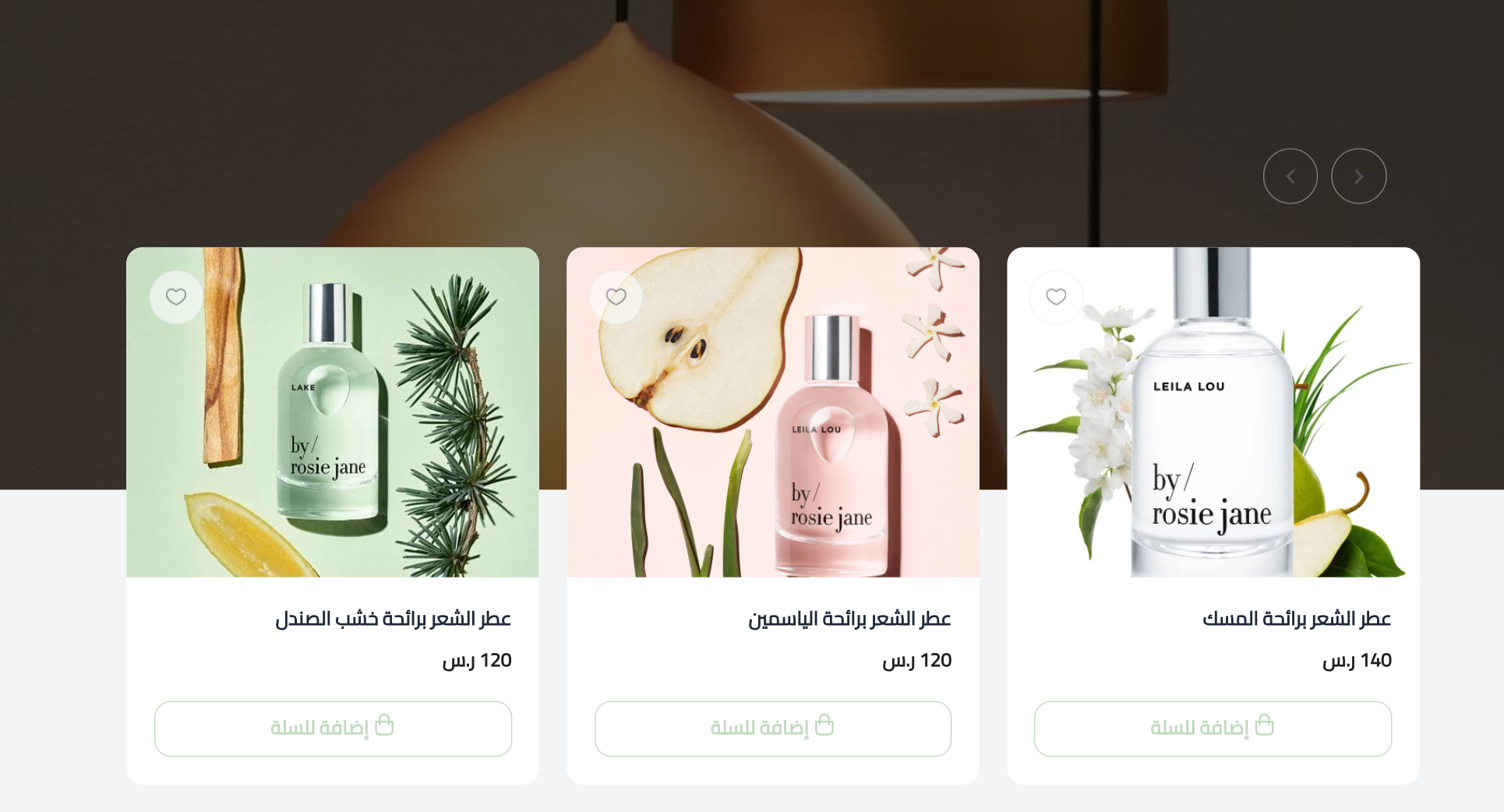
Pick the fixed background image, write a main title and a subtitle for the product group, then choose the products you want the component to display.
Here's how it shows up in your store:
4. Enhanced square images
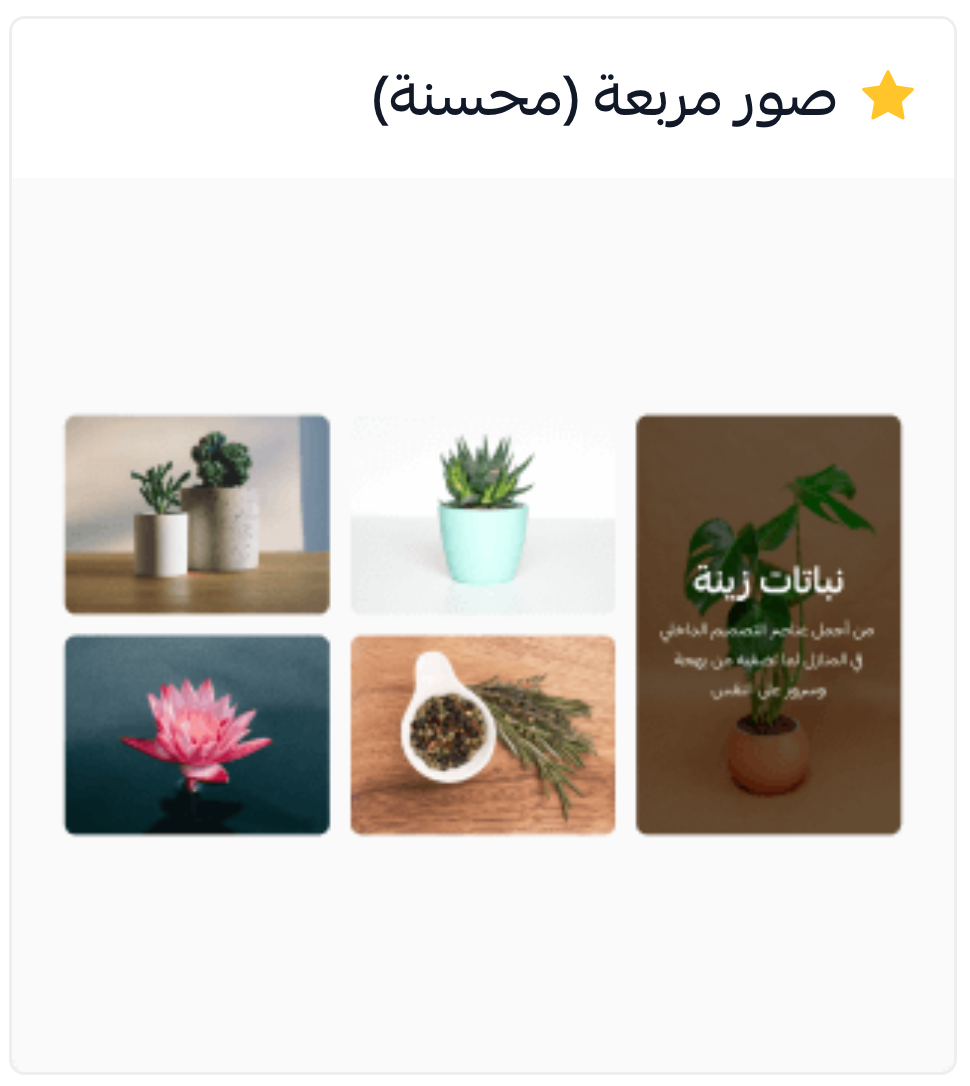
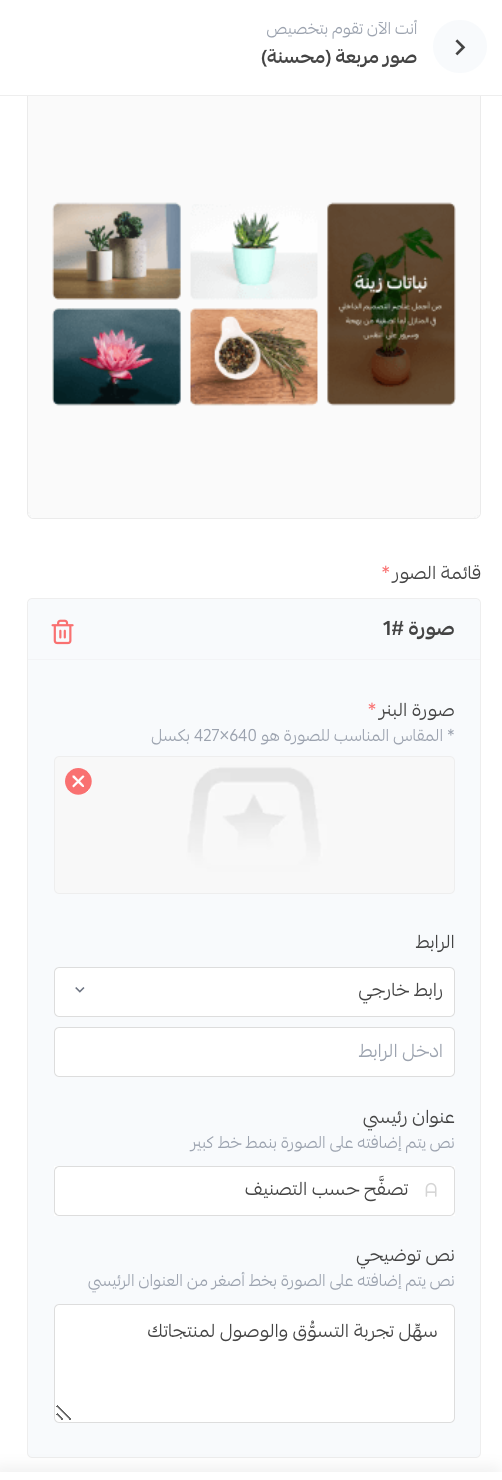
Attach up to 5 square images of your products or promotions, each pointing to an internal or external link, with the option to add a main title and explanatory text.
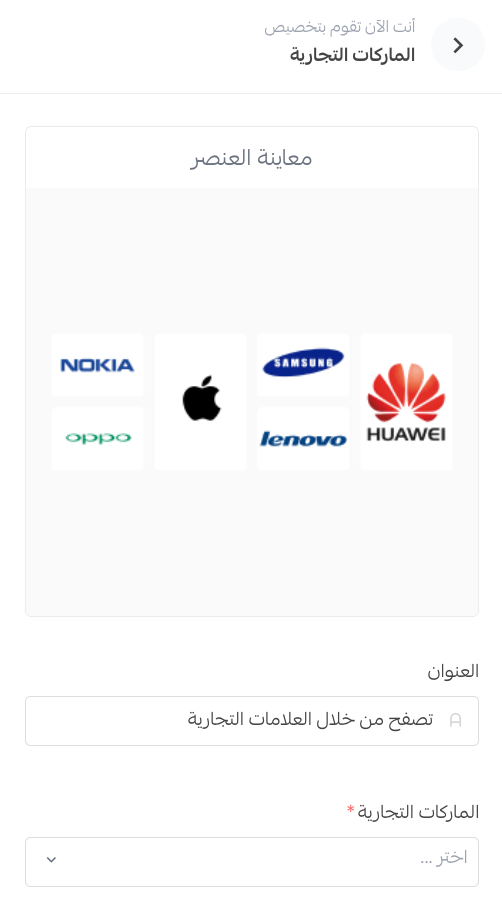
5. Brands
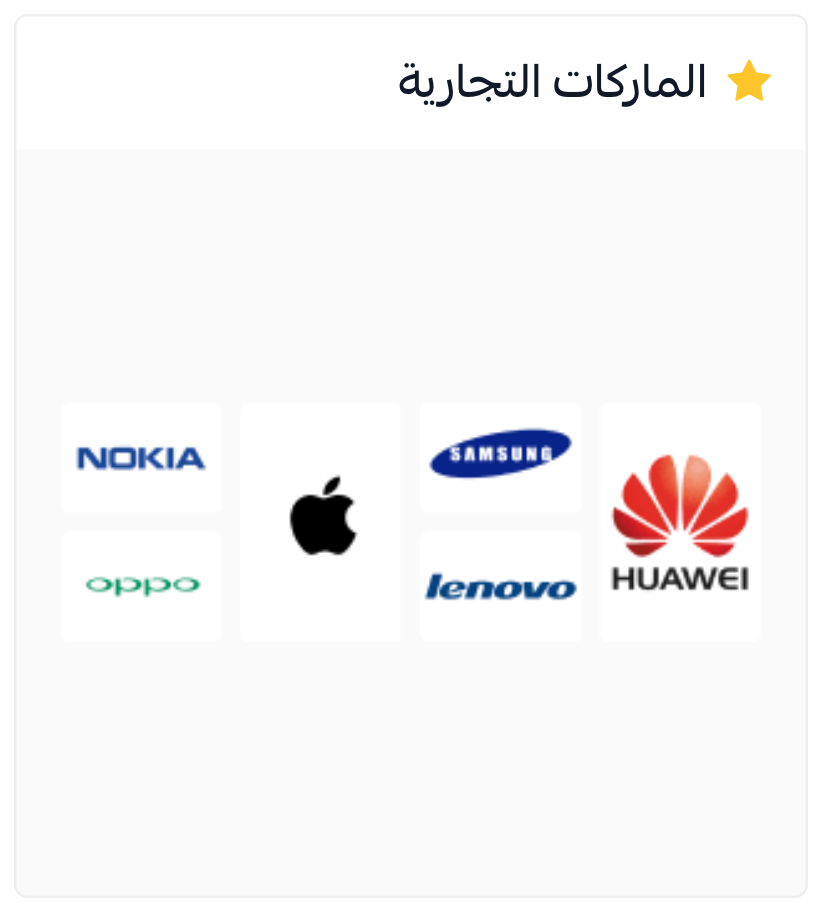
Choose and display more than one brand, with an optional main title and subtitle.
For more details, see customizing homepage components.
Theme settings
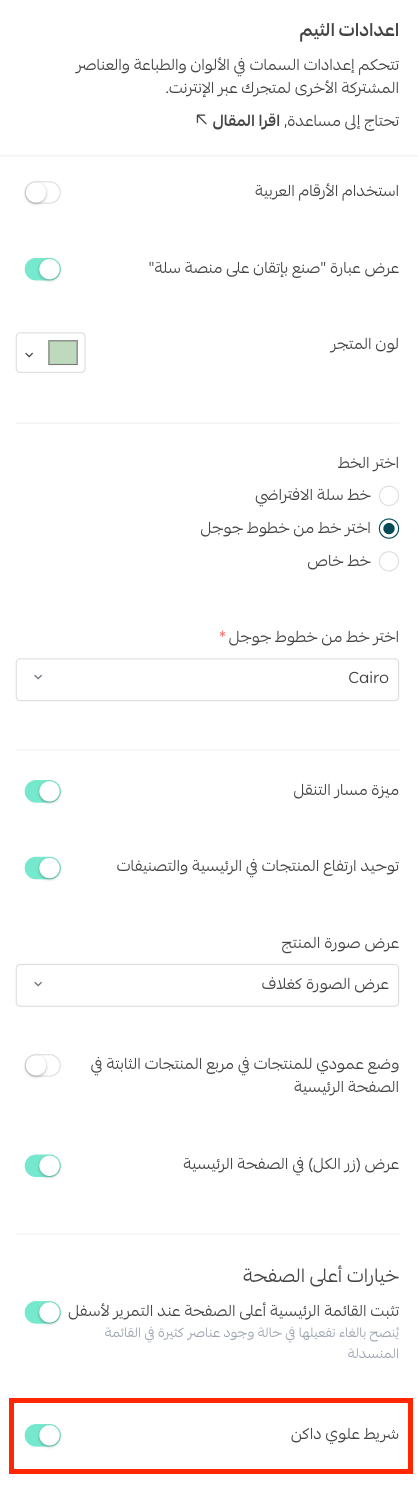
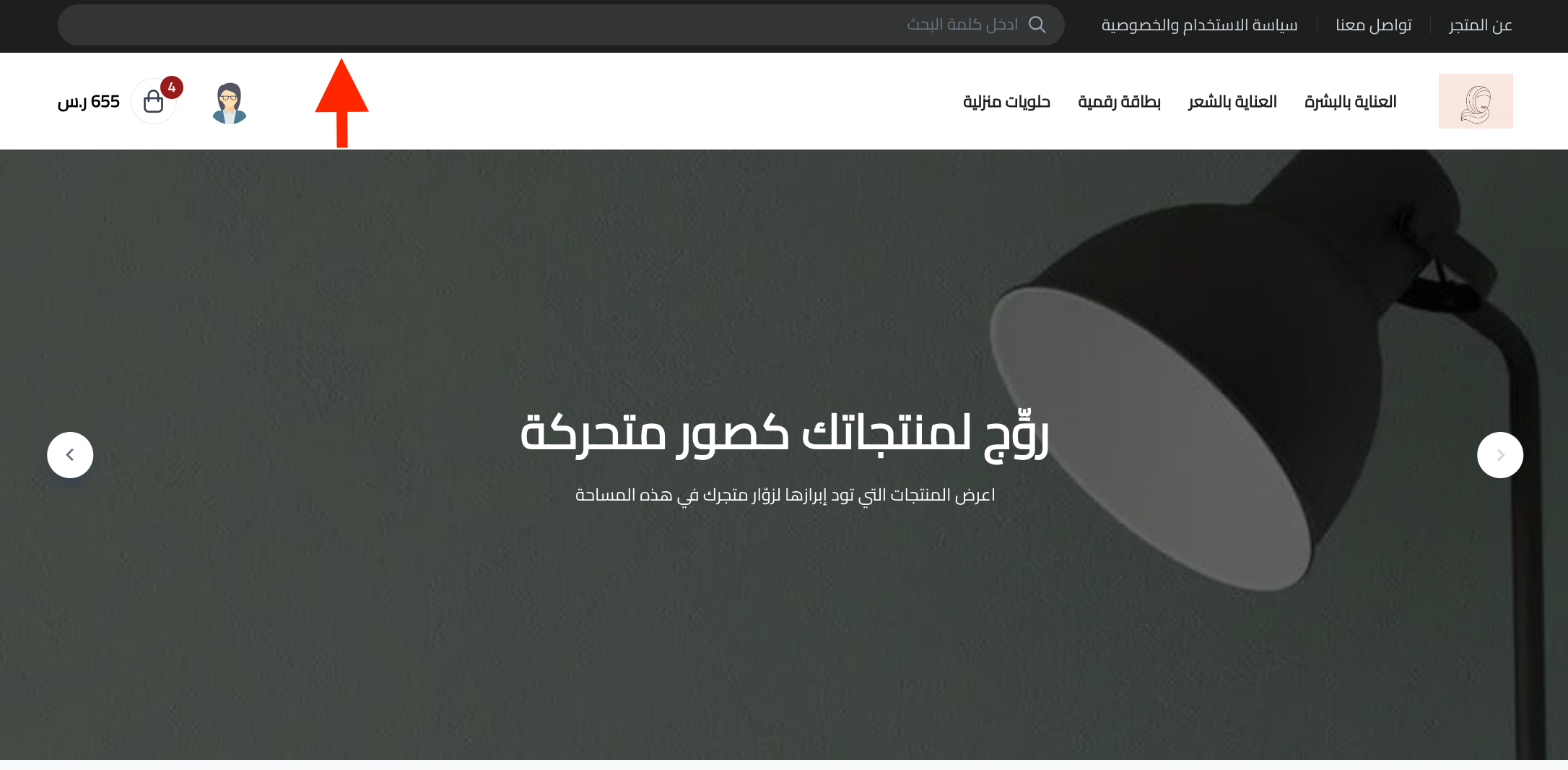
The dark mode setting for the top section of the theme lets you match the bar to your store's palette, whether your colors are light or dark.
On the Raed theme customization page, open (Design options) and turn the (Dark top bar) setting on or off.
The bar then looks like this:
❓ Frequently asked questions
What do I gain by using the Raed theme?
Beyond the flexible, professional design, your store gets:
- High performance on both desktop and mobile.
- An all-round better browsing experience on mobile.
- The latest SEO standards applied to how your pages appear in search results.
- Support for multiple languages and multiple branches.
Is the Raed theme free?
Yes. Raed is listed as a free theme in the Salla theme store, so you can install it from the theme details page at no cost.
Can I see the theme before I apply it to my store?
Yes. The theme customization page includes a preview of how your store will look, and there's also a demo store running the Raed theme that you can browse.
How many slides can the enhanced animated images component hold?
Up to 10 slides, and each one can have its own title, description, color, and link.
Is there a minimum number of quick links?
Yes, the quick links component needs at least three links before it will work.
Extra support resources
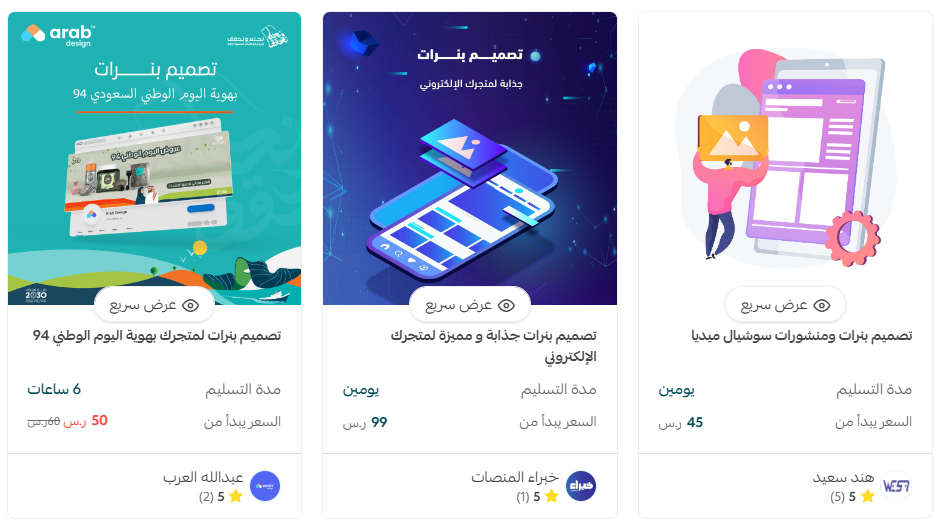
If you need a hand with your store's design, you can use merchant services, which offers specialist work such as logo design, banner and divider design, and color coordination from service providers verified by Salla.
Other learning resources
Learn from trainer Mohammed Al-Badr how to improve the user experience and design an online store that pulls visitors in, nudges them toward a fast buying decision, and leaves a lasting impression.