What happens to a customer question that arrives at 1 a.m.?
Most of the time it waits until morning, and by then the shopper has bought elsewhere. Radad AI keeps that conversation alive by replying automatically, at any hour, across the channels your customers already use. In this guide, you will learn how to install Radad AI, add its chat code to your store theme, upgrade your plan, and remove the app if you need to.
Radad AI is a customer service app for Salla stores that answers customer questions around the clock across multiple channels. It can show products, track orders, and keep conversations organized, and it hands a chat over to a human agent when a question needs one.
📌 Article overview
- How to connect the Radad AI app
- How to manage the Radad AI app
- Frequently asked questions
👣 How to connect the Radad AI app
1. From the main menu, click (All), then under helper tools click (App Store).

2. Search for the app using the search field.

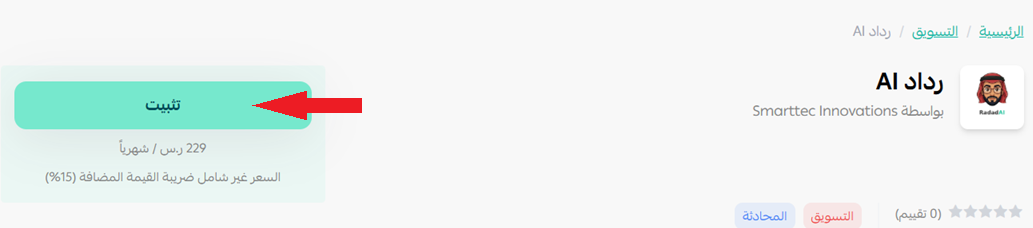
3. On the Radad app page, click (Install).
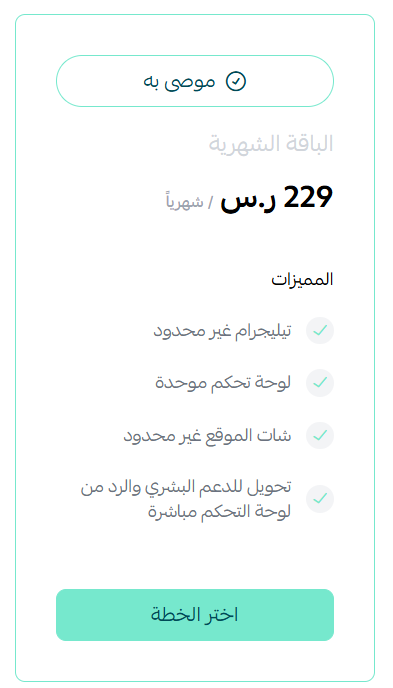
4. Choose the plan that fits you.
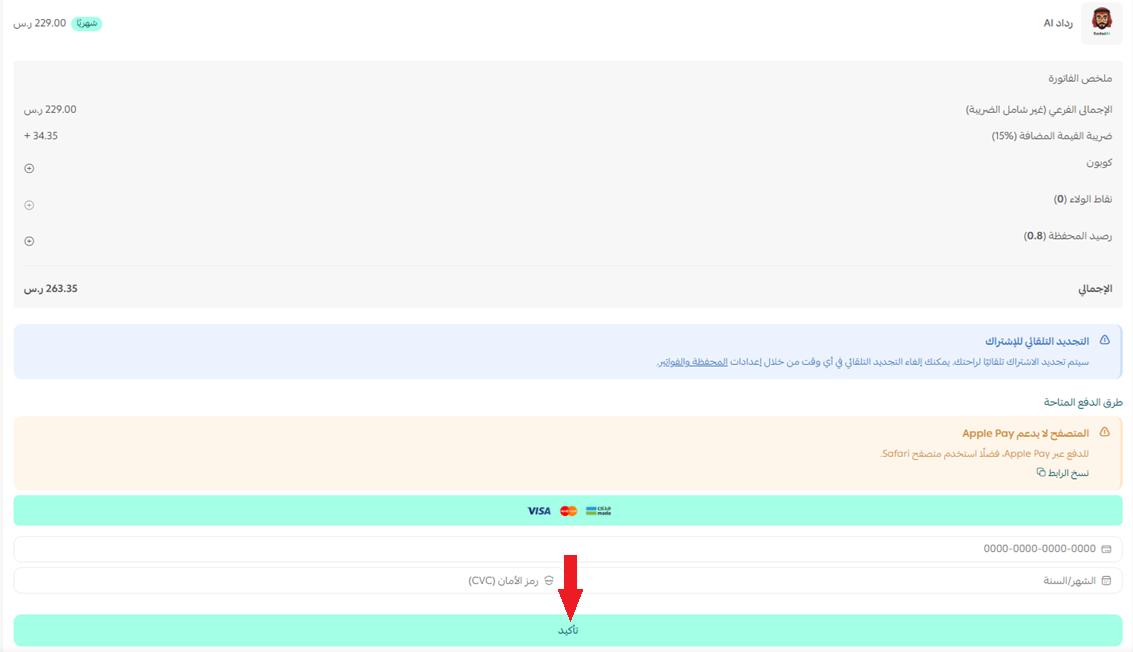
5. Complete your payment details, then click (Confirm).
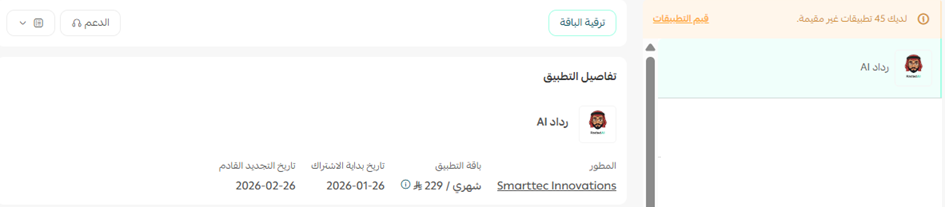
6. The app now appears on your My apps page.
7. Check your inbox for an email with the steps to finish connecting the app.
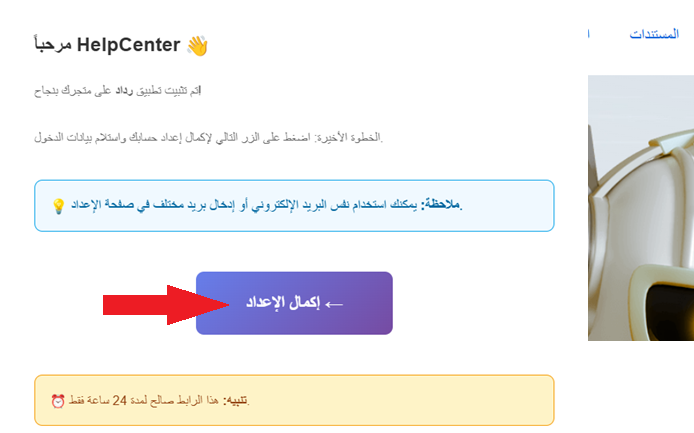
8. Click (Complete registration) to continue.
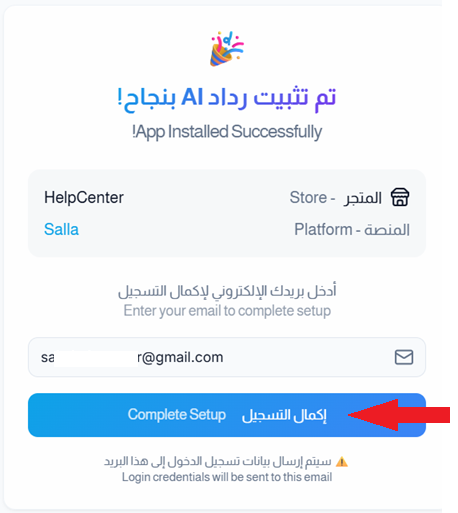
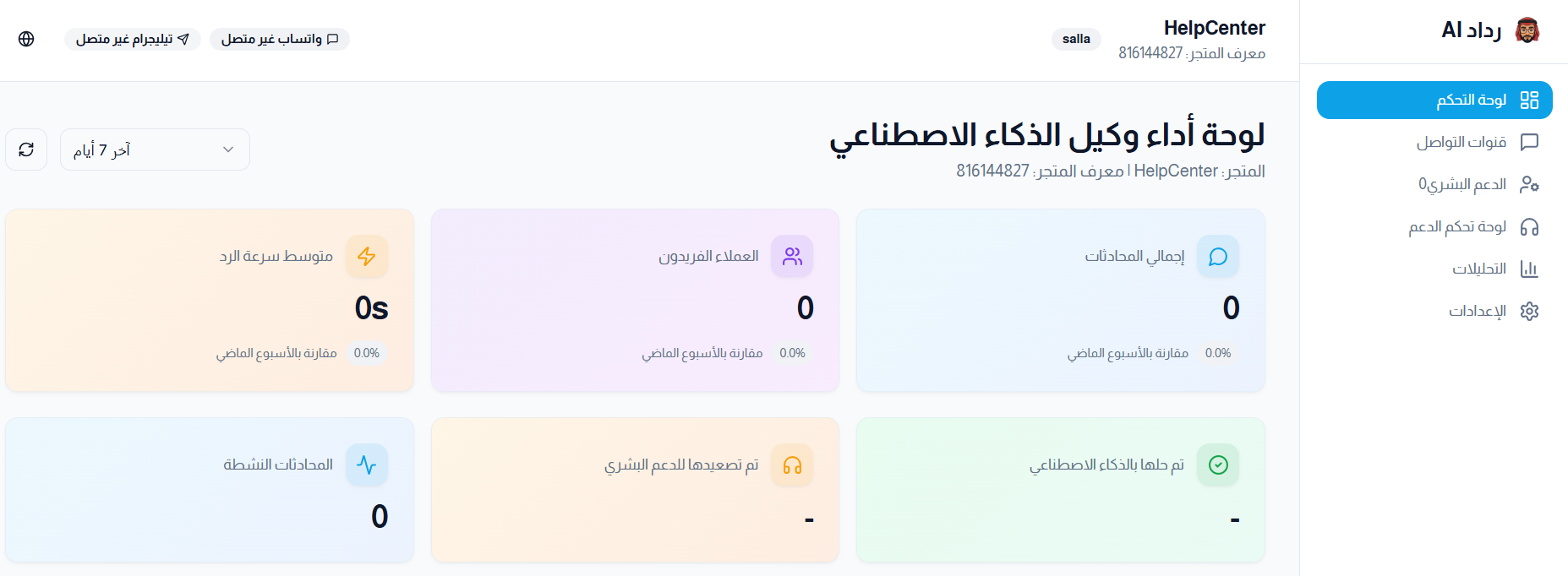
9. The Radad home page opens.
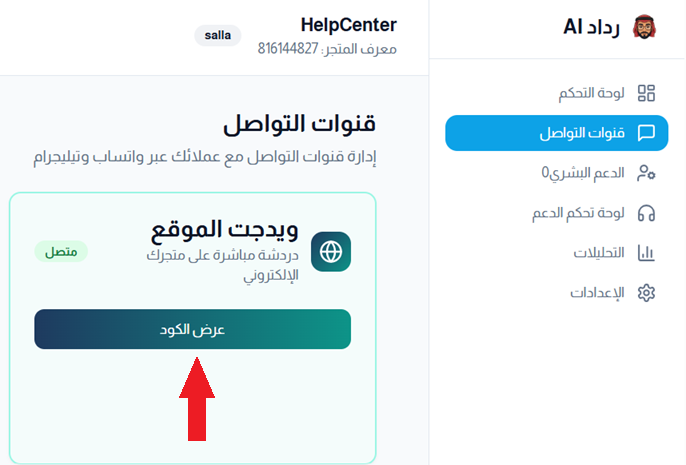
10. In the Radad side menu, open the (Communication channels) tab and click (View code) to copy the snippet you will add to your store.
11. Back in your store, from the main menu open the (Store and sales channels) tab and click (Store design).
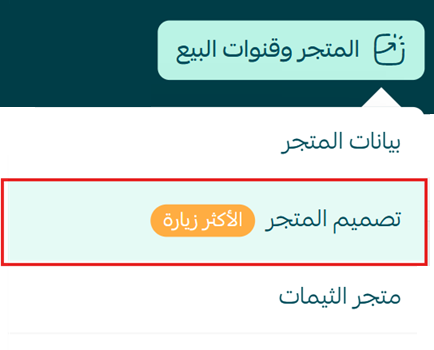
12. On the themes page, click (Customize).
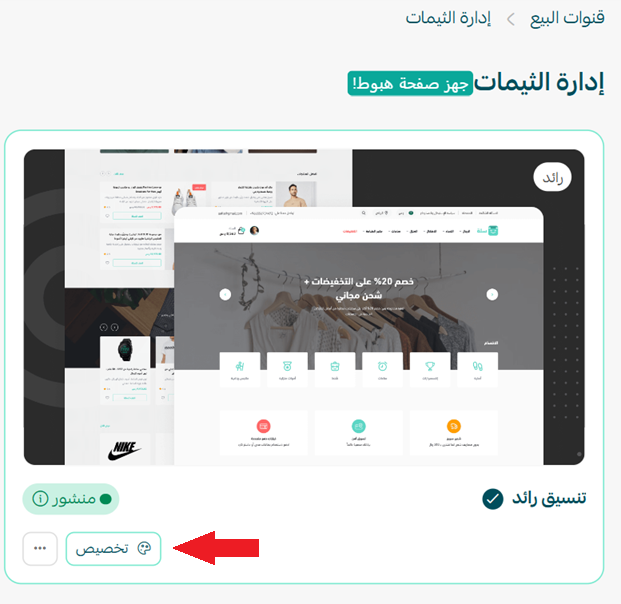
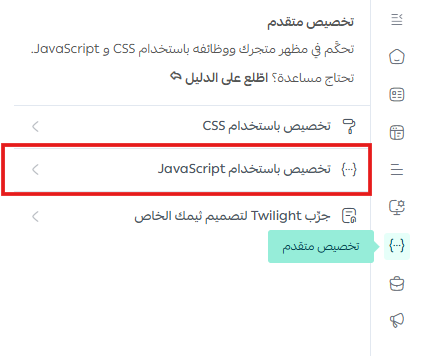
13. Open the (Advanced customization) tab and choose (Customize using JavaScript).
14. Paste the code you copied from Radad, then click (Save changes).
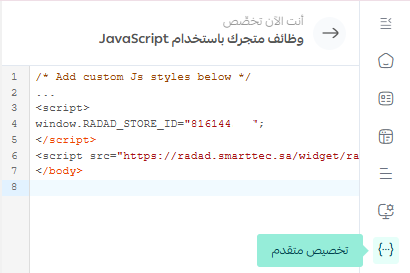
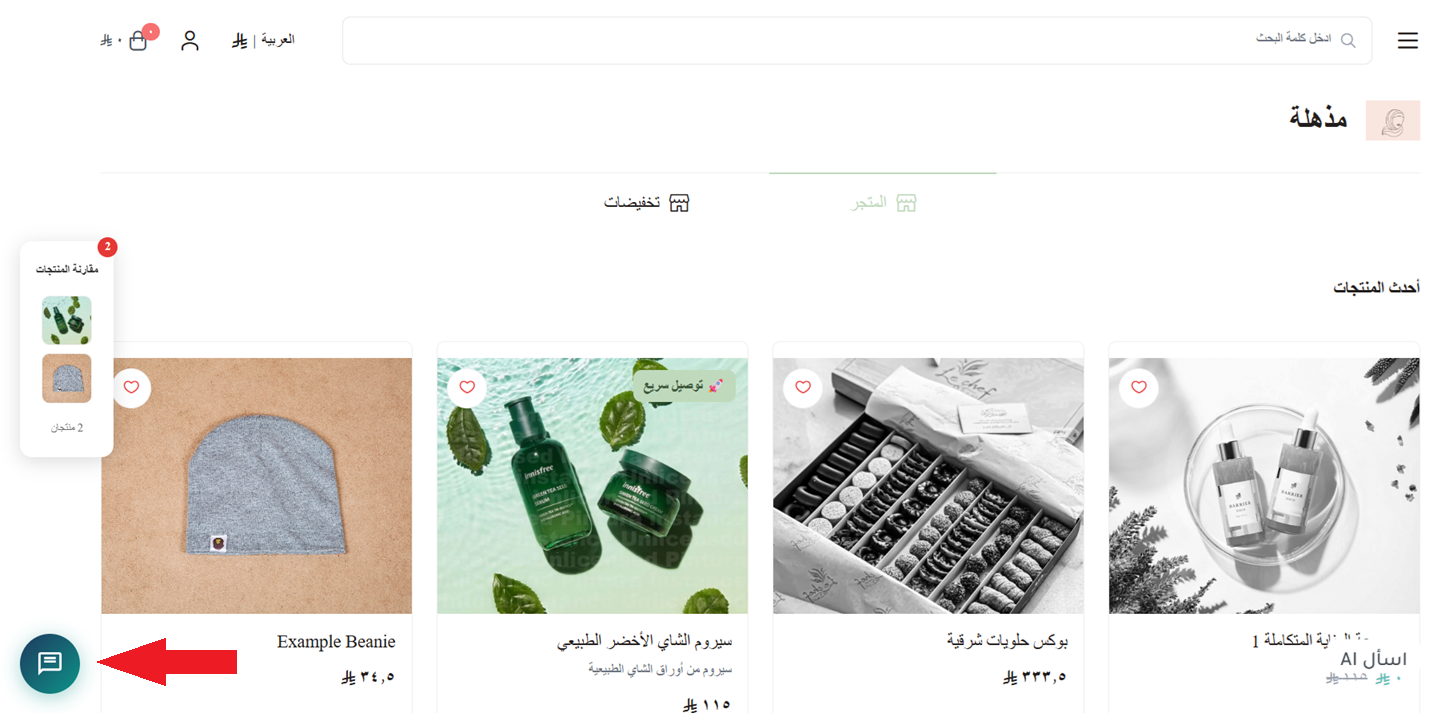
🎉 The chat icon now shows up on your storefront.
🚀 How to manage the Radad AI app
Upgrade your plan
1. From the app details page in your store, click (Upgrade plan).

2. Choose the plan you want, then click (Go to payment).

3. Complete your payment details and click (Confirm) to finish the upgrade.

Customize the app
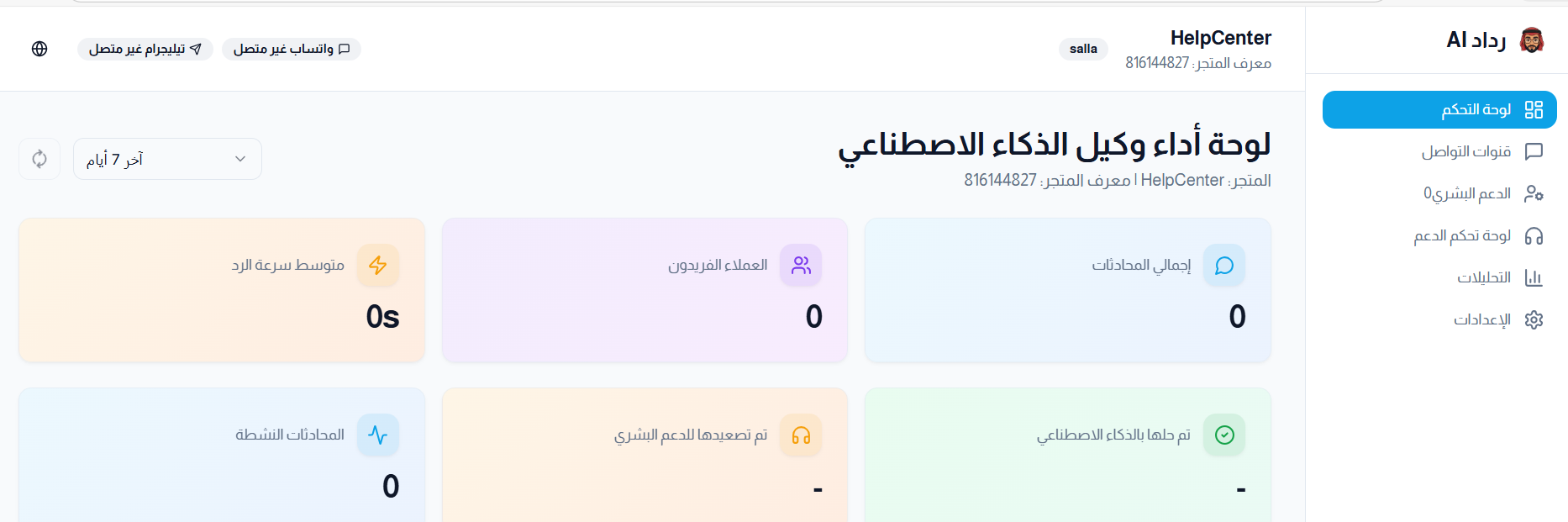
🎯 Control the app settings, manage conversations, and review your results from the Radad dashboard.
Delete the app
1. From the app options menu, click (Cancel subscription) and choose a reason.

2. From the same menu, click (Delete app) and choose a reason.

3. Open the Deleted apps page, then from the app options menu click (Delete app permanently) to remove it from your store for good.

📝 Important notes
The chat widget only appears after you paste the Radad code into your theme. Installing the app alone is not enough.
If you later remove the app, delete that JavaScript snippet from your theme as well.
Frequently asked questions
❓ Do I have to touch my theme code?
Yes, once. You paste a single snippet from Radad into (Customize using JavaScript) under advanced theme customization. No development work beyond that.
❓ Where do I find the code to copy?
In the Radad dashboard, under the (Communication channels) tab, click (View code).
❓ Can a customer still reach a real person?
Yes. Radad answers automatically and transfers the conversation to human support when the question calls for it.
❓ Where do I review conversations and results?
In the Radad dashboard, which is also where the app settings live.
An always-on first reply is often the difference between a question answered and a cart abandoned. For more details, see the Radad app page.