Did you know that one small button on the product page puts eight product controls at your fingertips?
The More button on the product page gathers the everyday product actions in one menu — copying the product link, duplicating the product, checking its statistics, viewing and exporting its orders, reviewing its ratings, controlling where it's displayed, and deleting it. In this guide, you'll learn what each option in the More menu does and how to use it.
The More button on a Salla product page opens a menu of eight product controls: copy product link, duplicate product, product statistics, view product orders, view product reviews, product display channels, export product orders, and permanent delete. Each option acts on that specific product directly from its page.
📌 Article overview
- What each option in the More menu does
- Frequently asked questions
🎯 What each option in the More menu does
The More button on the product page offers the following product controls:

Here's what each option does:
1. Copy product link
Copies the product's link to your clipboard so you can share it or paste it anywhere.

When you click (Copy product link), a message confirms the link was copied.

2. Duplicate product
Duplicates the product page with all of its data. This speeds up adding similar products that differ only in small details.
To duplicate a product, click (Duplicate product) from the More menu.

Click (Confirm) in the alert message.

A new product appears with the same data as the original, as shown here:

You can now edit the copy's data however you need.
3. Product statistics
Takes you to a quick statistics page for the product.

Select the time period the report should cover, then click (Show), as in the figure:

4. View product orders
Click (View product orders).

You're taken straight to the page of that product's orders:

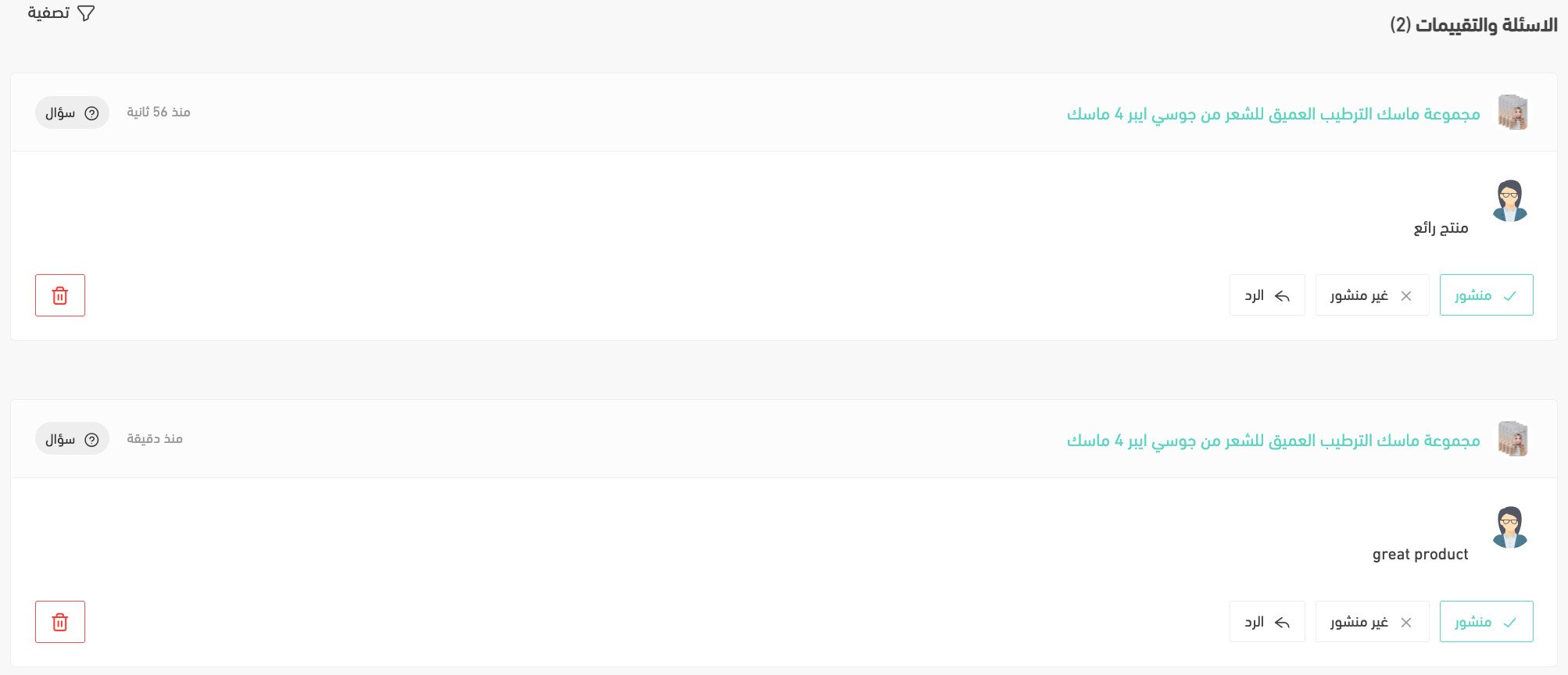
5. View product reviews
Shows the reviews of that specific product.

You're taken straight to the product reviews page:
6. Product display channels
Controls whether the product is shown or hidden in your store or in the Mahally app.

Your change takes effect immediately.

7. Export product orders
Salla lets you export a product's orders in two formats: xlsx and csv.

The product's orders are then sent to your email.

8. Permanent delete
Be careful — this permanently deletes the product from your store.

❓ Frequently asked questions
Can I restore deleted products?
Yes. For more details, see restoring deleted orders and products.
What is the fastest way to add products that are almost identical?
Use (Duplicate product) from the More menu. It creates a full copy of the product with all of its data, and you then edit only the details that differ.
Can I hide a product without deleting it?
Yes. Use (Product display channels) from the More menu to hide the product in your store or in the Mahally app — the change applies immediately, and you can show it again the same way.
The More menu keeps the actions you repeat most often one click away from the product itself — the faster you make these controls part of your routine, the less time product management takes.