Would your visitors buy today if they knew the offer ended tonight?
Urgency is one of the oldest reasons people stop browsing and check out. The Popup Snap discount countdown app puts that urgency on screen: it shows a popup with a live countdown timer, so visitors see exactly how long the offer lasts. Along the way it collects customer details, lets you tailor the offer you are promoting, and lifts engagement across your store without any design work. In this guide, you'll learn how to install the Popup Snap app, set up your Popup Snap account, and remove the app.
Popup Snap displays a countdown timer inside a popup on your store, pushing visitors to act before the offer expires. Install it from the Salla App Store, choose a plan, approve the permissions, and complete the payment. You then set a password from the welcome email and manage your popups from the Popup Snap dashboard.
📌 Article overview
- How to install the Popup Snap countdown app
- How to set up your Popup Snap account
- How to remove the app
- Frequently asked questions
🚀 How to install the Popup Snap countdown app
1. From the main menu, click (All), then under helper tools, click (App Store).

2. Find the app using the search field.

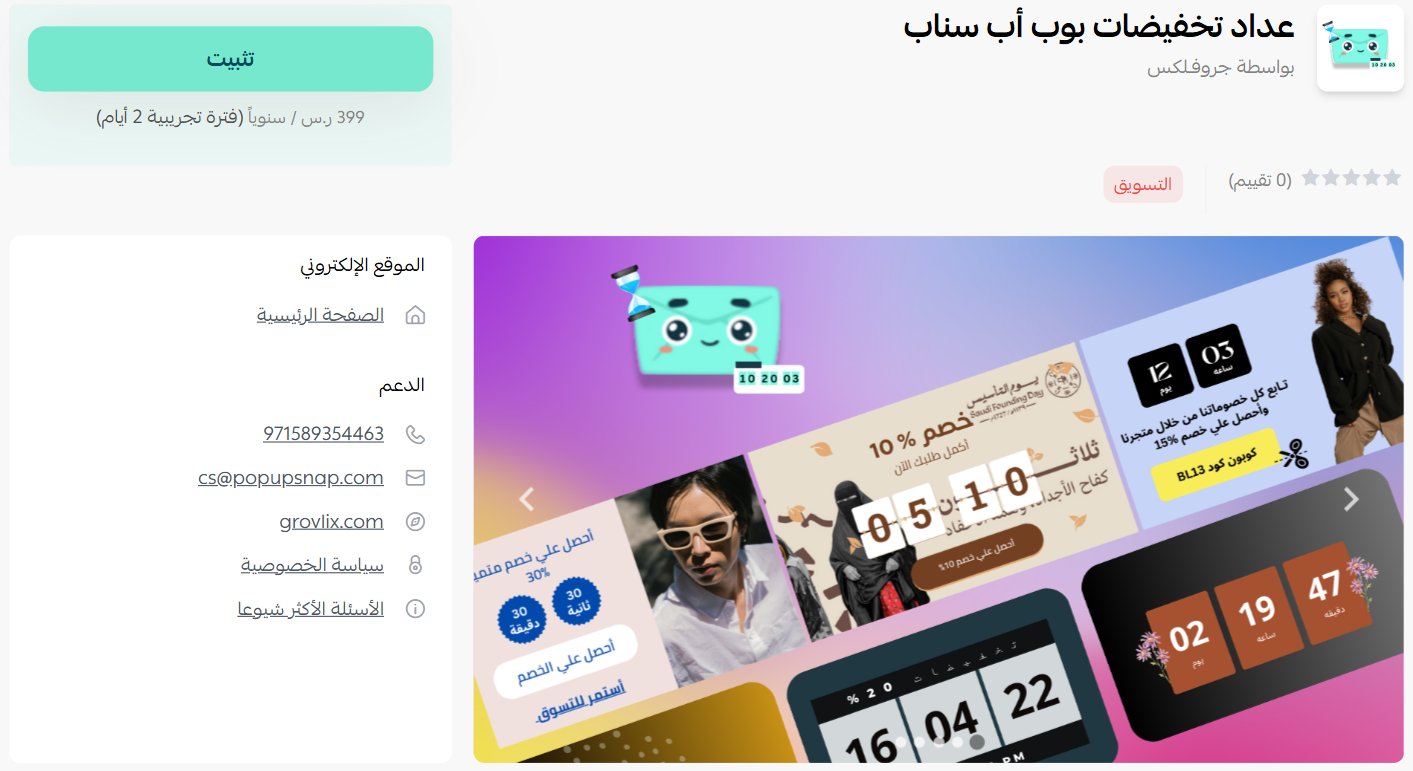
3. On the Popup Snap discount countdown app page, click (Install).
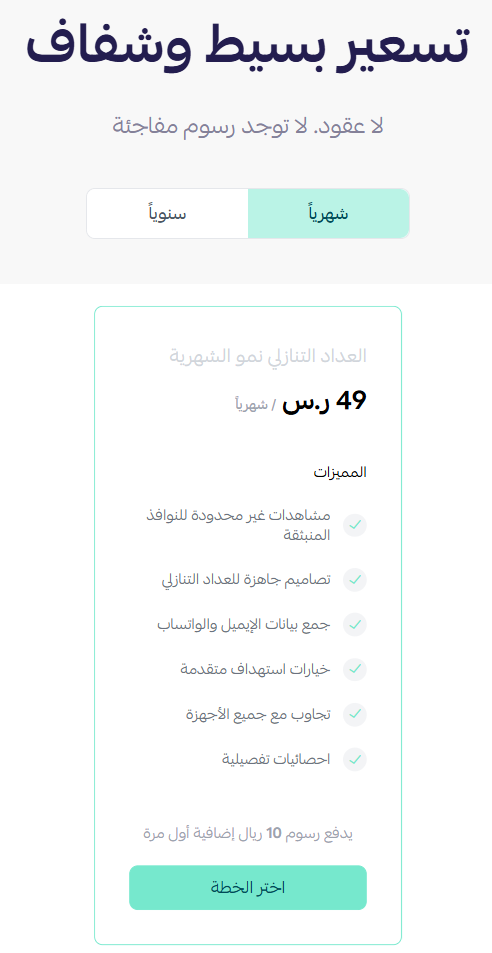
4. Choose the plan that fits your business to continue with the installation.
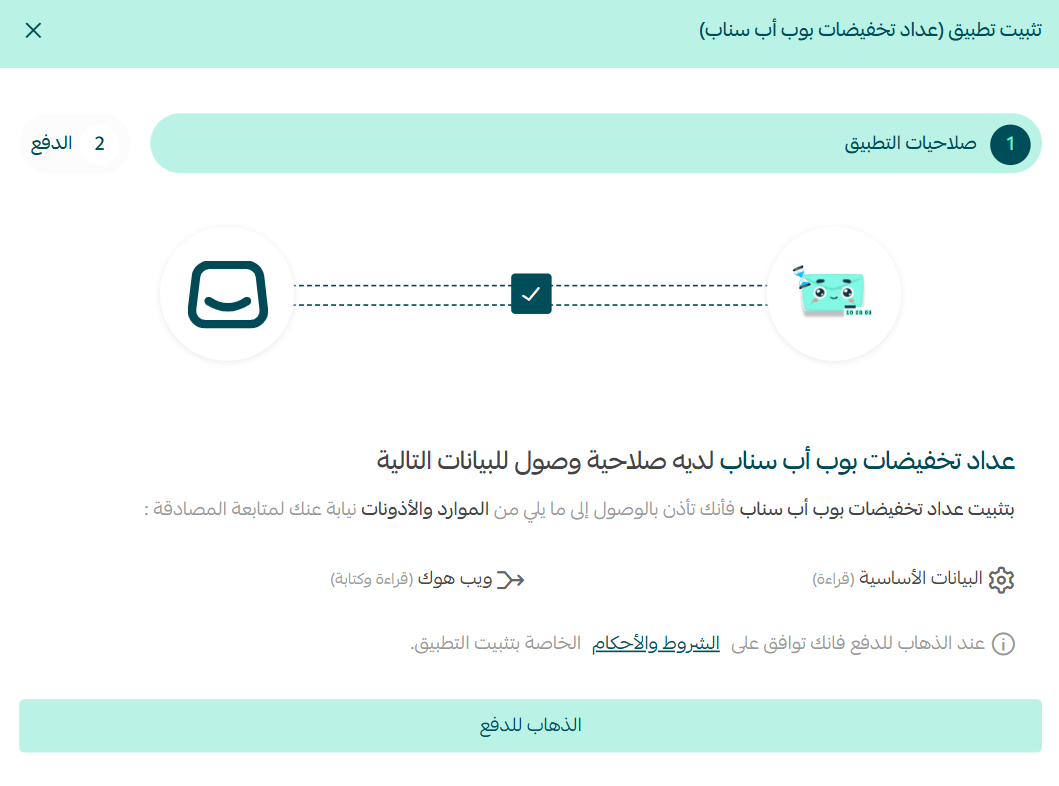
5. Review the permissions the app requests, then click (Go to payment).
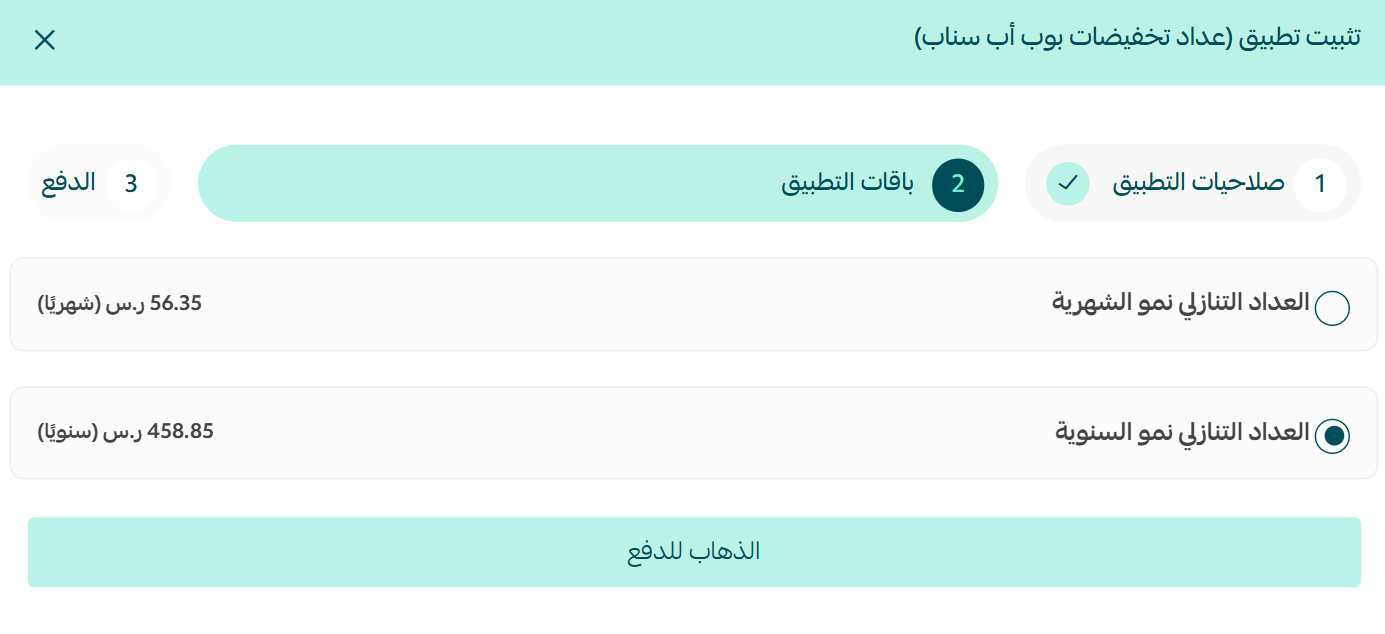
6. Choose the plan that matches your business activity.
7. Complete the payment to unlock the app's features.
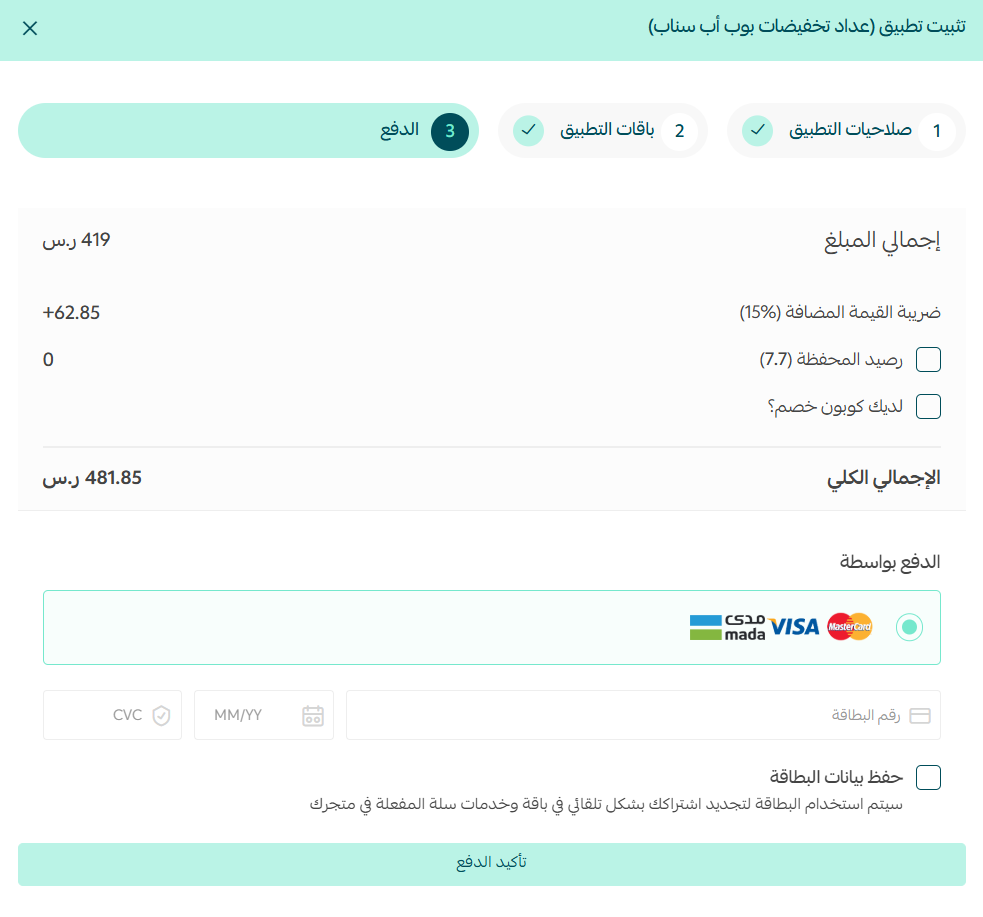
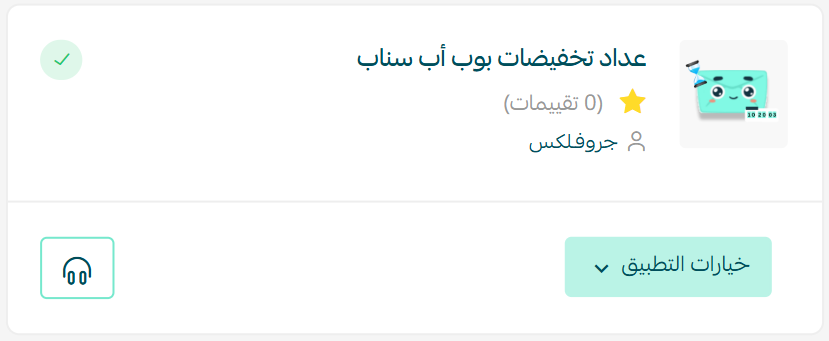
Popup Snap is now installed on your store.
👣 How to set up your Popup Snap account
Open the Popup Snap dashboard
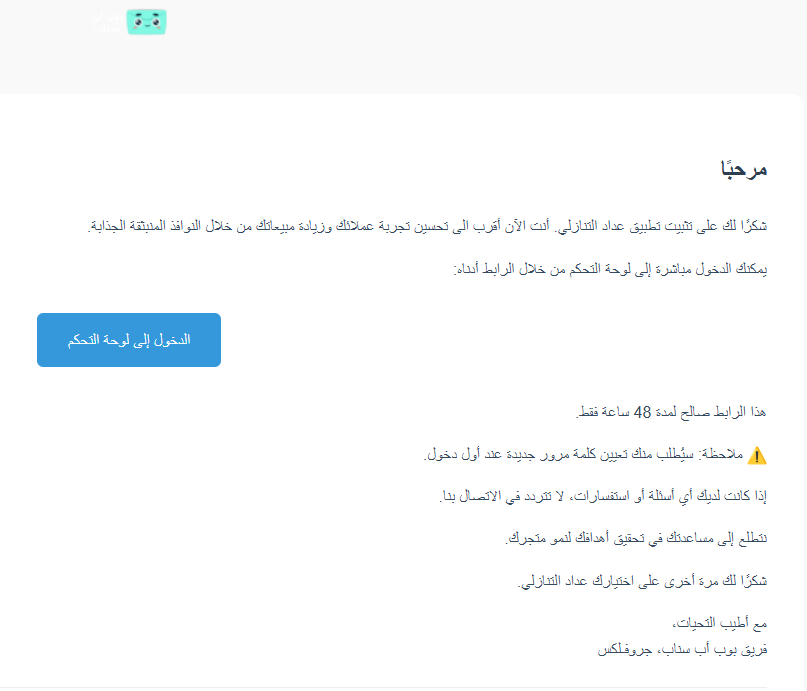
1. Check your inbox once the installation finishes, then click (Go to dashboard) in the email you receive.
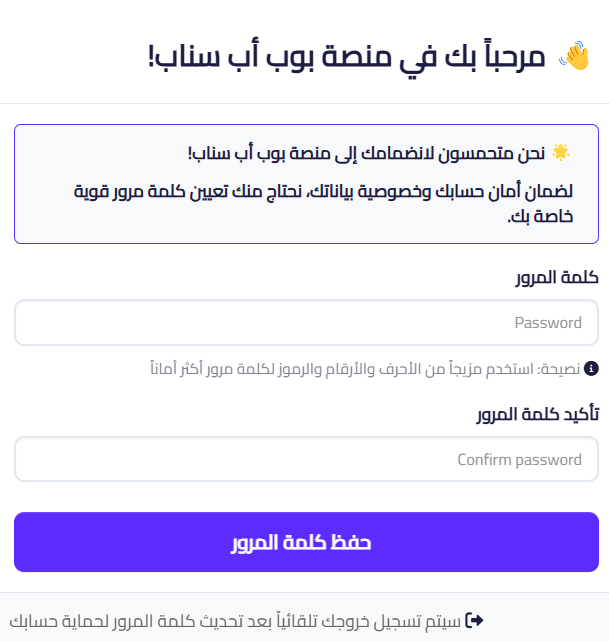
2. Set a password for your account.
3. You land on the Popup Snap dashboard. Your discount countdown is ready to configure.
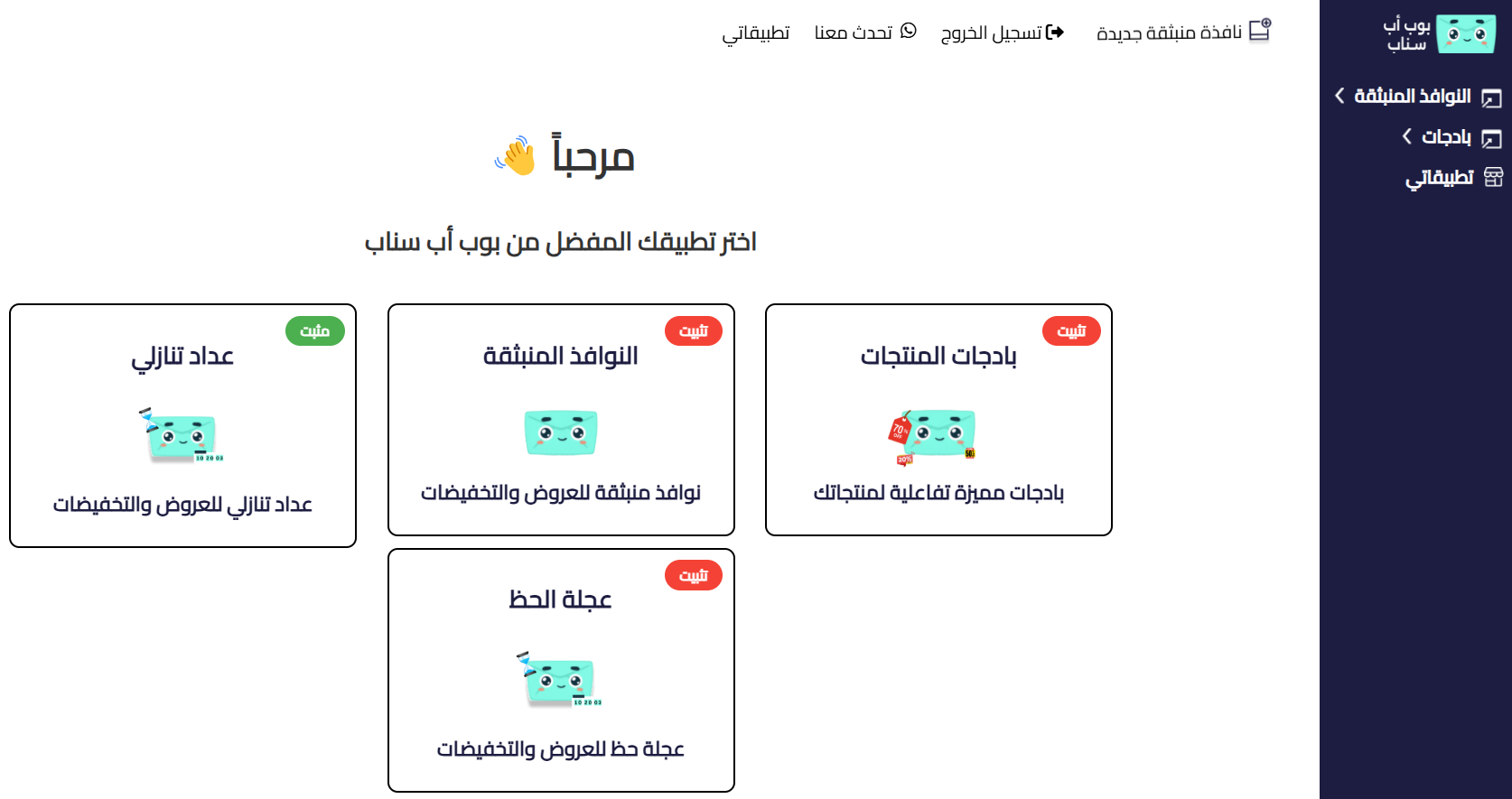
For more on managing your account, see Popup Snap discount countdown.
Remove the app
From the Popup Snap discount countdown app, click (App options), then click (Delete app).
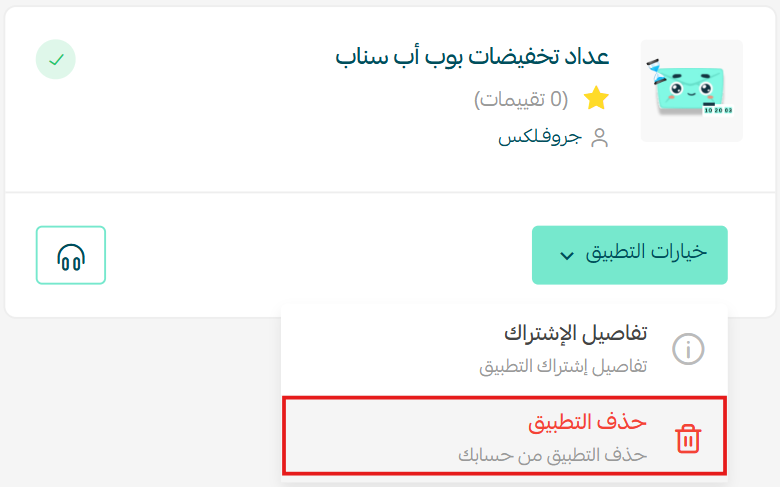
For more details, visit Popup Snap discount countdown.
📝 Important notes
- Popup Snap is a paid app. You select a plan and complete the payment as part of the installation.
- The countdown popup itself is designed and scheduled on the Popup Snap dashboard, not in your Salla dashboard.
- The welcome email is what gives you access to the dashboard, so set your password before you close it.
❓ Frequently asked questions
What does the Popup Snap countdown actually show shoppers?
A popup window with a live countdown timer for your offer, so visitors can see how much time is left and decide quickly instead of leaving to think about it.
Does it do anything besides show a timer?
Yes. The popup also collects customer details and lets you tailor which offer you promote, which is what makes it useful for engagement and not just urgency.
How do I reach the Popup Snap dashboard?
Click (Go to dashboard) in the email Popup Snap sends after installation, set your password, and you are taken straight to it.
Where do I change the countdown settings?
On the Popup Snap dashboard. Your Salla dashboard handles the app subscription; the popup design and timing live on the Popup Snap side.
How do I remove Popup Snap from my store?
Open (App options) on the app and click (Delete app).
A discount that runs forever stops feeling like a discount. A visible deadline is what turns a good offer into a decision.