What if you could talk to a shopper at the exact moment they're about to leave your store?
Most visitors browse, hesitate, and go. Pop Top gives you a way to step in while they're still on the page: side notifications and custom popups that appear as people browse, aimed at the behavior and interests of that specific visitor. Built-in analytics then show you which of your popup campaigns actually earned their place. In this guide, you'll learn how to install Pop Top, subscribe to a plan, reach your Pop Top dashboard, and remove the app.
Pop Top is a Salla app that displays side notifications and custom popups to shoppers while they browse your store. You design promotional campaigns targeted at visitor behavior and interests, then measure each campaign with built-in analytics. Install it from the Salla App Store and manage campaigns on the Pop Top site.
📌 Article overview
- What Pop Top does for your store
- How to install Pop Top
- How to subscribe to a Pop Top plan
- How to manage and delete Pop Top
- Frequently asked questions
✅ What Pop Top does for your store
- Instant notifications triggered by how a customer behaves on your site.
- High-impact promotional popups.
- Advanced analytics for tracking performance and improving results.
🚀 How to install Pop Top
1. From the main menu, click (All), then under helper tools, click (App Store).

2. Search for the app using the search field.

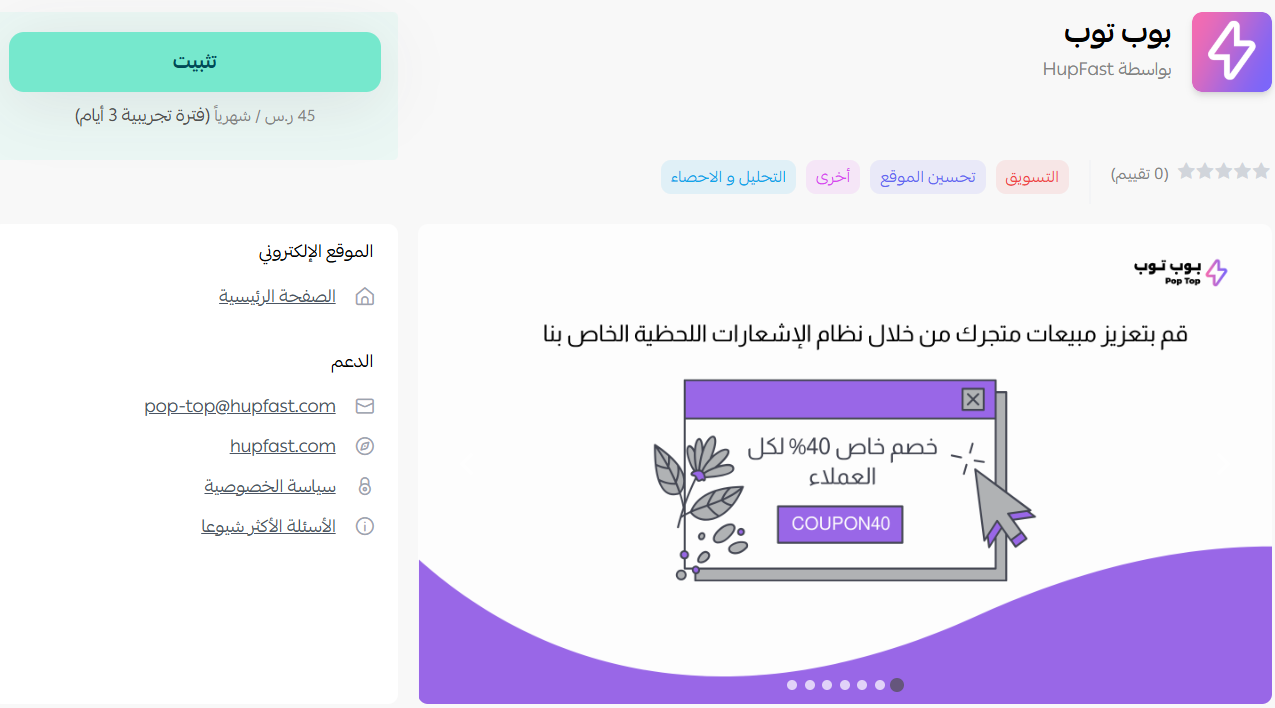
3. On the Pop Top app page, click (Install).
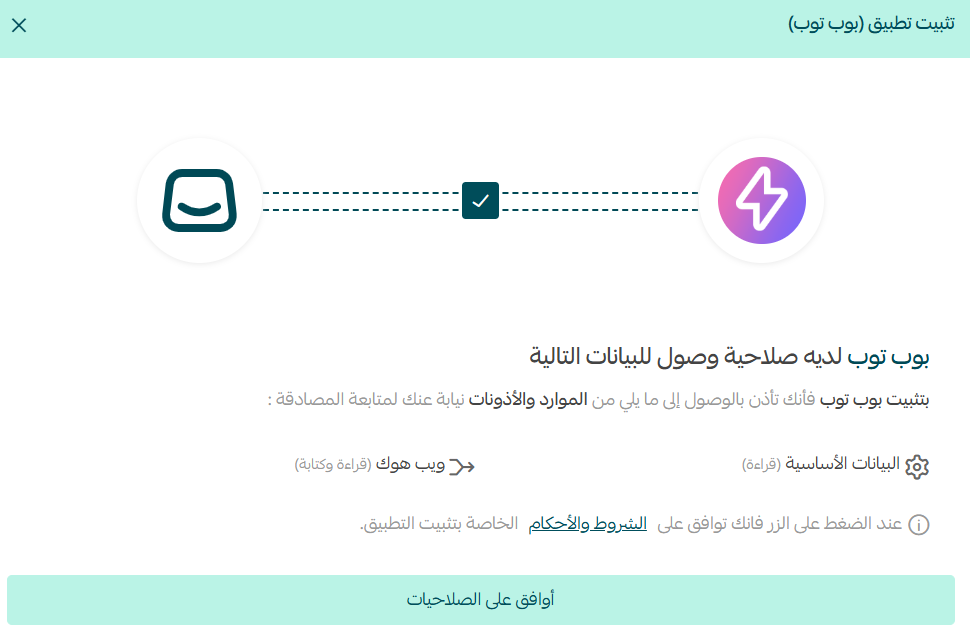
4. Review the permissions the app requests, then click (I agree to the permissions).
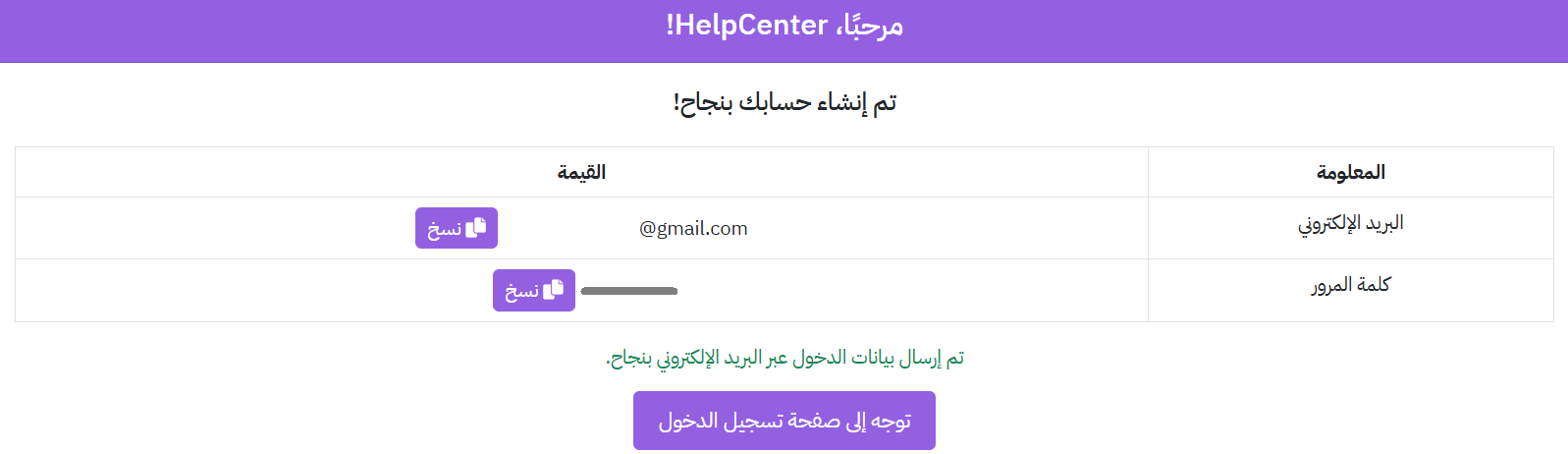
5. A window appears with the login details for your account on the Pop Top site. Save them.
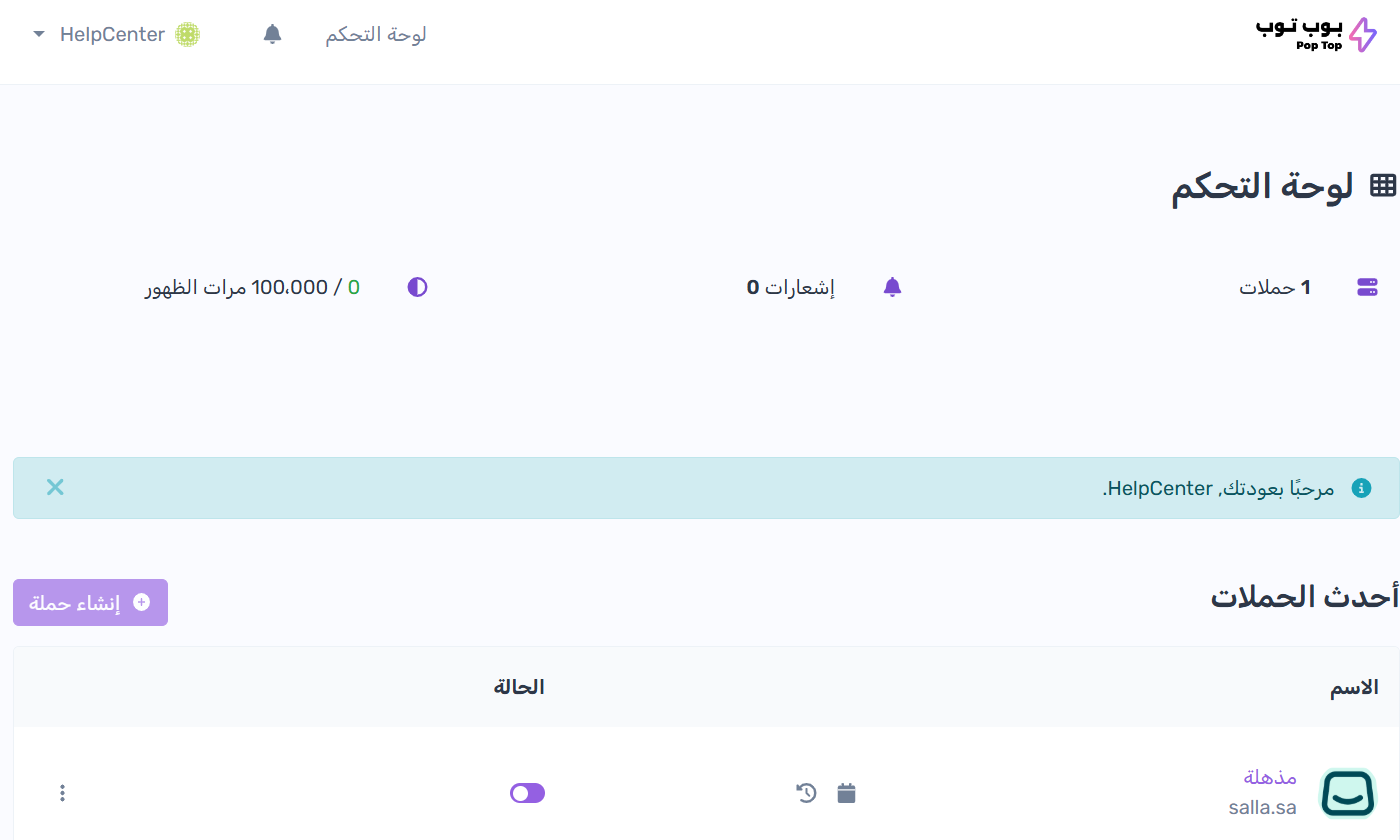
6. Sign in with those details to open your Pop Top dashboard.
🚀 How to subscribe to a Pop Top plan
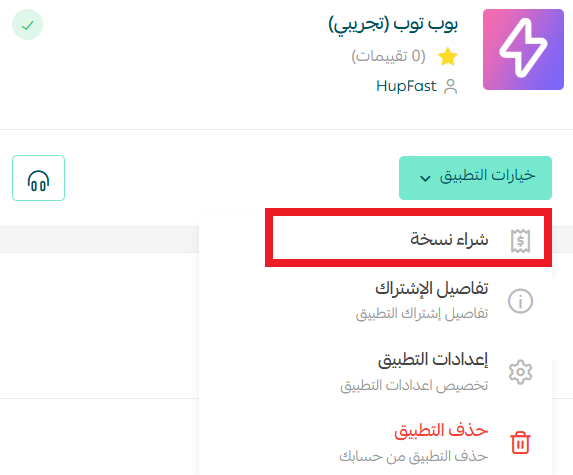
1. From your installed apps page, open the (App options) menu and click (Buy a copy).
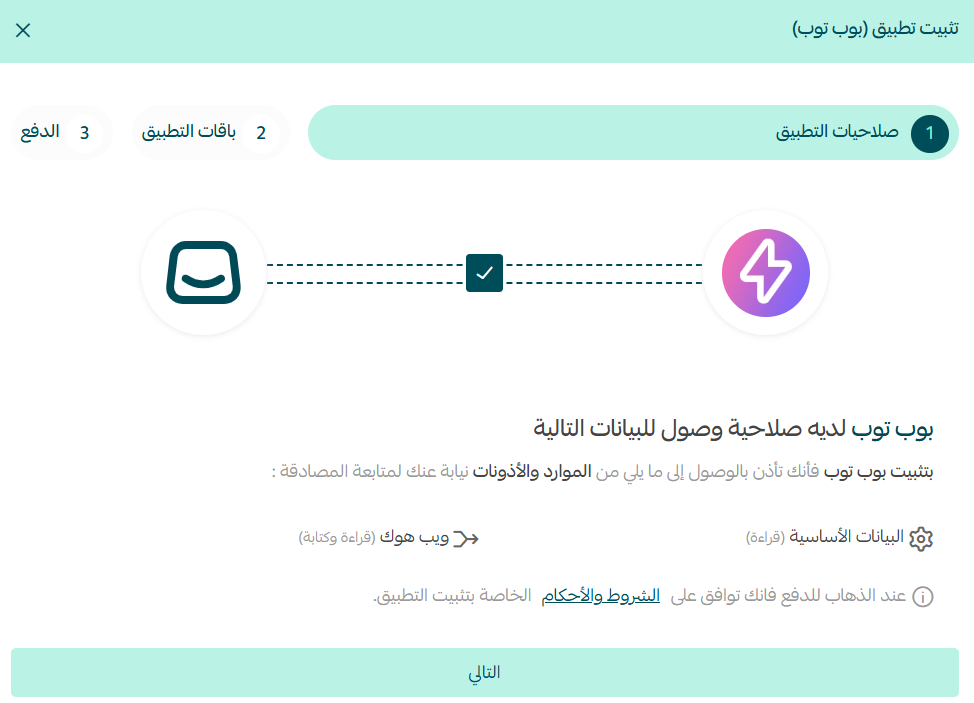
2. Review the app permissions, then click (Next).
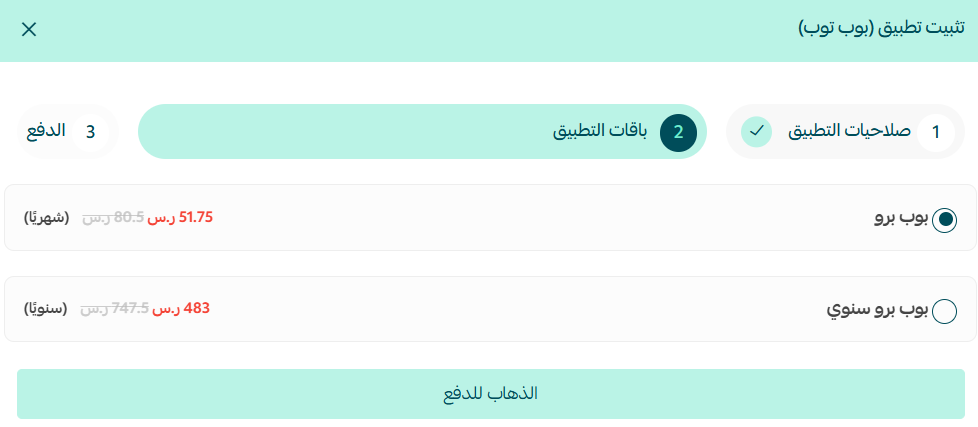
3. Choose the plan that fits your business, then click (Go to payment).
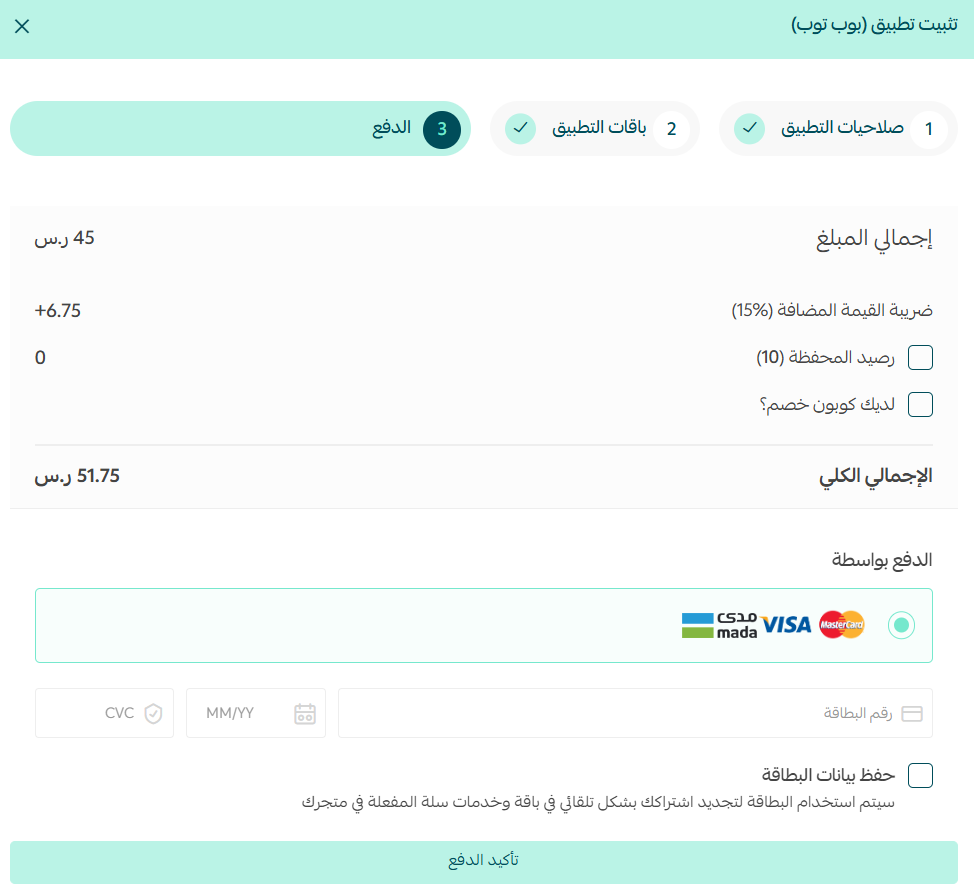
4. Complete the payment to unlock the app's features.
📝 Important notes
Popups and notifications are designed on the Pop Top site, not inside your Salla dashboard. Installing the app connects your store to that account.
Your login details appear once, in the window shown during installation. Copy them before closing it.
For more details on managing your account, visit the Pop Top website.
🚀 How to manage and delete Pop Top
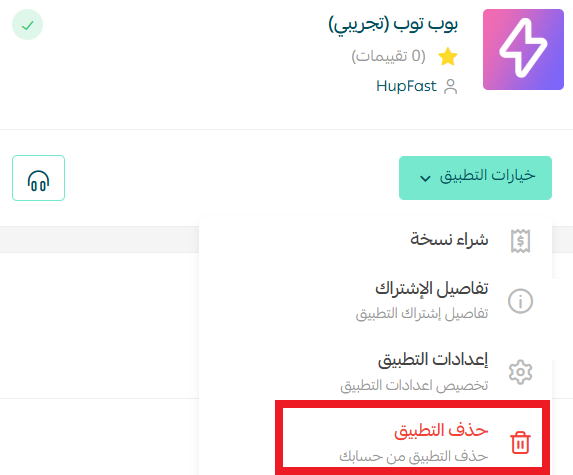
Delete the app
From the Pop Top app, click (App options), then click (Delete app).
❓ Frequently asked questions
What does Pop Top show my shoppers?
Side notifications and custom popups that appear while a visitor is browsing your store.
Can I target popups to specific visitors?
Yes. Campaigns can be aimed at visitor behavior and interests rather than shown to everyone equally.
How do I know whether a campaign worked?
Pop Top includes analytics tools that track the performance of each campaign so you can adjust it.
Do I pay during installation?
No. You install the app first, then subscribe separately through (App options) and (Buy a copy).
How do I remove Pop Top from my store?
Open the app, click (App options), then click (Delete app).
For more details, visit the Pop Top app page.
A popup only earns its interruption if it says something the shopper wants at that moment. Start with one campaign, read the numbers, and build from what works.