Would you rather block a suspicious order at checkout, or chase a chargeback after it lands?
Payment restrictions are conditions you place on the payment options in your store, so you can cut fraud risk and keep transactions secure — for example, restricting a payment method for certain countries or certain customers to protect your revenue. In this guide, you'll learn how to add payment restrictions to your store, how to build and customize a restriction rule, and where rejected or under-review transactions show up.
Payment restrictions are rules that control when a payment method is offered. Add the feature from Store settings, then Payment restrictions, and create a restriction: pick the payment methods, set a condition such as card country or customer group, and choose what happens when it's met.
📌 Article overview
- How to activate payment restrictions
- Set up and customize a payment restriction
- Frequently asked questions
🚀 How to activate payment restrictions
1. From the dashboard side menu, click (Store settings).

2. From the store settings page, click (Payment restrictions).
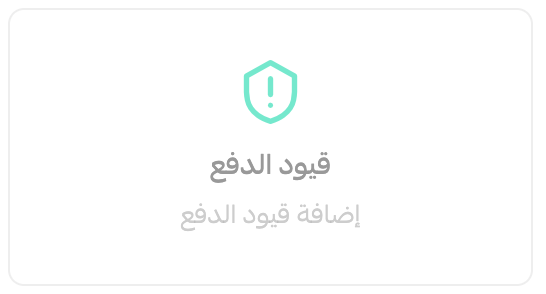
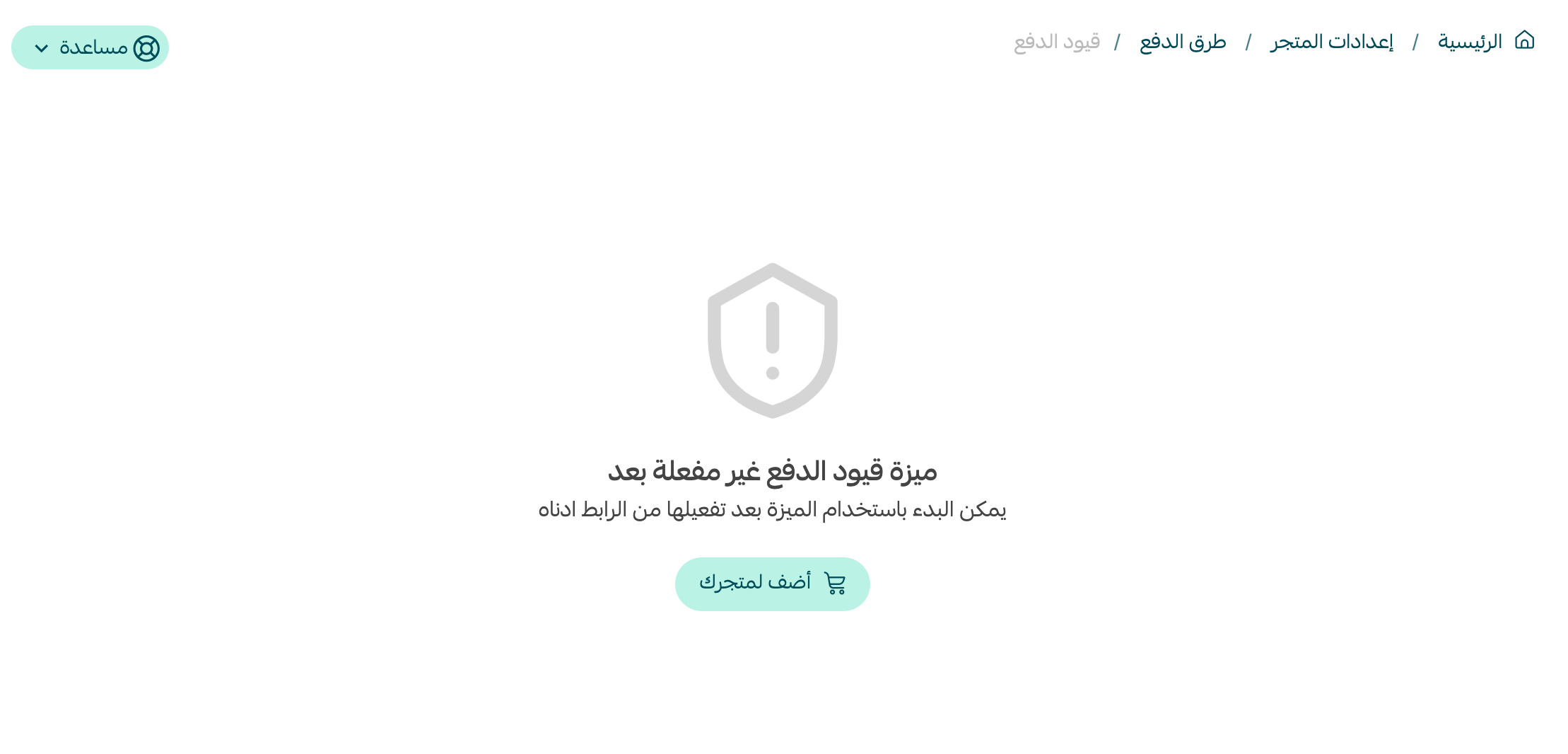
3. On the payment restrictions page, activate the feature by clicking (Add to your store).
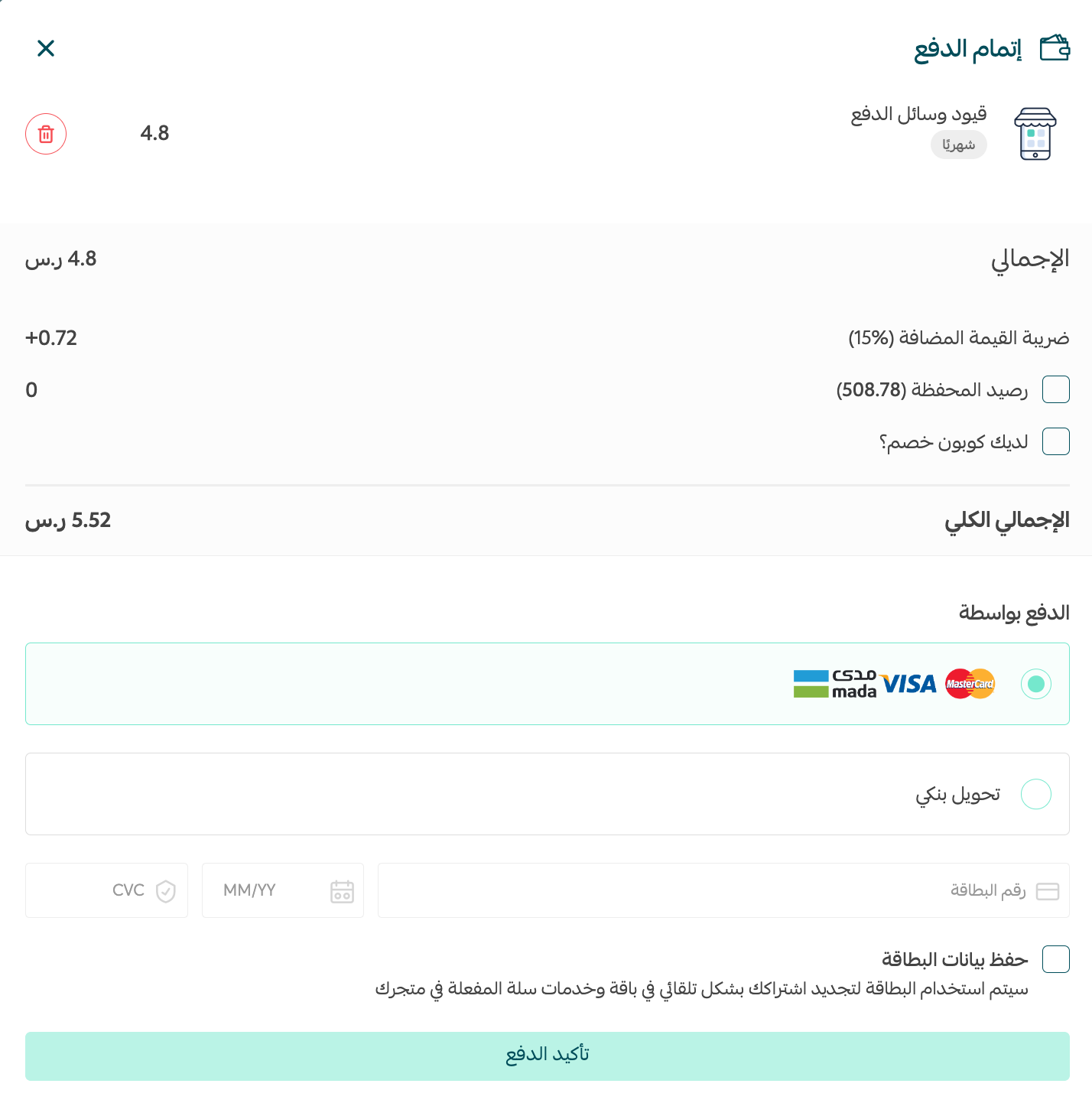
4. Complete the payment to start using the feature.
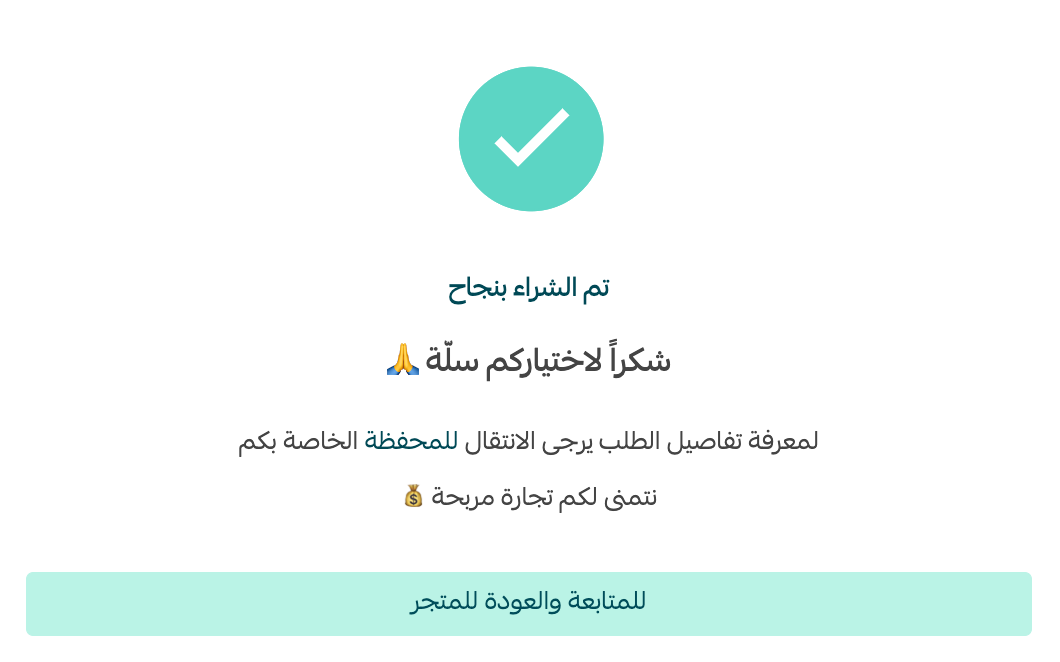
A message confirms that the purchase went through.
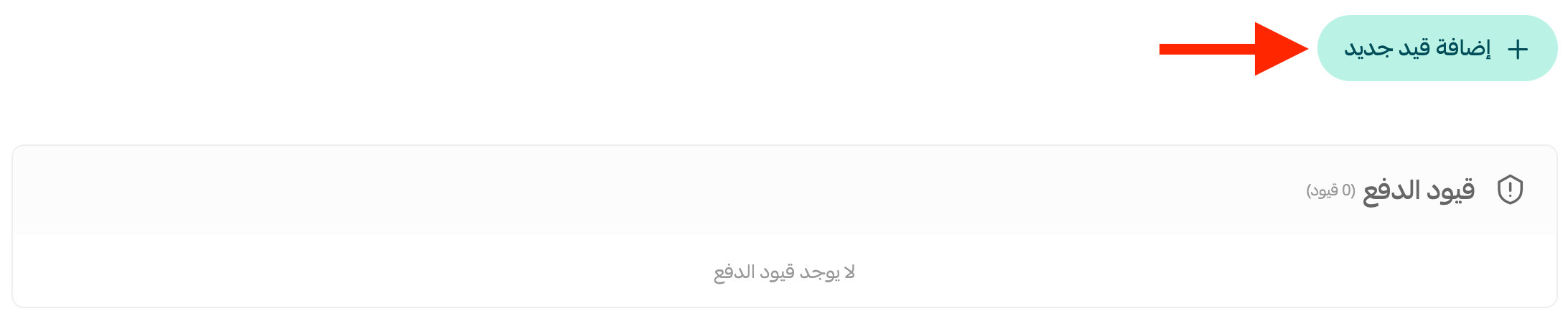
5. Back on the payment restrictions page, click (Add new restriction).
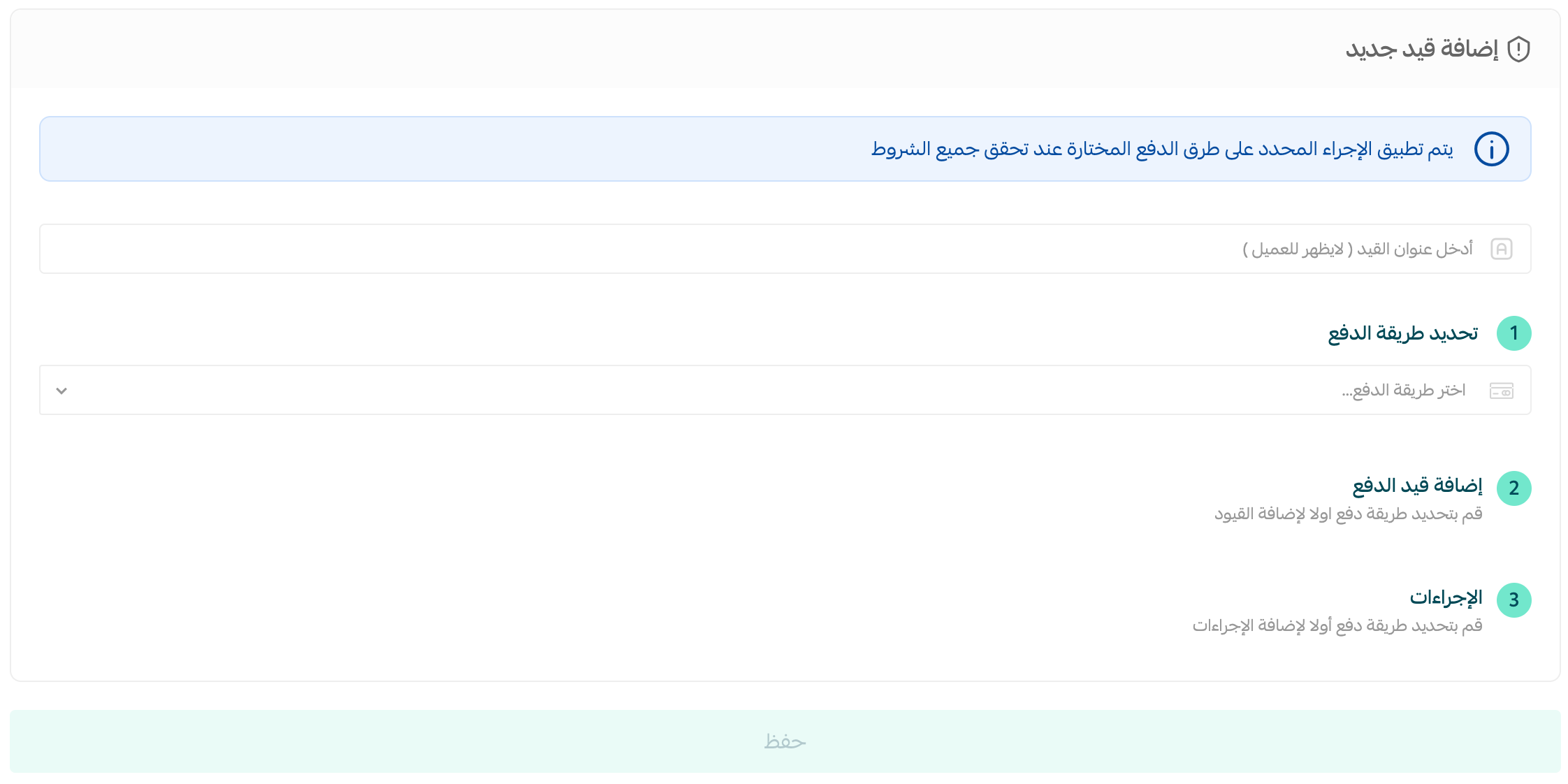
6. Enter the restriction name and its details, then click (Save).
👣 Set up and customize a payment restriction
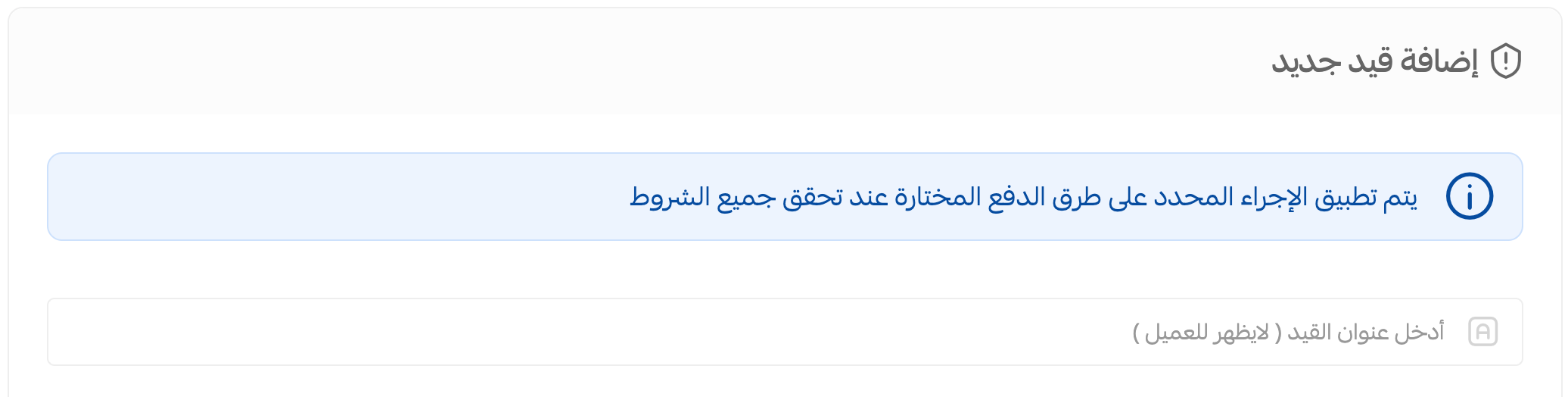
1. Enter the restriction name. Keep it short and descriptive of what the rule does — customers never see it.
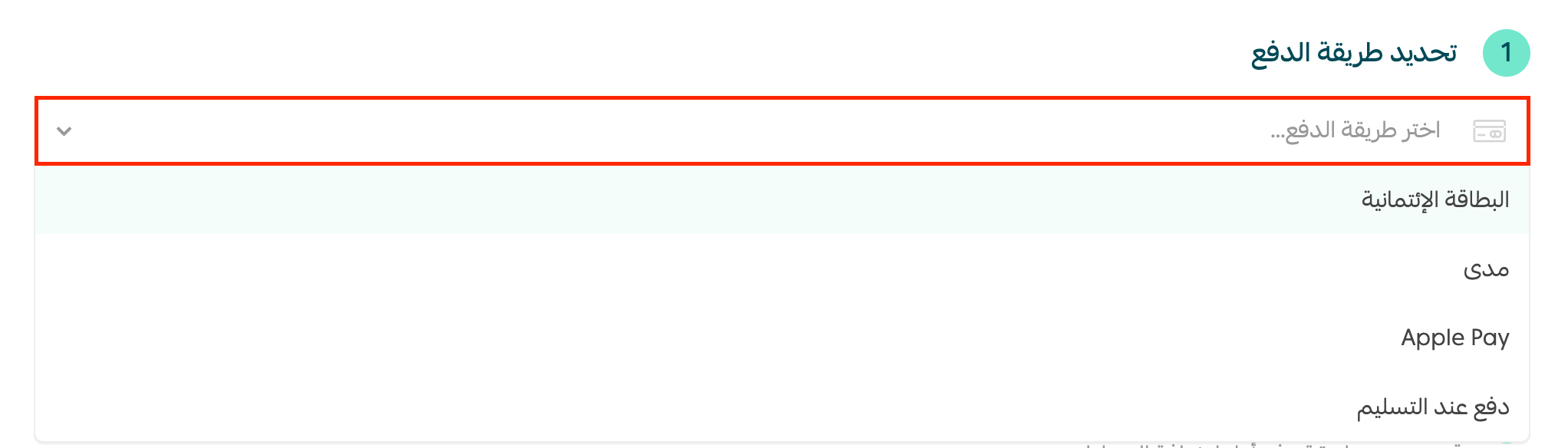
2. Choose the payment methods. Pick one or more of the methods you want to restrict — the list includes credit card, cash on delivery, digital wallets, and others.
3. Add the restriction condition. You can add one or more conditions to the methods you chose in the previous step.
1. Choose the condition type.
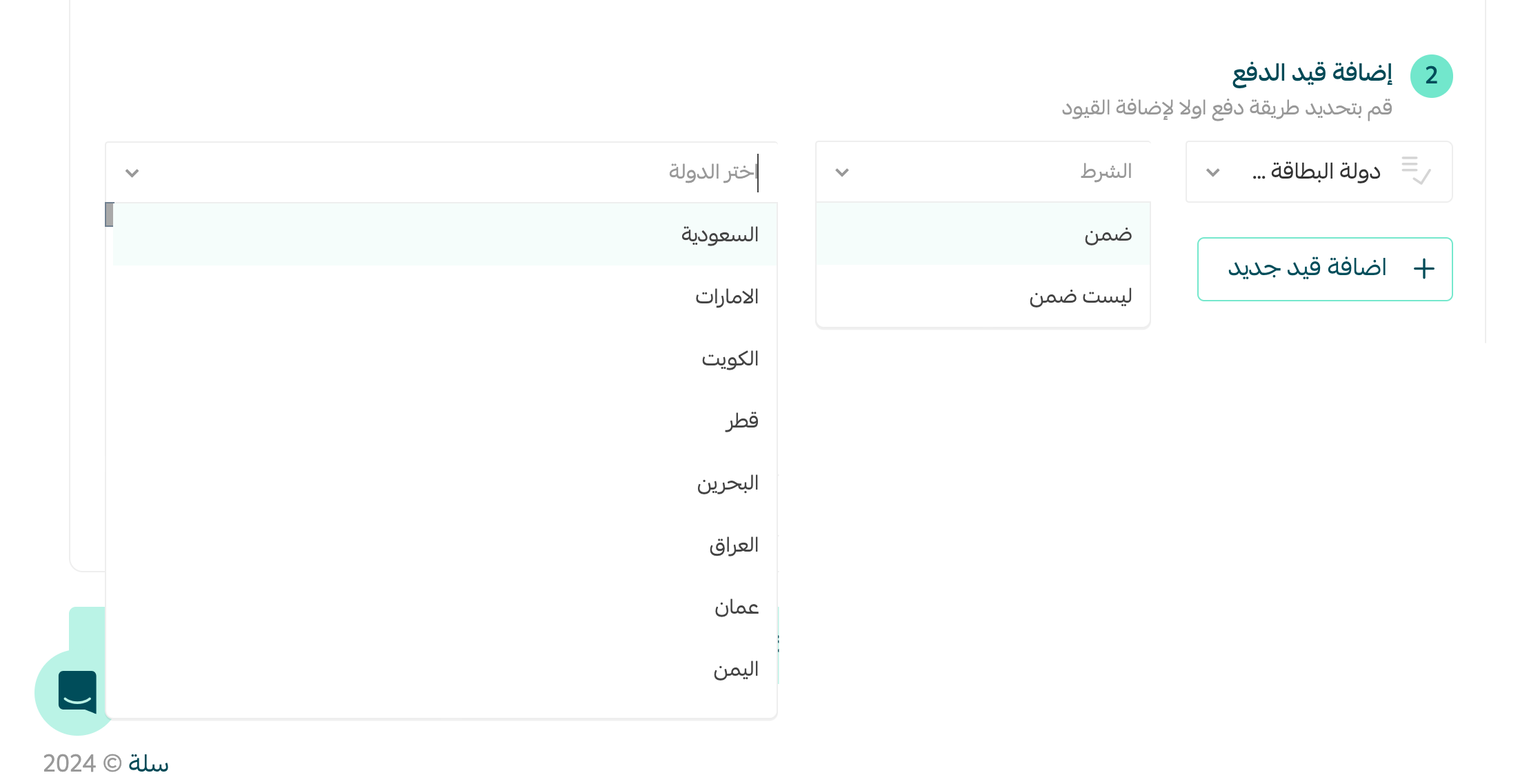
💡 Example: for the condition type, choose (Credit card country).
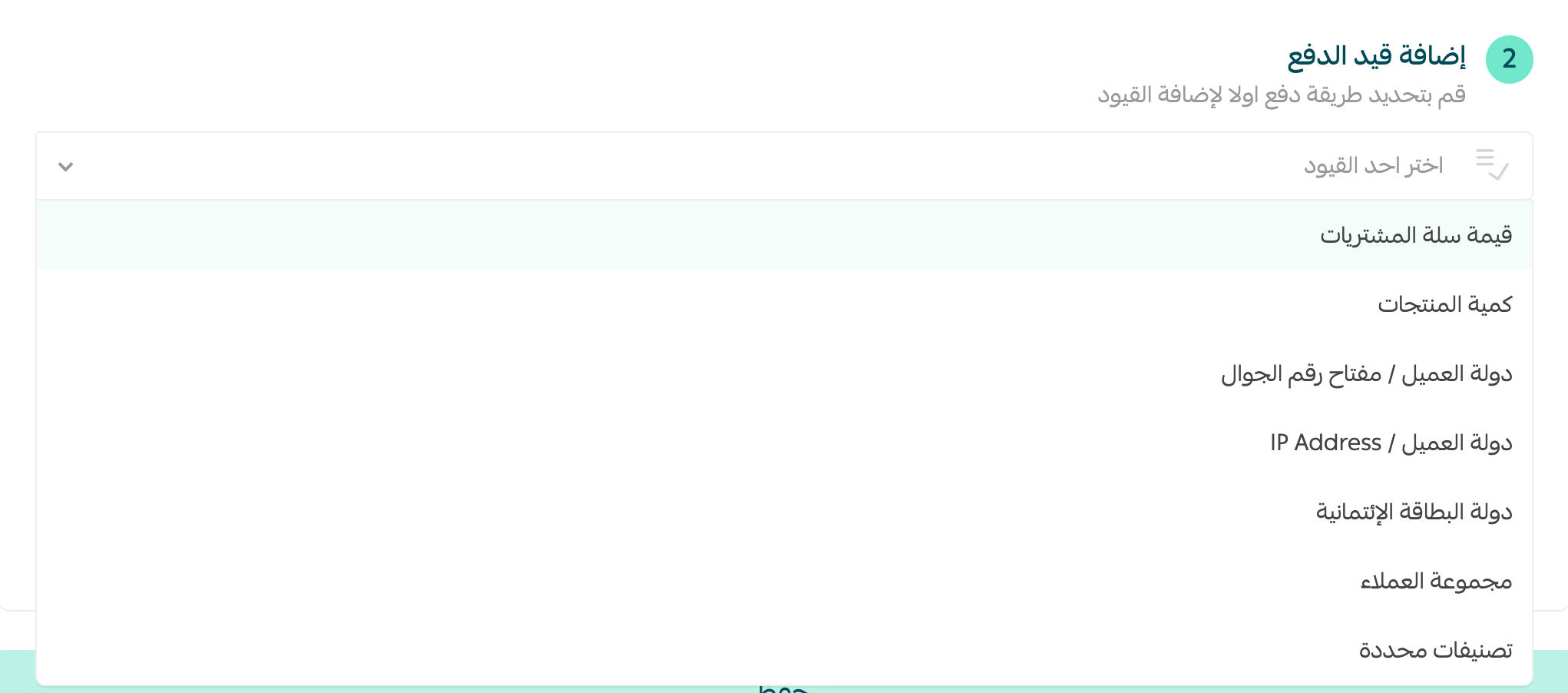
2. Set the condition terms — whether the credit card country is inside a set of countries, or outside it.
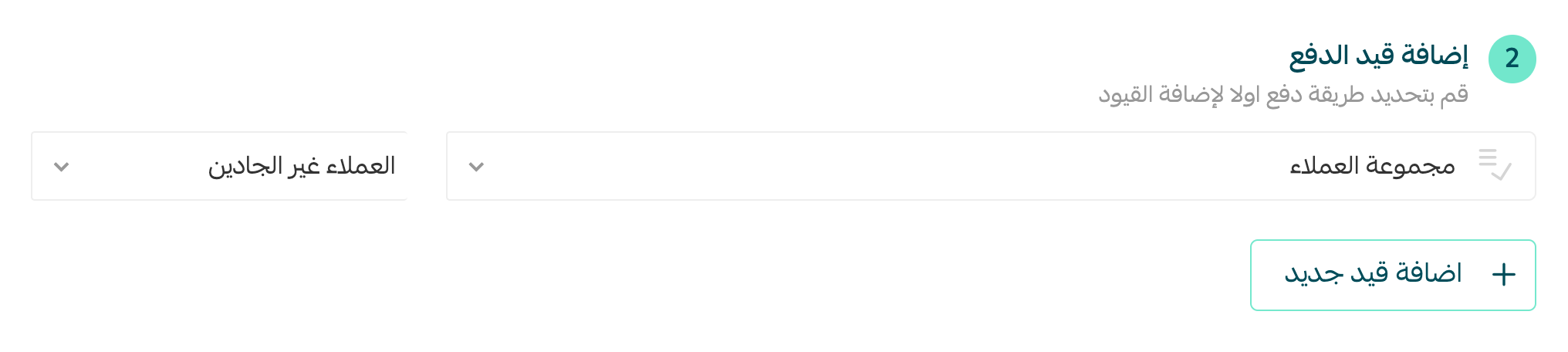
💡 Another example: to restrict a group of customers, choose the condition type (Customer group), then pick the group you want from the list.
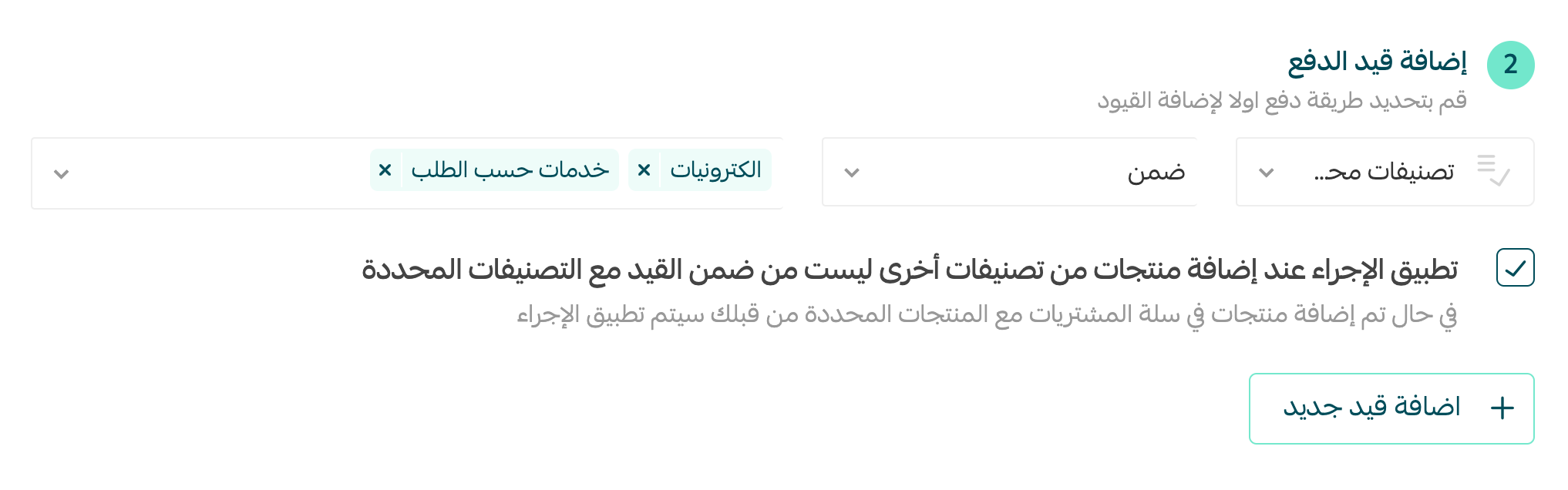
💡 One more example: choose the condition type (Specific categories) for products that are either inside or outside the restriction.
📝 Important notes
When the cart holds products from different categories, you can choose whether the restriction applies or not.
4. Choose the action. Decide what happens when the condition is met — for example, reject the transaction, put it under review, or hide the payment method. You can also add a message explaining why to the customer.
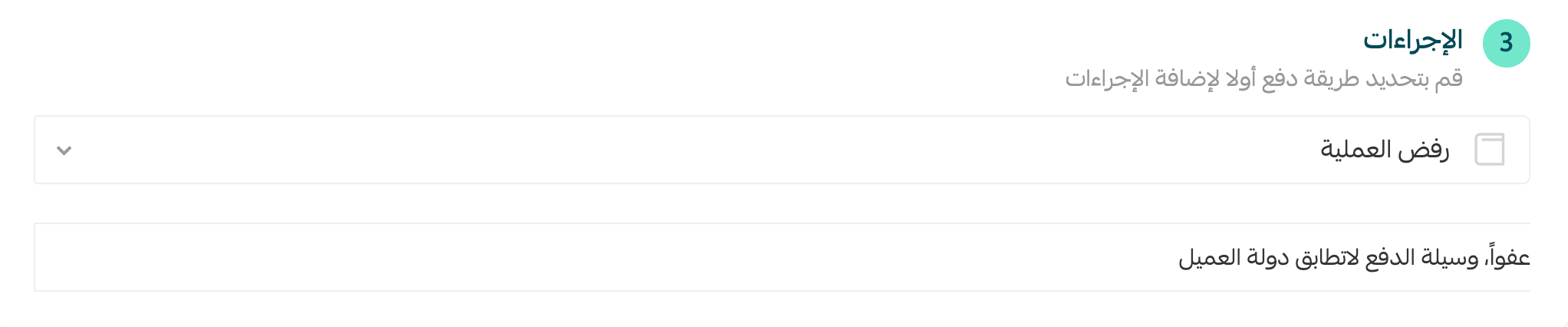
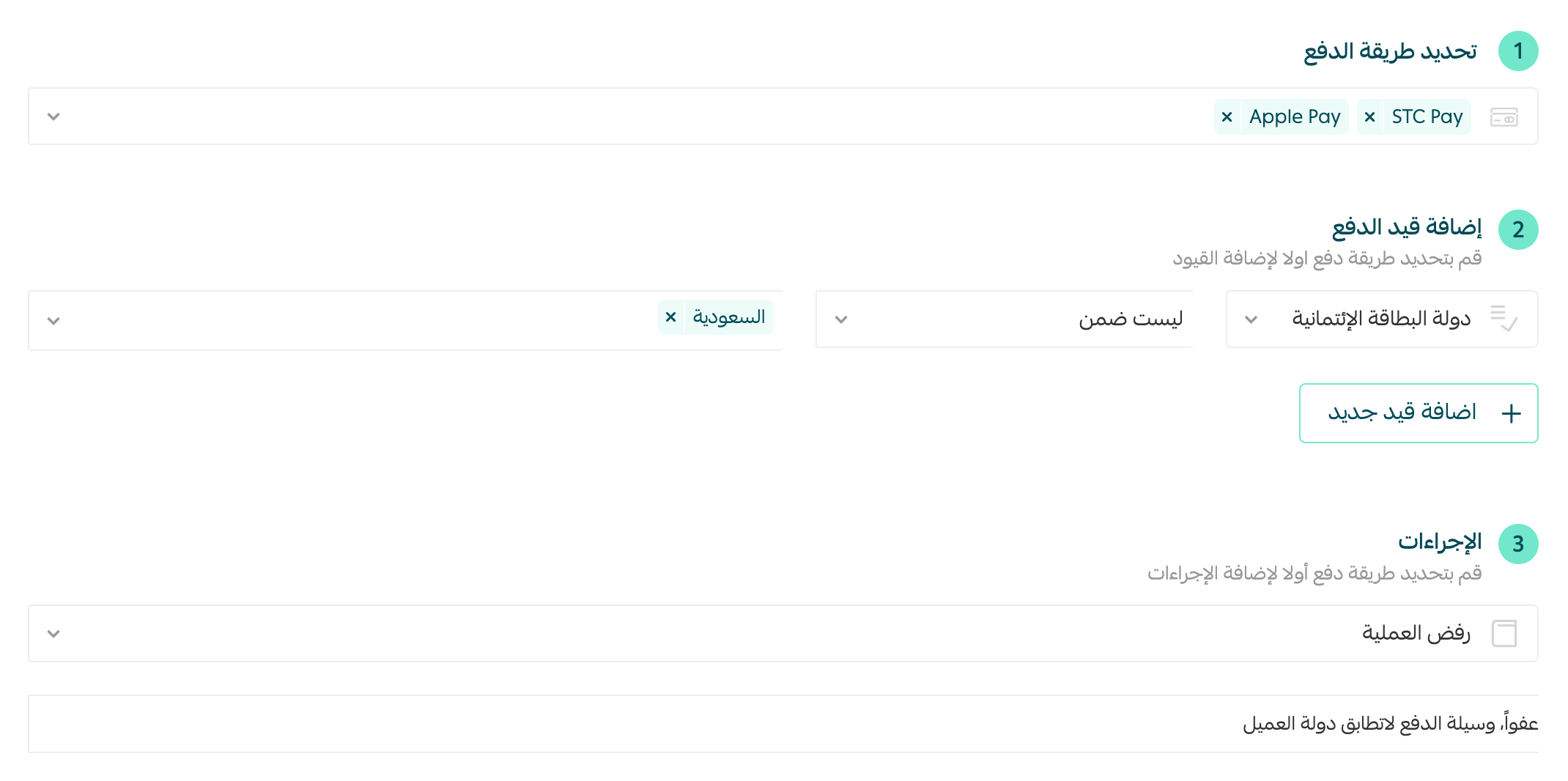
💡 Example: if a customer pays with mada or Apple Pay from a country other than Saudi Arabia, the transaction is rejected automatically.
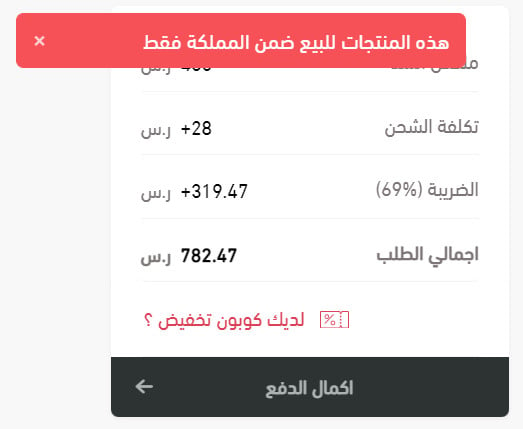
This is the message the customer sees when they click (Complete payment):
❓ Frequently asked questions
How do I add more than one restriction?
Click (+ Add new restriction), then enter the terms of the new restriction.
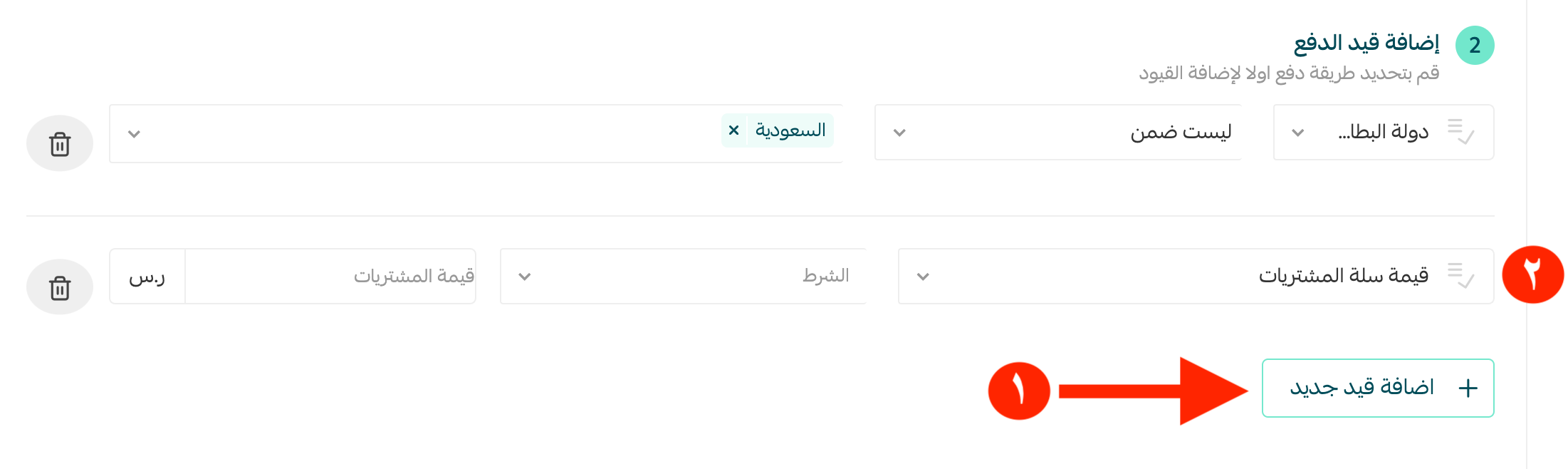
Can I delete one of the conditions in a restriction?
Yes. Click (Delete) next to the condition you want to remove.
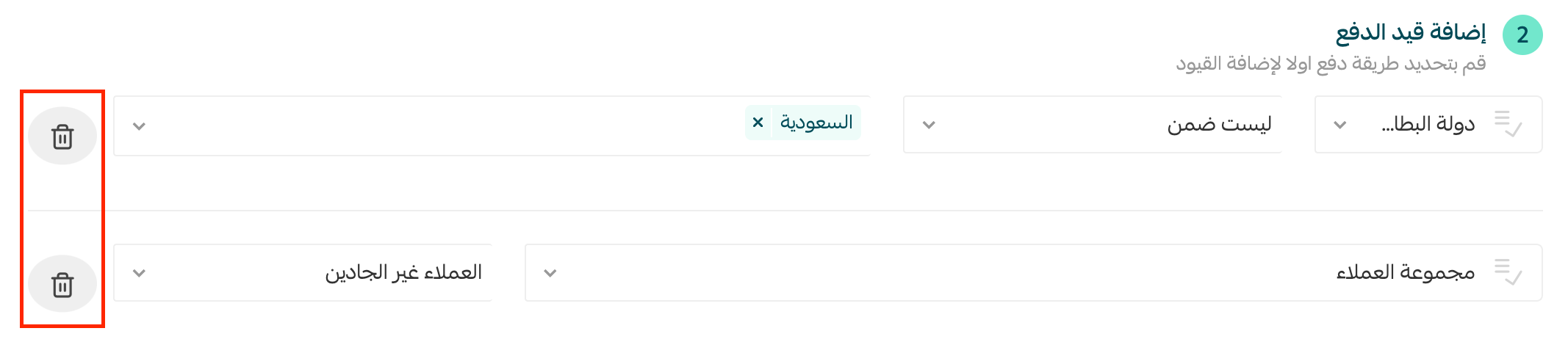
Can I delete a restriction entirely?
Yes. After saving the restriction, open its page and click (Delete) at the bottom.

How do I disable a restriction without deleting it?
From the payment restrictions page, switch the restriction off. You can turn it back on whenever you want.
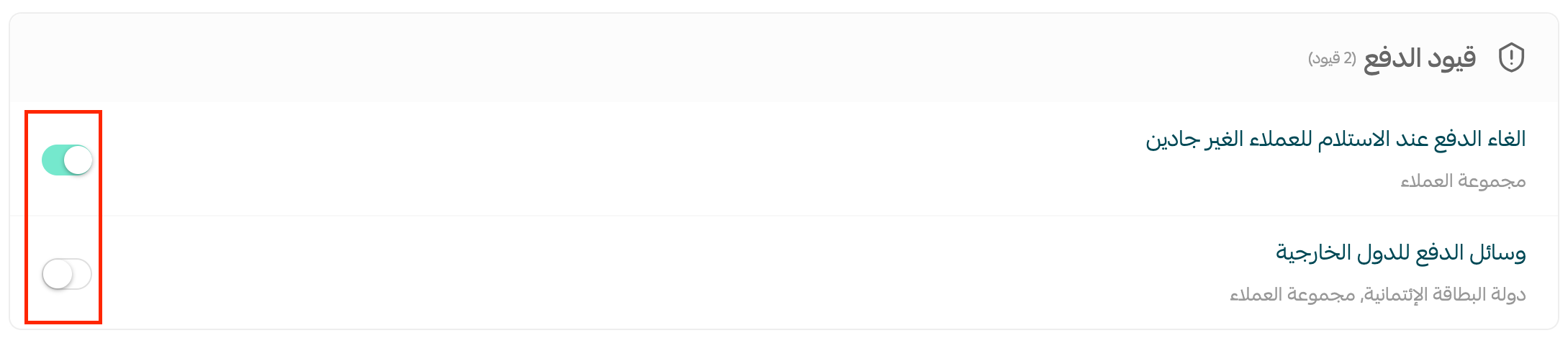
Where can I review rejected or under-review transactions?
Rejected transactions appear in your electronic payment transactions.
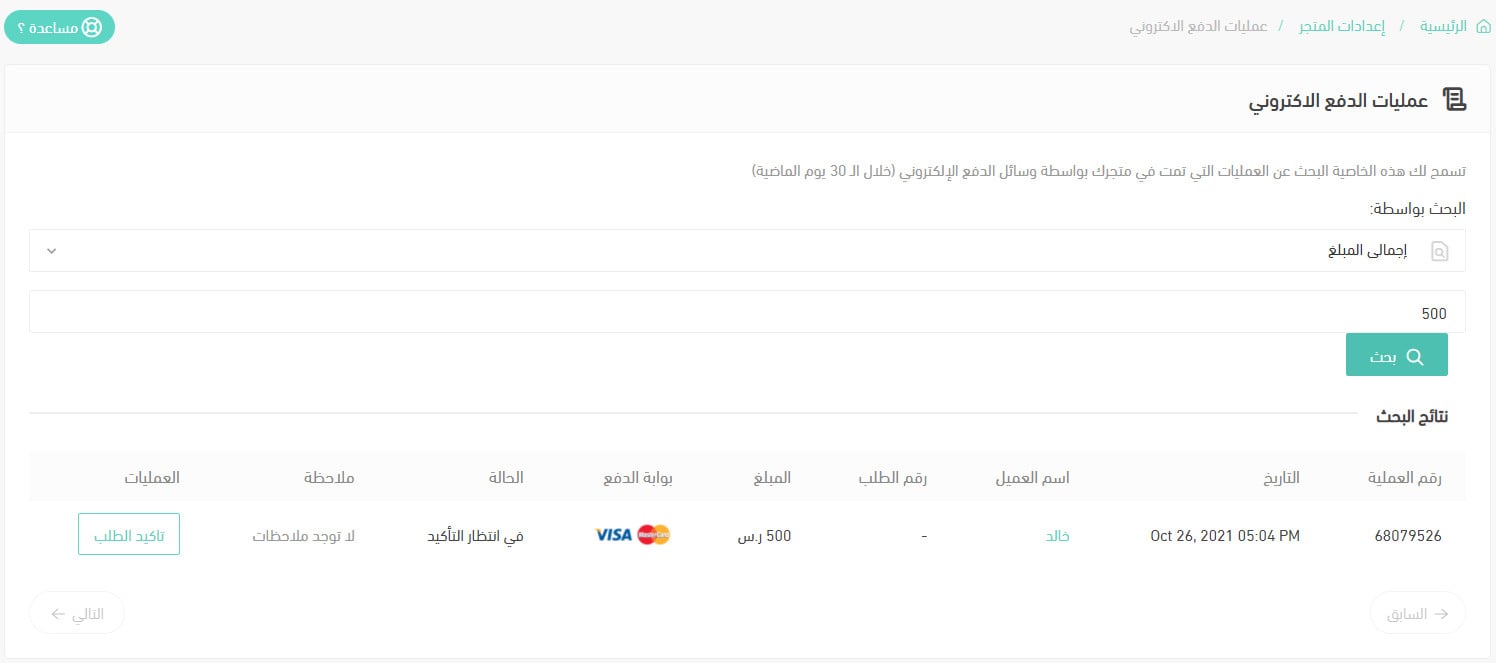
For more details, see the electronic payment transactions log.
Orders waiting for review appear as normal among your orders, with a small note in the payment section saying the order was sent for review because of a payment restriction.
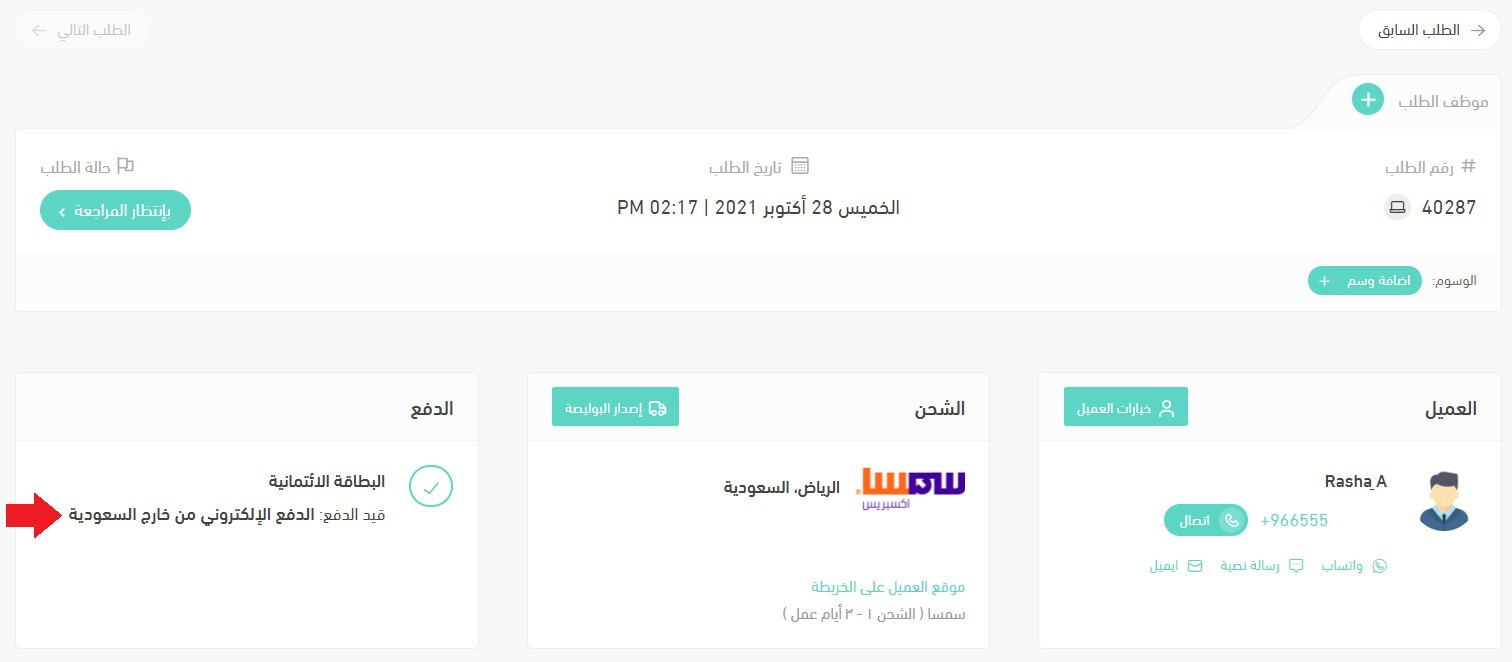
For more details, see order management options.
Which plans include this feature?
Customizing payment restrictions is available on the Pro and Special plans only.
A few well-chosen rules at checkout stop the orders you never wanted, without getting in the way of the customers you do.