Your about page is often the last thing a hesitant customer reads before deciding whether to trust you.
Most static pages end up as a wall of plain text, because designing something better usually means calling a developer. Pages Plus removes that dependency: you build custom static pages by dragging elements around, then drop the finished page into your store. In this guide, you will learn how to install Pages Plus, design and publish your first page, upgrade your plan, and remove the app if you need to.
Pages Plus is a Salla app for building custom static pages without any technical skill. You design a page by dragging elements onto a canvas in the Pages Plus dashboard, copy the page code, and paste it into a static page in your store so it appears in your important links.
📌 Article overview
- How to connect the Pages Plus app
- How to manage the Pages Plus app
- Frequently asked questions
👣 How to connect the Pages Plus app
1. From the main menu, click (All), then under helper tools click (App Store).

2. Search for the app using the search field.

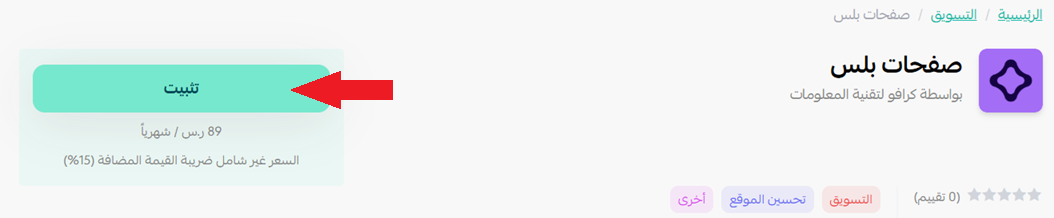
3. On the Pages Plus app page, click (Install).
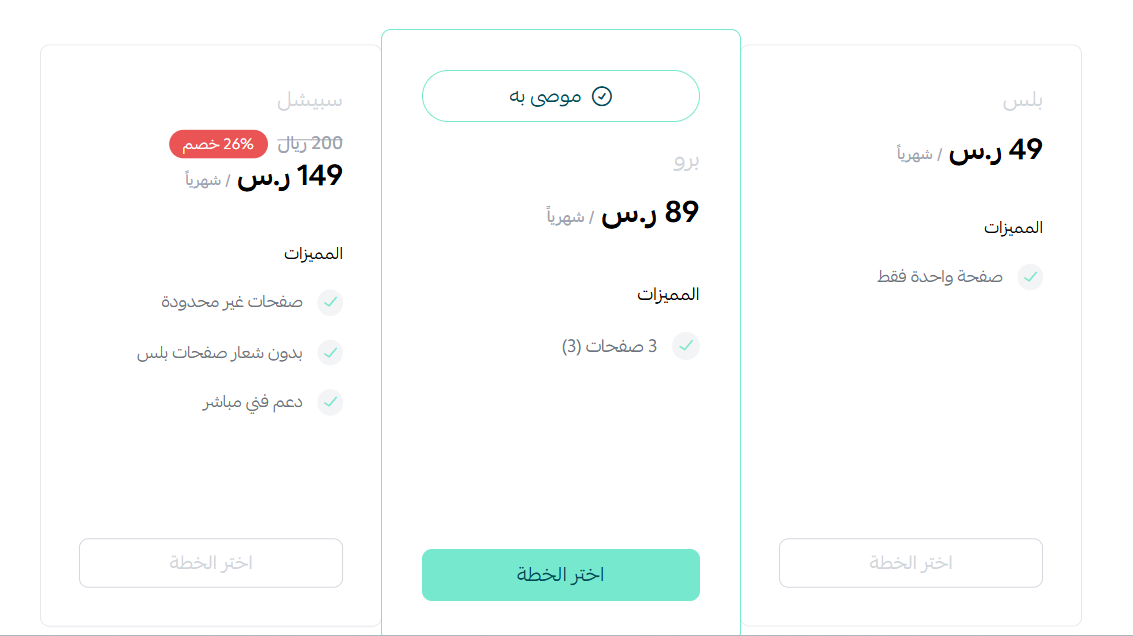
4. Choose the plan that fits you.
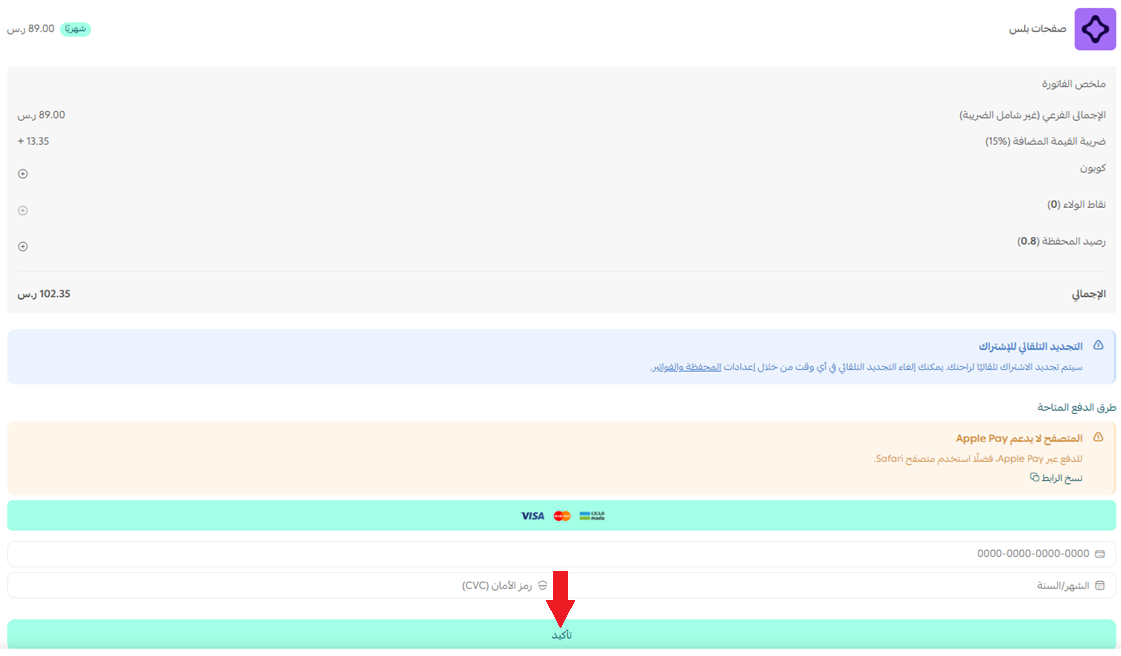
5. Complete your payment details, then click (Confirm).
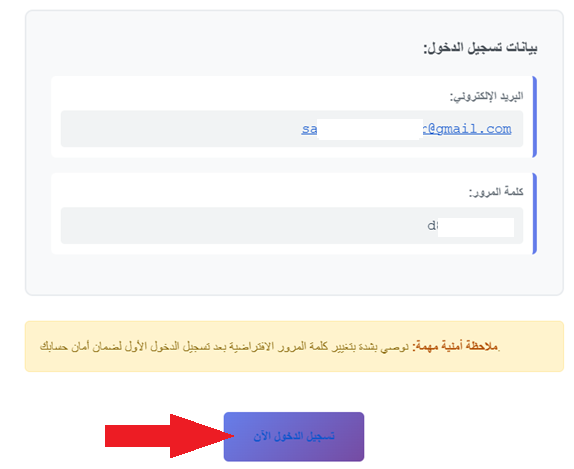
6. Check your inbox for an email with your login details, then click (Log in now).
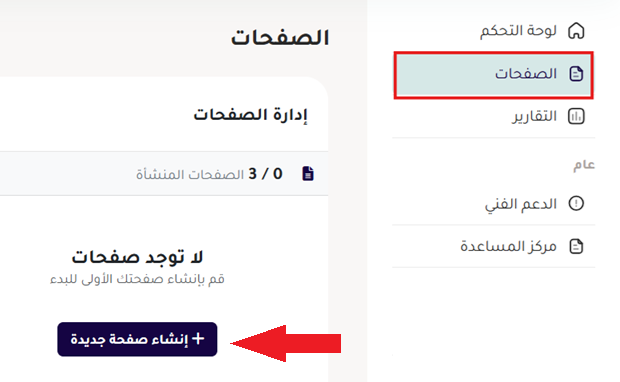
7. Open the Pages tab in the side menu and click (+ Create new page).
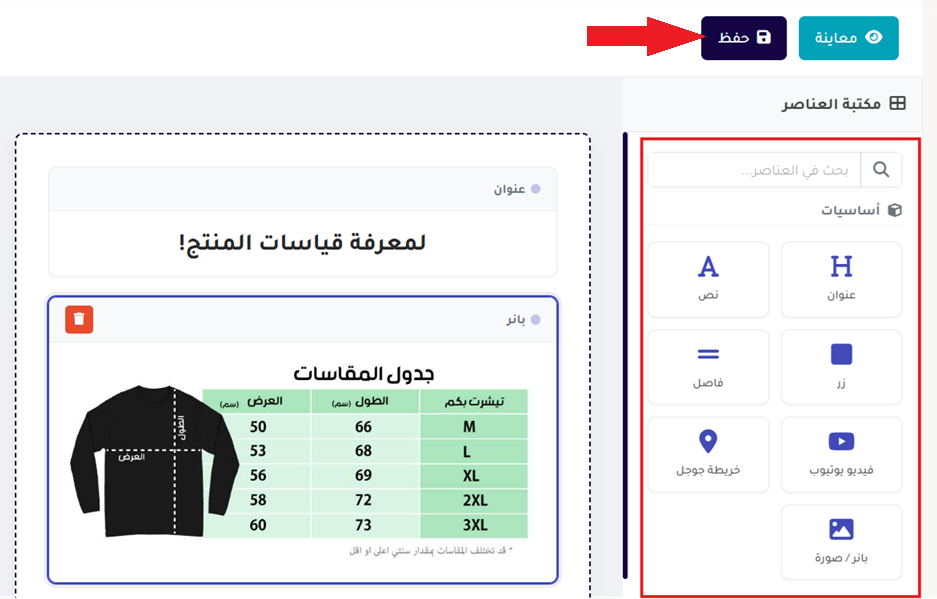
8. Drag the elements from the side menu onto the page, edit them, then click (Save).
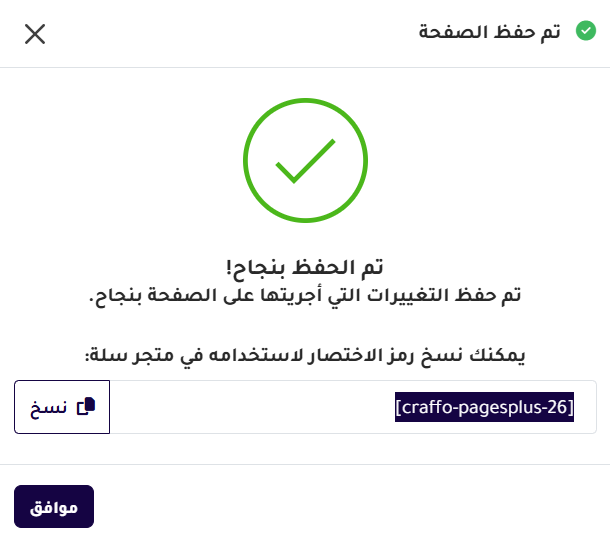
9. Copy the page code so you can add it to your store.
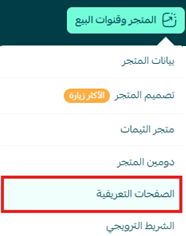
10. Back in your store, from the main menu open the (Store and sales channels) tab and click (Static pages).
11. Create a new static page.

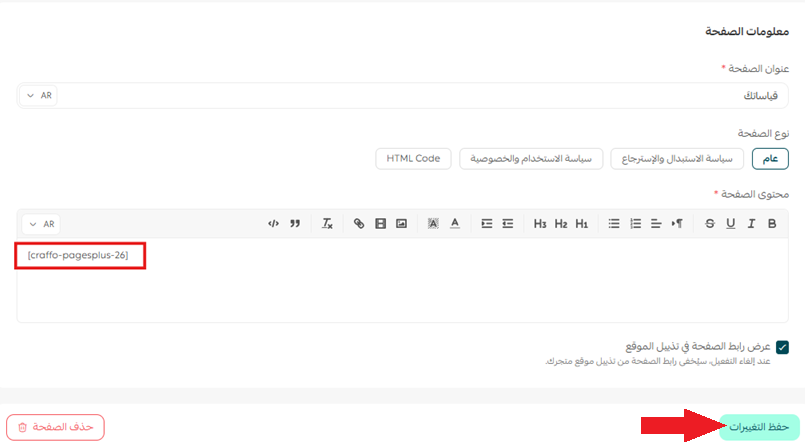
12. Paste the code you copied from Pages Plus, then click (Save changes).
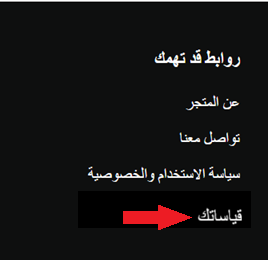
13. The page now appears in the important links section of your store.
🚀 How to manage the Pages Plus app
Upgrade your plan
1. From the app details page in your store, click (Upgrade plan).

2. Choose the plan you want, then click (Go to payment).

3. Complete your payment details and click (Confirm) to finish the upgrade.

Customize the app
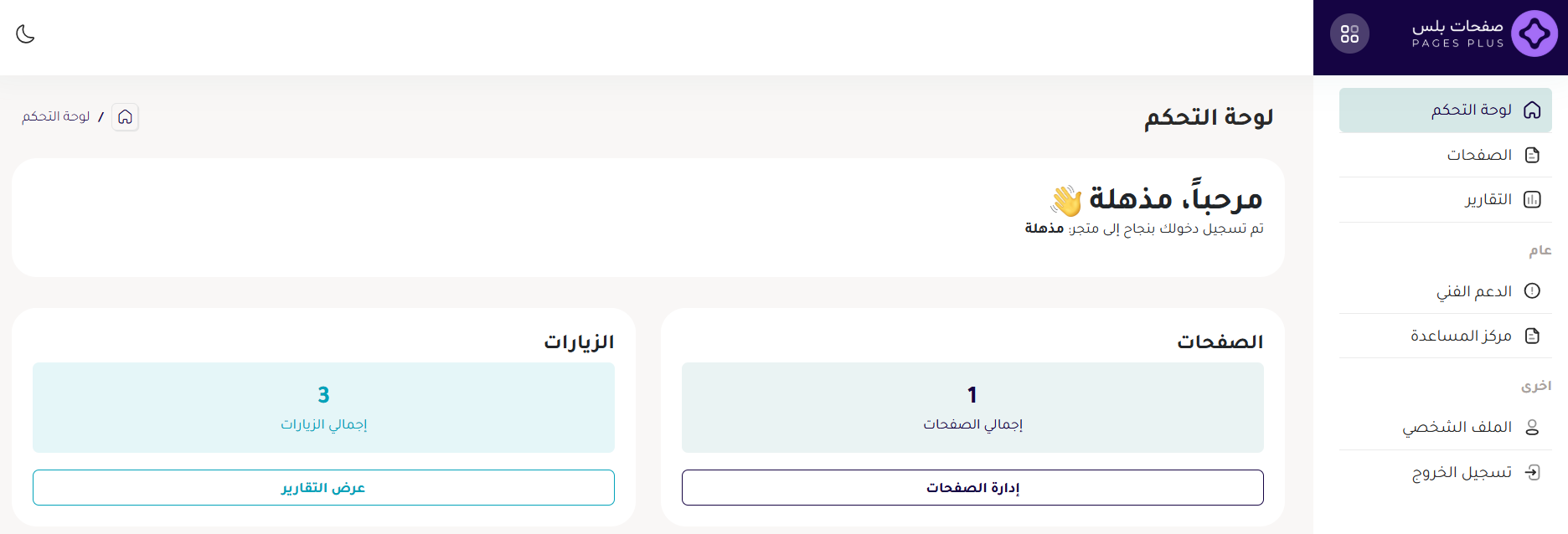
🎯 Manage your pages and app settings from the Pages Plus dashboard.
Delete the app
1. From the app options menu, click (Cancel subscription) and choose a reason.

2. From the same menu, click (Delete app) and choose a reason.

3. Open the Deleted apps page, then from the app options menu click (Delete app permanently) to remove it from your store for good.

📝 Important notes
A page you design in Pages Plus is not live until you paste its code into a static page in your store.
Frequently asked questions
❓ Do I need coding skills to use Pages Plus?
No. You build the page by dragging elements onto it. The only code involved is one snippet you copy and paste.
❓ Where does the finished page show up in my store?
In the important links section, the same place your other static pages appear.
❓ How do I edit a page later?
Open it in the Pages Plus dashboard, where all your pages and app settings live.
❓ How do I remove Pages Plus completely?
Cancel the subscription, delete the app, then open the Deleted apps page and click (Delete app permanently).
A well-built about or policy page does quiet work on every visit, and it should not take a developer to make one. For more details, see the Pages Plus app page.