How many sales do you lose because a customer never hears from you after they leave your store?
Most shoppers read a WhatsApp message within minutes, and almost none of them read every email you send. PabblyTik is a Salla App Store app that turns that habit into revenue: it sends automated WhatsApp notifications to your customers for abandoned carts, order status changes, and digital product delivery, without you writing a single message by hand. In this guide, you'll learn how to install PabblyTik, activate it, configure each notification type, and remove it if you no longer need it.
PabblyTik is a Salla app that sends automated WhatsApp messages to your customers. Install it from the Salla App Store, choose a plan, and complete payment. Then activate it and set your WhatsApp numbers, login alerts, order status updates, and abandoned cart reminders from the setup wizard.
📌 Article overview
- How to install PabblyTik on your store
- How to activate and configure PabblyTik
- How to manage and delete PabblyTik
- Frequently asked questions
🚀 How to install PabblyTik on your store
1. From the main menu, click (All), then under helper tools, click (App Store).

2. Search for the app using the search field.

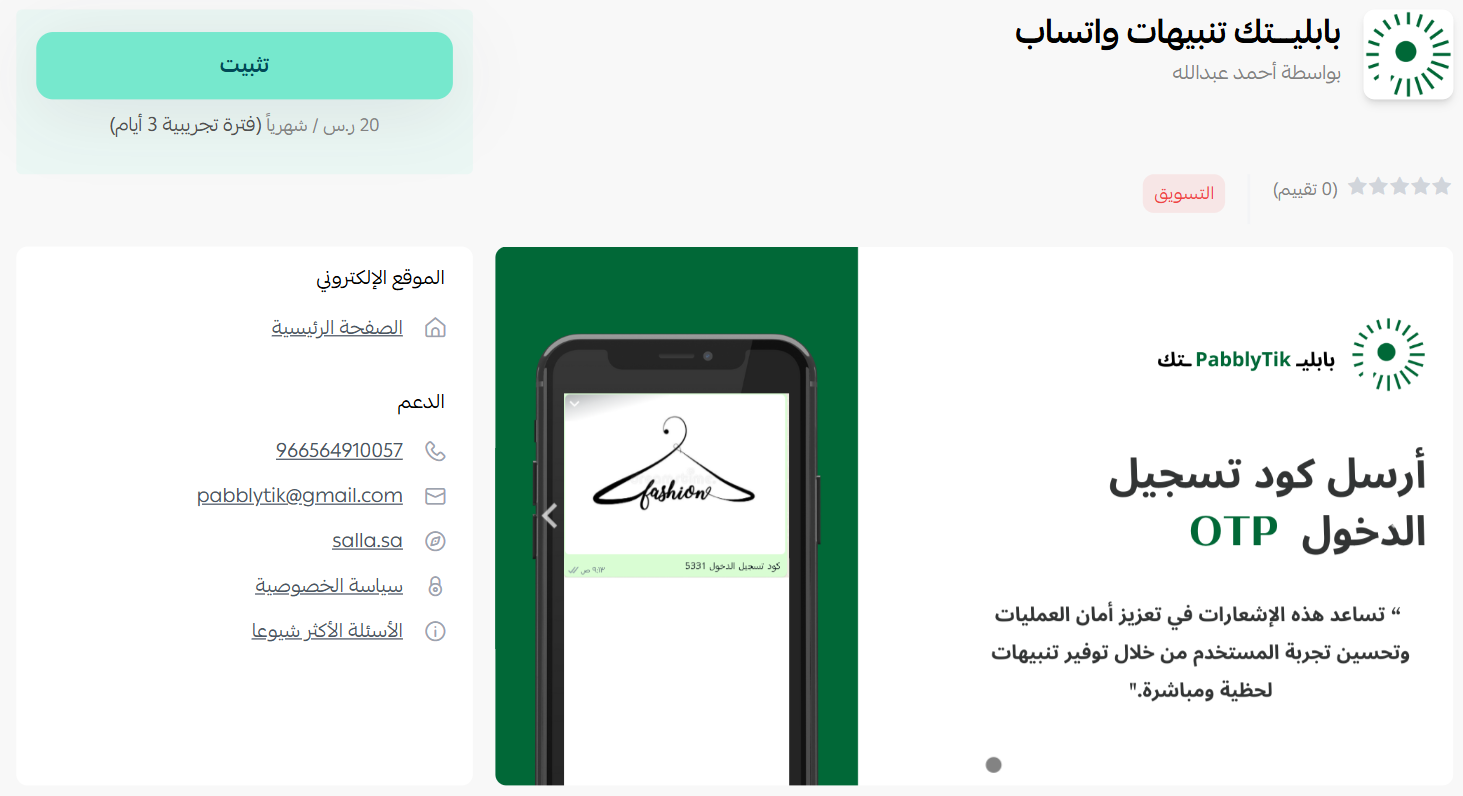
3. On the PabblyTik app page, click (Install).
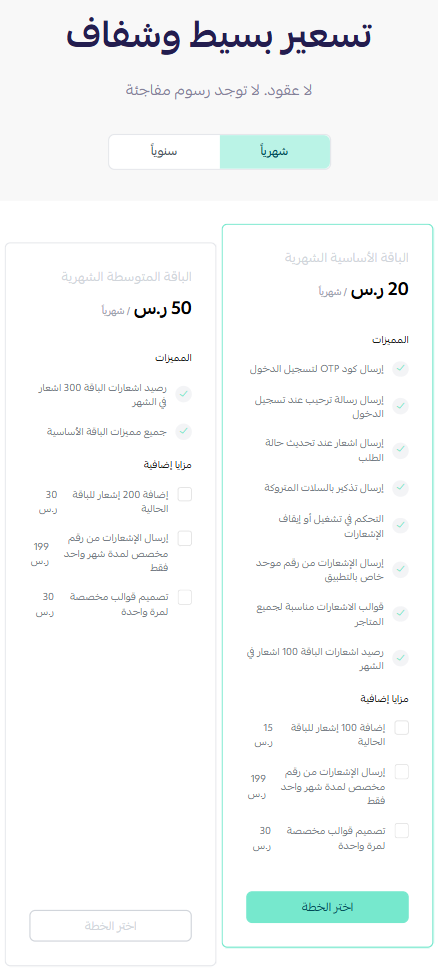
4. Choose the plan that fits your business to continue with the installation.
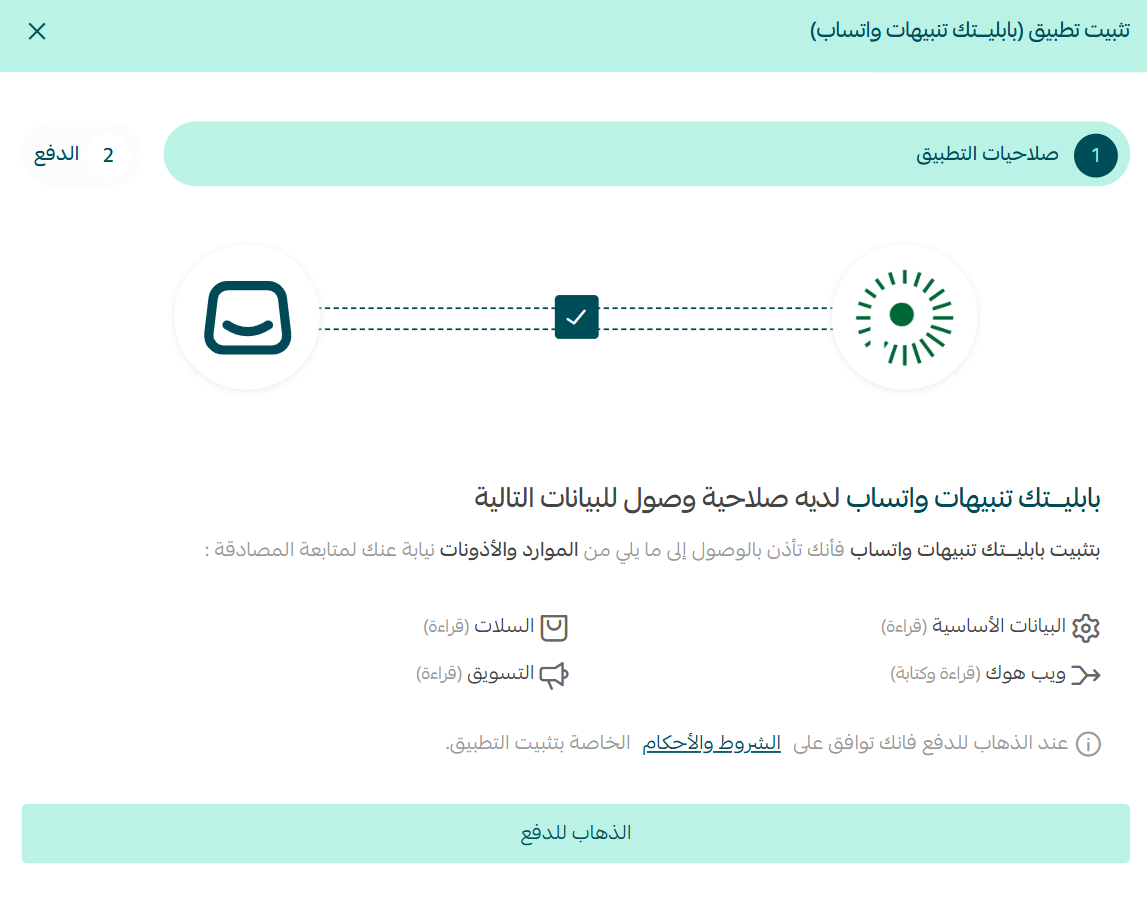
5. Review the permissions the app requests, then click (Go to payment).
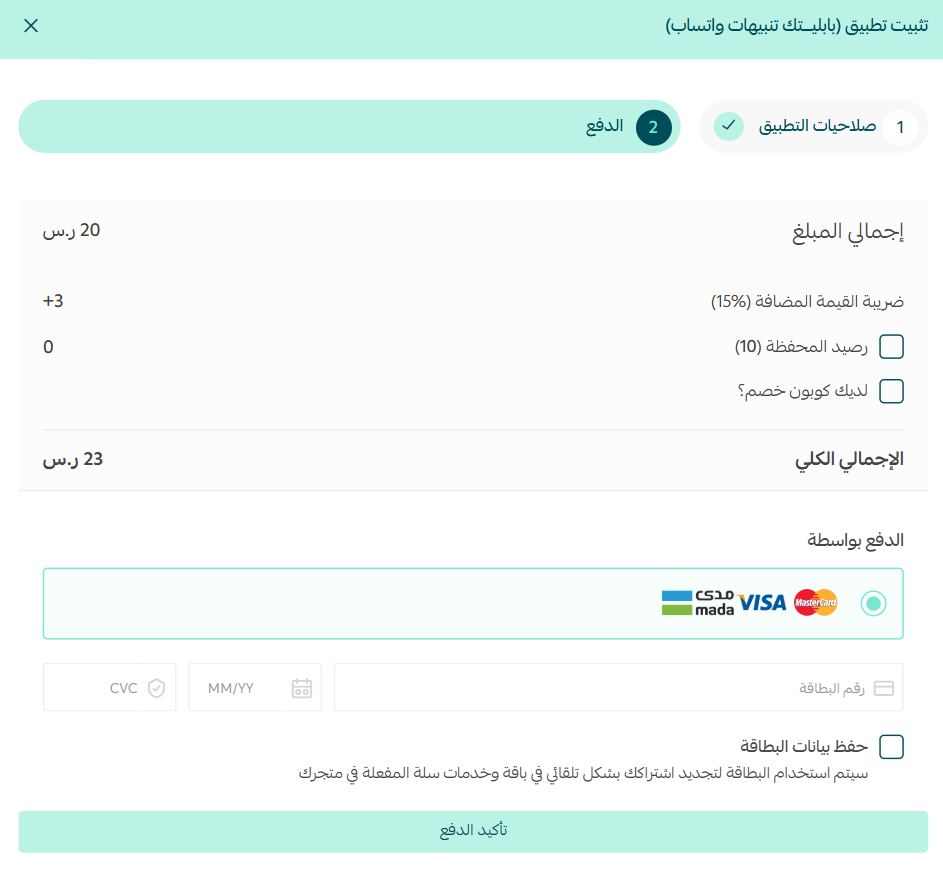
6. Complete the payment to unlock the app's features.
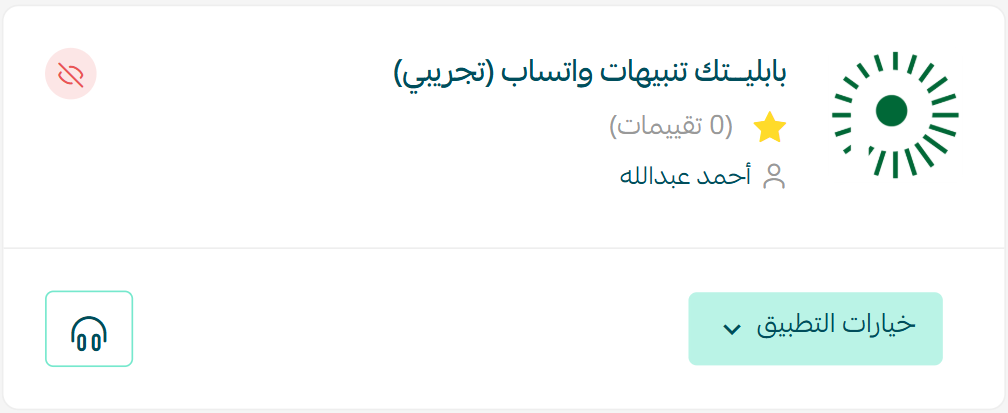
PabblyTik is now installed on your store.
🚀 How to activate and configure PabblyTik
Installing the app is only half the job. Nothing is sent to your customers until you activate it and tell it which notifications to send.
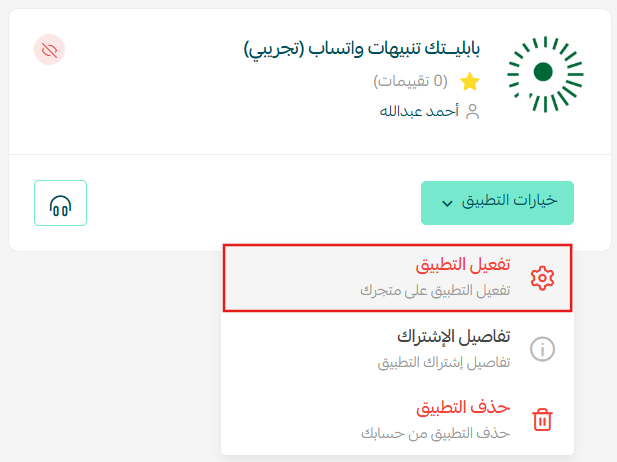
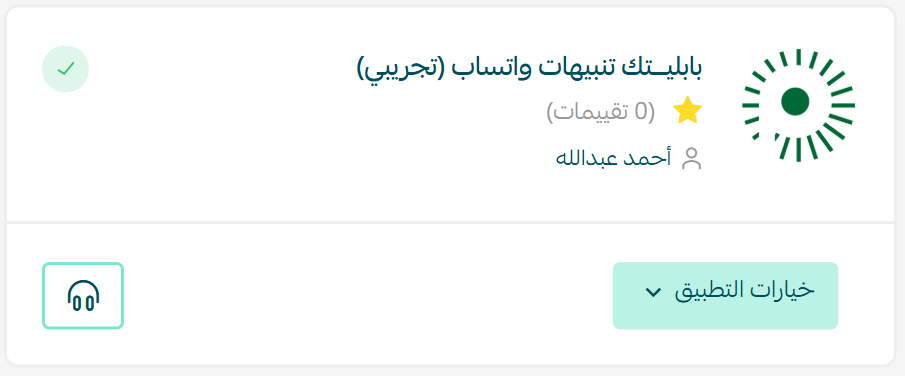
1. From your installed apps page, open the (App options) menu and click (Activate app).
2. Follow the setup steps to switch the app on for your store.
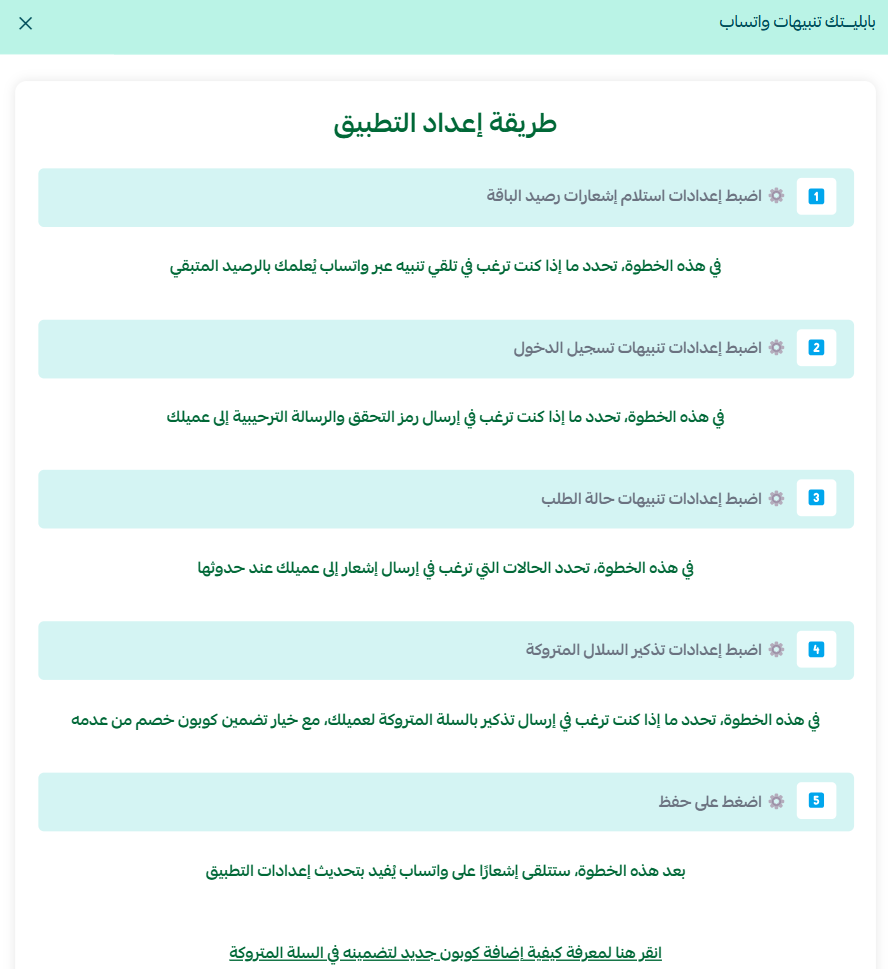
The setup runs in five steps:
Step one
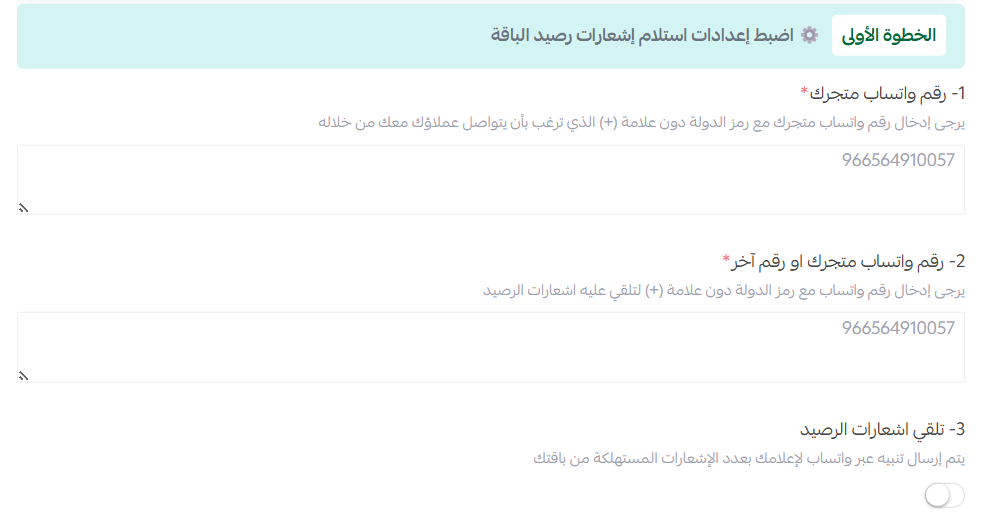
Enter the WhatsApp number that will receive customer inquiries, and a second number for balance notifications. Then switch balance notifications on if you want to be alerted when your credit runs low.
Step two
Customize the login notifications your customers receive.
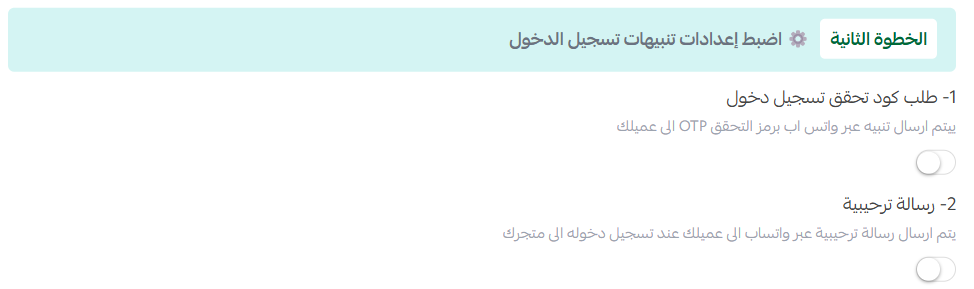
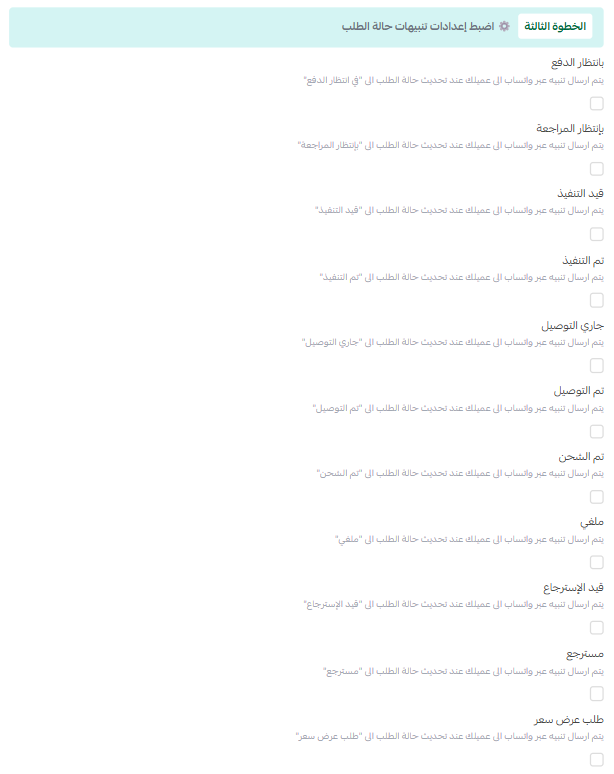
Step three
Customize the order status notifications to match the stages you care about.
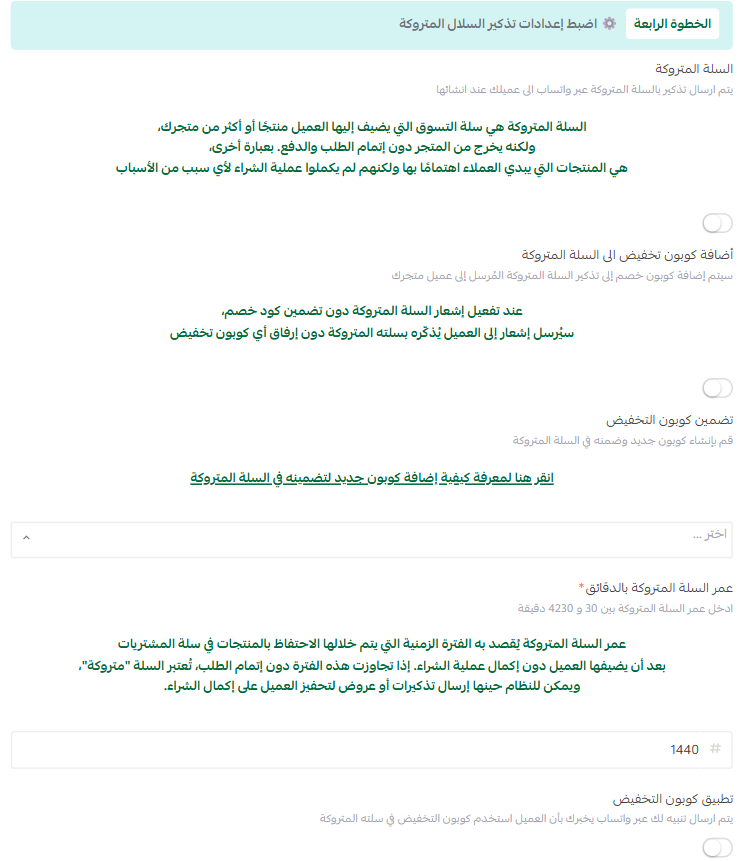
Step four
Set your abandoned cart reminder settings.
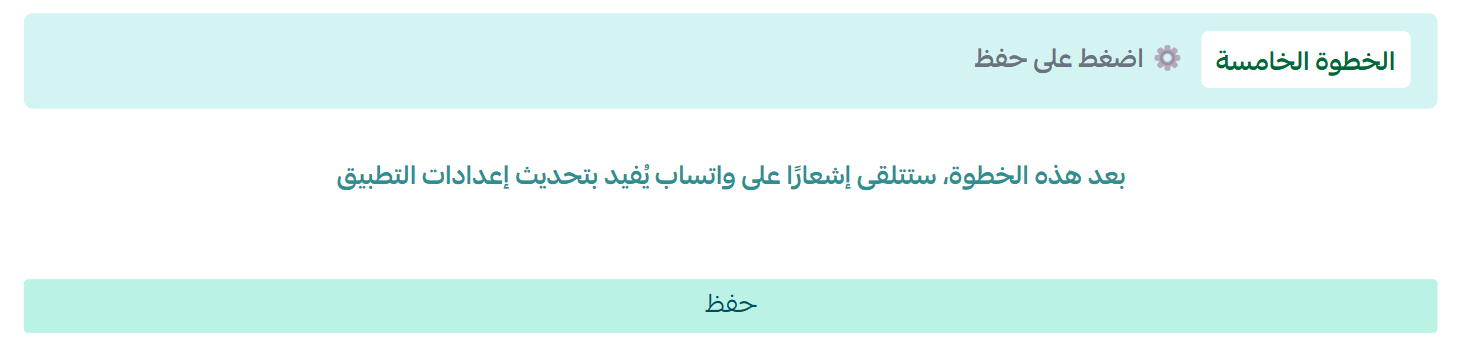
Step five
Click (Save).
The app is now active on your store.
📝 Important notes
Each notification type is optional. Turn on only the ones that fit how you communicate with your customers.
Balance notifications go to the second number you enter, so keep it a number you check regularly.
🚀 How to manage and delete PabblyTik
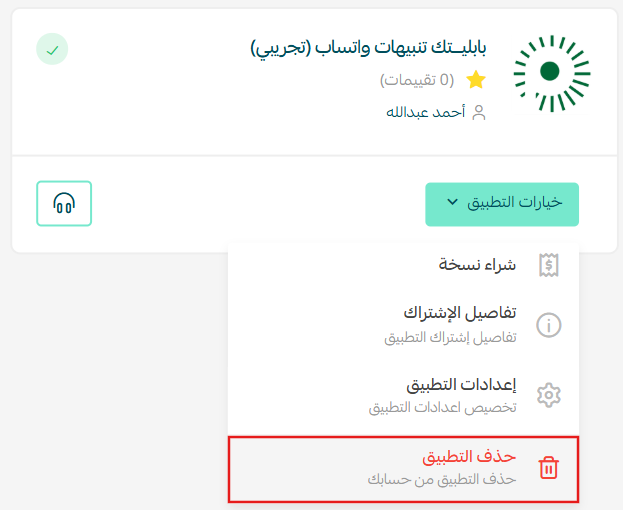
Delete the app
From the PabblyTik app, click (App options), then click (Delete app).
❓ Frequently asked questions
What kinds of WhatsApp notifications can PabblyTik send?
Abandoned cart reminders, order status updates, digital product delivery messages, and customer login notifications.
Do I have to pay before I can use the app?
Yes. You choose a plan during installation and complete the payment before the app's features become available.
Can I use a different number for my own alerts?
Yes. Step one of the setup lets you enter one number for customer inquiries and a separate number for balance notifications.
Will the app start messaging customers as soon as I install it?
No. You need to activate the app and complete the five setup steps first. Nothing is sent until you click (Save).
How do I remove PabblyTik from my store?
Open the app, click (App options), then click (Delete app).
Automated WhatsApp notifications work because they reach customers where they already are. Start with abandoned cart reminders and order updates, watch how customers respond, then expand from there.