Are your customers buying one product at a time when they could be buying three?
Bundling is one of the quickest ways to lift average order value without cutting prices across your whole catalog. The Offers Bundles app lets you build grouped product offers on your Salla store, style them to match your store's identity, choose exactly which products each offer applies to, attach different discount types, and follow how every offer performs through live analytics. In this guide, you'll learn how bundle offers appear to shoppers, how to install the app, and how to manage your subscription.
Offers Bundles is a Salla App Store app that builds grouped product offers on your store. You pick the target products, set the discount, and customize how the offer looks. Shoppers see it as a limited-time deal, a free gift-wrap choice, or a complete package, and live analytics show you how each offer is performing.
📌 Article overview
- How bundle offers appear to customers in your store
- How to install the Offers Bundles app
- How to manage the Offers Bundles app
- Frequently asked questions
🎯 How bundle offers appear to customers in your store
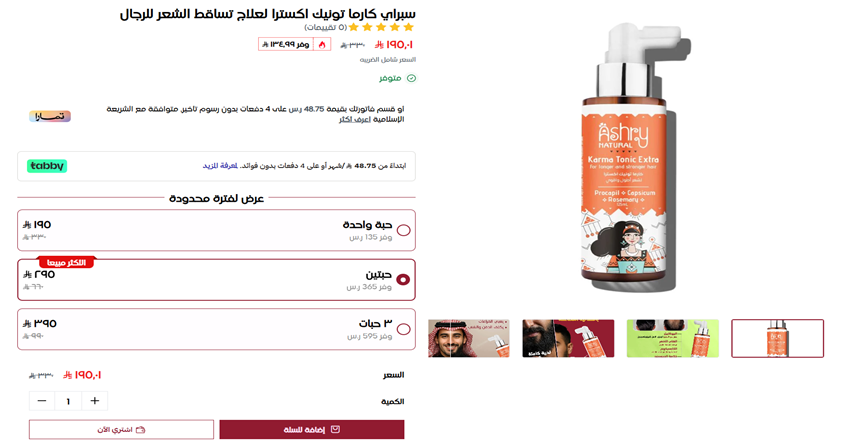
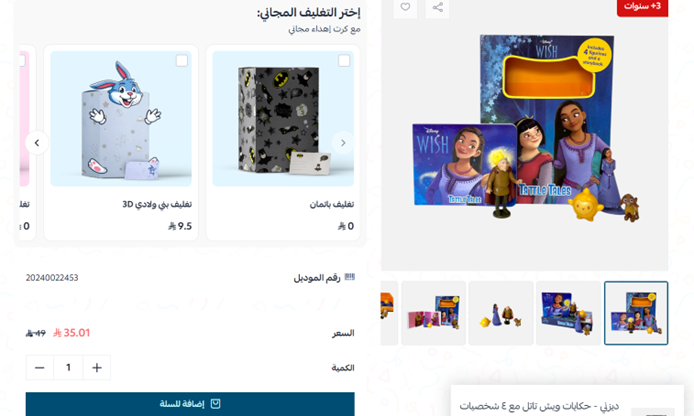
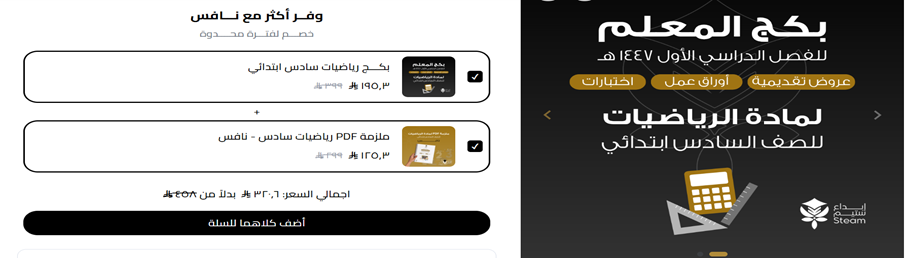
Offers Bundles gives you three ready display styles. Each one nudges the shopper toward a larger basket in a different way.
- Limited-time offer
- Free gift-wrap choice
- Complete package
🚀 How to install the Offers Bundles app
1. From the main menu, click (All), then under the helper tools section, click (App Store).

2. Search for the app using the search field.

3. On the Offers Bundles app page, click (Install).
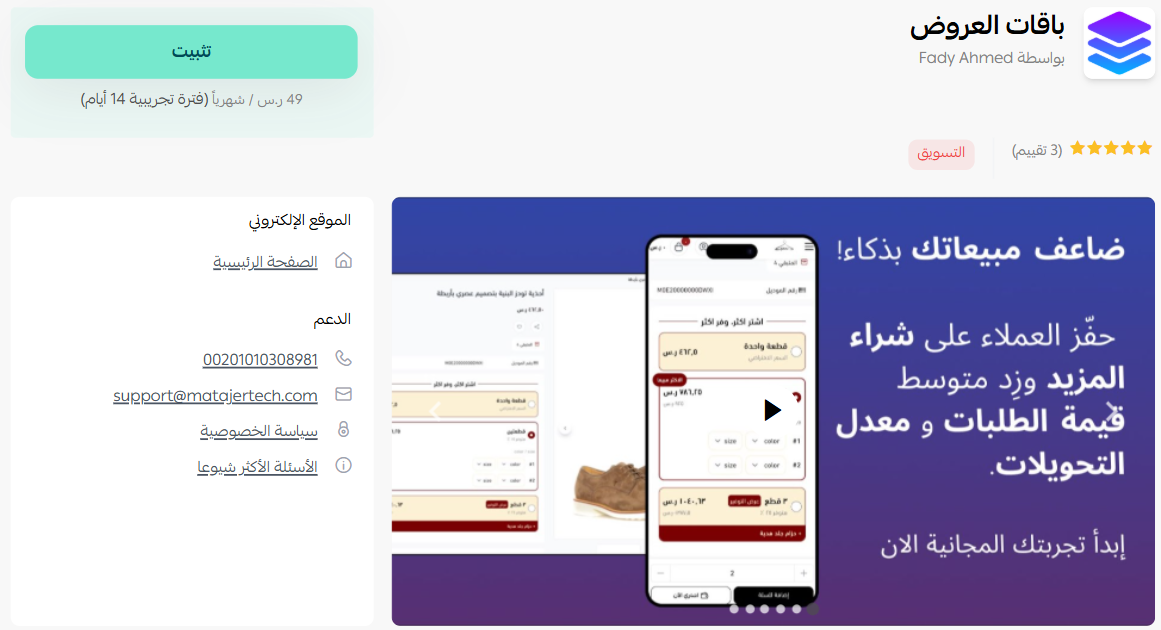
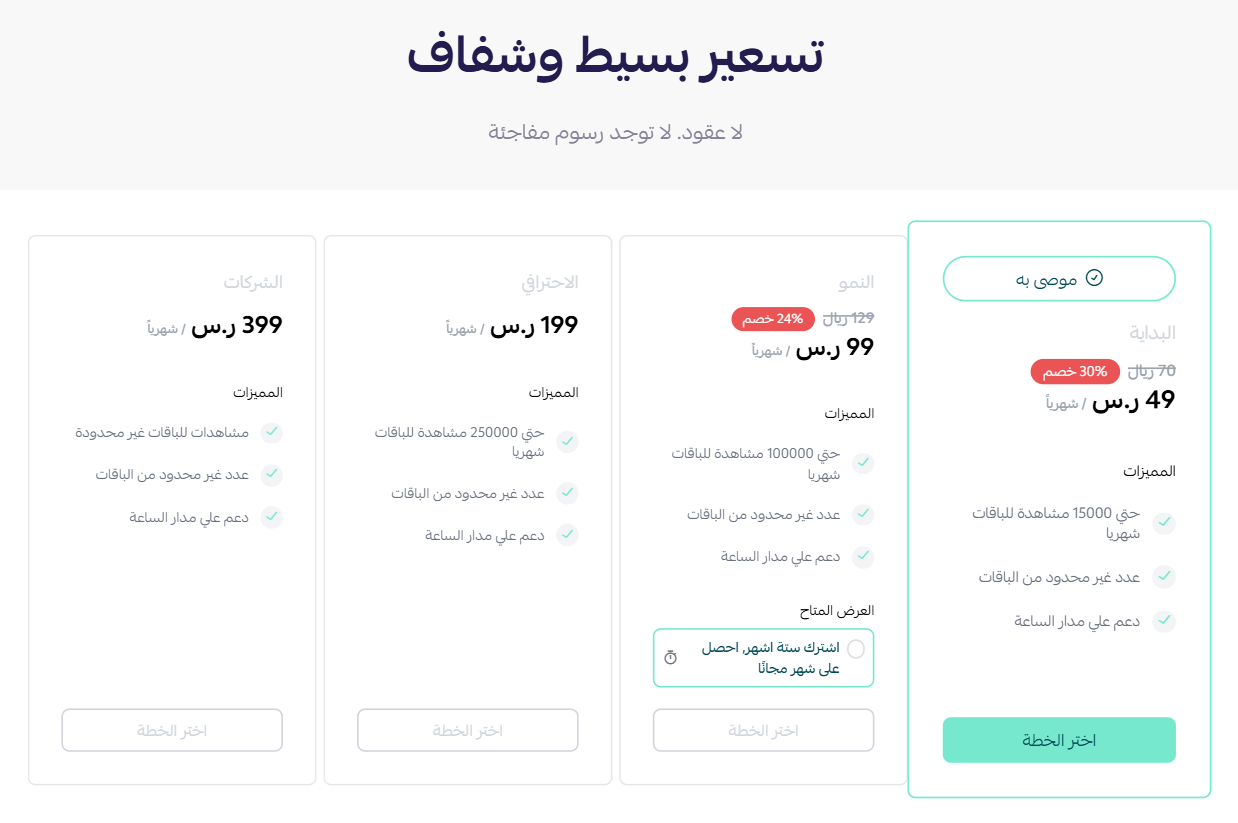
4. Choose the plan that fits your business to continue with the installation.
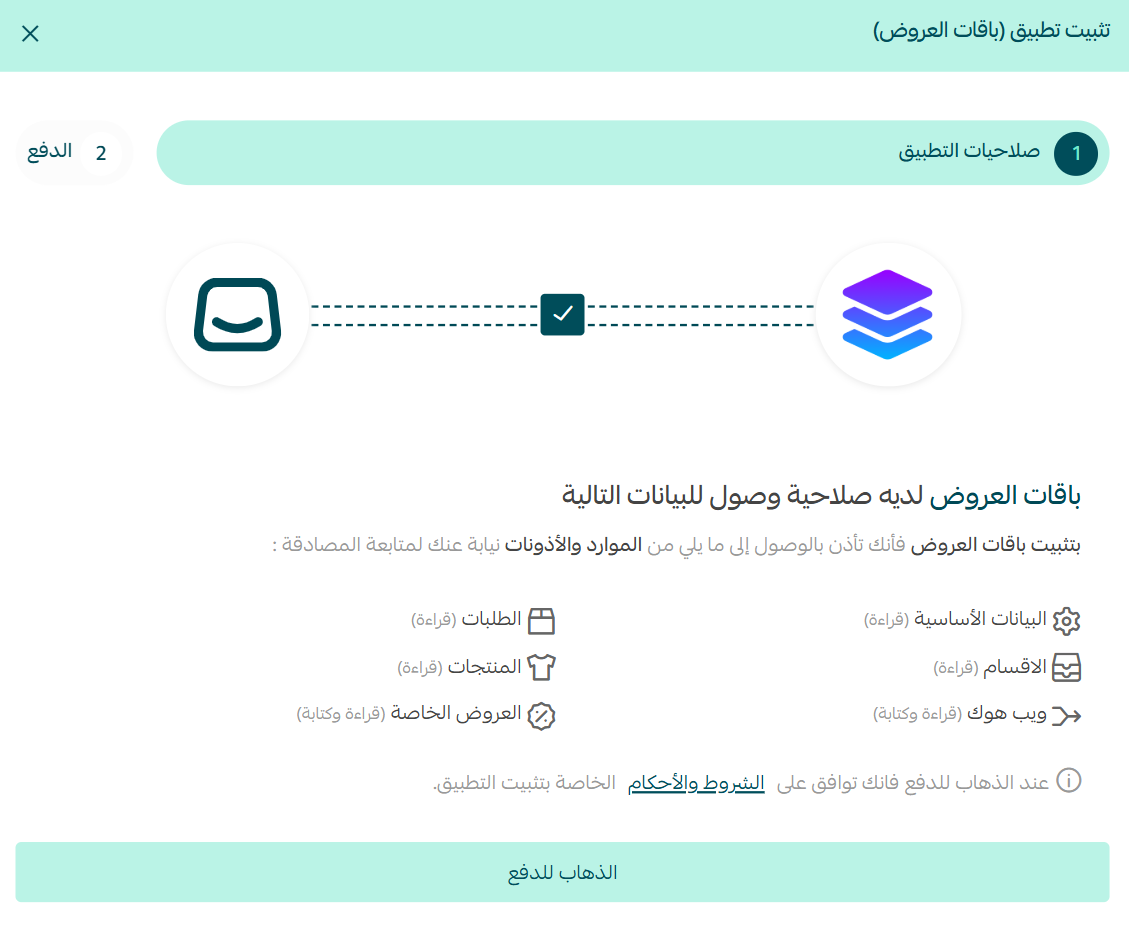
5. Review the permissions the app requests, then click (Go to payment).
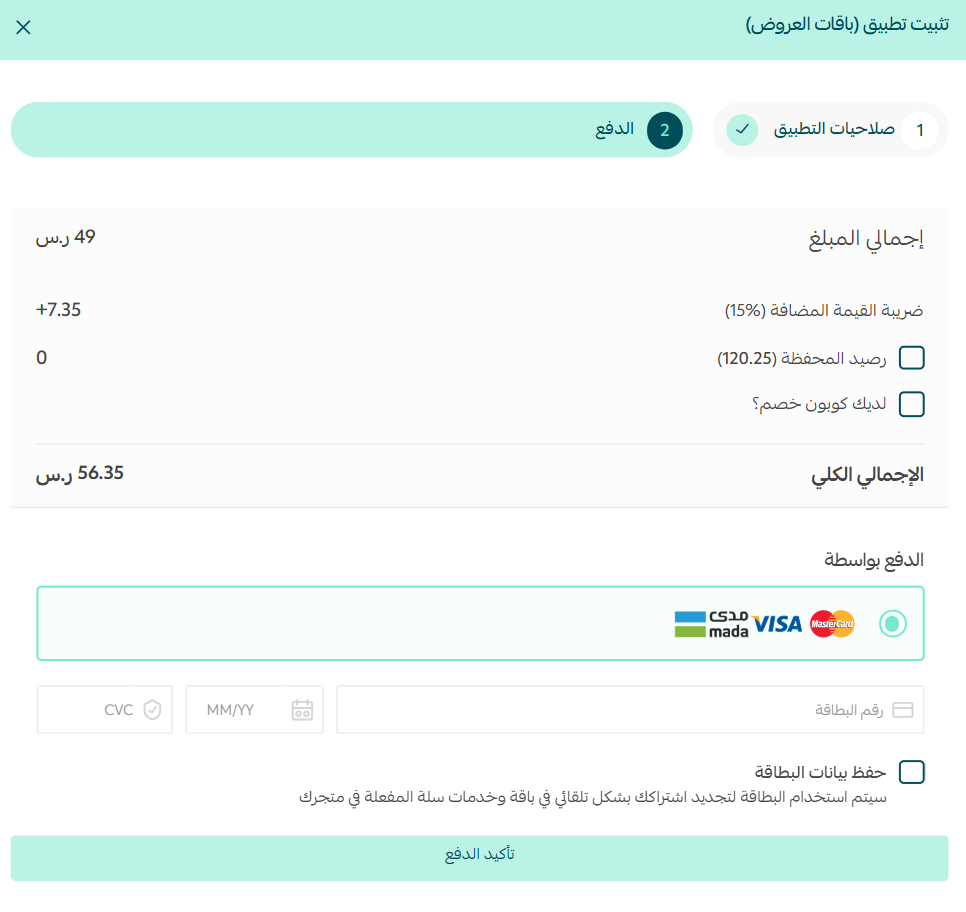
6. Complete the payment to activate the app's features.
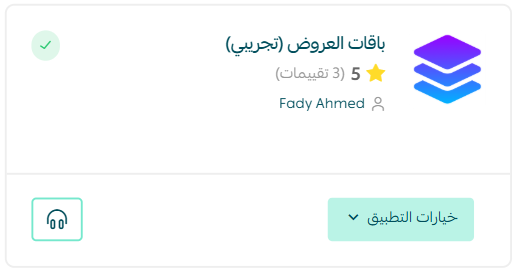
The Offers Bundles app is now installed on your store.
🚀 How to manage the Offers Bundles app
Subscribe to a plan
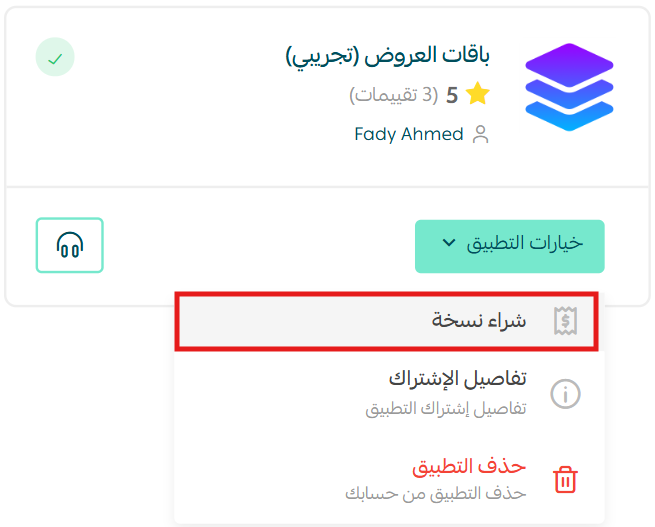
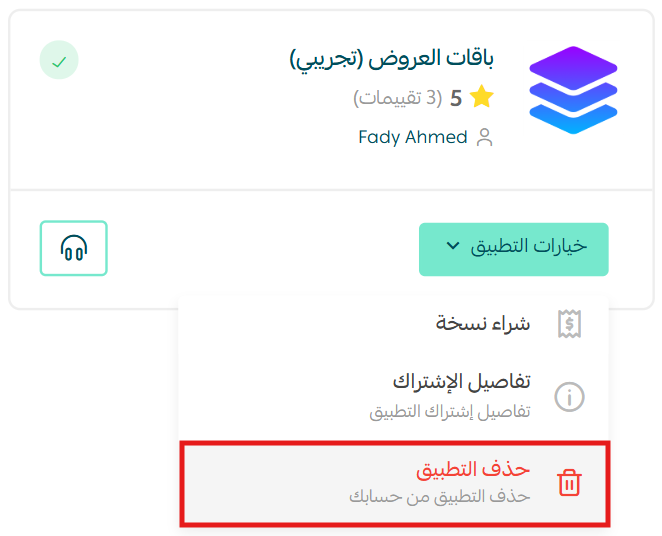
1. From the Offers Bundles app, click (App options), then click (Buy a copy).
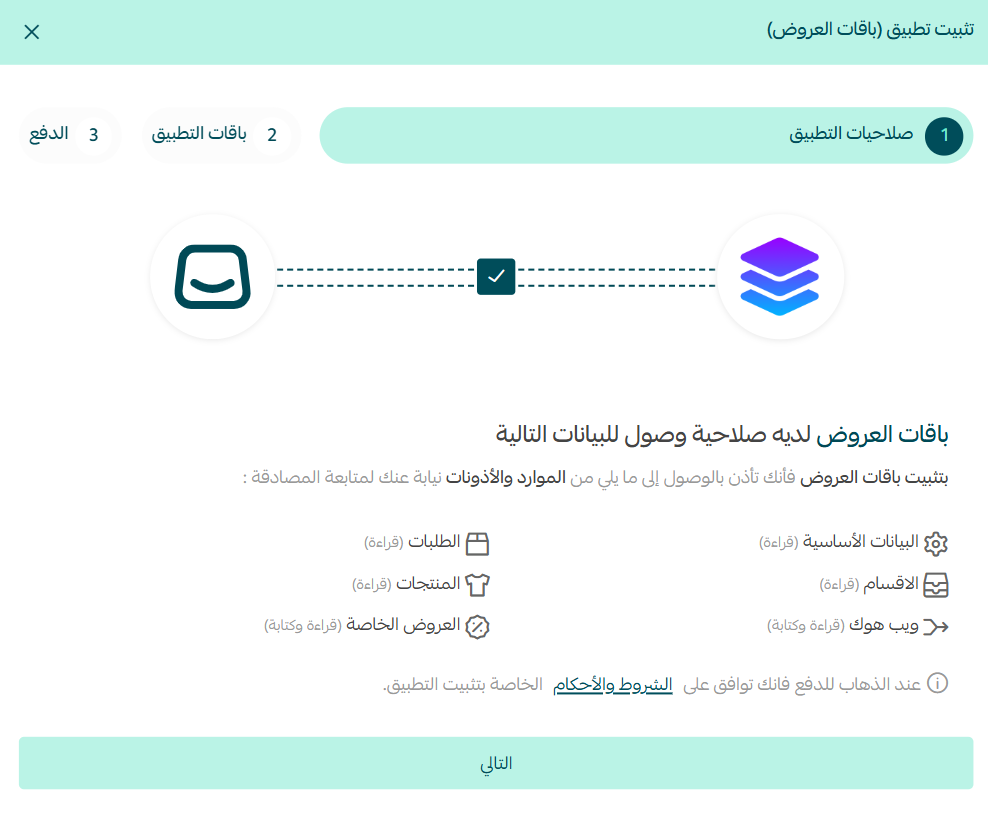
2. Review the permissions, then click (Next).
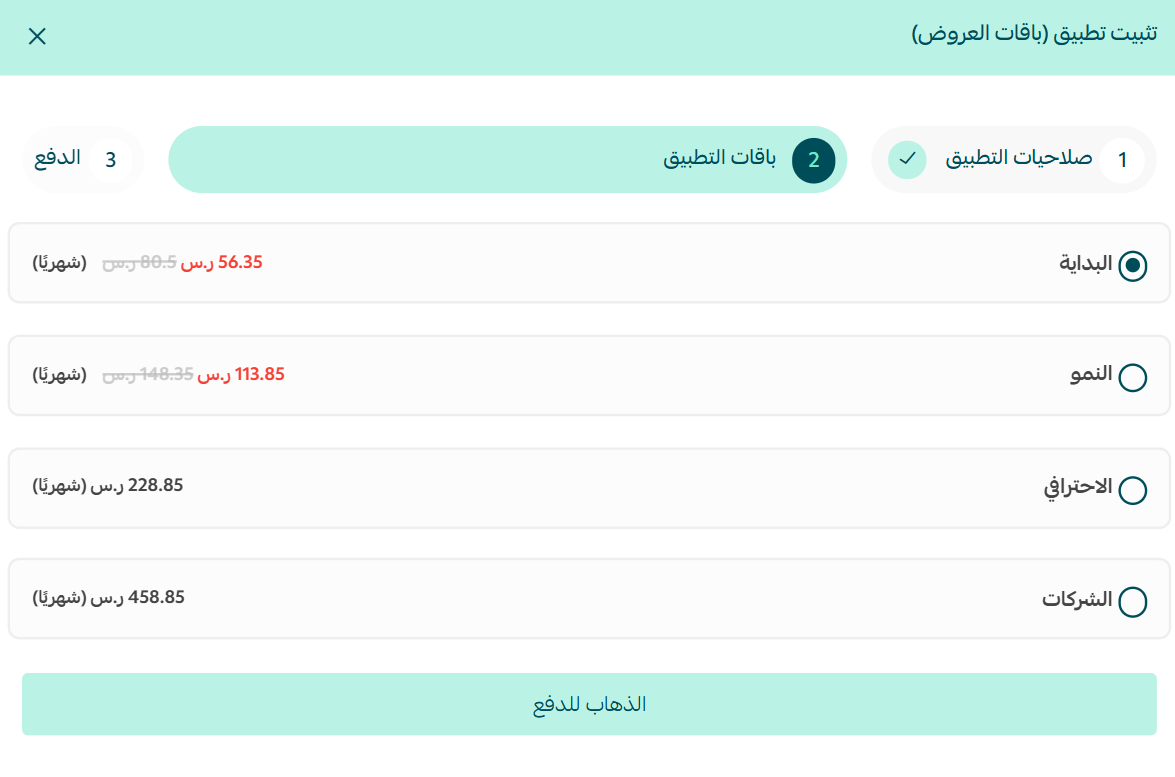
3. Choose the plan that suits your business.
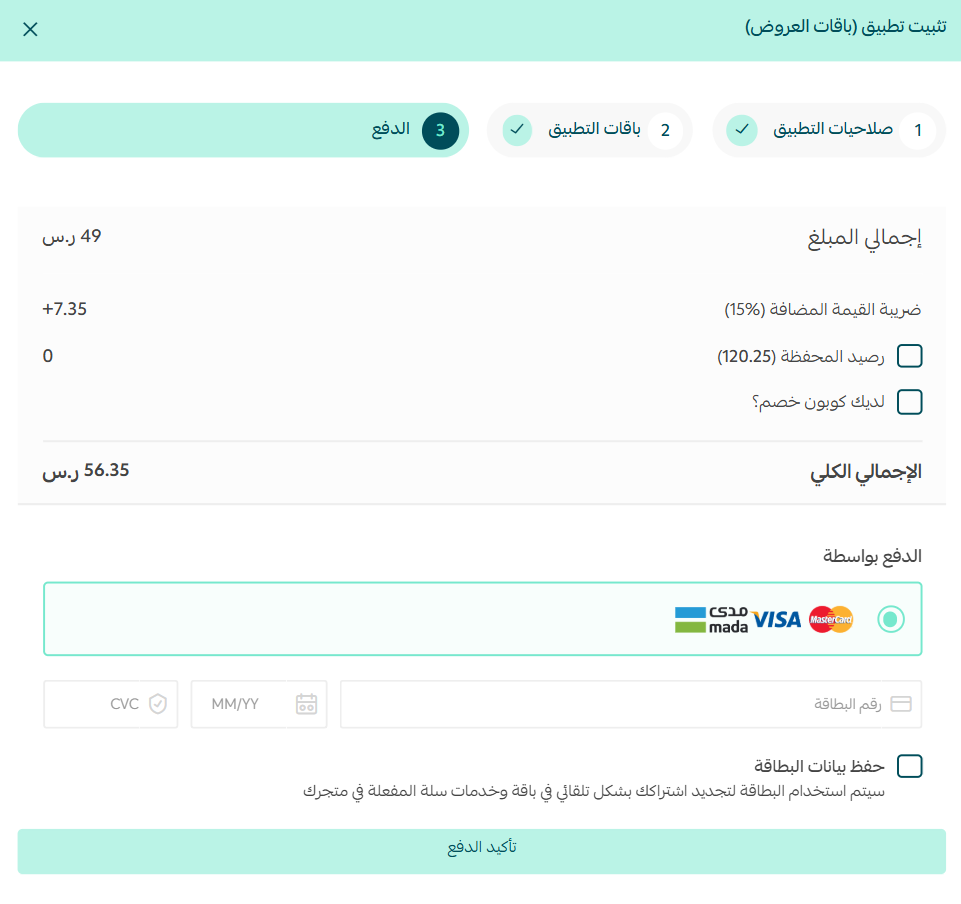
4. Complete the payment, then click (Confirm payment).
Remove the app
From the Offers Bundles app, click (App options), then click (Delete app).
📝 Important notes
- Offers Bundles is a paid app. You choose a plan and complete payment before the app becomes active on your store.
- Removing the app takes its bundle offers off your storefront, so review any live offers before you delete it.
❓ Frequently asked questions
What kinds of bundle offers can I create?
Three display styles are available: a limited-time offer, a free gift-wrap choice, and a complete package that groups several products together.
Can I control which products an offer applies to?
Yes. You select the target products for each offer and set the discount you want to attach to them.
Is the Offers Bundles app free?
No. You pick a paid plan during installation and complete the payment before the app is activated.
Can I change my plan after installing?
Yes. Open the app, click (App options), then click (Buy a copy) and choose the plan that fits your business.
How do I know whether my offers are working?
The app includes live analytics so you can track how each bundle offer is performing.
Bundles work best when the grouping makes obvious sense to the shopper. Start with two or three products people already buy together, keep the saving clear, and let the analytics tell you which combinations deserve a permanent spot on your store.