Has a customer ever landed on a favorite product in your store — only to find it sold out? 🤔
The notify me when available feature solves that problem neatly: customers ask for an instant back-in-stock alert on a sold-out product, and the moment it returns to your inventory, they hear about it. You close more sales, and your customers feel looked after. In this guide, you'll learn how the feature works, how to activate it, and creative ways to put it to work.
To activate notify me when available on Salla, open (Store settings) from the dashboard's side menu, click (Notify me when available), and turn the feature on. Then choose the alert channel — email, SMS, or WhatsApp — customize the alert message, and click (Save). Customers subscribe from the sold-out product's page.
📌 Article overview
- How the feature works
- How to activate the feature in your store
- Creative ways to use notify me when available
- Frequently asked questions
🎯 How the feature works
When a product in your store runs out, customers see an alert bell option on the product page.
As soon as the quantity is available again, the customer receives a notification through the channel you choose (email, SMS, or WhatsApp).
That keeps you in direct touch with your customers — and brings them straight back to your store.
⚙️ How to activate the feature in your store
1. From the side menu of your dashboard, click (Store settings).

2. Click (Notify me when available).
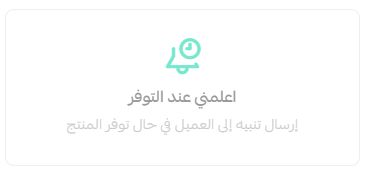
3. Turn on the feature.
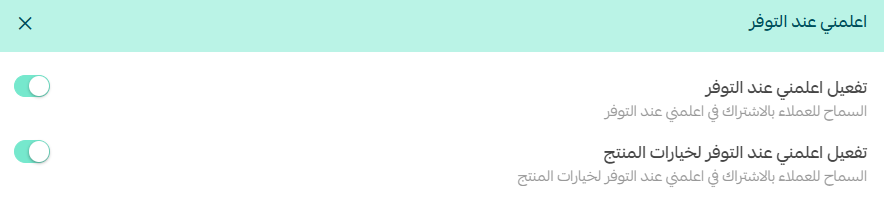
🔹 Activate notify me when available: you enable the feature at the level of the whole product.
💡 Example: when a product (backpack model X) runs out, the "Notify me when available" button appears on the product page for the product as a whole.
The alert here is tied to the entire product, not to a specific variant of it.
🔹 Activate notify me when available for product options: the feature applies at the level of product options (such as color, size, or flavor).
💡 Example: a t-shirt comes in red, blue, and black. If only size M in red runs out, the "Notify me when available" button appears for that specific option — not for the whole product.
4. Adjust the feature's settings, then click (Save).
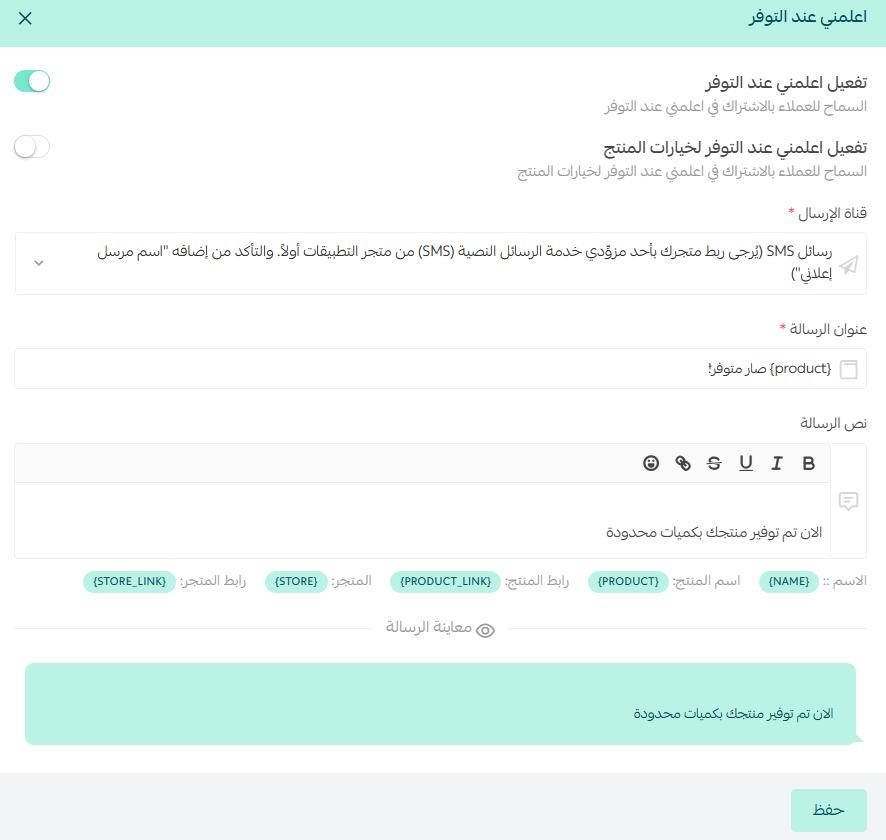
1. Choose how the alert is sent to the customer: email, SMS, or a WhatsApp notification.
2. The alert subject line — when email is enabled — which can include the product name.
3. The alert message text.
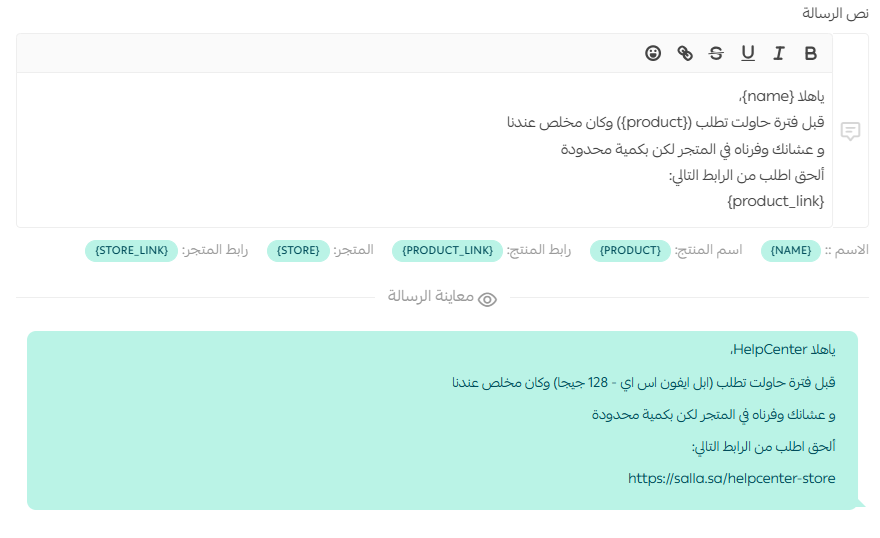
Clicking any of the placeholder titles inserts it into the text box you're editing (alert subject line or alert message text).
You can preview the alert message your customer will receive:
🚀 Creative ways to use notify me when available
Test demand for new products before stocking them
Before investing in a large quantity of a new product, add it to your store with zero stock and activate the feature.
The number of alert subscriptions gives you a clear read on customer interest before you buy inventory.
Revive seasonal products
Some products sell out fast in certain seasons (abayas in Ramadan, stationery at back-to-school time).
The feature shows you which of those products still draw strong demand even after the season ends — helping you plan restocks or discounts.
Measure customer appetite for specific options
If a product comes in multiple options (colors, sizes, flavors), the feature's reports reveal which options customers want most — even while they're unavailable.
That lets you target your future purchasing precisely instead of stocking up on options few customers want.
Build targeted marketing campaigns
Customers who subscribed to alerts are a golden database.
Export that customer list and use it in dedicated marketing campaigns (for example: "Buy now before it sells out again!").
Strengthen loyalty and make customers feel special
You can word the alert message more personally:
Something like "We brought this product back just for you 🌟" or "You're among the first to know it's back".
That gives your customer a genuine sense of care and appreciation.
❓ Frequently asked questions
Why do you need this feature?
- It gives your customers a smooth shopping experience and shows them you care.
- It helps you, as a merchant, learn which products are truly worth restocking.
- It boosts your chances of a sale the moment the product is back in stock.
How do customers use the feature?
While browsing your store, the customer sees a badge showing that their favorite product is sold out.
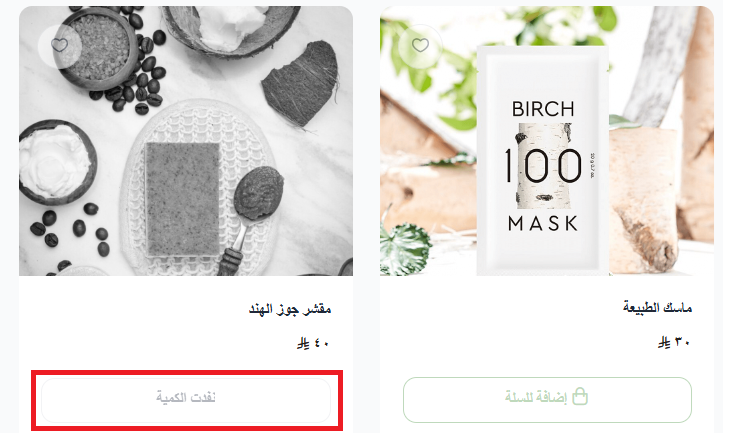
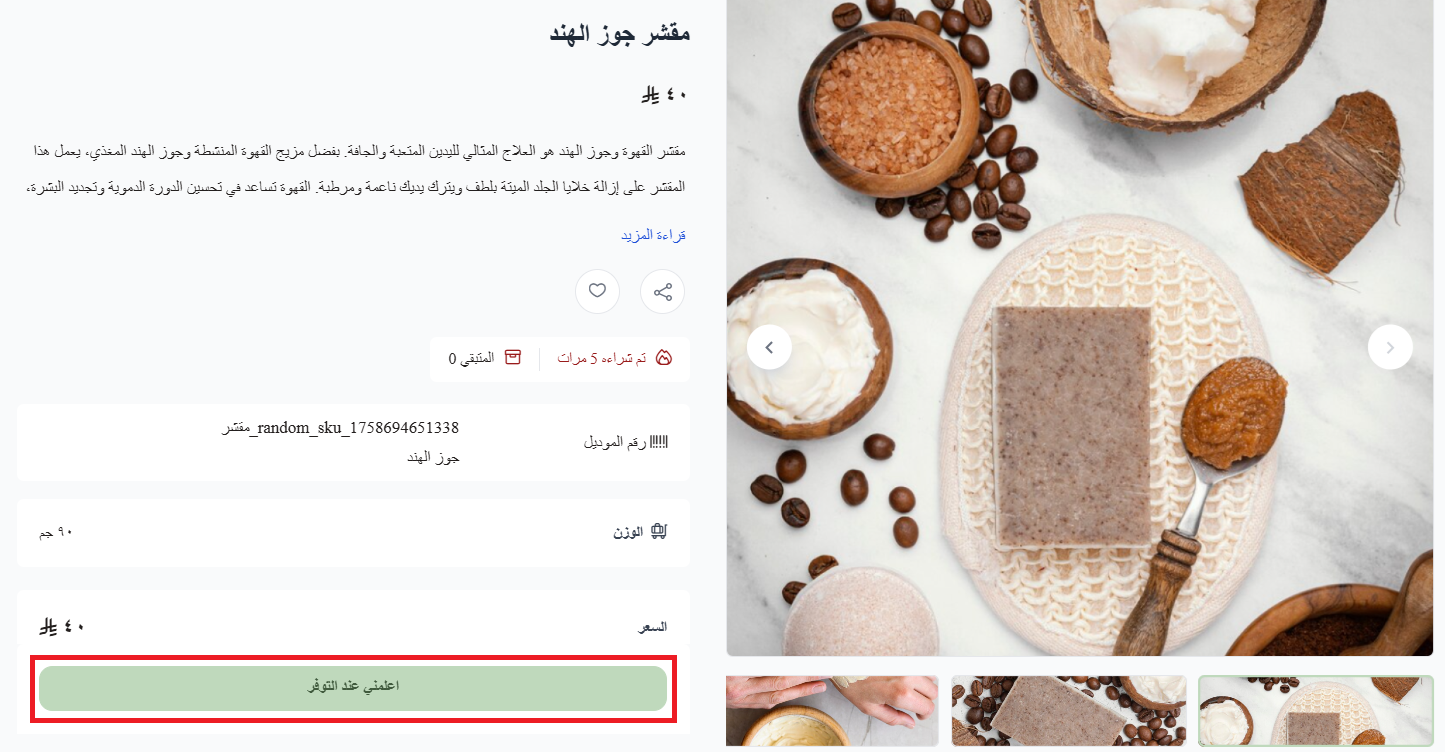
On the product page, they activate the (Notify me when available) bell with one click.
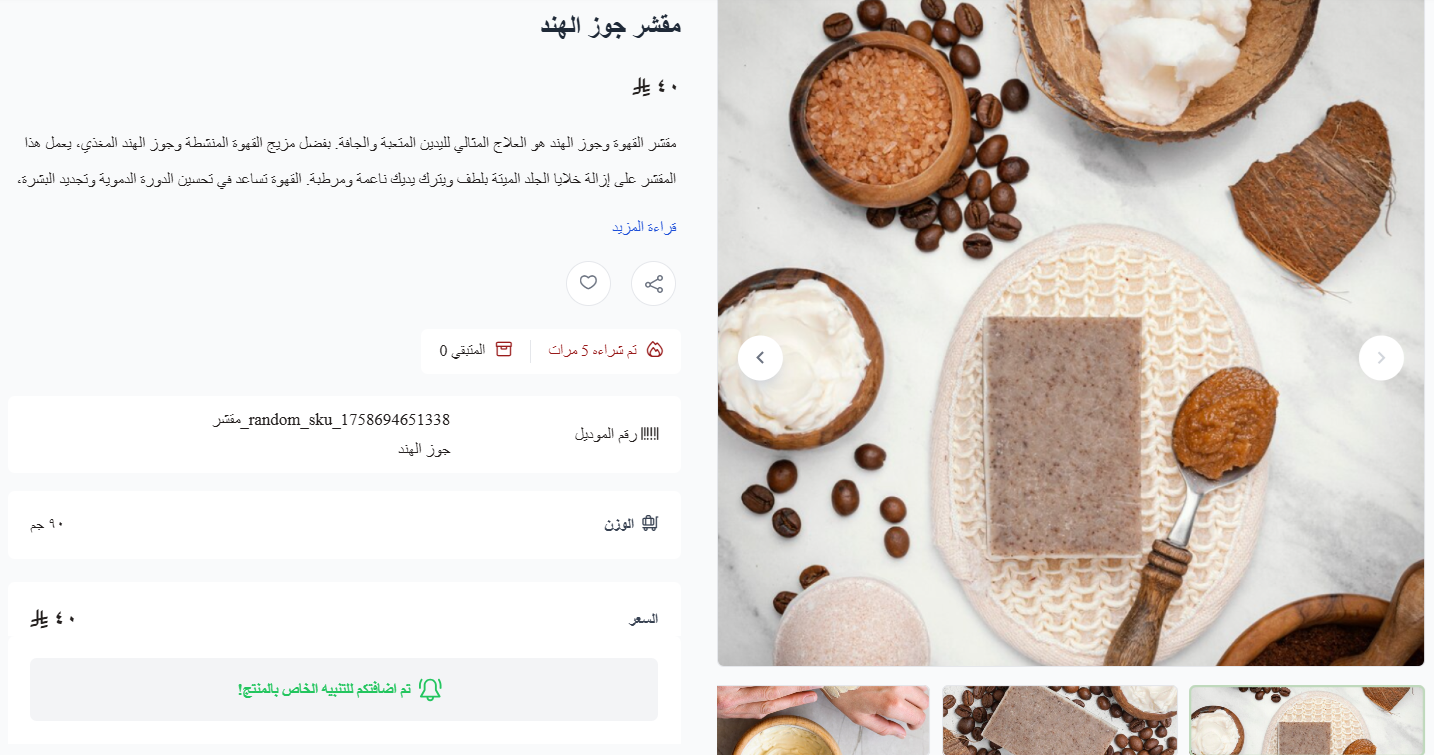
A message confirms they've been added to the alert list for when the product is available.
When additional quantities of the product arrive in your store, the customer receives an availability alert according to the settings you configured for the feature.
How do I benefit from the feature as a merchant?
Notify me when available helps you focus on the products customers actually want after they sell out — because not every sold-out product is proof that customers want more of it, or that it's worth restocking.
1. From the side menu of your dashboard, click (Reports).
2. From the (Products) tab, choose (Notify me when available) from the (Report types) list, then click the (View) button.
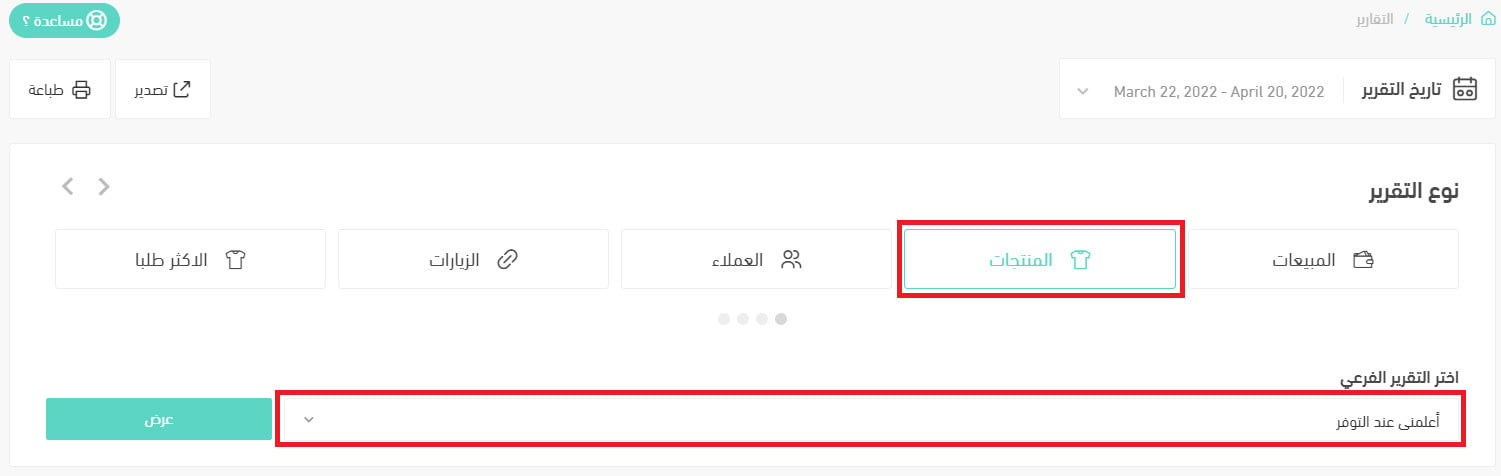
3. Identify the products you should prioritize restocking based on the available quantity, along with the customers waiting for an alert and those already notified.
You can also (Export) the report to Excel as a table for more sorting and filtering options.
Does the message content require SMS balance?
Yes, if you choose (SMS) as the alert type.
Can I turn the feature off at any time?
Yes. Go to (Store settings), click the (Notify me when available) feature, and turn it off.

Which plans include this feature?
It's available on the Plus and Pro plans.
🚀 Next step
Activate notify me when available now — give your customers a smarter shopping experience, and be right there when they come looking for your products.