Mujeeb — AI customer service
Most customer questions arrive outside working hours and repeat the same handful of topics. Mujeeb is an AI-based app that answers customer enquiries automatically, helping stores give immediate, accurate replies without direct human involvement. In this guide, you'll learn how to connect the Mujeeb app to your Salla store and how to remove it.
To connect Mujeeb on Salla, click All in the main menu, then open the App Store from the helper tools section. Search for the app, open the Mujeeb app page, click Install, choose your plan, and complete the payment. You'll receive a confirmation email once installation finishes.
📌 Article overview
- How to connect the Mujeeb app
- Managing the Mujeeb app
- Frequently asked questions
🚀 How to connect the Mujeeb app on Salla
1. From the main menu, click (All), then from the helper tools section click (App Store).

2. Search for the app using the search field.

3. From the Mujeeb — AI customer service app page, click (Install).
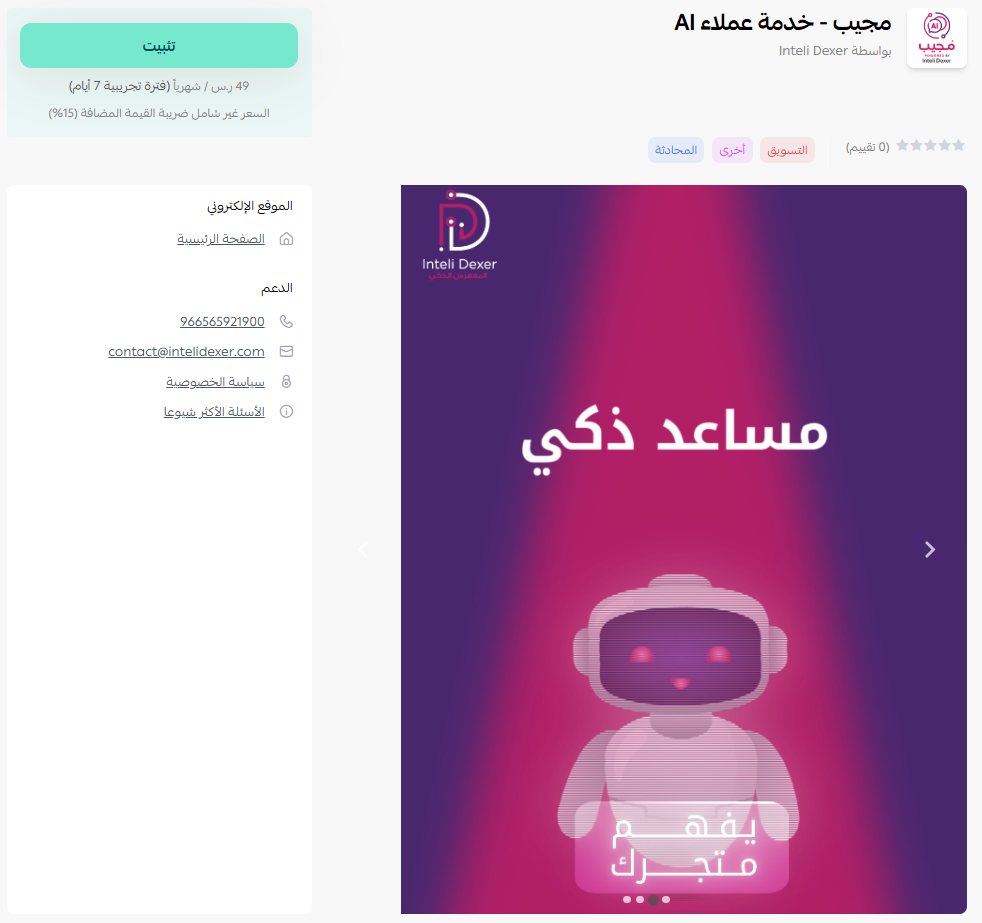
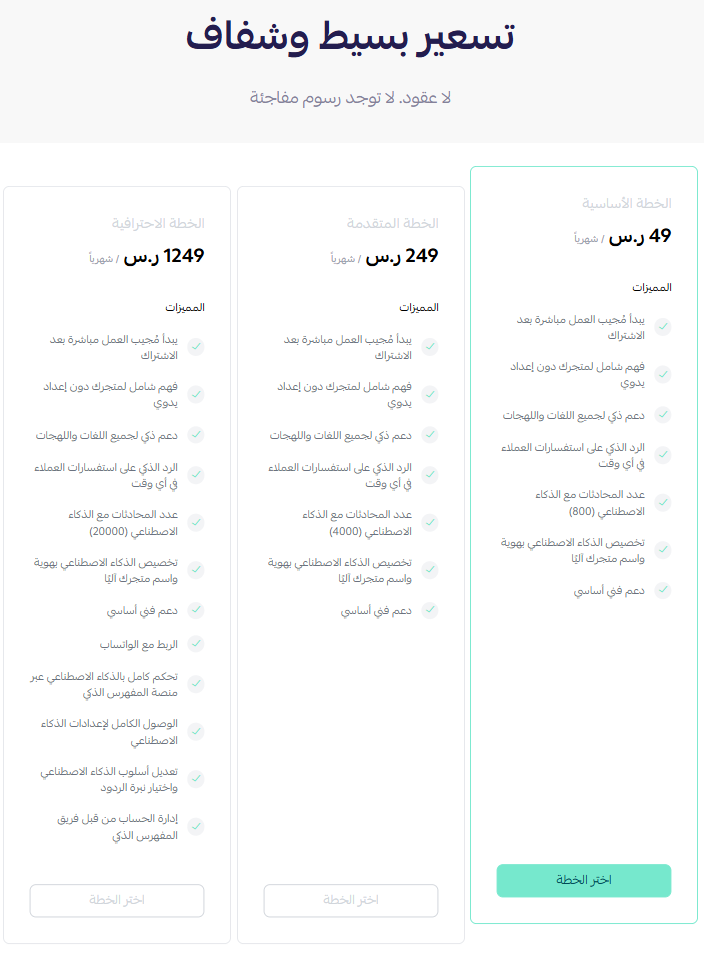
4. Choose the plan that fits your business to continue with the installation.
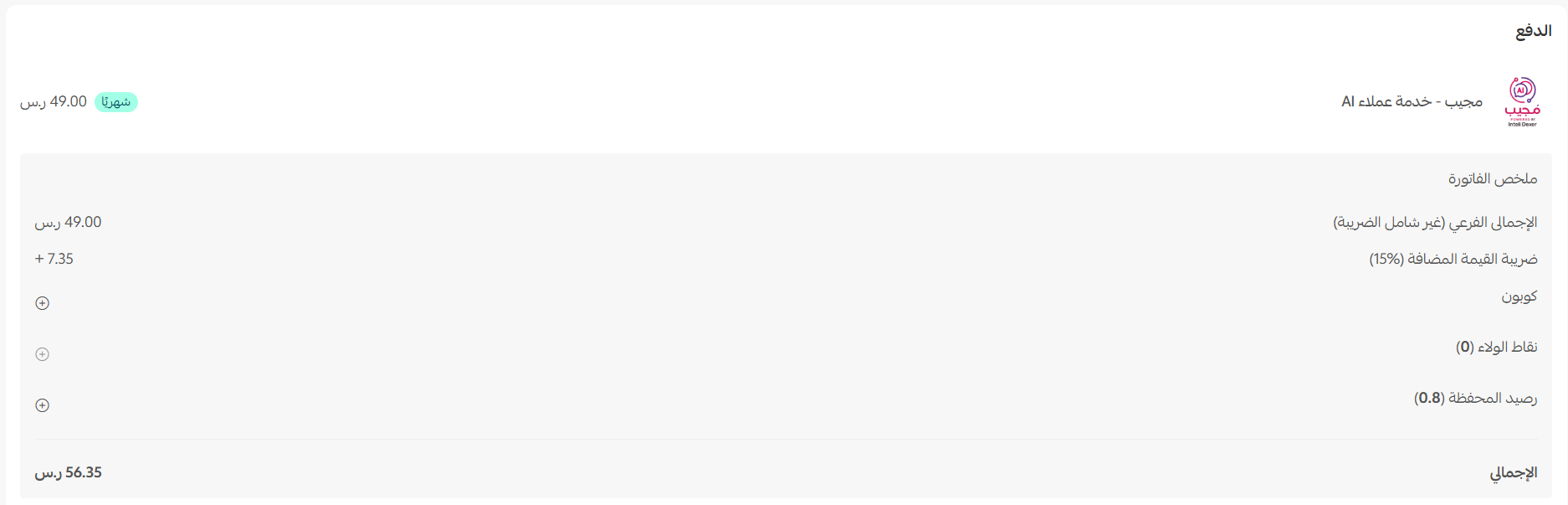
5. Complete the payment to activate the app's features.
The Mujeeb app is now installed on your store.
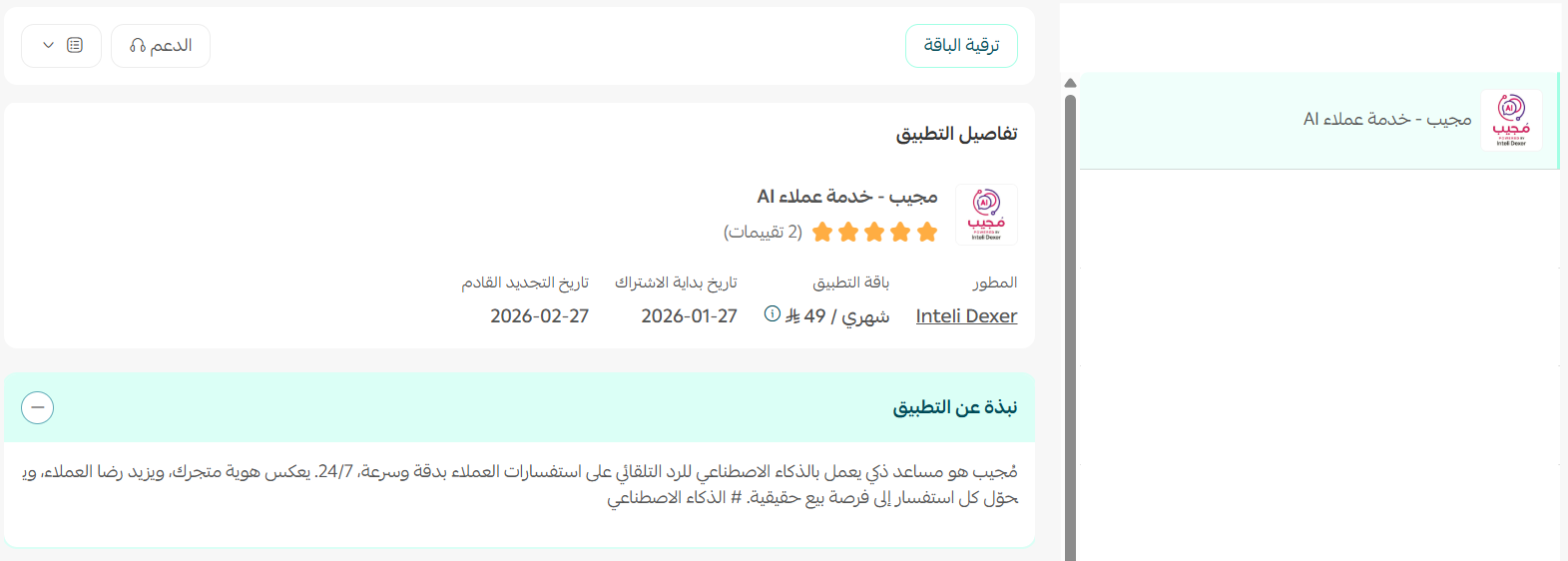
Once installation finishes, you'll receive a confirmation email.
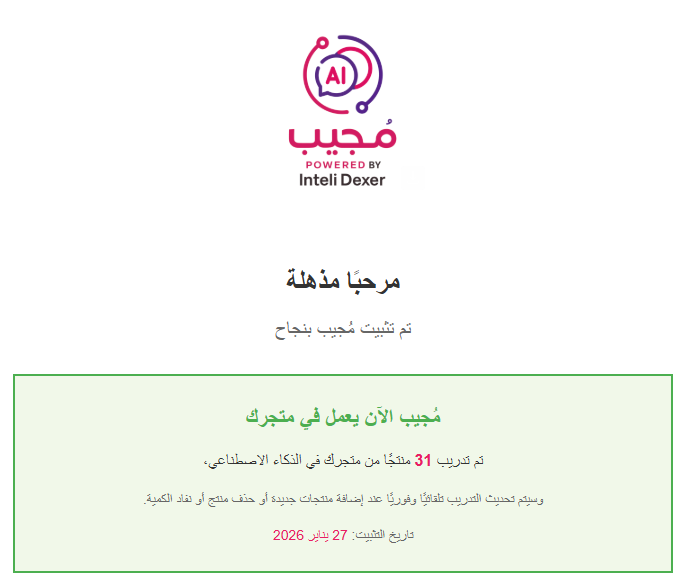
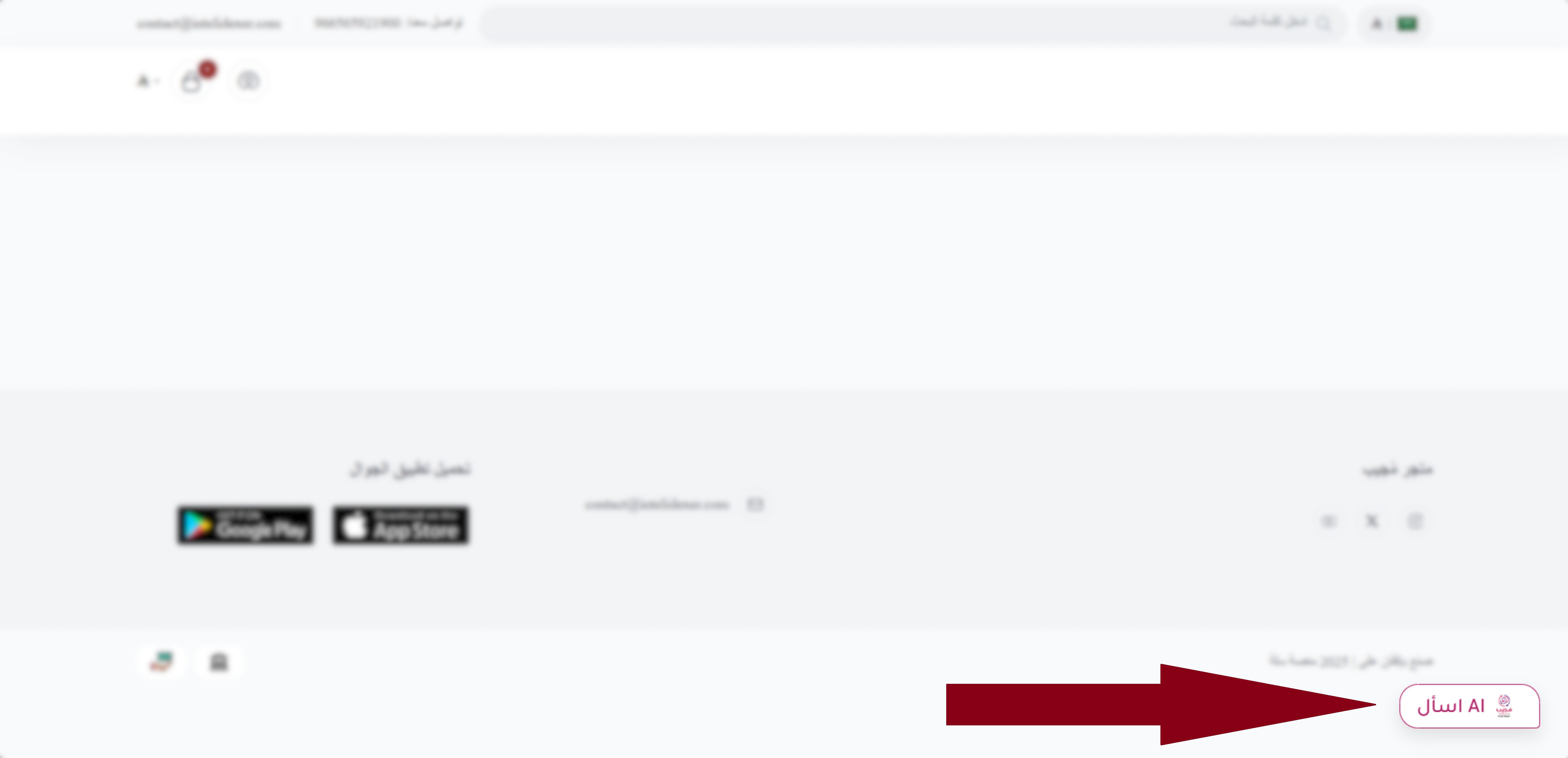
It then appears in your store like this:
🚀 Managing the Mujeeb app
Removing the app
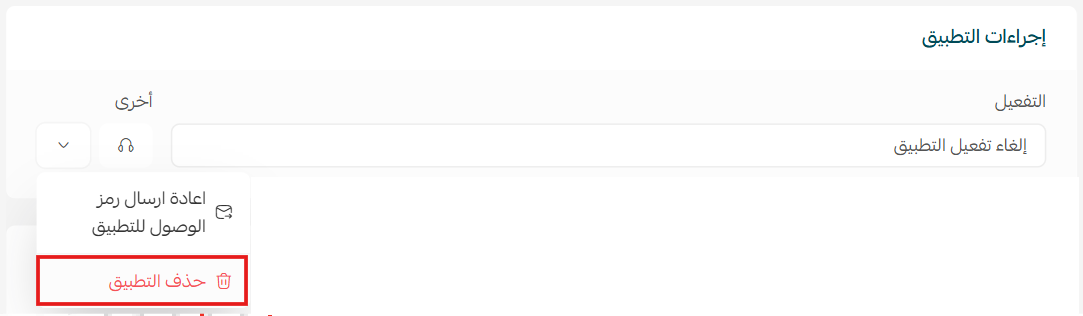
From the Mujeeb app, click (App options), then click (Delete app).
Frequently asked questions
❓ What does the Mujeeb app do?
It uses AI to answer customer enquiries automatically, so your store can give immediate, accurate replies without someone answering each one.
❓ Where does it appear for customers?
In your storefront, once installation completes.
❓ How do I remove the app?
Open the Mujeeb app, click App options, then click Delete app.
For more detail, see the Mujeeb app site.
Automated replies work best on the questions you already answer the same way every time. Review what it sends for the first week, and you'll quickly see which enquiries still deserve a person.