How many of your customers would rather get an order update on WhatsApp than in an email they never open?
Mowasil is a WhatsApp communication app for Salla merchants. It connects your store to WhatsApp so order confirmations and status changes go out automatically, campaigns reach your customer list, and routine questions get answered without you typing the same reply again. In this guide, you'll learn what the Mowasil WhatsApp app offers, how to install it on your store, and how to manage your subscription afterwards.
Mowasil is a Salla App Store integration that sends WhatsApp messages on your store's behalf. It automates order confirmations and status updates, sends bulk campaigns to all or selected customers, retargets abandoned carts, and answers common questions with predefined replies. Install it from the App Store, choose a plan, then sign in to the Mowasil website.
📌 Article overview
- What the Mowasil app offers
- How to install the Mowasil app
- How to manage the app
- Frequently asked questions
🎯 What the Mowasil app offers
- 🚀 Automated order confirmations and status updates over WhatsApp.
- 📢 Bulk messages to your whole customer list or a selected group, plus abandoned cart retargeting.
- 🤖 Predefined replies that handle customer questions efficiently.
- 🔒 Secure OAuth authentication for Salla merchants.
- 🌐 Webhook integration that triggers messages based on store events.
🚀 How to install the Mowasil app
1. From the main menu, click (All), then under the helper tools section click (App Store).

2. Find the app using the search field.

3. On the Mowasil app page, click (Install).
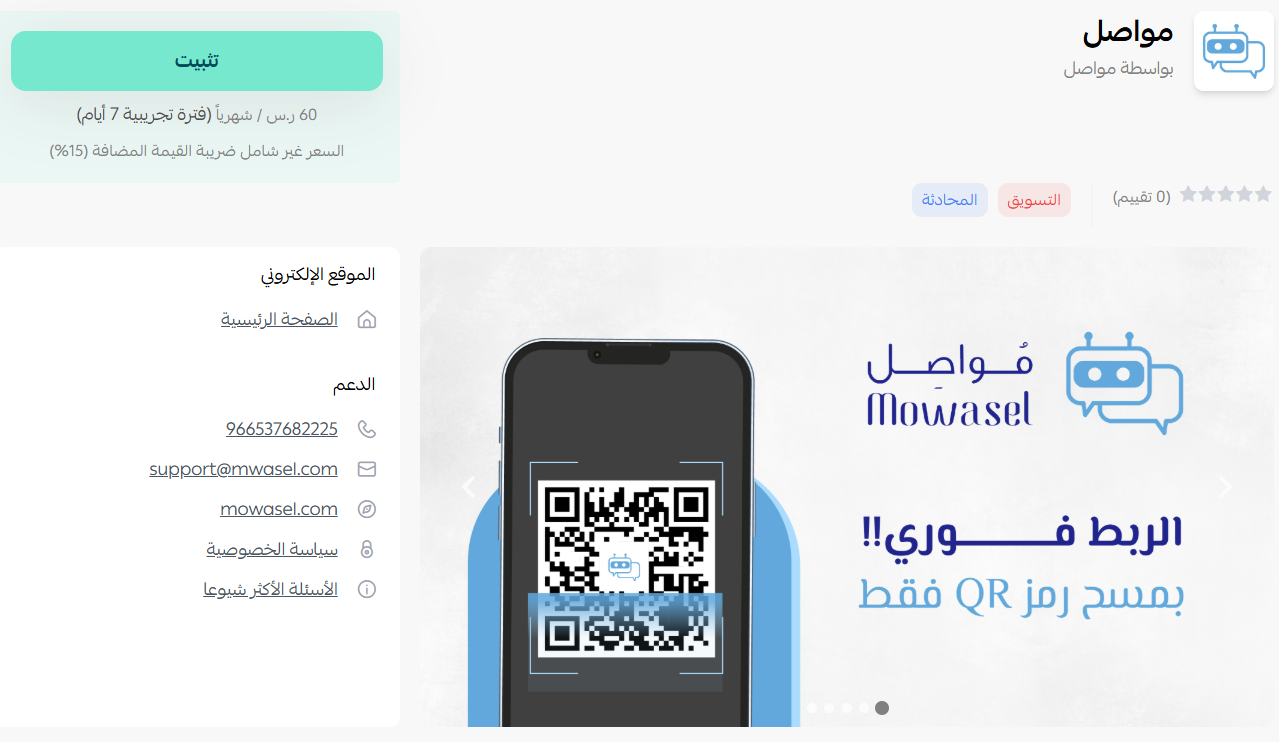
The app is now installed.

🚀 How to manage the app
1. Upgrade your plan
- From the (App actions) section, choose (Upgrade plan).

- Choose the plan that fits your business, then click (Continue to payment).

- Complete the payment to unlock the app's features.

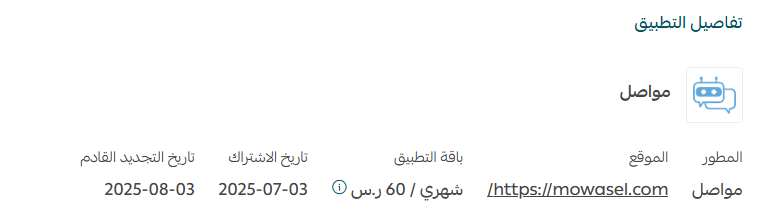
Mowasil is now active on your store.
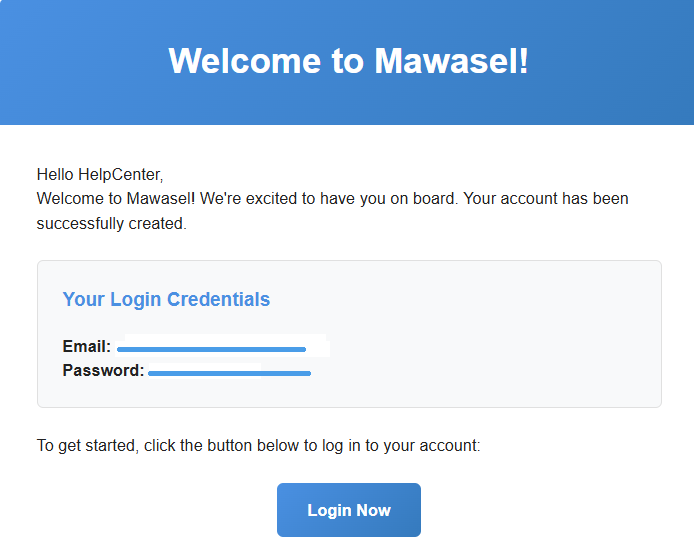
Once the installation is complete, you receive an email with your sign-in details.
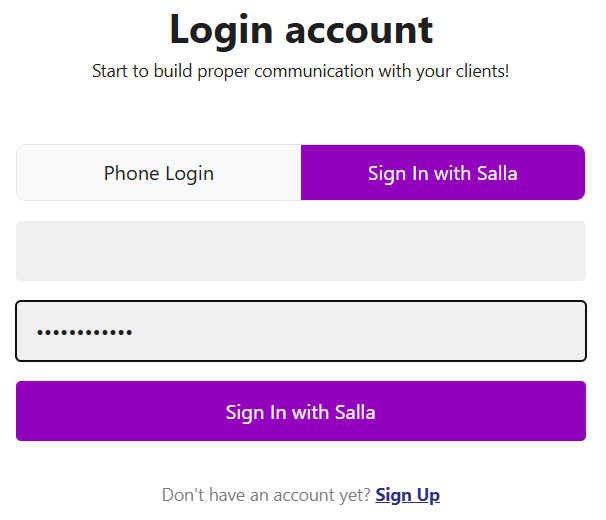
2. Sign in to the Mowasil website
- Sign in to the Mowasil website with the credentials sent to your email.
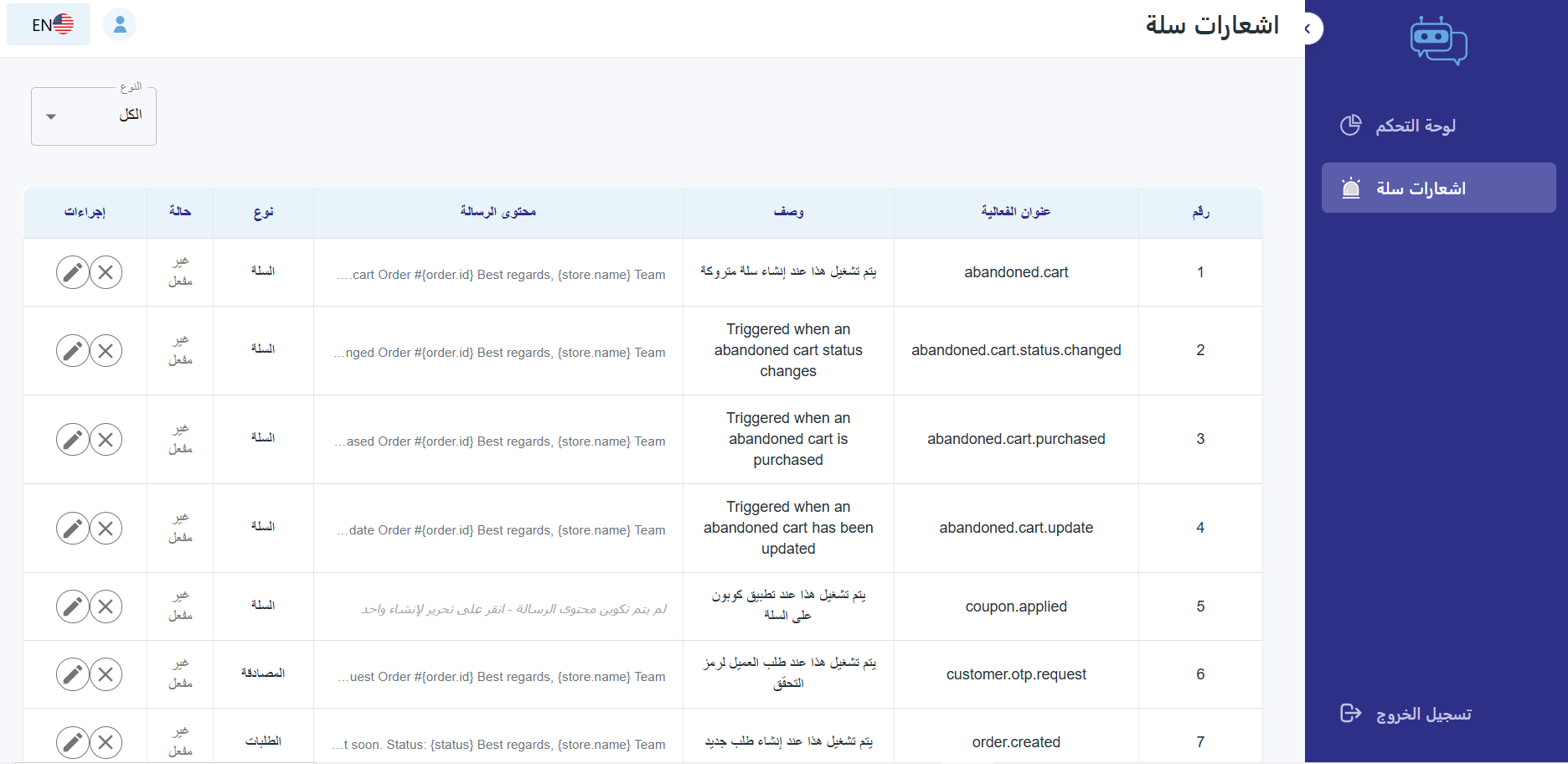
 Once you are signed in, Mowasil takes you straight to its home page, where you can start setting up your account.
3. Cancel your Mowasil subscription
From the App actions section, click ( ), then click (Cancel subscription).

📝 Important notes
- Messaging is configured on the Mowasil website, not inside your Salla dashboard. The dashboard handles installation, plan and cancellation.
- Your sign-in credentials arrive by email after the app is installed, so use the address on your store account.
- Mowasil connects to your store through OAuth, so you never share your dashboard password with it.
❓ Frequently asked questions
❓ What can Mowasil send over WhatsApp?
Automated order confirmations and status updates, bulk campaigns to all or selected customers, abandoned cart follow-ups, and predefined replies to common customer questions.
❓ Can I message only part of my customer list?
Yes. Bulk messages can go to every customer or to a selected group, so you can target a segment such as customers who left items in their cart.
❓ Where do I upgrade or change my plan?
In your Salla dashboard. Open the app, go to the App actions section, choose (Upgrade plan), pick a plan and complete the payment.
❓ How do I stop using the app?
From the App actions section, click the options icon, then click (Cancel subscription).
❓ Do messages send automatically or do I trigger them?
Both. Order confirmations and status updates fire automatically through webhooks when the matching store event happens, while campaigns are sent when you choose to send them.
WhatsApp is where most of your customers already are. Automating the messages they actually want, order updates first, buys back hours of manual replying every week. More details are available on the Mowasil app website.