Would a hesitant shopper trust a five-star rating if they had no idea who left it?
Anyone can type a review. What actually convinces someone on the fence is knowing the person behind the rating really bought the product. Moshtary Moathaq is a verified product reviews app: it ties every rating to a real order, so only customers who completed a purchase can review, and that proof is visible to everyone browsing your store. In this guide, you'll learn how to install Moshtary Moathaq, upgrade your plan, manage your reviews, and remove the app.
Moshtary Moathaq connects your Salla store to a review system that checks each rating against a real purchase. Install it from the App Store, set a password from the email you receive, and manage every verified review from the app's own dashboard.
📌 Article overview
- What the Moshtary Moathaq app does
- How to connect the Moshtary Moathaq app to your store
- How to manage the Moshtary Moathaq app
- Frequently asked questions
👣 How to connect the verified product reviews app to your store
1. From the main menu, click (All), then from the helper tools section, click (App Store).
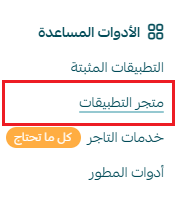
2. Search for the app using the search field.

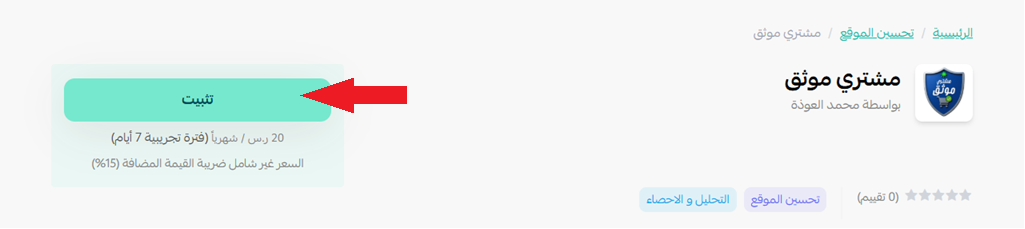
3. On the Moshtary Moathaq app page, click (Install).
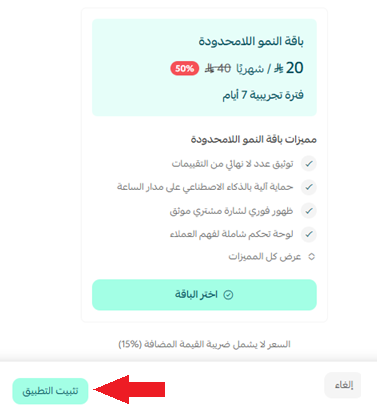
4. Choose the plan that suits you, then click (Install app).
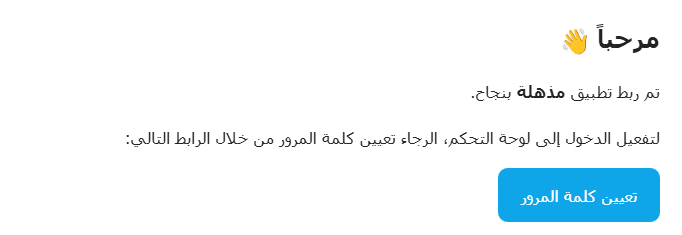
5. Once the app is installed, you'll get an email asking you to create a password. Click (Set password), choose your password, and save it.
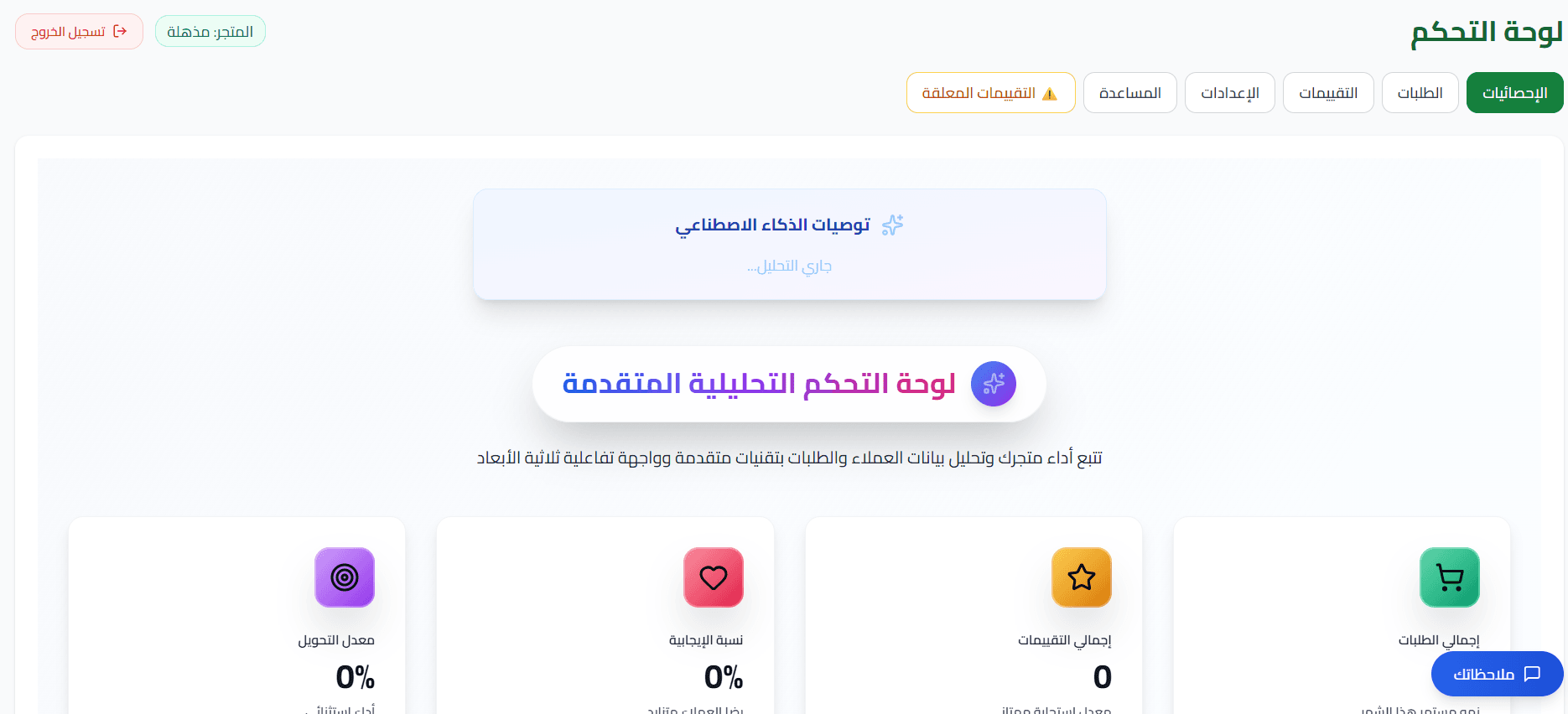
6. Go to the Moshtary Moathaq home page and sign in with the same email address and password.
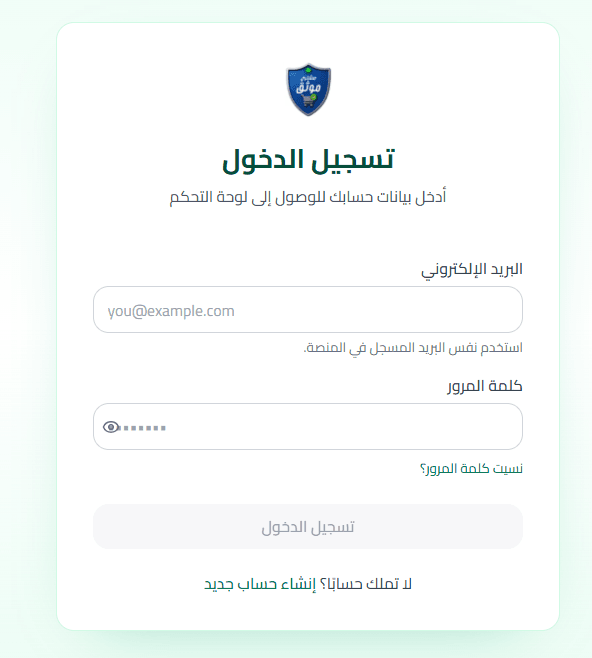
7. After you sign in, your Moshtary Moathaq dashboard opens.
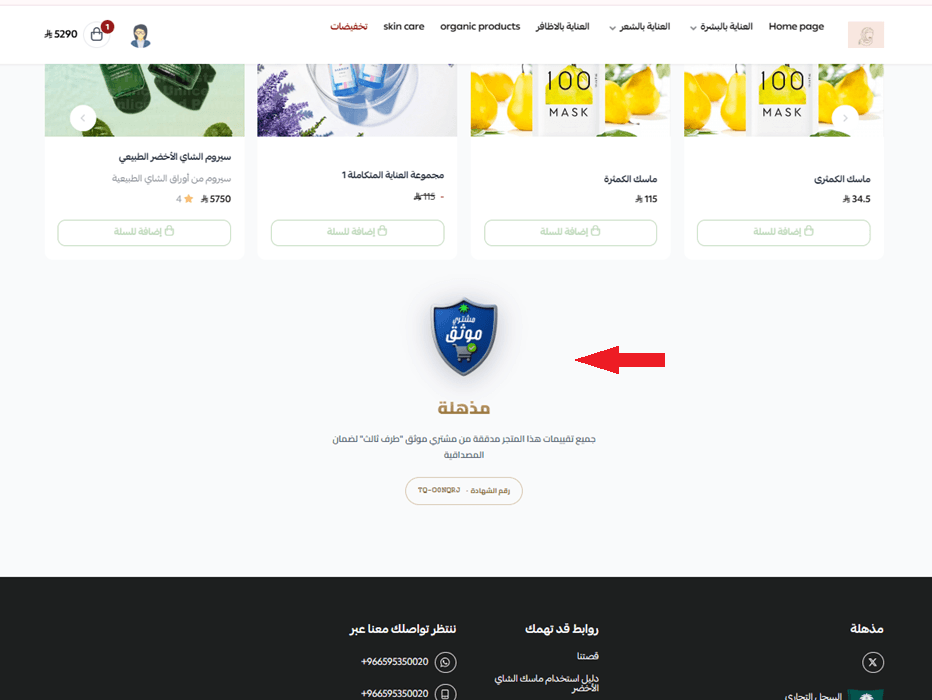
The Moshtary Moathaq badge also appears at the bottom of your storefront once the connection is complete.
🚀 How to manage the Moshtary Moathaq app
Upgrade your plan
1. From the app details page in your store, click (Upgrade plan).

2. Choose the plan you want, then click (Go to payment).

3. Fill in your payment details and click (Confirm) to complete the upgrade.

Customize the app
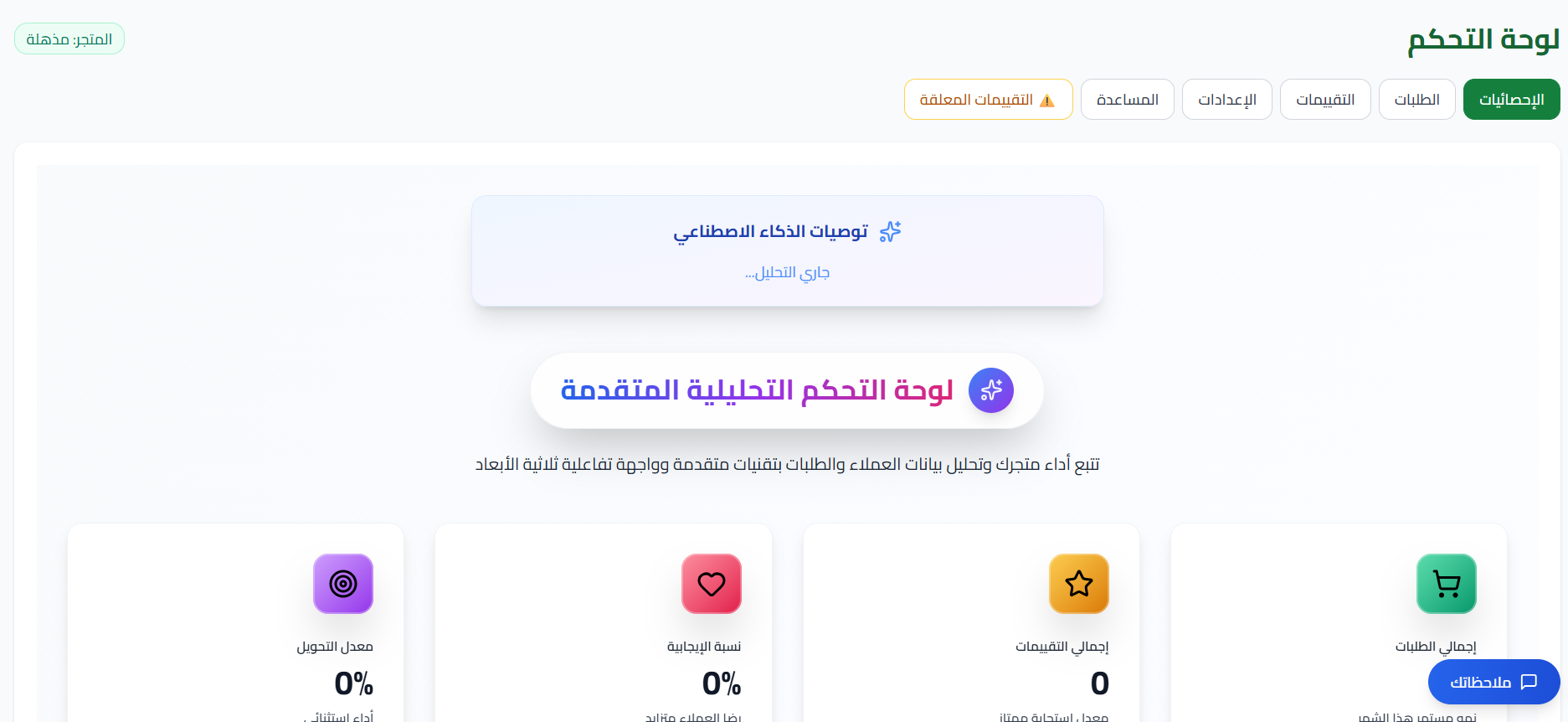
🎯 You manage the app, follow your reviews, and track orders from the dashboard on the Moshtary Moathaq site.
Delete the app
1. From the app options menu, click (Cancel subscription), then choose your reason for cancelling.

2. From the app options menu, click (Delete app), then choose your reason for deleting.

3. On the Deleted apps page, open the app options menu and click (Delete app permanently) to remove it from your store for good.

📝 Important notes
- Your Moshtary Moathaq password is created from the email the app sends you, not from your Salla dashboard.
- Reviews and orders are managed on the Moshtary Moathaq site; your Salla dashboard handles the plan and the app itself.
❓ Frequently asked questions
Who can leave a review once the app is connected?
Only customers whose review is linked to a real purchase order. Ratings from people who did not complete a purchase are not published.
Do I need a separate Moshtary Moathaq account?
Yes. After installing, you set a password from the email you receive, then sign in on the Moshtary Moathaq site with that email and password.
Where do I see the verified reviews?
In your dashboard on the Moshtary Moathaq site, where you can also follow the related orders.
Can I move to a bigger plan later?
Yes. Open the app details page in your store, click (Upgrade plan), pick the new plan, and complete payment.
Is cancelling the subscription the same as deleting the app?
No. Cancelling ends the subscription, deleting removes the app from your store, and (Delete app permanently) on the Deleted apps page clears it for good.
Trust is the quiet reason a first-time visitor becomes a buyer. Showing that every rating came from someone who actually paid for the product does more for your store than any extra line of marketing copy. For more details, visit the Moshtary Moathaq app page.