Do your customers book an appointment instead of adding a product to the cart?
The Mawid theme is built for booking-based stores. It gives visitors advanced search by branch, department, and service provider, so they land on the right slot fast, and it gives each customer a clear view of their past and upcoming appointments. In this guide, you'll learn how to install the Mawid theme, add its new components, and customize its design options.
To install the Mawid theme, open the Themes store from your dashboard, find Mawid, click (Buy now), and complete the payment. Then go to Store design, create a new version of the theme, and click (Customize) to adjust its components and design options before you publish it.
📌 Article overview
- How to install the Mawid theme on your store
- New components added to the Mawid theme
- Customize the design options
- Frequently asked questions
🚀 How to install the Mawid theme on your store
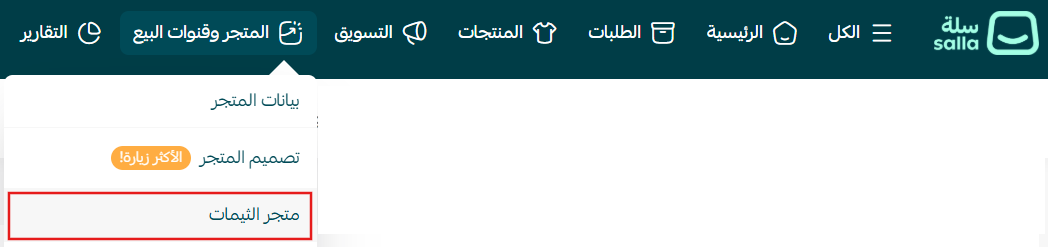
1. From the main menu, click (Store and sales channels), then click (Themes store).
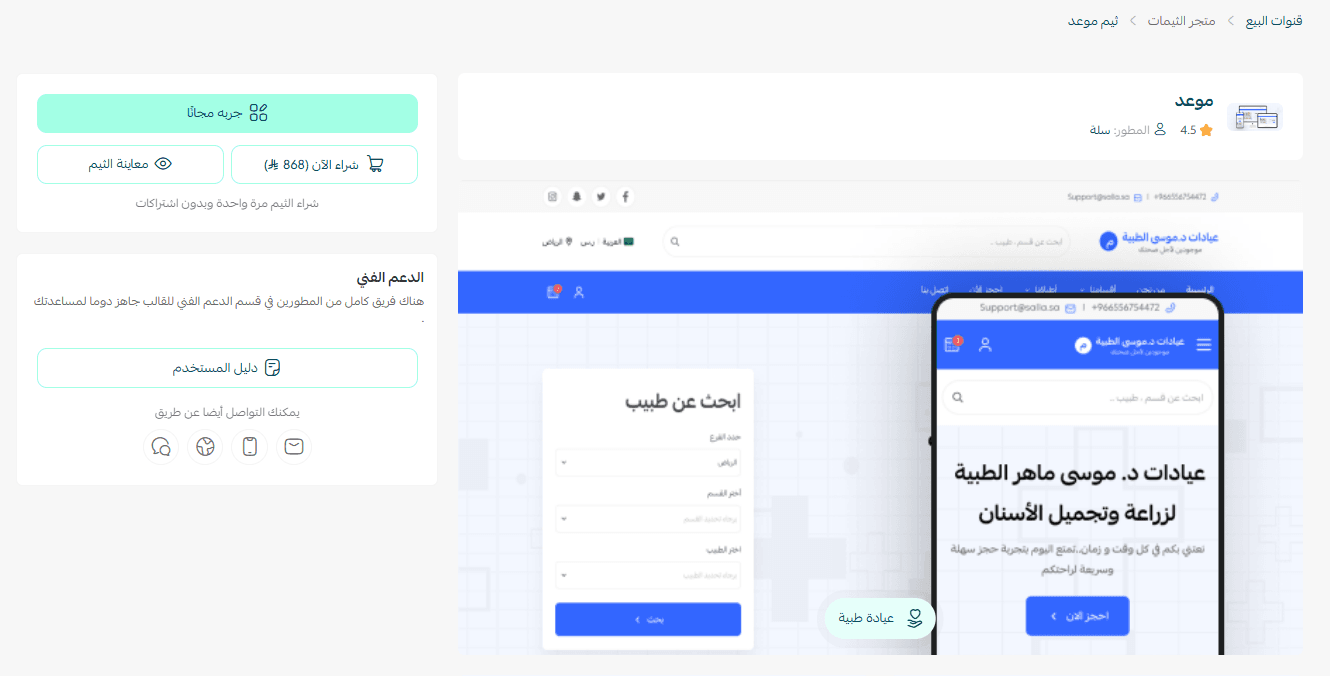
2. On the Themes store page, search for the Mawid theme, click (Buy now), then complete the payment.
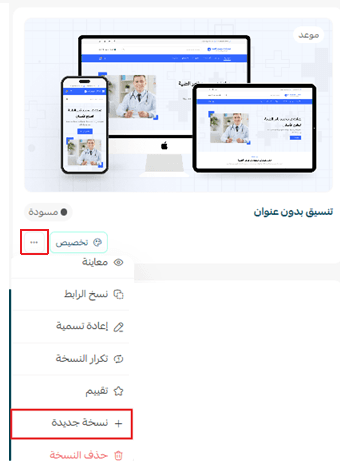
3. Once the theme is installed, go to the Store design page, click (...), then click (+ New version).
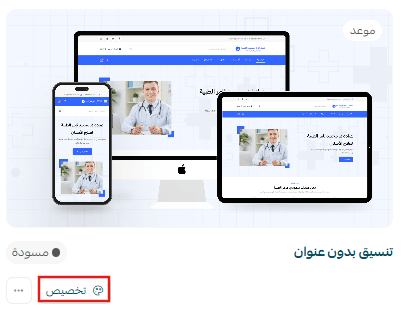
4. Click (Customize) to set the theme version up the way you want it.
The theme customization page also lets you preview how your store will look once the theme is applied:
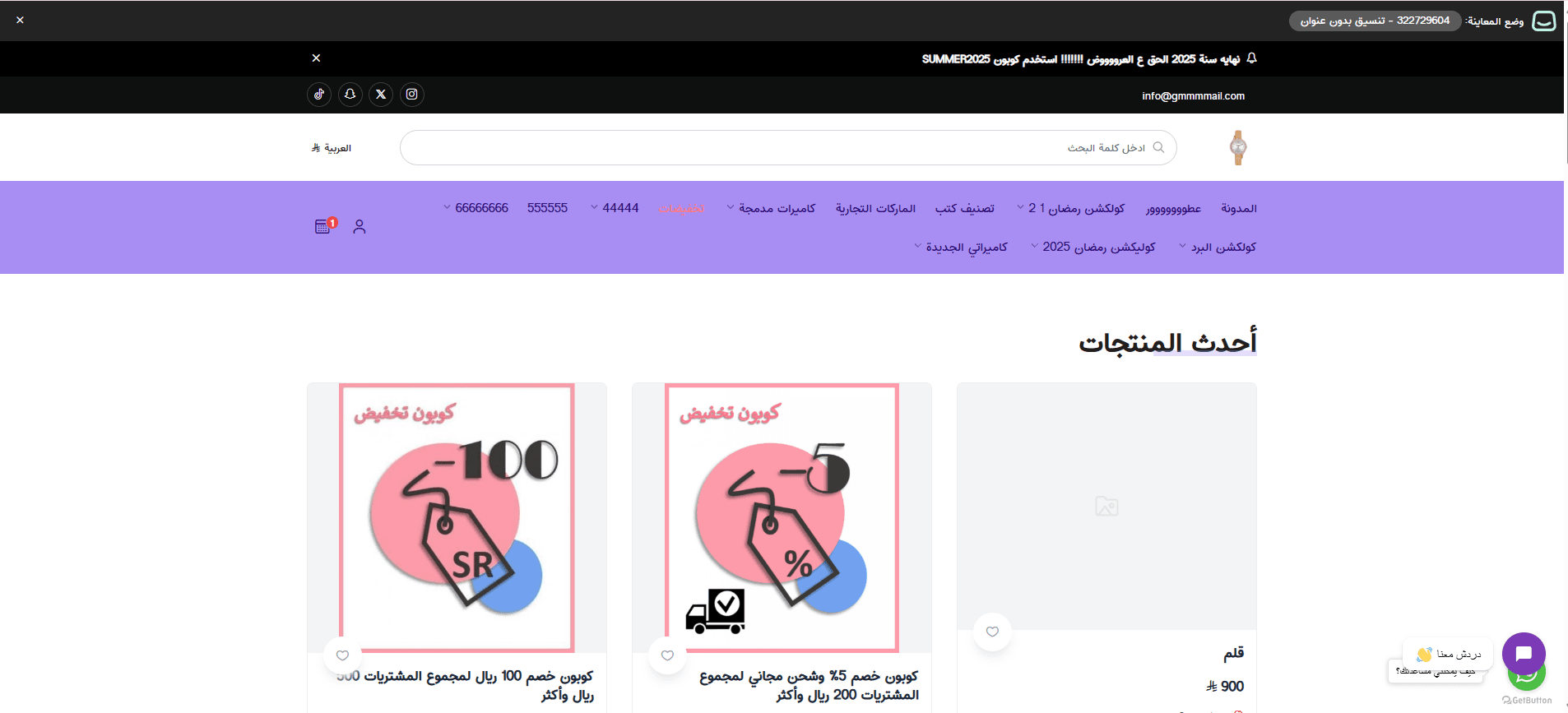
You can also preview a store using the Mawid theme.
🚀 Want a store that looks sharper and sells better? These guides go further:
- Manage theme versions and schedule when they go live
- Manage and customize your theme design.
New components added to the Mawid theme
The Mawid theme ships with a set of components built for fast performance.
To add them to your store, open the Mawid theme customization page and click (+ Add new component).
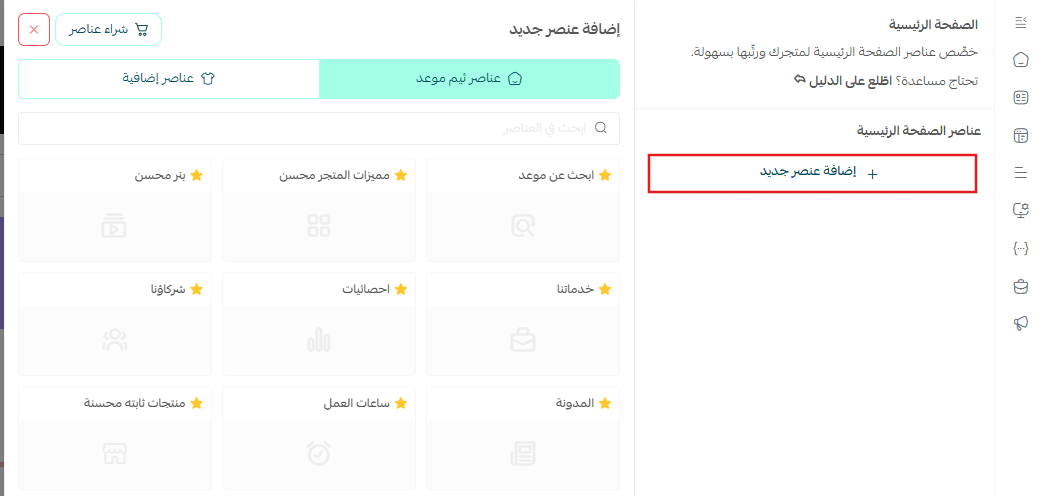
A list of the components you can add to your store appears.
🔔 Note: The components marked with a star are the ones that belong to this theme.
🚀 A sharper homepage means a smoother path to checkout. See how to customize each component.
🌟 Customize the design options
Product page options
1. Show or hide tags
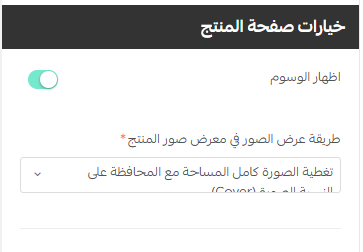
Tags then appear on the product page like this:

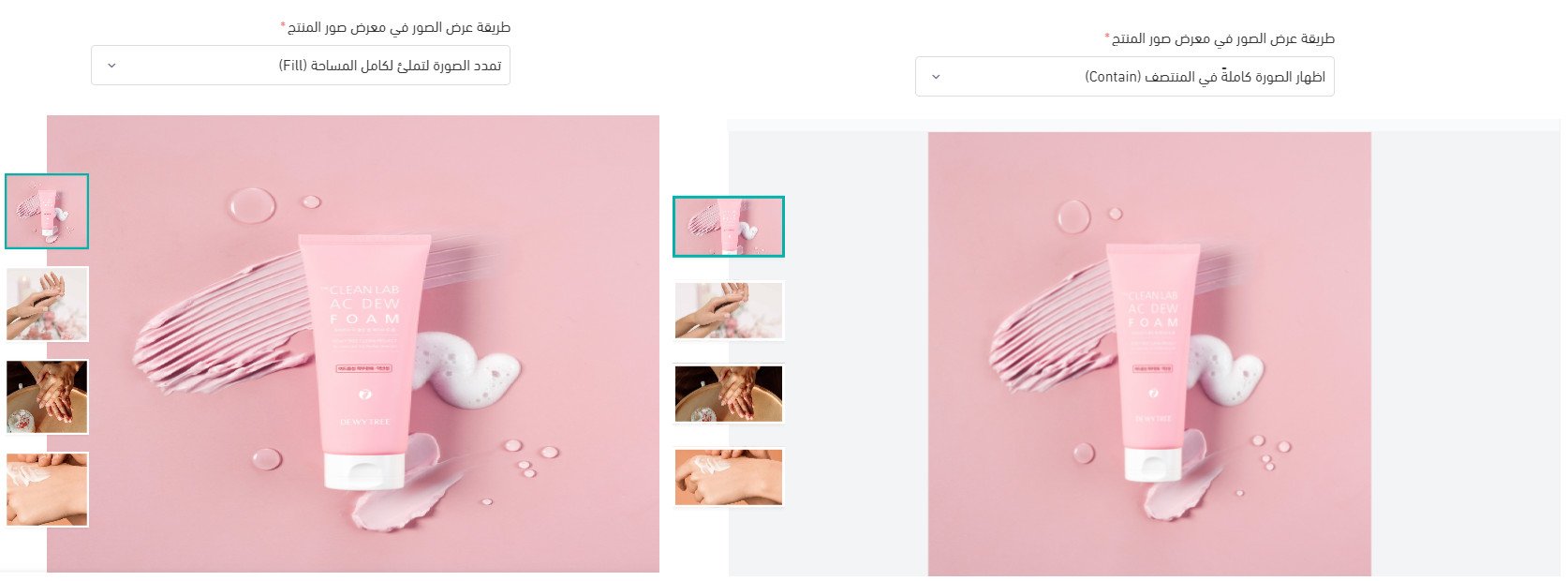
2. Display product images at a wider size
This puts the product photography front and center, and gives you control over how images are laid out in the product image gallery.
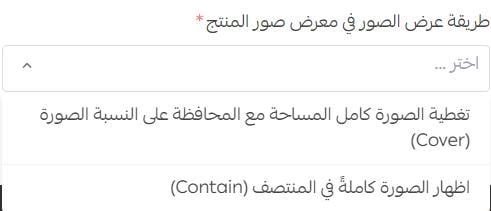
In your store, it looks like this:
Customer appointments page options
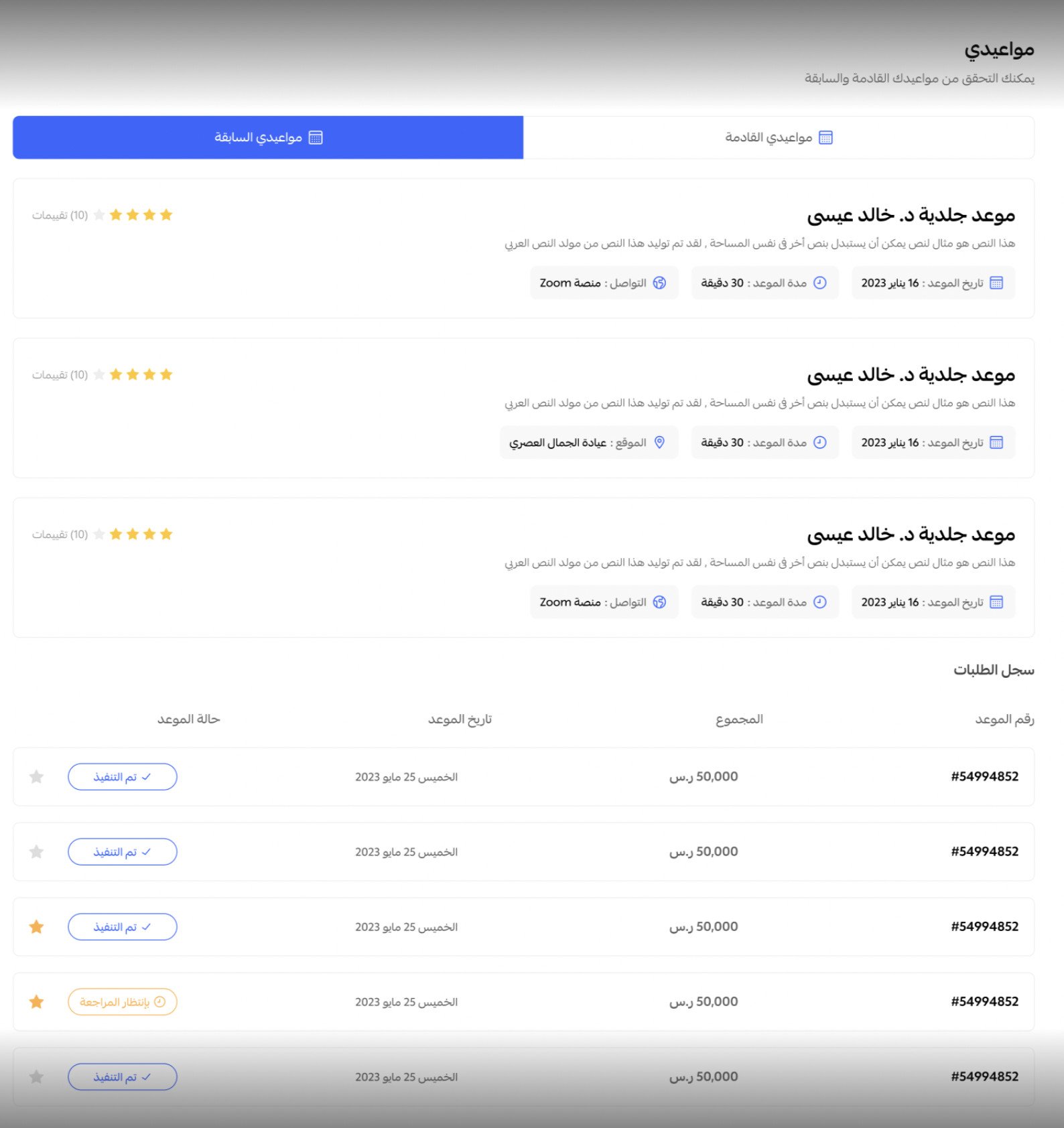
The theme gives every customer two separate views inside their account:
- My appointments: shows their bookings, split into past and upcoming.
- My orders: shows all of their orders.
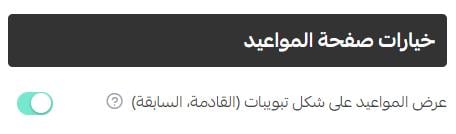
You can also choose to display upcoming and past appointments as tabs.
📝 Important notes
Customize a new version of the theme rather than editing a live one, so your storefront only changes when you decide it should.
Design options are saved per theme version, so a change you make in one version does not carry into another.
❓ Frequently asked questions
What kind of store is the Mawid theme for?
Stores that sell appointments rather than shipped products. Its search filters by branch, department, and service provider, and customers get a dedicated view of their past and upcoming bookings.
Is the Mawid theme free?
No. You buy it from the Themes store and complete the payment before it can be installed on your store.
How do I know which components belong to the Mawid theme?
Open (+ Add new component) on the theme customization page. The components marked with a star are the ones the theme adds.
Can I see the theme before I buy it?
Yes. Open the preview of a store running the Mawid theme, and after installing, use the preview on the theme customization page to check your own store.
Where do customers find their bookings?
In their account, under (My appointments), which separates past bookings from upcoming ones. Their full order history stays under (My orders).
Once the theme is installed, spend a few minutes in (Customize) setting the product page and appointments options the way your service works. It is the fastest way to make booking feel effortless for your customers.