Do you want to reach traders and distributors faster than your retail store allows?
A wholesale store gives you a dedicated storefront for bulk selling, with its own terms and its own approved customer list, which makes managing buyers and expanding your distribution network far easier than running everything through one public store. It is available to merchants on the Special plan only. In this guide, you'll learn how to activate and manage your wholesale store account step by step — from setting up the registration form to approving customer requests and seeing where their details appear.
A wholesale store is a storefront built for bulk sales, available to Special plan merchants through their account manager. You activate it by requiring login before browsing, customize the registration form buyers fill in, then approve or reject each request from your customers page. Approved customers can sign in, view products and order.
📌 Article overview
- What a wholesale store is
- How to activate and manage your wholesale store account
- Frequently asked questions
🎯 What a wholesale store is
A wholesale store is a storefront dedicated to bulk sales, with its own terms and features, available to merchants on the Special plan only. You request one for your account through your account manager.
👣 How to activate and manage your wholesale store account

1. Activate your store as a wholesale store
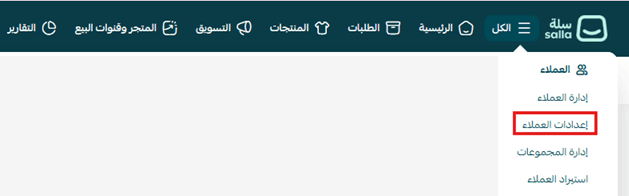
1. From the (All) tab in the main menu, click (Customer settings).
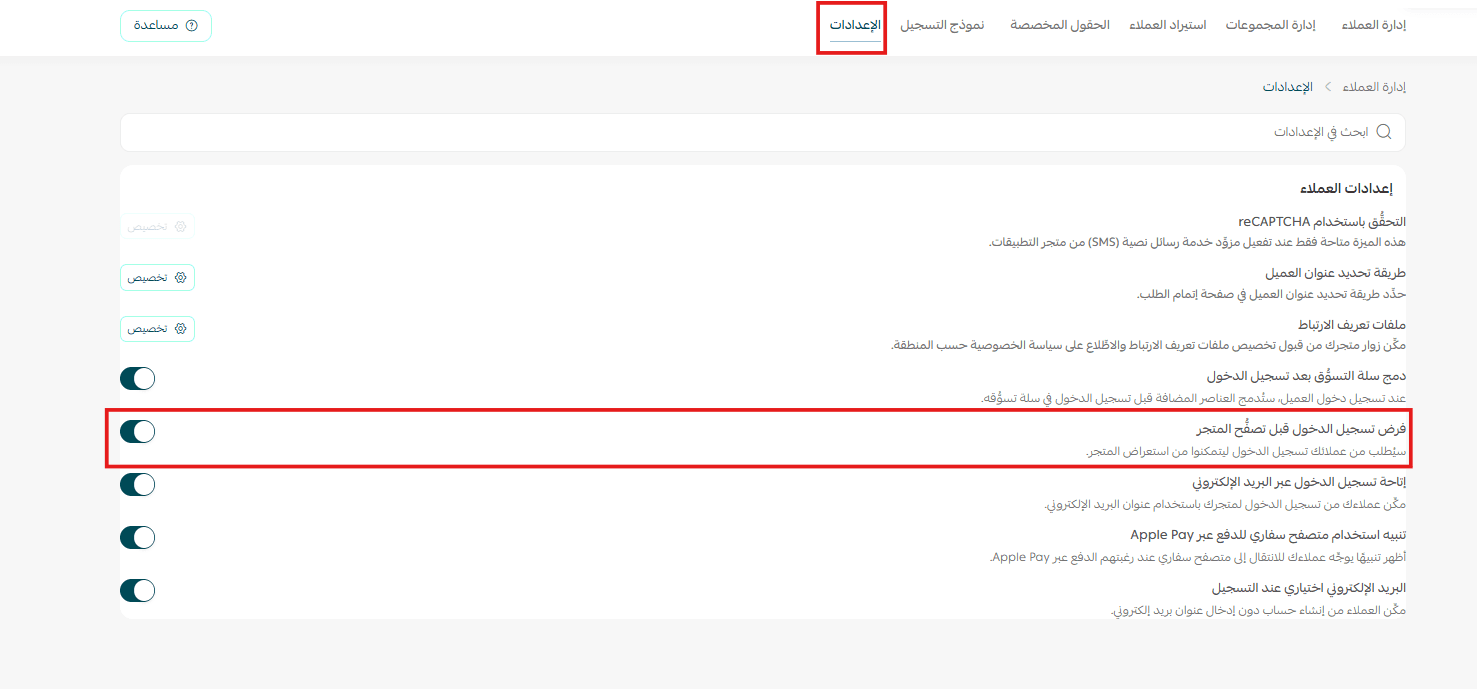
2. Turn on (Require login before browsing the store).
2. Customize the registration form
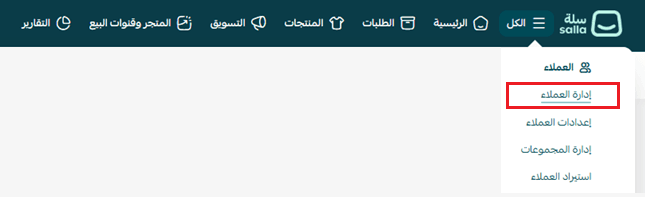
1. From the (All) tab in the main menu, click (Customer management).
2. On the customer management page, click (Registration form).
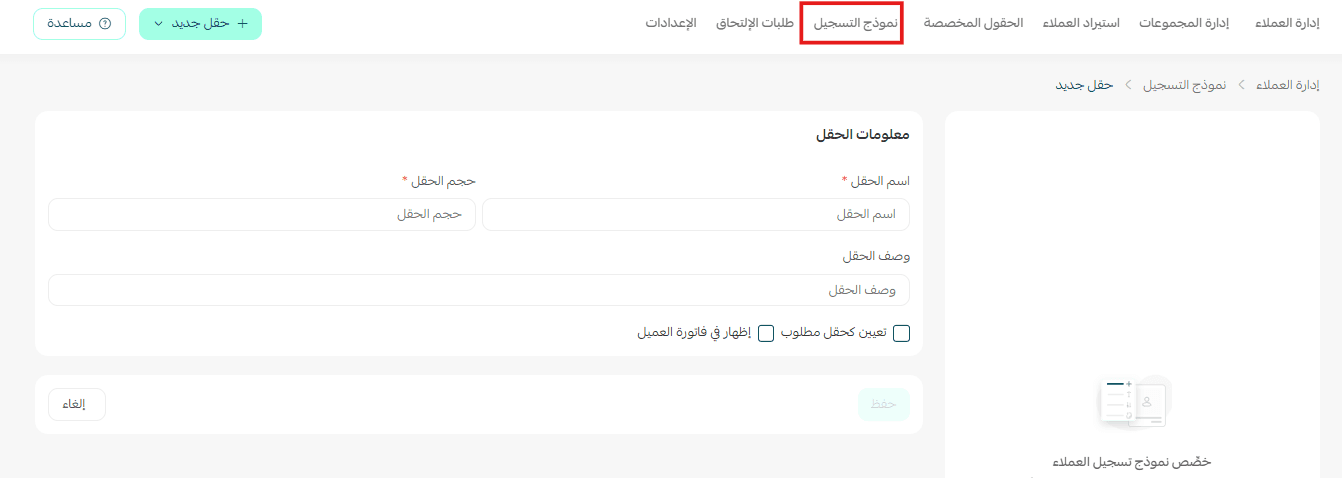
3. To add fields to the form, click (+ New field).

4. Choose the field type and set it up to suit your needs, then click (Save) once every field is ready.
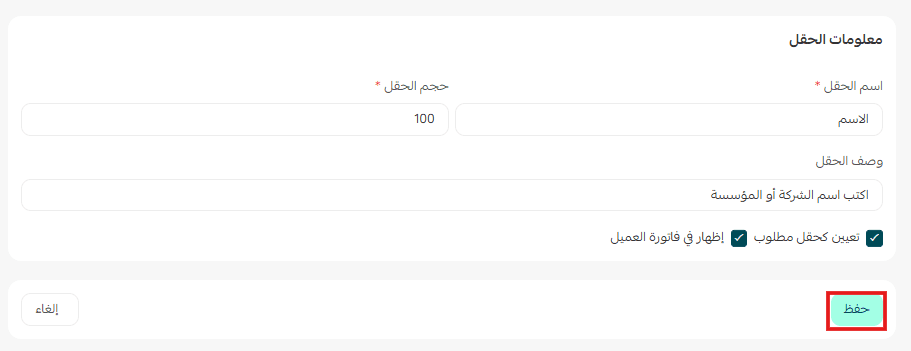
- Add a text field
Use a text field to collect written information such as the trader's name, the company name, or an address.
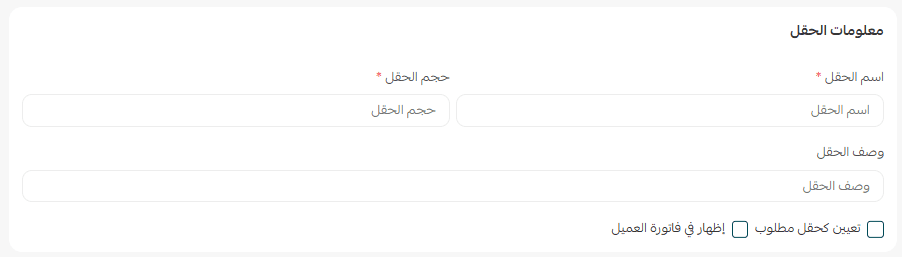
- Add a number field
Use a number field to collect figures such as a bank account number or a tax number.
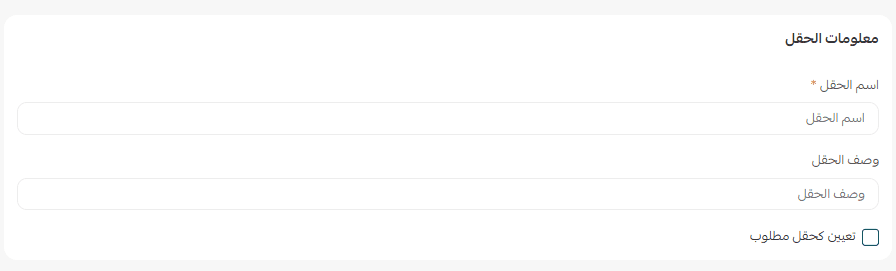
- Add a file upload field
Use a file upload field to ask for documents such as a commercial registration certificate or a tax certificate.
3. What your customers see when they sign in
For wholesale store customers, opening your store link shows the login form first. Existing customers sign in with their mobile number; new ones click (Register).
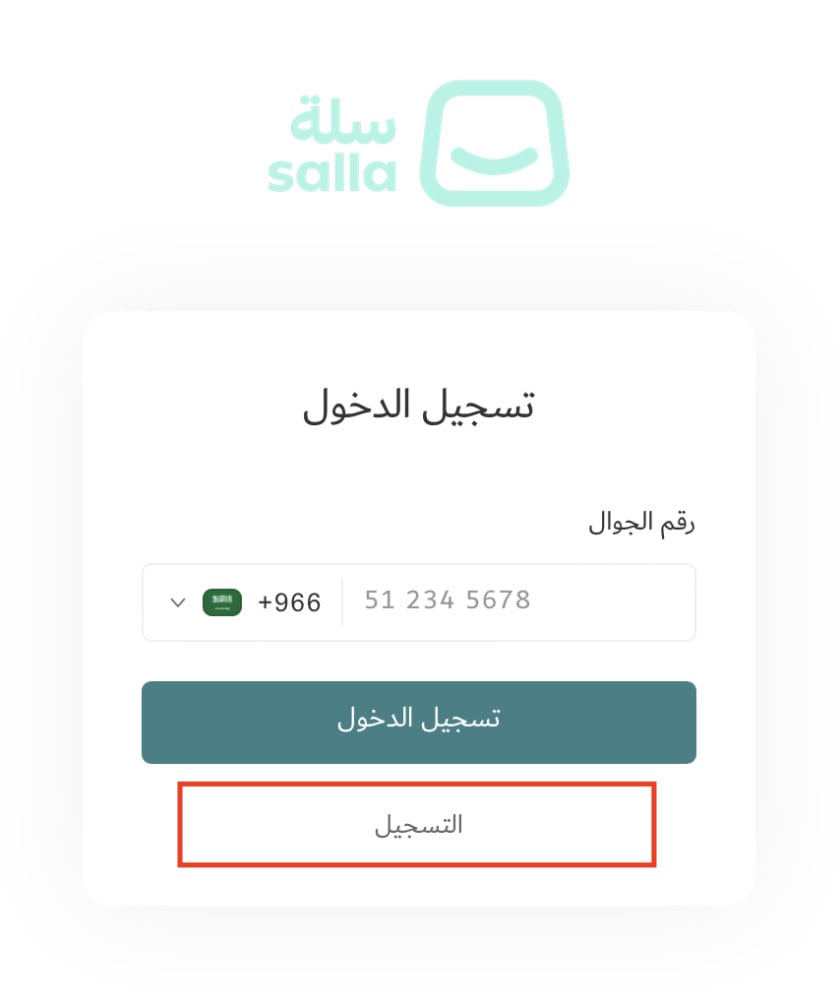
They enter the basic details for a new account, plus whatever fields you added to the registration form, then click (Register a new account).
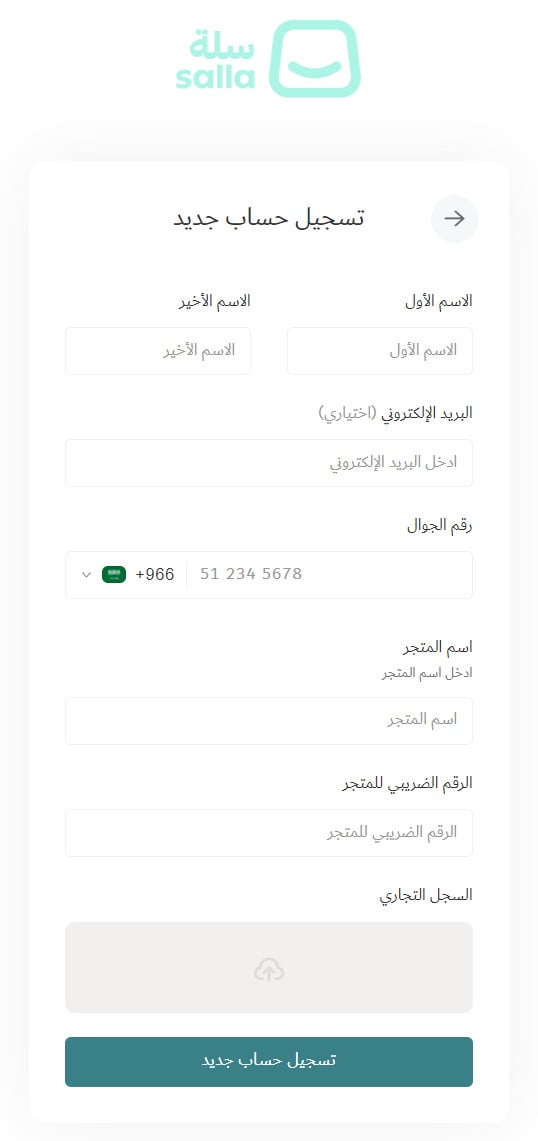
Once a customer registers, their request arrives on your customers page.
4. Accept or reject registration requests
1. From the (All) tab in the main menu, click (Customer management).
2. On the customers page, click (New join requests).
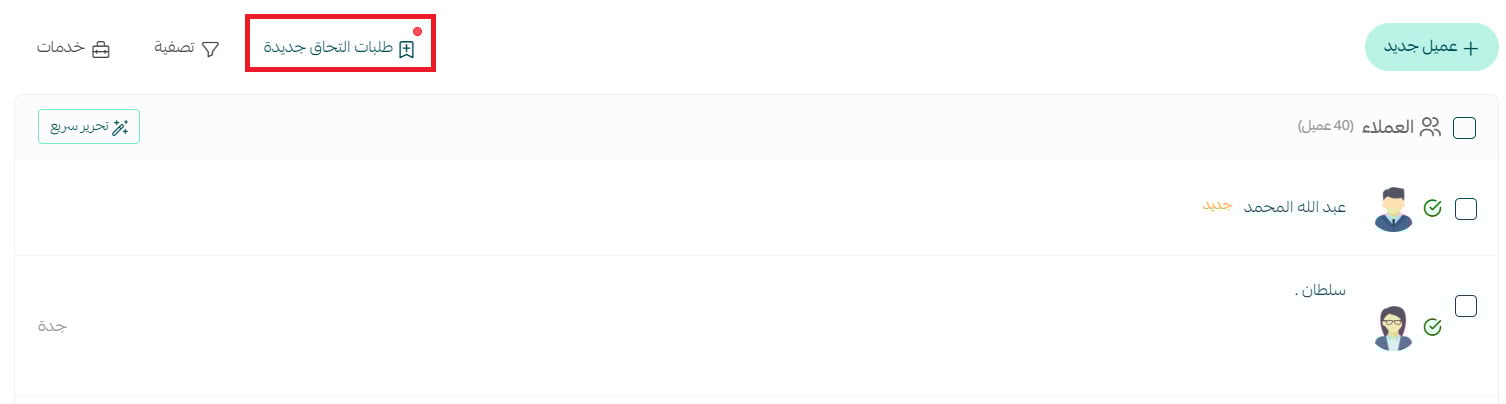
3. A table shows the customers who recently applied, with their status — accepted, pending or rejected. Click the name of the customer you want to review.
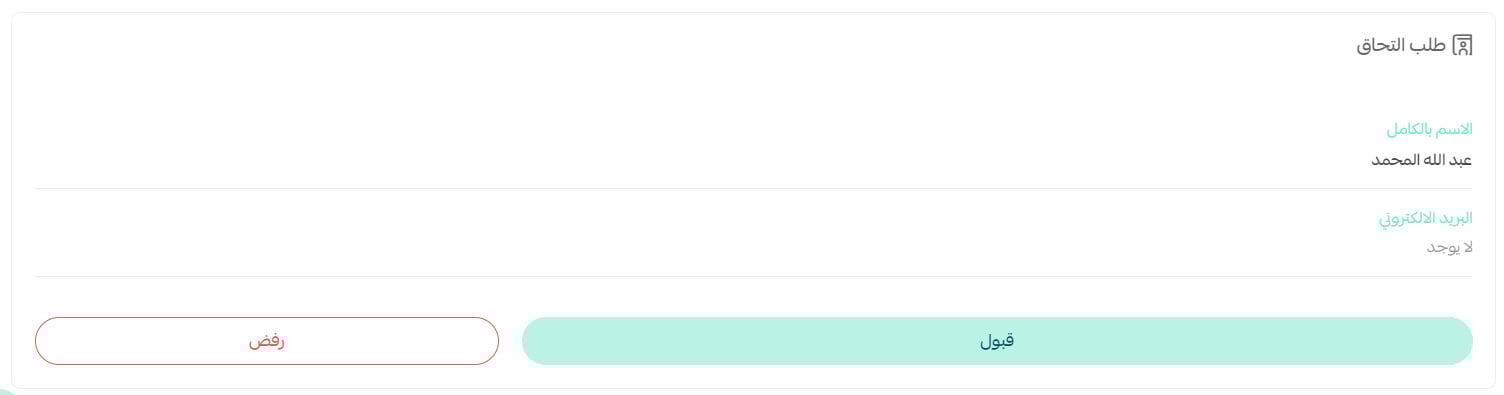
At the bottom of the customer details page, in the join request section:
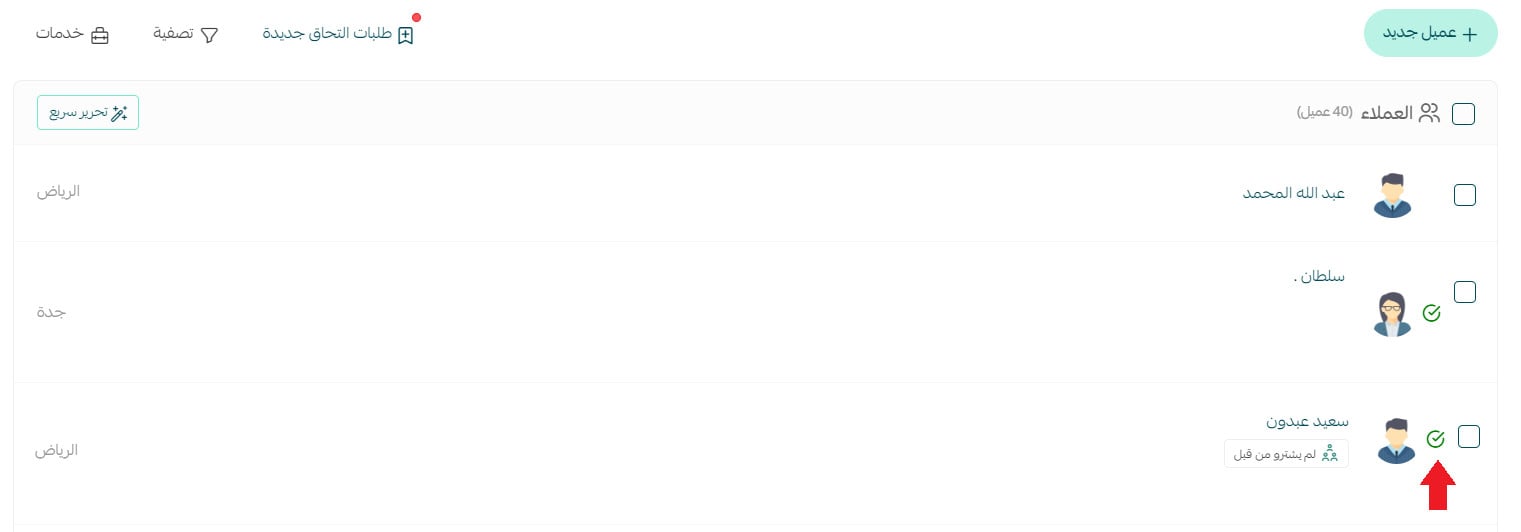
To accept the request, click (Accept). An accepted label then appears next to the customer's name.
From that point the customer can sign in to the wholesale store, browse products and place orders.
To reject the request, click (Reject), write the reason, then click (Send).
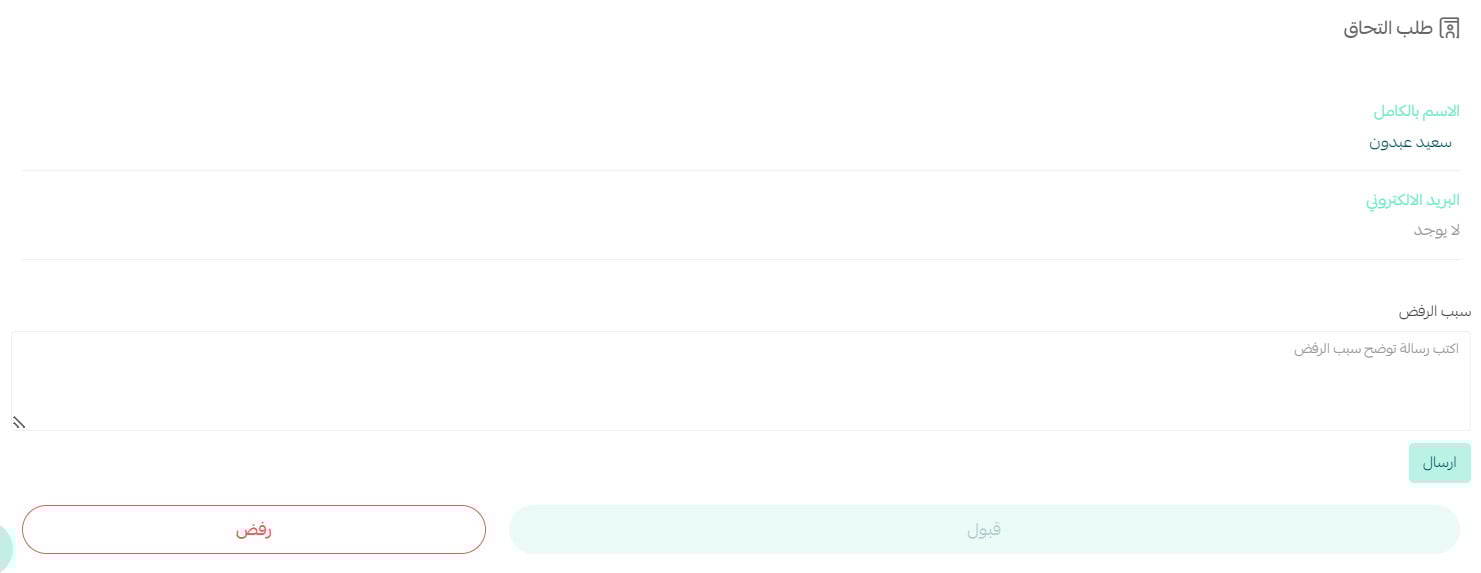
A rejected label appears next to the customer's name on the customers page.

Open that customer's details page and the reason for rejection is shown at the bottom.

5. Where the registration details appear
The details customers submit show up in several places:
- The customer card
The fields appear in your dashboard on the customers page, in the customer card details:
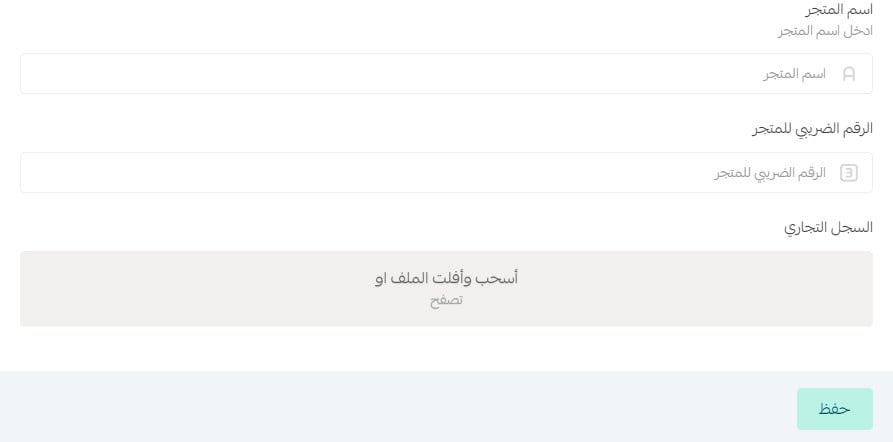
- The customer account page
The same fields appear to the customer on their account page:
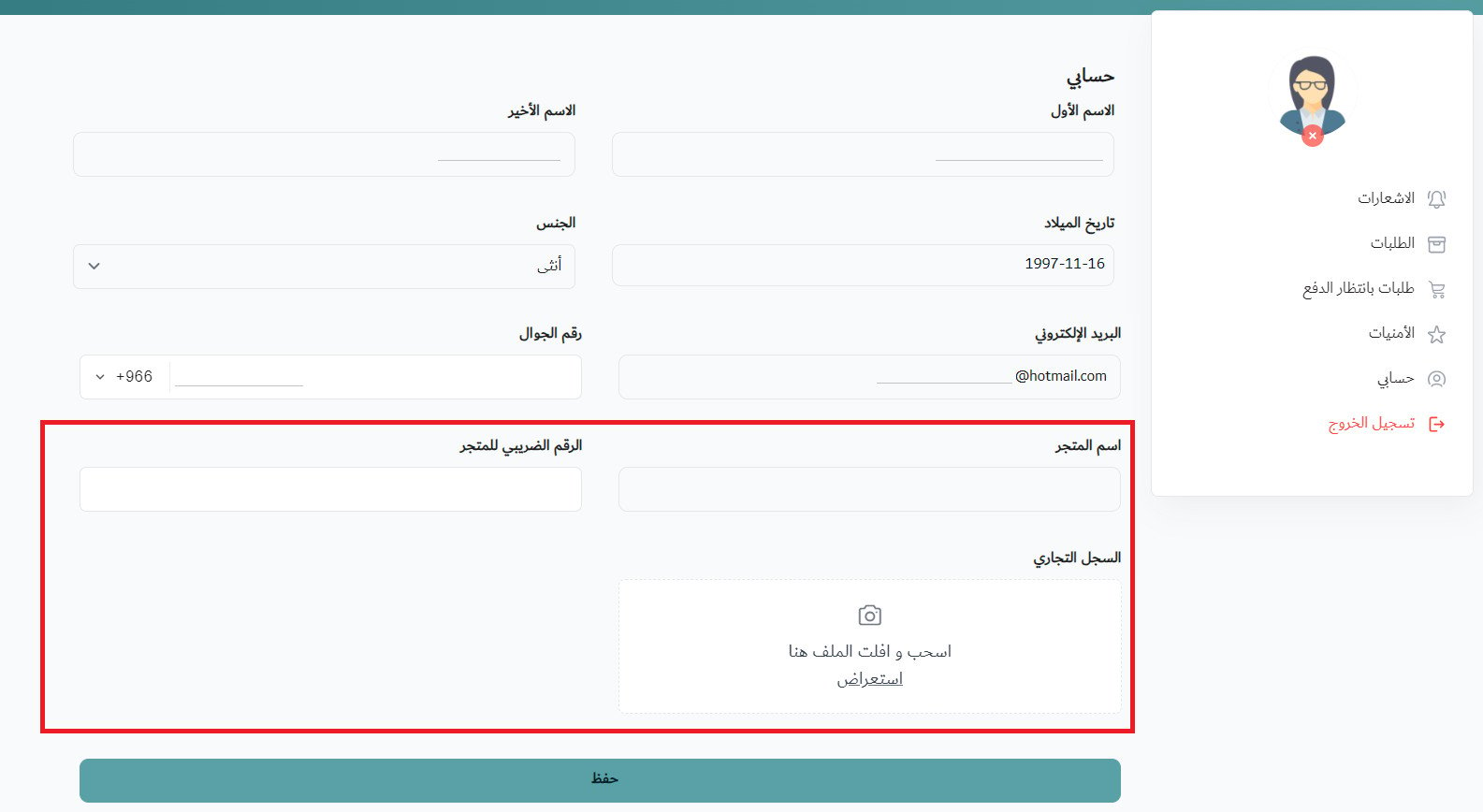
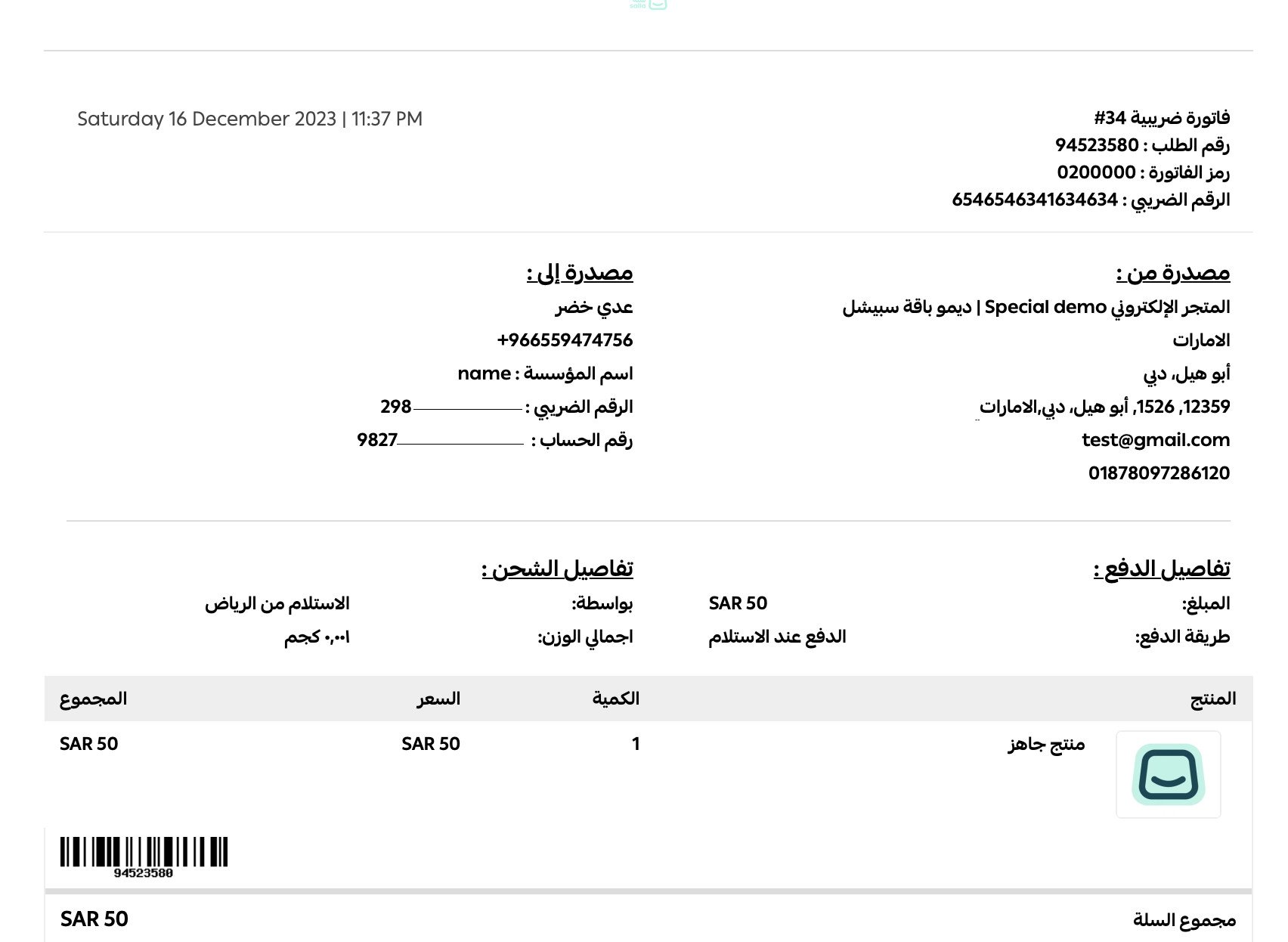
- The order invoice
You control which customer information appears on the invoice from the registration form.
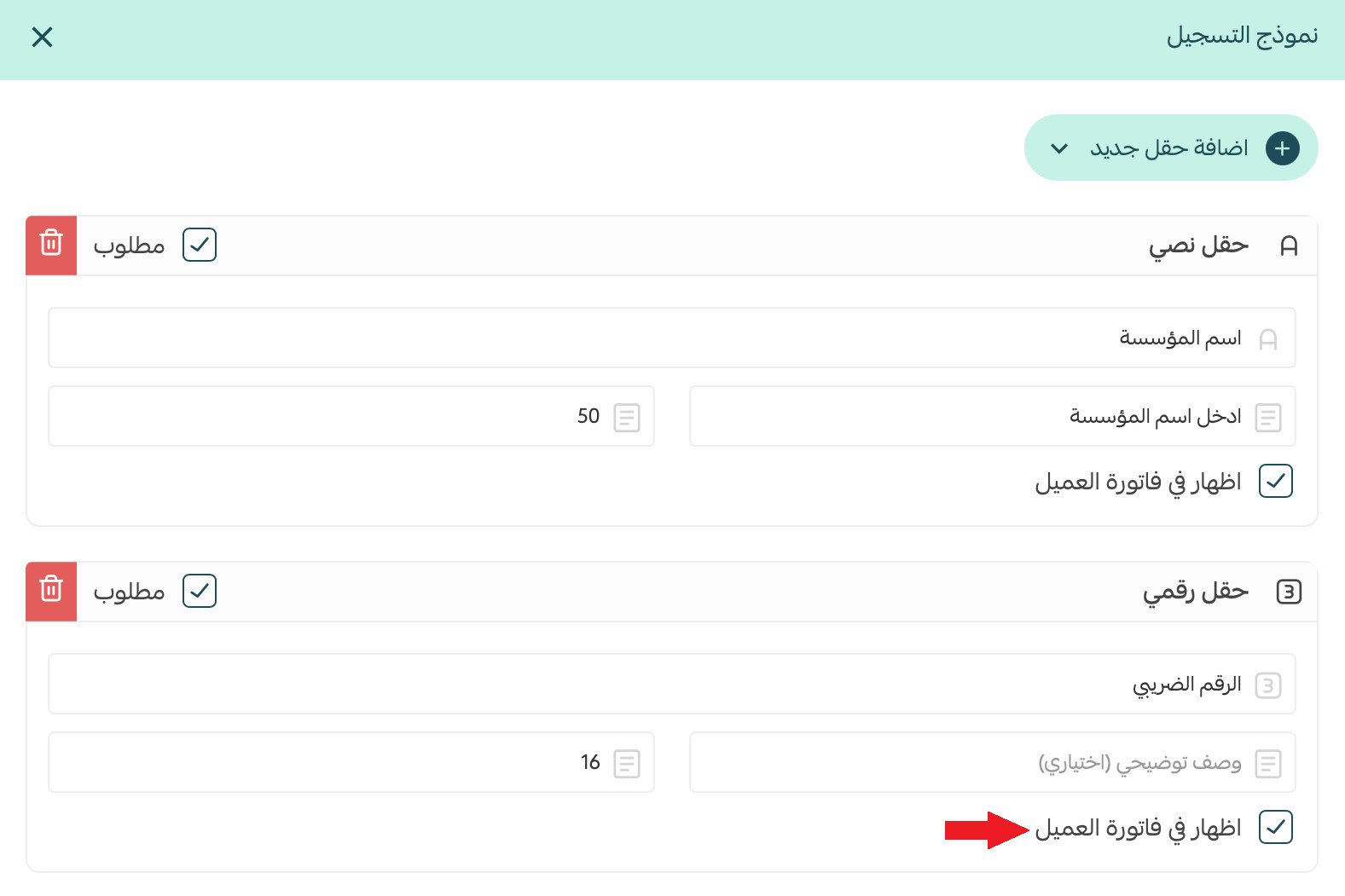
The invoice then looks like this:
📝 Important notes
A wholesale store is available on the Special plan only, and you request it through your account manager.
Requiring login before browsing is what closes the store to the public, so no one sees your products or prices until you approve their request.
Write a clear reason when you reject a request — it is shown on the customer's details page and is the only explanation on record.
Frequently asked questions
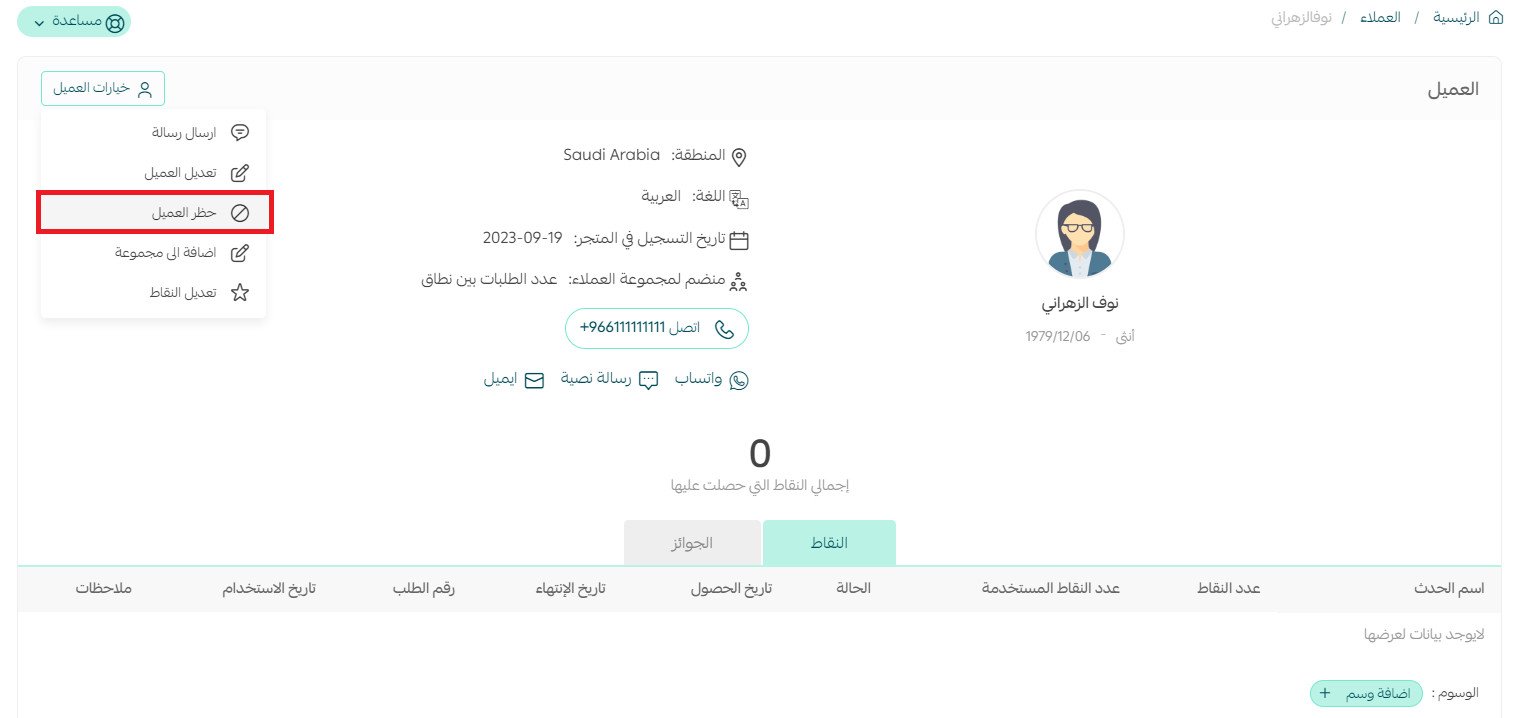
❓ Can I block a customer after approving their join request?
Yes. Open the customer details page, then from the customer options menu click (Block customer).
❓ Are wholesale store orders managed the same way as regular orders?
Yes.
❓ Are the wholesale store settings the same as a regular store's?
Yes, the settings are identical.
❓ What is the difference between a wholesale store and a regular retail store?
Difference | Wholesale store | Regular retail store |
Verification | Full verification | Full verification |
Sign-in | Limited to customers whose request the wholesale store manager has approved | Open to all customers |
Plan | Special plan only | Any paid or free plan |
Wholesale selling works on trust and paperwork, not impulse. Put the fields you actually need into the registration form once, and every buyer who reaches your catalog has already been checked.