Do you know who changed a product price in your store last week, and when?
Once more than one person works in your dashboard, changes start happening that nobody remembers making. The activity log gathers your store's daily operations in one page, so you and your staff can review them, see who did what, and trace a change back before it turns into a problem. In this guide, you'll learn how to open the activity log, what it records, and how to filter and export it.
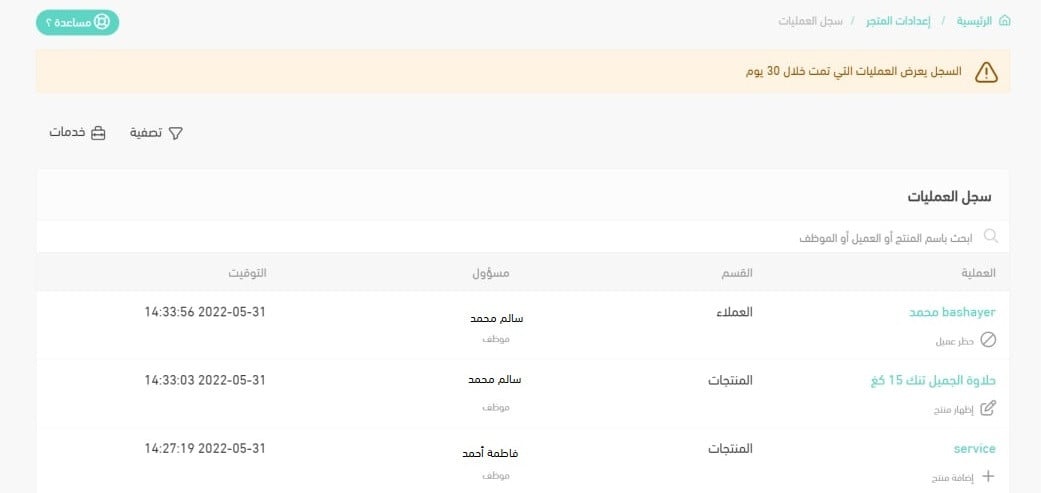
The activity log lives in your store settings. Open (Store settings) from the side menu, then click (Activity log). The page lists every operation carried out in the last 30 days, along with the staff member responsible, the time it happened, and the section of the dashboard it happened in.
📌 Article overview
- What is the activity log?
- How to open the activity log
- Frequently asked questions
🎯 What is the activity log?
The activity log is a page that collects the daily operations in your store, so you or your staff can review them, analyze them, and keep them in one place. That makes it much easier to get to the bottom of changes that affect your store.
📝 Important notes
[Verify: the Arabic title limits this article to Special plan merchants, but the body never states a plan requirement or where the limit applies.]
👣 How to open the activity log
1. From the side menu of your dashboard, click (Store settings).

2. On the store settings page, click (Activity log).
3. The activity log page opens, showing every operation carried out in the last 30 days, together with the staff member responsible for it, the time it happened, and the section it happened in.
❓ Frequently asked questions
What do I get out of the activity log?
- Follow the operations happening in your store, such as adding products and many other important actions, and see who carried each one out and when.
- Keep track of the tasks assigned to each staff member, and follow them in a simple way.
- Export your operations.
How far back does the activity log go?
You get a full view of every action carried out in your store over the last 30 days.
Which operations appear in the log?
The log shows operations in the following areas:
1. Products, such as adding and deleting products, changing whether a product is visible, and editing product details.
2. Customers, such as editing the details of a customer you added, blocking and unblocking a customer, creating a group, and adding a customer to a group.
3. Orders, such as exporting a shipping waybill.
How do I export the operations?
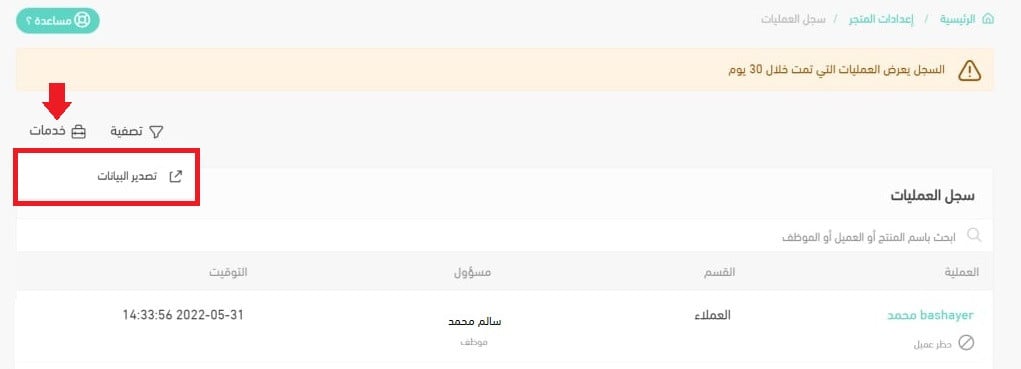
Export the operations table by clicking (Services), then (Export data).
Can I filter the activity log?
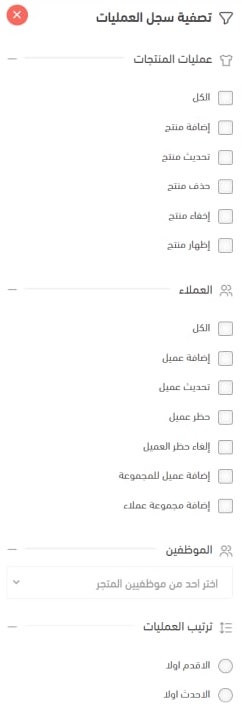
Yes. You can filter the operations by the criteria you choose.
A log only helps if someone reads it. Make checking the last 30 days part of your routine, and you will catch small mistakes while they are still small.