What are shoppers saying — and asking — about your store?
The questions and ratings page on Salla gathers every question customers and visitors send about your products and services, along with their ratings of your store, products, and shipping companies — all in one place. Answering questions quickly and managing reviews well builds trust and directly influences buying decisions. In this guide, you'll learn how to view, publish, unpublish, reply to, filter, and delete questions and ratings from your dashboard.
To manage questions and ratings on Salla, click (Questions and ratings) from the dashboard's side menu. From there you can publish or unpublish any rating or question, reply to it, delete it, or filter the list — covering ratings of your store, products, shipping companies, and blog.
📌 Article overview
- What is the questions and ratings page?
- Managing questions and ratings
- Frequently asked questions
🎯 What is the questions and ratings page?
The page displays the questions that customers and store visitors send about the products or services your store offers, together with their ratings of the store, its products, and its services.
🚀 Managing questions and ratings
First: view the questions and ratings page
1. From the side menu of your dashboard, click (Questions and ratings).

2. From this page you control every rating: publish or unpublish it, reply to it, or delete it.
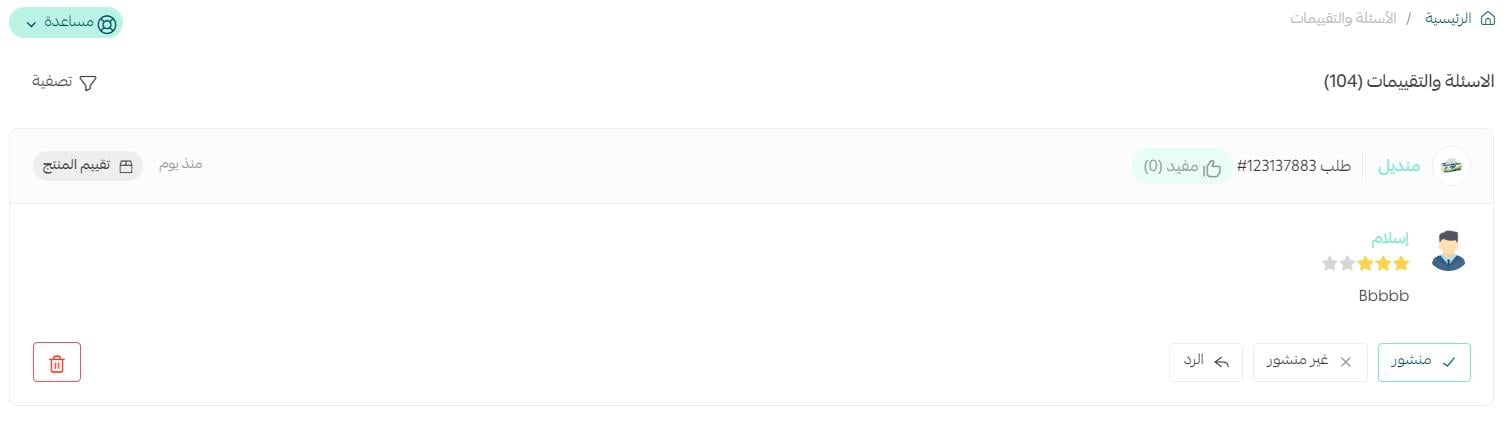
The questions and ratings page shows all ratings related to:
The store

Products

Shipping companies

The blog
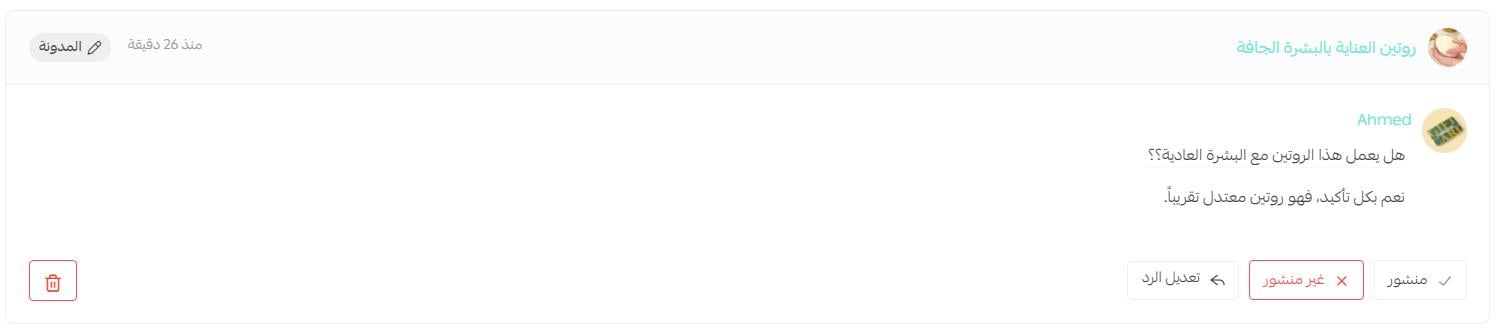
For more details, see managing your store's blog on Salla.
Second: publish a rating
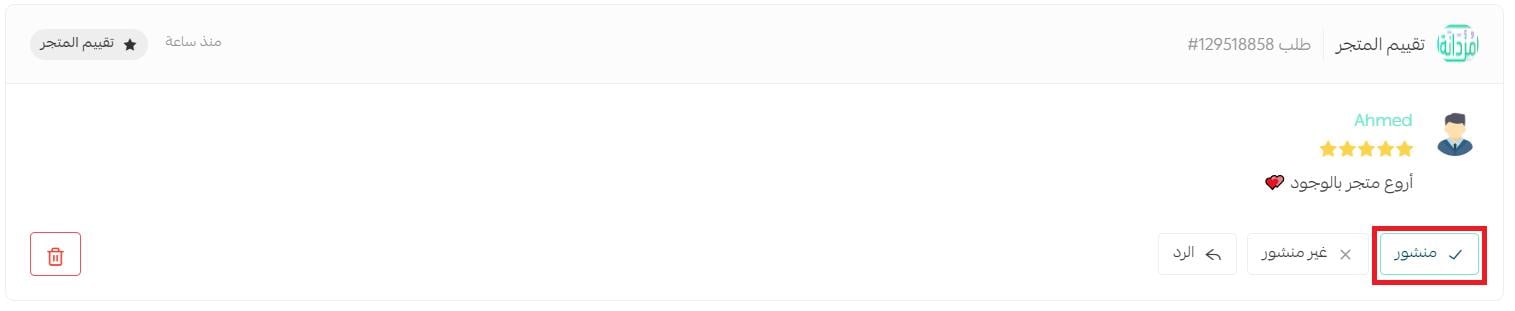
From the questions and ratings page, to publish a rating or question, click (Published).
Third: unpublish a rating
From the questions and ratings page, to unpublish a rating or question, click (Unpublished).
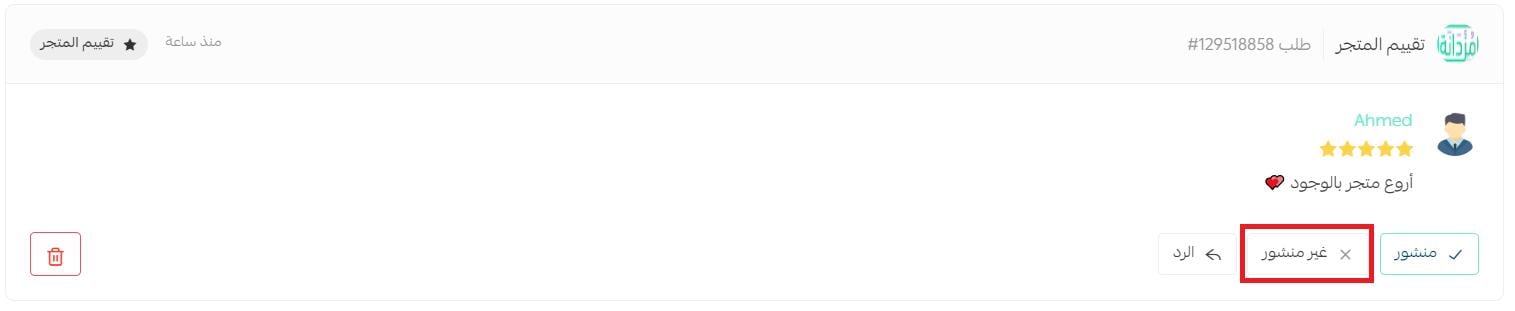
The word "unpublished" then appears in red.
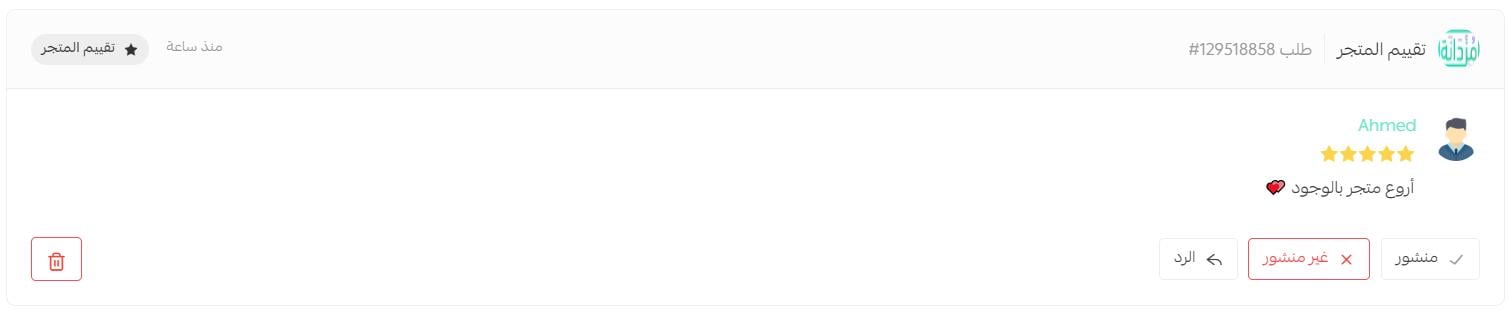
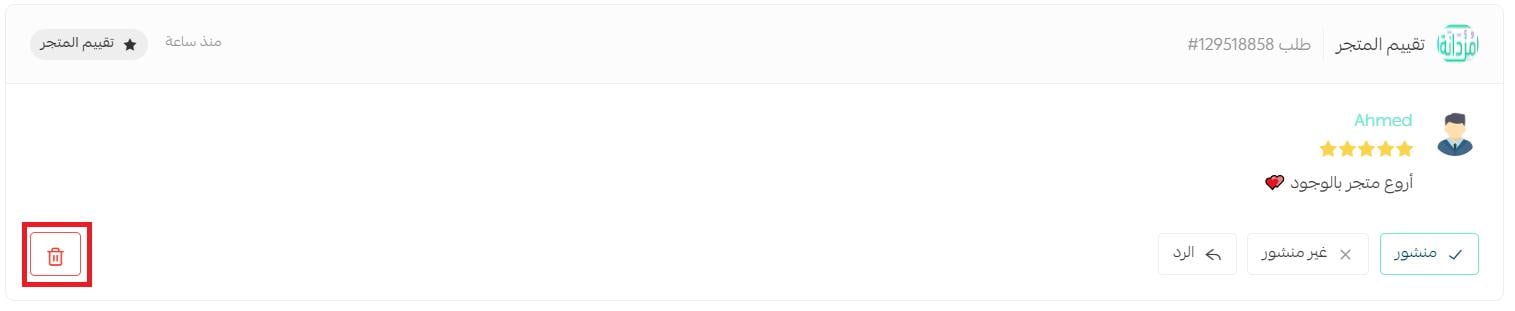
Fourth: delete a rating
From the questions and ratings page, click (Delete).
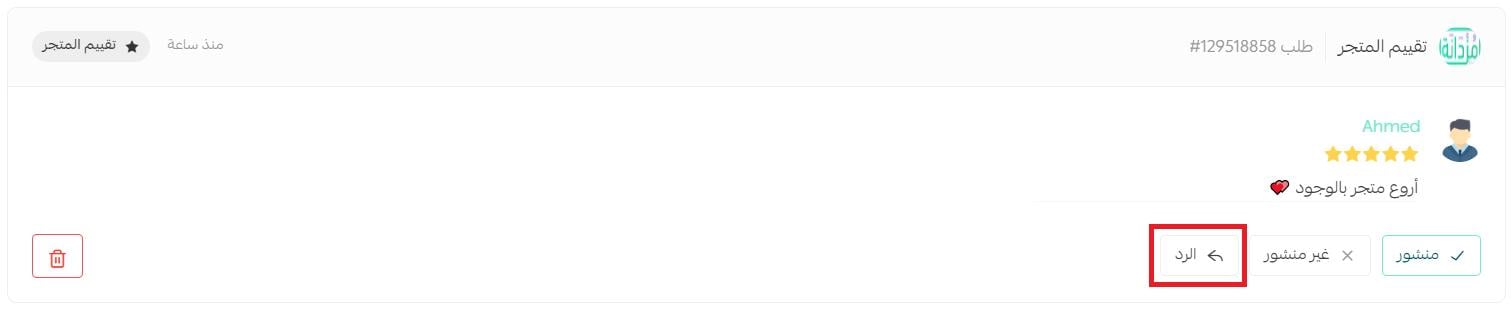
Fifth: reply to a question or rating
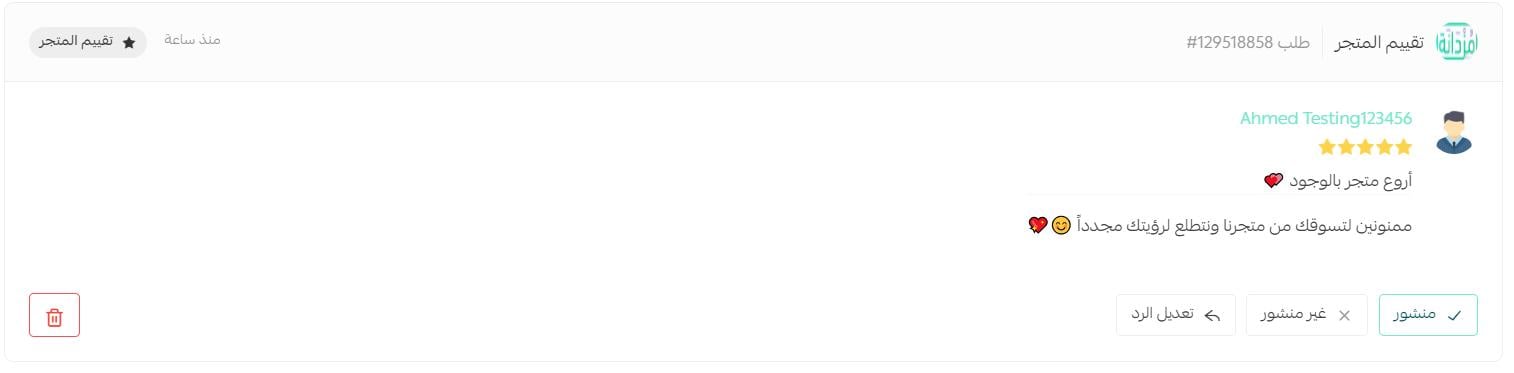
From the questions and ratings page, click (Reply) on the rating or question card.
Write the reply you want, then click (Send).
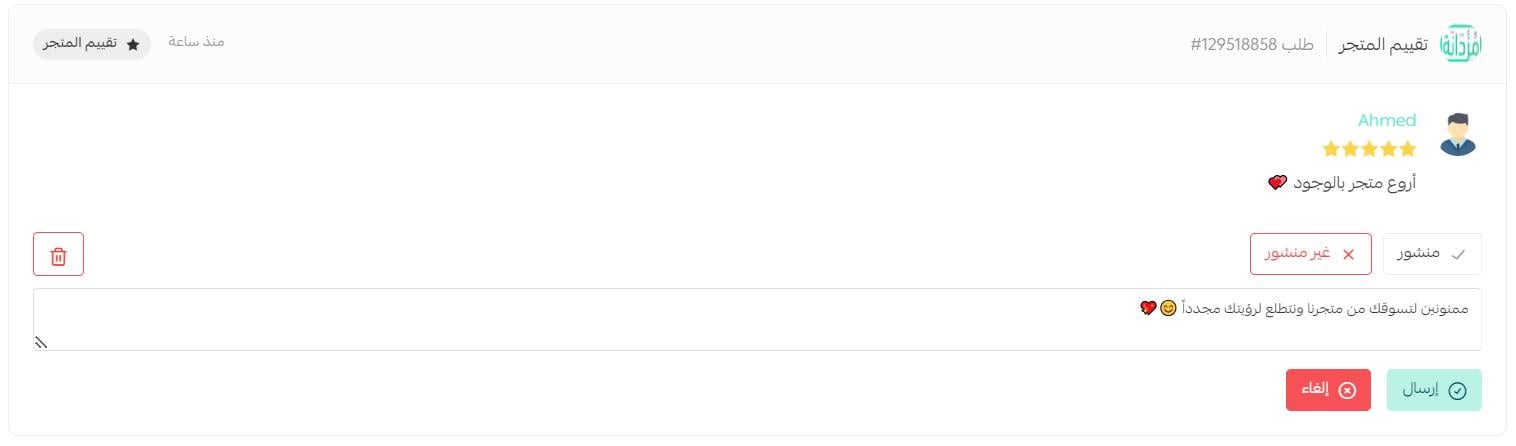
The reply then appears like this:
Sixth: filter questions and ratings
1. From the side menu of your dashboard, click (Questions and ratings).

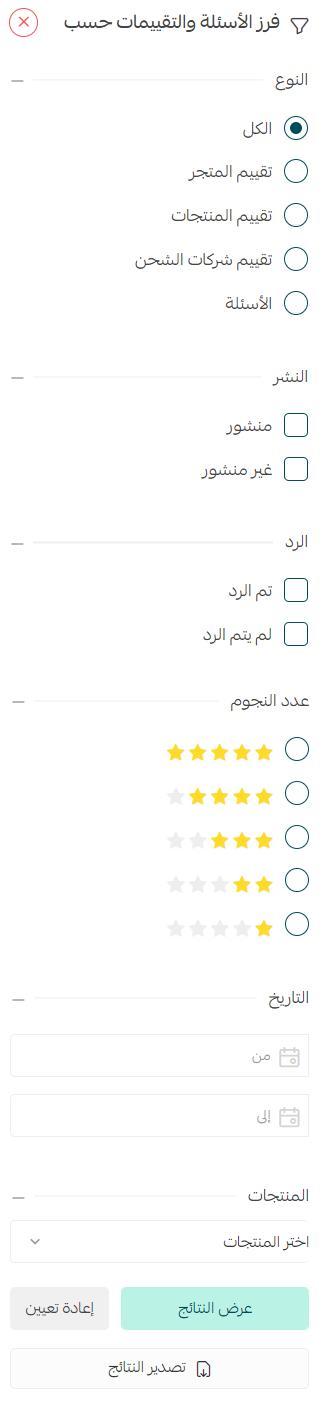
2. From the questions and ratings page, click (Filter).

3. Select the options you want the list to display by.
❓ Frequently asked questions
How do I send an order rating link to a specific customer?
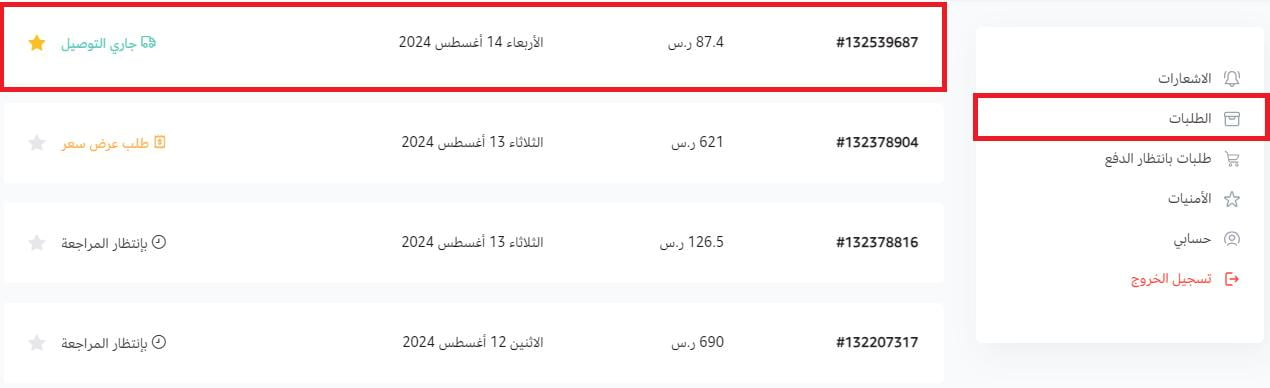
From the side menu of your dashboard, click (Orders).

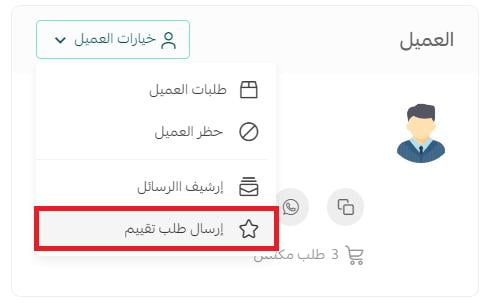
From the details of an order whose status is (Delivered), open the customer options list and click (Send rating request).
Can a customer edit or delete their rating?
Yes — once you enable the option (allow the customer to edit and delete a rating after adding it) in the rating settings.

The customer can open the details of any order they have already rated.
When viewing the order, edit and delete buttons appear next to the rating, along with a message stating how long the rating can still be edited or deleted.
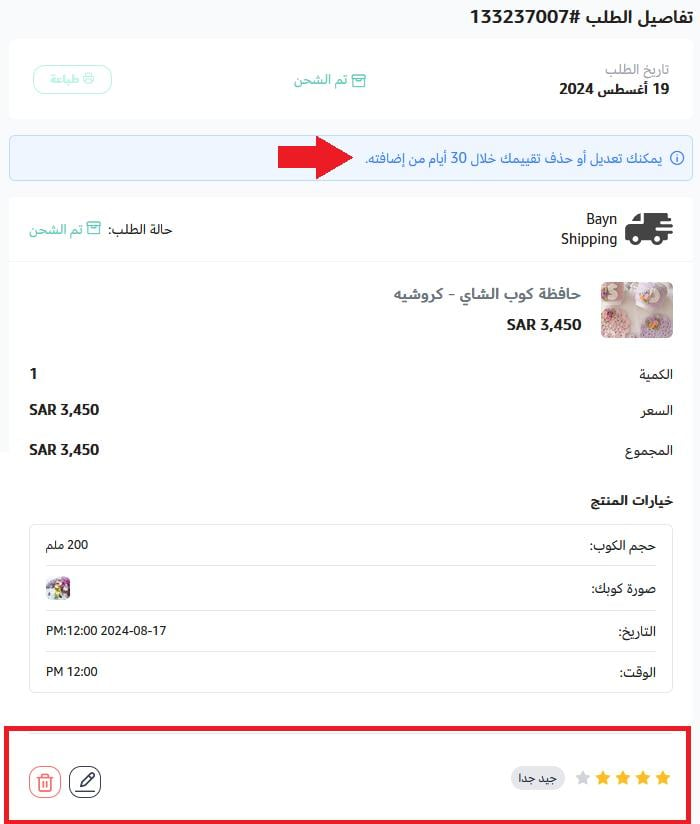
When the customer clicks to edit their rating of a product, the store, or the shipping company, the previous rating page opens. After making changes, they click (Edit rating).

How does a customer send a question about a product?
While browsing your store, the customer opens the product card, writes the question, then clicks (Send).

How do I control whether questions are visible to customers?
1. From the side menu of your dashboard, click (Store settings).

2. Click (Store options).

3. From the store's general options, enable or disable the following:
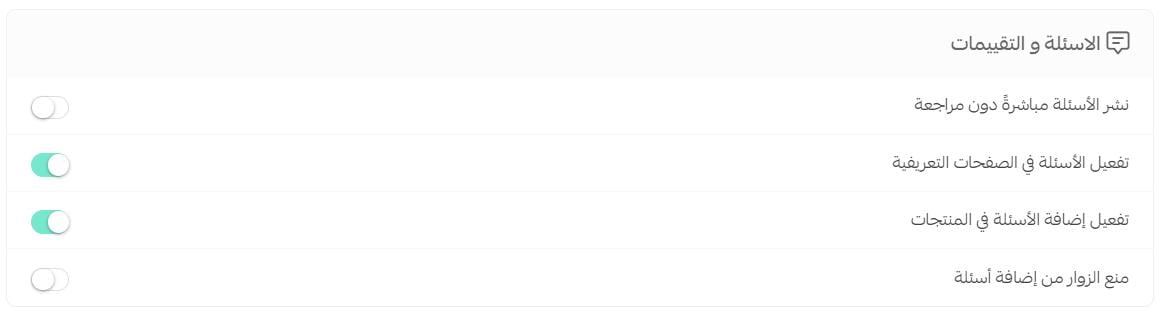
- Publish questions without review.
- Enable questions on static pages, if you use one of your static pages as a blog.
- Enable adding questions on products, to answer customers who have inquiries before buying.
- Prevent visitors from adding questions.
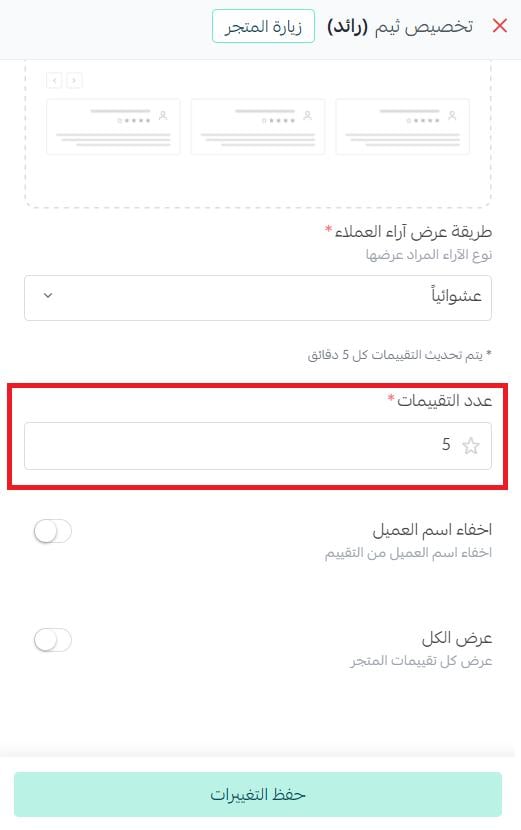
How do I show the maximum number of ratings?
You can display up to 30 ratings on your store page.
1. From the side menu of your dashboard, click (Store design).

2. Go to the theme and click (Customize).
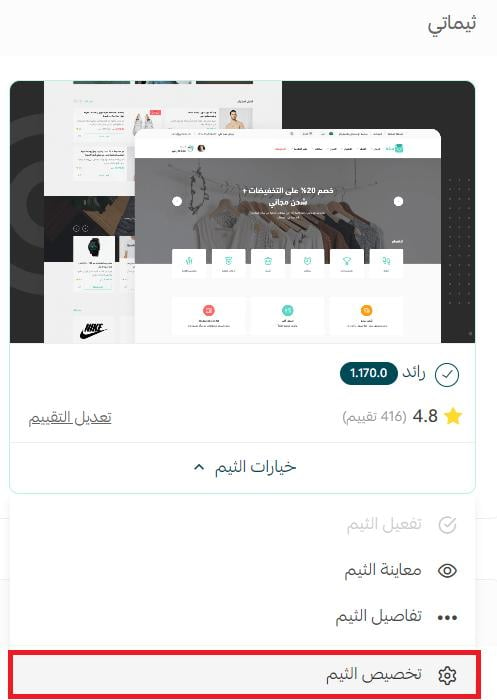
3. Go to (Homepage components), click (Customer reviews), choose the display style, enter the number of ratings you want shown on your store, then click (Save changes).
Can I display all customer ratings?
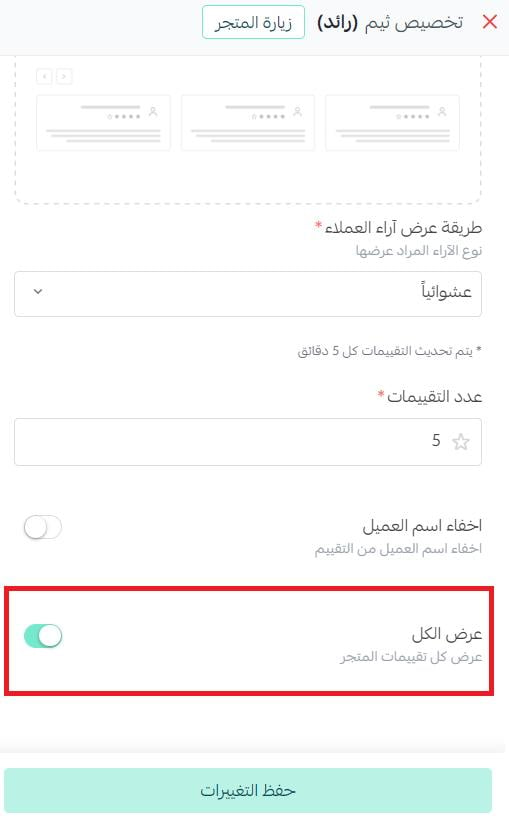
Yes — by enabling the show-all-ratings feature:
1. From the store design page, on the theme card, click (Customize).
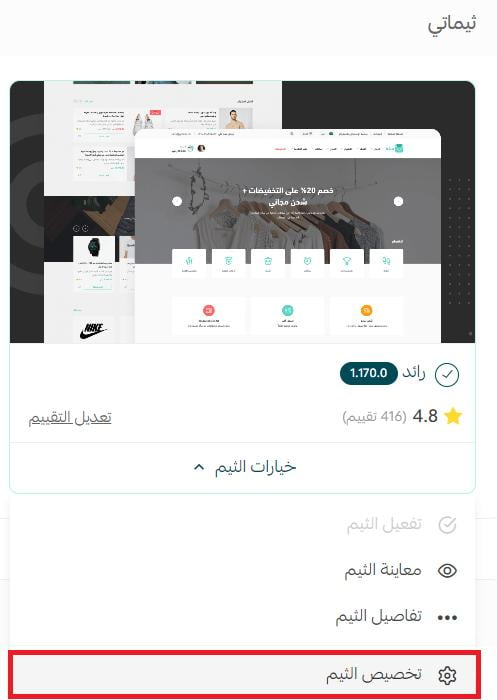
2. From the theme customization page, click (Homepage components), then in the customer reviews component settings, enable or disable the button that shows all store ratings.
Every question you answer and every rating you manage is a public signal to your next customer — stay on top of this page and let your happiest buyers do the selling for you.