Want customers to choose the right version of a product more easily?
You can manage product options on Salla by adding values such as size or color, completing the data for each option combination, and choosing how those options appear on the product page.
To manage product options on Salla, open a product's Options and quantity settings, enable options, add option names and values, and enter details for each combination. Choose whether customers see each option as text, a color, or an image, and set default values where the selected display type supports them.
📌 Article overview
- Enable and define product options
- Add values and combination details
- Display options as text, colors, or images
- Set defaults and remove values
- Understand the 100-combination limit
- Frequently asked questions
How to manage product options on Salla
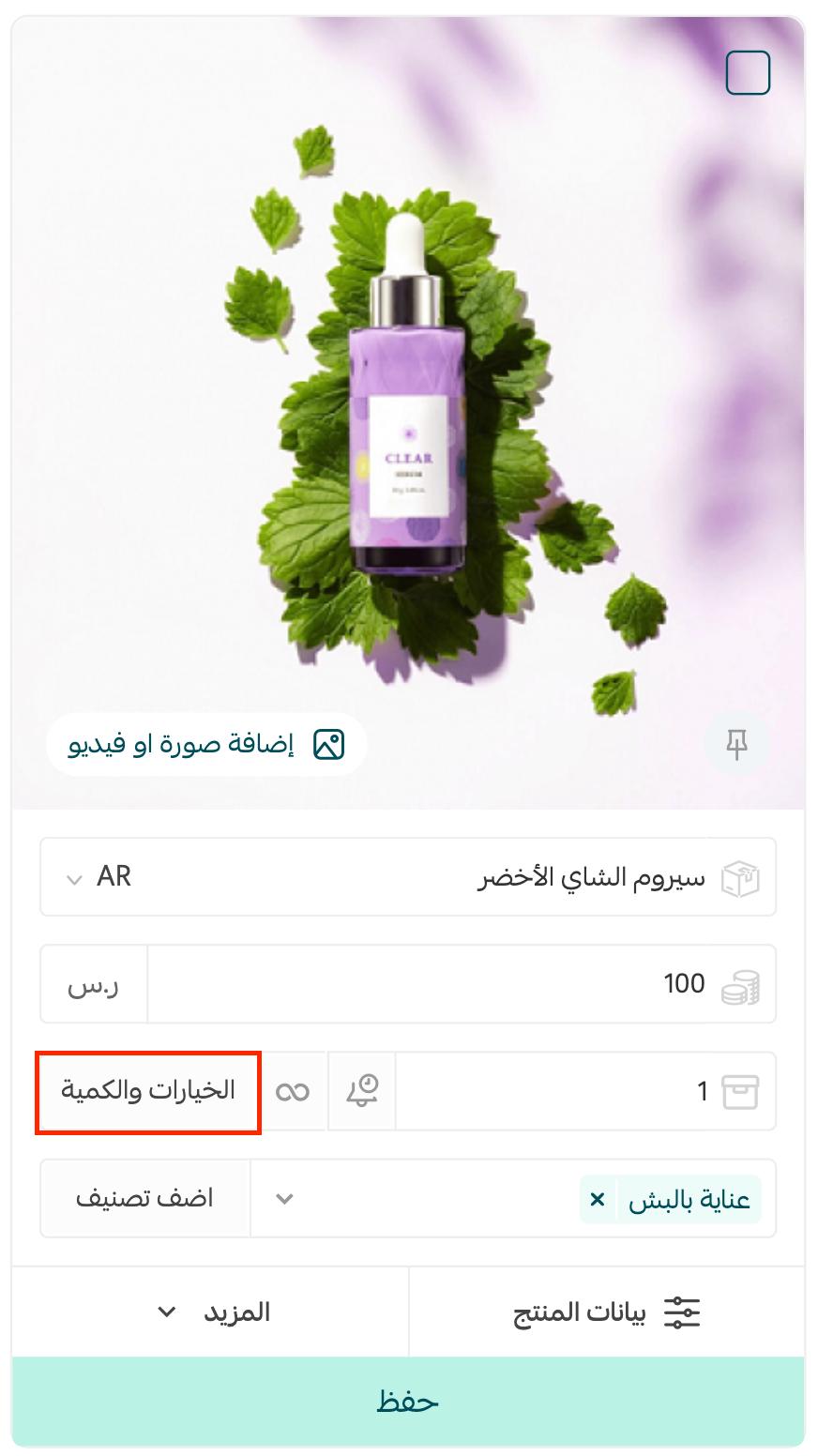
1. Open the product card, then click Options and quantity.
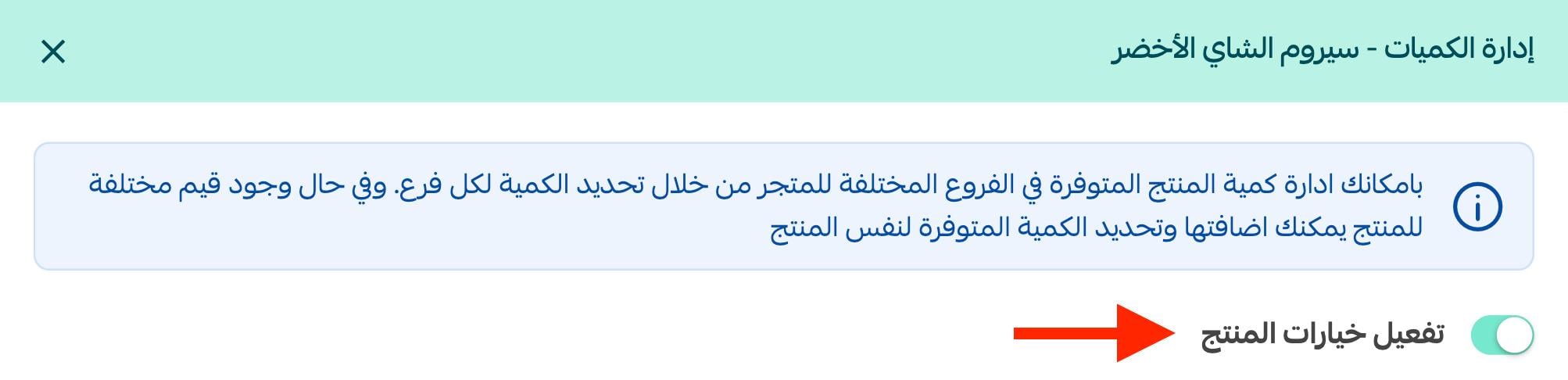
2. Enable product options.
3. Enter the basic option details.
- Option name: Describe the choice, such as color, size, type, or volume.
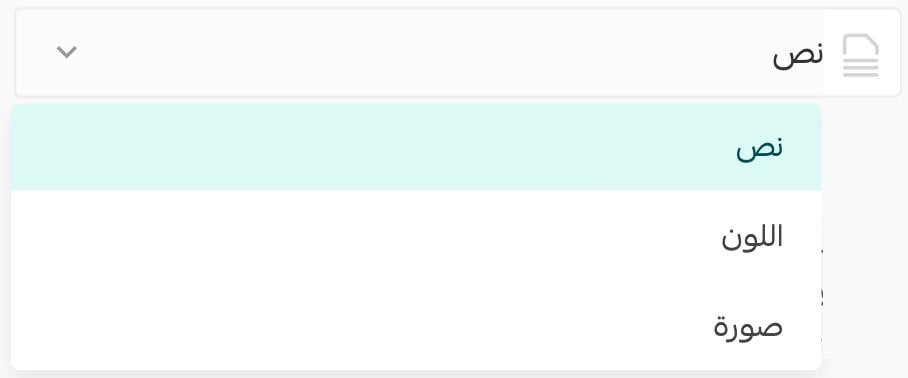
- Option type: Choose how the option will appear to customers.
- Quantity: Enter the available quantity for the option.
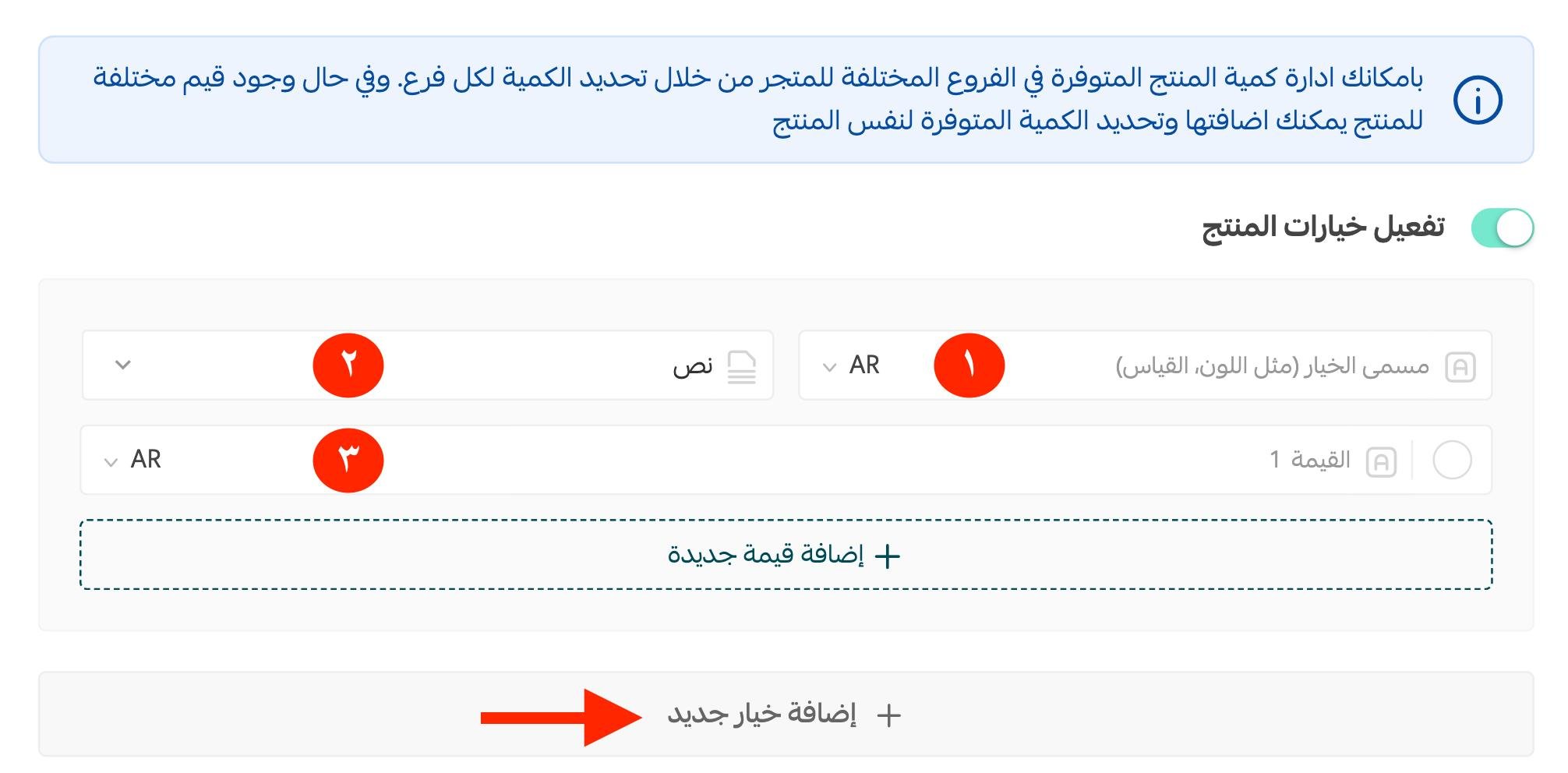
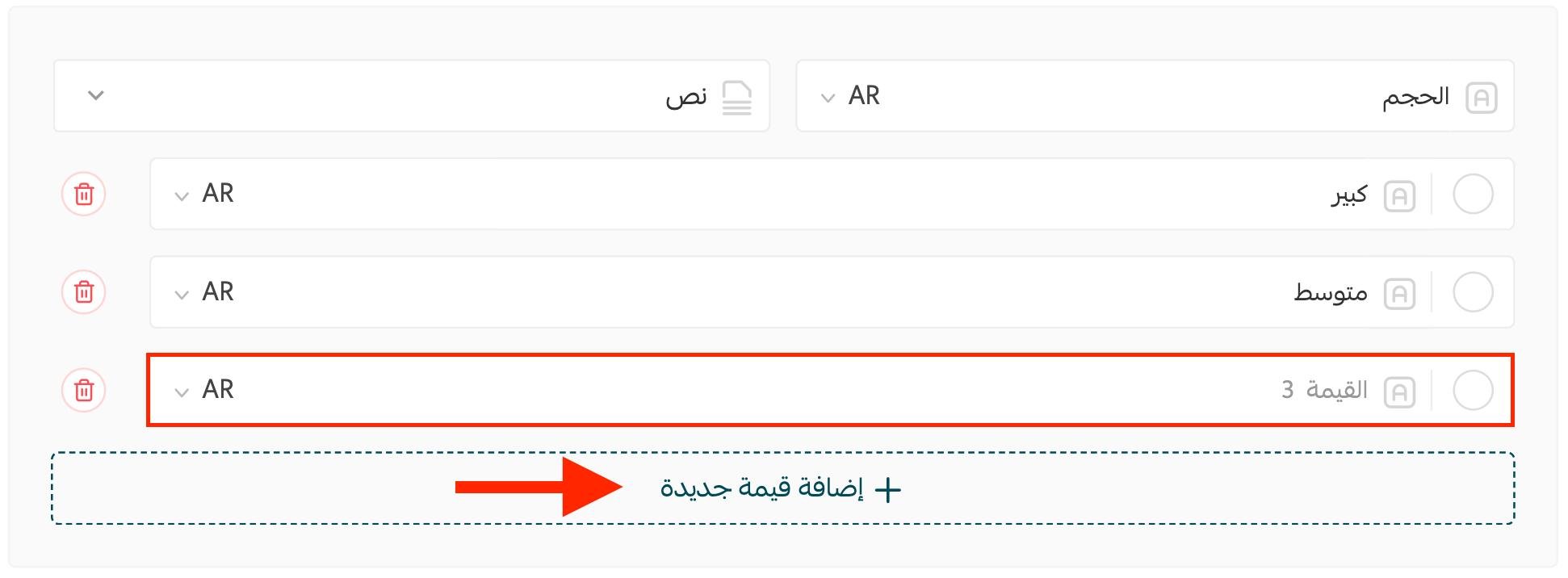
4. Click Add new value, then add each value for the option.
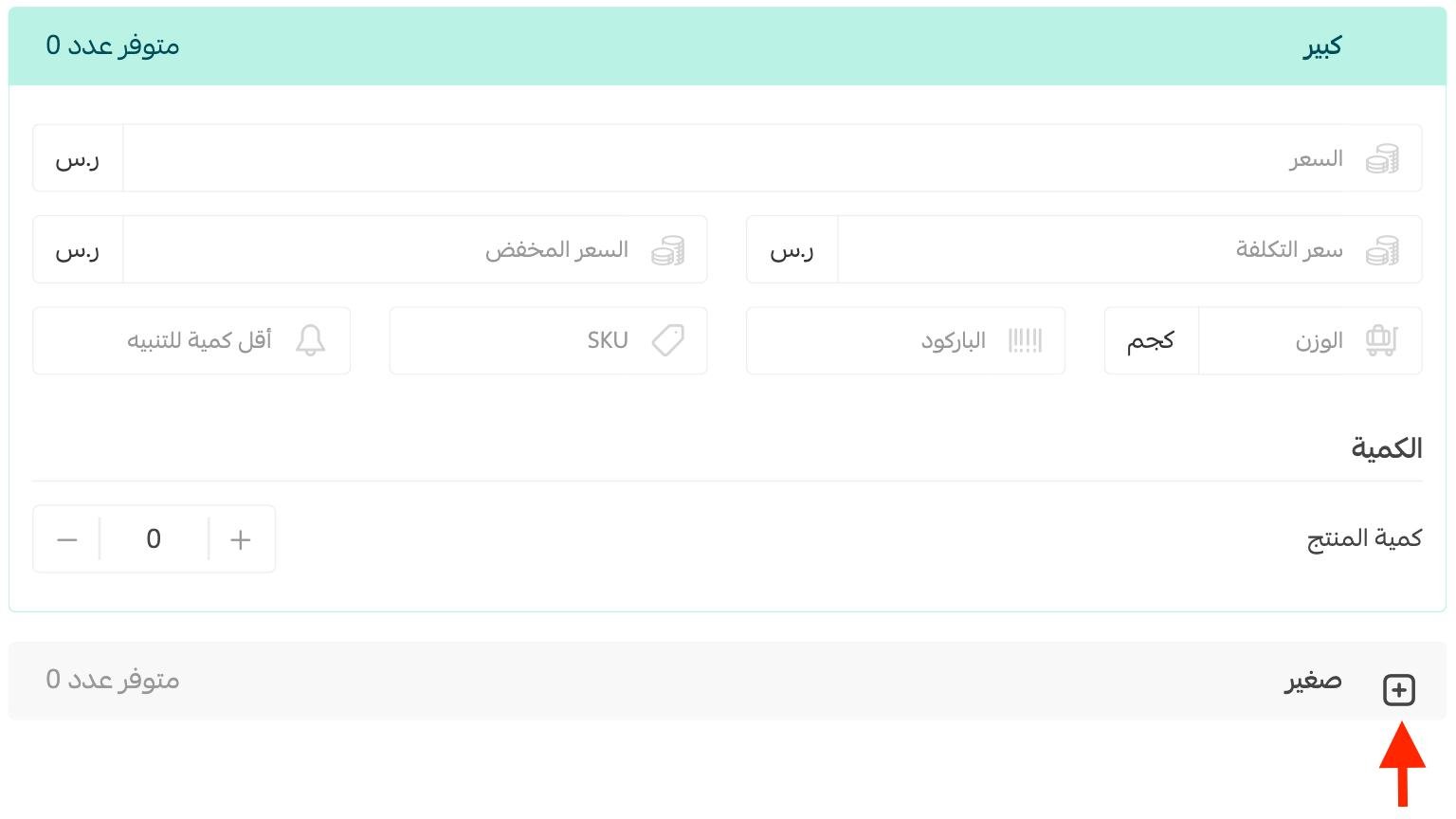
5. Click the plus sign beside each generated value or combination and complete its detailed data.
The source lists the sale price, cost, discounted price, weight, barcode, SKU, and low-stock alert among the available details.
Choose how product options appear
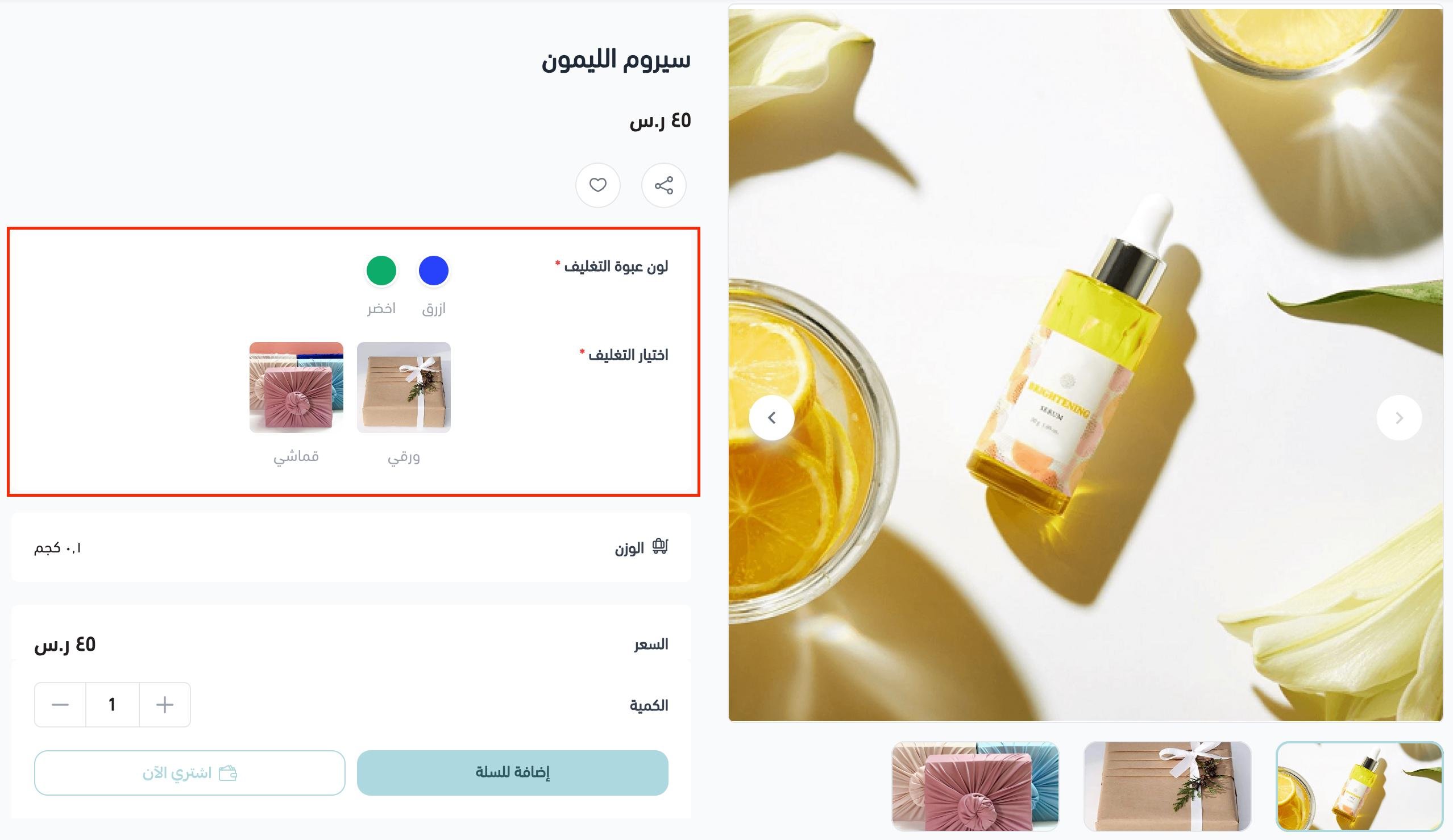
Salla supports three display types for the options described in the source: text, color, and image.
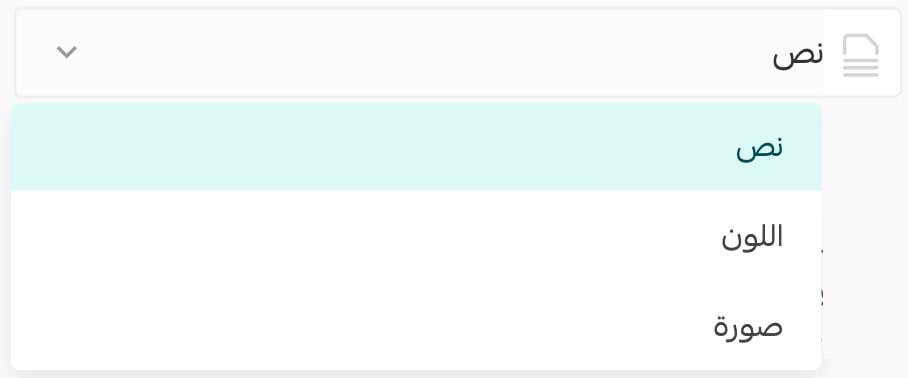
Display options as text
Use text when a written label clearly describes each value.

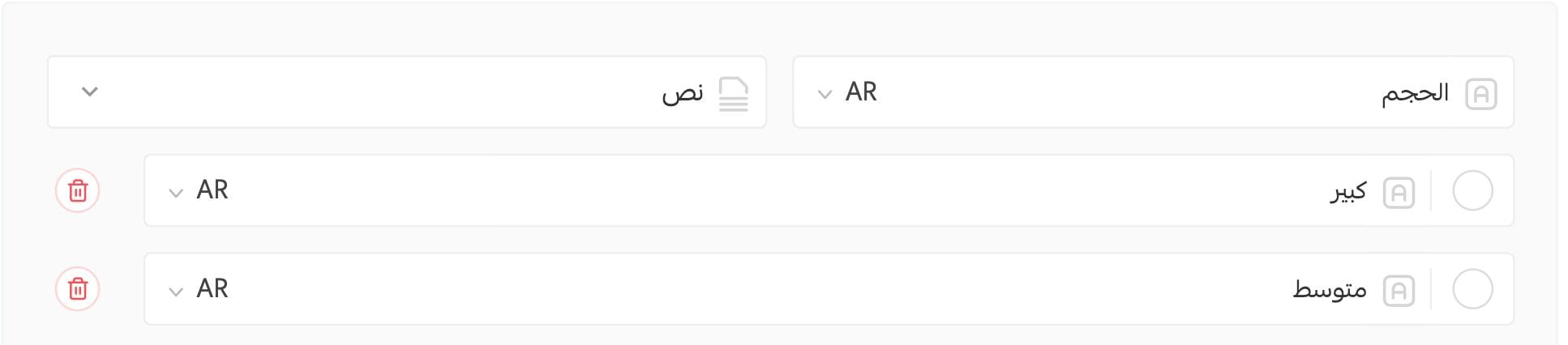
Display options as colors
Assign a label and color to each value. Click the color circle to choose the required shade.

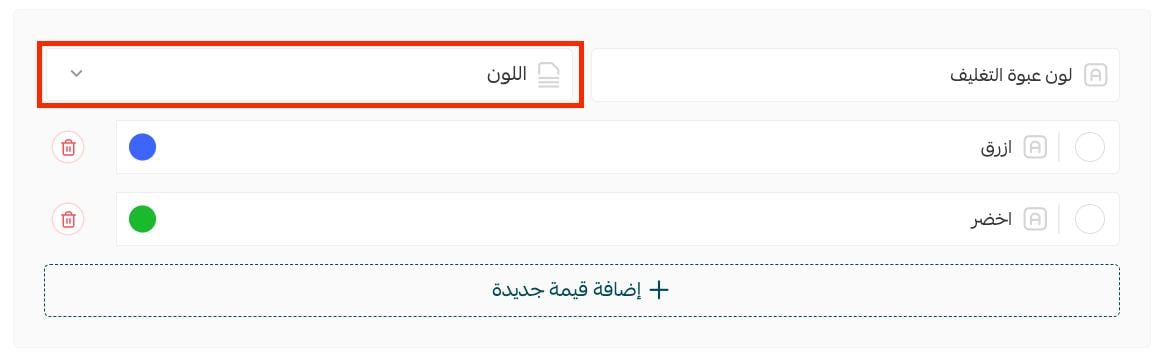
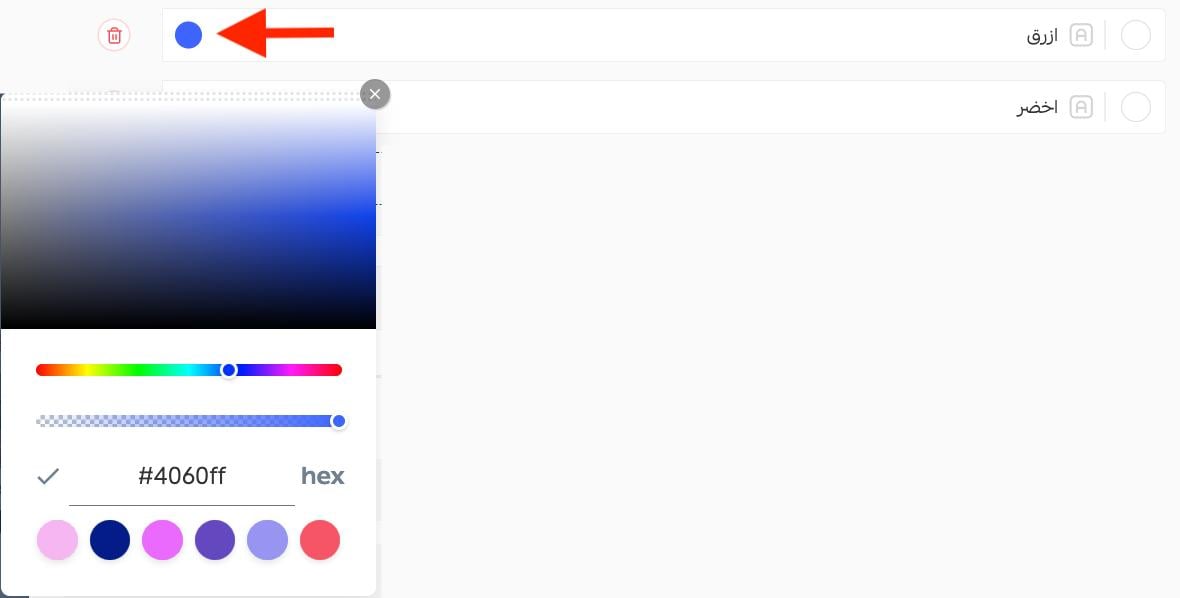
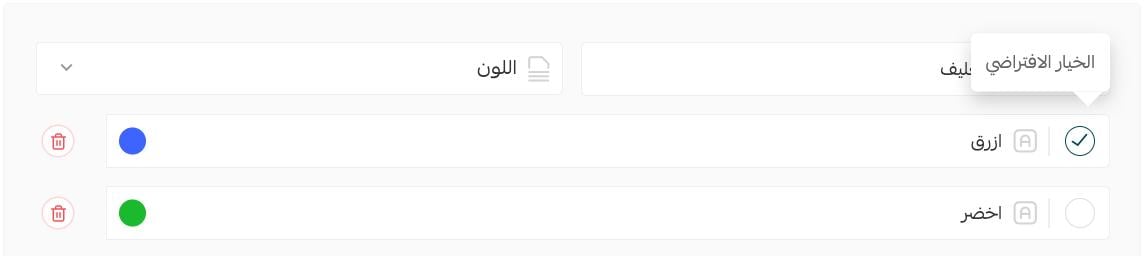
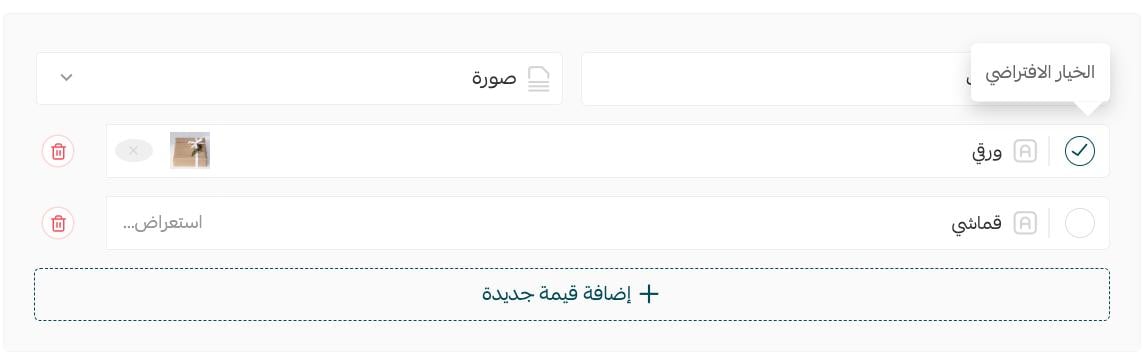
Select a color value to make it the default. Customers can still choose another available color.
Display options as images
Assign a label and image to each value. Click Browse to choose the required image file.
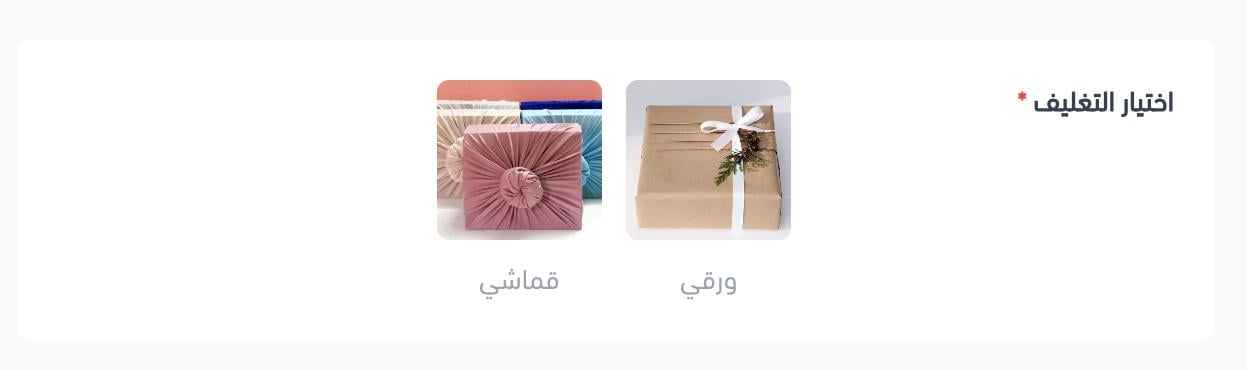
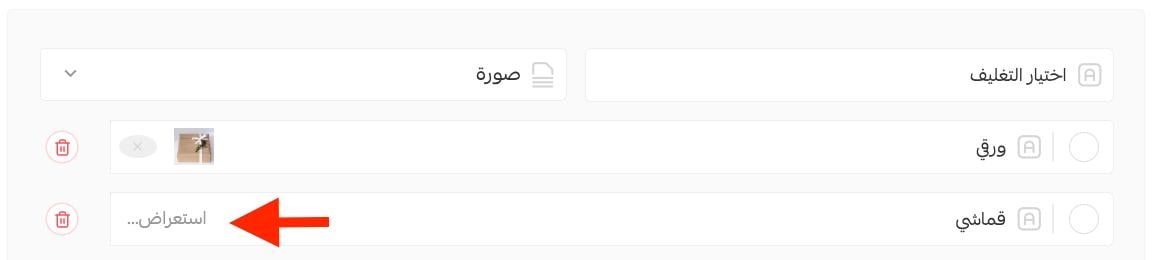
Select an image value to make it the default. To remove an option image, click the delete icon beside it.

The selected image options appear to customers on the product page.
📝 Important notes
A product can have up to 100 option combinations according to the source.
The number of combinations is calculated by multiplying the number of values in each option group.
Frequently asked questions
What details can I add for each product-option combination?
The source lists sale price, cost, discounted price, weight, barcode, SKU, and a low-stock alert.
Which product-option display types are available?
The source describes text, color, and image displays.
How is the product price shown when option prices differ?
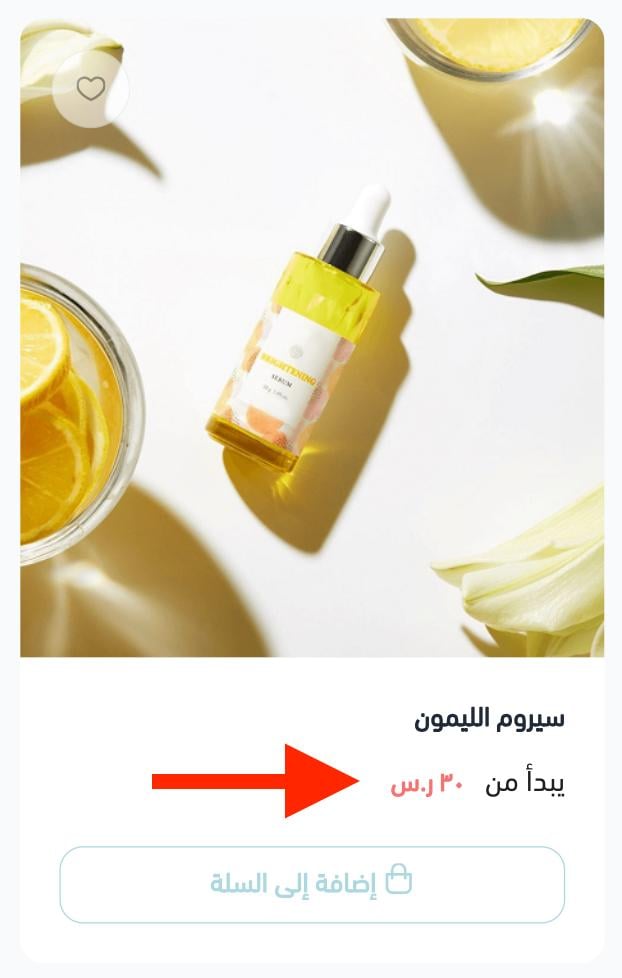
The Arabic source says the storefront shows a starting price when a product has options with different prices. The exact storefront wording should be confirmed by the content owner.
How do I delete a product option?
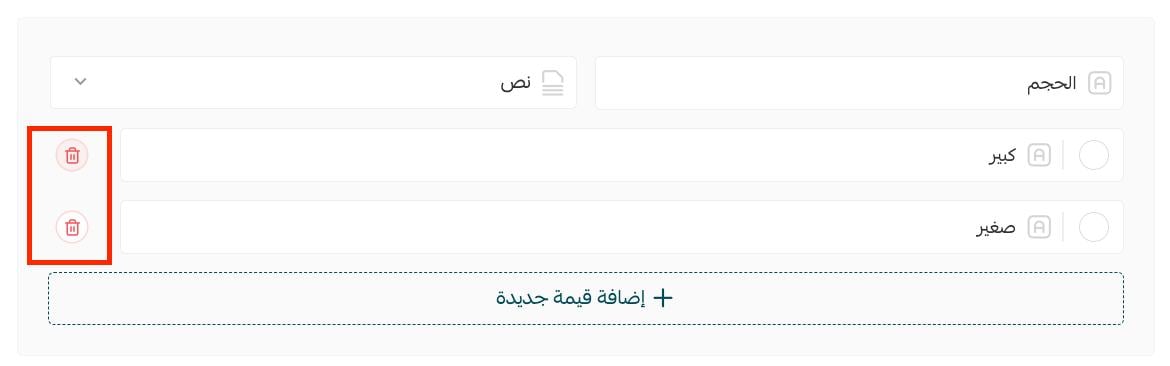
Click the delete button beside the main option or the sub-option you want to remove.
Why do I see the 100-combination limit error?
The error appears when another value would raise the product above 100 combinations. For example, 20 values multiplied by 5 values equals 100 combinations; adding a sixth value to the second group would produce 120.

Get professional product support
Merchant Services offers (product setup and product-description services) and (search visibility services).

Well-structured product options help customers understand available variants and choose the combination that fits their needs.