In this article, we’ll explore how to manage ongoing campaigns in Salla Chat, along with the steps to create a continuous campaign targeted at your customers. This helps improve engagement with your offers and promotions on an ongoing basis.
📌 Article overview
- How to access ongoing campaigns
- How to create an ongoing campaign
- Practical examples
How to access ongoing campaigns
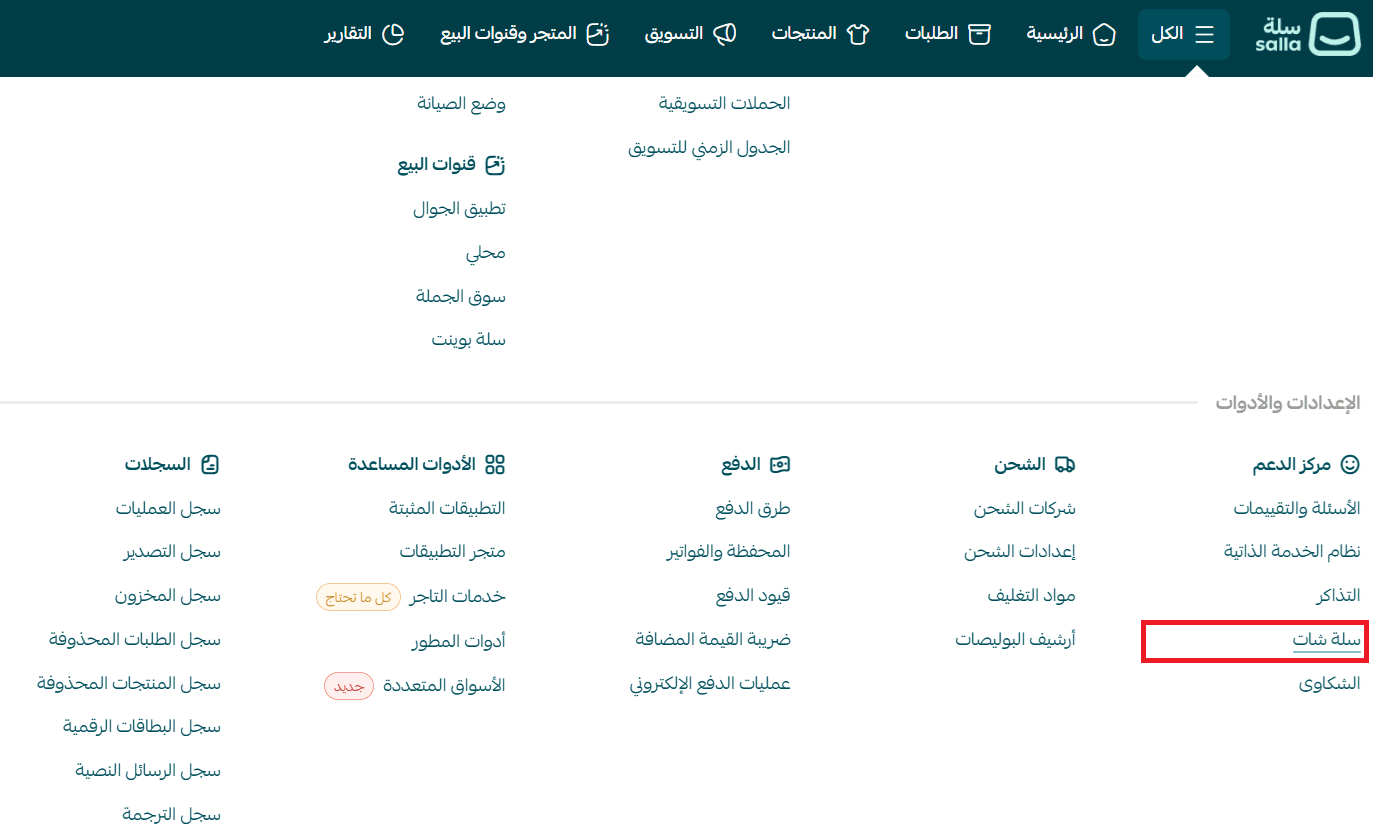
- From the main menu, click All, then select Salla Chat.
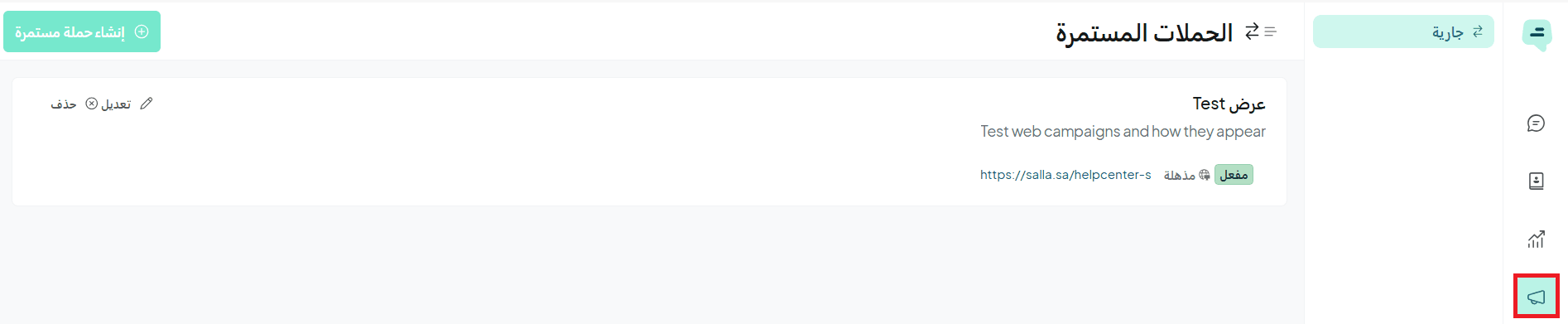
- From the Salla Chat menu, click the Ongoing Campaigns icon.
How to create an ongoing campaign
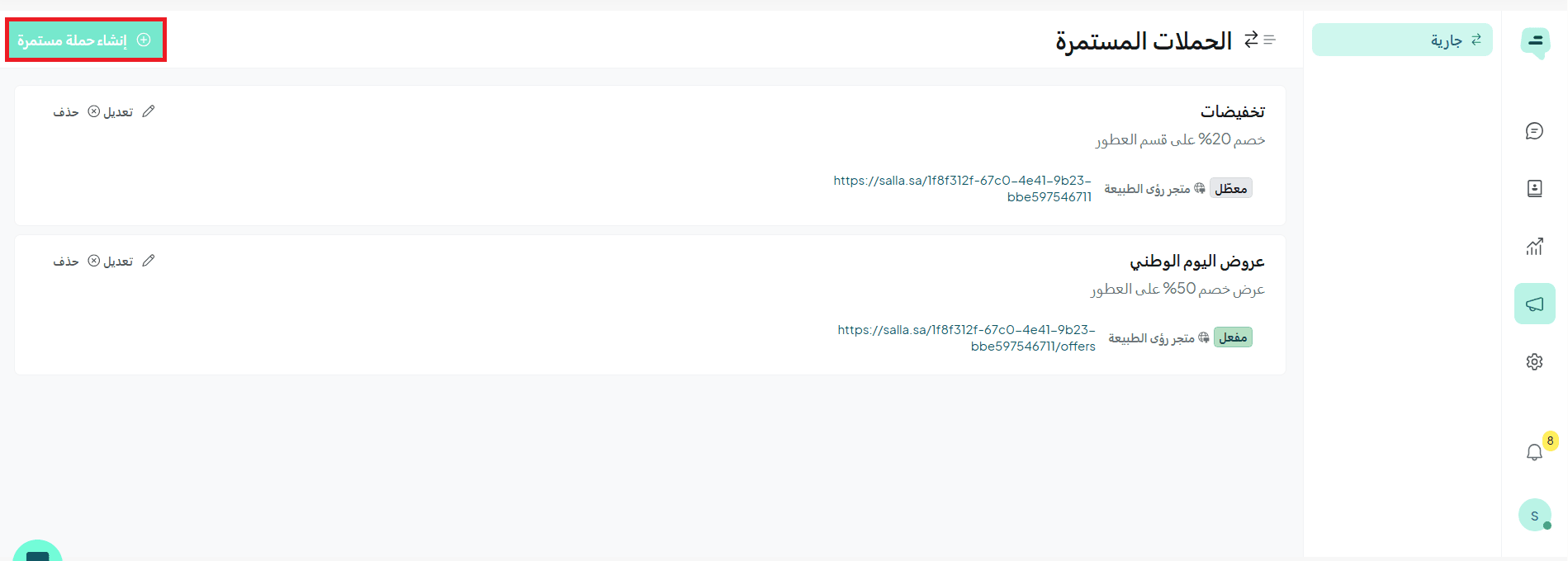
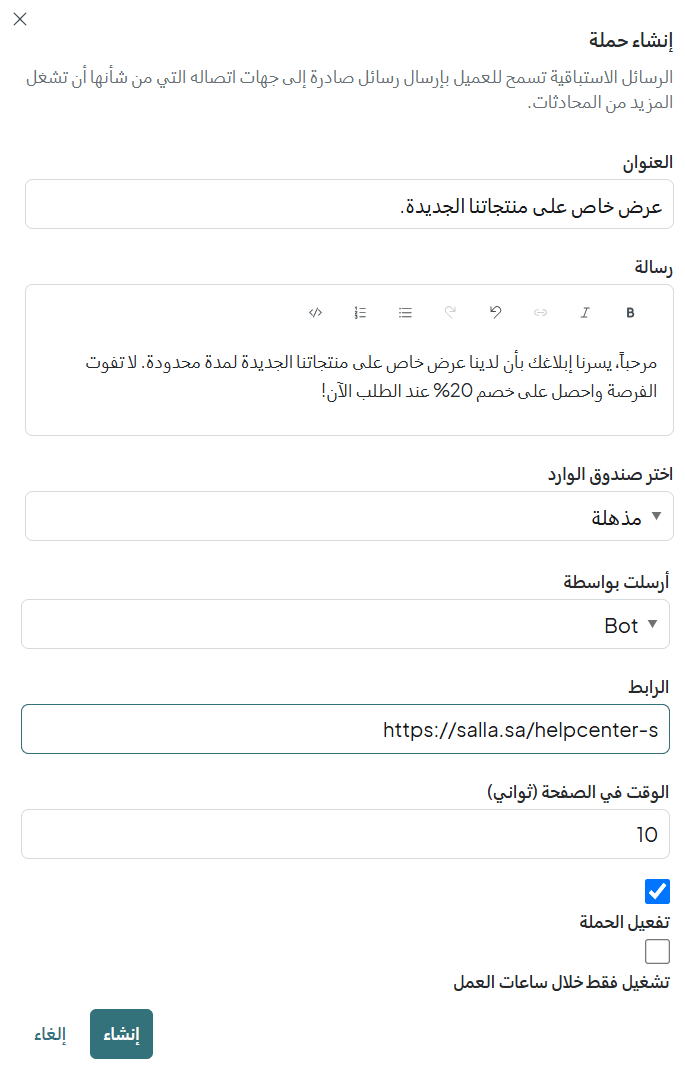
- Click Create ongoing campaign.
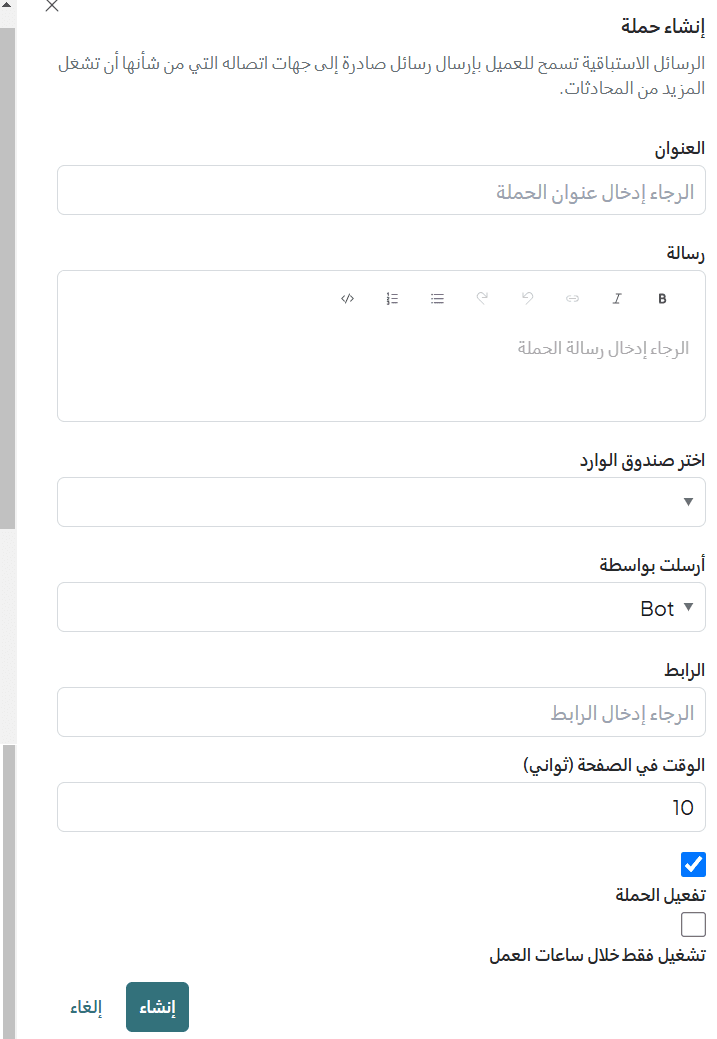
- Enter the required details, then click Create.
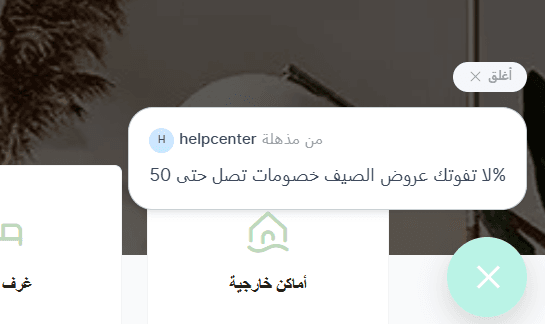
📝 Important note: Ongoing campaigns appear only in the web support widget within Salla Chat and are not visible via other channels such as WhatsApp or Instagram.
Practical example
A proactive campaign aimed at increasing customer engagement and encouraging them to interact with an offer or complete a purchase:
- Title: Special offer on our new products
- Message: Hello! We’re excited to let you know about a limited-time special offer on our new products. Don’t miss out, get 20% off when you order now!
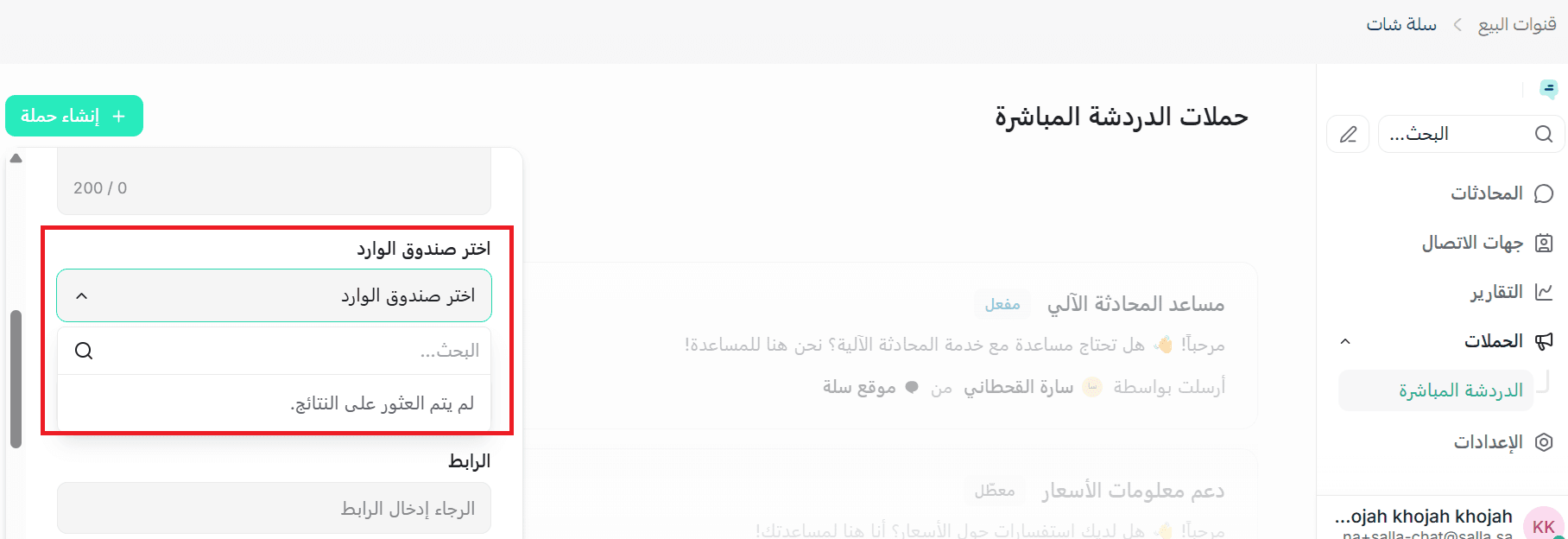
- Inbox: Choose the relevant inbox (e.g., Sales inbox)
- Sent by: Bot
- Link: Add your store link
- Time on page (seconds): 10
- Run only during business hours: (Optional, enable if needed)
Frequently asked questions
Are ongoing campaigns sent via WhatsApp or other channels?
No, ongoing campaigns are not sent as messages via WhatsApp, Instagram, or any external channels.
They only appear inside your store via the web support widget in Salla Chat.
Example: When a customer interacts with the campaign through the widget, the conversation will appear in the selected inbox inside Salla Chat.
What is an ongoing campaign in Salla Chat?
An ongoing campaign is automatically displayed to every store visitor based on predefined conditions.