When one order pulls stock from three different branches, how do you keep track of what ships from where?
Once you allow a single order's products to ship from several branches, that order stops being one parcel and becomes several. The multiple shipments controls on the order details page give you a view of each shipment, its products, and its waybill, so nothing gets prepared twice or missed. In this guide, you'll learn what the order details page shows for a multi-shipment order and how to issue and edit each shipment.
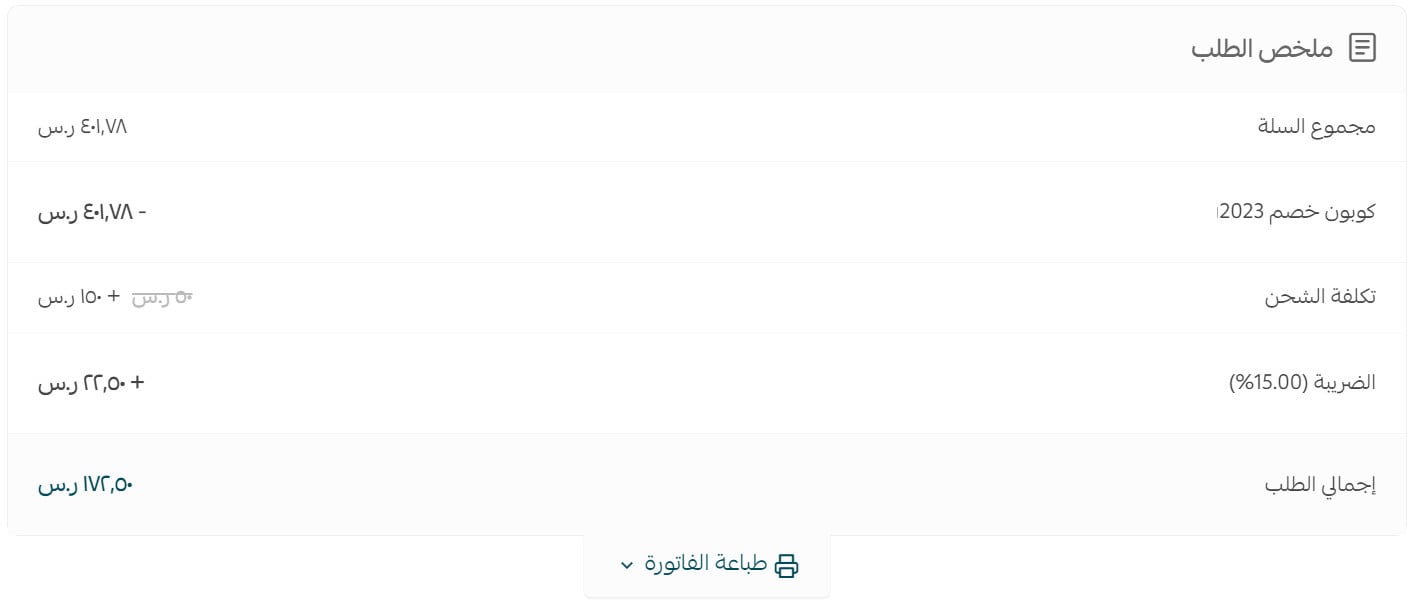
When you set an order's products to ship from several branches as multiple shipments, the order details page shows the number of shipments, a table of products per shipment, the full order summary, and a waybill table. You can issue a waybill per shipment and edit each shipment's details.
📌 Article overview
- Viewing the number of shipments
- Viewing each shipment's products in a table
- Viewing the full order summary
- Viewing the waybill table
- Issuing several waybills for one order
- Editing a shipment's details
- Frequently asked questions
🚀 Managing multiple shipments for an order
This applies once you have set a single order's products to ship from several branches as multiple shipments.

The order details page then gives you several things to view and control. The main ones are below.
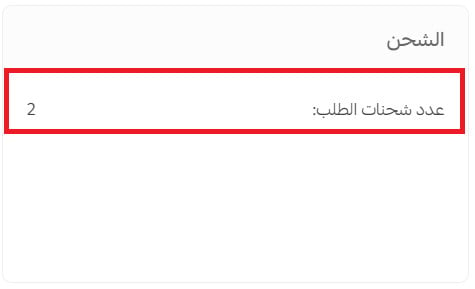
1. Viewing the number of shipments
The shipping section of the order shows the (Number of shipments).
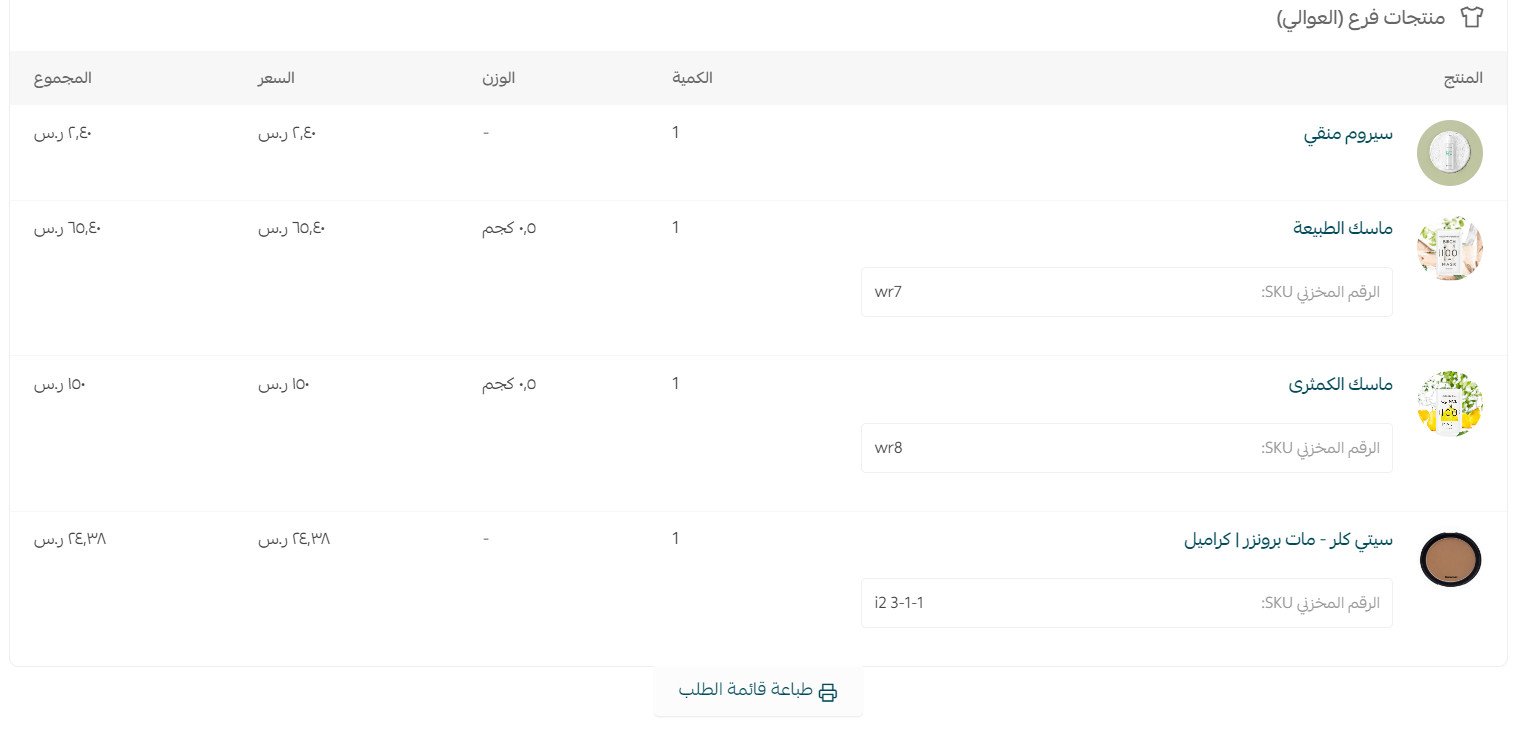
2. Viewing each shipment's products in a table
The products bought from each branch are listed separately, and you can print the picking list for one branch's products on its own.
3. Viewing the full order summary
4. Viewing the waybill table

5. Issuing several waybills for one order
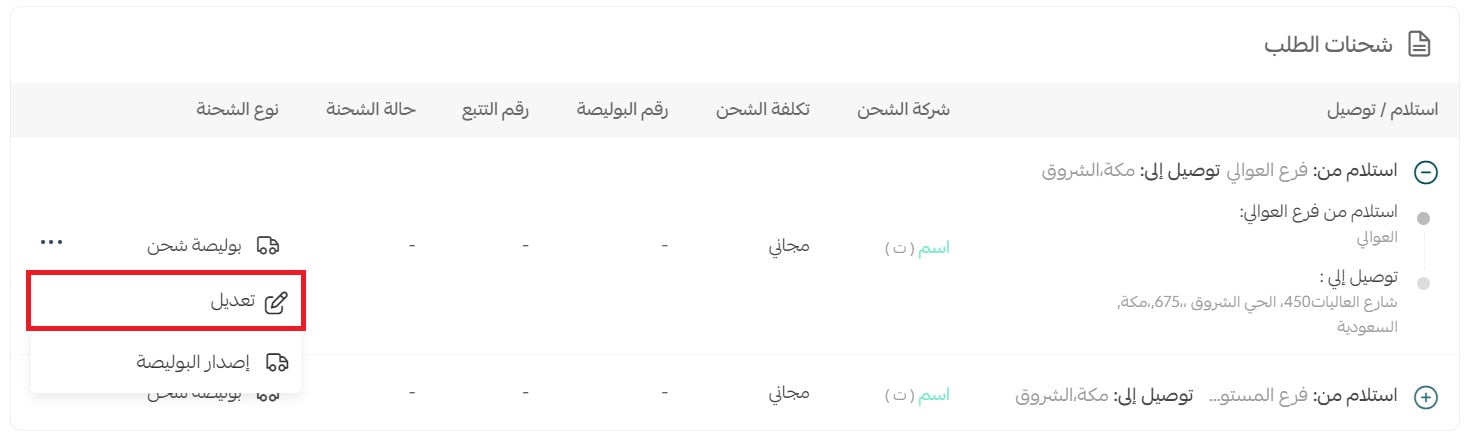
To issue a waybill going from one of several branches to the customer's location, click (...) next to the shipment and choose (Issue waybill).
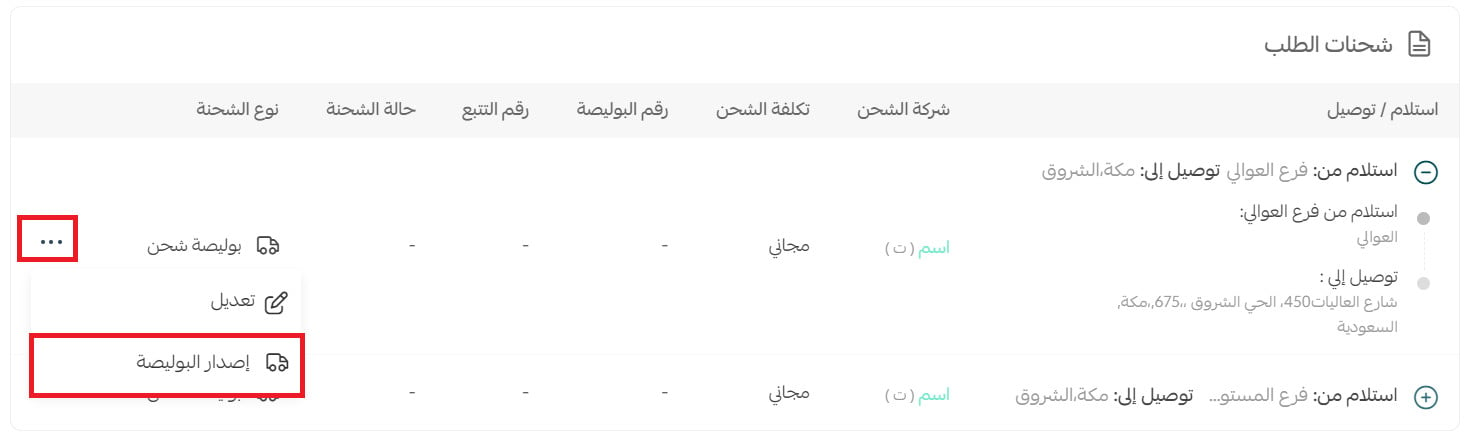
6. Editing a shipment's details
An order cannot mix delivery shipments and branch pickup shipments unless you edit it yourself. To do that:
Click (...) next to the shipment, then click (Edit).
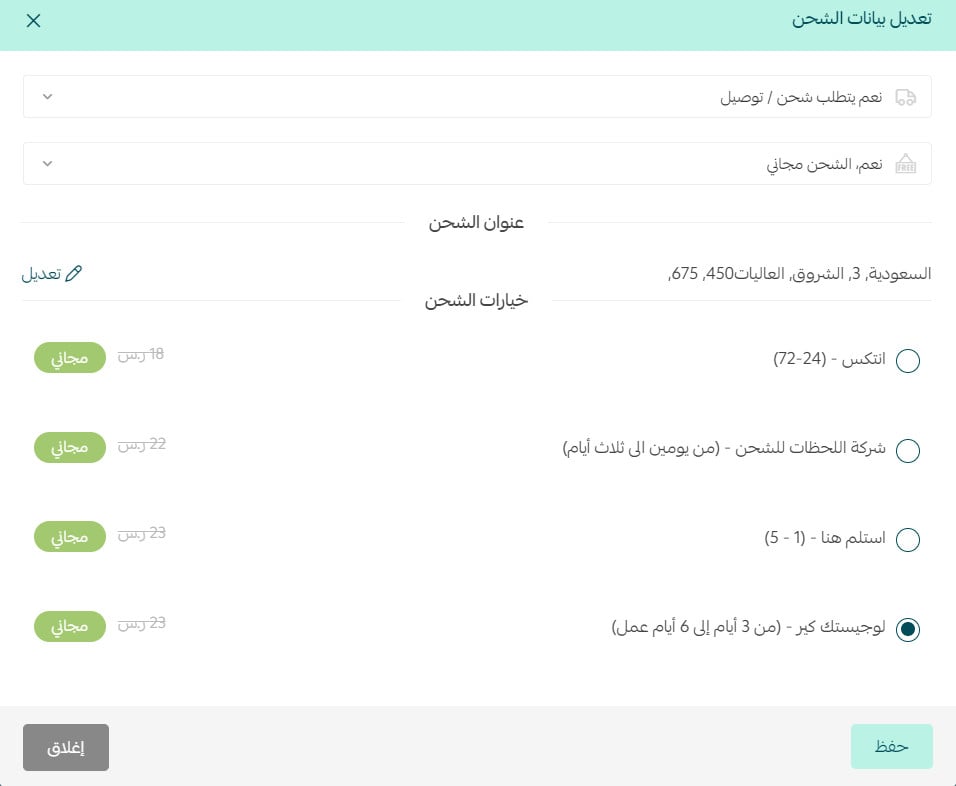
Then change the shipping company or the shipping options, and click (Save).
❓ Frequently asked questions
When does an order split into multiple shipments?
When you have set a single order's products to ship from several branches as multiple shipments. The order details page then shows the number of shipments and lists each one separately.
Can I print a picking list for one branch only?
Yes. Each branch's products are shown as their own table, and you can print the order list for that branch's products on its own.
How do I issue a waybill for a single shipment?
Click (...) next to that shipment on the order details page, then choose (Issue waybill).
Can one order contain both a delivery shipment and a branch pickup shipment?
Not on its own. It is only possible if you edit the shipment yourself: click (...) next to the shipment, click (Edit), change the shipping company or shipping options, then click (Save).
Once each shipment carries its own waybill and its own picking list, a multi-branch order is no harder to prepare than a single-branch one.