Once your products are live on Mahally, how do you tell what the channel is actually bringing in?
Listing on a new sales channel only pays off if you can see what it does for you. Everything you need to run your Mahally merchant account sits inside your Salla dashboard: the statistics for your listed products, the orders that came from Mahally, and the categories your products are filed under. In this guide, you'll learn how to read your Mahally statistics, spot Mahally orders, add products to the channel, and change a product's category.
From your Salla dashboard you manage everything about Mahally: open the Mahally page for statistics on linked products, sales, orders, and your store rating; filter your orders by the Mahally app to see what came from the channel; and change a product's Mahally category at any time.
📌 Article overview
- View your Mahally merchant account statistics
- Find the orders that came from Mahally
- How to add your products to Mahally
- Change a product's Mahally category
- Frequently asked questions
🎯 View your Mahally merchant account statistics
From the side menu of your dashboard, click (Mahally).
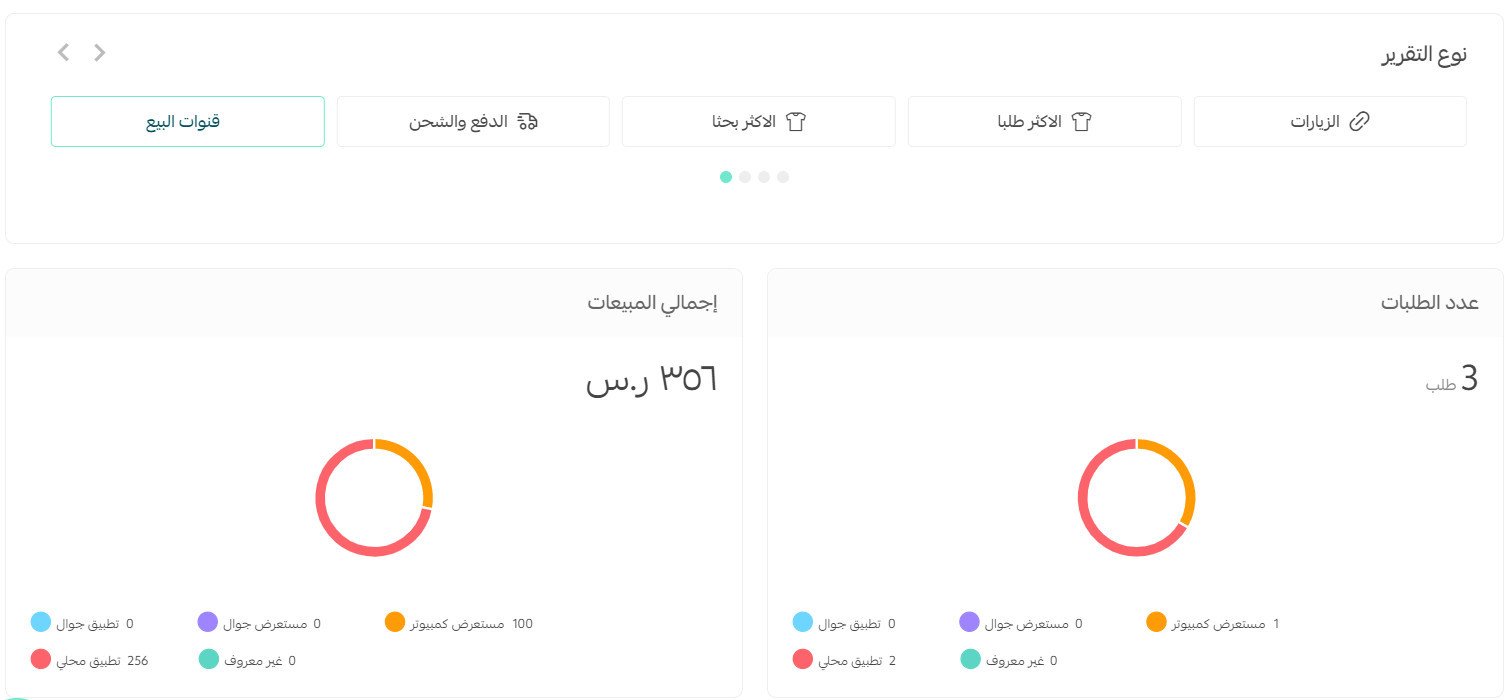
The Mahally page opens with the key statistics for your store's activity on the platform.
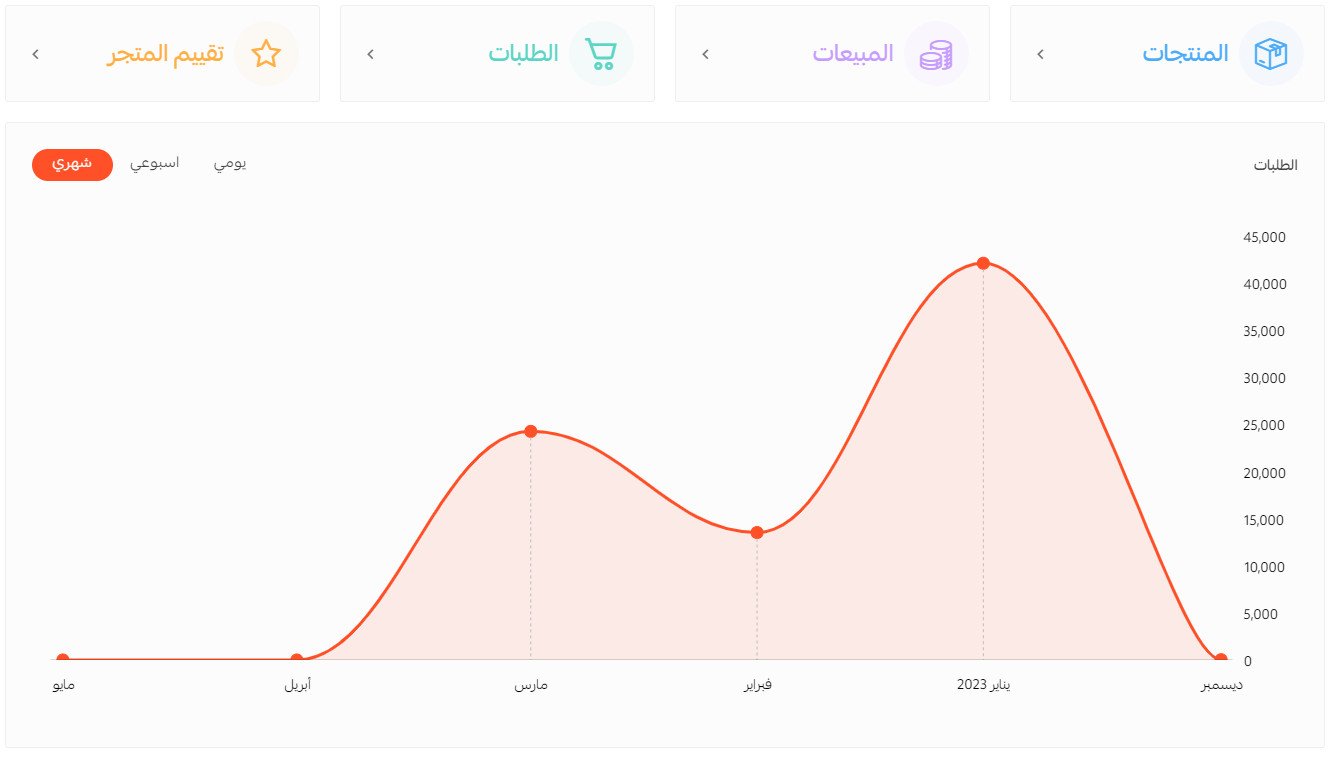
The statistics cover:
- Your store's products linked to Mahally.
- Sales of your products on Mahally.
- The number of your store's orders that came from Mahally.
- Your store rating on Mahally.
Clicking any of these tabs takes you to the matching page.
💡 Example: Clicking (Sales) takes you to the sales reports page, where you choose the report you want.
🔍 Find the orders that came from Mahally
There are three main ways to spot the orders that came from Mahally.
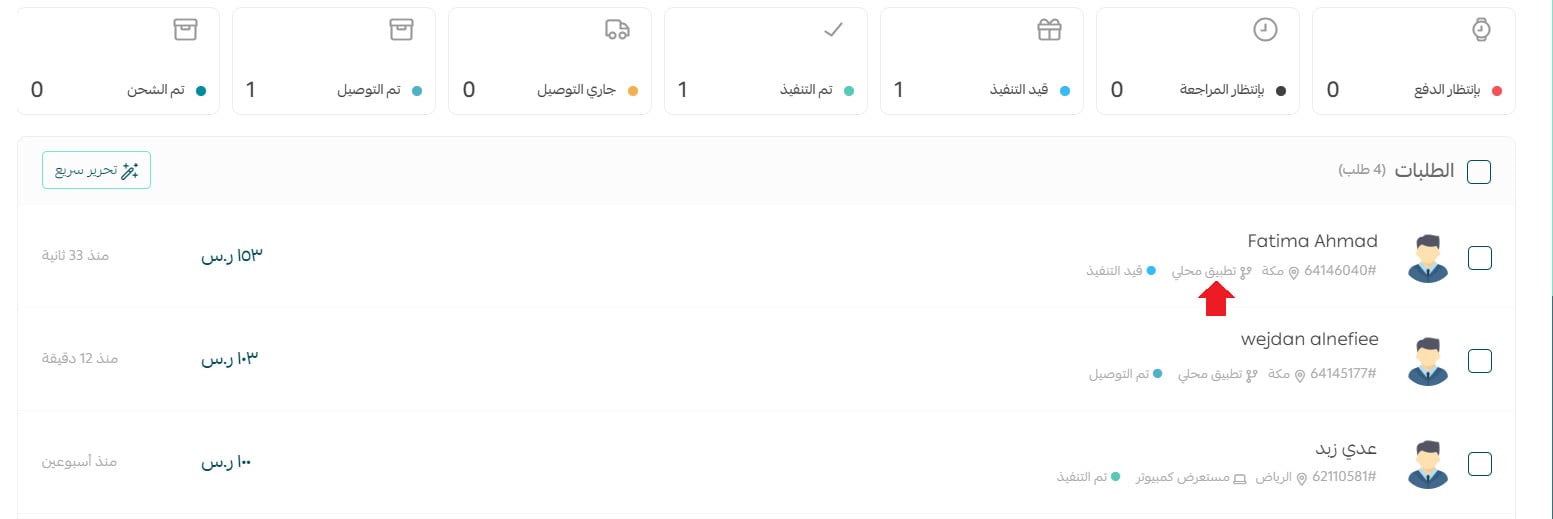
Method one: from the orders page
A quick look down the orders list shows you which orders came from the (Mahally app).
Method two: filter the orders
To show only Mahally orders:
1. From the orders page, click (Filter).

2. In the sorting and filtering options, under sales channels, select (Mahally app), then click (Show results).
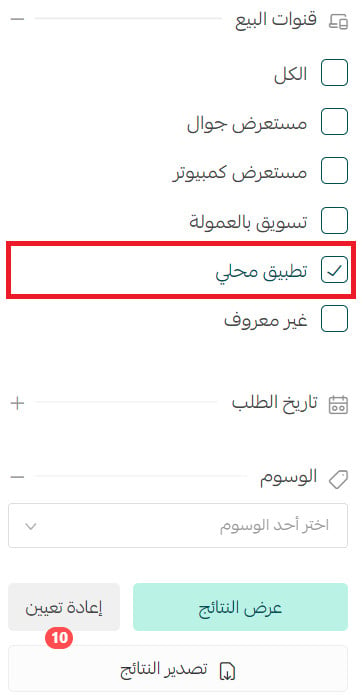
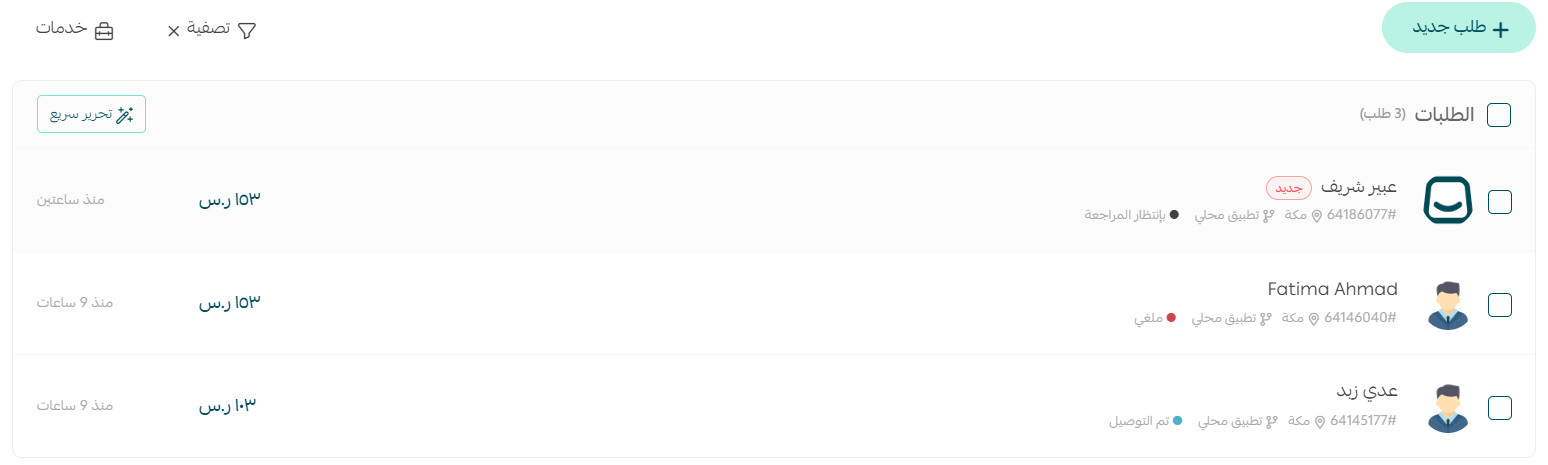
The results page then shows Mahally orders only.
Method three: from the sales channels report
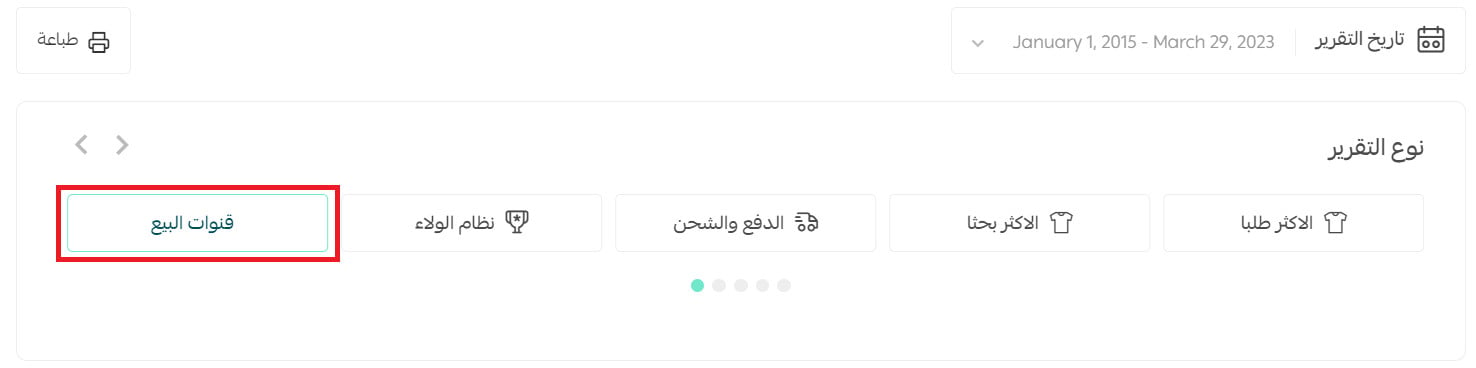
1. From the side menu of your dashboard, click (Reports).

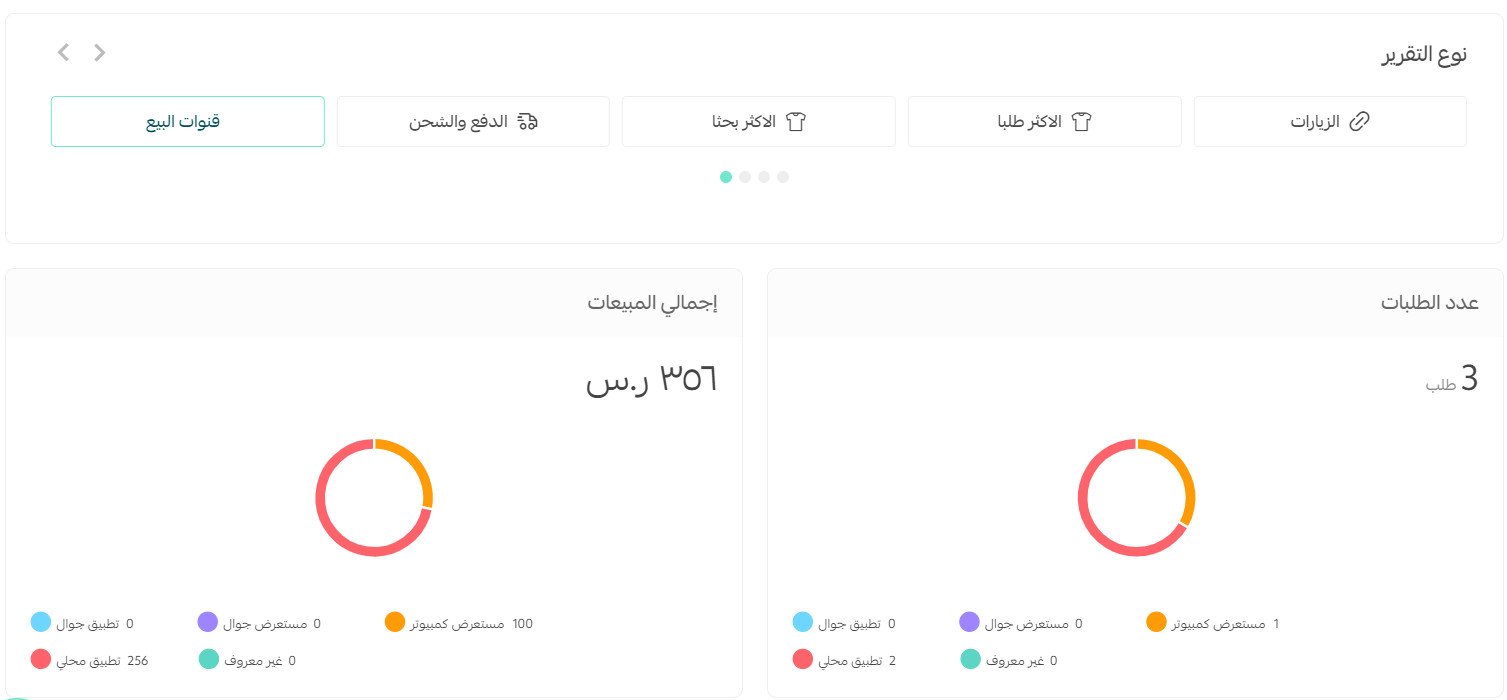
2. Choose the report date from the list, then open the (Sales channels) tab to pick the report you want to view.
3. The report shows the number of orders and the total sales through Mahally.
For more details, see viewing and printing reports.
🚀 How do I add my products to Mahally?
Your store's products are added to Mahally automatically once you finish the connection setup, and you stay free to show or hide them on the platform.
📝 How do I leave the platform after joining?
Once you join Mahally, you cannot cancel or leave the platform, and your listed products stay visible as long as they are active.
If anything goes wrong, get in touch with your merchant success manager.
👣 Change your product's Mahally category
You can change the category your products sit under on Mahally at any time.
Method one: change the category for one product
From the products page, open the product card, pick the category that fits your product from the (Mahally category) list, then click (Save).
🛑 Heads up: Hiding a product in your store also hides it on Mahally.
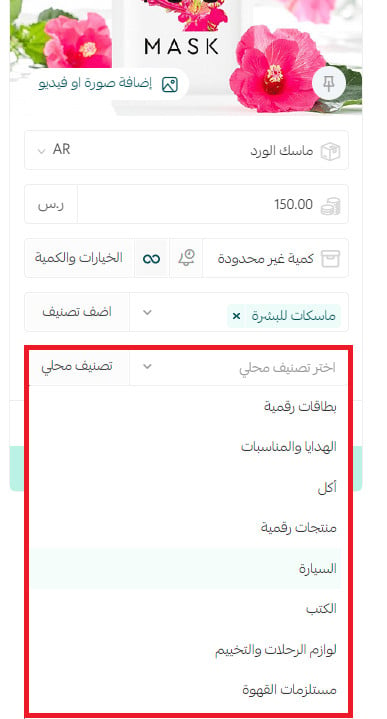
Method two: change the category for several products
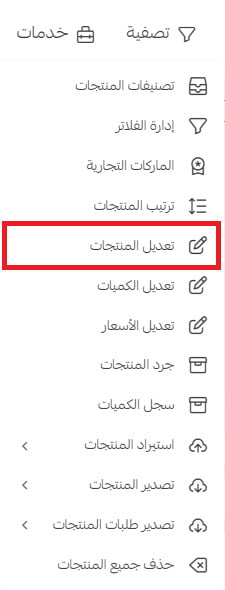
From the products page, open the (Services) menu and click (Edit products).
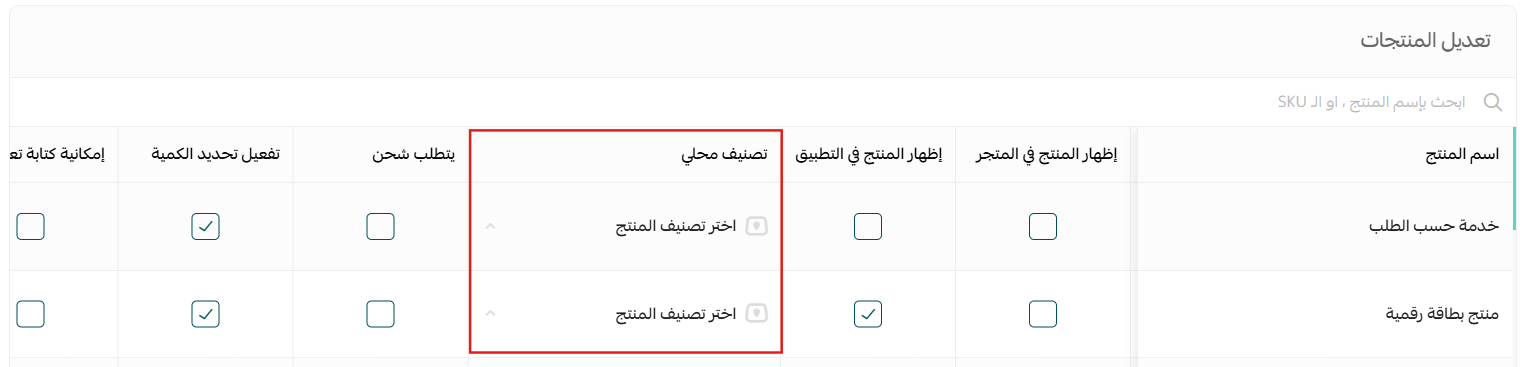
Then link your products to one of the Mahally categories.
❓ Frequently asked questions
Is receiving orders from Mahally different from my own store?
No. You receive and manage the orders exactly as you always have, with nothing extra to do.
Can I show products on Mahally without linking them to a category?
No. A product in your store cannot be shown on Mahally unless it is linked to the platform.
Mahally is worth watching as its own channel, not just extra traffic. Check the statistics page every so often, keep your categories tidy, and you'll know quickly whether it is earning its place.