What if a visitor's first move in your store was spinning a wheel for a prize instead of closing the tab?
Most first-time visitors leave without buying and without leaving a way to reach them again. Lucky Wheel Popupsnap turns that moment into a game: an interactive spin-to-win popup that hands visitors an instant reward and collects their contact details in return. The wheel matches your store's branding and can appear based on how a visitor behaves, so it feels like part of the store rather than an interruption. In this guide, you'll learn how to install the lucky wheel popup app, subscribe to a plan, open your Popupsnap dashboard, and remove the app.
Lucky Wheel Popupsnap adds a spin-to-win popup to your Salla store. Visitors spin the wheel for an instant reward, such as a discount, and leave their contact details in exchange. Install the app from the Salla App Store, choose a plan, then design the wheel from the Popupsnap dashboard.
📌 Article overview
- How to install the Lucky Wheel Popupsnap app
- How to activate your Popupsnap account
- How to manage the Lucky Wheel Popupsnap app
- Frequently asked questions
🚀 How to install the Lucky Wheel Popupsnap app
1. From the main menu, click (More), then click (Installed apps).
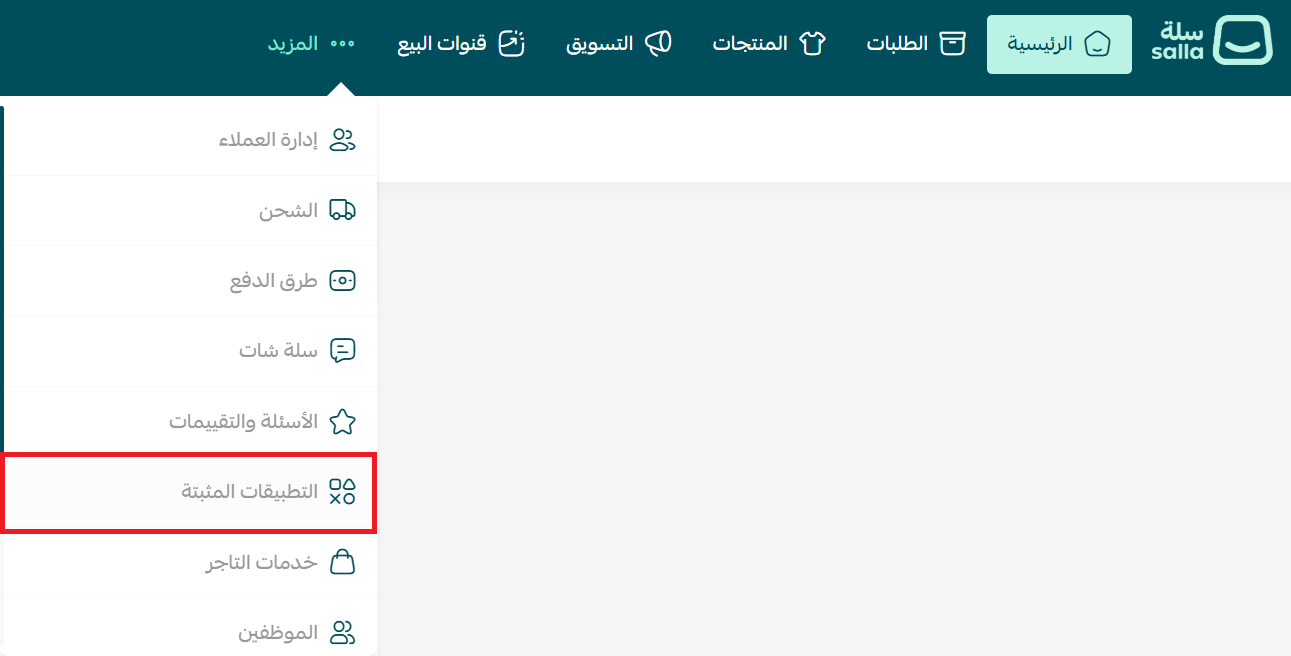
2. From the Salla App Store banner, click (Browse the Salla App Store).

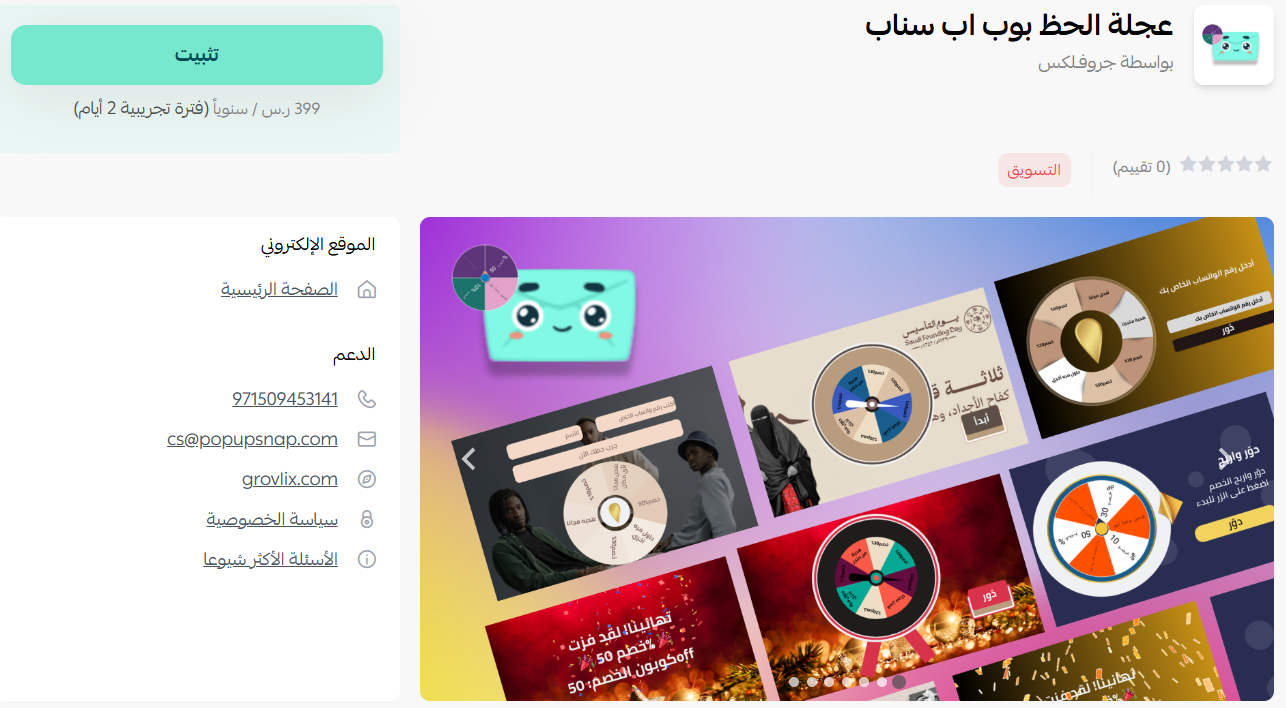
3. Open the Lucky Wheel Popupsnap app page, then click (Install).
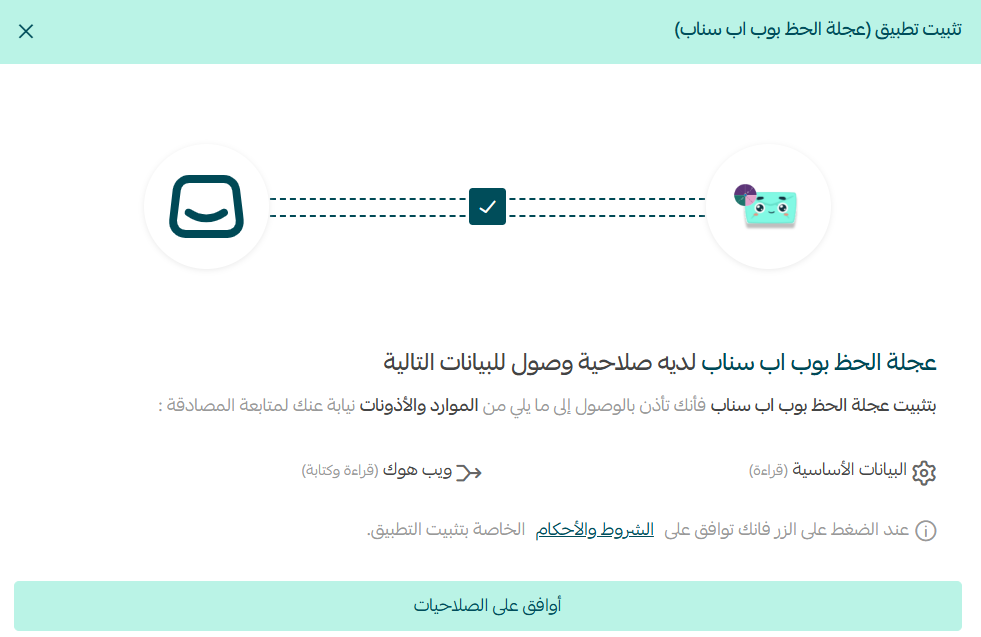
4. Review the permissions the app requests, then click (Approve permissions).
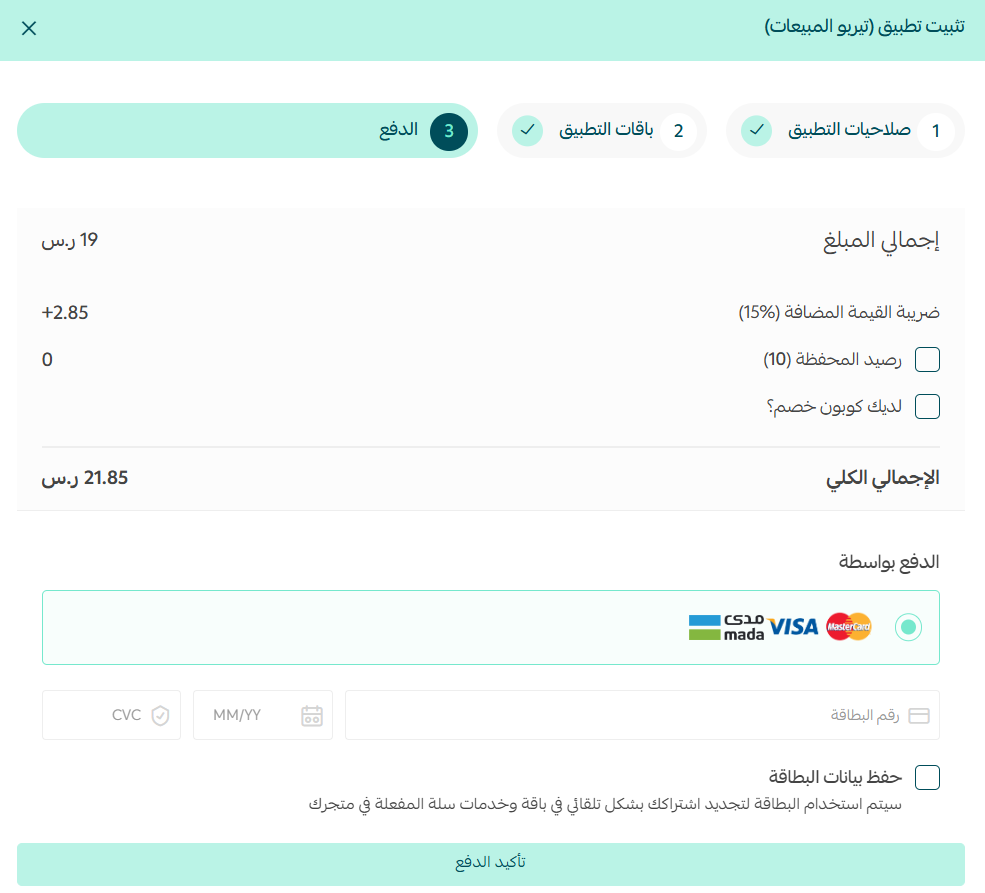
5. Choose the plan that fits your business, then click (Go to payment).
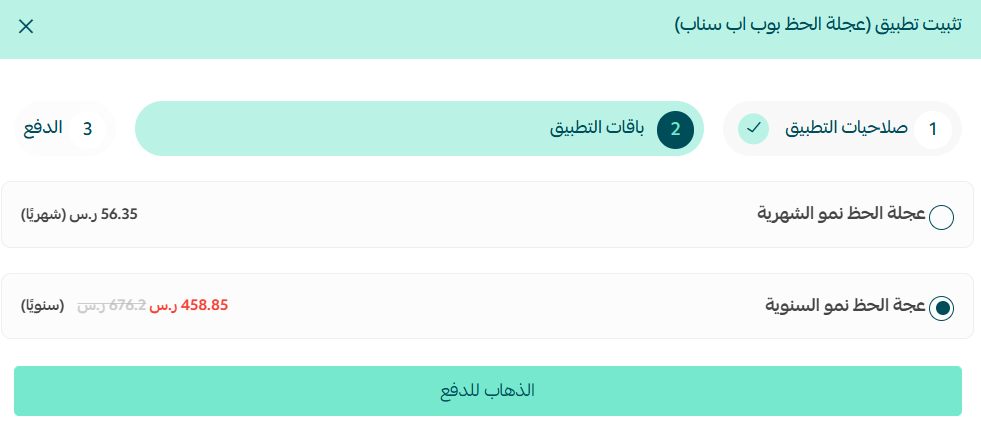
6. Complete the payment to activate the app's features.
👣 How to activate your Popupsnap account
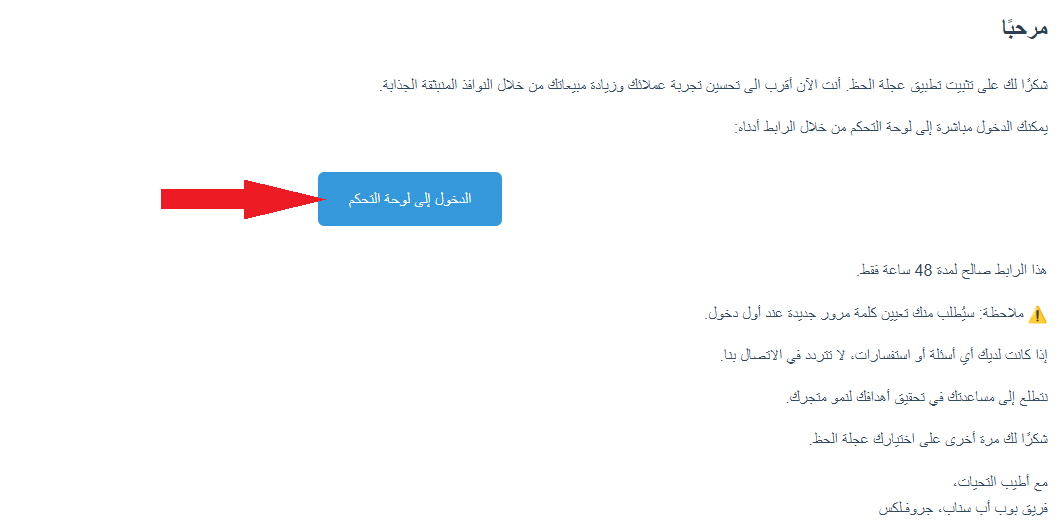
1. Open the email you receive after payment, then click (Go to dashboard).
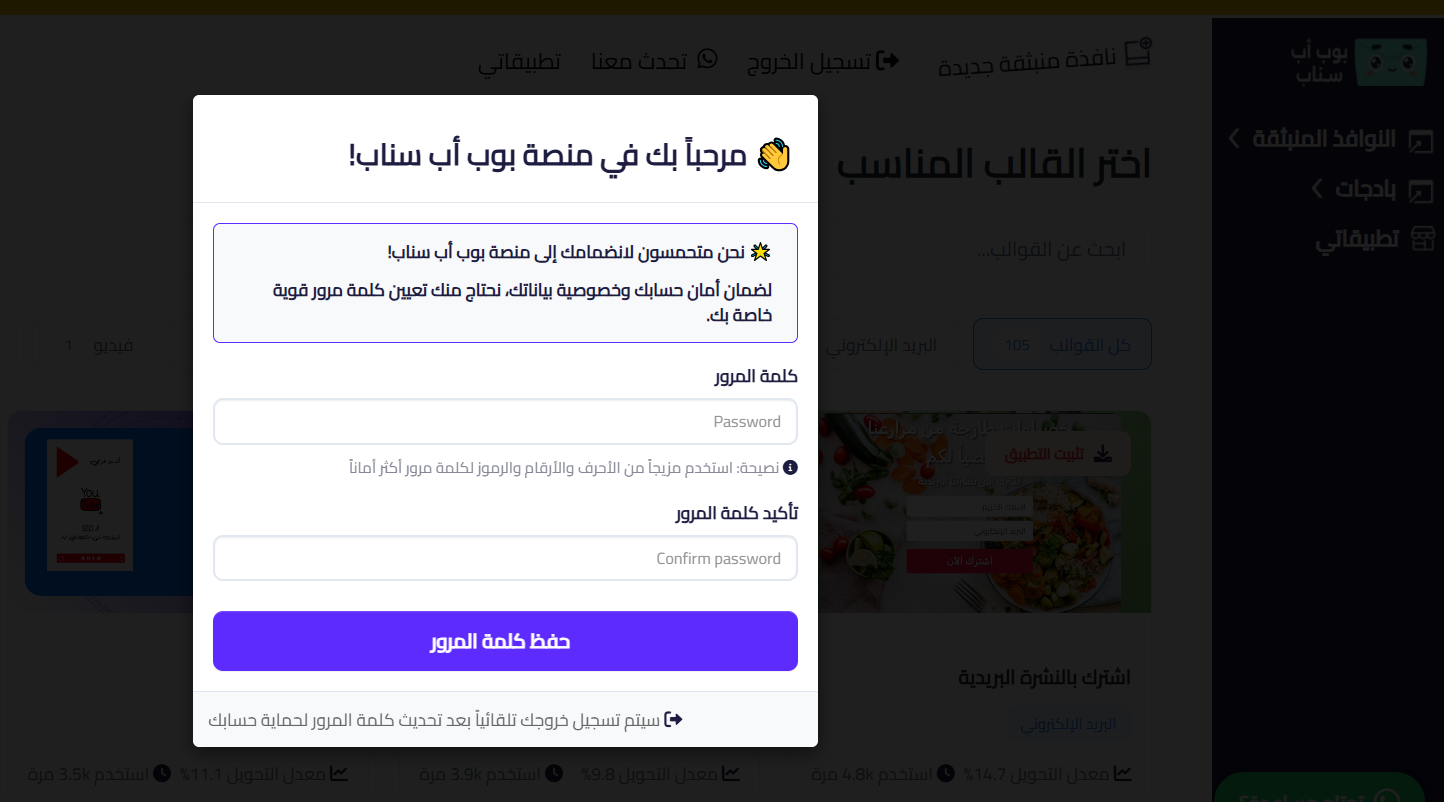
2. Set a password for your account.
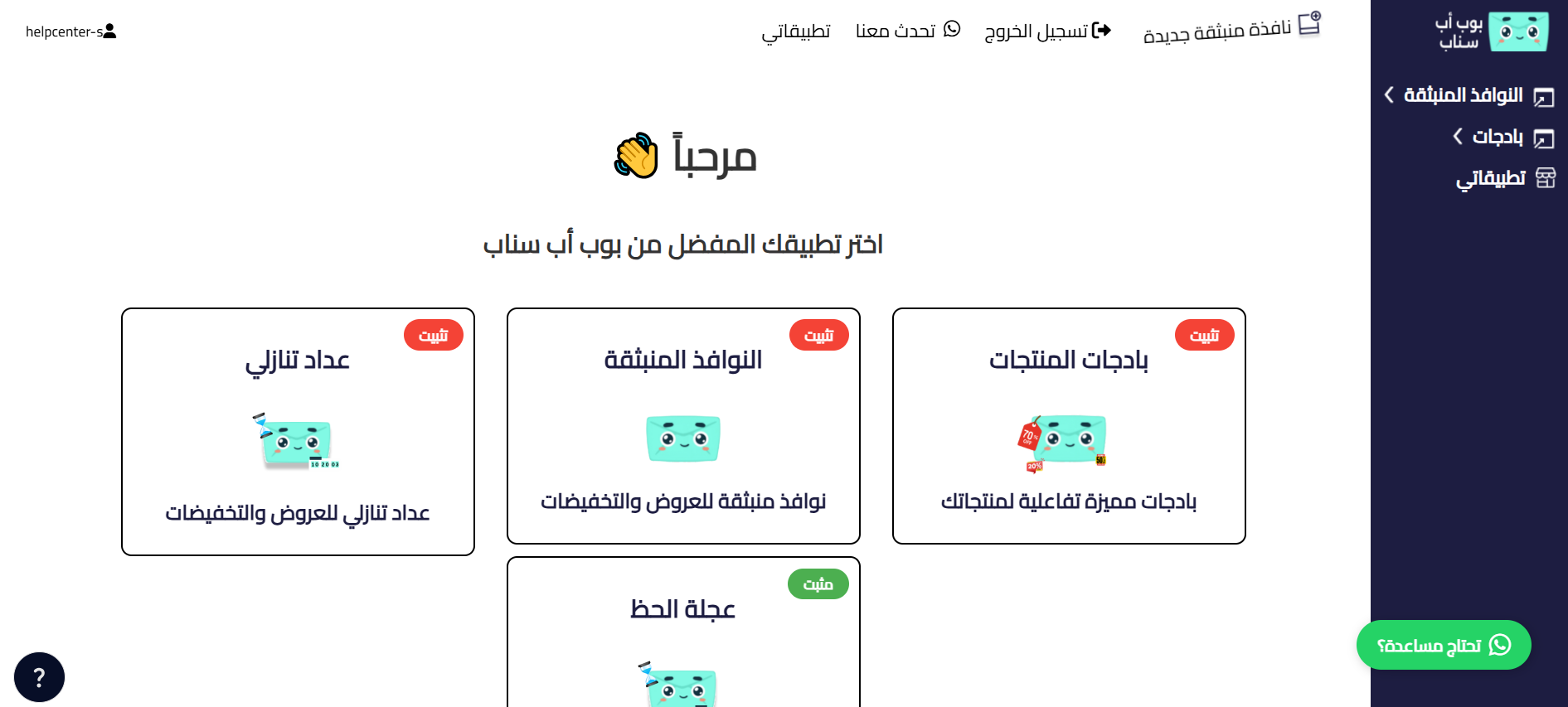
3. Your Lucky Wheel Popupsnap dashboard opens, where you design the wheel, set the prizes, and control when the popup appears.
For more details on managing your account, visit the Lucky Wheel Popupsnap website.
🚀 How to manage the Lucky Wheel Popupsnap app
Remove the app
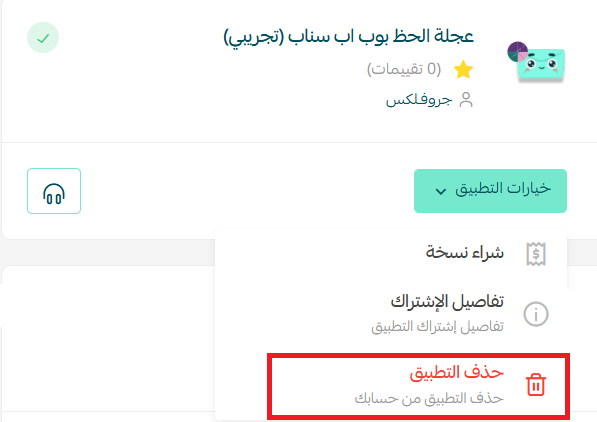
From the Lucky Wheel Popupsnap app card, click (App options), then click (Delete app).
📝 Important notes
- The wheel design, the prizes, and the display rules are all set in the Popupsnap dashboard, not in your Salla dashboard.
- The activation email goes to the address linked to your Salla account, so check that inbox after paying.
- Deleting the app removes the popup from your storefront.
❓ Frequently asked questions
What does the lucky wheel popup do for my store?
It invites visitors to spin a wheel for an instant reward. The interaction keeps them on the page longer, gives them a reason to buy now, and captures their details so you can market to them later.
Can I match the wheel to my store's identity?
Yes. The popup is customizable to your store's branding and can be shown based on visitor behavior.
Why am I asked to approve permissions during installation?
The app needs access to specific parts of your store to display the popup and record the details visitors enter. Review the list before you approve it.
How do I get into the Popupsnap dashboard?
Click (Go to dashboard) in the email sent after payment, set a password, and you're in.
How do I remove the app?
Open (App options) on the Lucky Wheel Popupsnap app and click (Delete app).
A discount that a customer wins feels different from a discount you hand out. Use the wheel to make the first interaction memorable, and to build a contact list you can sell to again.