How long does it take your team to get one new product properly listed?
Photographing it, writing a description that ranks, cutting a short video, filling in every field. Multiply that by a few hundred SKUs and product listing quietly becomes the slowest part of running a store. The Listapro product management app is built to compress that work: add products by scanning a barcode or uploading a photo, generate professional product images and promotional videos, and get SEO-ready descriptions written for you. In this guide, you'll learn what Listapro does, how to install it, and how to remove it.
Listapro is a product management app for Salla stores. It creates and manages products quickly by adding them from a barcode or a photo, generates professional product images and promotional videos, and writes product descriptions optimized for search engines, so you can build a full catalog without producing every asset by hand.
📌 Article overview
- What the Listapro app does
- How to install Listapro on your store
- How to manage and remove the app
- Frequently asked questions
🎯 What the Listapro app does
Listapro is an all-in-one product management tool for building and maintaining your catalog. It gives you:
- Fast product creation by barcode scan or product photo.
- Professional product image generation.
- Promotional video creation for your products.
- Product descriptions optimized for search engines (SEO).
👣 How to install Listapro on your store
1. From the main menu, click (All), then under the helper tools section, click (App Store).

2. On the Listapro app page, click (Install).
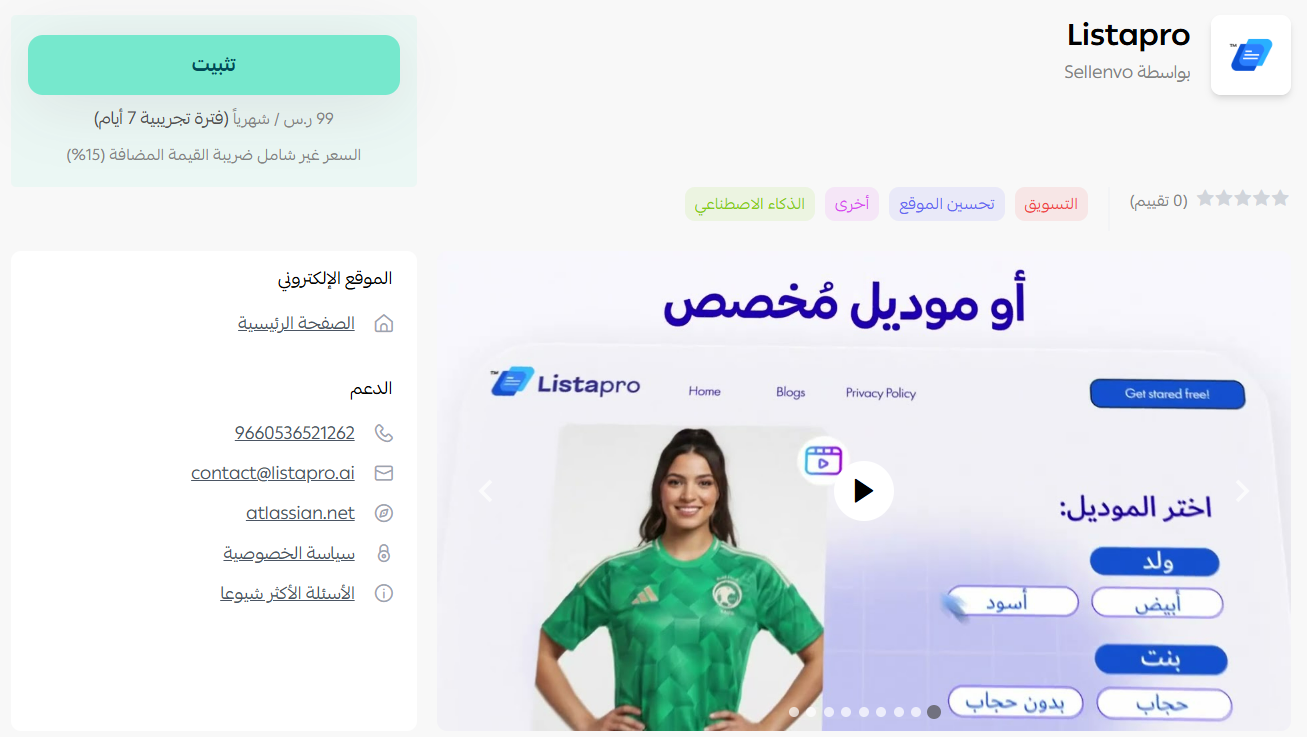
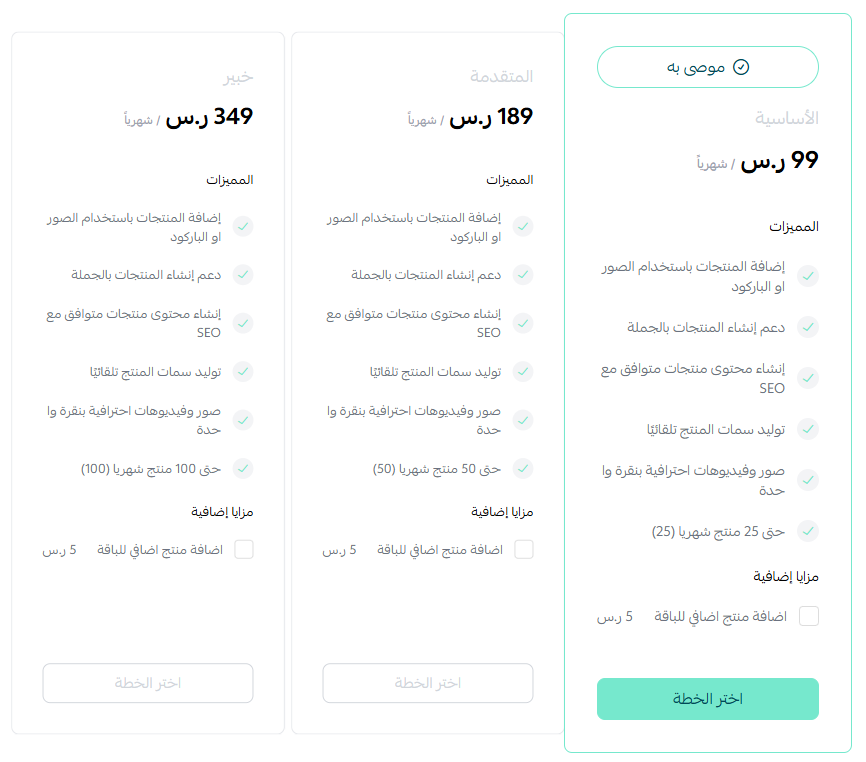
3. Choose the plan that fits your store, then click (Install app).
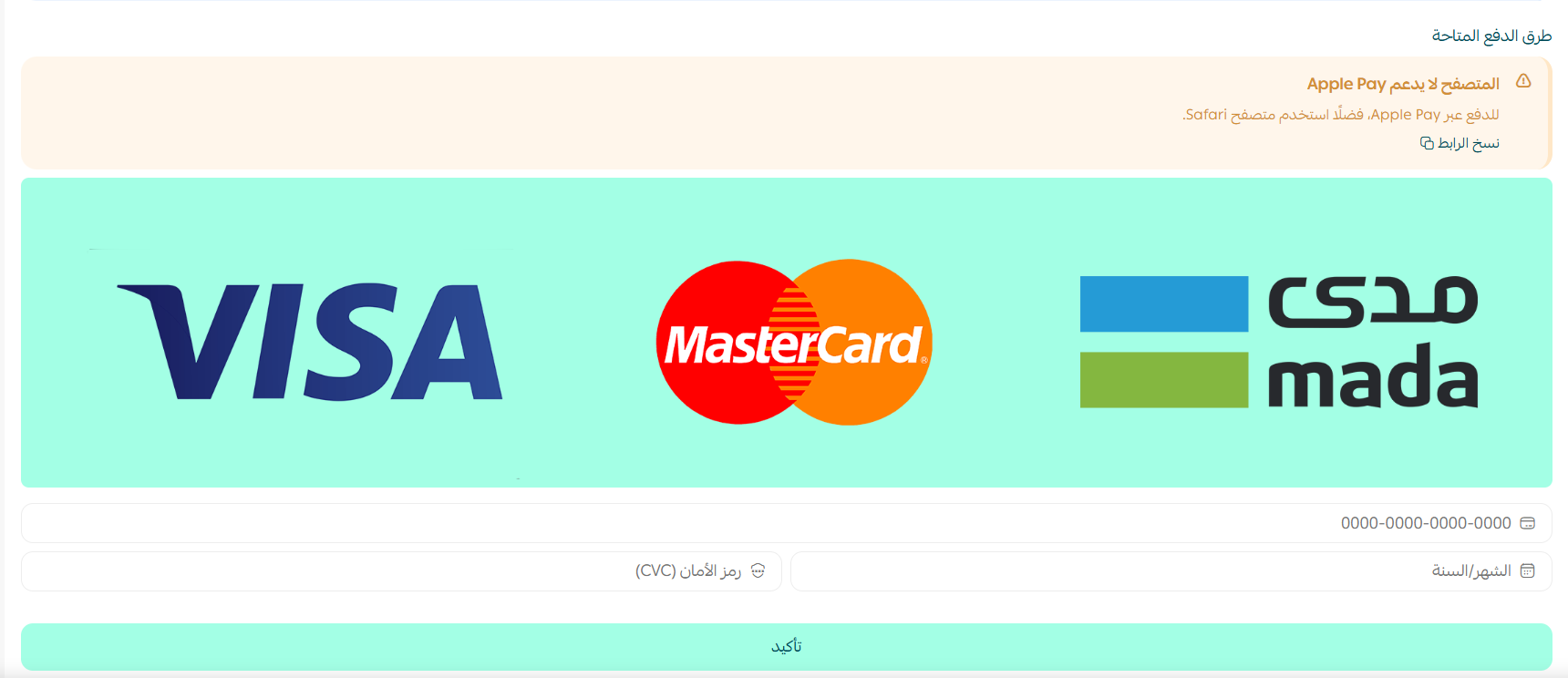
4. Complete the payment to activate the app's features.
Listapro is now installed on your store.
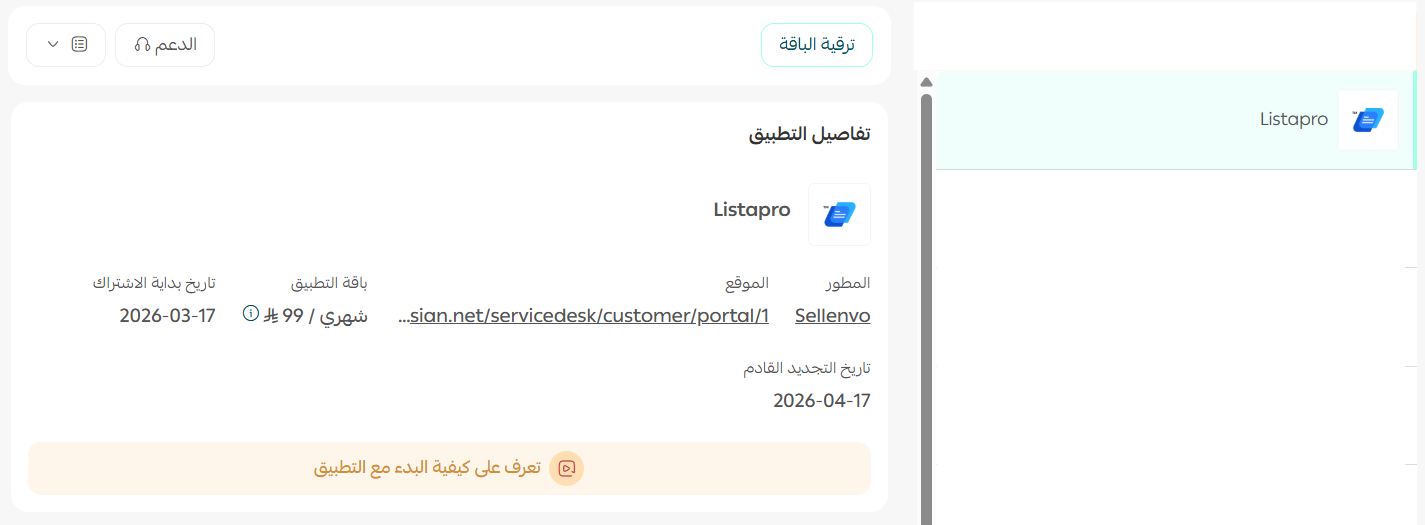
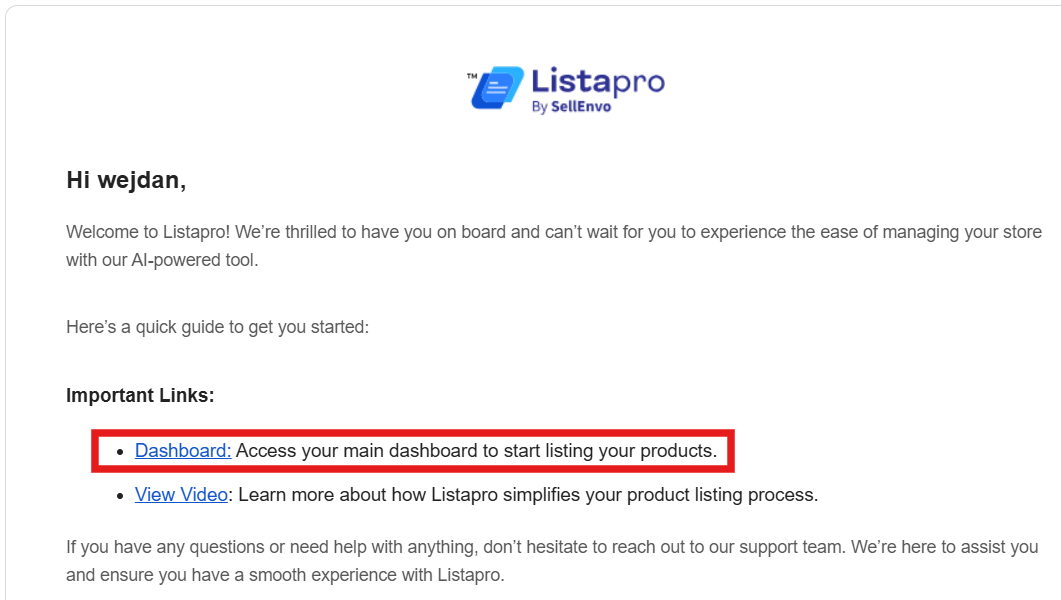
5. Once the app is active, check your email for the message containing your Listapro sign-in details, then click (Dashboard).
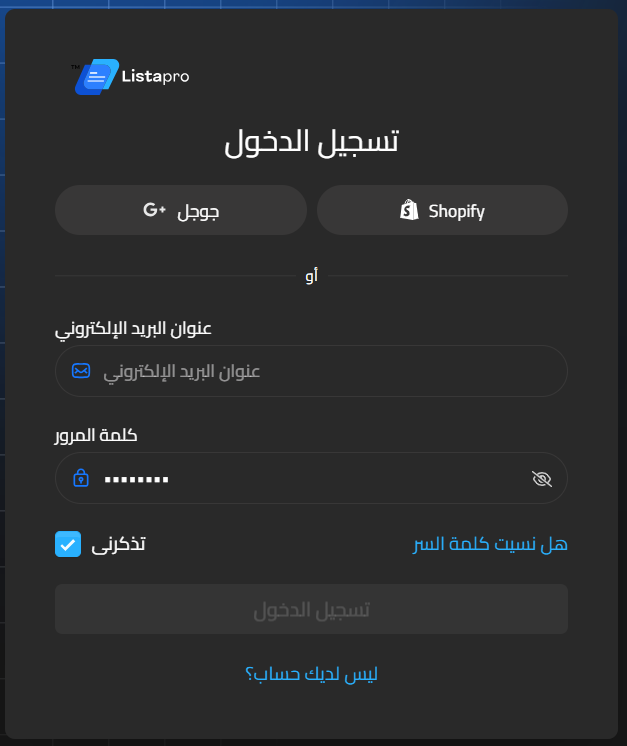
6. Set a password, then sign in to the platform with the email address registered on your Salla store.
You land on the Listapro dashboard and can start using its smart tools.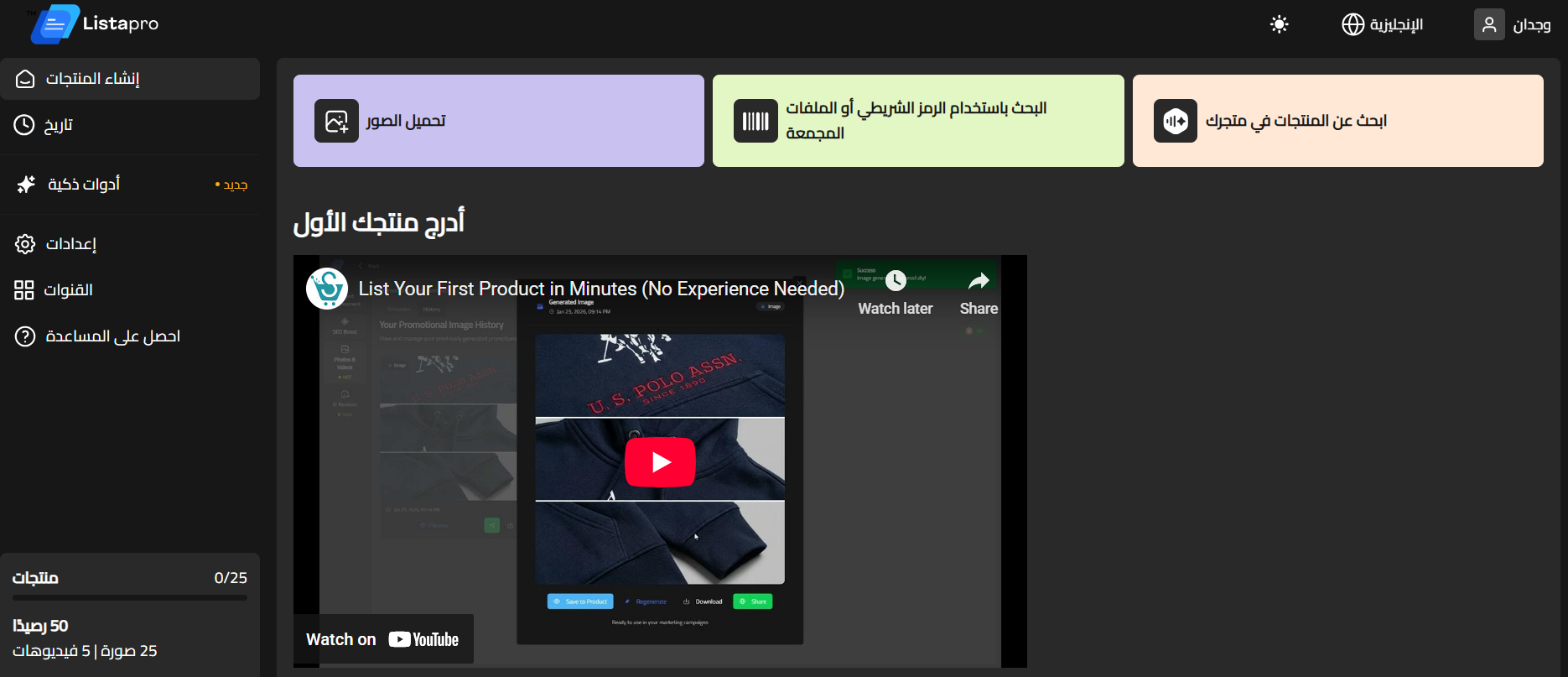
🚀 Managing the Listapro app
Removing the app
1. From the app options menu, click (Cancel subscription) and choose your reason for cancelling.

2. From the app options menu, click (Delete app) and choose your reason for deleting it.

3. On the Deleted apps page, open the app options menu and click (Delete app permanently) to remove it from your store for good.

📝 Important notes
- Listapro runs on its own platform with its own login, separate from your Salla dashboard.
- Sign in with the email address registered on your Salla store, or the invitation will not match your account.
For more details, visit Listapro.
❓ Frequently asked questions
How does Listapro add products so quickly?
You add a product by scanning its barcode or uploading a photo instead of filling in every field manually.
Does Listapro write product descriptions?
Yes. It generates product descriptions optimized for search engines, so your listings are written with SEO in mind from the start.
Can Listapro create product videos?
Yes. Alongside professional product images, the app can produce promotional videos for your products.
Where do I sign in to Listapro?
Use the sign-in details emailed to you after activation and click (Dashboard). On first use, set a password for the account.
A catalog is only as good as the listings inside it. Cutting the time between "we have this product" and "it is live with images, video, and a description that ranks" is where a product management tool earns its place.