Selling on more than one channel, and re-entering the same stock numbers on each of them?
Multi-channel selling grows revenue and multiplies admin at the same time: one sale on one channel leaves the stock count wrong everywhere else. Linker Seller is a Saudi multi-channel commerce platform that connects to your Salla store and keeps inventory, orders, and prices in step across every channel you sell on. In this guide, you'll learn how to install the app from the Salla App Store, activate your Linker Seller account, upgrade your plan, and remove the app.
Linker Seller is a Saudi platform for running your e-commerce business across several sales channels at once. After you connect it to your Salla store, you can sync inventory and orders and update prices from a single dashboard, instead of repeating the same edits on every channel.
📌 Article overview
- How to connect the Linker Seller app to your store
- Manage the Linker Seller app
- Frequently asked questions
🚀 How to connect the Linker Seller app to your store
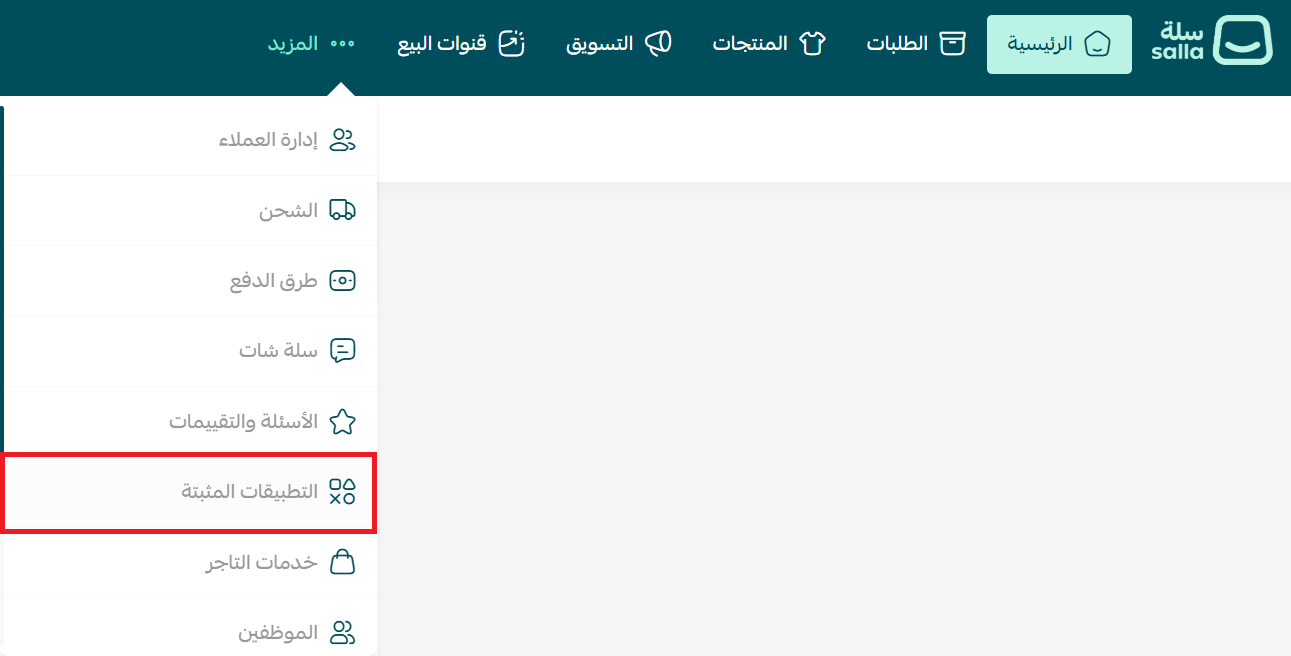
1. From the main menu, click the (More) tab, then click (Installed apps).
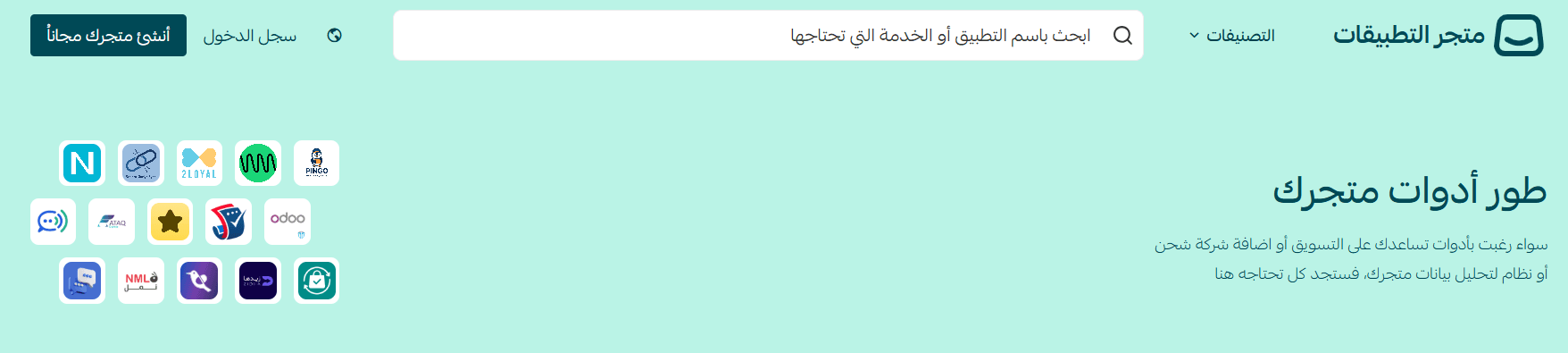
2. On the Salla App Store banner, click (Browse the Salla App Store).
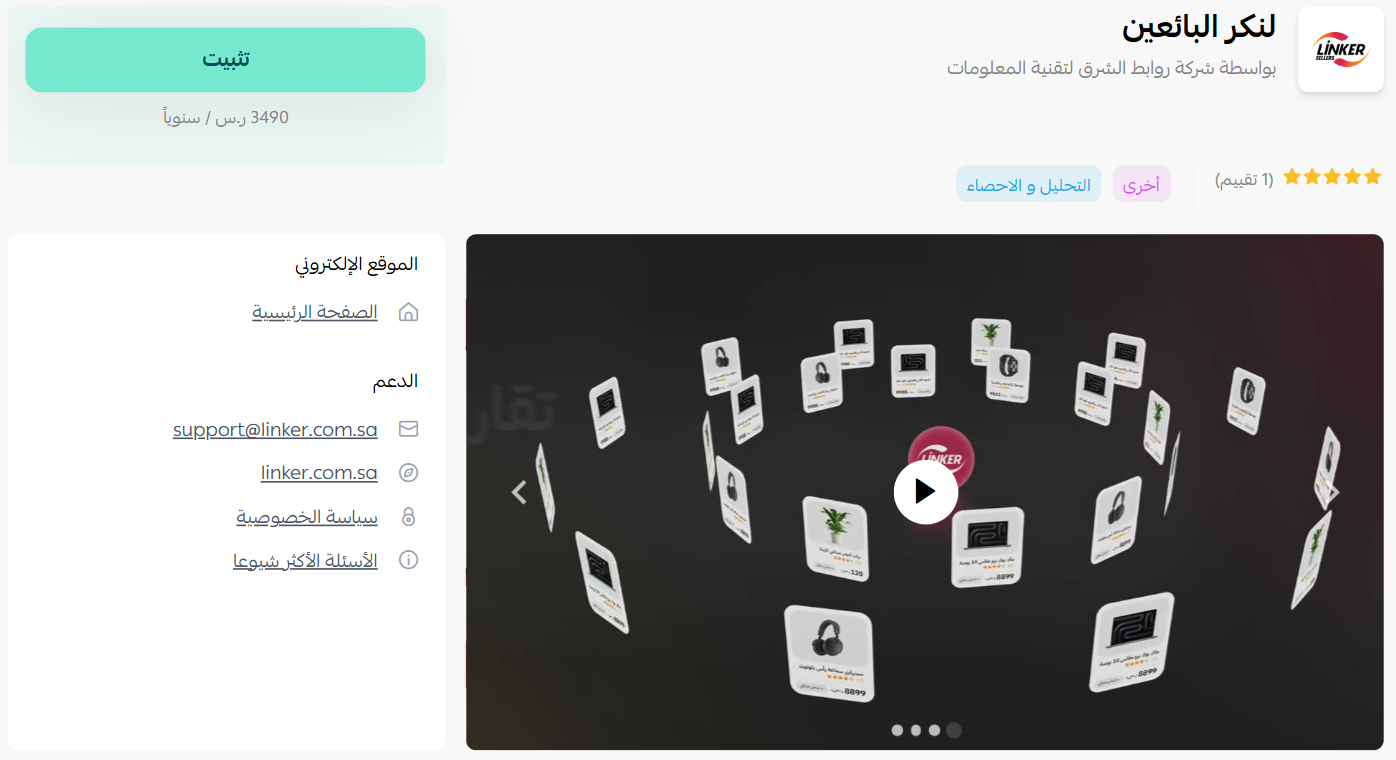
3. On the Linker Seller app page, click (Install).
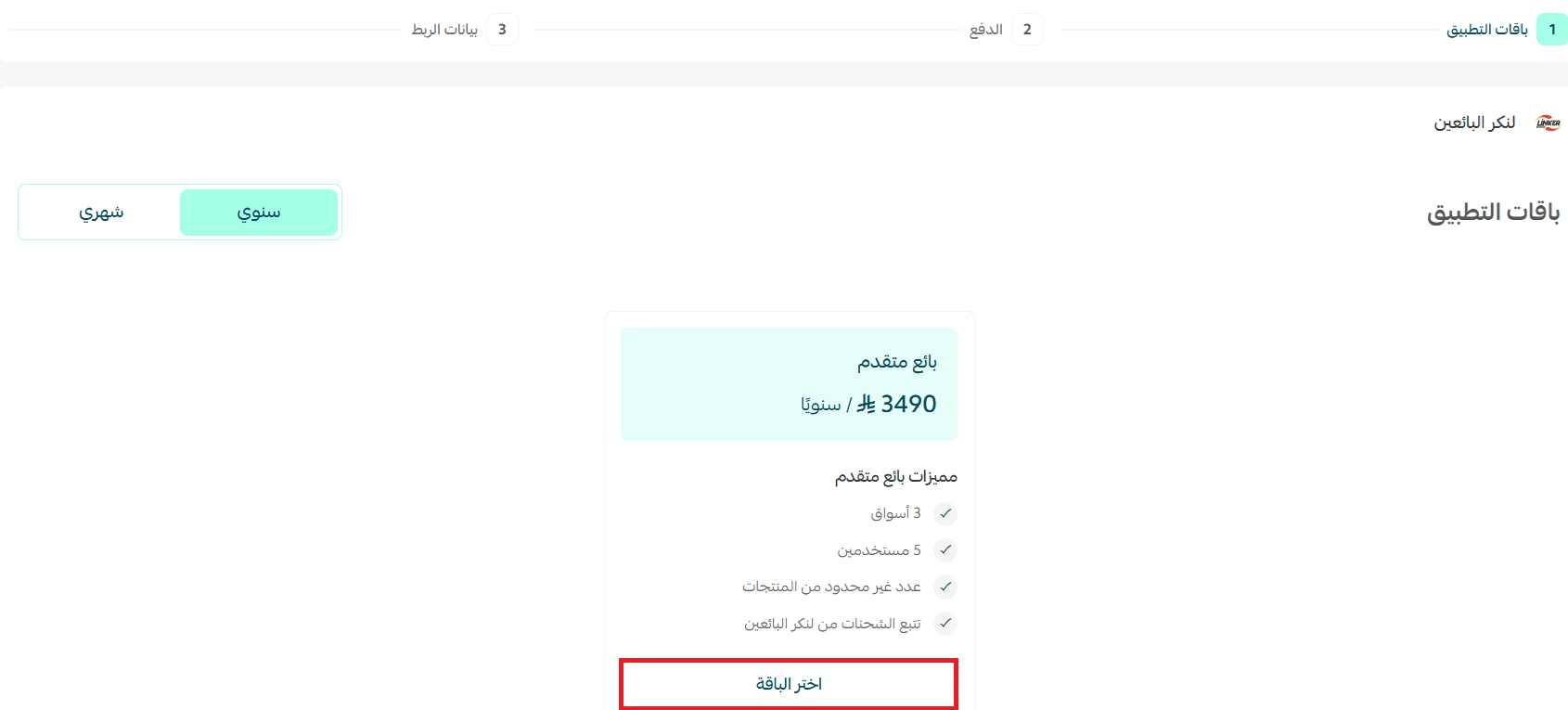
4. Choose the plan that suits your business to continue with the installation.
5. Review the permissions the app requests, then complete the payment to unlock the app's features.
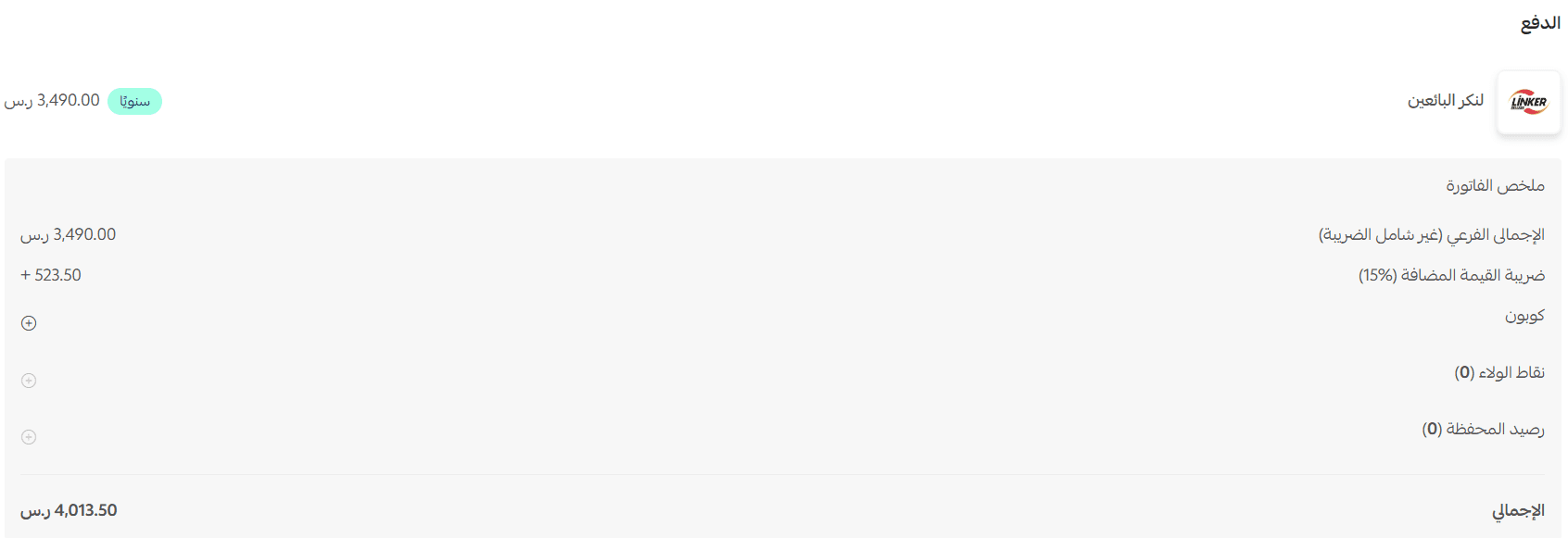
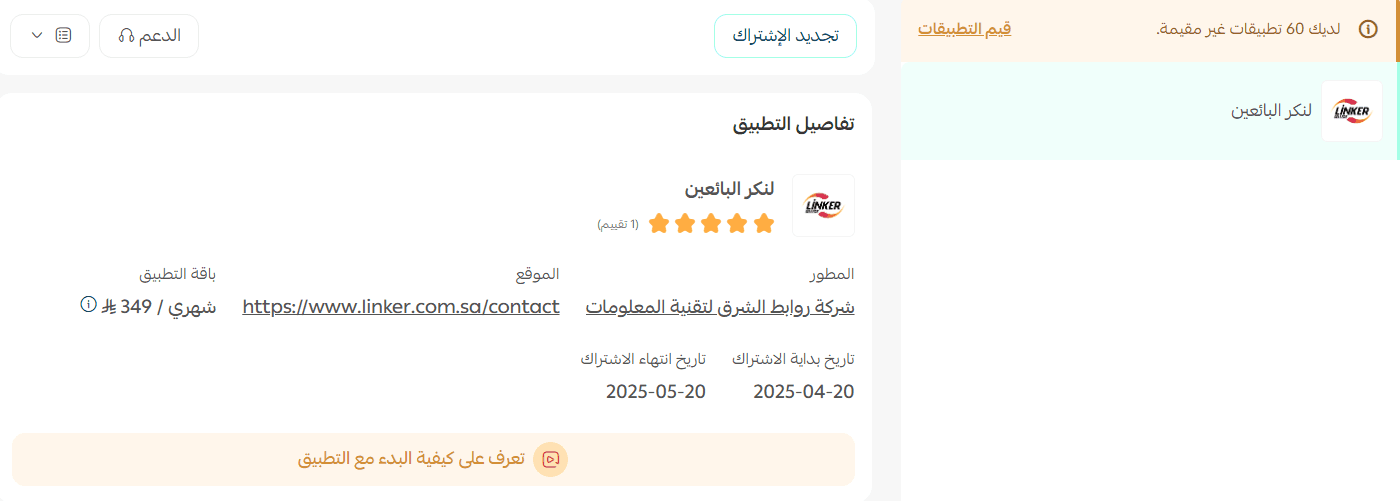
The Linker Seller app is now installed on your store.
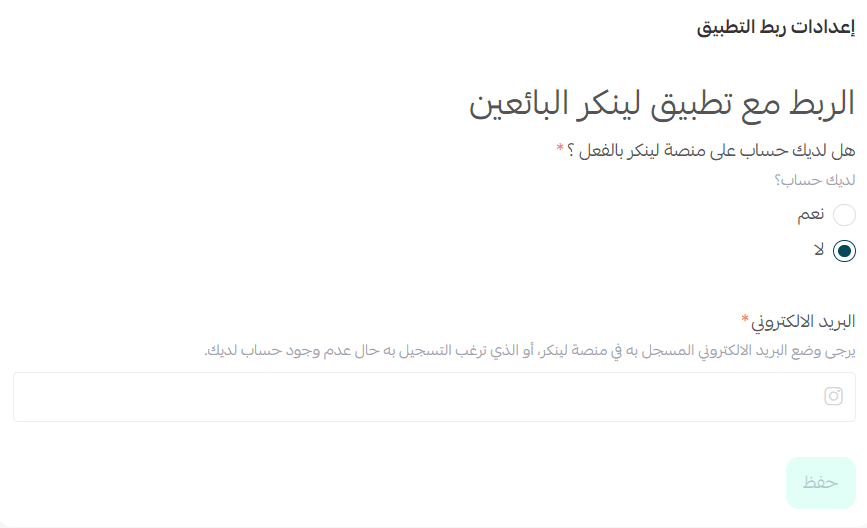
A connection prompt then appears for the Linker platform. Enter the email address registered with Linker, or the one you want to register with.
6. Check your inbox for an email containing the sign-in details for your Linker Seller account.
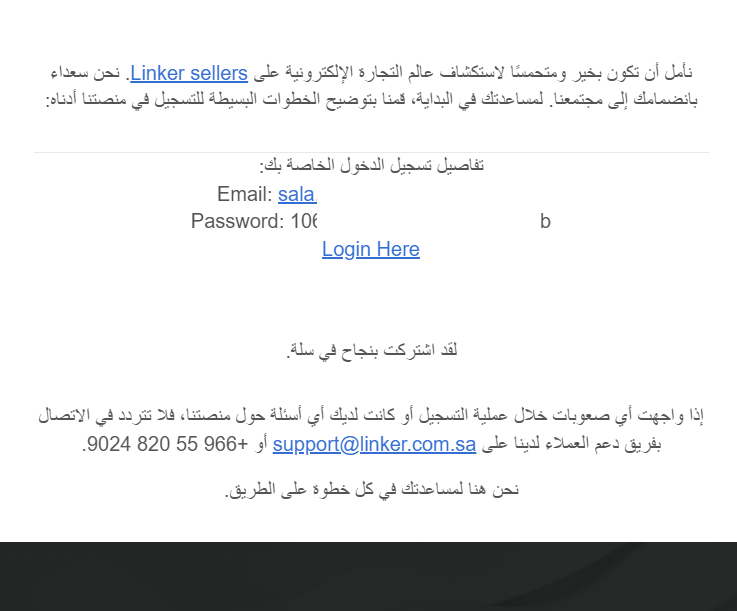
7. Sign in to reach your Linker Seller dashboard and start connecting your sales channels.
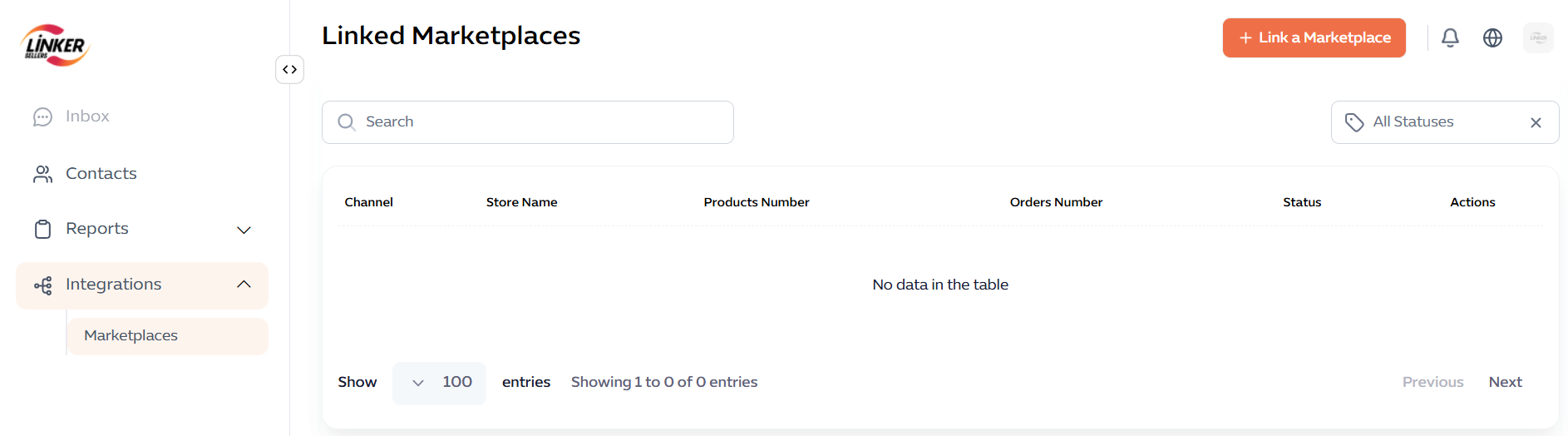
🎉 Congratulations — the app is connected.
🚀 Manage the Linker Seller app
Upgrade your plan
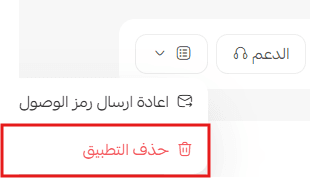
From the Linker Seller app, click (App options), then click (Renew subscription) or (Upgrade plan).

Delete the app
From the Linker Seller app, click (App options), then click (Delete app).
📝 Important notes
- Linker Seller is a paid app. You choose a plan during installation and complete payment before the app is activated.
- Your Linker Seller account is separate from your Salla dashboard. Channel connections are managed from the Linker dashboard using the credentials emailed to you.
❓ Frequently asked questions
What does Linker Seller do?
It manages selling across multiple channels from one place, syncing inventory and orders and updating prices.
Do I need a Linker Seller account before installing the app?
No. During the connection step you enter the email you already use with Linker, or the one you want to register with.
Where do I get my sign-in details?
They are emailed to the address you entered in the connection prompt.
How do I renew or upgrade my subscription?
Open the app, click (App options), then click (Renew subscription) or (Upgrade plan).
How do I remove the app?
Open the app, click (App options), then click (Delete app).
Adding a sales channel should add revenue, not another spreadsheet. Keeping stock and prices in one system is what makes the next channel worth opening.