What happens when a shopper misspells one of your product names?
In most stores, nothing: the search returns zero results and the visitor leaves. Kashaf Lableb replaces your storefront search with an AI-powered search engine that reads what the shopper meant, not just what they typed. It brings autocomplete, dynamic filters, synonym matching, and spelling correction, so partial and misspelled queries still land on the right products. In this guide, you'll learn how to install Kashaf Lableb, how the smart search behaves for your customers, how to upgrade your package, where to see your search statistics, and how to remove the app.
Kashaf Lableb is an AI search app for Salla stores. It improves on-site search with autocomplete, dynamic filters, synonyms, and spelling correction, so shoppers find products even when they type a name partially or incorrectly. Install it from the App Store, choose a package, and it starts working on your storefront search.
📌 Article overview
- How to install Kashaf Lableb
- How the smart search works for your customers
- How to manage the Kashaf Lableb app
- Frequently asked questions
👣 How to install Kashaf Lableb
1. From the main menu, click (All), then under helper tools, click (App Store).

2. Search for the app using the search field.

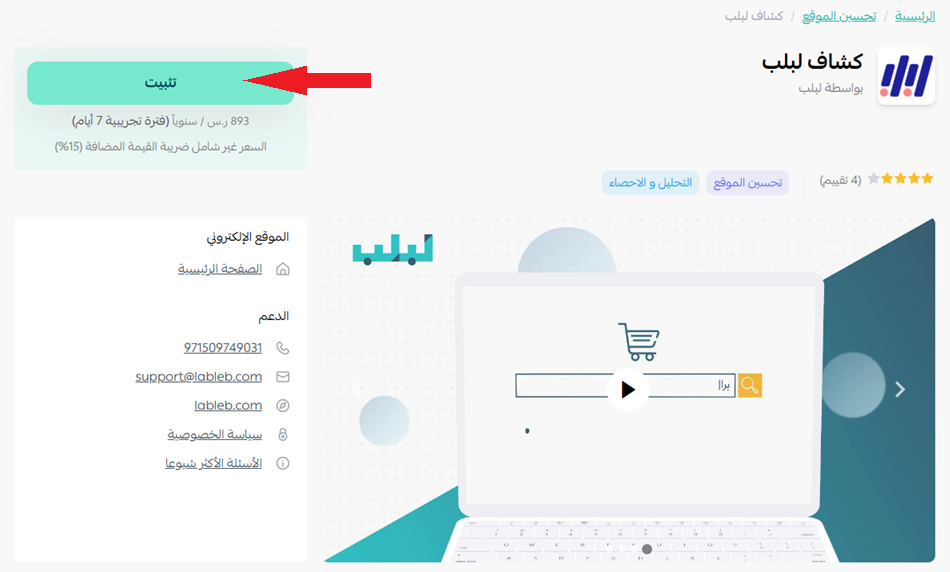
3. On the Lableb app page, click (Install).
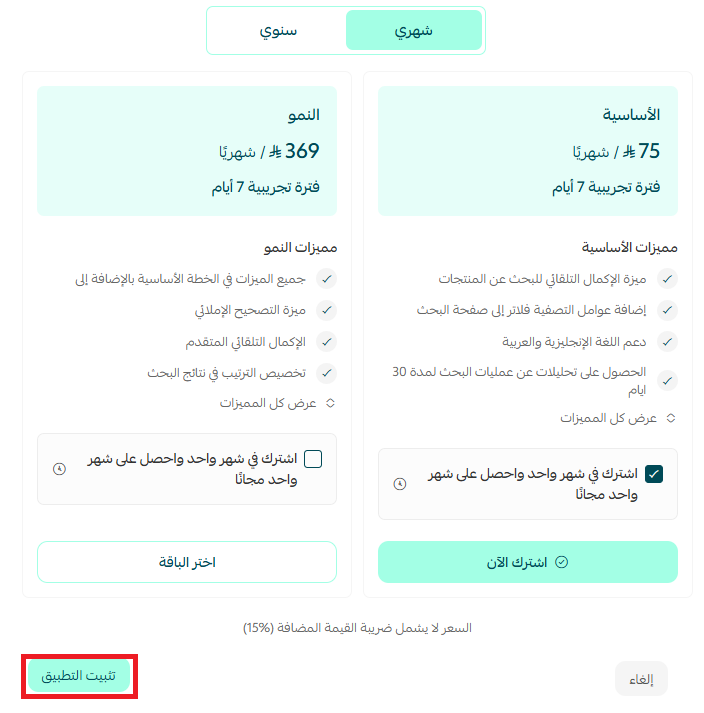
4. Choose the package that suits you, then click (Install app).
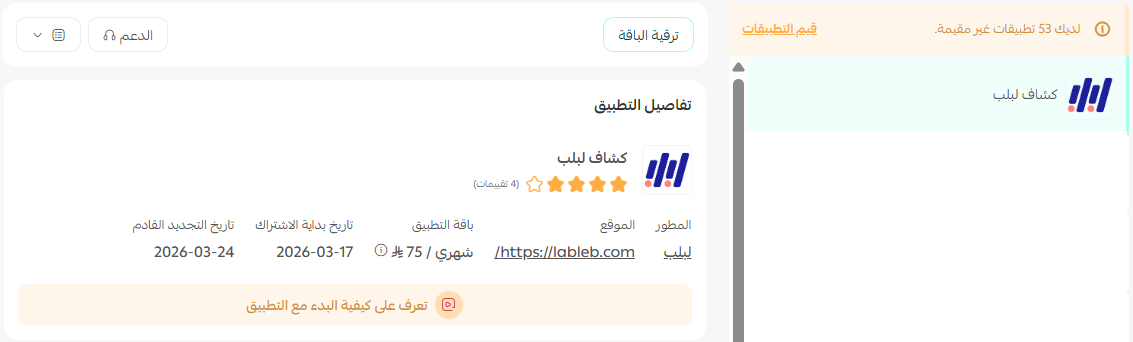
5. Find the app on your store's My apps page.
🧩 How the smart search works for your customers
Lableb reads the intent behind a search instead of matching text literally, so shoppers reach products they could not name exactly.
1. Without the app, a shopper who types part of a product name incorrectly, or forgets how it is spelled, gets no results.

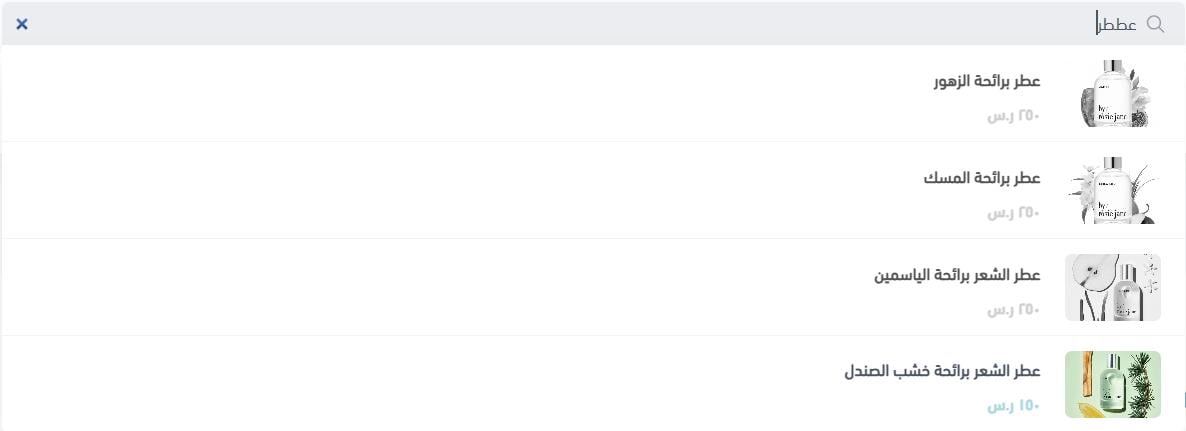
2. With Lableb connected, the same query returns matching products.

💡 Another example:
For a closer look at the app in action, watch the video.
🛠️ How to manage the Kashaf Lableb app
Upgrade your package
1. From the app details page in your store, click (Upgrade package).

2. Choose the plan you want, then click (Go to payment).

3. Fill in your payment details, then click (Confirm) to complete the upgrade.

Review your search statistics
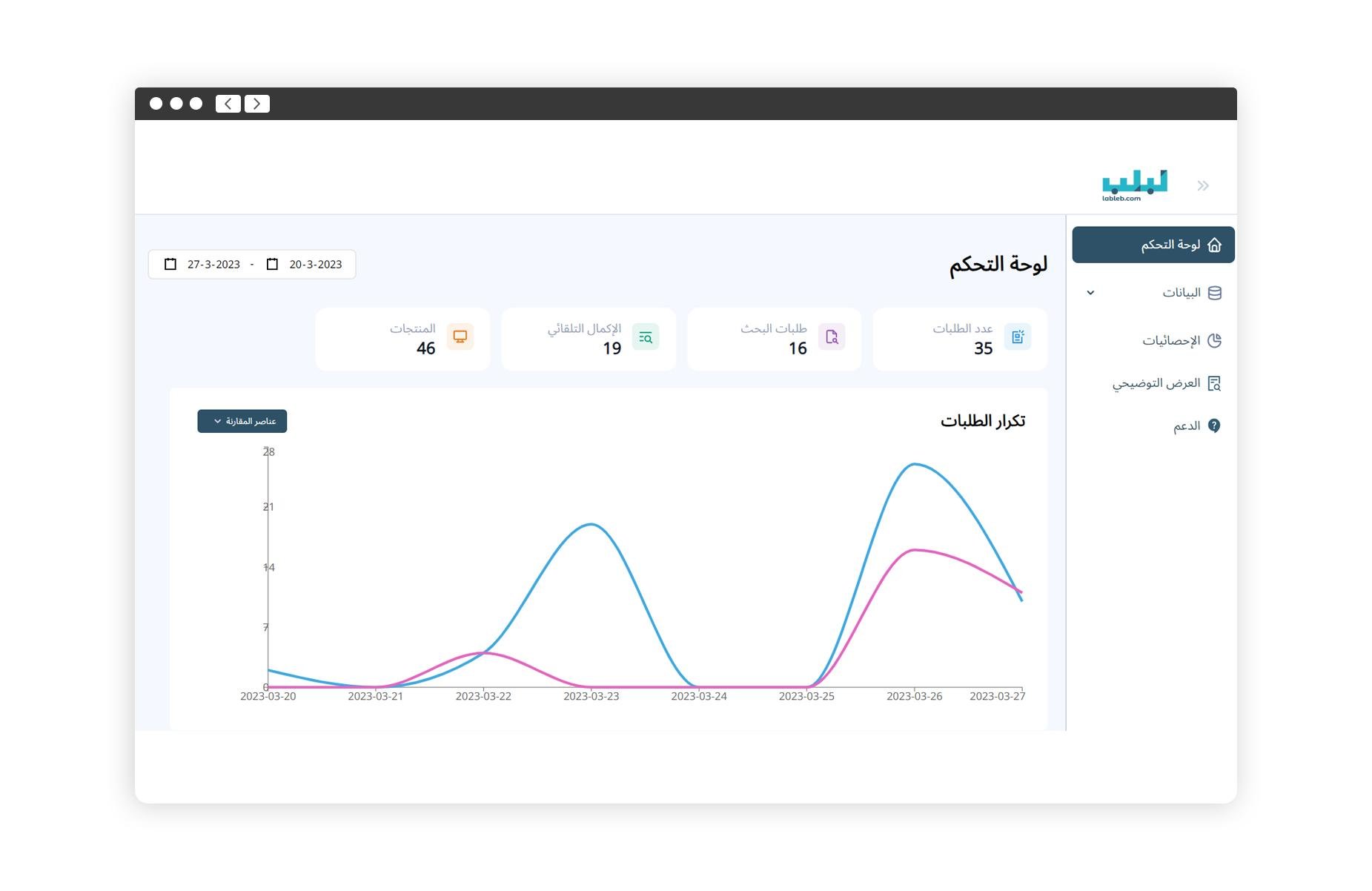
🎯 From your account dashboard on Lableb, you can see the number of requests, the number of search queries, how often autocomplete was used, and other statistics worth watching.
Remove the app
1. From the app options menu, click (Cancel subscription), then choose a cancellation reason.

2. From the app options menu, click (Delete app), then choose a deletion reason.

3. From the Deleted apps page, open the app options menu and click (Delete app permanently) to remove it from your store for good.

📝 Important notes
- Search statistics live in the Lableb dashboard, separately from your Salla reports.
- Canceling the subscription and deleting the app are separate steps, and deletion is only permanent from the Deleted apps page.
❓ Frequently asked questions
What does Kashaf Lableb add to my store search?
Autocomplete suggestions, dynamic filters, synonym matching, and spelling correction, all driven by AI.
Will shoppers still find products if they misspell a name?
Yes. That is the main gap the app closes: misspelled and partial queries return relevant results instead of an empty page.
Where can I see how customers are searching?
In your Lableb account dashboard, which reports search queries, autocomplete usage, and request volumes.
Can I move to a bigger package later?
Yes. Open the app details page in your store, click (Upgrade package), choose a plan, and complete the payment.
How do I remove the app completely?
Cancel the subscription, delete the app, then delete it permanently from the Deleted apps page.
Search is where buying intent is highest, so an empty results page is an expensive one. For more details about the app, see the Lableb app page.