The Salla Point POS app gives you quick access to manage orders, products, and customers, and create orders easily, all from your mobile device. It helps you run your sales operations efficiently and stay organized, ensuring a more professional and streamlined selling experience.
📌 Article overview
- Steps to install and set up the Salla Point POS app on your mobile device
- FAQs
Steps to install and set up the Salla Point POS app
- Install the Salla Point POS app on your mobile phone or tablet to start processing sales.
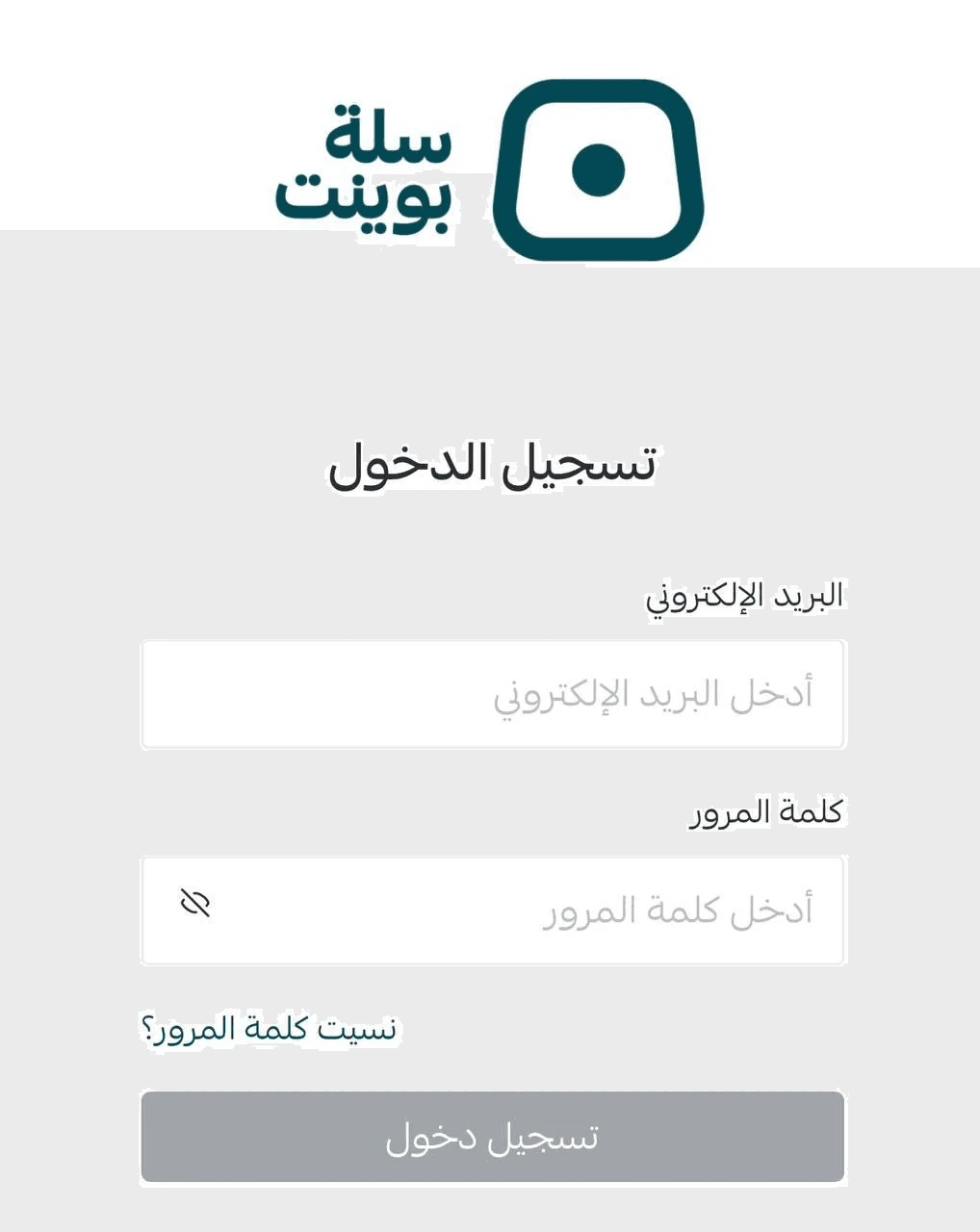
- Open the Salla Point POS app and log in using the credentials of an employee who has been added to Salla Point.
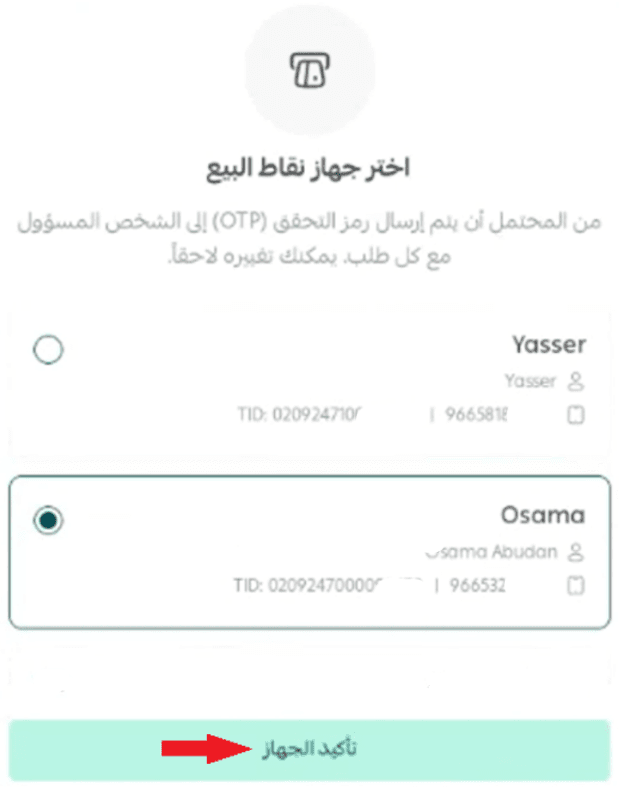
- Select the device that was previously added from the POS payments page, then click Confirm device.
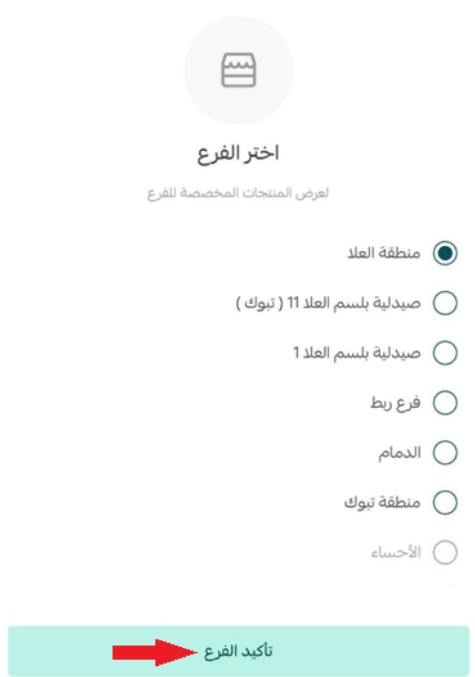
- If you are on the Special plan, select the branch whose products you want to display, then click Confirm branch.
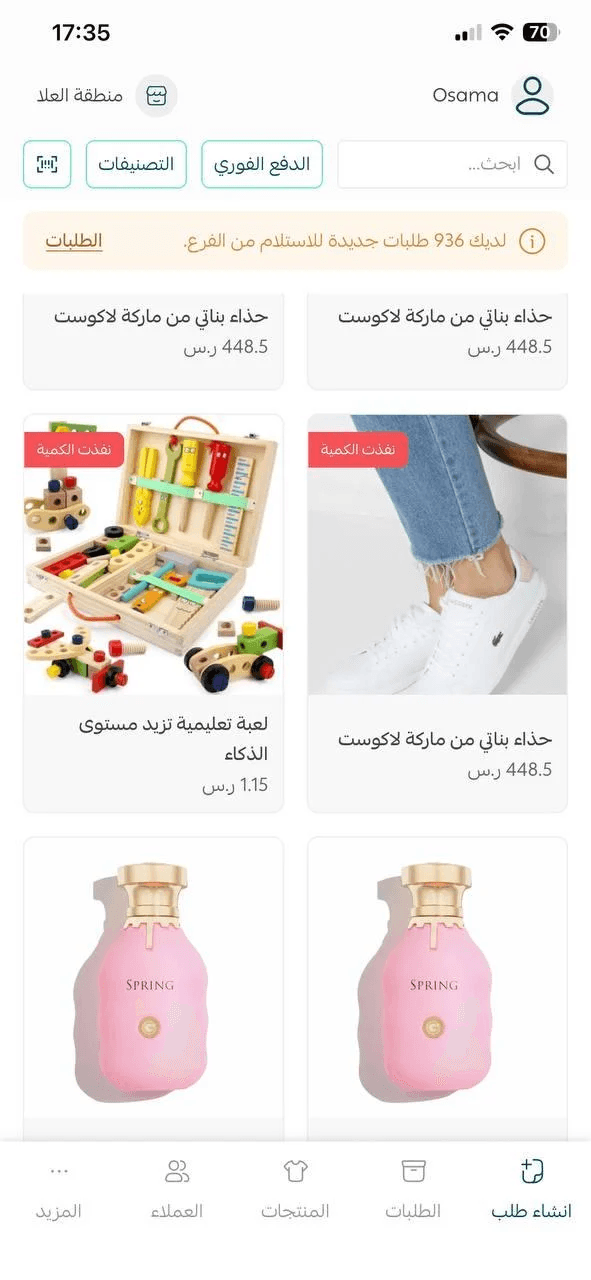
🎉 You will be redirected to the Salla Point POS home screen, and you can start using the app successfully.
Frequently asked questions
Who can log in to the Salla Point POS app?
Only employees who have POS access enabled through the Geidea platform can log in to Salla Point.
What types of products are supported in Salla Point?
Supported products are ready-made (physical) products that require shipping.
What devices are supported for the Salla Point POS app?
Android and iOS devices.
Does the app work on all devices?
Yes, it works on iPhone, Android devices, and tablets.
How can I receive payments?
You can receive payments directly through your mobile phone or tablet.
What payment methods are supported?
- On Android: Card payments (directly), cash, and payment links (supporting all enabled payment methods in your store)
- On iOS: Cash and payment links (supporting all enabled payment methods in your store)