Want a fast storefront with flexible navigation, dark mode, and richer homepage sections?
The Zyn Theme combines fast performance with animated images, quick links, brand displays, dark-mode controls, and custom homepage components. In this guide, you'll learn how to install and customize Zyn, configure its header and footer, add nine theme elements, and review its product-display changes.
To use the Zyn Theme, open Store Design, go to the Theme Store, purchase Zyn, and complete payment. Customize the installed theme from its Store Design card and preview every change. Add Zyn-specific components from Homepage elements, then configure their content, images, links, colors, products, and display options.
📌 Article overview
- How to install and customize the Zyn Theme
- Zyn header and footer features
- Nine Zyn homepage elements
- Product-page and listing-page changes
- Frequently asked questions
🚀 How to install the Zyn Theme
1. From the dashboard side menu, click (Store Design).

2. On the Store Design page, click (Go to Theme Store).
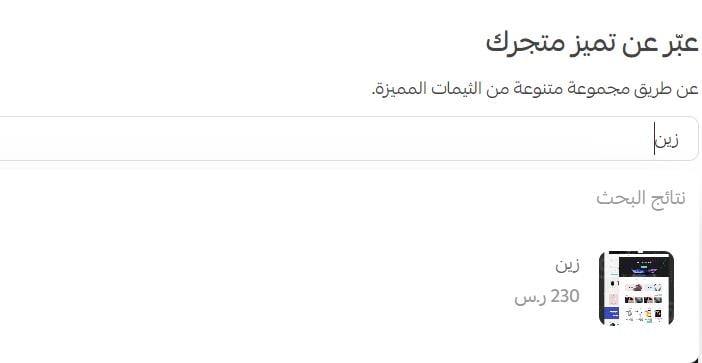
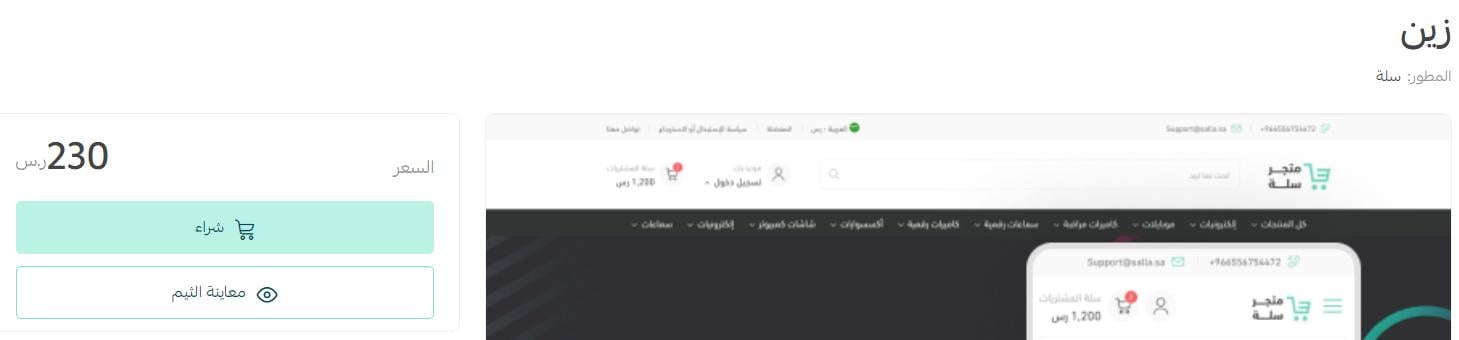
3. On the Zyn Theme details page, click (Purchase), then complete payment.
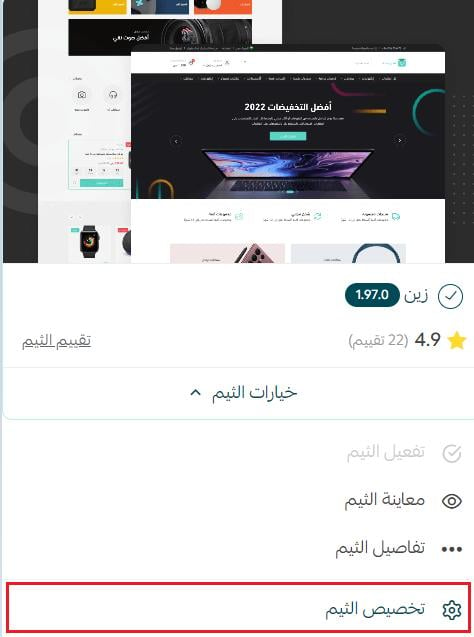
After installation, return to Store Design and click (Customize) on the Zyn Theme card.
Preview how your store will look from the theme customization page.
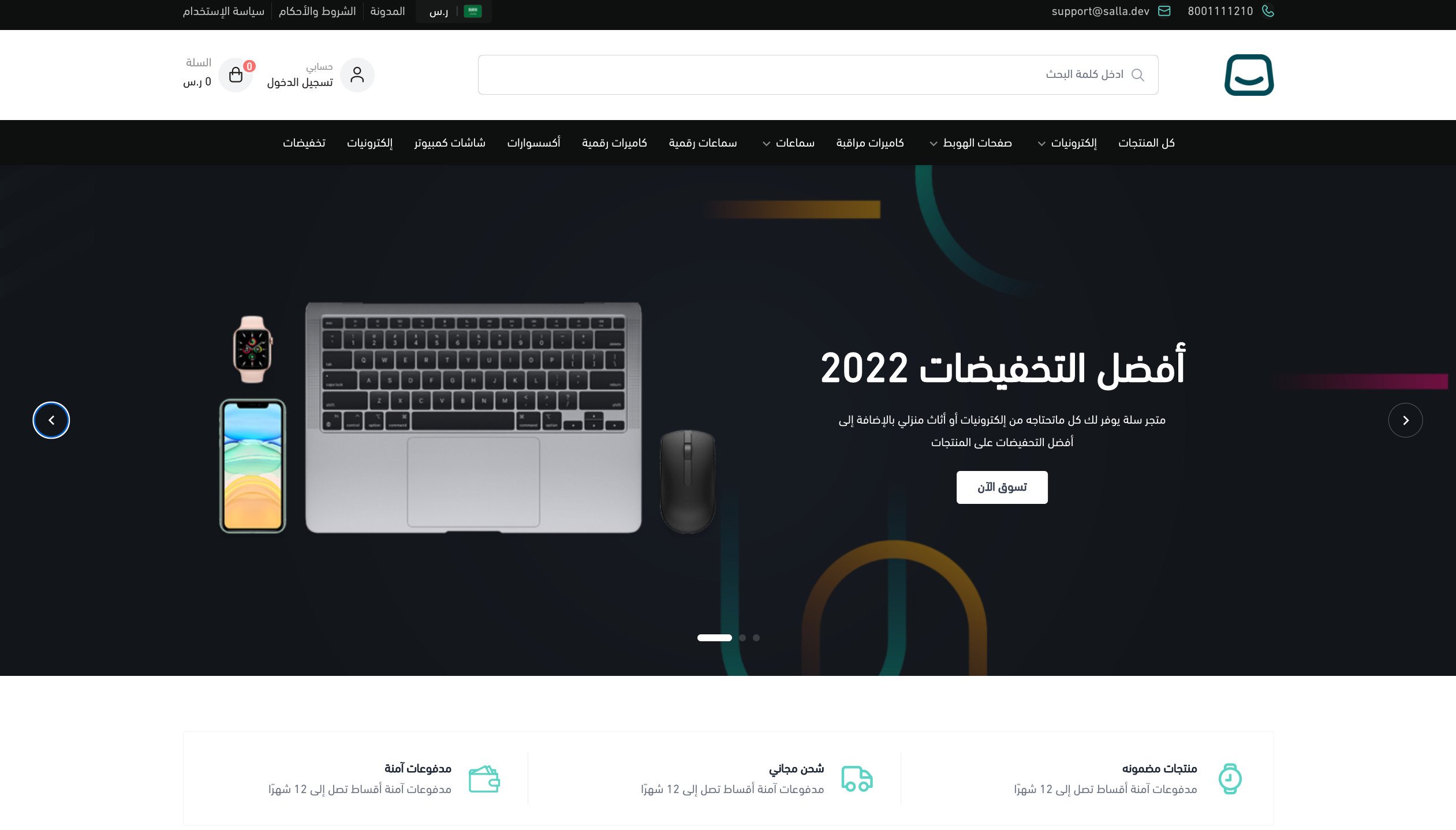
You can also preview a store using the Zyn Theme.
For more details, see managing the Theme Store and Store Design and customizing your store design.
❓ Frequently asked questions about the Zyn Theme
What are the main benefits of the Zyn Theme?
The source lists these benefits:
- Fast performance and flexible use.
- Animated images and quick links for displaying store sections.
- Brand displays.
- Dark-mode controls for matching the top of the store to your visual identity.
- Support for current SEO standards. [Verify: confirm the current scope of this broad SEO claim.]
What header and footer features does Zyn provide?
Header features
1. The top bar contains contact information, important links, currency and language switchers, and a branch switcher.
2. The main bar contains the store logo, search bar, sign-in button or user menu, and cart shortcut.
3. The main navigation bar displays store navigation.
All three areas support dark-mode controls.
Footer features
1. A newsletter subscription bar and app-download icons.
2. A main area with the store description, important links, user links, and social-network icons.
3. A store-location map shown in a compact layout beneath the sharing icons or as a full-width map.
The footer areas also support dark-mode controls.
For more details, see customizing the homepage.
Which new elements are available in the Zyn Theme?
Zyn includes additional components intended to create a more polished storefront.
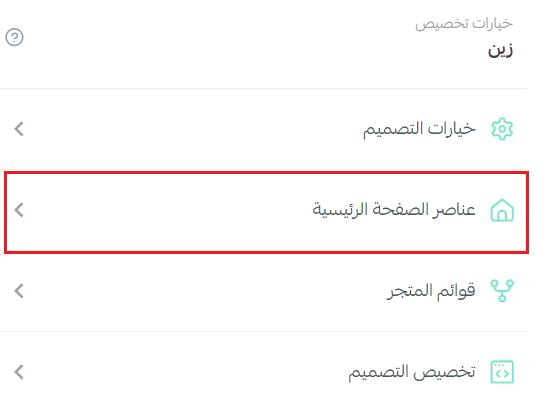
From the Zyn customization page, click (Homepage elements).
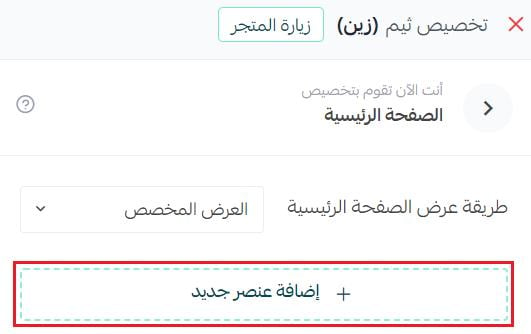
Click (Add new element).
The elements available specifically in Zyn appear.
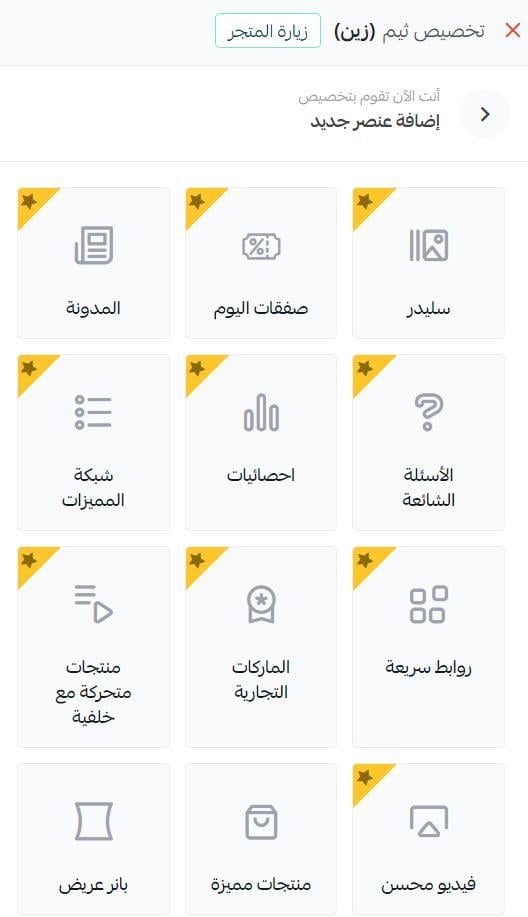
1. Slider

To create multiple homepage slides, add the slide background, image background color, side image, main heading, description, button text, and button link. Use the advanced settings to control how the content text appears.
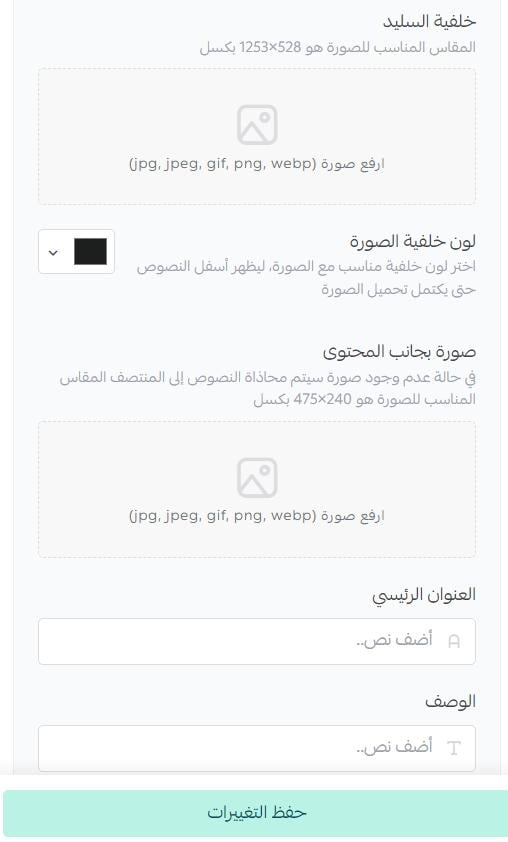
The slider appears as shown.

2. Today's deals

To promote current deals and offers, enter the section's main and supporting headings, choose the display options, then select the products included in the deals.
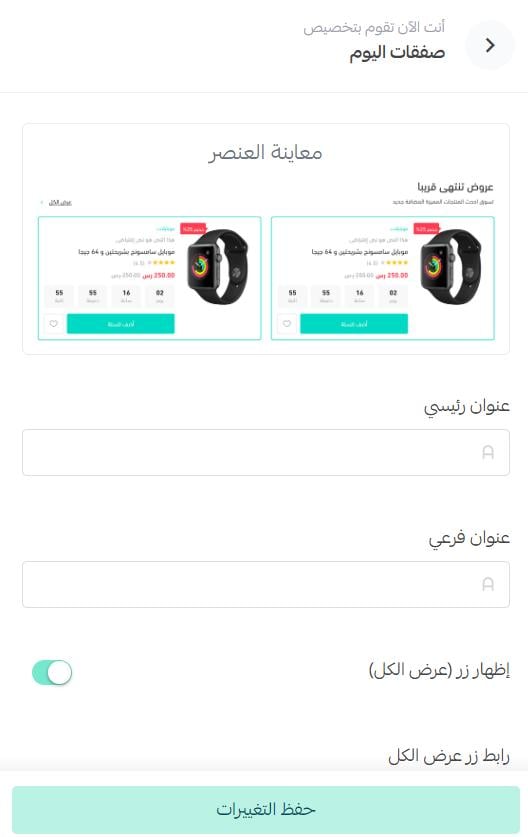
The deals section appears as shown.

3. Blog

The blog uses a distinct layout designed for smooth navigation between articles.

4. Frequently asked questions

Enter the section heading, then add the questions and answers.
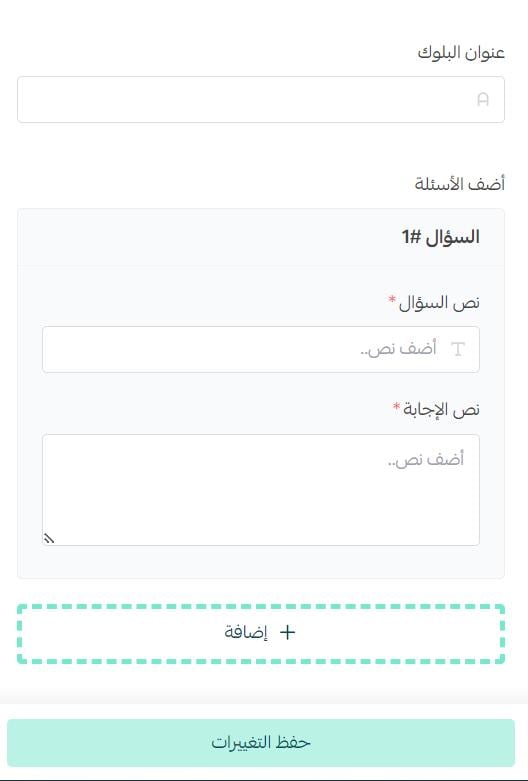
The FAQ section appears as shown.

5. Statistics
Choose the icon and its color, enter the number, then add the supporting text.
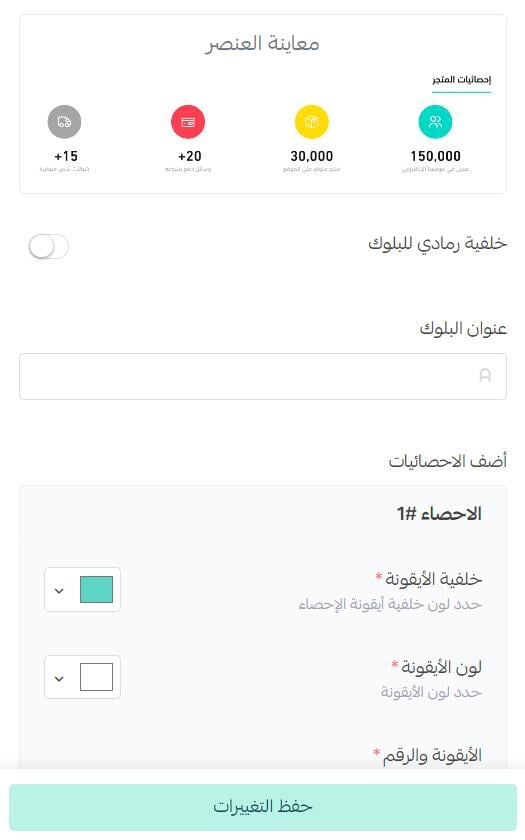
The statistics appear as shown.
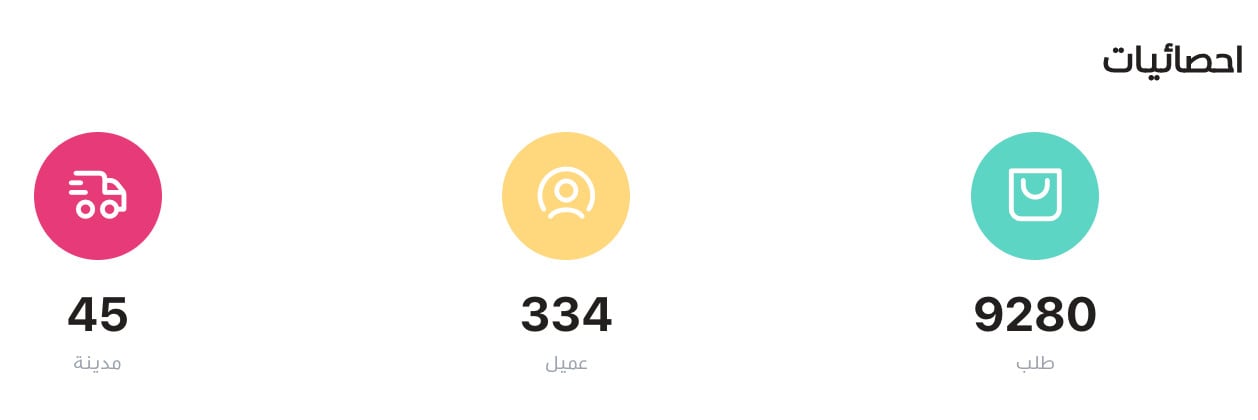
6. Feature grid

Use this component to display store features in a modern grid.
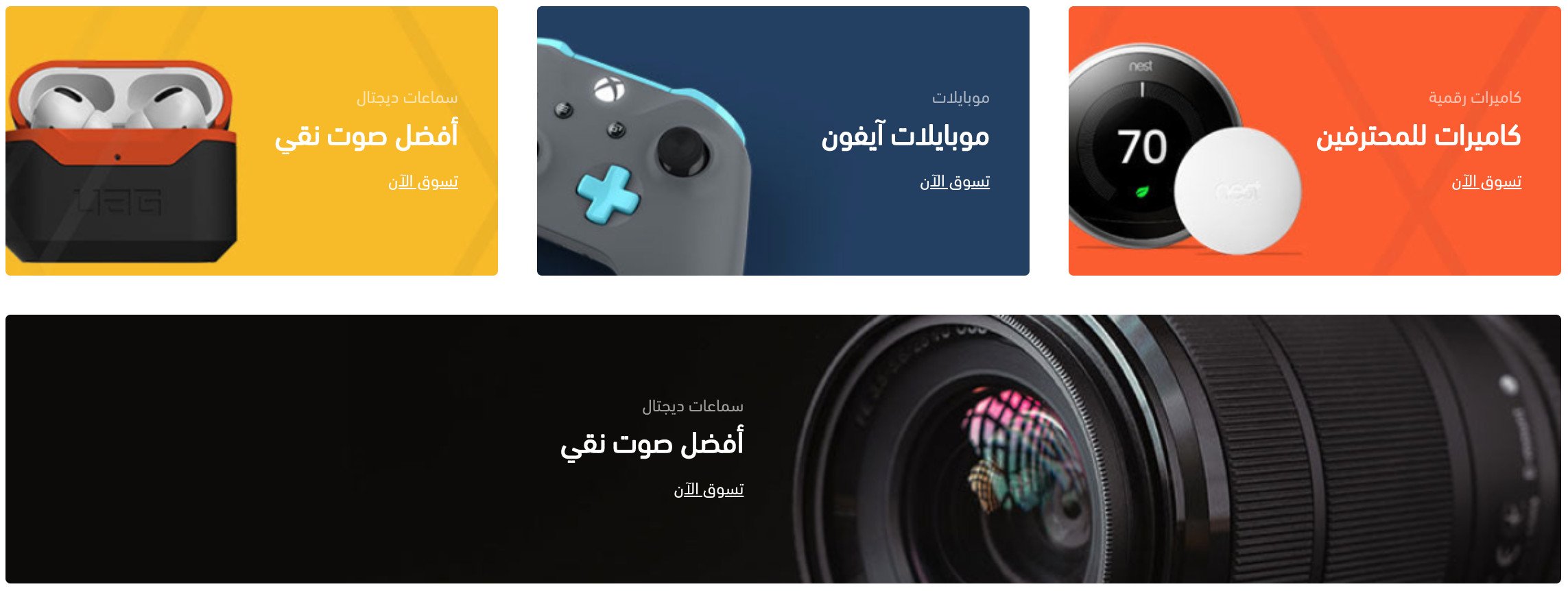
The Zyn feature grid supports a vertical feature layout and a configurable number of columns.
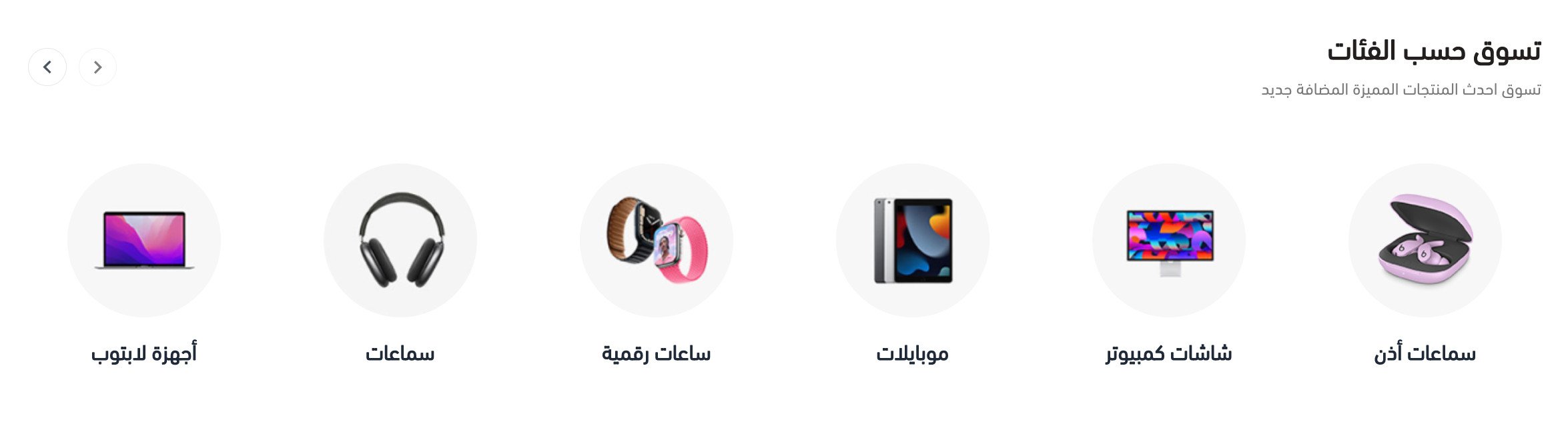
7. Quick links

Enter the section's main and supporting headings, choose the link icon, enter its heading, then add the category image and link.
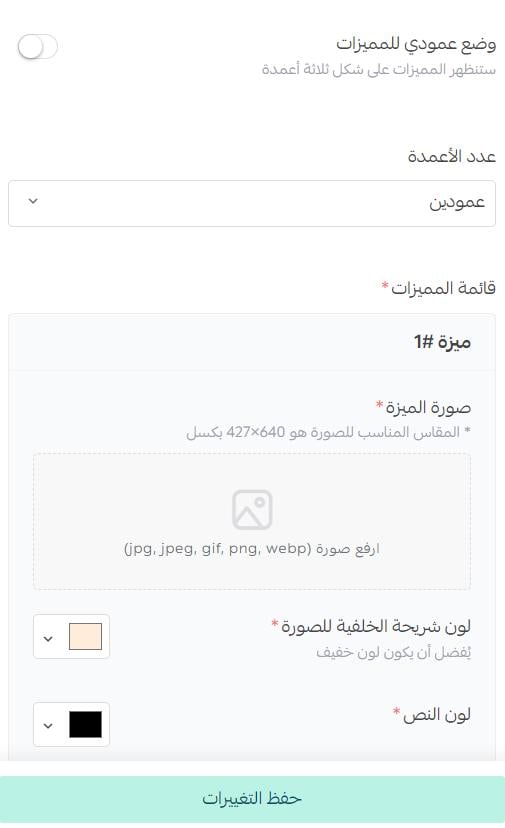
The quick links appear as shown.
8. Brands

Enter a section heading, then select the brands to show. Their logos appear with a (View all) button so customers can open the complete list.
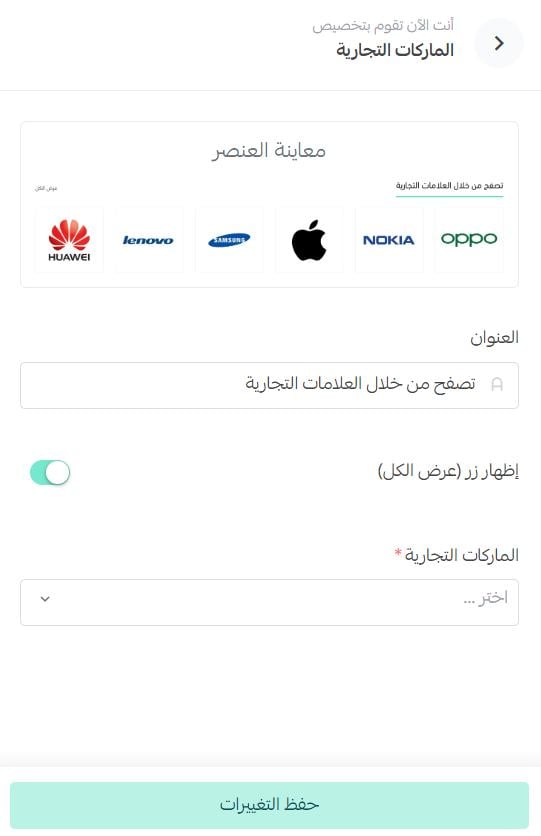
The brands element appears as shown.

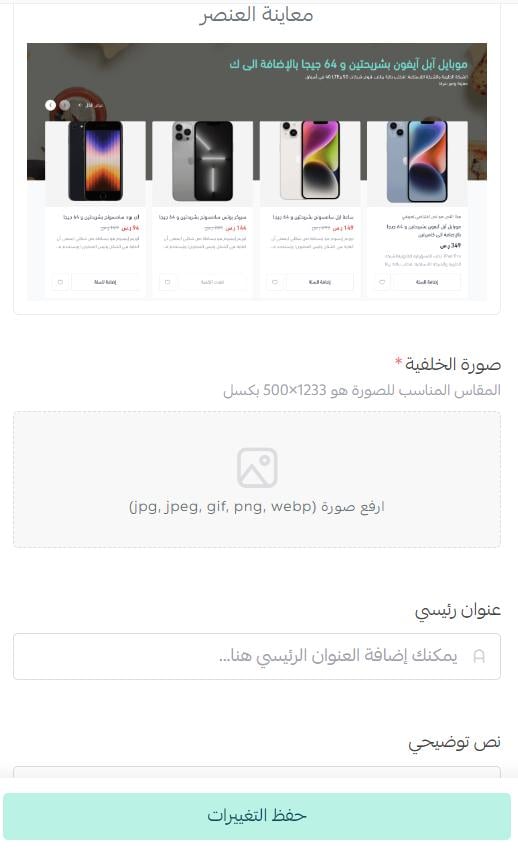
9. Animated products with a background

The animated products appear over a background as shown.
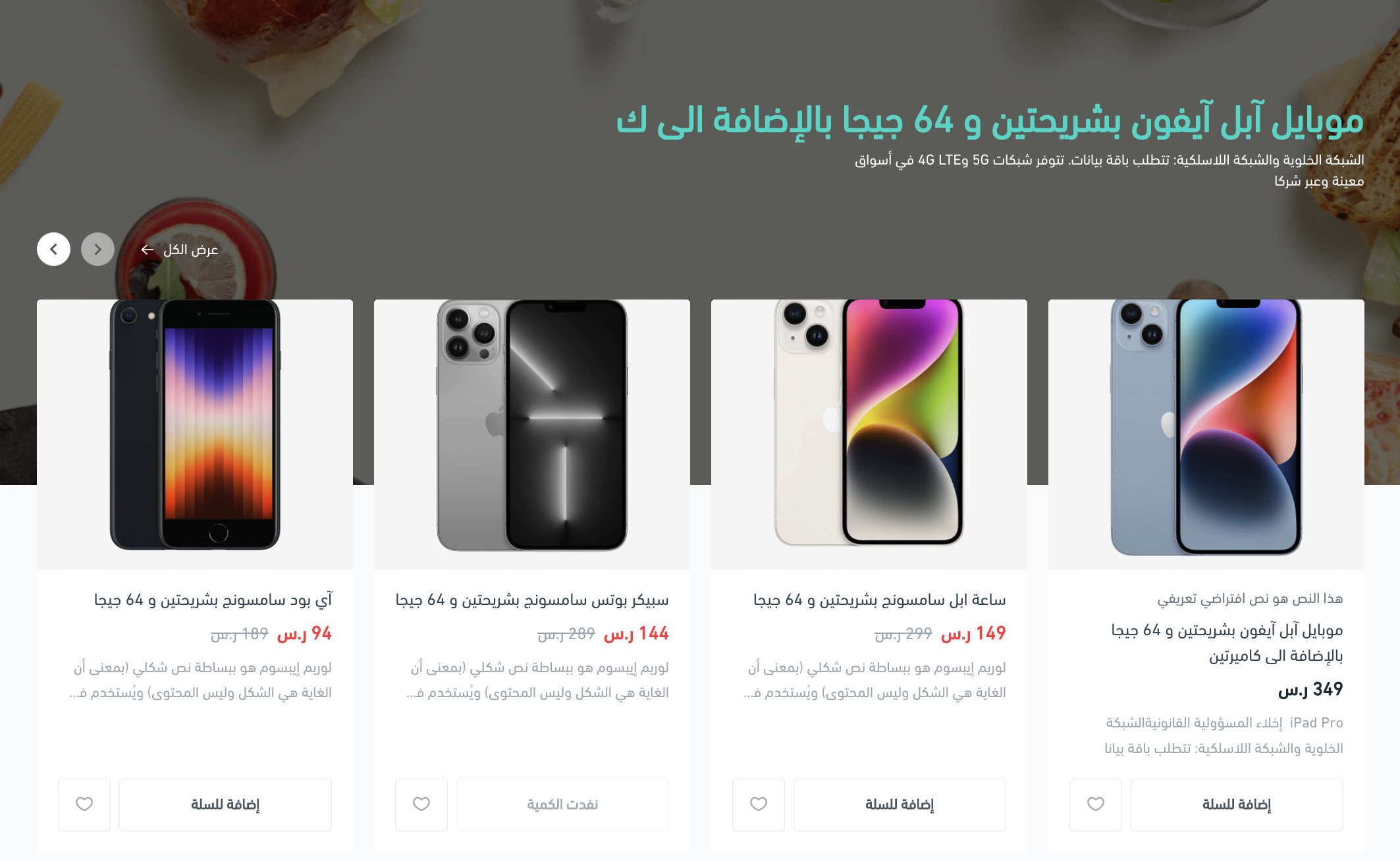
To configure the component, choose a background image, enter the main heading and supporting text, then select the products to display.
Does Zyn change product pages or product presentation?
Yes. The source lists these changes:
- A wider product image gallery for emphasizing product images.
- Controls for how product images appear while retaining standard product-page features.
- Custom backgrounds, background colors, and text colors for the top of product listing pages, including category, tag, and discount pages.
📝 Important notes
The preview URL contains analytics parameters and a developer-style store subdomain. Replace it with a stable showcase URL if one is available.
Preview the theme on desktop and mobile, test navigation and product imagery, and confirm text contrast in both light and dark modes before activation.