Want a fast, customizable storefront with flexible product and homepage layouts?
The Wesam Theme offers exclusive design features, flexible store components, SEO-friendly structure, and fast performance. In this guide, you'll learn how to purchase and customize Wesam, configure product options, add homepage elements, adjust the header and footer, and preview the resulting customer experience.
To use the Wesam Theme, purchase it from the Theme Store, complete payment, then create a theme copy from Store Design. Open the customization page to configure product options, homepage elements, banners, brands, colors, and header or footer settings. Preview every change before applying it to your live store.
📌 Article overview
- How to purchase and customize the Wesam Theme
- Product option and customization layouts
- Key Wesam Theme features
- New homepage elements
- Frequently asked questions
🚀 How to purchase and install the Wesam Theme
1. From the dashboard side menu, click (Theme Store).

2. In the Latest themes section, click (View more themes).
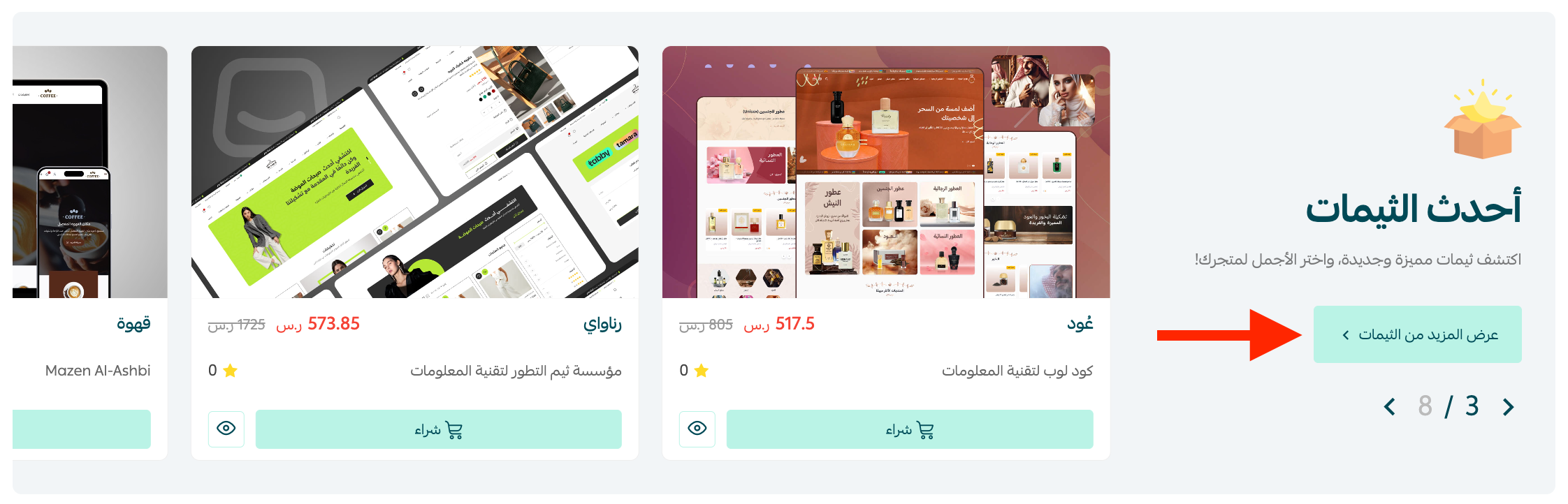
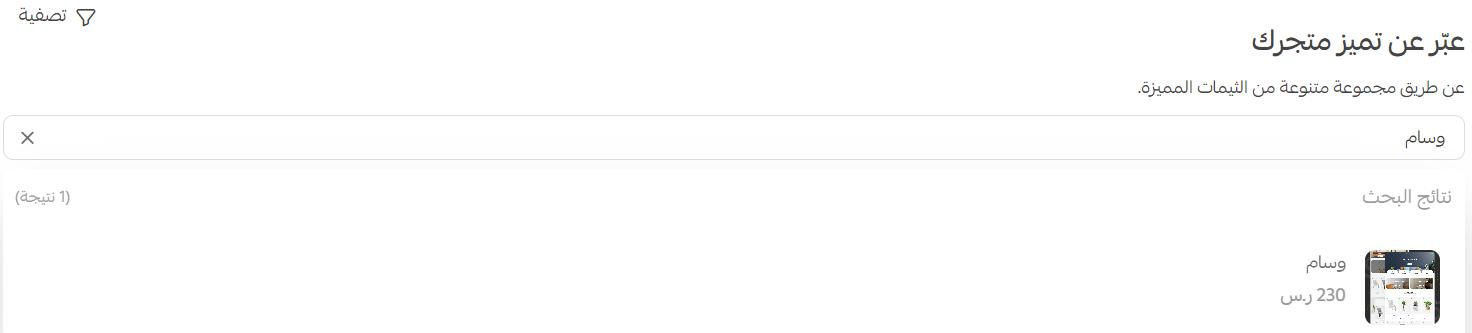
3. Enter (Wesam) in the search bar.
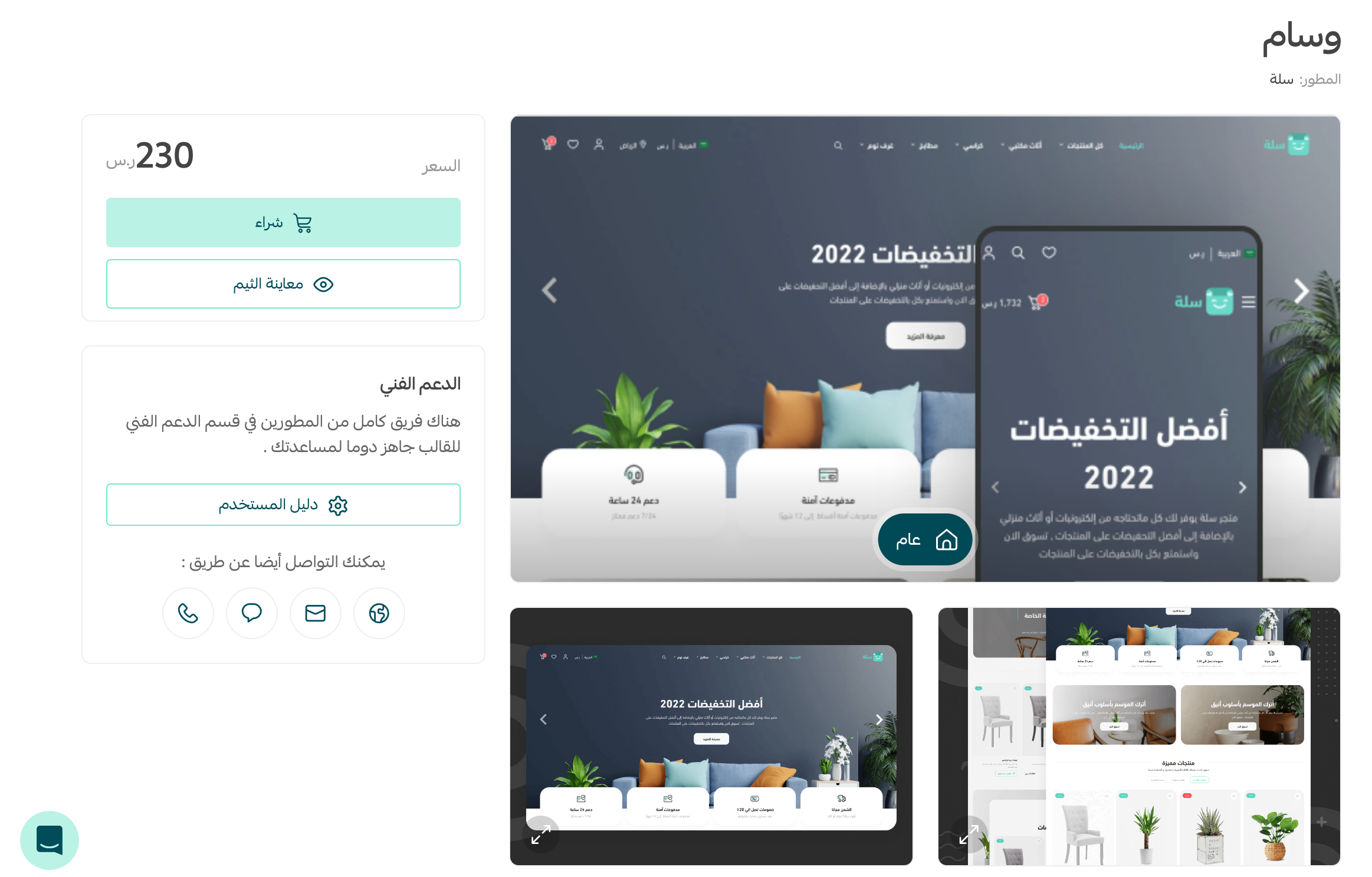
4. On the Wesam Theme details page, click (Preview theme) to review it or (Purchase) to continue.
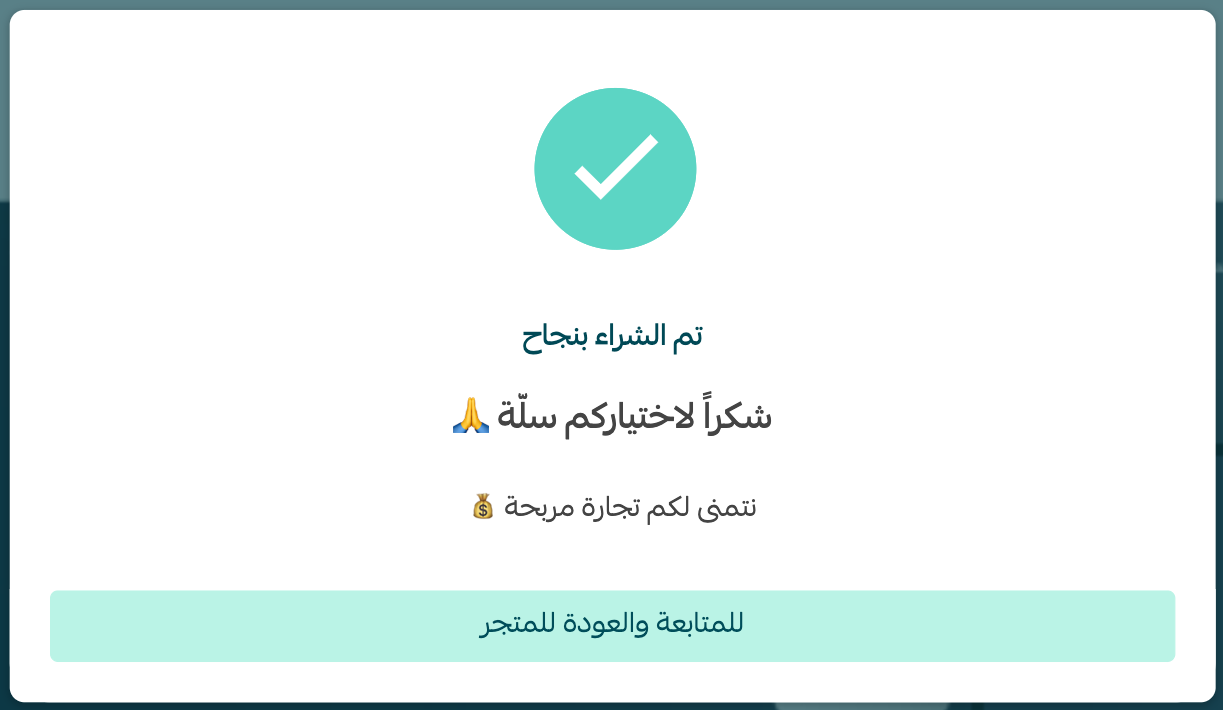
5. Complete the payment details, then click (Confirm payment).
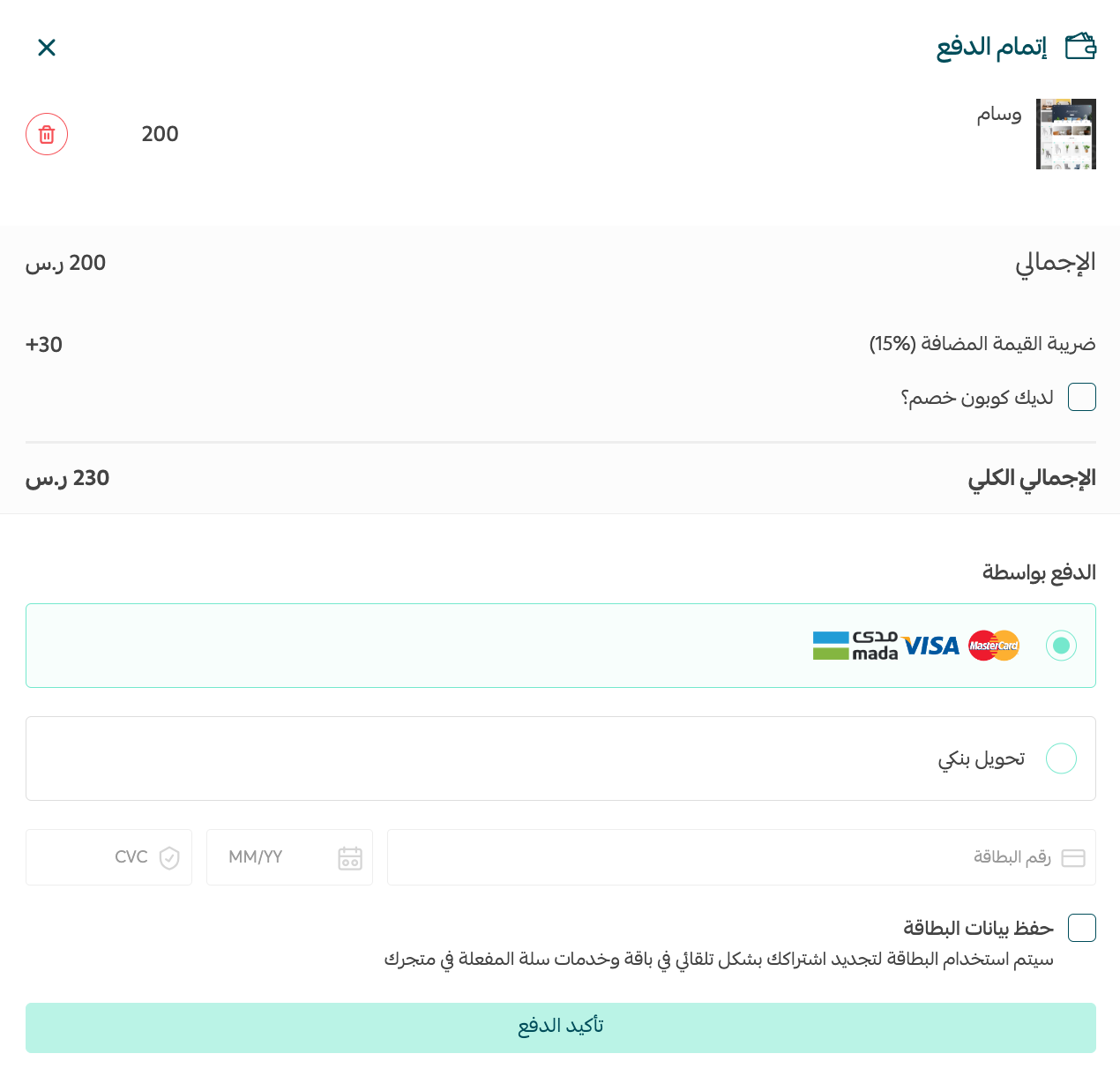
The theme is now installed.
👣 How to customize the Wesam Theme
After installation, open (Store Design) from the dashboard side menu.
On the Wesam Theme card, click (Create copy), then click (Customize).
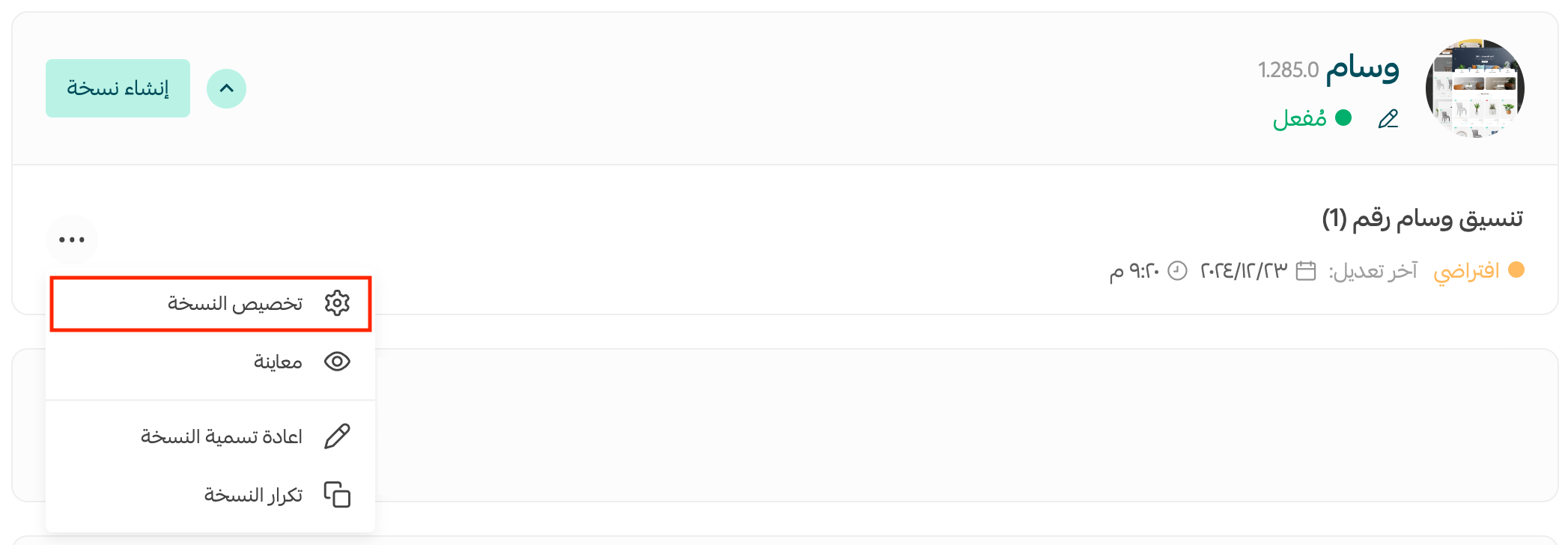
The Wesam customization page opens.
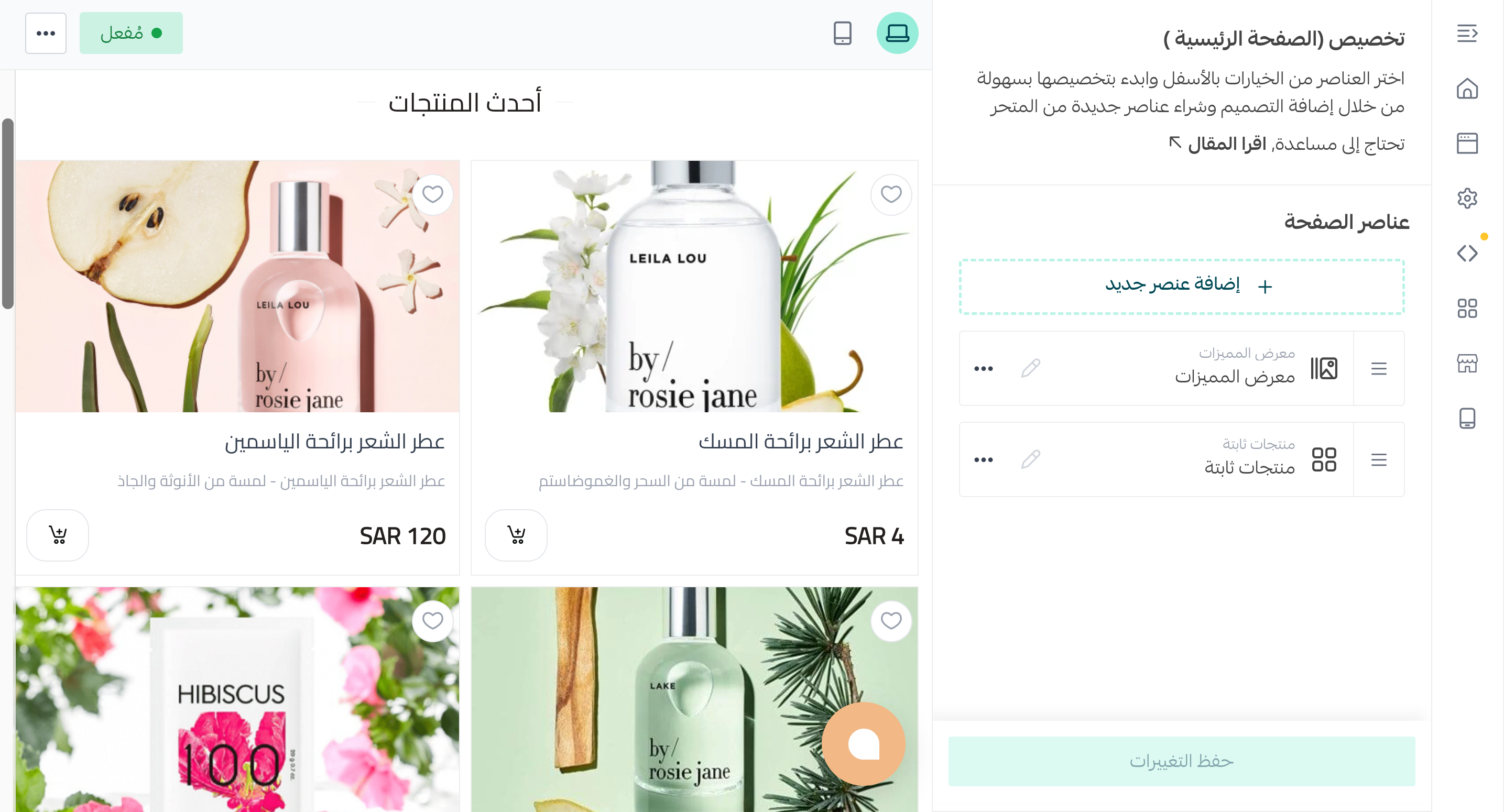
Use the customization page preview to see how your store will look before applying the theme.
Display custom fields and product options
From (Design options), enable the settings that suit your store.
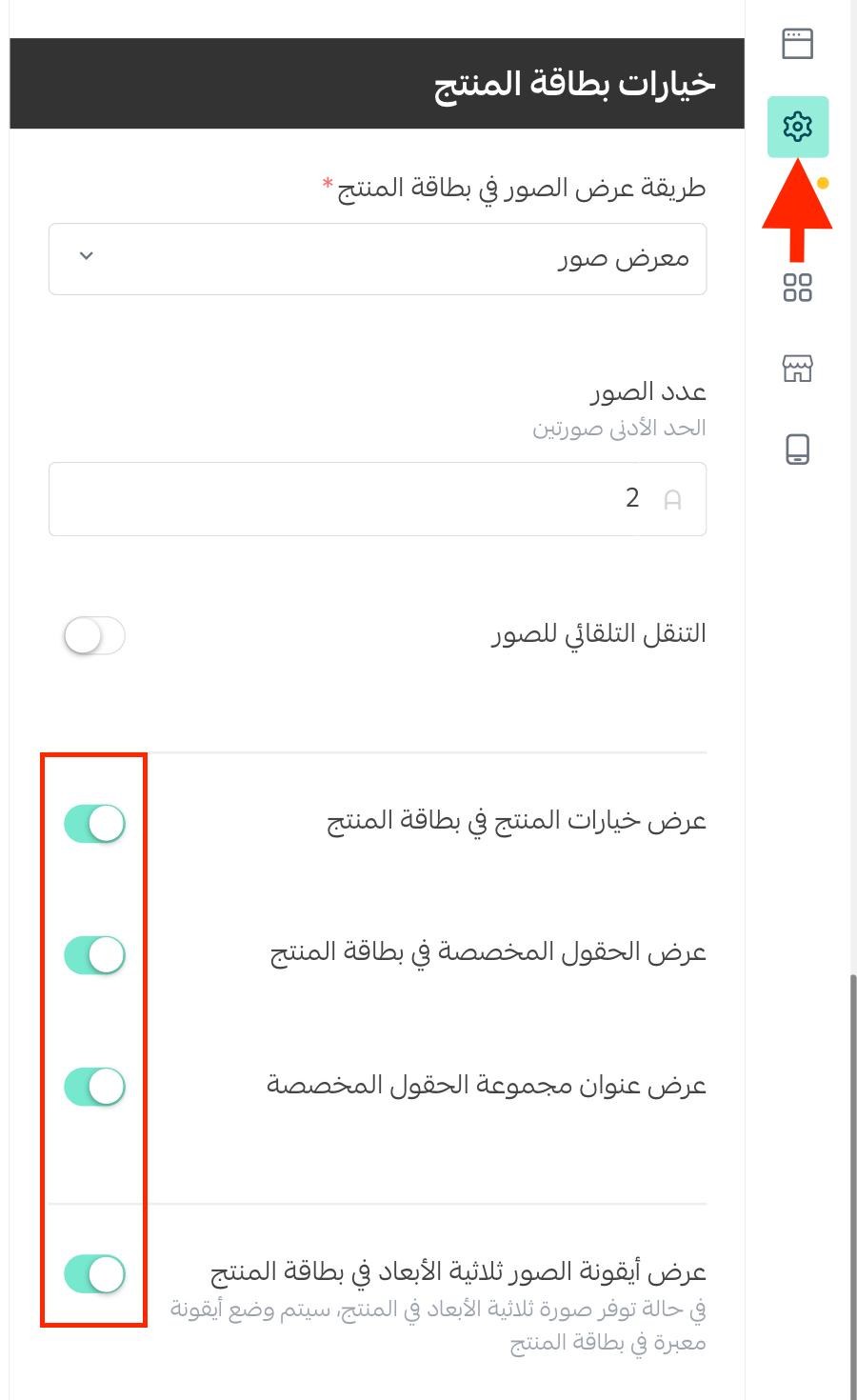
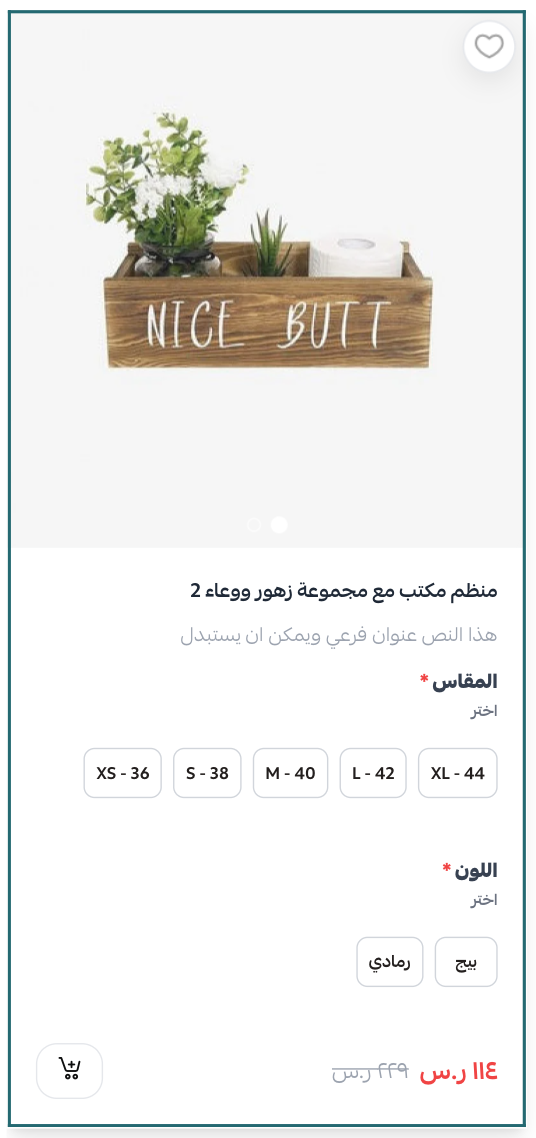
The enabled fields and options appear on your storefront as shown.
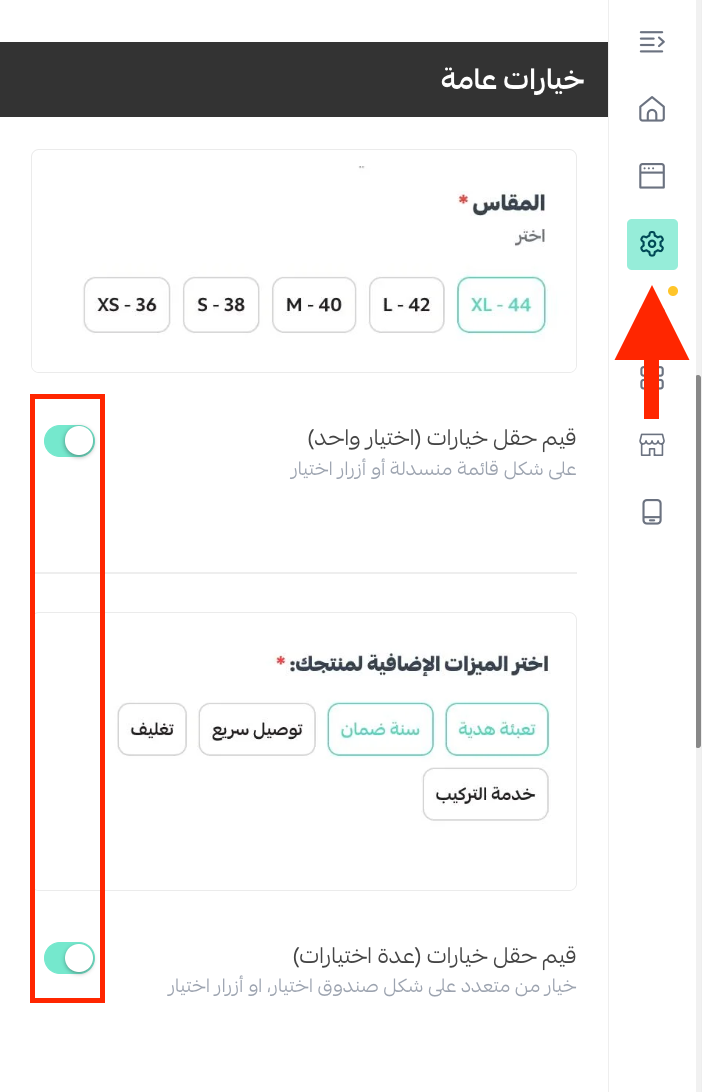
Choose a product customization page design
From (Design options), enable the product customization design that best fits your store.
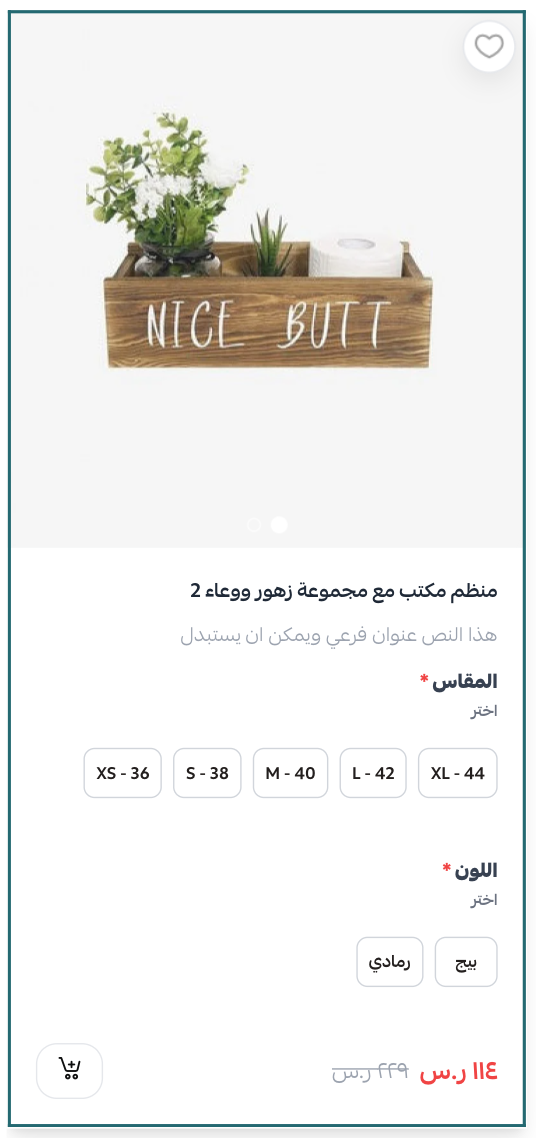
You can also preview a store using the Wesam Theme.
For more details, see the Theme Store and managing and customizing theme design.
❓ Frequently asked questions about the Wesam Theme
What are the main benefits of the Wesam Theme?
Wesam includes several storefront and product-display features:
1. Quick product preview
Show the available colors or sizes directly on each product card, without requiring customers to open the product details page.
Note: The source says this feature is available in the top-selling paid themes Wesam, Malak, Aali, Marah, and Store. Confirm current theme availability before publication.
2. Customizable product option layouts
Choose the default layout or another available layout that suits your store.
3. Light and dark modes
Use light or dark mode so the top section of your store matches your visual identity.
4. SEO optimization
The source says Wesam supports current SEO standards to improve store visibility in search engines.
What header and footer features does Wesam provide?
Wesam includes these header and footer settings:
1. Enable or disable dark mode.
2. Enable or disable a transparent header background.
3. Show the newsletter form and app-download icons in the footer.
4. Enter a newsletter heading.
5. Add a newsletter-form link.
6. Enable or disable a map showing the store location.
7. Apply light or dark colors across the entire footer.
For more details, see customizing homepage elements.
Which new elements are available in the Wesam Theme?
Wesam includes several elements designed to give your storefront a more polished layout.
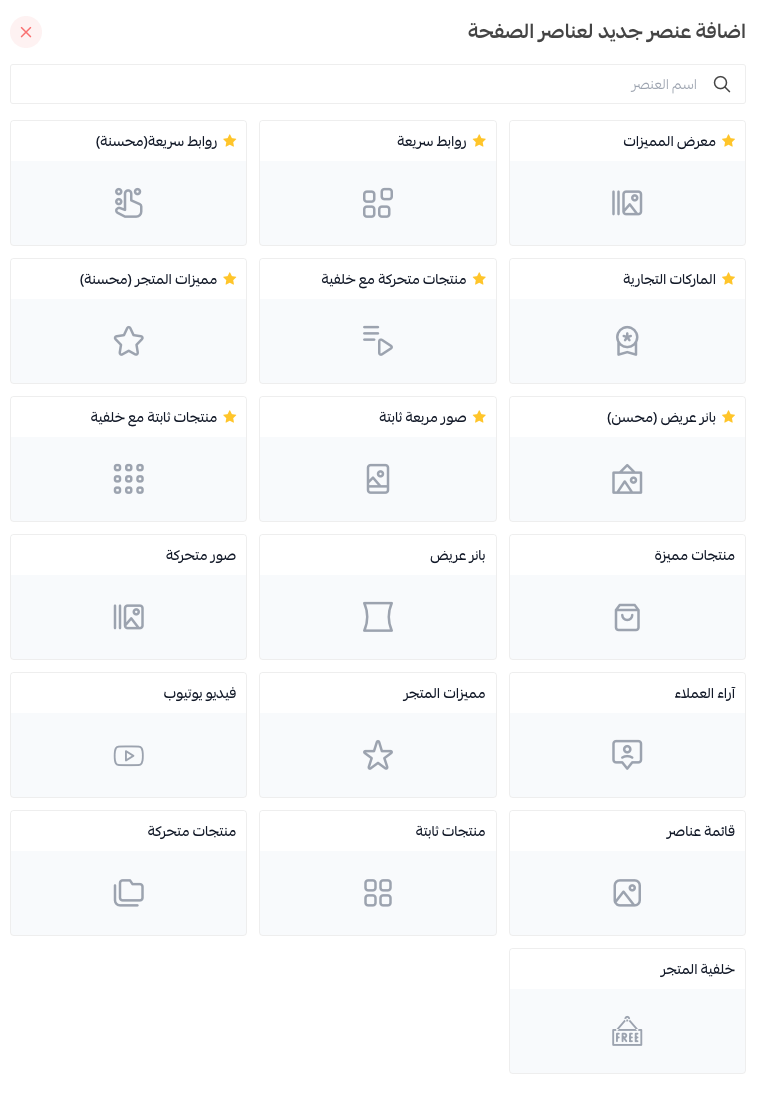
From the Wesam customization page, click (Homepage elements).
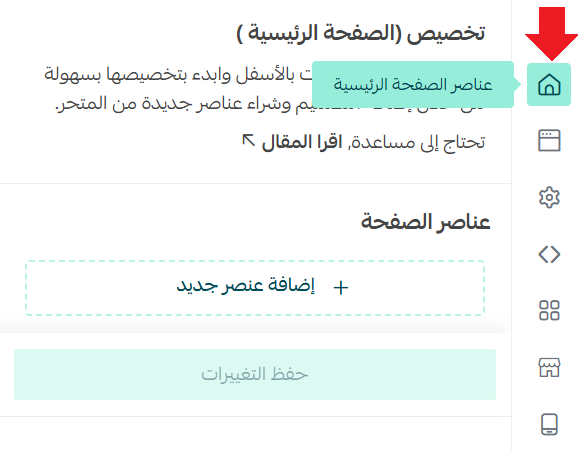
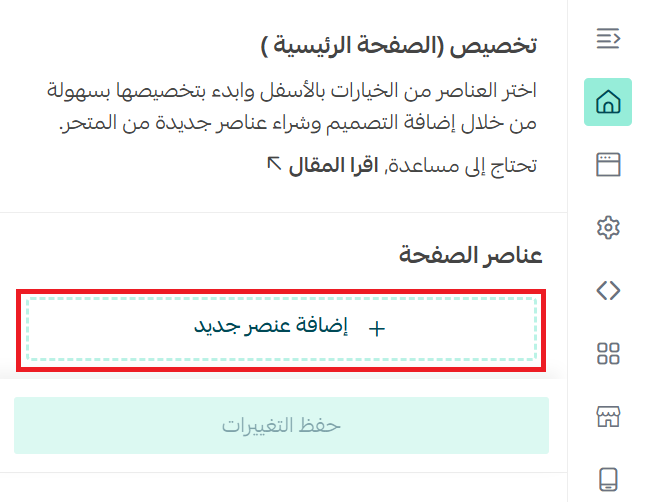
Click (Add new element).
The available elements appear.
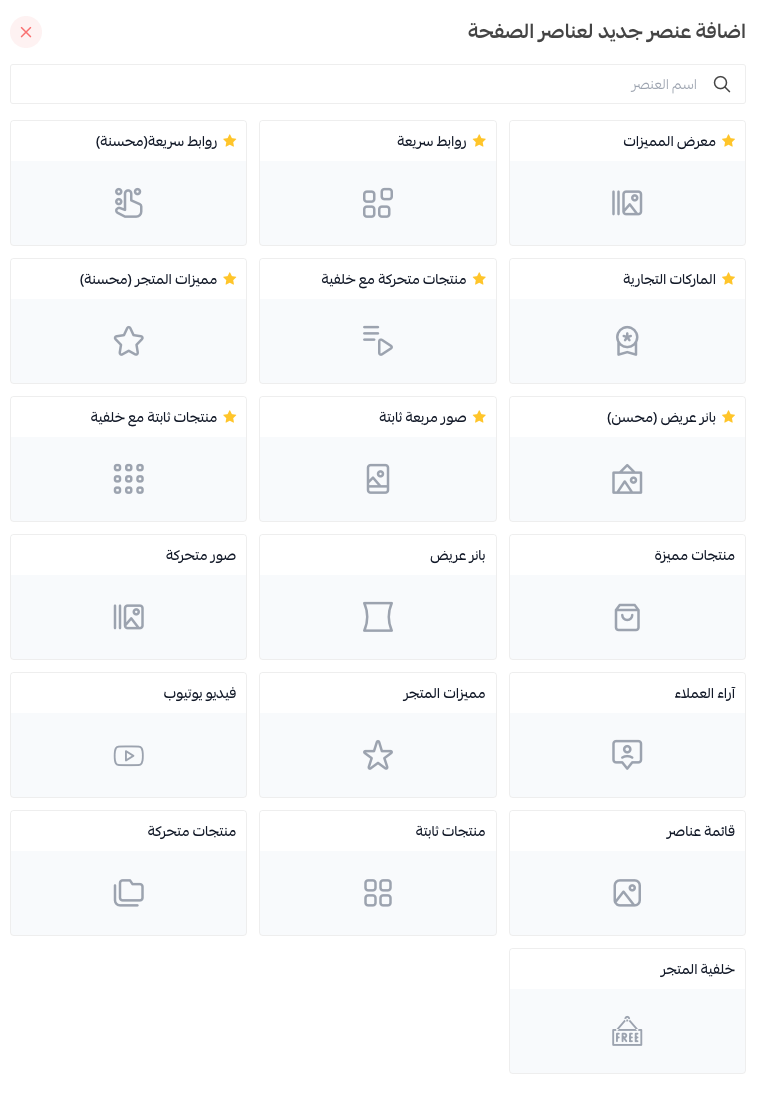
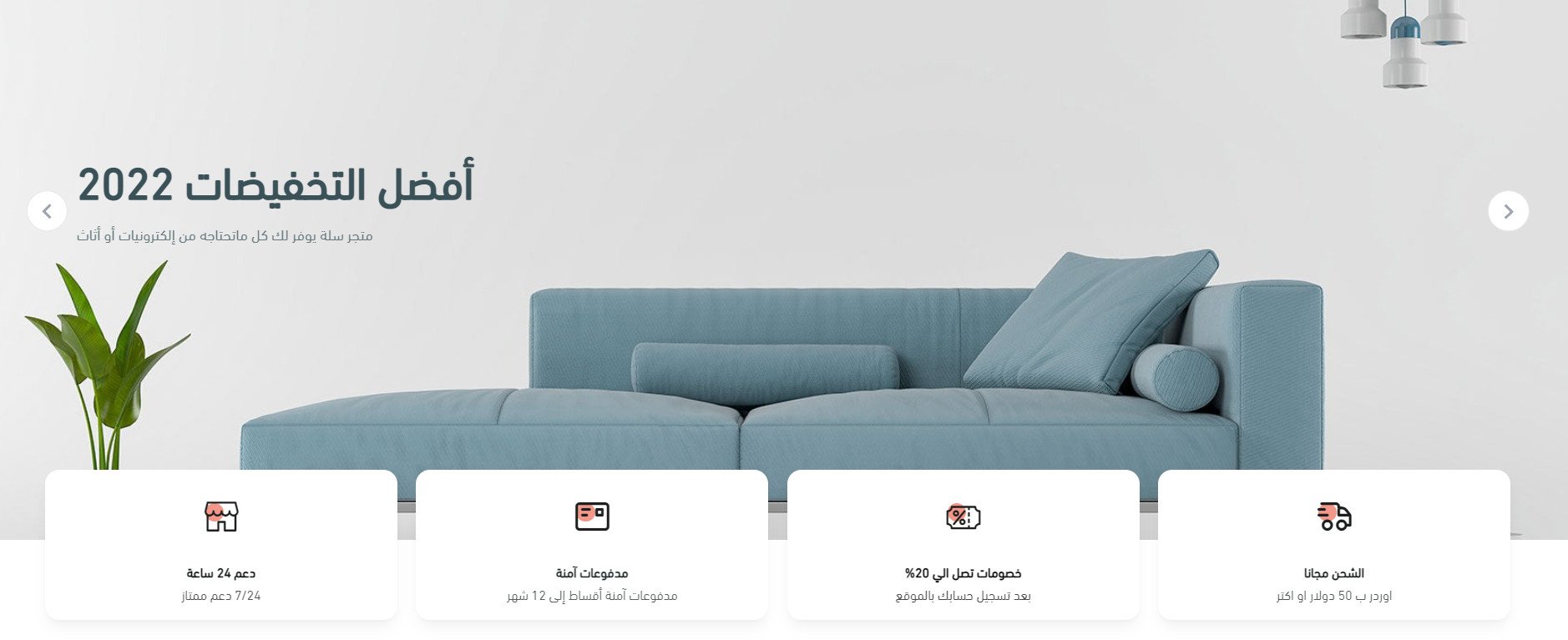
Feature gallery
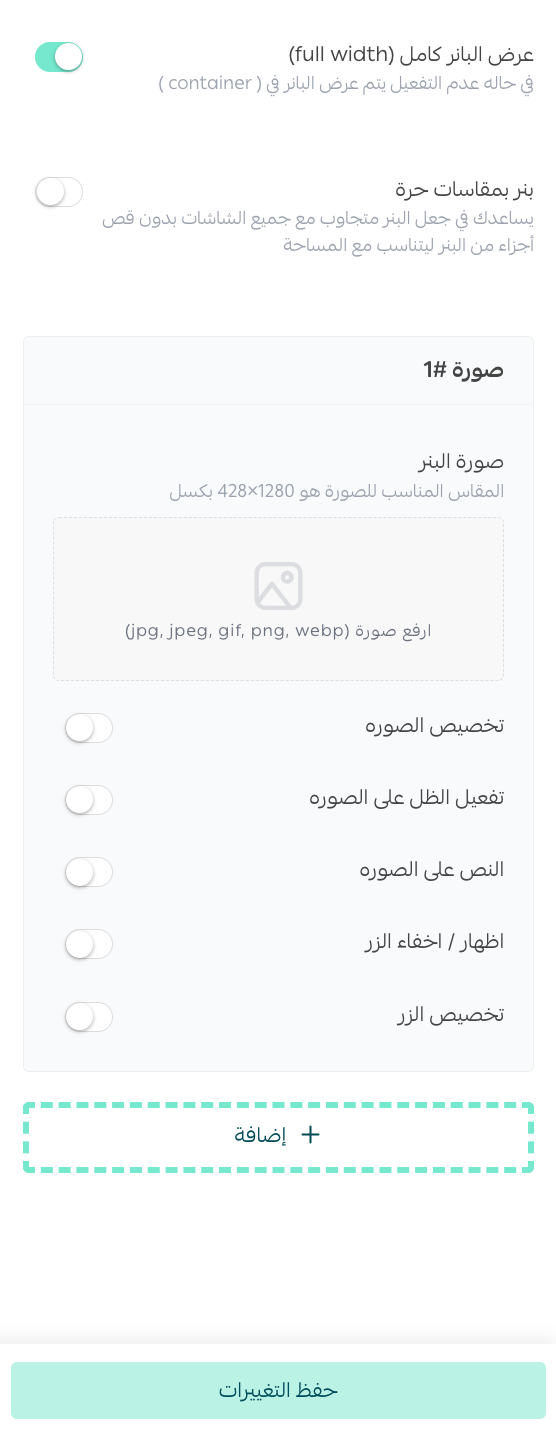
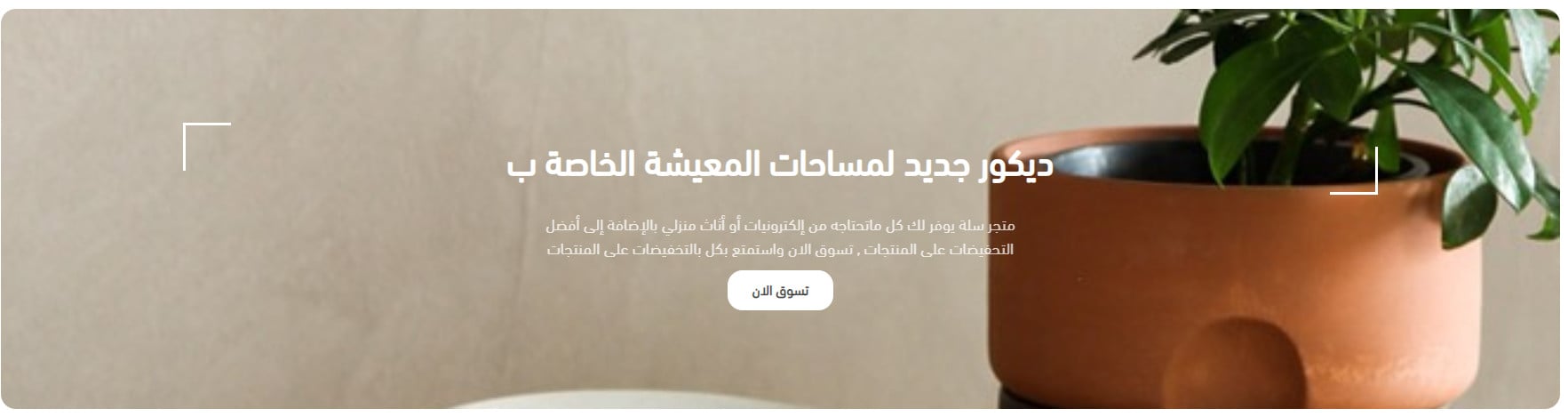
Add at least one banner background image, then enter the main heading, supporting text, and button text and link. The supporting text appears smaller than the main heading, with an entrance effect applied to the text.
The feature gallery appears on your store as shown.
Quick links
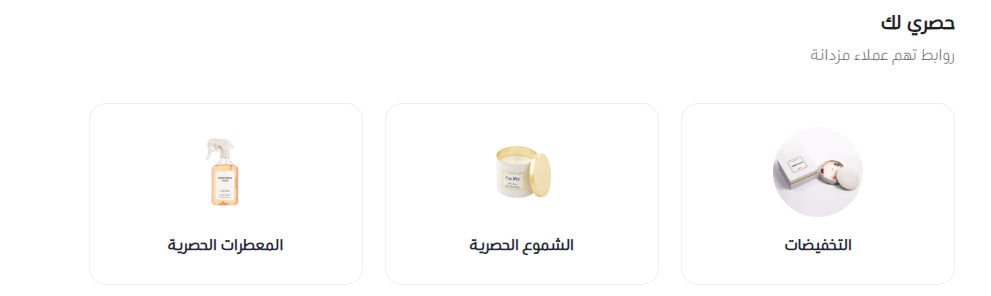
Enter the section heading and supporting text. Choose an icon and heading for each link, then connect it to an available destination: discounts, category, brand, custom page, or article.
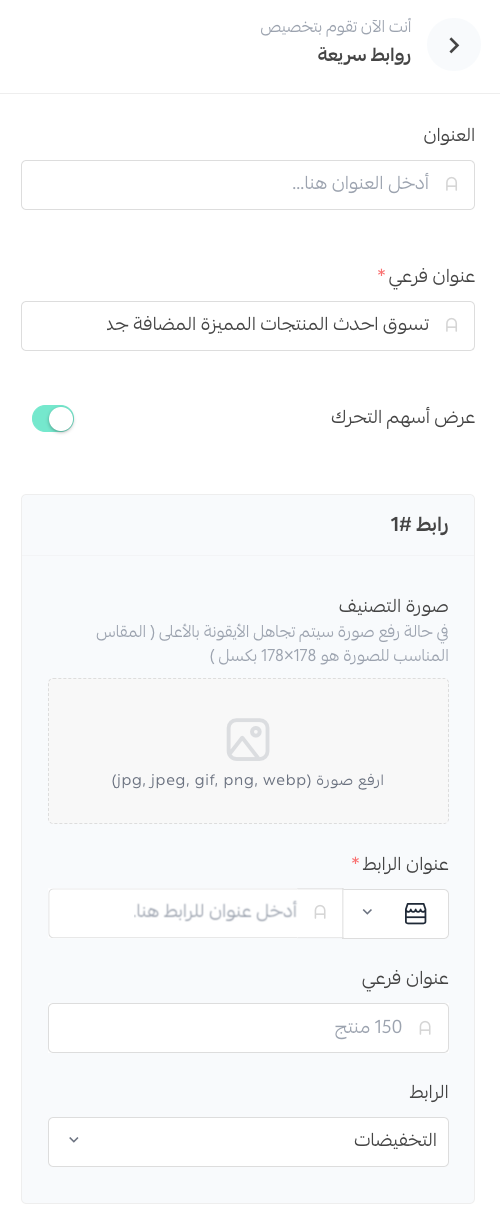
Quick links appear on your store as shown.
Enhanced quick links
Enter the main heading and link heading, connect the link to a discount, category, brand, custom page, or article, then add an image that suits your store.
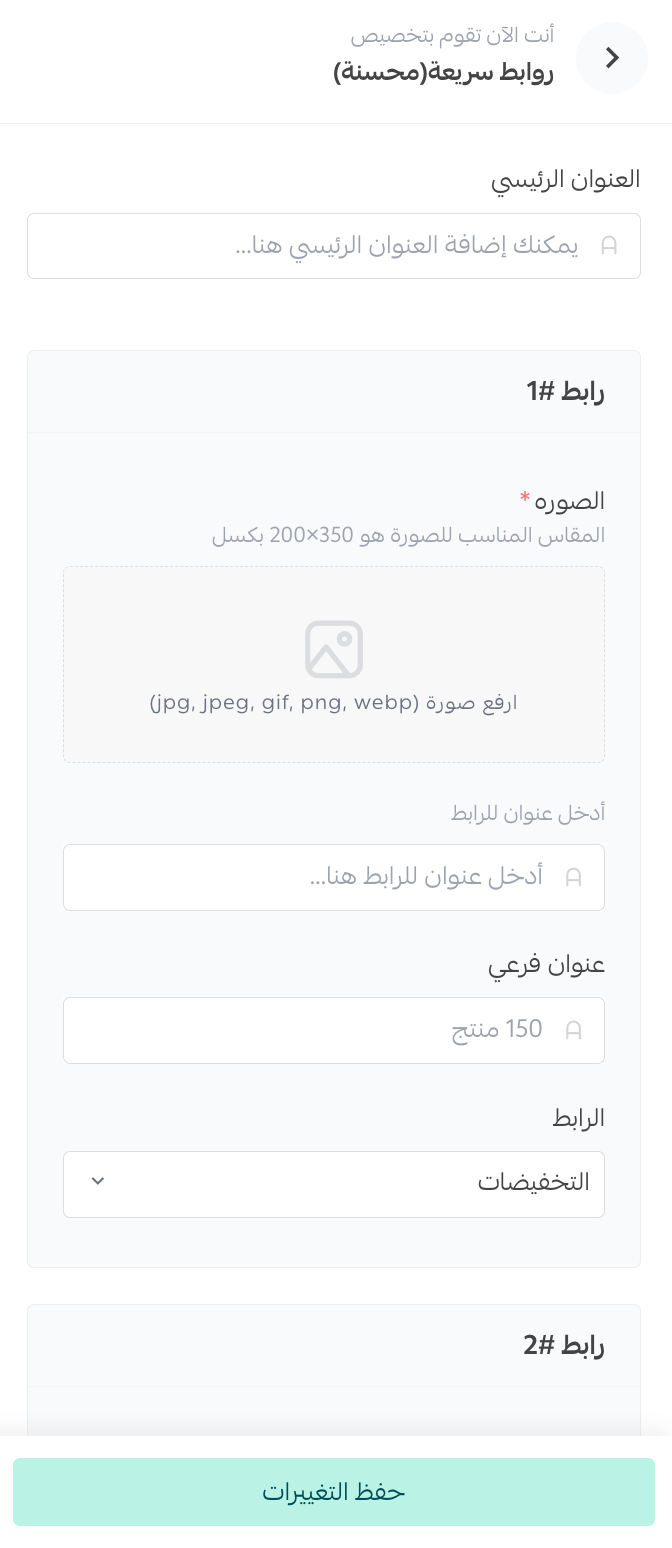
The enhanced quick links appear as shown.
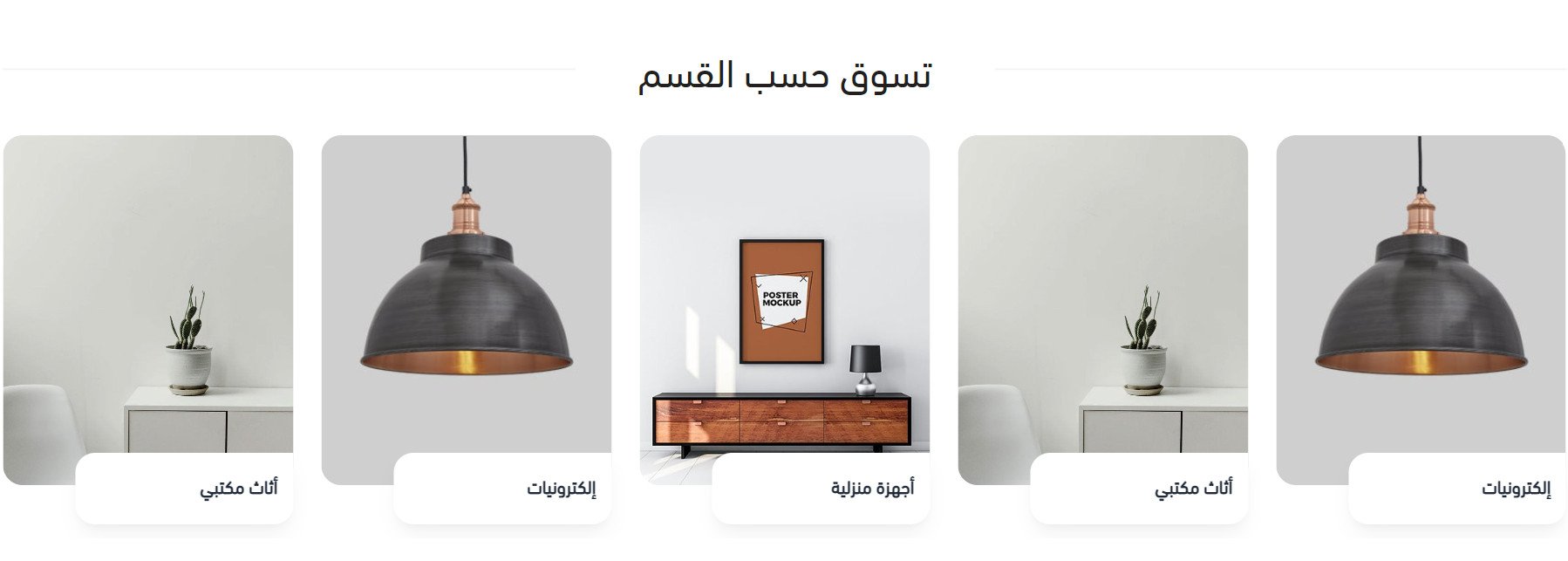
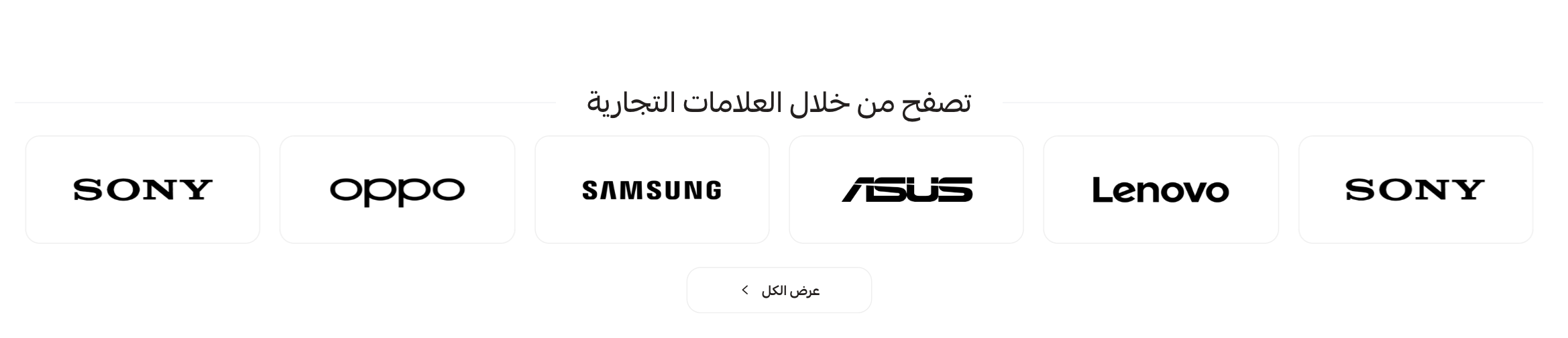
Brands

Select the required brands and enter a heading. Their logos appear with a (View all) button so customers can open the complete brand list.
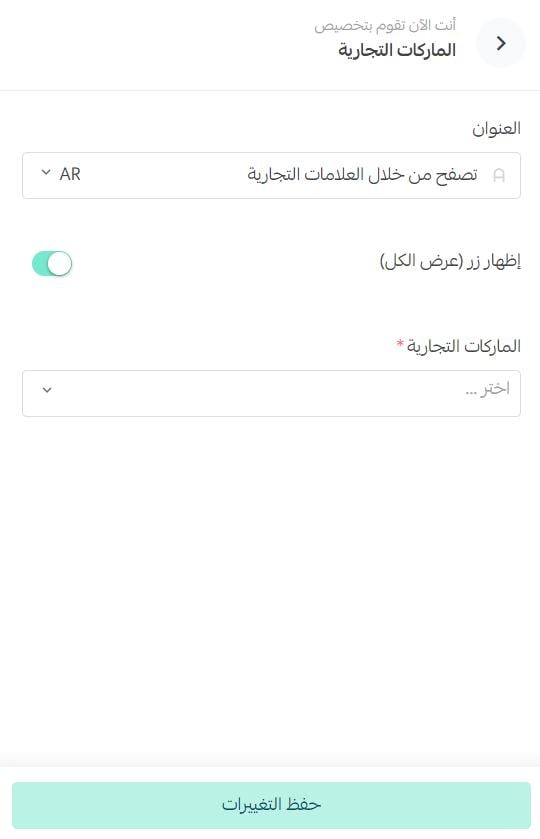
The brands element appears as shown.
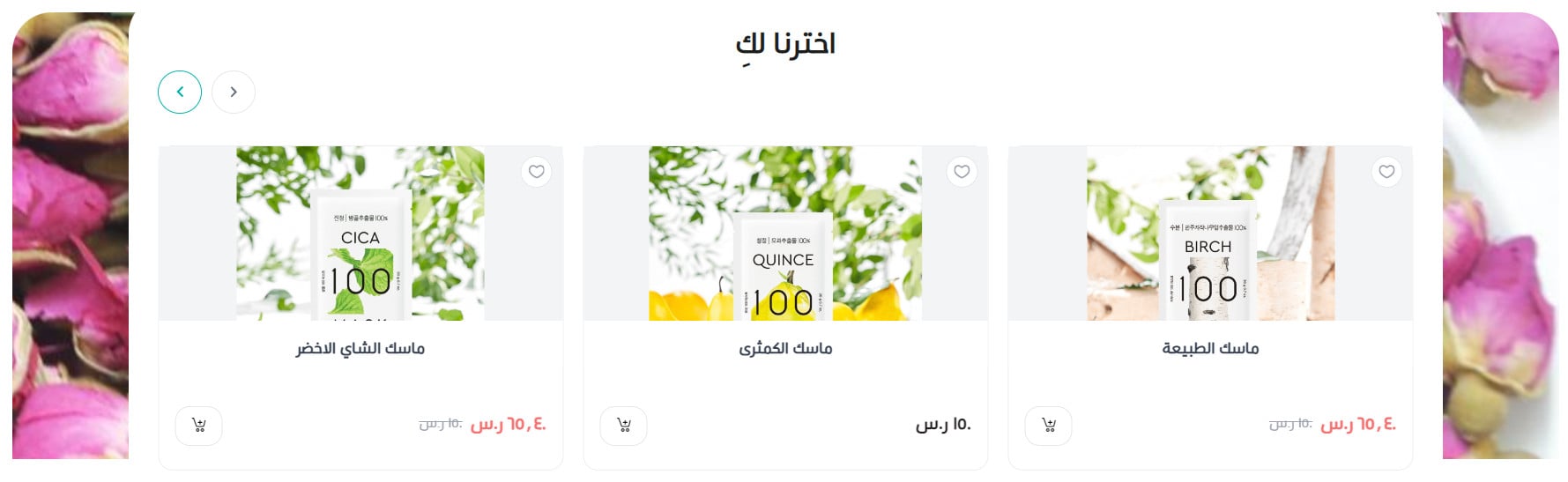
Animated products with a background
Select a background image, enter the main heading and supporting text, then choose the products to display.
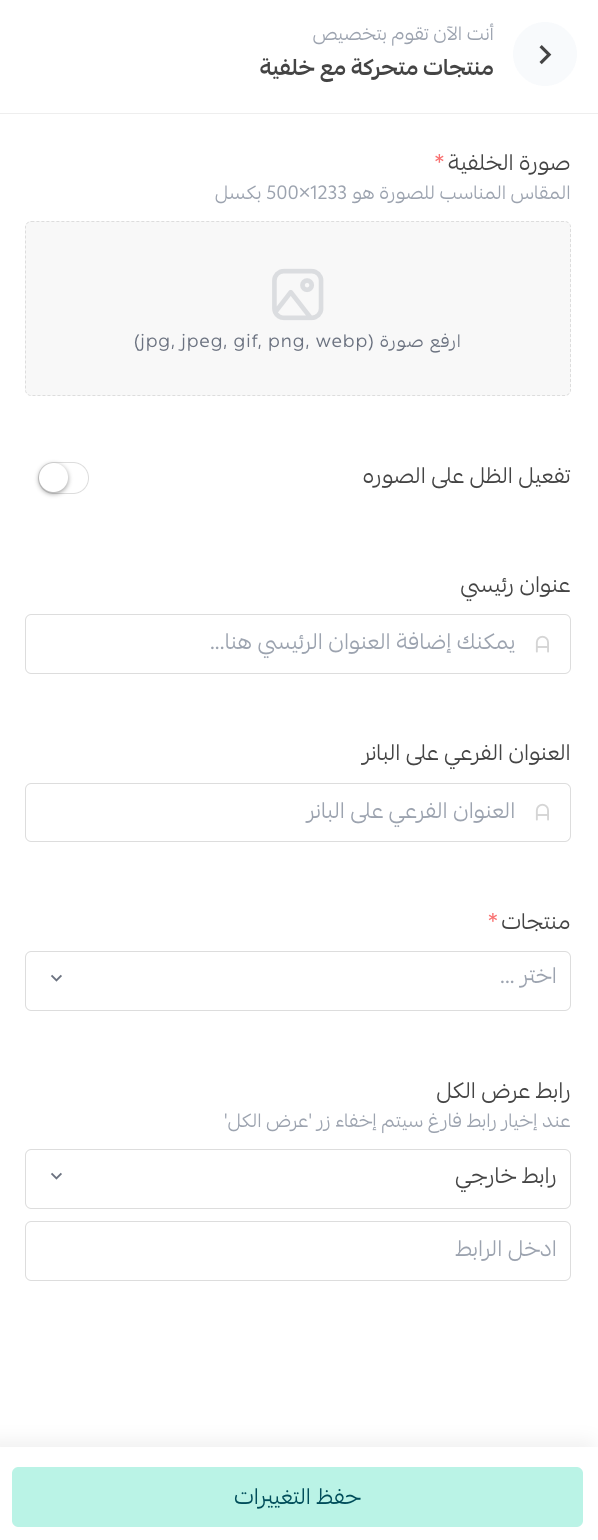
The animated products appear on the selected background as shown.
Enhanced store features
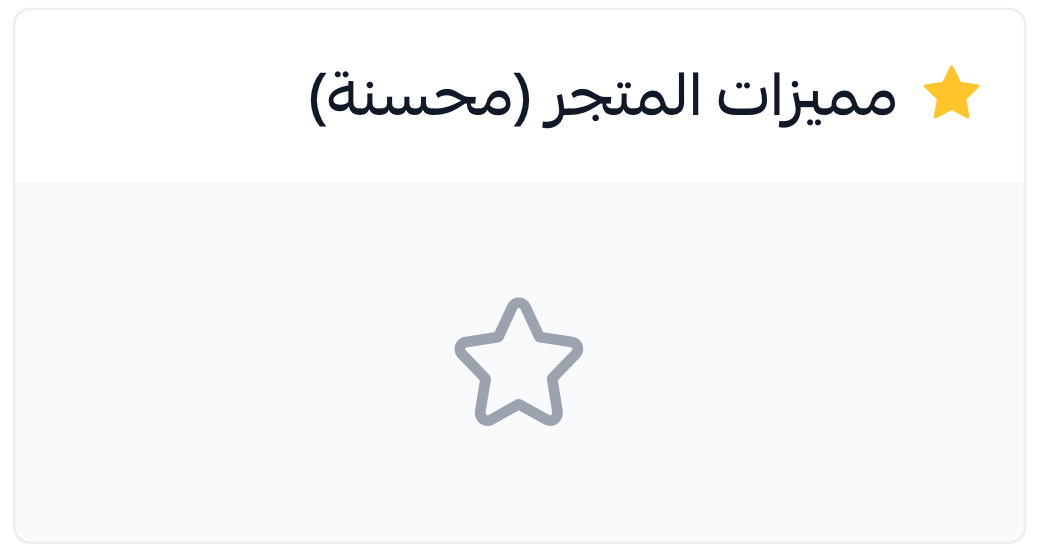
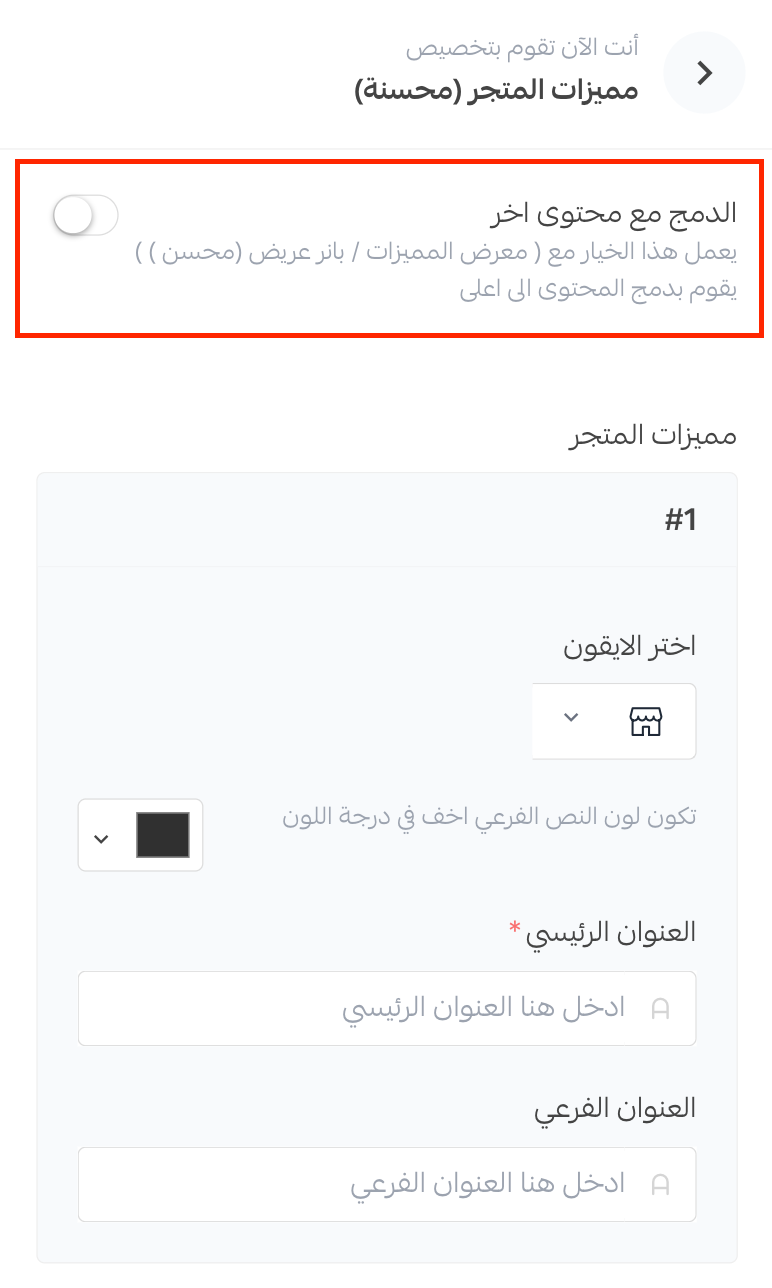
Choose a feature icon, select the supporting-text color, then enter the main and supporting headings. When this element follows an enhanced wide banner, it can visually merge with that preceding banner.
The enhanced store features appear as shown.
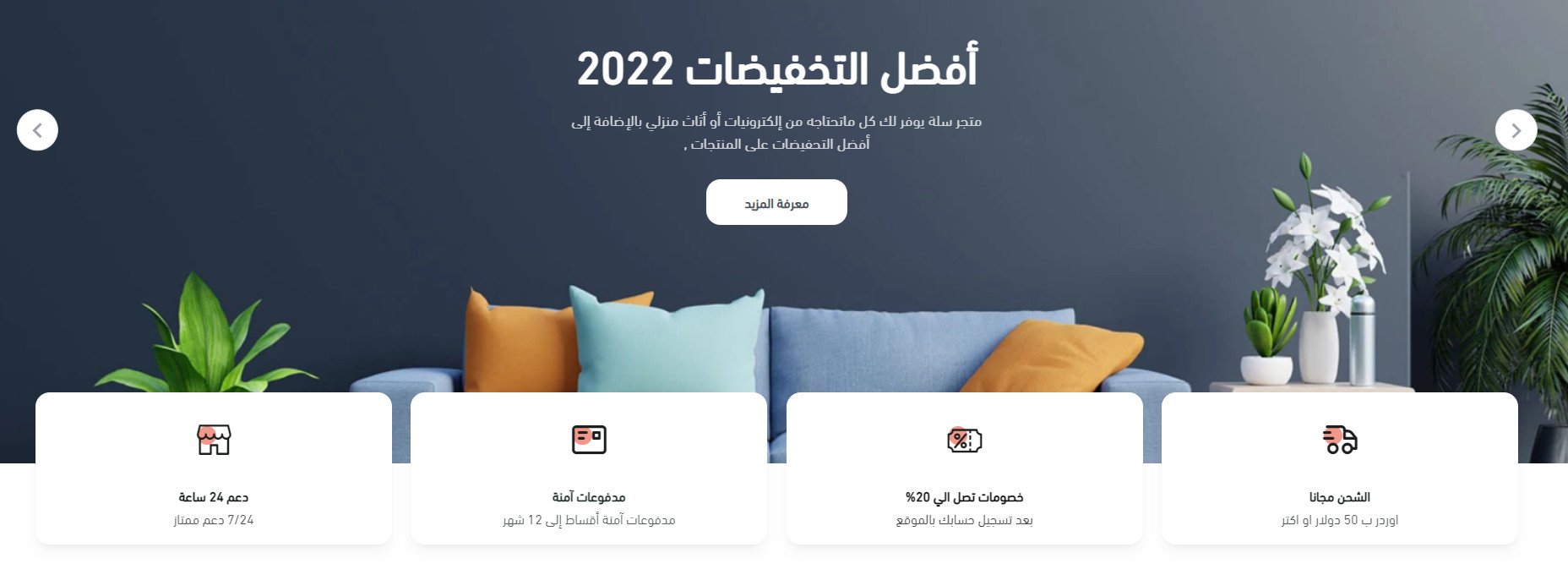
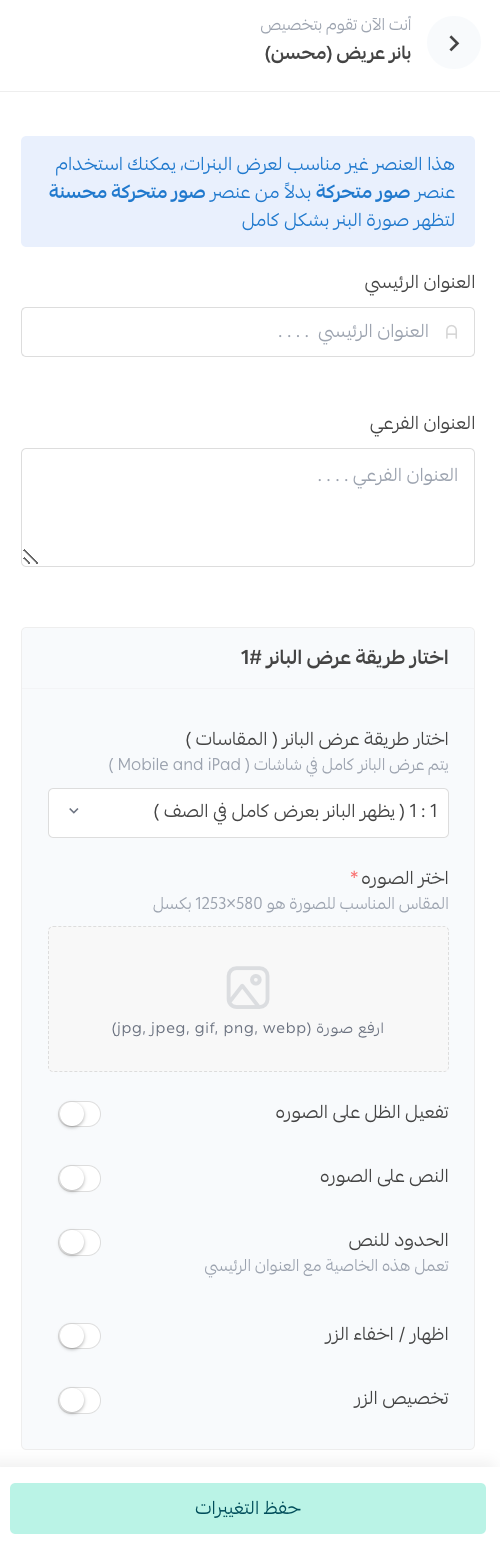
Enhanced wide banner
Enter the banner's main and supporting headings, add the banner image, then configure these settings:
1. Show or hide text on the image.
2. Choose the text colors.
3. Position the text on the left, center, or right.
4. Enable or disable the image shadow.
5. Enable or disable text borders and choose their colors.
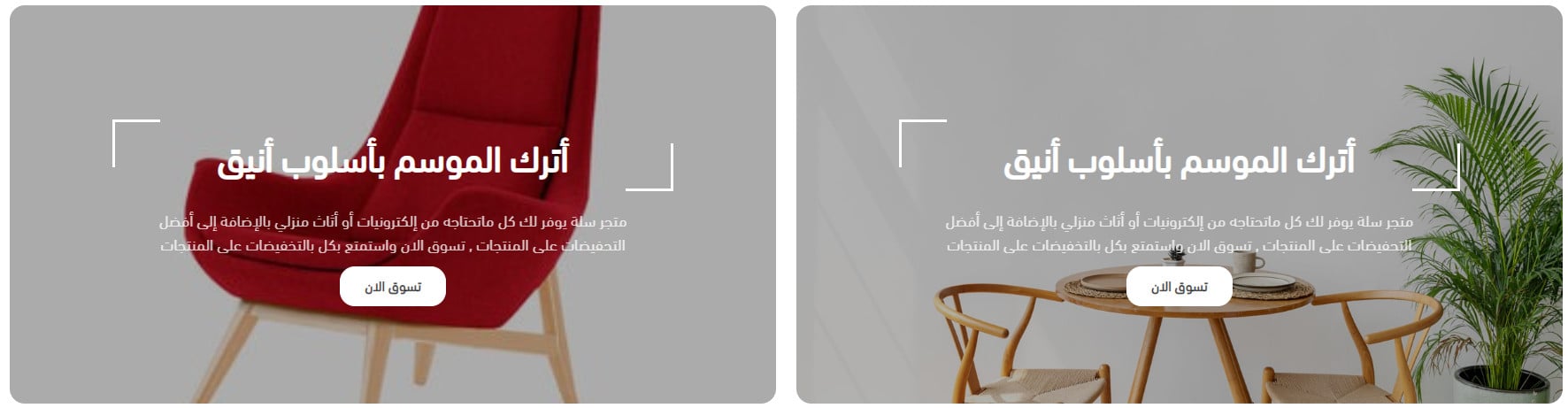
The enhanced wide banner appears as shown.
Does Wesam change product pages or product presentation?
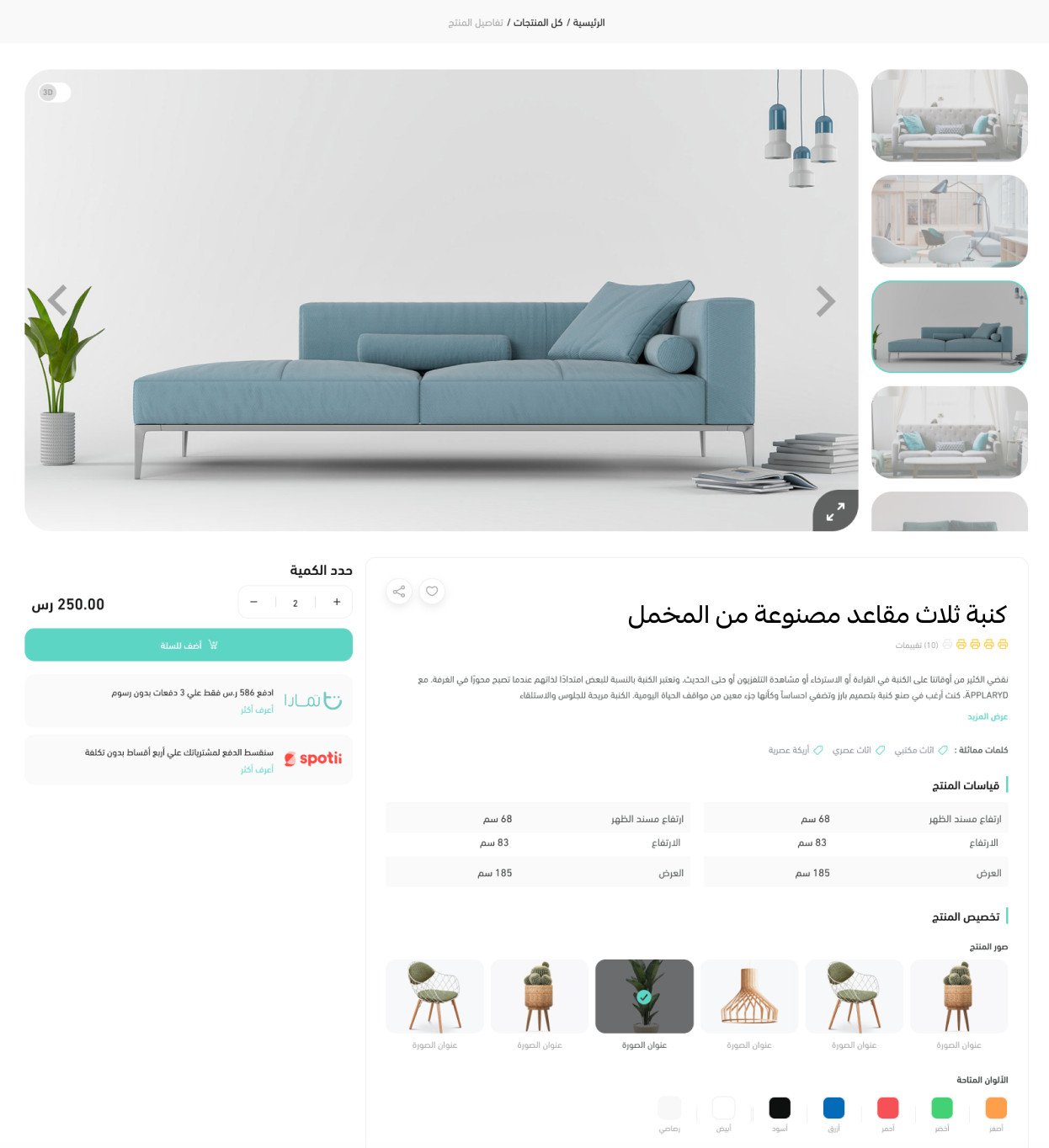
Yes. The source lists these changes:
- Featured products can use the default horizontal layout or appear inside tabs.
- The wide banner can appear without rounded corners.
- Customer reviews use a different design with support for viewing the full comment.
- Store features use a new hover highlight focused on the selected feature.
- Square images use a different layout.
- Category products can appear with static images.
- The newsletter uses a distinct layout when enabled.
✅ Additional design support
If you need help designing your store, use Merchant Services to find services from Salla-verified providers.
The source also links the text logo, banner, separator, and color-coordination design. [Verify: this URL is malformed and does not point to a valid website.]
🎯 Additional learning resource
Learn with trainer Mohammed Al-Badr how to improve the user experience and create a distinctive online store design that encourages visitors to complete a purchase.
📝 Important notes
The public Arabic Help Center now labels this source article as old and points to a newer Wesam guide. Review this draft against the current article and interface before publication.
Work on a theme copy, preview changes at desktop and mobile sizes, and test product options, links, newsletter forms, and call-to-action buttons before activating the theme.