Found a gap in your store that the right app could close in five minutes?
The Salla App Store is where you fill it. It collects apps built by Salla and by developers in the Salla community, grouped so you can find what you need without knowing its name first. Whether you want to install an app from the Salla App Store because you already know which one you want, or you are still browsing, the path runs through the same page in your dashboard. In this guide, you'll learn how to find an app, install it, and what happens differently when the app is paid.
To install an app, open Installed apps from your dashboard side menu, then click Browse Salla App Store and find the app you want. Open its page and click Install. Free apps install right away; paid apps ask you to pick a plan and complete payment before the permissions screen appears.
📌 Article overview
- How to install an app from the Salla App Store
- Where to start when you don't know which app you need
- What happens when the app is paid
- Frequently asked questions
👣 How to install an app from the Salla App Store
1. From the dashboard side menu, click (Installed apps).

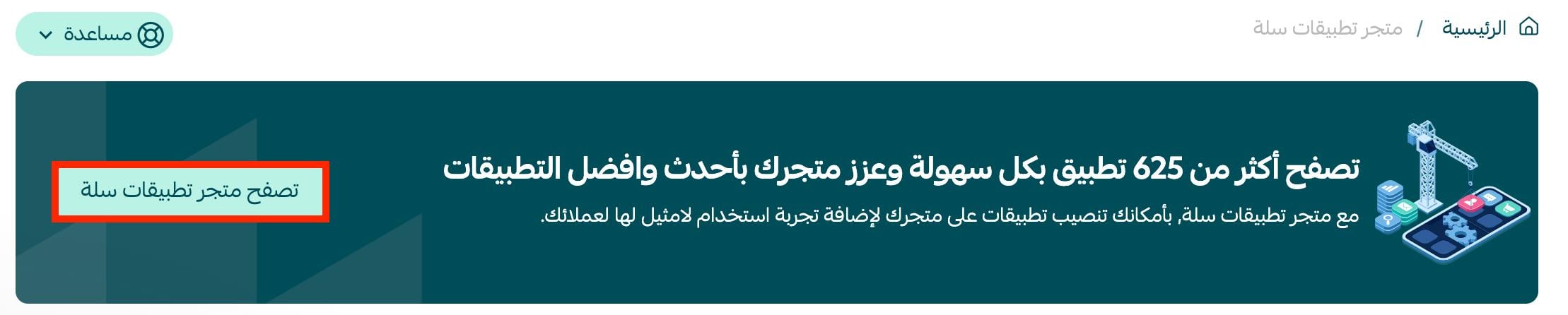
2. On the Salla App Store banner, click (Browse Salla App Store).
3. If you are looking for a specific app, click (Browse apps) to go straight to it.
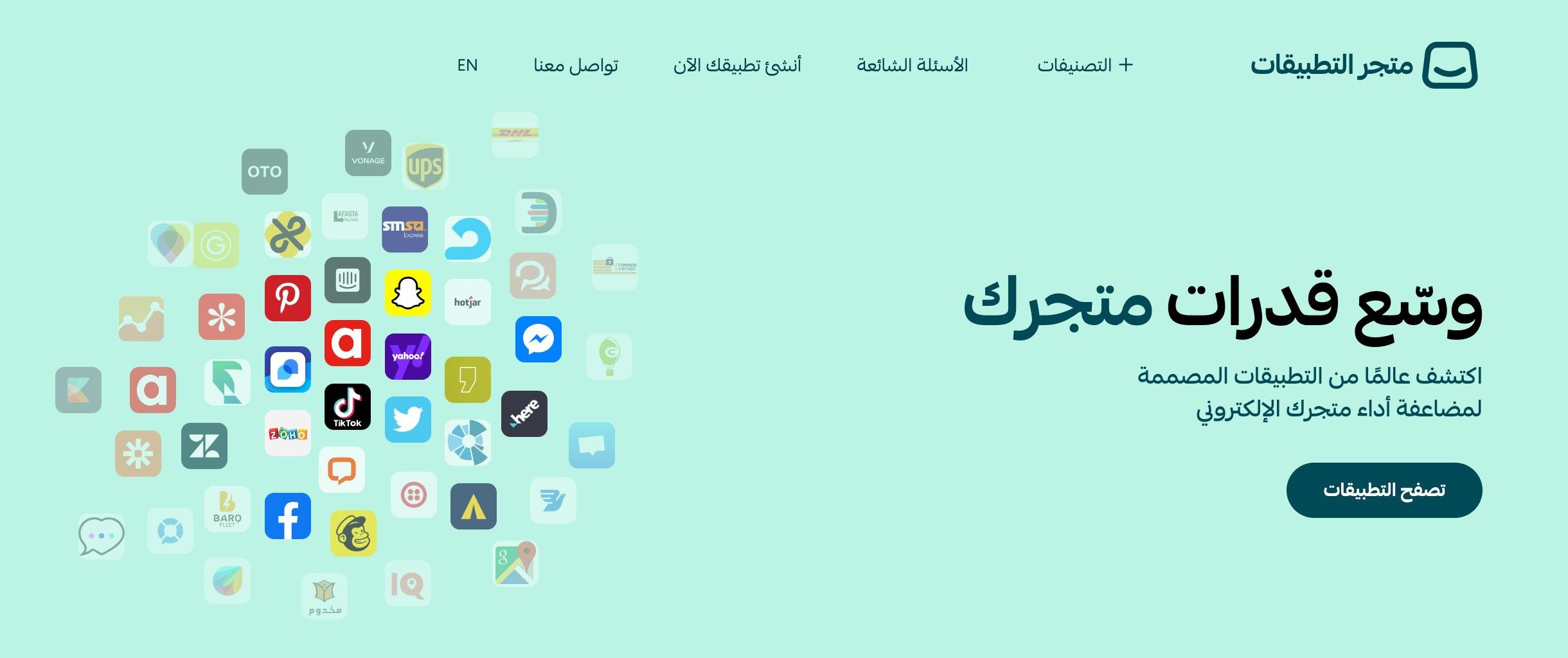
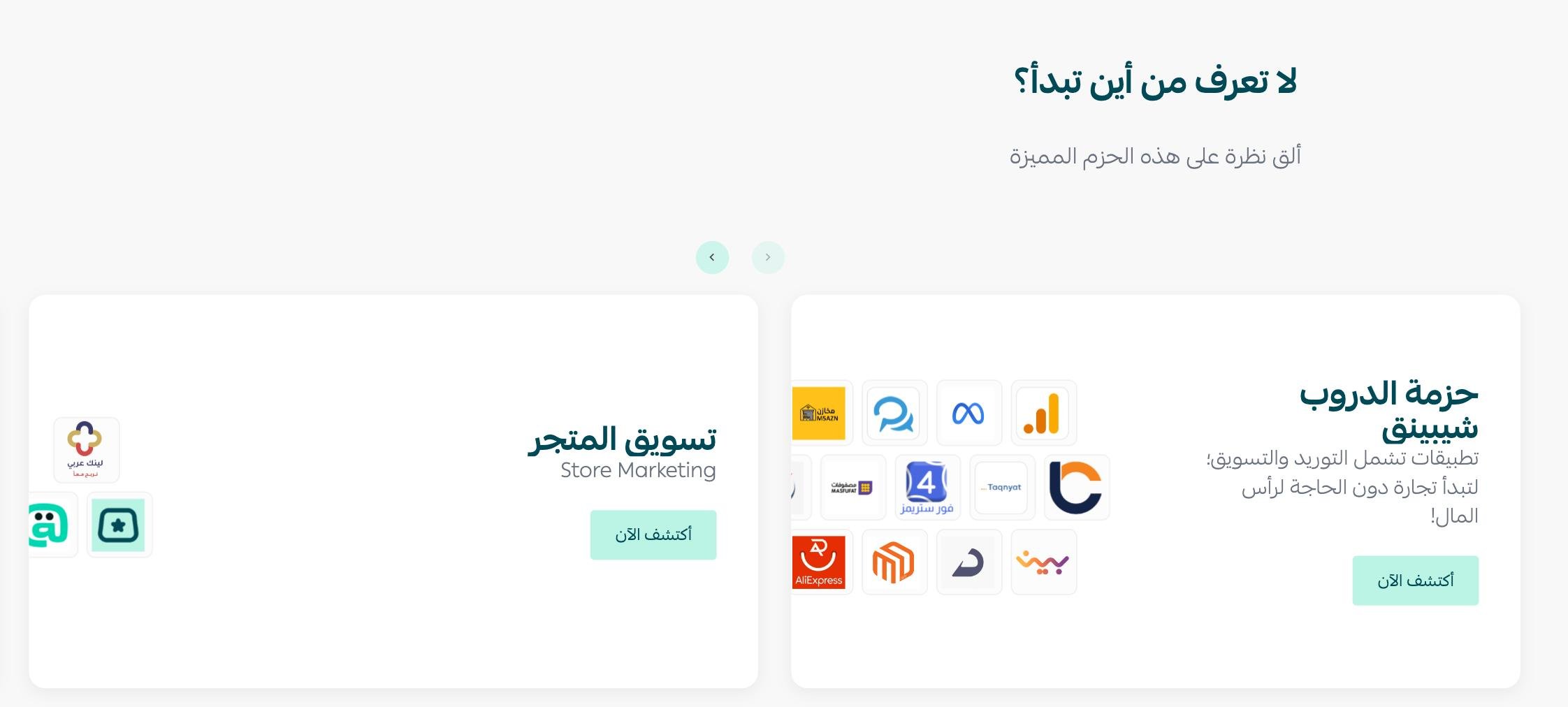
And if you are not sure where to start, try one of these:
- App bundles that Salla has hand-picked and grouped into collections.
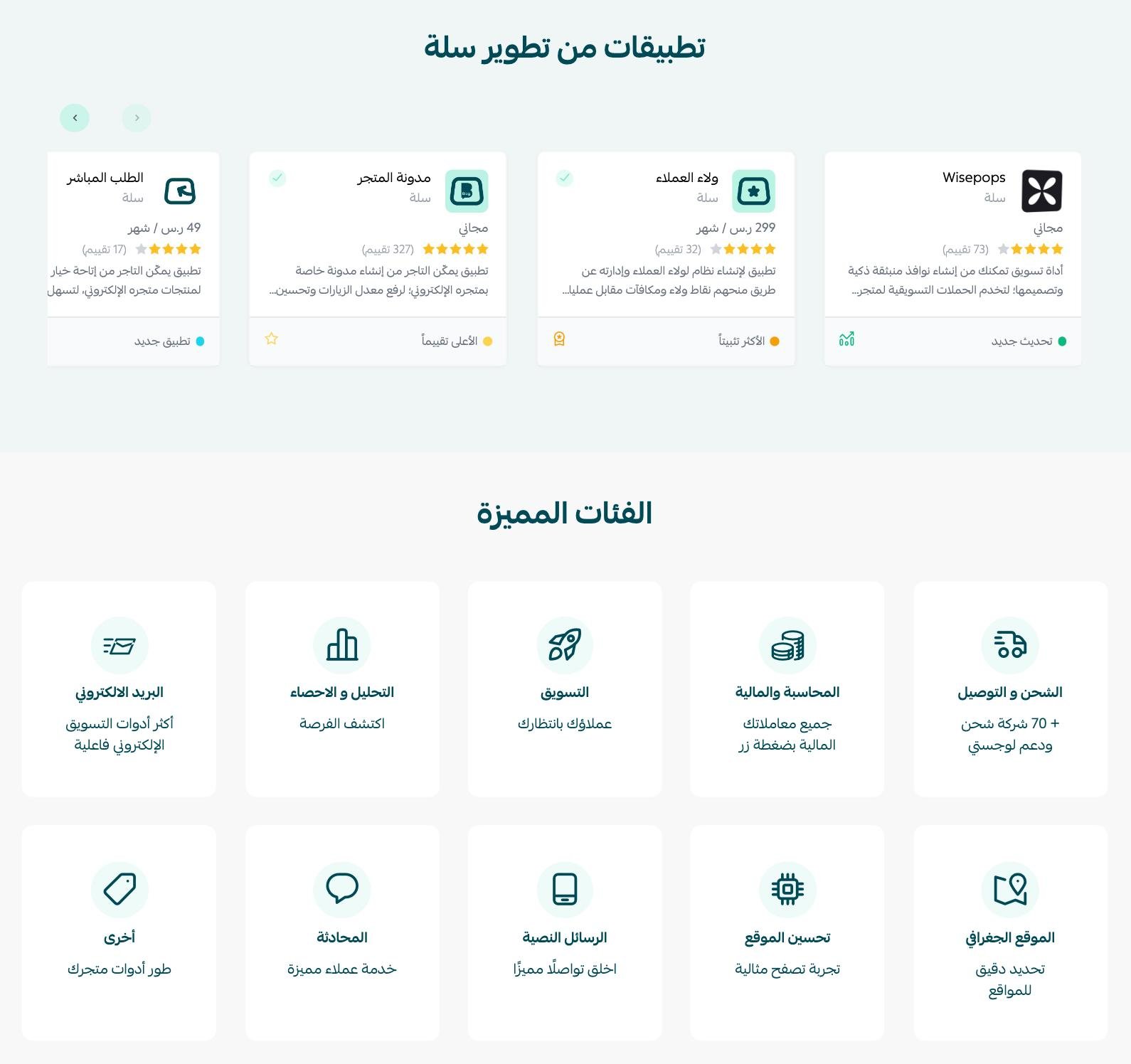
- One of the apps built by Salla.
- One of the featured categories.
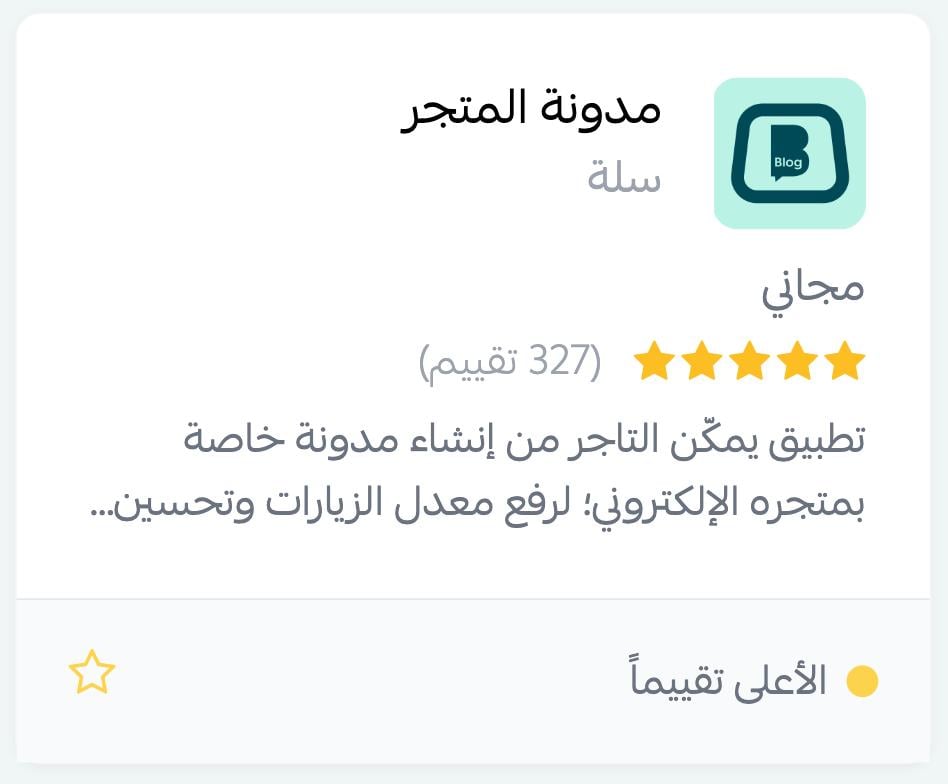
4. Pick the app you want to install, then click its name.
For example, installing the store blog app.
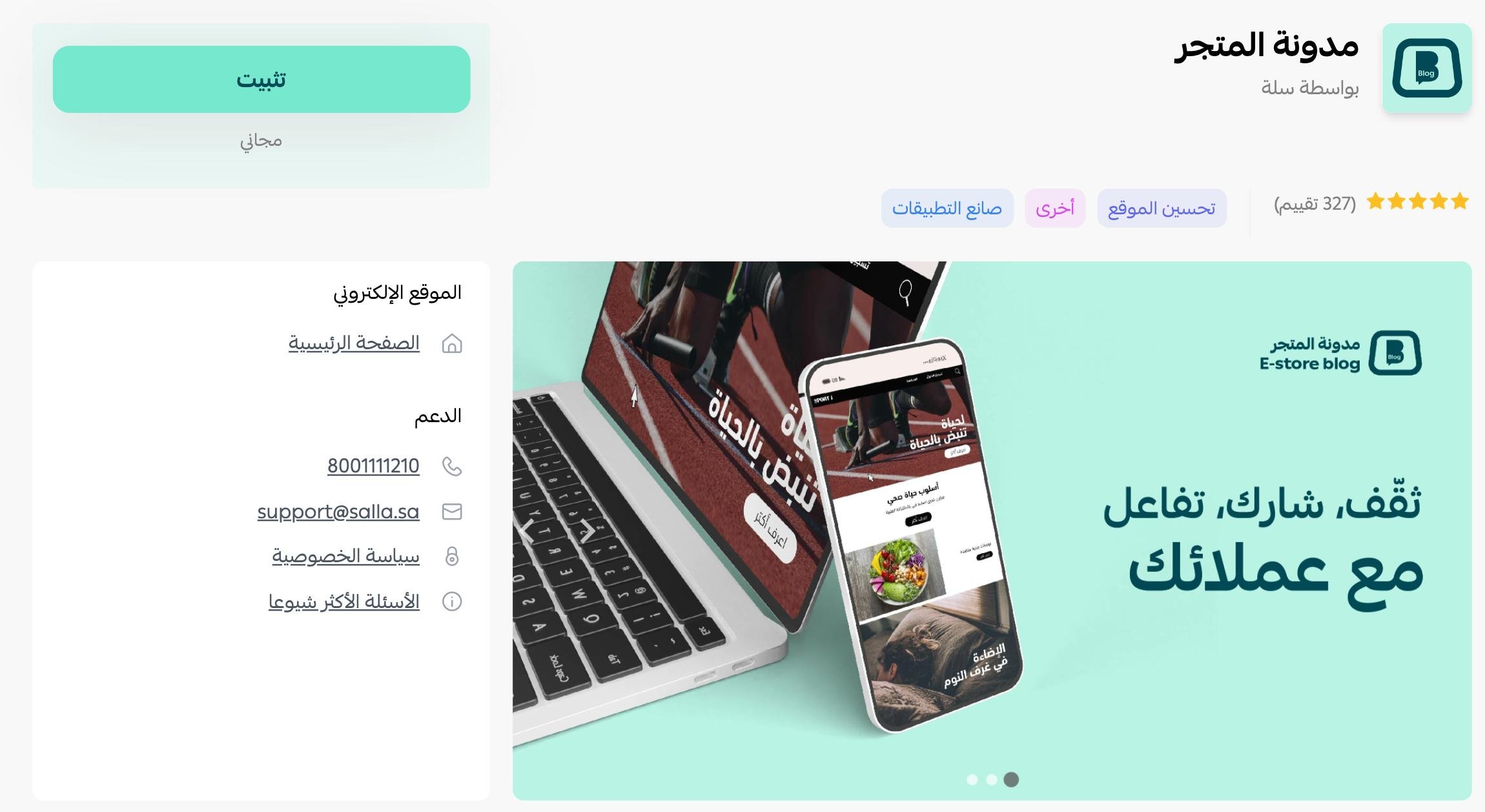
5. On the app page, click (Install).
The app then shows up among your store apps like this:
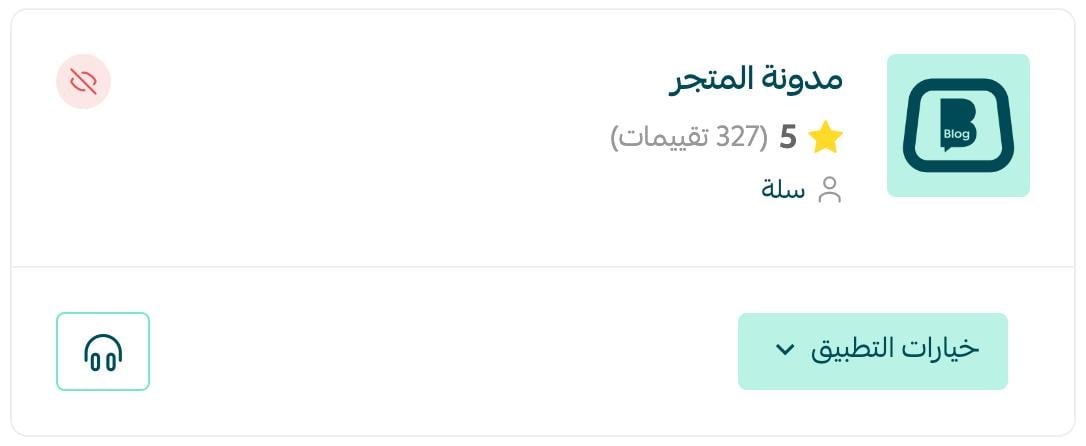
From here you can set up the app and start using it.
💰 What happens when the app is paid
📝 Important notes
If the app is paid, clicking (Install) takes you to a plan selection screen so you can choose the plan that matches how your business runs.
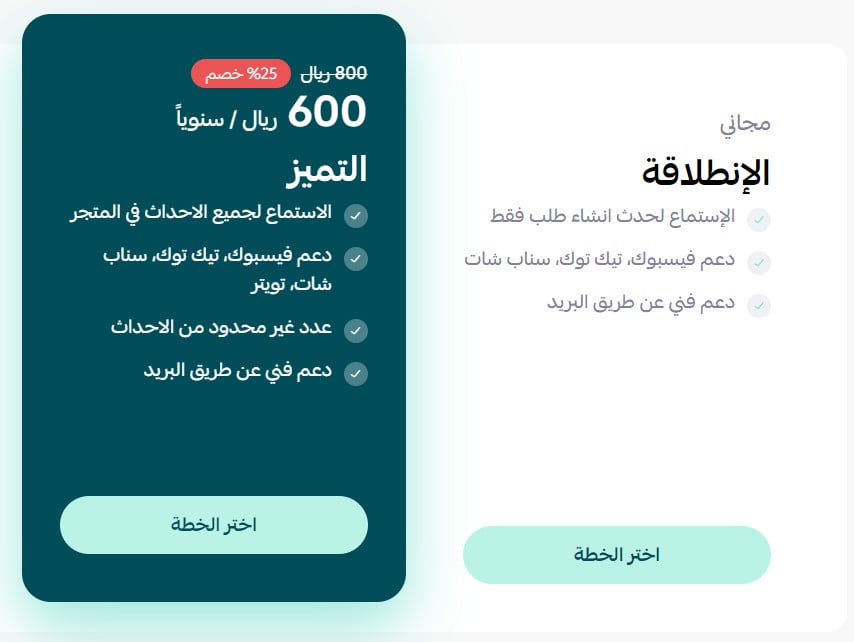
You are then taken to the payment confirmation page.
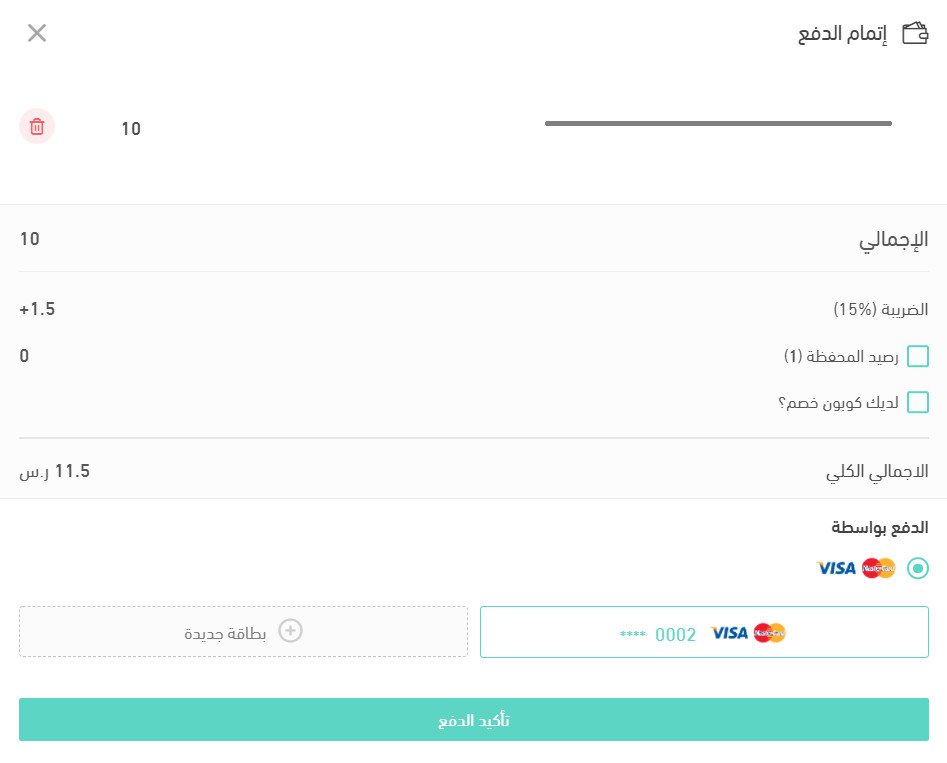
Once payment goes through, the permissions review screen appears so you can grant the app access.
❓ Frequently asked questions
Where do I start if I don't know which app I need?
Start with the app bundles Salla has grouped into collections, try one of the apps built by Salla, or open one of the featured categories.
Do I pay before or after choosing a plan?
After. For a paid app, clicking Install takes you to plan selection first, then to the payment confirmation page.
What happens right after payment?
The permissions screen appears, where you review what the app can access and grant it authorization.
Where does the app appear once it is installed?
Among your store apps, on the same page you started from. Open it there to set it up.
Installing is the easy part. The value comes from configuring the app afterwards, so once it lands in your store apps, open its settings and set it up properly before you judge whether it earns its place.