Your Instagram grid is already doing marketing work. Is your storefront showing any of it?
Most stores post to Instagram every week and then leave that content stranded on a different app, where a shopper who is already on the product page will never see it. The Instafeed app closes that gap: it pulls the photos, videos and stories from your store's Instagram account and shows them inside your Salla storefront, refreshing on its own as you keep posting. The connection is made without handing over your Instagram login. In this guide, you'll learn how to install Instafeed, how to link your Instagram account, and how to remove the app.
Instafeed is a Salla app that pulls the photos, videos and stories from your store's Instagram account and displays them inside your storefront automatically. You connect it by username, without handing over your Instagram password, and the feed refreshes on its own as you post.
📌 Article overview
- What the Instafeed app does
- How to install the Instafeed app
- How to link your Instagram account
- How to remove the app
- Frequently asked questions
🎯 What the Instafeed app does
Instafeed connects your store's Instagram account to your Salla storefront and displays that account's images, videos and stories inside the store automatically. Two things make it worth the install: you never share your Instagram credentials to set it up, and the visual content stays current without anyone updating it by hand.
🚀 How to install the Instafeed app
1. From the main menu, open the (More) tab, then click (Installed apps).
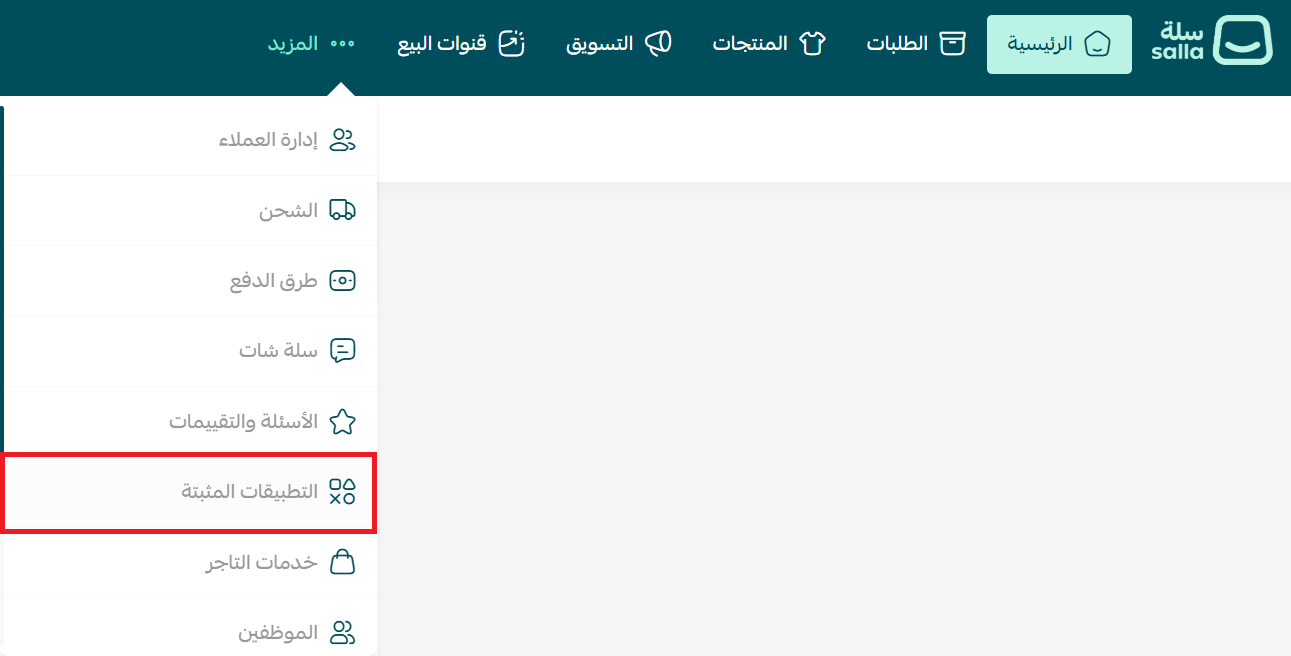
2. On the Salla app store banner, click (Browse Salla app store).

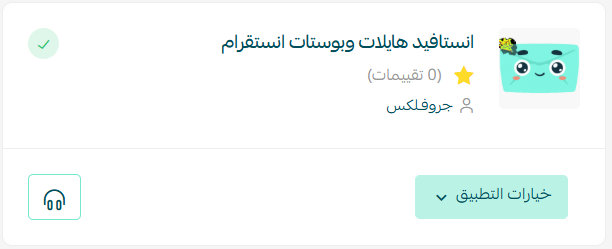
3. On the Instafeed app page, click (Install).
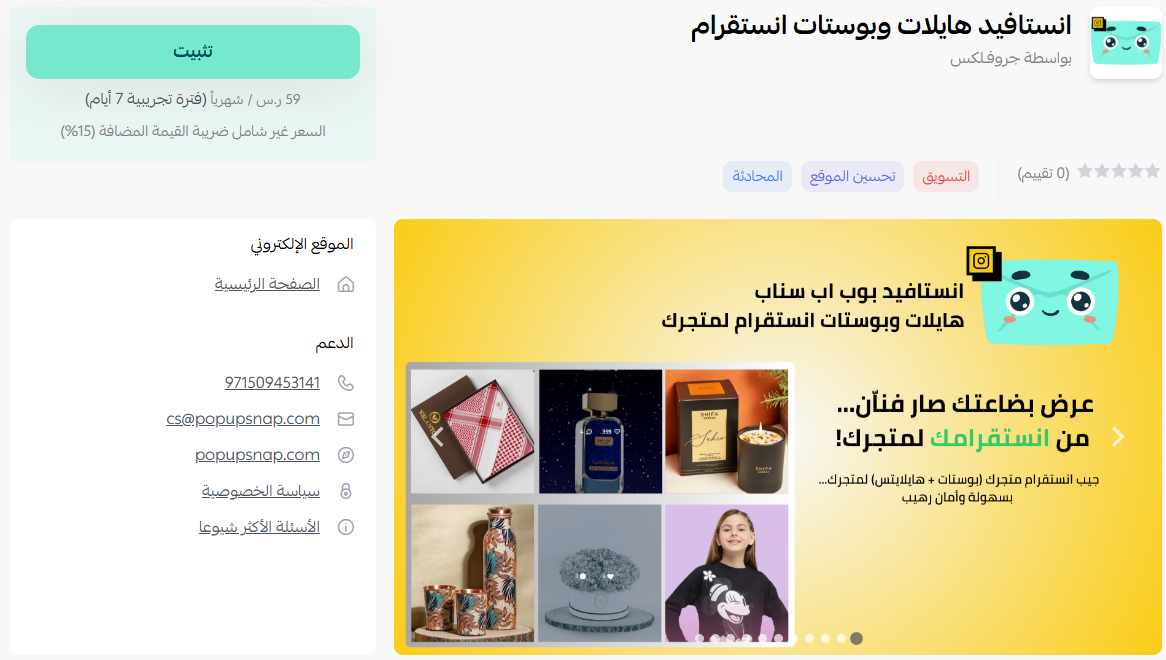
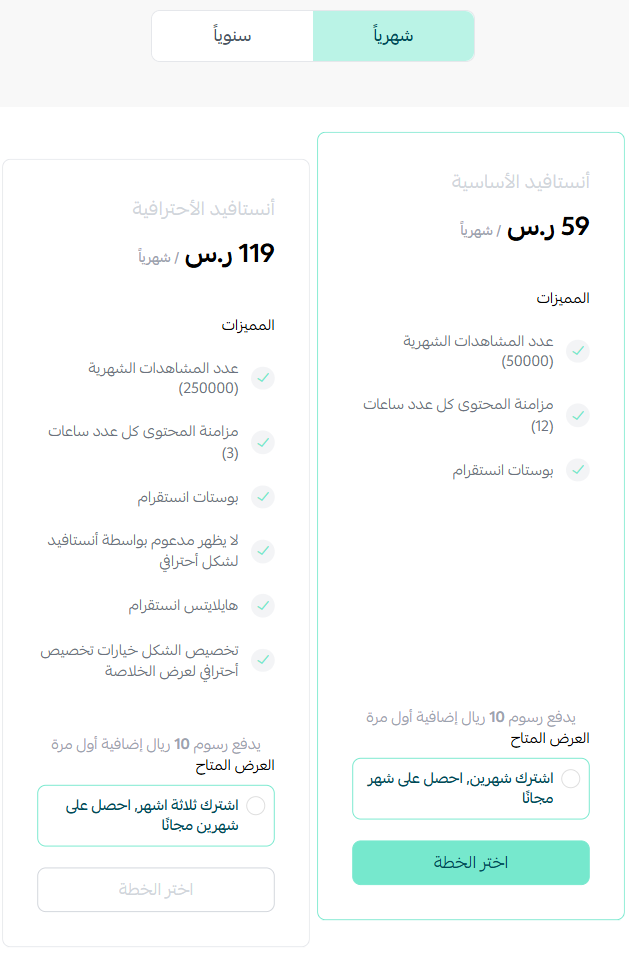
4. Choose the plan that fits your business to carry on with the installation.
5. Review the permissions the app is asking for, then click (Go to payment).
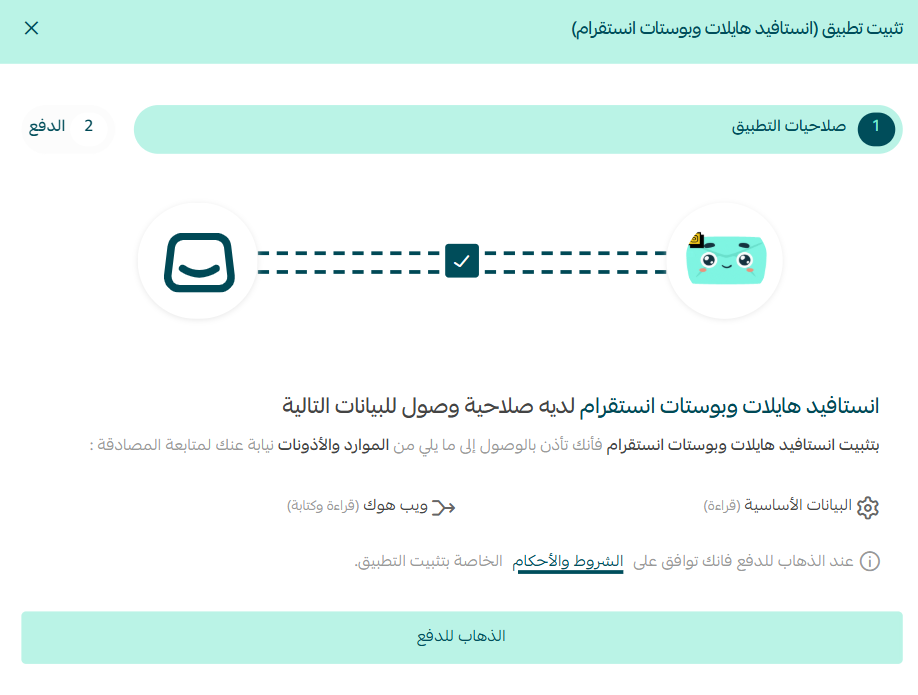
6. Complete the payment to unlock the app's features.
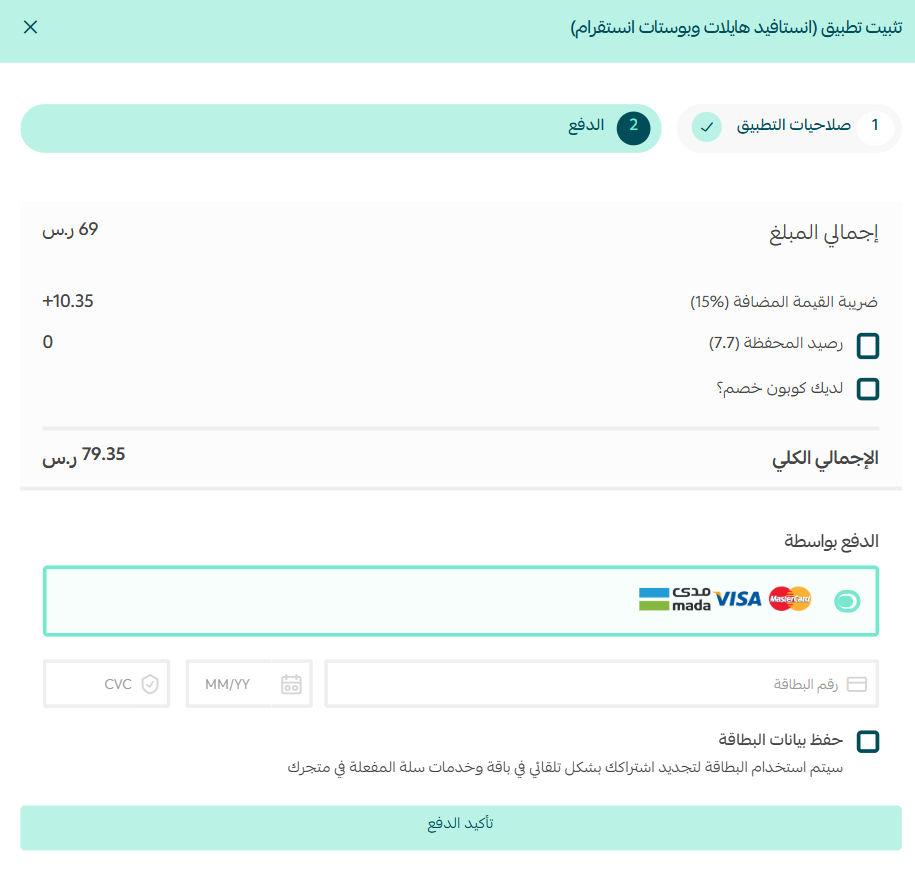
That completes the installation of Instafeed on your store.
👣 How to link your Instagram account
Installing the app puts it on your store. Linking your account is what fills the feed.
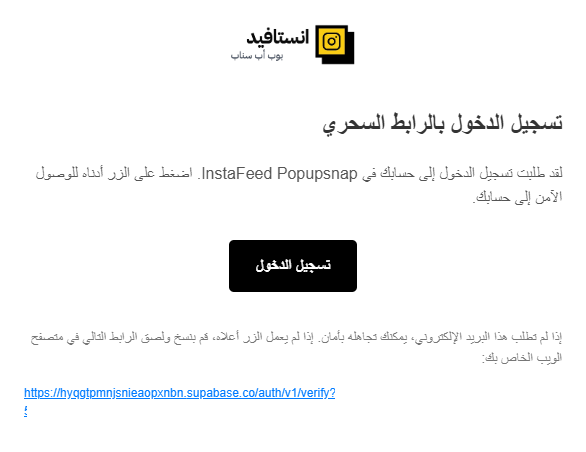
1. After the installation finishes, you receive an email. Click (Log in).
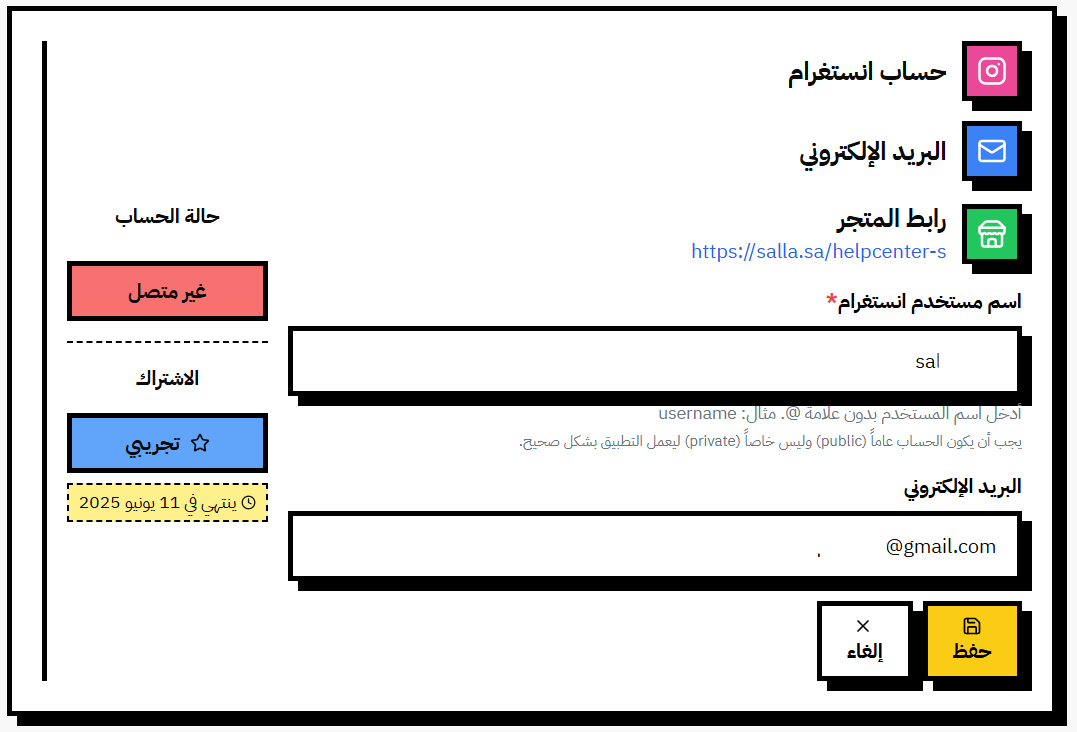
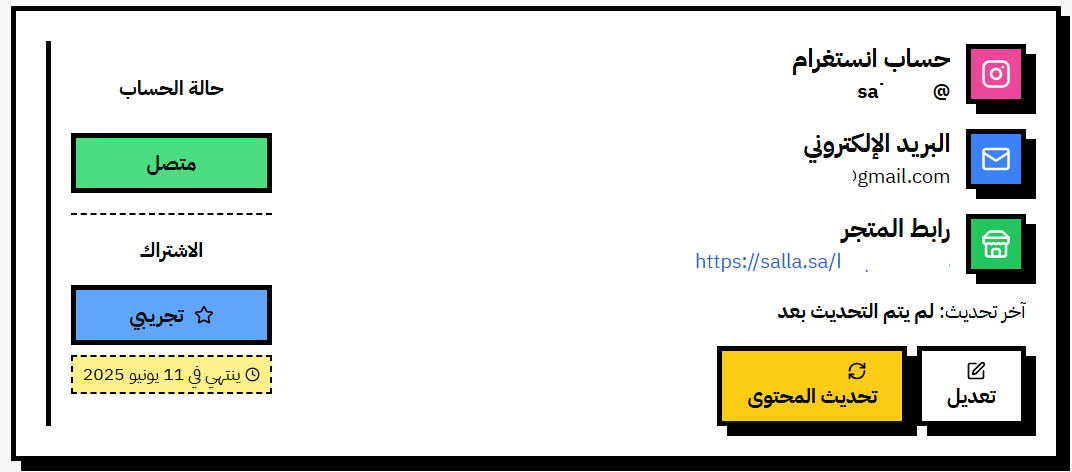
2. You are taken to the Instafeed dashboard. Click (Edit) to connect your Instagram account.
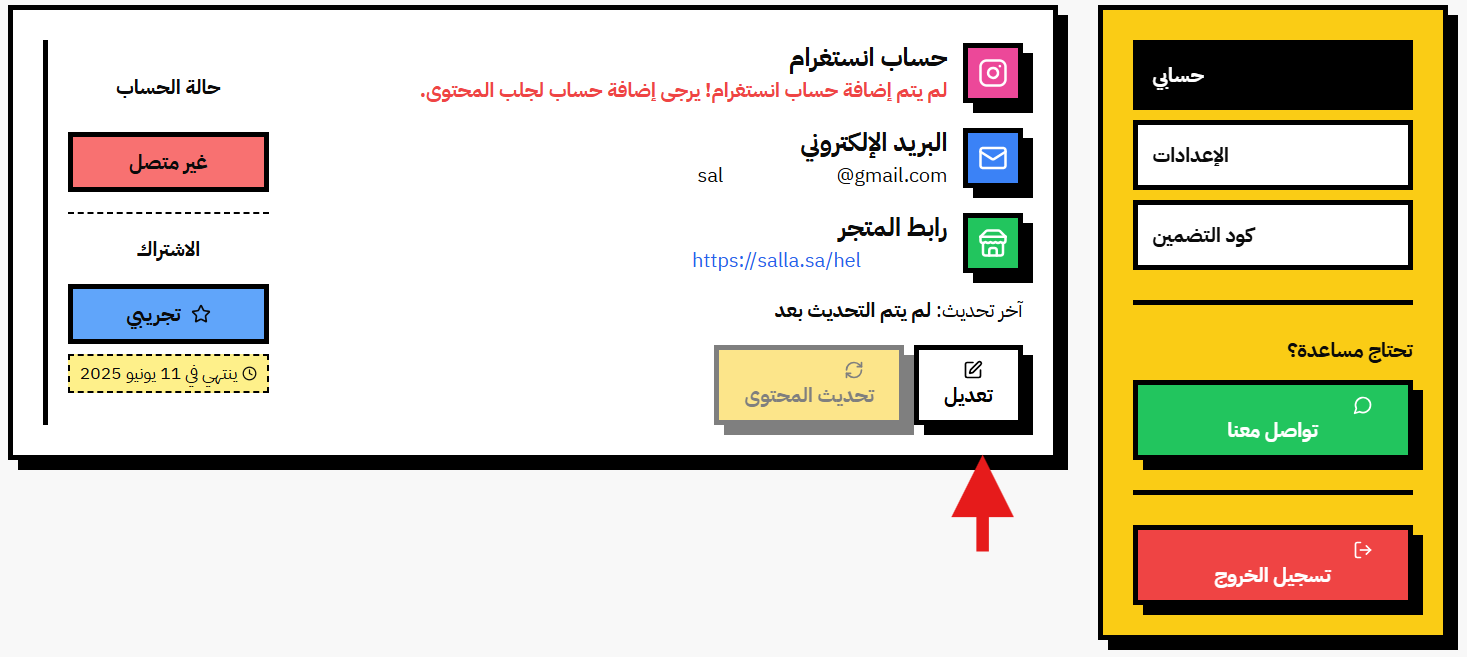
3. Enter the username of your account, add your email address, then click (Save).
🎉 Your Instafeed account is now active.
📝 Important notes
Instafeed asks for your Instagram username, never your password. Nothing about this setup requires you to share login credentials.
Once the account is linked, new posts and stories flow through on their own. There is no manual refresh step.
For more on managing your account, see the Instafeed help pages.
🚀 How to remove the app
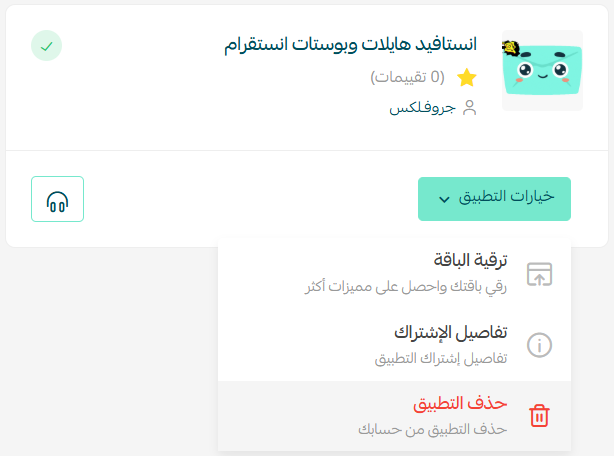
From the Instafeed app on your installed apps page, click (App options), then click (Delete app).
❓ Frequently asked questions
Do I have to give Instafeed my Instagram password?
No. The connection is made from your username, and the Arabic source is explicit that no login details are shared at any point.
What content appears in the feed?
Images, videos and stories from the Instagram account you connect.
Do I need to refresh the feed after every post?
No. The app updates the visual content in your store on its own, which is the point of installing it.
Is Instafeed free?
No. You choose a plan and complete the payment during installation.
Where do I manage the connected account?
In the Instafeed dashboard you reach from the email sent after installation, not from your Salla dashboard.
Social proof works hardest where the buying decision happens. Moving your Instagram content onto the storefront itself is a small install with an obvious payoff.