Need to update inventory or pricing without importing every product field again?
You can import product quantities and prices on Salla with dedicated Excel templates for stock, base price, cost, sale price, discount end date, and Harmonized System codes.
To import product quantities and prices on Salla, open Products, click Services, and choose Import products. Export the required quantity, price, or Harmonized System code template, edit the spreadsheet, upload it to the matching update page, and start the update. Salla emails the exported templates to the store address.
📌 Article overview
- Open product imports
- Update complete product records
- Update quantities
- Update prices
- Update Harmonized System codes
- Track processing
- Frequently asked questions
Related Salla resources
- (update complete product records)
- (Harmonized System code guidance)
- (Importing from China course)
How to import product quantities and prices on Salla
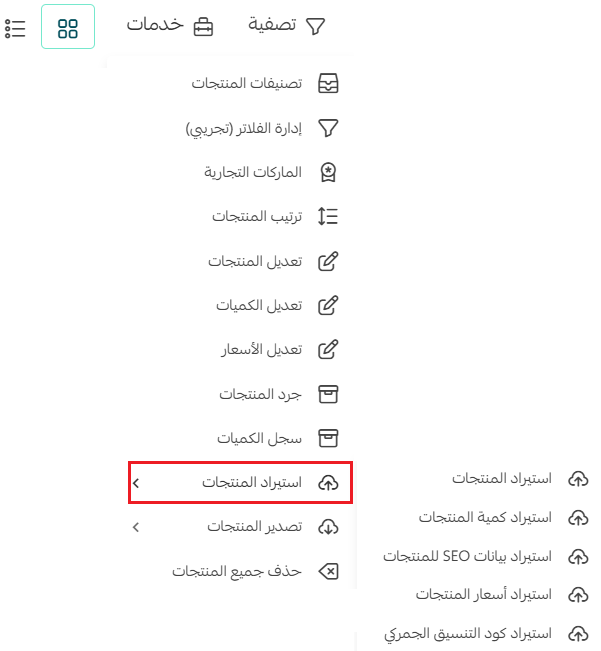
1. From the dashboard menu, click Products.

2. Click Services, then choose Import products.
Update complete product records
From Services, choose Import products.
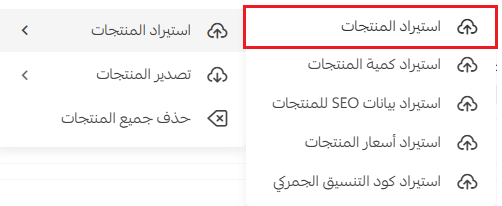
Use the linked update-products guide for the complete product-record workflow. The live source does not repeat those instructions in this article.
Merchant services can assist with adding products or moving a store from another platform.

Bulk update product quantities
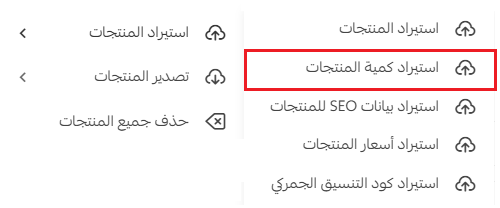
1. From Services, choose Import product quantities.
2. On Update existing product quantities, click Export quantity update template.
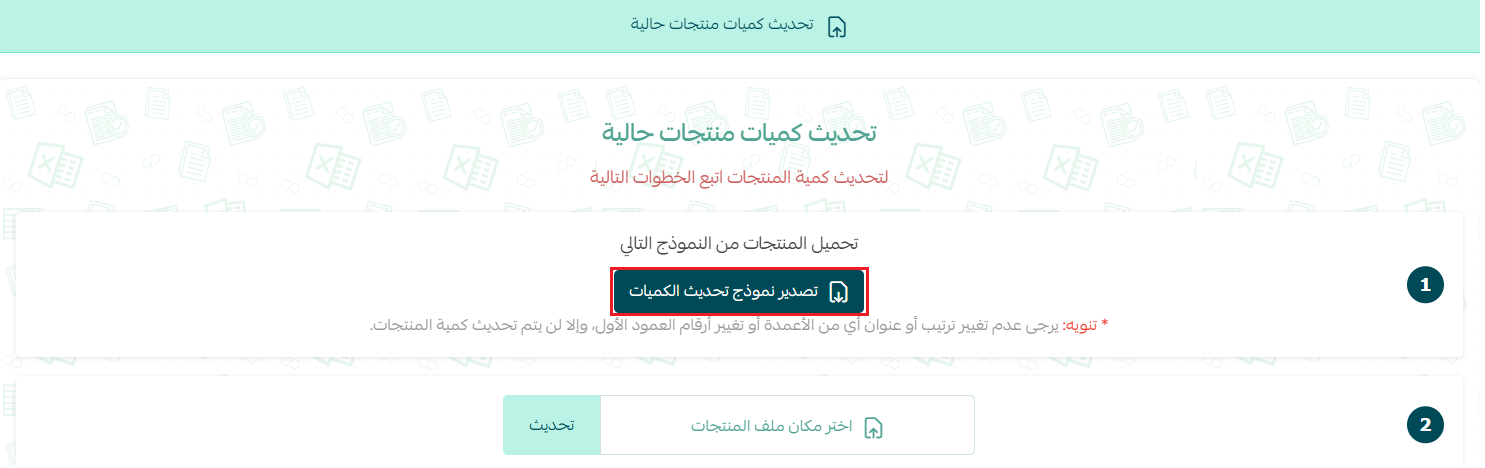
Salla sends the quantity spreadsheet to the store email address.
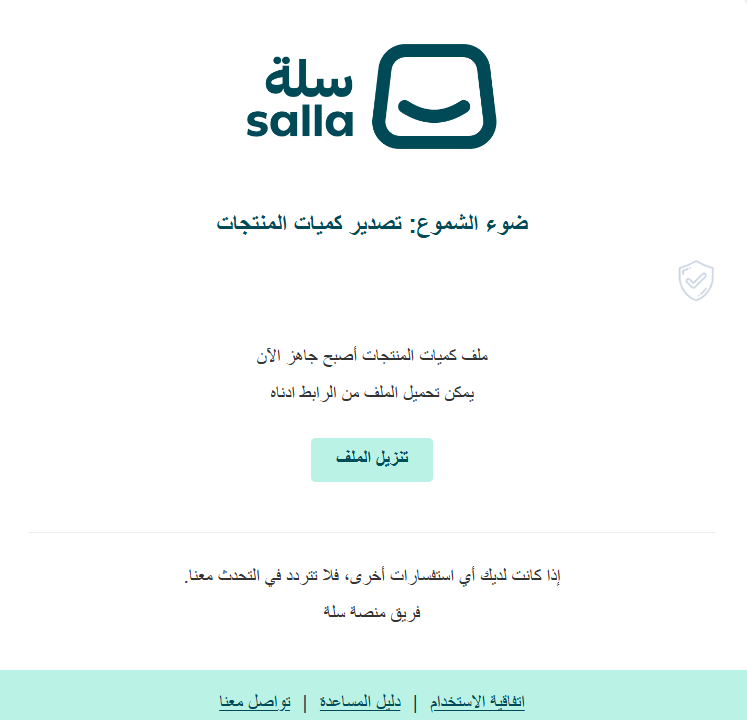
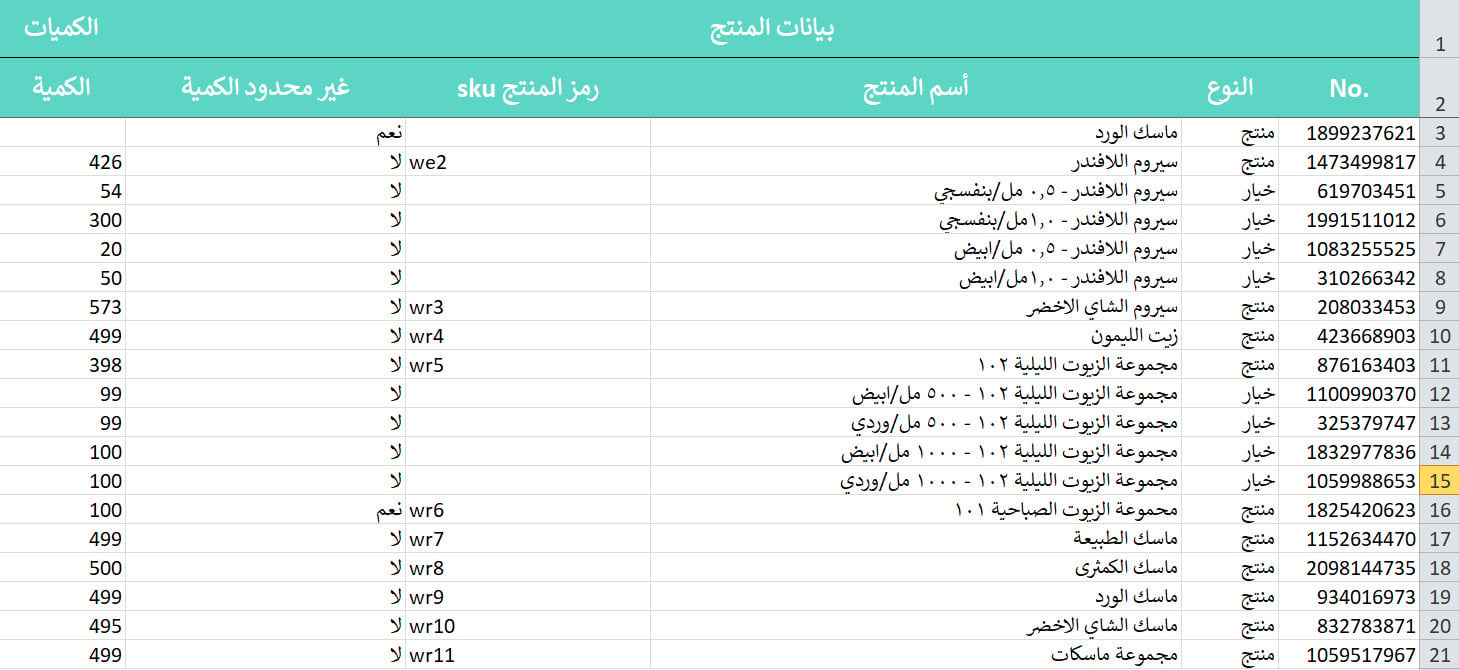
3. Edit the quantity file according to your inventory.
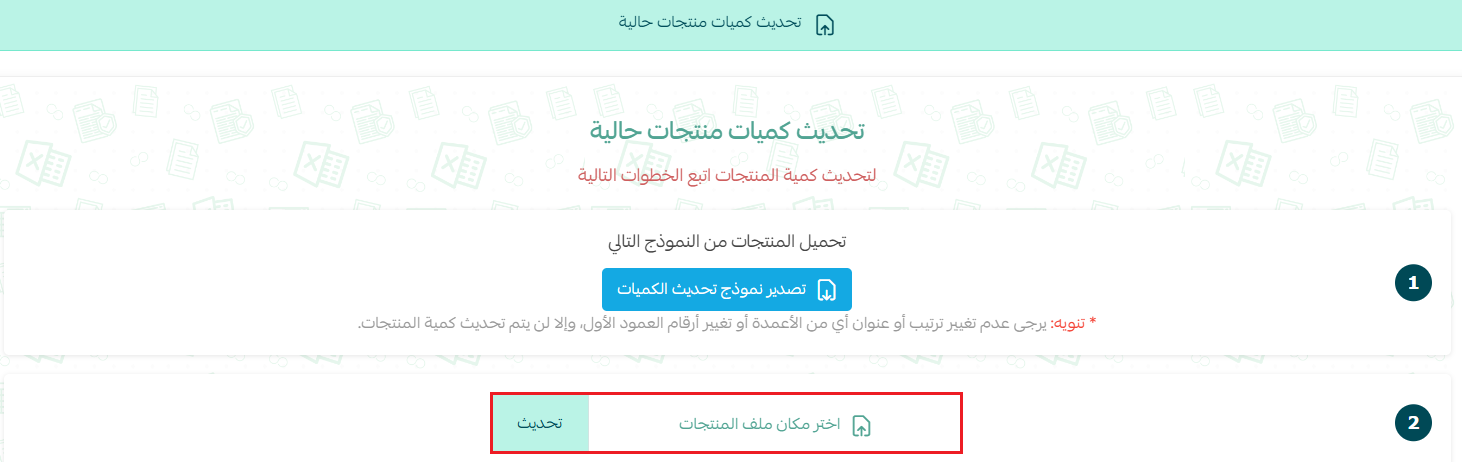
4. Return to Update existing product quantities, select the edited file, and click Update.
Allow time for Salla to process the quantity update.

Bulk update product prices
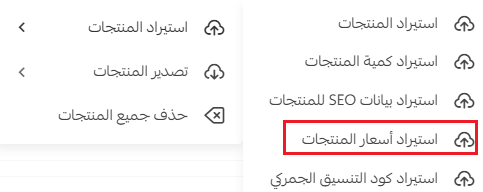
1. From Services, choose Import product prices.
2. On Update existing product prices, click Export price update template.
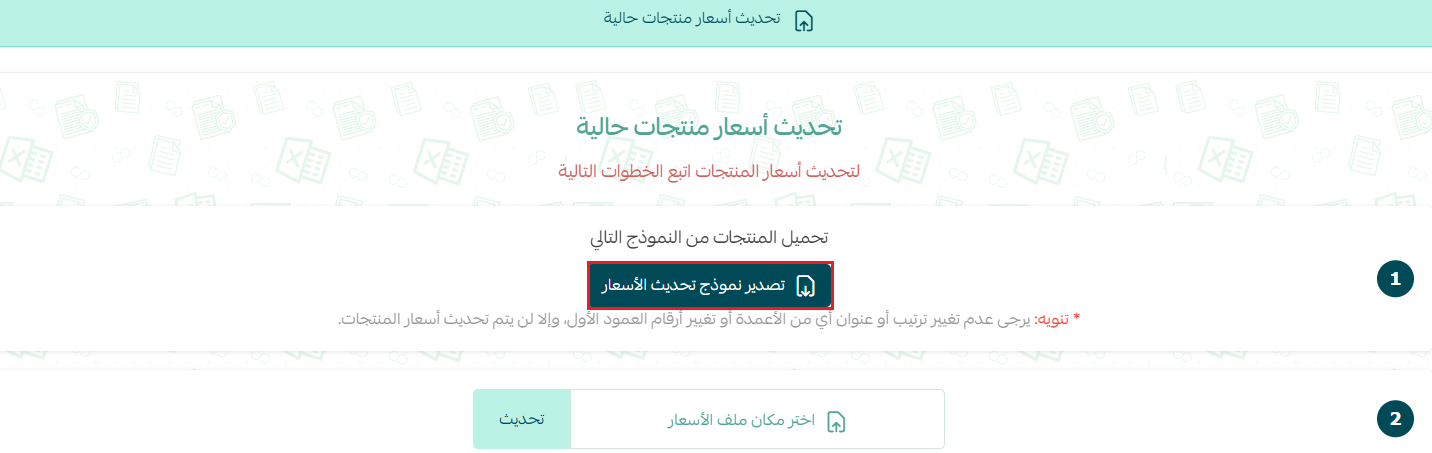
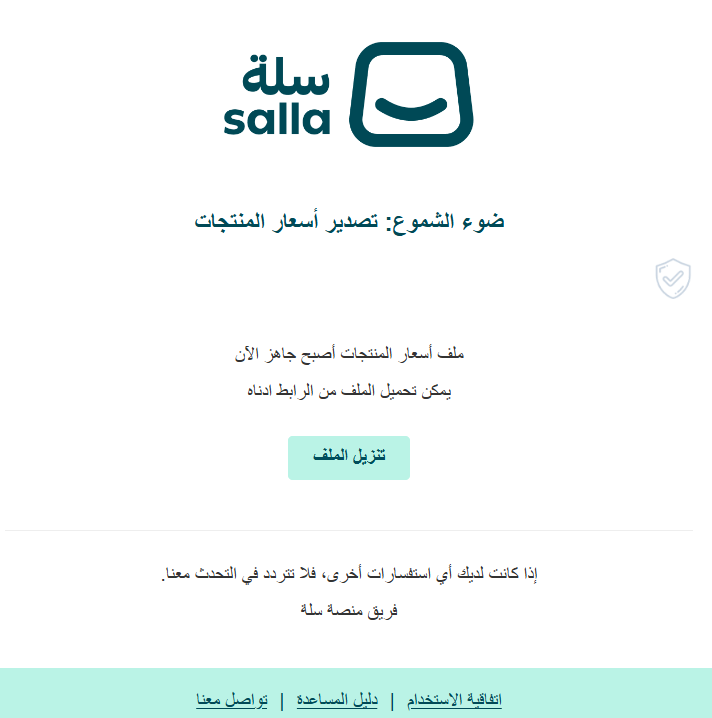
Salla sends the price spreadsheet to the store email address.
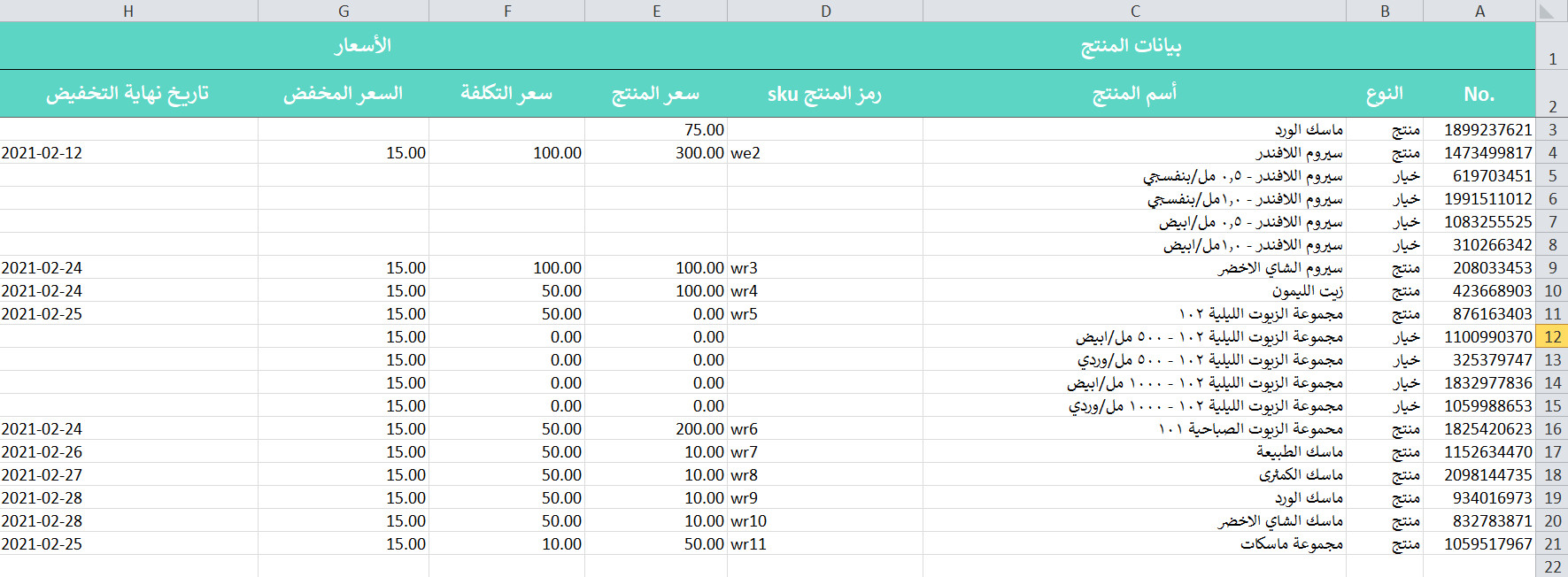
3. Edit the file. The source lists base price, cost, sale price, and discount end date as supported updates.
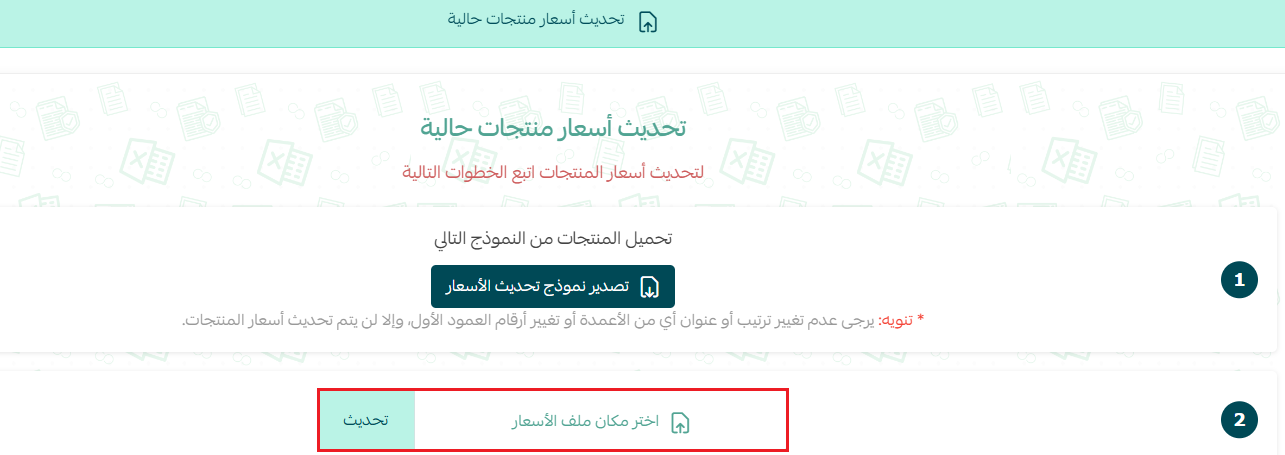
4. Return to Update existing product prices, select the edited file, and click Update.
Allow time for Salla to process the price update.

Bulk update Harmonized System codes
1. From Services and Import products, choose the Harmonized System code update option.
1. من قائمة (خدمات) في صفحة المنتجات، اضغط (استيراد المنتجات).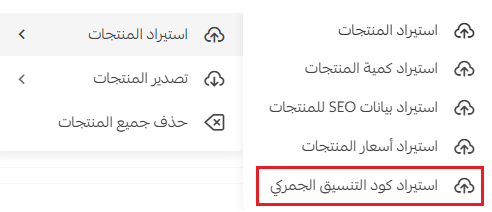
2. On the existing-product HS code page, click Export HS code template.

Track an import update
Click the processing-status message to review progress.

Salla opens the update log.

Discount end dates for product options
The source says individual product options cannot have different discount end dates. They use the discount end date set for the product as a whole.
Optional learning resource
The source links to an Importing from China course.

Frequently asked questions
Do I need to import every product field?
No. Use the dedicated templates when you only need to update quantities, prices, or HS codes.
Where do the update templates arrive?
The source says Salla sends them to the store email address.
How do I follow processing progress?
Click the processing-status message to open the update log.
Can each product option have a different discount end date?
No. The source says options use the parent product's discount end date.