How long does it take you to reprice your jewelry catalog when gold moves?
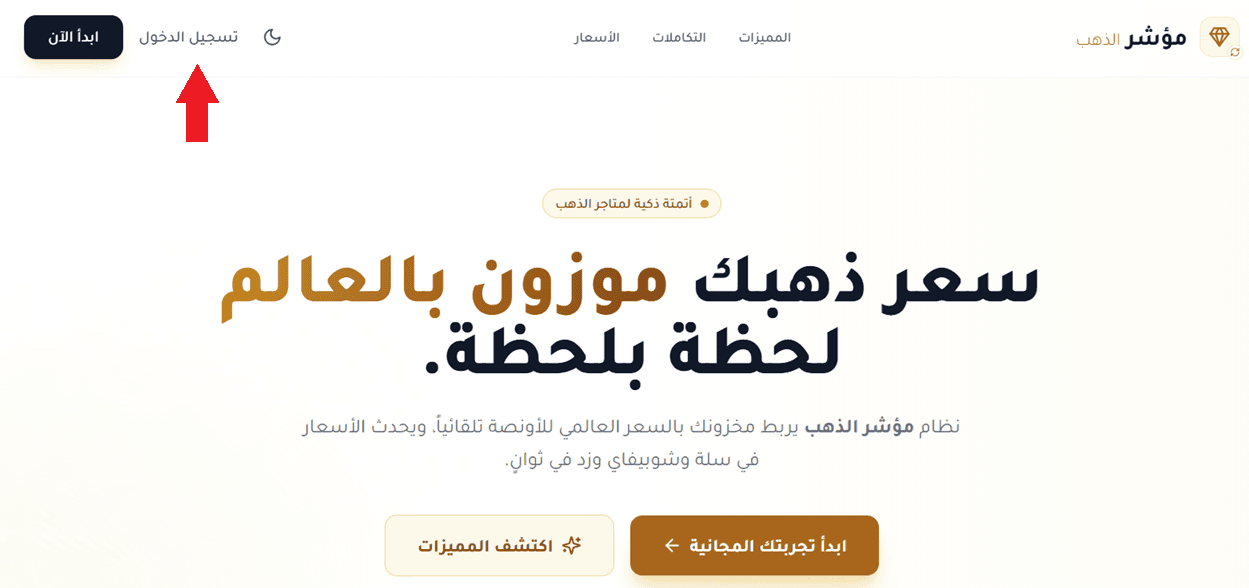
Gold does not sit still, and neither should your prices. For a jewelry store, a few hours of stale pricing is the difference between a healthy margin and selling below cost. The Gold Index app takes that job off your hands: it follows global gold prices and updates your product prices for you, so your catalog always reflects the market and your margin is protected without anyone touching a spreadsheet. It also puts a live price ticker at the top of your storefront so shoppers can see today's rate. In this guide, you'll learn how to install Gold Index, connect it to your store, manage it from the vendor dashboard, upgrade your plan, and remove the app.
Gold Index is a Salla app that follows global gold prices and updates your product prices automatically. Install it from the Salla App Store, choose a plan, complete payment, turn on the price ticker, then sign in to the Gold Index dashboard to manage how your pricing is calculated.
📌 Article overview
- How to connect the Gold Index app to your store
- How to manage the Gold Index app
- Frequently asked questions
👣 How to connect the Gold Index app to your store
1. From the main menu, click (All), then under helper tools click (App Store).

2. Search for the app using the search field.

3. On the Gold Index app page, click (Install).
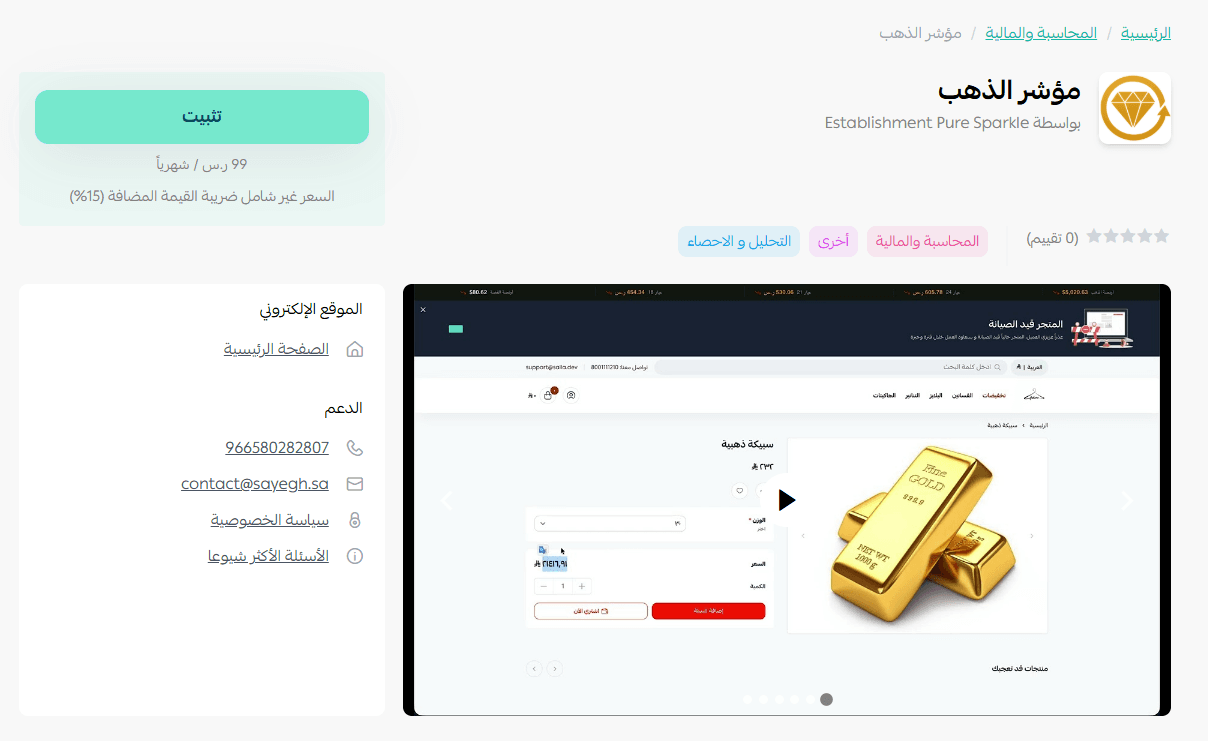
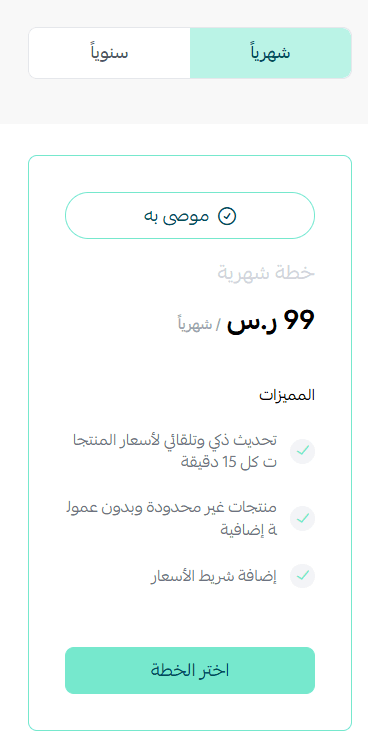
4. Choose the plan that suits you.
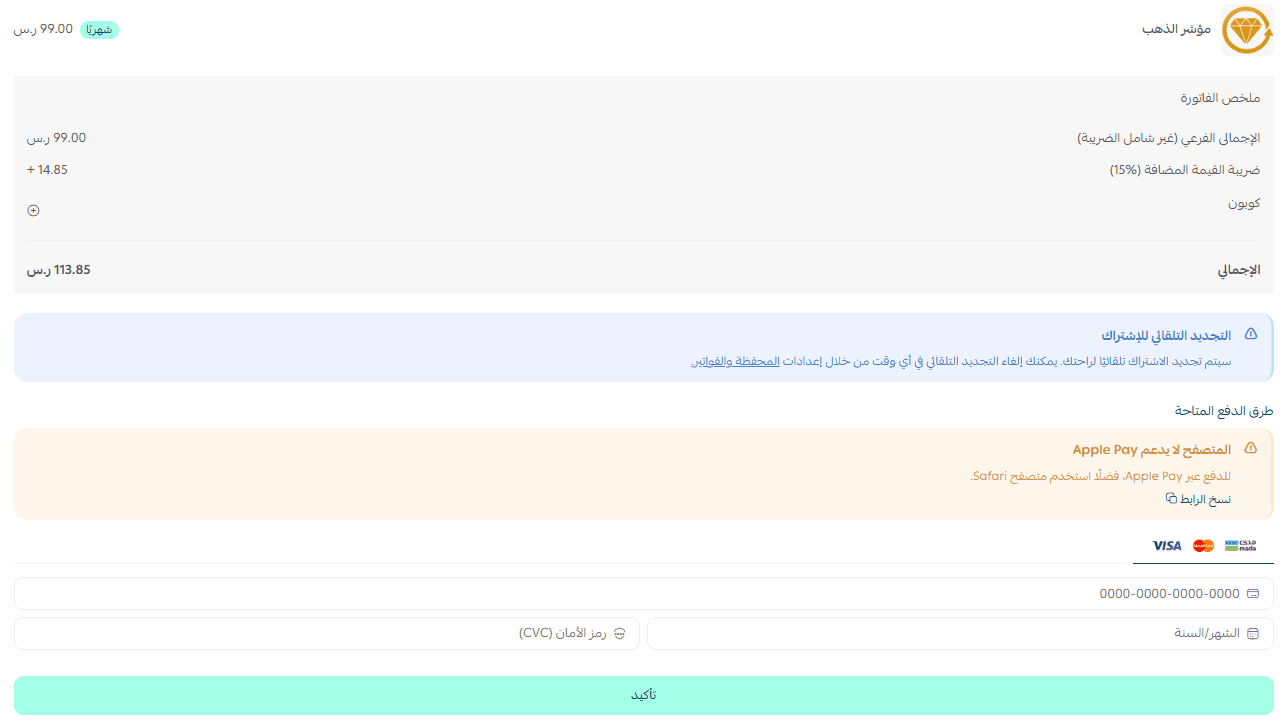
5. Complete the payment details, then click (Confirm).
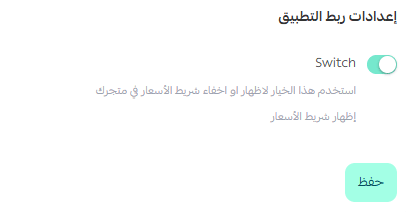
6. Turn on the option that shows the price ticker in your store, then click (Save).

7. Open the email you receive with your login details, then click (Log in to account).
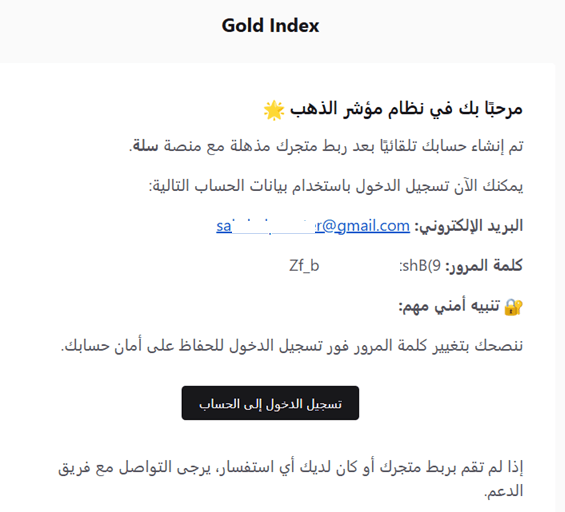
8. Sign in to your account by clicking (Log in).
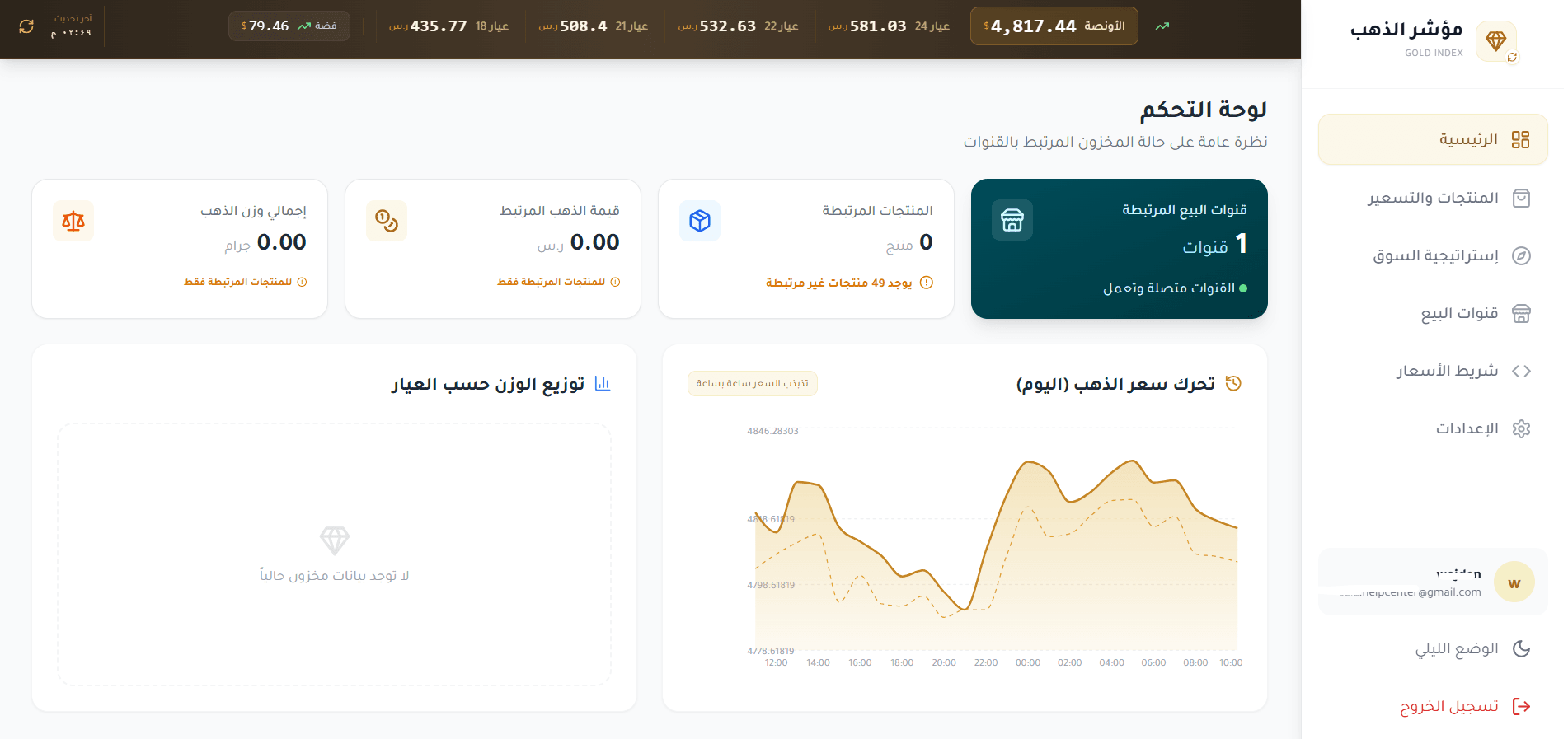
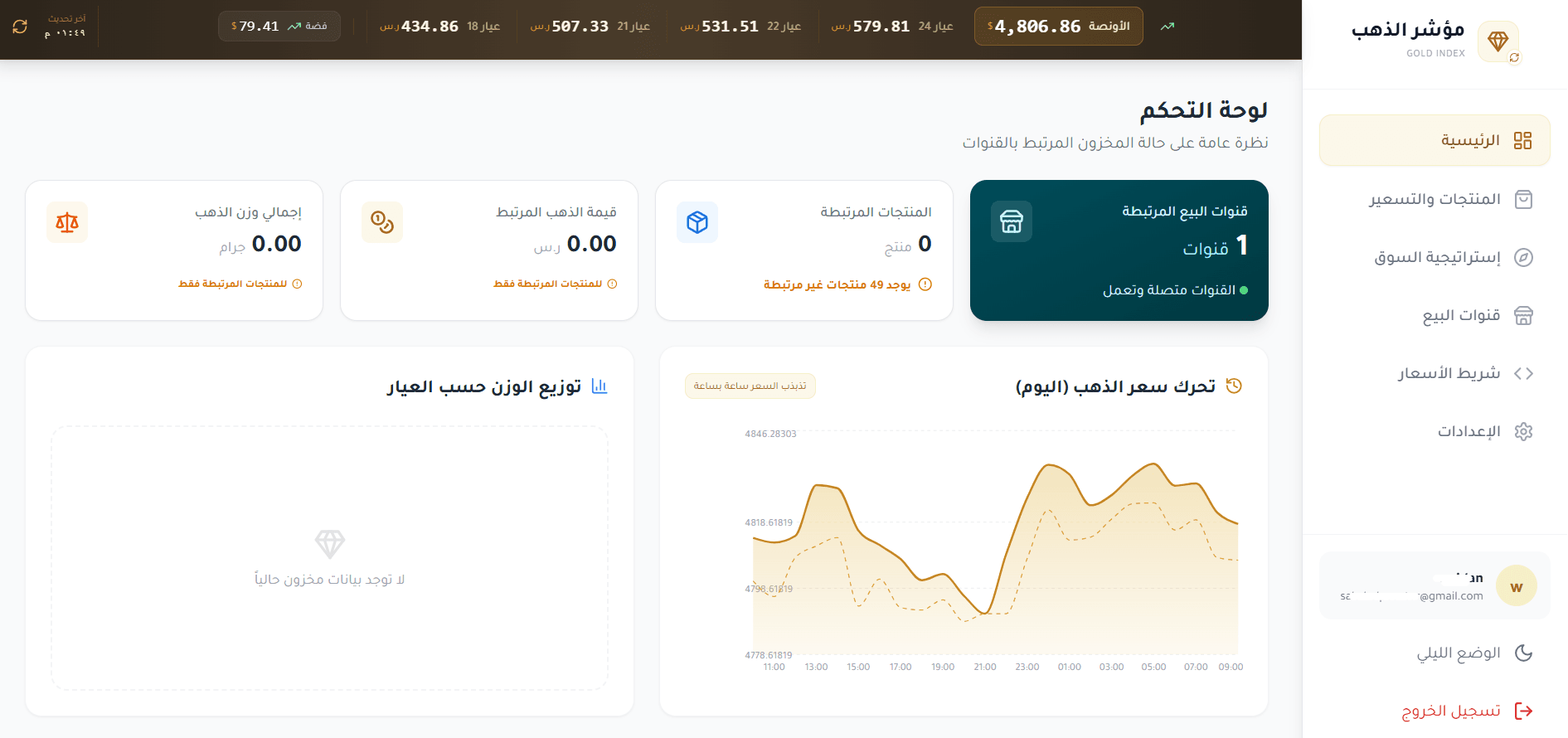
Once you finish signing in, the home page of your Gold Index account opens.
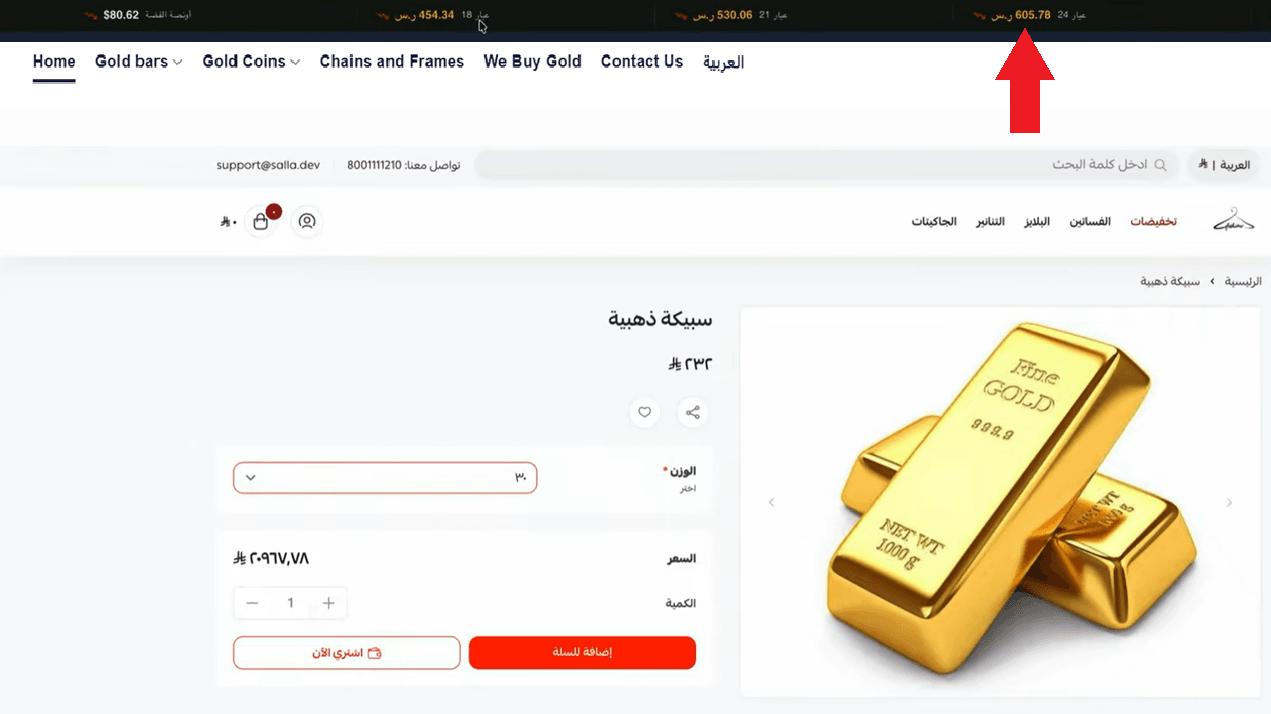
The price ticker then appears at the top of your storefront.
🚀 How to manage the Gold Index app
Upgrade your plan
1. Open the app details page in your store, then click (Upgrade plan).

2. Select the plan you want, then click (Go to payment).

3. Complete the payment details and click (Confirm) to finish the upgrade.

Customize the app
1. Manage the app itself from the control panel on the Gold Index site.
2. Turn the price ticker on or off from the app page inside your store.
Remove the app
1. From the app options menu, click (Cancel subscription) and pick a reason.

2. From the same options menu, click (Delete app) and pick a reason.

3. Open the Deleted apps page, then from the app options menu click (Delete app permanently) to remove it from your store for good.

❓ Frequently asked questions
What does the Gold Index app actually do?
It follows global gold prices and updates the prices of your products to match, so your catalog stays accurate as the market moves and your margin stays protected without manual edits.
Do I need a separate Gold Index account?
Yes. After you install the app and complete payment, login details arrive by email. Use them to sign in at the Gold Index site, where the app's control panel lives.
What is the price ticker?
It is the live gold price bar that appears at the top of your storefront. You switch it on during setup and can turn it on or off later from the app page inside your store.
Can I change my plan after installing?
Yes. Open the app details page in your store, click (Upgrade plan), select the plan you want, and complete the payment.
What is the difference between canceling and deleting the app?
Canceling ends your subscription. Deleting moves the app to the Deleted apps page, where it stays until you choose (Delete app permanently).
Automatic repricing is only worth it if you trust the source and check the result. Install Gold Index, watch the first few price updates against your own numbers, and once they line up you can leave the market to update your catalog for you. For more details, see the Gold Index app page.