An app you're connecting is asking for your app signing key, and you have no idea where Google keeps it?
The App signing key certificate is the credential Google uses to sign the optimized APKs it generates from your app bundles. Play App Signing stores that key on Google's secure infrastructure and offers upgrade options for extra security, and several integrations ask you for its fingerprint before they will talk to your app. In this guide, you'll learn who can access the key, how to find it in Google Play Console, and which value to copy.
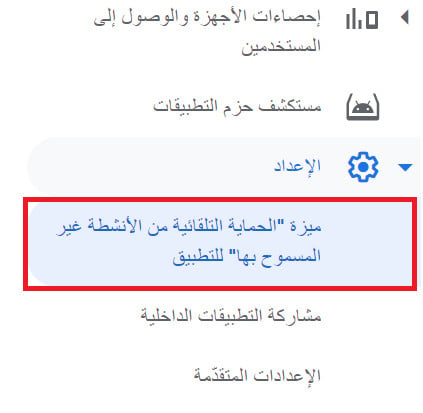
To get your App signing key certificate, sign in to Google Play Console, open (All apps) and select your app. From the app dashboard, click (Setup), then (App integrity). On the (App signing) tab, find (App signing key certificate) and copy the (SHA-256 certificate fingerprint).
📌 Article overview
- What the App signing key certificate is
- How to get your App signing key certificate
- Frequently asked questions
🎯 What the App signing key certificate is
Google signs the optimized and distribution APKs built from your app bundles with your app signing key. Play App Signing keeps that key on Google's secure infrastructure so it cannot be lost or leaked, and gives you upgrade options if you need stronger security later. What you share with other services is not the key itself but its certificate fingerprint.
📝 Important notes
To work with the key you must be the account owner, or a user with the release to production, exclude devices, and use Play App Signing permissions.
You also need to accept the Play App Signing terms of service.
🚀 How to get your App signing key certificate
1. Go to Google Play Console, then click (Go to Play Console).
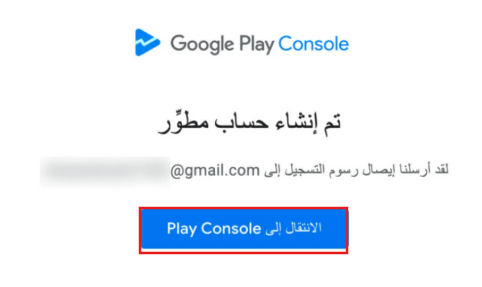
2. Select the account registered with Google Play Console, then enter your password.
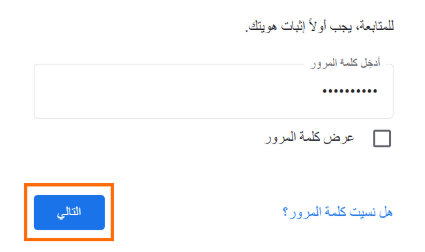
To change the interface language, pick the language you want from the language list.
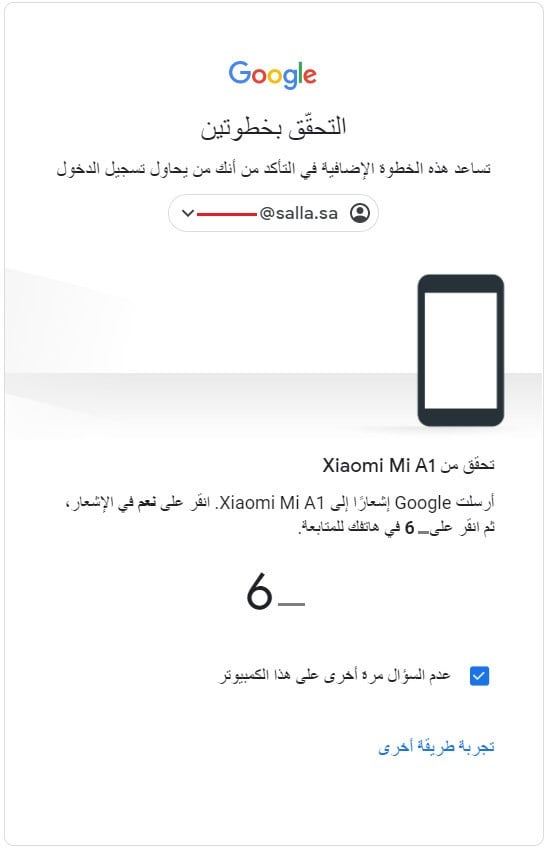
3. Complete the phone verification for the number linked to your account: click (Yes), then type the number shown on the account, as in this example.
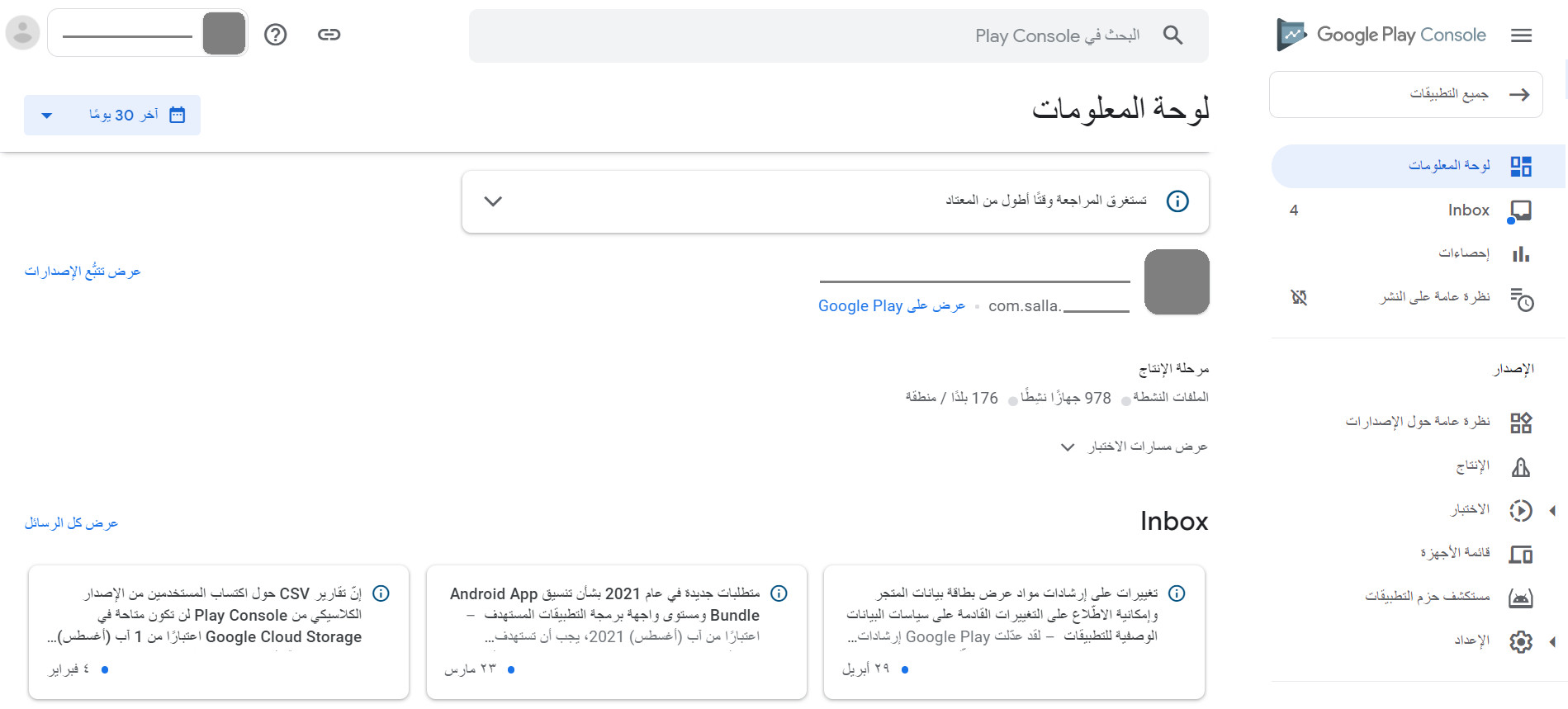
4. From the side menu of Google Play Console, click (All apps) to list the apps linked to your account, then select the app you need.
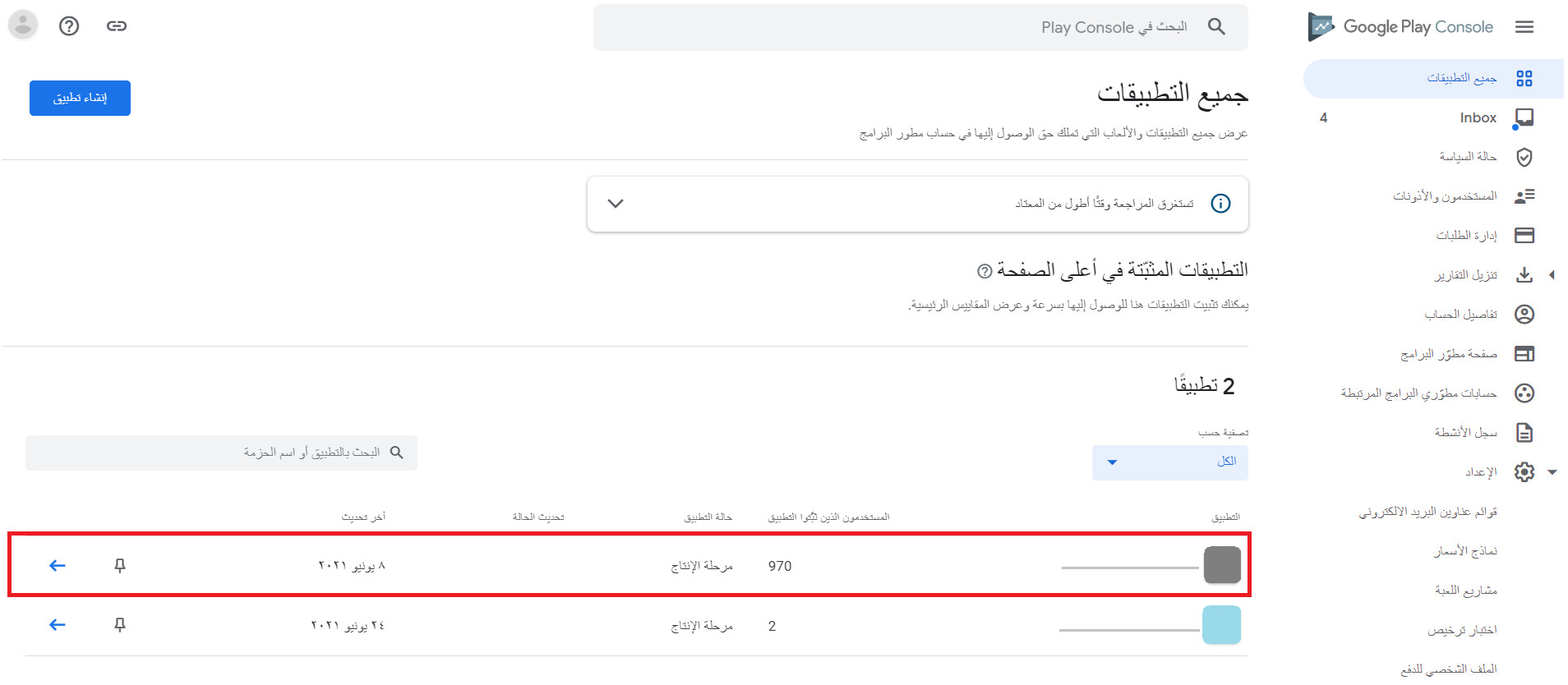
5. The app's page opens in Google Play Console, as shown below.
6. From the app dashboard, click (Setup), then click (App integrity).
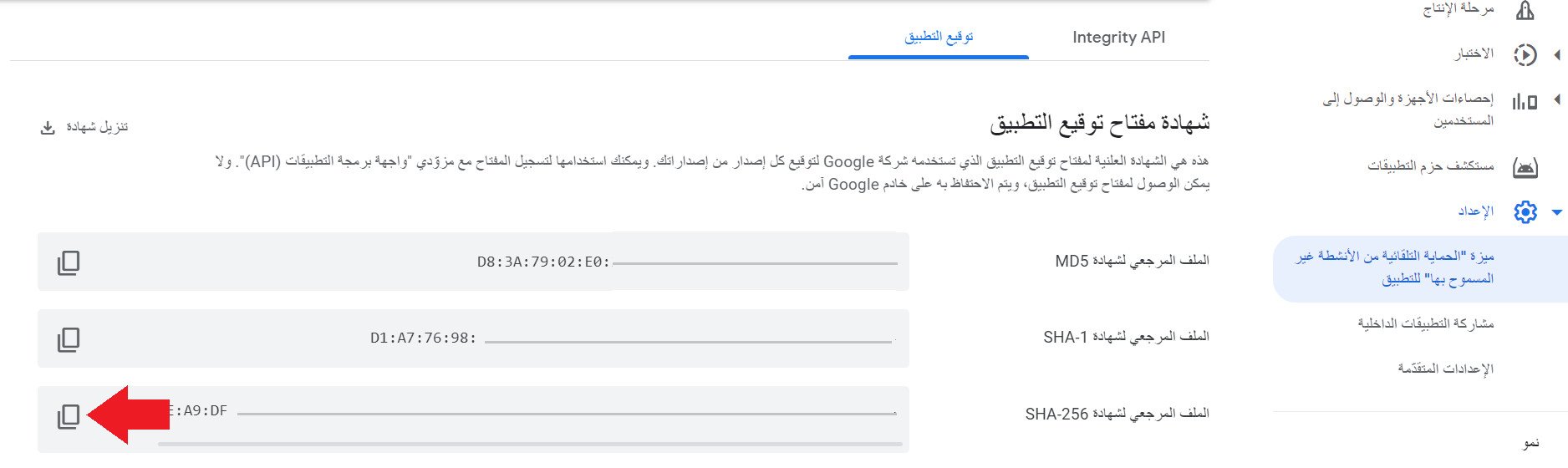
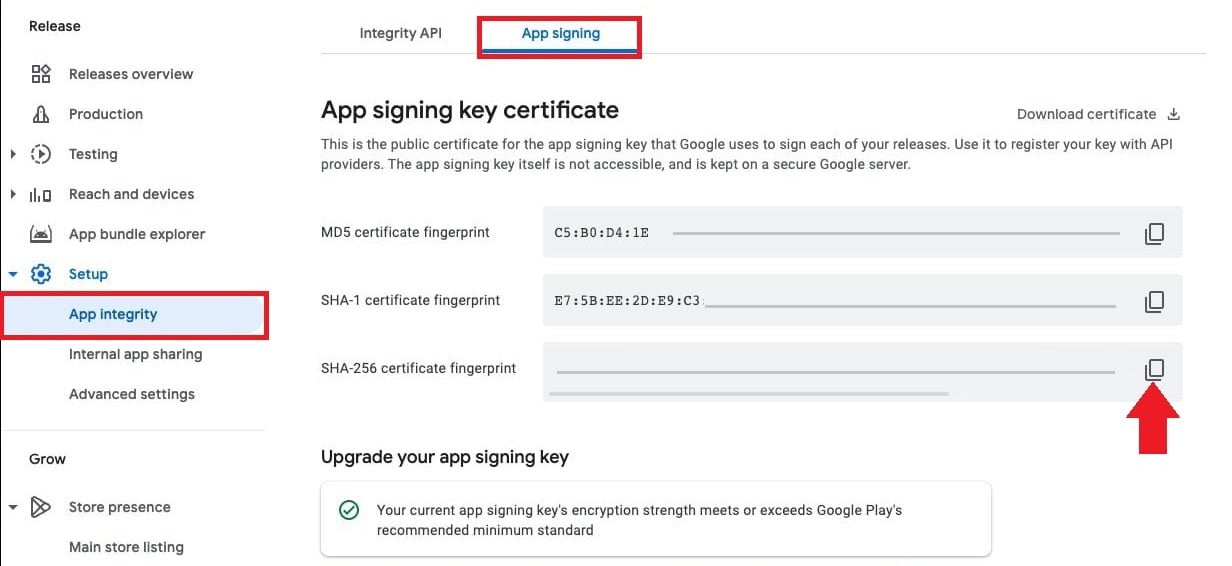
7. On the (App signing) tab, under (App signing key certificate), copy the (SHA-256 certificate fingerprint).
The screenshot below shows the same section when the Play Console interface is set to English.
❓ Frequently asked questions
Which apps and features need the App signing key certificate?
Several integrations ask for this key. The first one most merchants meet is AppsFlyer, which uses it to measure the returns on your ad campaigns.
Who can view the App signing key certificate?
The account owner, or a user who has the release to production, exclude devices, and use Play App Signing permissions. The account also has to have accepted the Play App Signing terms of service.
Which value do I actually copy?
Copy the SHA-256 certificate fingerprint shown under (App signing key certificate) on the (App signing) tab. That fingerprint is what other services ask for, not the key itself.
Google holds the key so you never have to. Your job is simply to know where the fingerprint lives, because the next integration that asks for it will not tell you where to look.