How many customer questions arrive after your team has gone home?
Shoppers ask before they buy, and the answer they wait too long for is often the sale you lose. The Gabster app puts an AI assistant on your Salla store that reads customer messages and replies to them instantly, in your own words, around the clock. In this guide, you'll learn how to connect the Gabster app to your store, how to activate it with your account keys, and how to upgrade or remove it later.
Gabster is an AI platform that answers your customers' messages and questions instantly. You install it from the Salla App Store, choose a plan, then connect it to your store using a Chatbot ID and API Key from your Gabster account. Replies then run automatically, day and night.
📌 Article overview
- How to connect the Gabster app
- How to manage the Gabster app
- Frequently asked questions
👣 How to connect the Gabster app
1. From the main menu, click (All), then under helper tools click (App Store).

2. Search for the app using the search field.

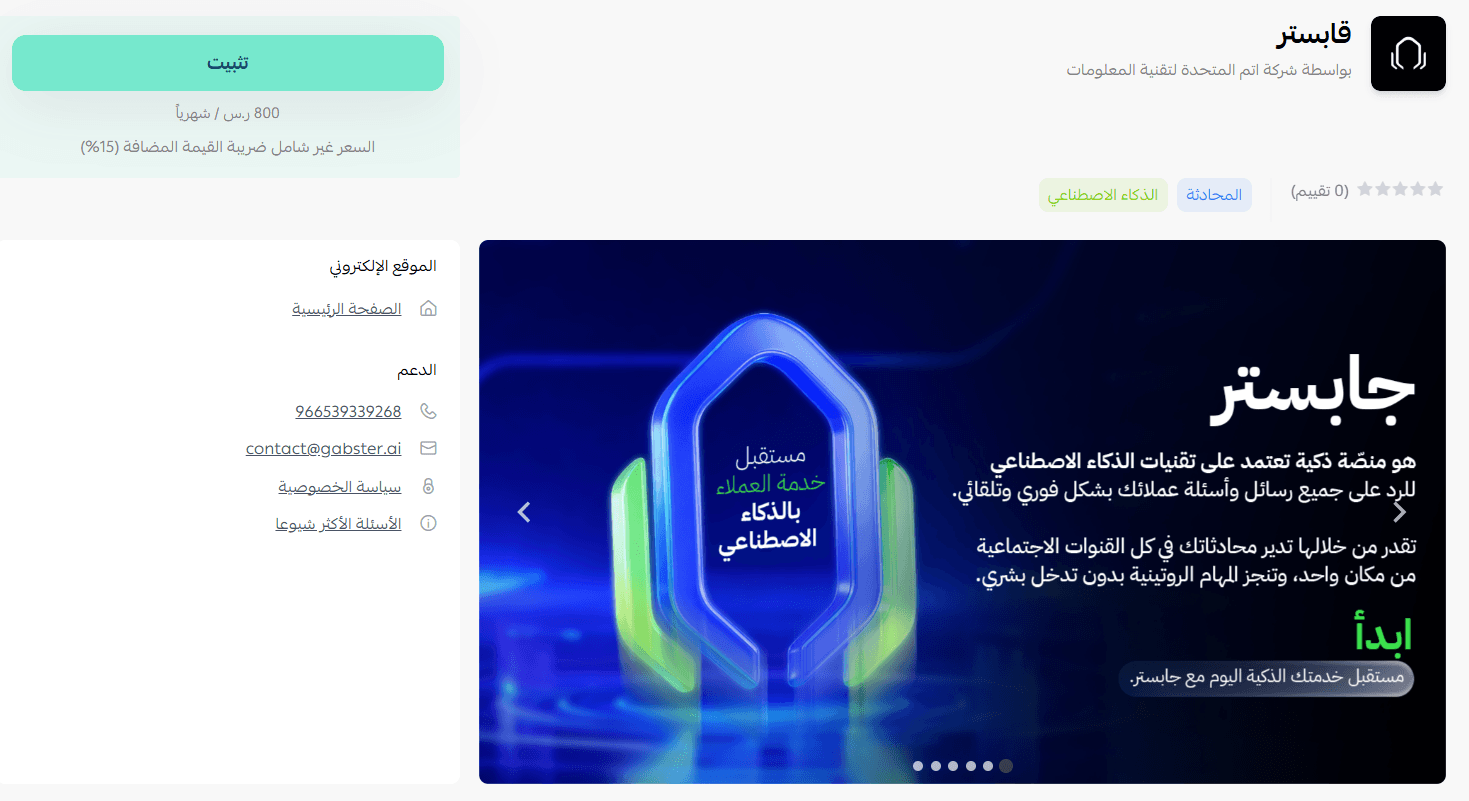
3. On the Gabster app page, click (Install).
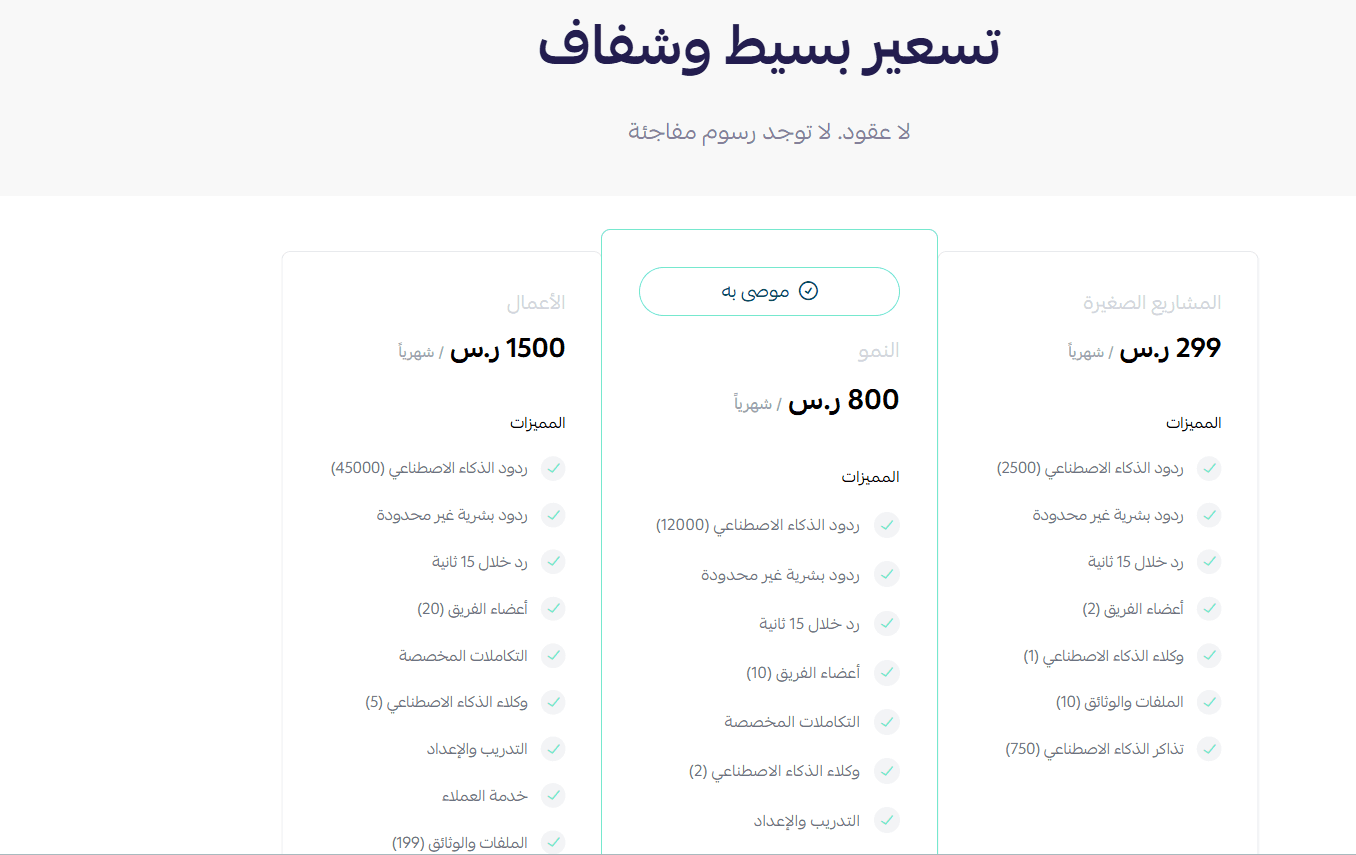
4. Choose the plan that fits your business to continue with the installation.
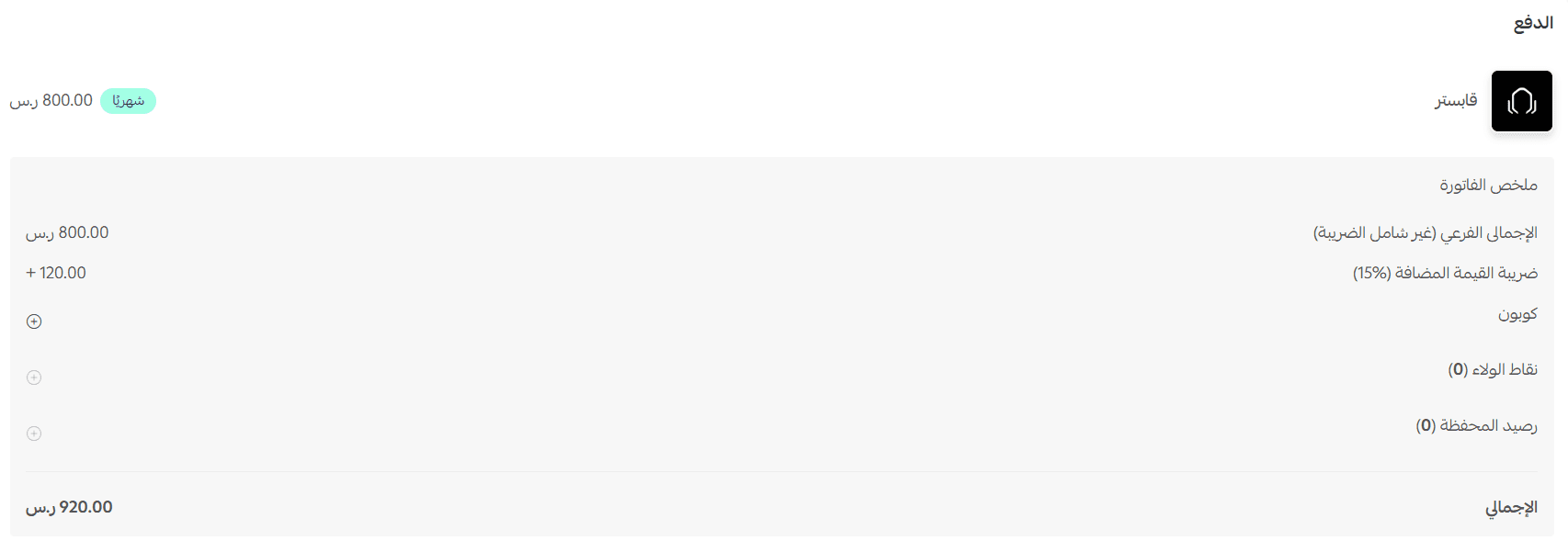
5. Complete the payment, then click (Confirm).
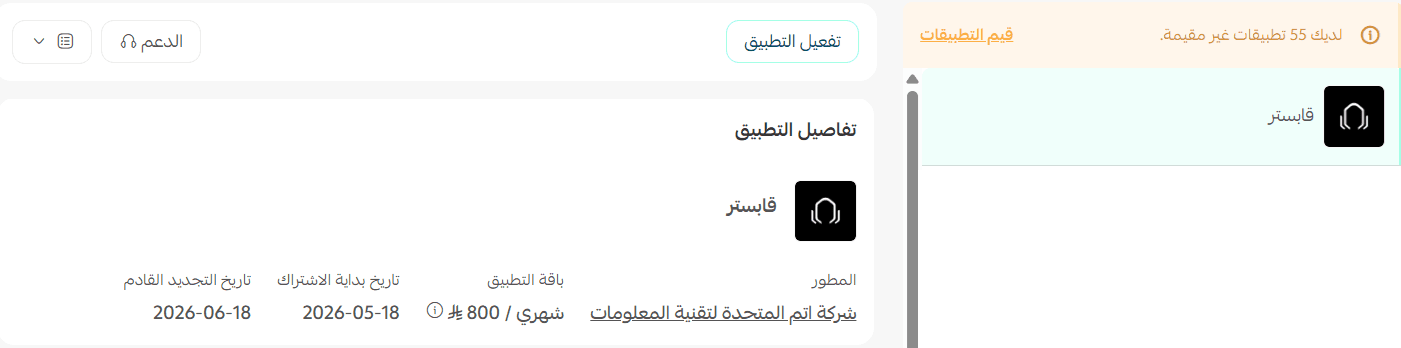
🎉 Congratulations — the app is installed.
🚀 How to manage the Gabster app
Upgrade your plan
1. From the app details page in your store, click (Upgrade plan).

2. Choose the plan you want, then click (Go to payment).

3. Enter your payment details, then click (Confirm) to complete the upgrade.

Activate the app
1. From the app page, click (Activate app).
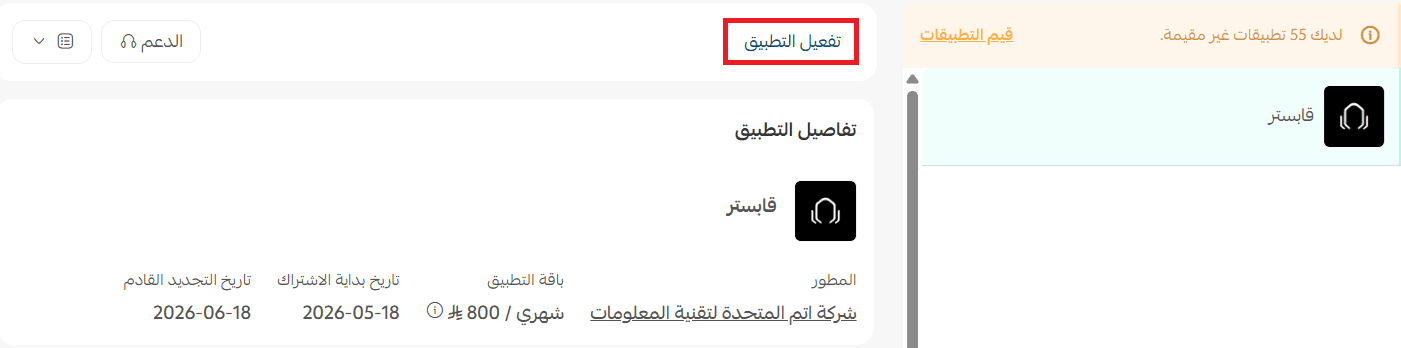
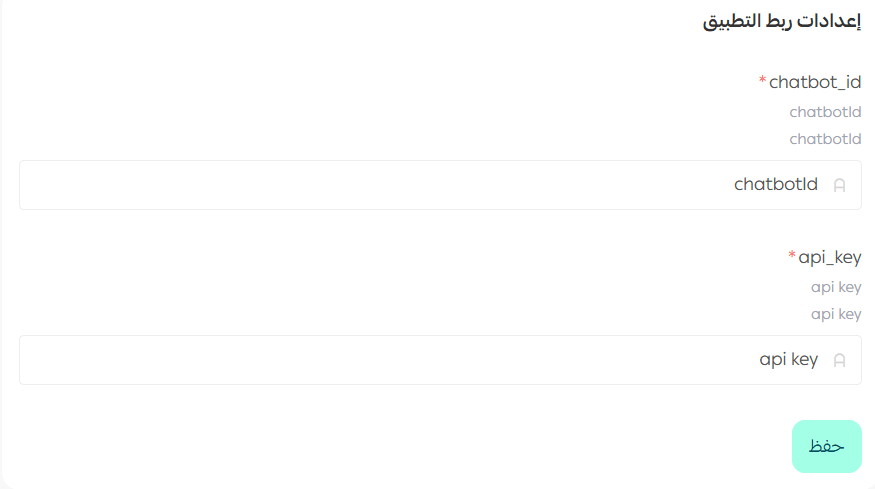
2. Enter the connection details: your Chatbot ID and API Key, then click (Save) to finish the connection.
📝 Note: You'll find both the Chatbot ID and the API Key in your account on the Gabster website.
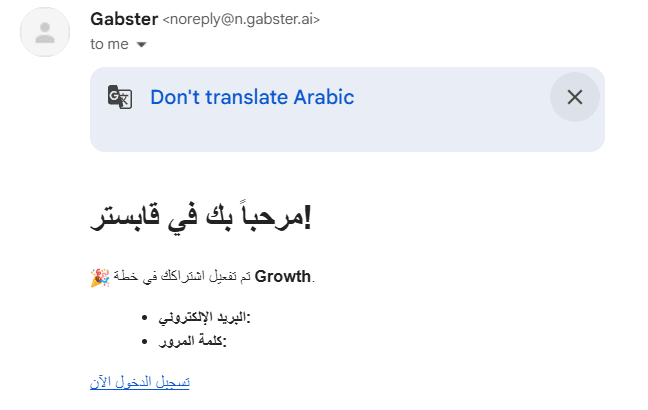
3. Open the email you receive with your login details, then click (Log in now).
4. Enter the email address and password for your account to complete the login.
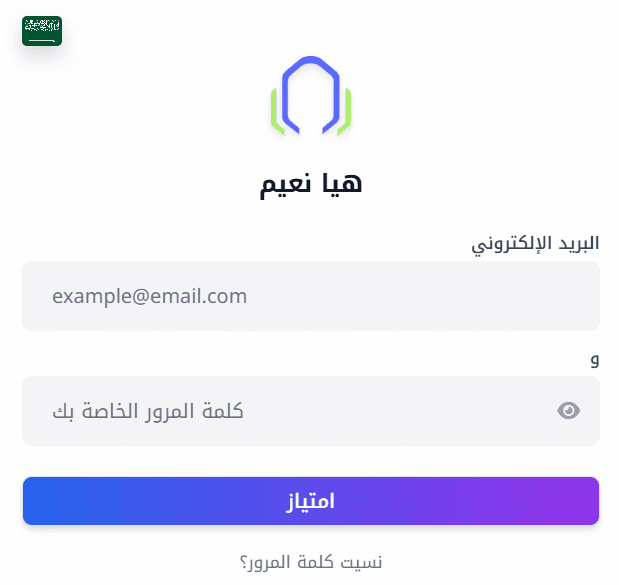
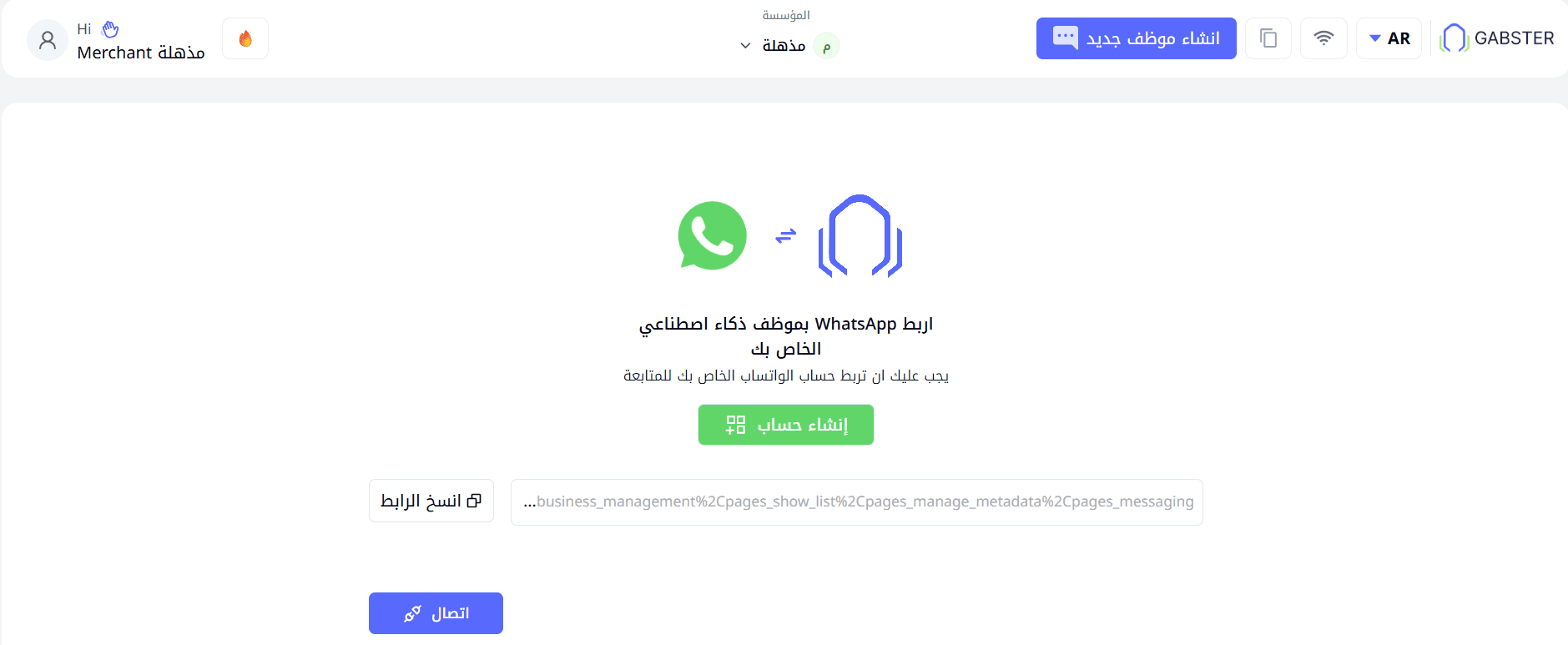
Once you're logged in, your Gabster dashboard opens.
Remove the app
1. From the app options menu, click (Cancel subscription), then choose a reason for cancelling.

2. From the app options menu, click (Delete app), then choose a reason for deleting.

3. Open the deleted apps page, then from the app options menu click (Delete app permanently) to remove it from your store for good.

📝 Important notes
- Installing the app is a paid step. You choose a plan and pay before the app is added.
- The app only starts replying once you enter the Chatbot ID and API Key.
- Cancelling the subscription, deleting the app, and deleting it permanently are three separate actions.
❓ Frequently asked questions
What does the Gabster app do?
It replies to your customers' messages and questions automatically, using AI, so nobody waits for an answer.
Where do I find my Chatbot ID and API Key?
In your account on the Gabster website. Copy both into the app's activation screen, then save.
Do I get login details for Gabster itself?
Yes. After you connect the app, an email arrives with your login details and a (Log in now) button.
Can I change my plan later?
Yes. Open the app details page in your store, click (Upgrade plan), pick a new plan, and complete the payment.
How do I remove the app completely?
Cancel the subscription, delete the app, then delete it permanently from the deleted apps page.
For more details, visit the Gabster website.