Flash Box allows you to create smart and impactful pop-ups that help increase conversion rates and drive more sales in your online store.
The app enhances customer targeting through personalized messages and offers that appear at the right time and place within your store, improving the effectiveness of your marketing campaigns and boosting customer engagement.
📌 Article overview
- Flash Box app features
- Steps to install and activate the Flash Box app
- Managing the Flash Box app
Flash Box app features
Flash Box offers a comprehensive set of features to help you create and manage promotional pop-ups with flexibility:
- Popup builder
Create pop-ups and promotional banners using a drag-and-drop builder—no coding required. - Customizable ready-made templates
Choose from a variety of pre-designed templates and customize colors, images, text, and buttons to match your store’s branding. - Smart targeting
Control when and where pop-ups appear, and target users based on location, device type, and language to maximize campaign effectiveness. - Dynamic displays
Show recent reviews or orders automatically to build trust and encourage faster purchase decisions. - Seasonal templates
Activate ready-made campaigns for occasions like Back to School, National Day, or Black Friday, with regularly updated designs.
Key benefits:
- Boost sales through smart pop-up campaigns
- Improve visitor experience and convert them into customers
- Full control over design and targeting
- Continuous updates with new templates added regularly
Steps to install and activate the Flash Box App
- From the main menu, click All, then under Tools, select App Store.
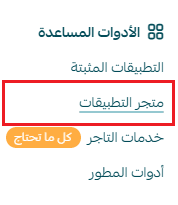
- Search for the app using the search bar.

- From the Flash Box – Marketing Notifications app page, click install.
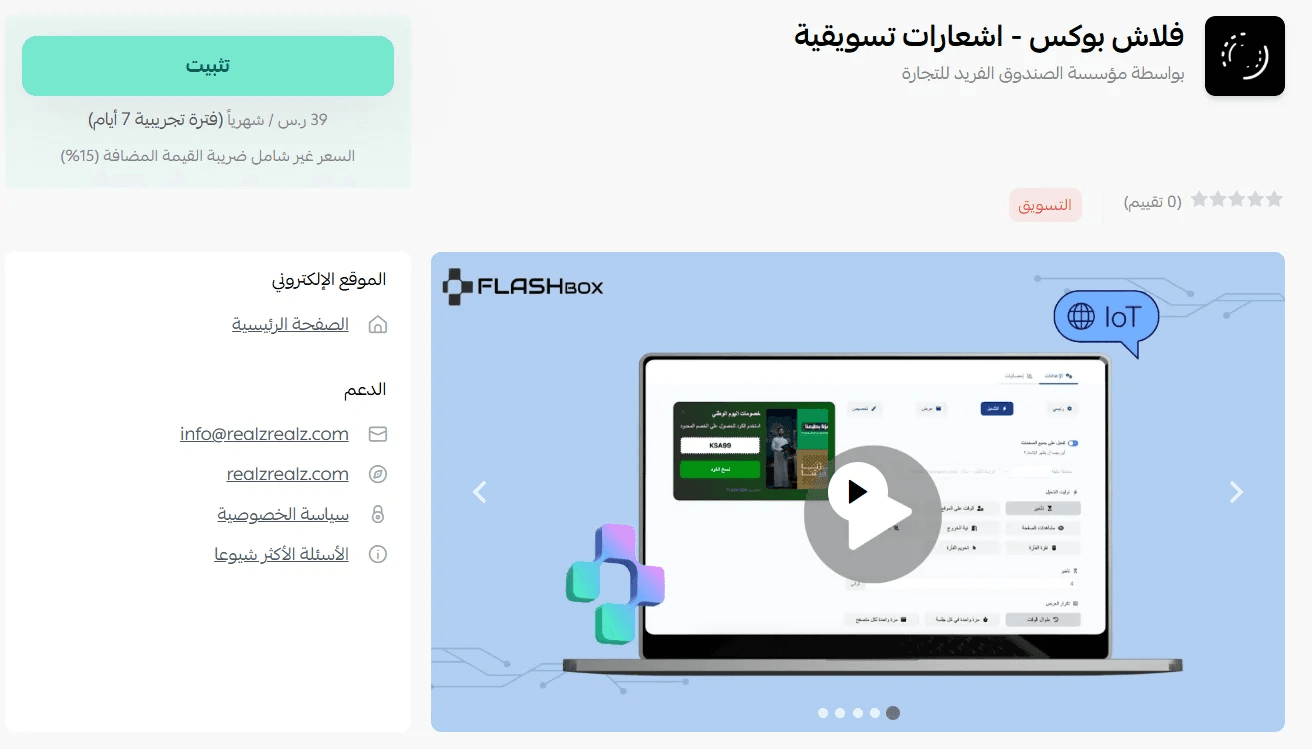
- The Flash Box app is now successfully installed on your store.
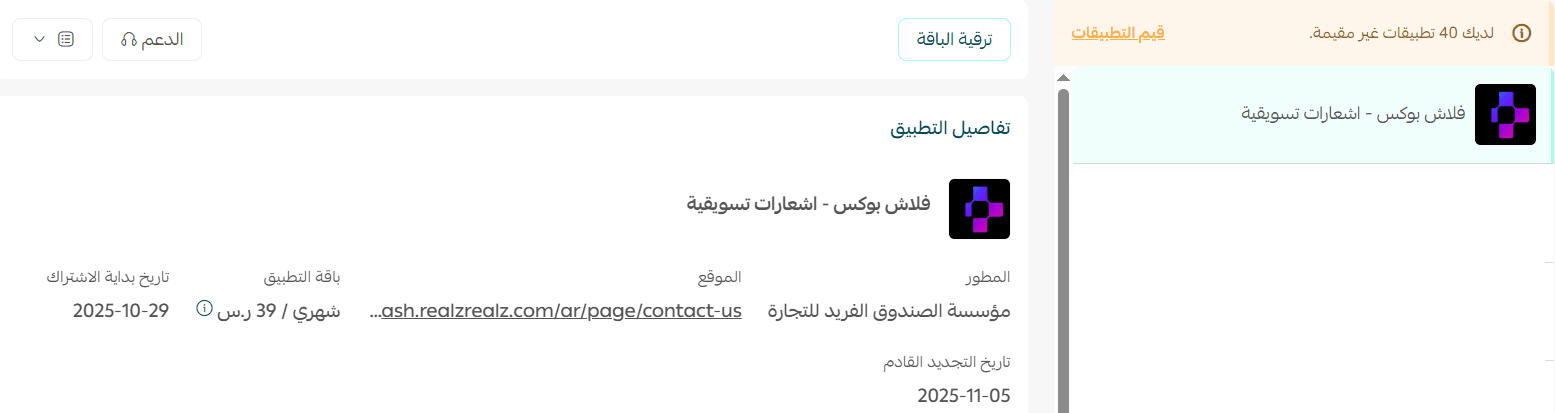
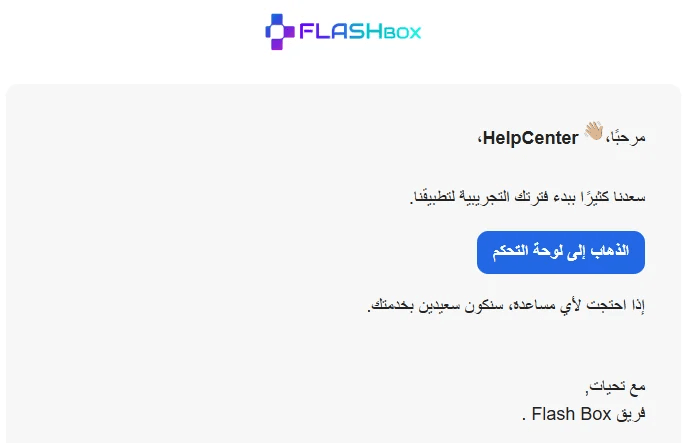
- After installation, you will receive an email directing you to the Flash Box dashboard.
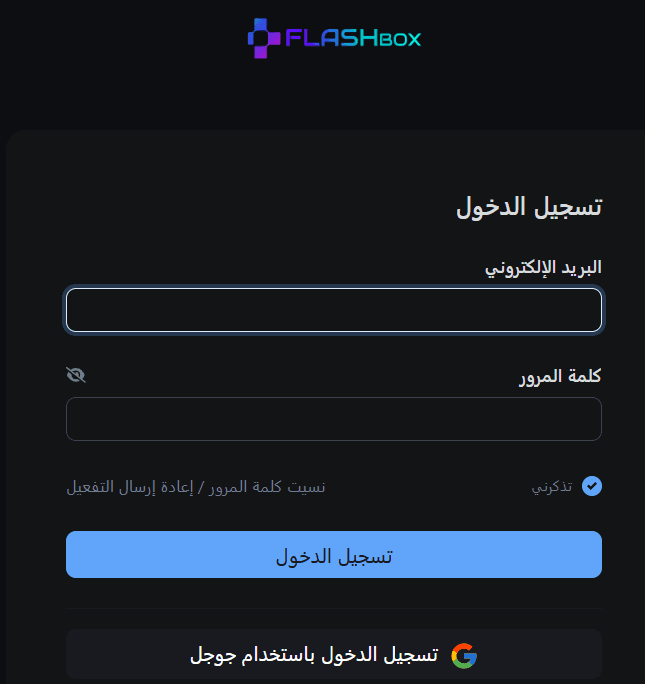
- Log in using your Google account.
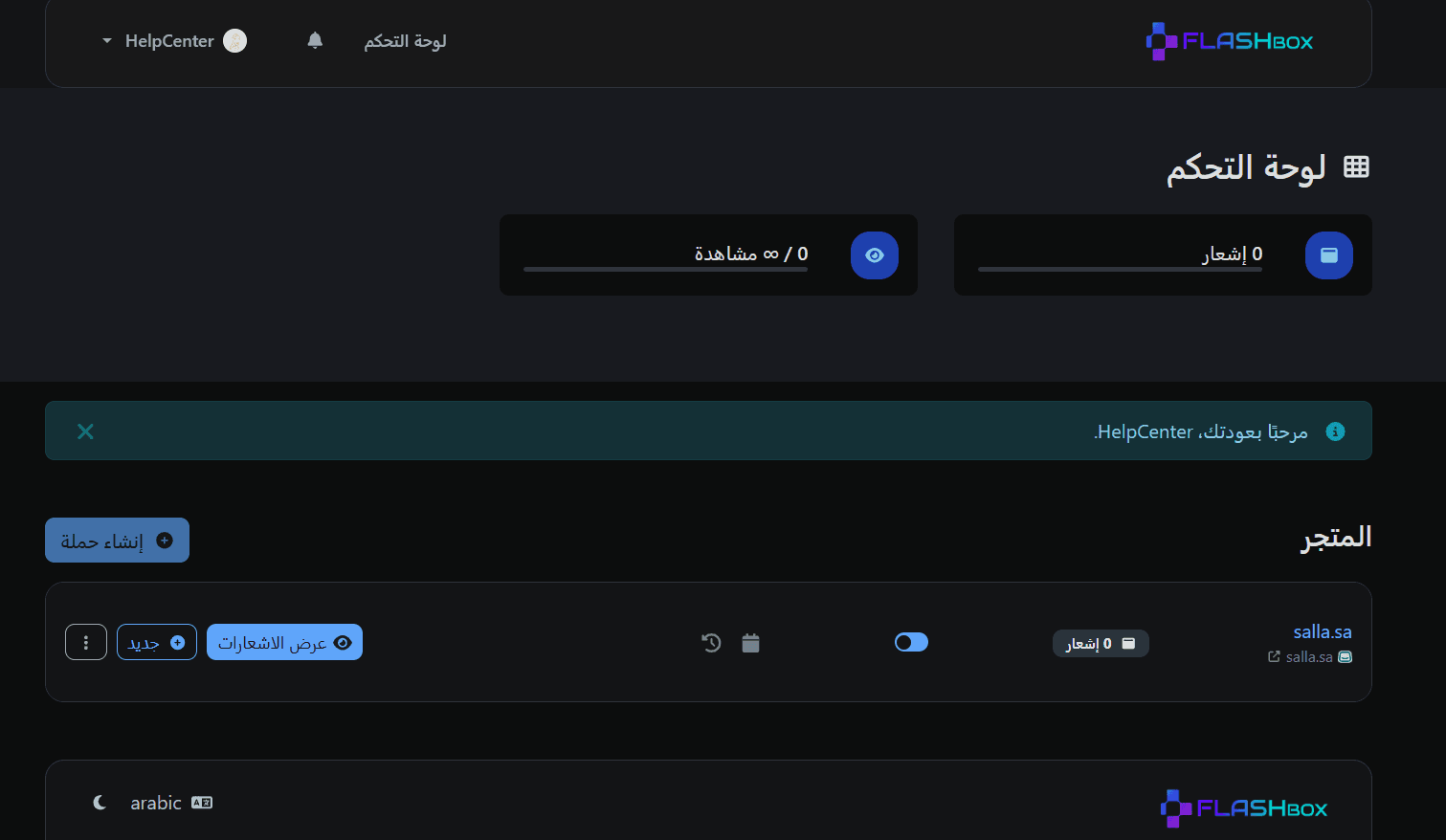
- Once logged in, you will be redirected to the dashboard homepage.
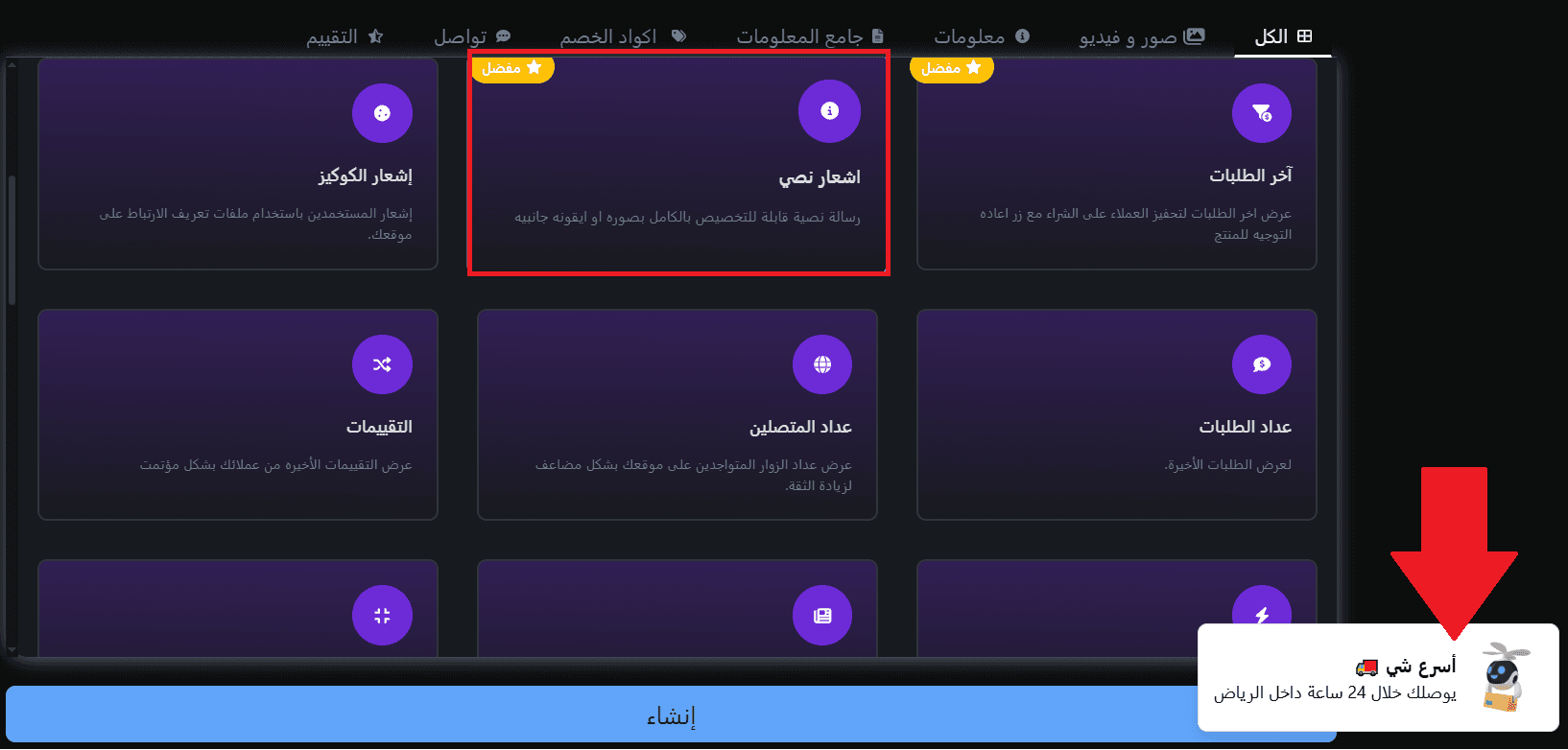
- Click New, select the type of notification you want, then click create.
📝 Note: When you select a notification, a live preview will appear so you can see how it will look to your customers.
Managing the Flash Box App
Upgrade plan
- From the app actions menu, click upgrade plan.

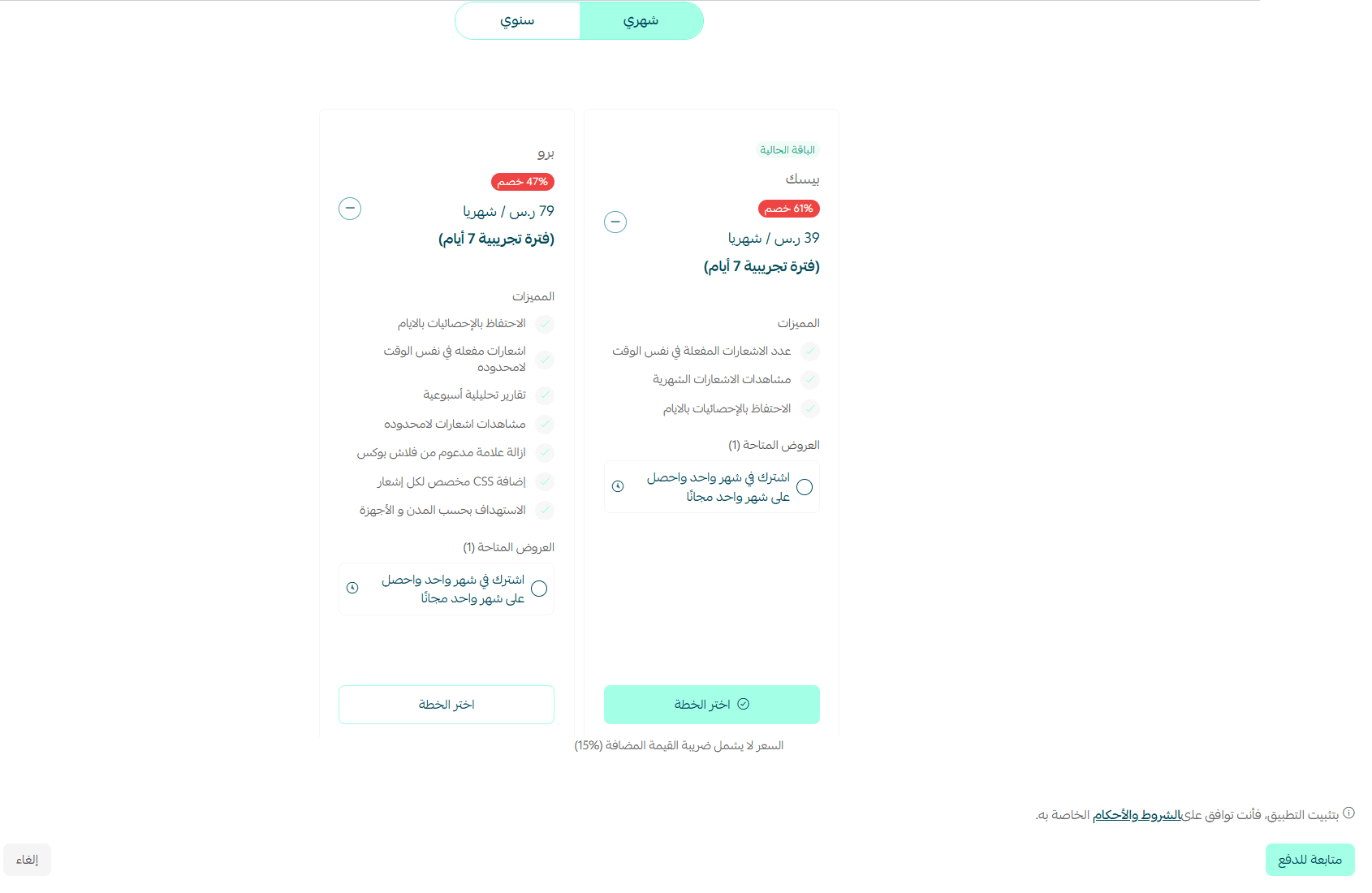
- Choose the plan that suits your business, then click proceed to payment.
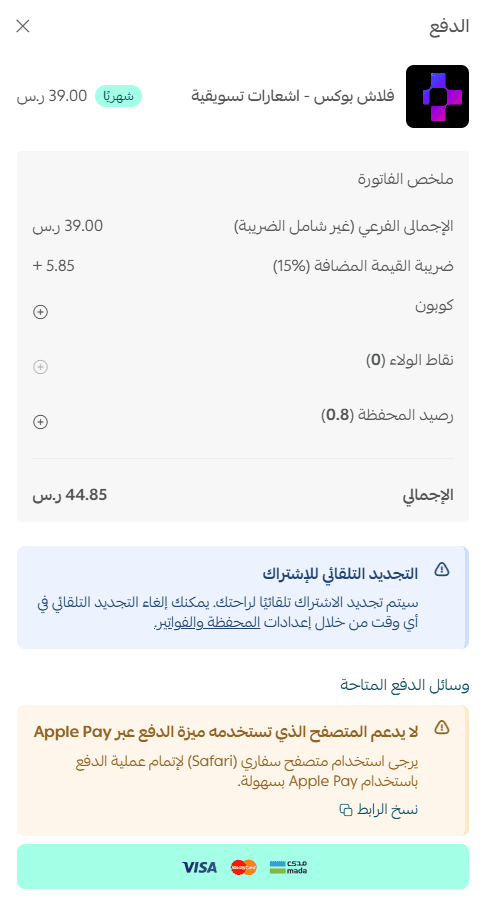
- Complete the payment process.
Delete the app
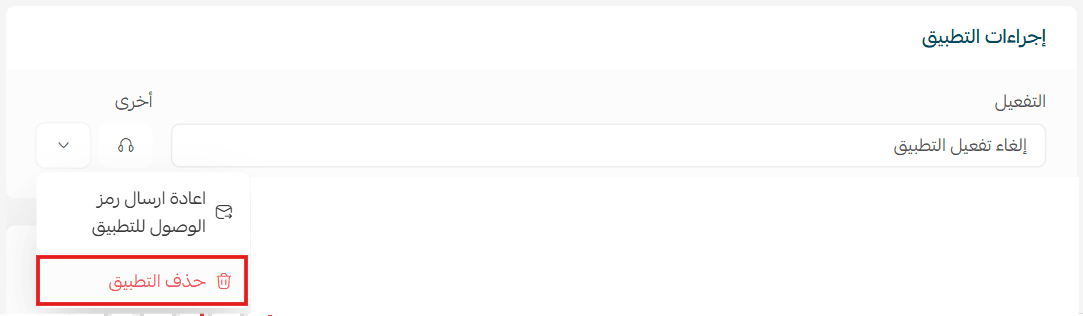
- From the app options menu, click unsubscribe.
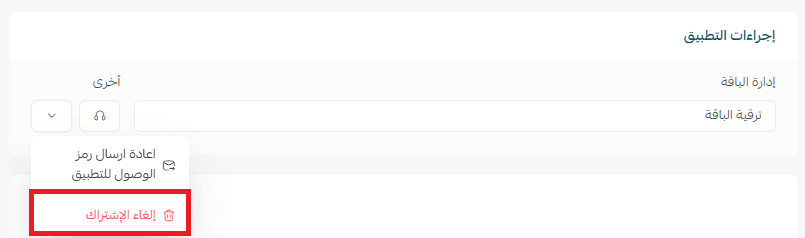
- From the same menu, click delete app.