Looking for a way to work on just one slice of your catalog instead of scrolling through every product?
As your store grows, the products page gets crowded, and finding the exact items you want to review becomes slow. Product filtering narrows the list down to only the products that match the conditions you set, so you can review them or run an action on precisely that group. In this guide, you'll learn how to filter products on Salla, combine multiple conditions, reset or cancel a filter, and export the results to Excel.
To filter products on Salla, open (Products) from the side menu of your dashboard, click (Filter), select the conditions you want — such as products available for sale that require shipping — then click (Show results). The page then lists only the products that meet every condition you set.
📌 Article overview
- What product filtering does
- How to filter your products
- Frequently asked questions
🎯 What product filtering does
Filtering shows only the products you want to see, so you can review them or apply a specific action to that exact group — without touching the rest of your catalog. Salla offers several filtering options, and you can combine them to match exactly what you're looking for.
👣 How to filter your products
1. From the side menu of your dashboard, click (Products).

2. From the products page, click (Filter).

3. Select the filter conditions from the list — for example, show products that are available for sale and require shipping.
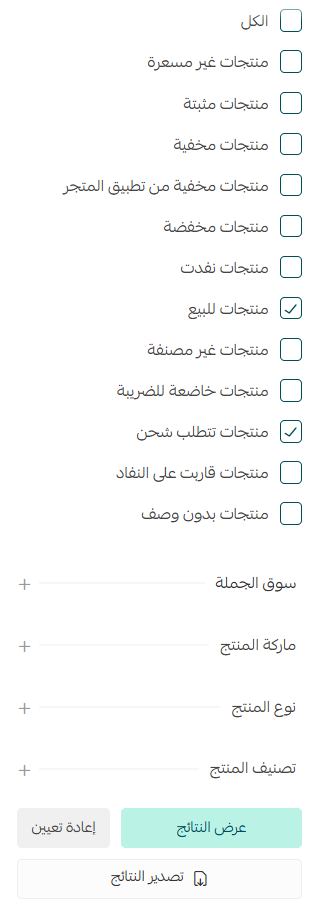
4. Click (Show results) to display all the products that meet your filter conditions.

❓ Frequently asked questions
Can I apply more than one condition to a filter?
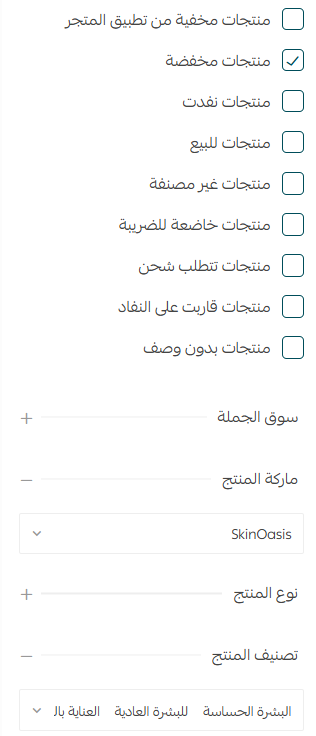
Yes, you can combine several conditions, from more than one group, depending on what you need.
💡 Example: Show discounted products from a specific brand that belong to several categories.
How do I apply different filter conditions from the ones I just used?
From the filter page, click (Reset).

Then select the conditions you want and click (Show results).
How do I cancel the filter and go back to the full products page?
Click the (X) next to the word "Filter", as shown here:

Can I export the results to an Excel file?
Yes. After setting your filter conditions, click (Export results).

An Excel file containing the filtered products will be sent to you.
Filtering turns your products page from a long list into a working tool — set the conditions once, act on exactly the products that matter, and export the result whenever you need it outside Salla.