How many of your returns are just the wrong size?
In fashion, sizing is the single biggest reason a customer sends an item back. FashionVue is an AI app that gives shoppers a size prediction before they buy: the customer enters their measurements once and gets a size recommendation for your products. Fewer sizing mistakes means fewer returns and more confidence at checkout. In this guide, you'll learn how to install FashionVue, sign in to its dashboard, choose which categories show the size button, see what your customers experience, and remove the app if you need to.
FashionVue is an AI size prediction app for fashion stores on Salla. Shoppers enter their measurements once and receive a recommended size on the product page, which cuts returns caused by wrong sizing. You install it from the App Store, choose a plan, then control where the size button appears from the FashionVue dashboard.
📌 Article overview
- How to install the FashionVue app
- What the size prediction looks like for your customers
- How to manage the FashionVue app
- Frequently asked questions
👣 How to install the FashionVue app
1. From the main menu, click (All), then under helper tools, click (App Store).

2. On the FashionVue app page, click (Install).
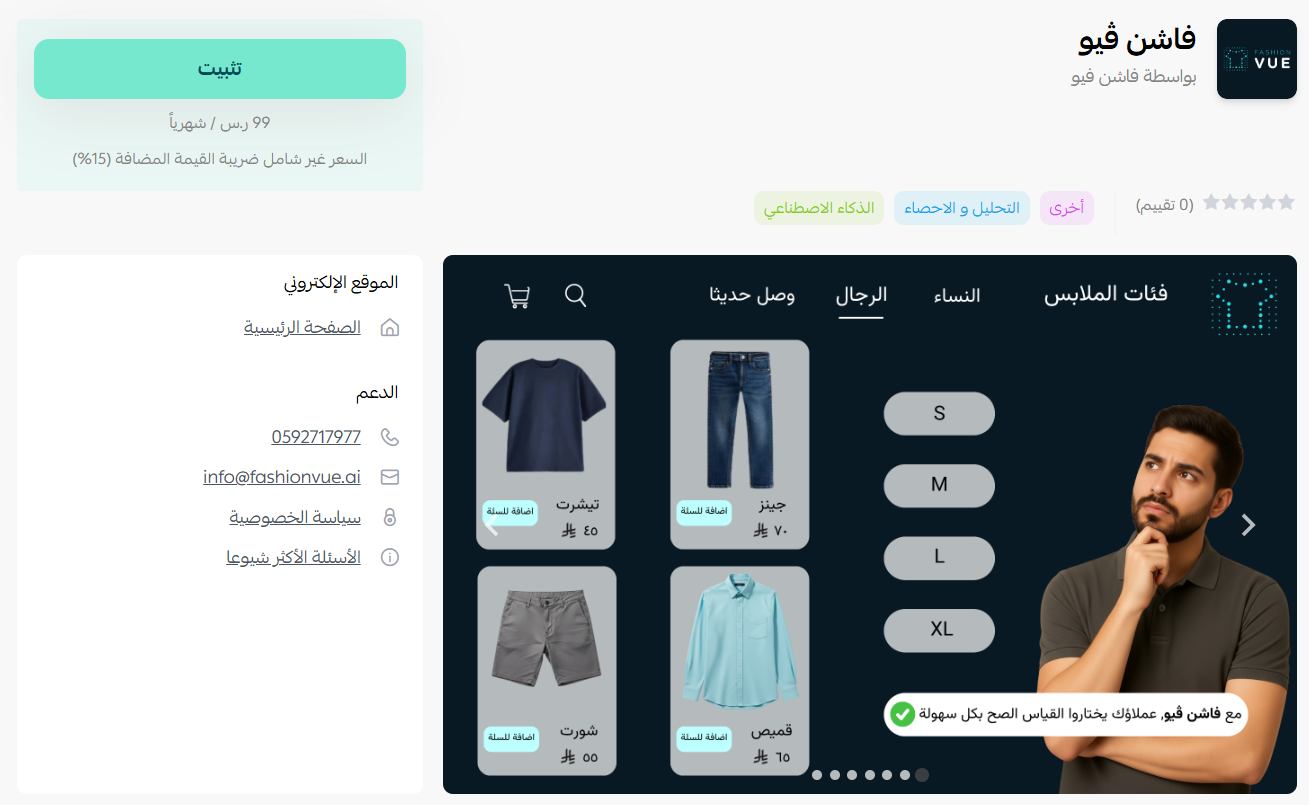
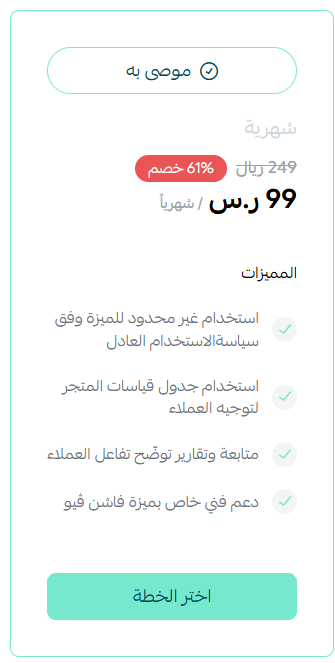
3. Choose the plan that suits you.
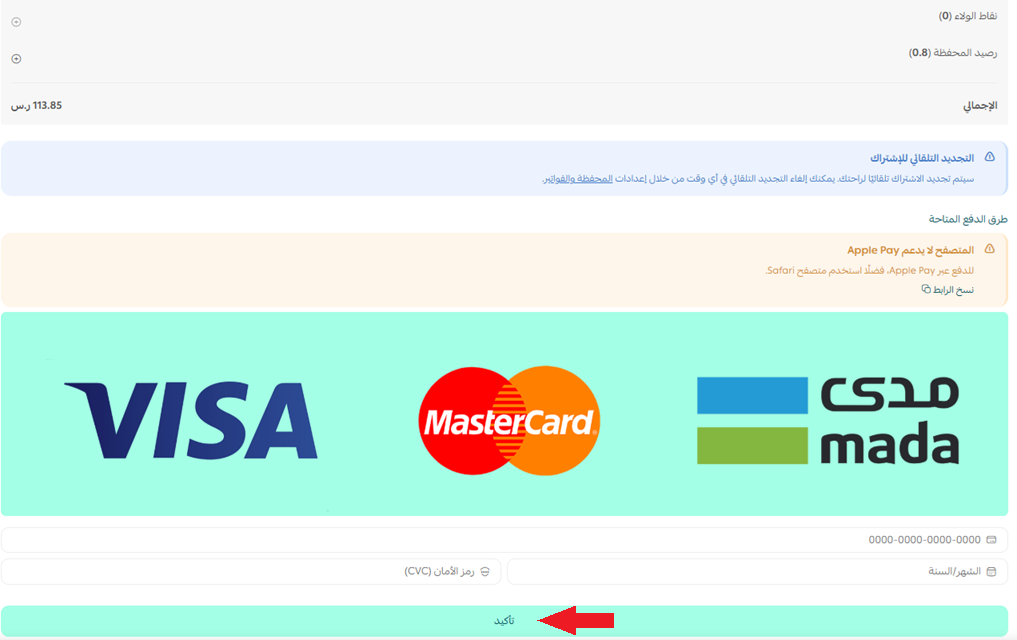
4. Add your payment details, then click (Confirm).
5. Open the email you receive after installation. It contains your sign-in details for the FashionVue platform.
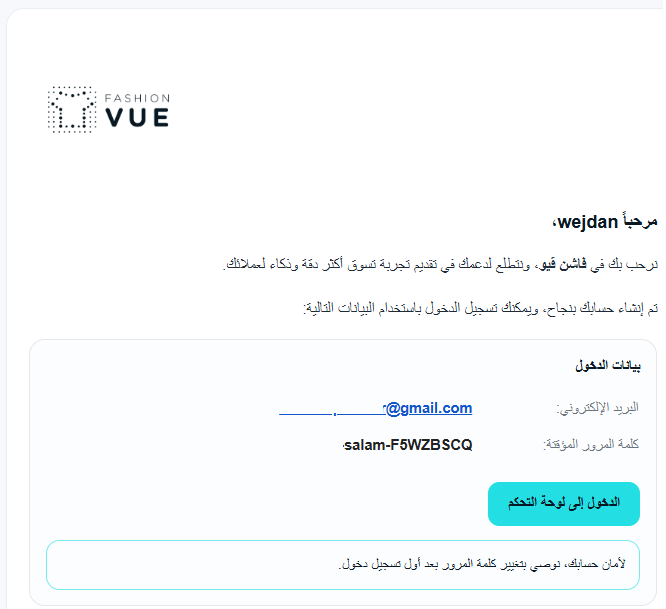
6. Sign in to your FashionVue account dashboard.
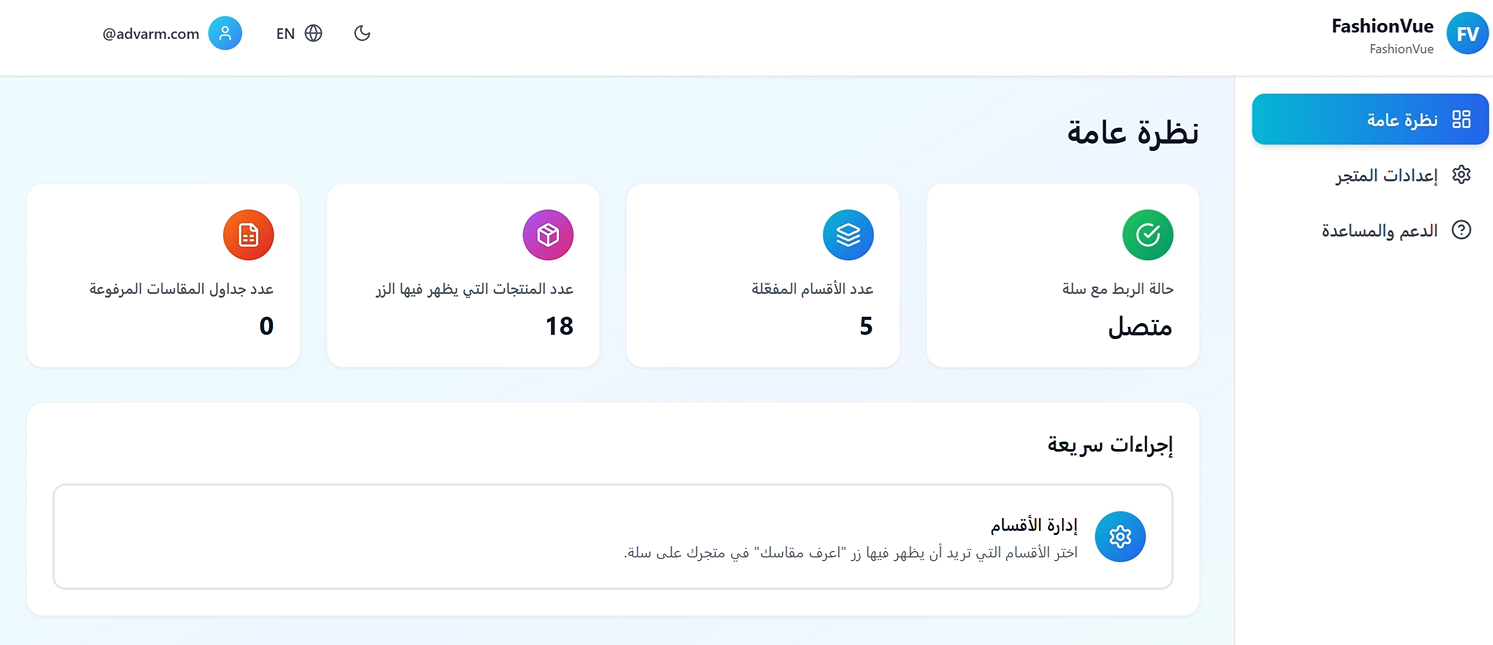
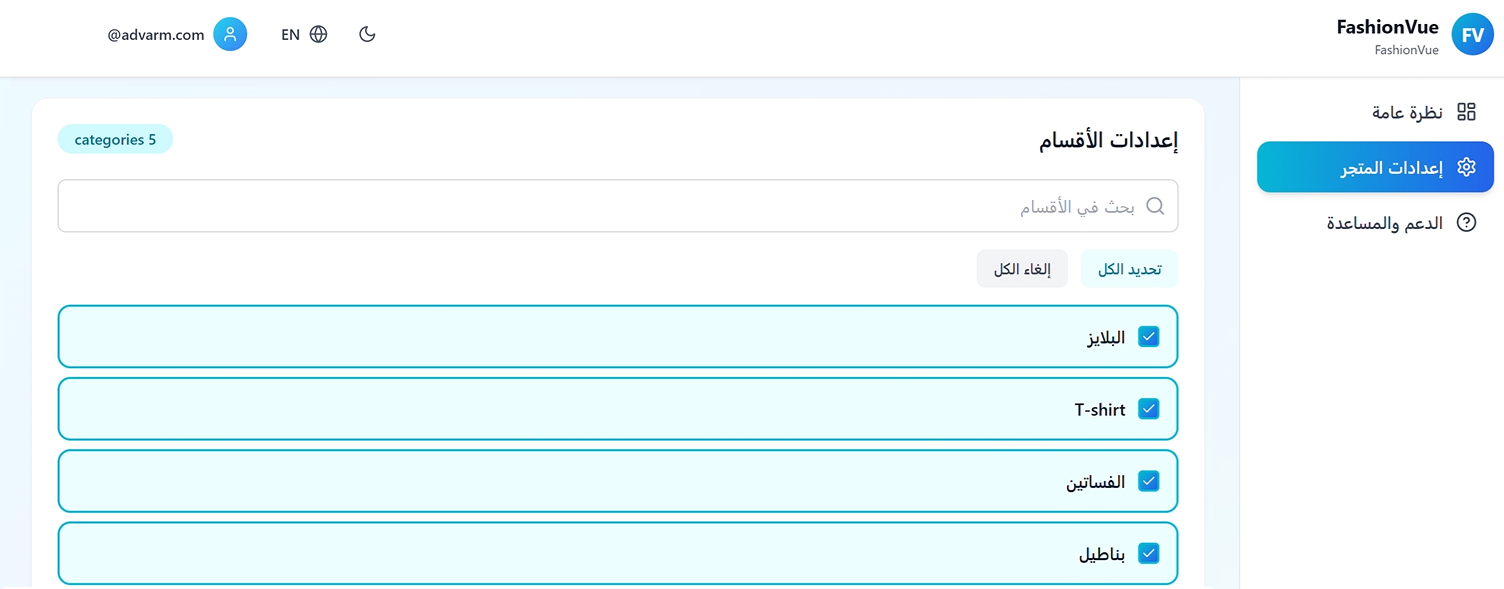
7. Choose the categories you want the size button to appear in.
✅ What the size prediction looks like for your customers
When a shopper visits your store, the button appears on the product details page.
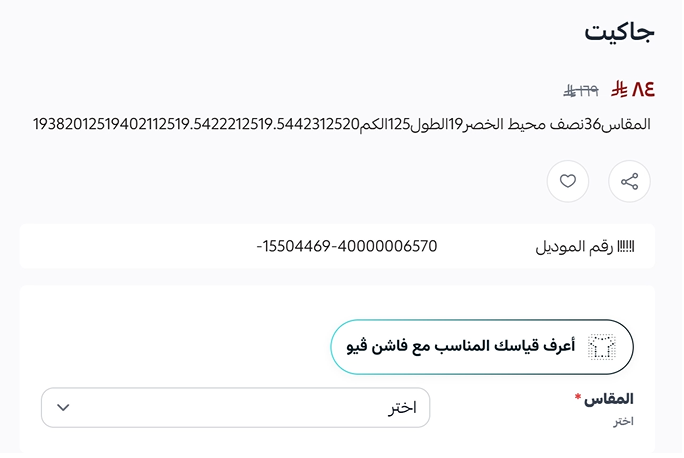
Clicking it opens the size prediction form.
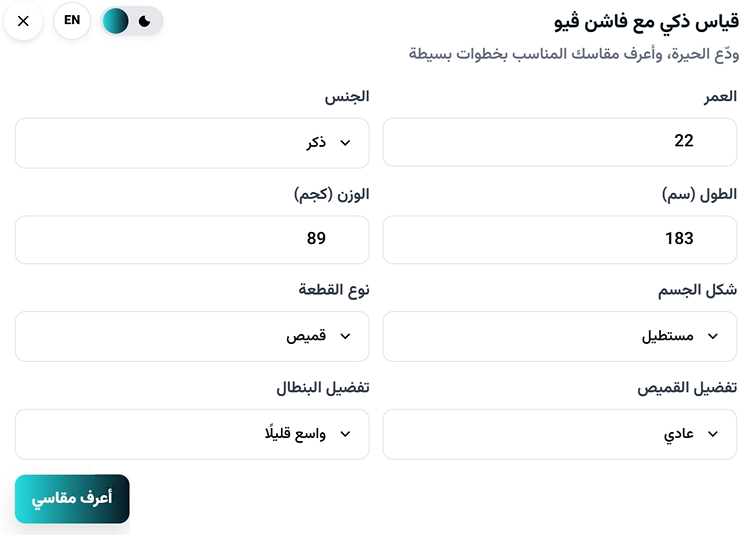
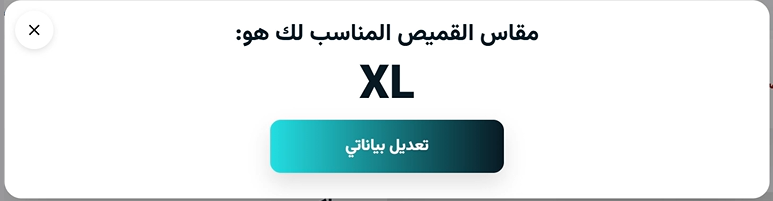
After the shopper clicks (Know my size), the recommended size appears like this.
🚀 How to manage the FashionVue app
Remove the app
1. From the app options menu, click (Cancel subscription), then choose a cancellation reason.

2. From the app options menu, click (Delete app), then choose a deletion reason.

3. From the Deleted apps page, open the app options menu and click (Delete app permanently) to remove it from your store for good.

📝 Important notes
- The size button is controlled per category from the FashionVue dashboard, so you can limit it to the categories where sizing actually matters.
- The customer enters their measurements once, and the prediction is then available to them across your products.
❓ Frequently asked questions
What problem does FashionVue solve?
It reduces returns caused by wrong sizes by predicting the right size for each shopper before they order.
Where does the size button appear?
On the product details page, in the categories you enable from the FashionVue dashboard.
Does the customer have to enter measurements every time?
No. They enter their measurements once and get size suggestions from there on.
How do I sign in to the FashionVue dashboard?
Use the credentials sent to your email address after installation.
How do I remove the app completely?
Cancel the subscription, delete the app, then delete it permanently from the Deleted apps page.
A shopper who is confident about the size is far more likely to keep the order. For more details about the app, see the FashionVue app page.