Does your store have one hero product that deserves the whole page to itself?
The Fareed theme is built to put a single product in the spotlight and show off everything it does, using components you will not find in a standard layout — feature tabs, a horizontal feature list, and a feature grid built around the product image. It also handles a home page full of products, so it works just as well for a catalog as it does for a one-product store. In this guide, you'll learn how to apply the theme, what its header and footer options add, which components are new, and how it changes your product pages.
The Fareed theme is a Salla theme designed around one product. Buy it from the themes store, then customize it from the store design page. Its home page components include quick buy, a featured product, feature tabs, a feature grid, and full-width and vertical feature galleries, all marked with a star in the component list.
📌 Article overview
- How to apply the Fareed theme to your store
- Extra header and footer options
- The new components added to the Fareed theme
- Changes to the product page and to how products are displayed
- Frequently asked questions
🚀 How to apply the Fareed theme to your store
1. From the dashboard side menu, click (Themes store).
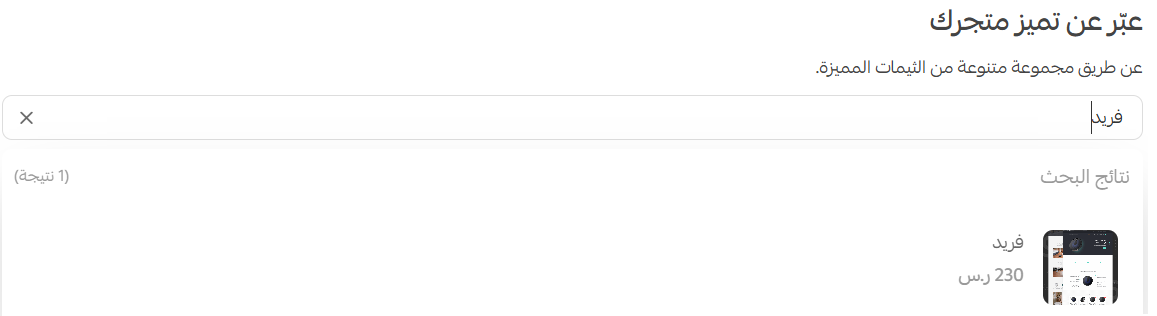
2. On the themes store page, search for the (Fareed) theme.
3. On the theme details page, click (Buy).
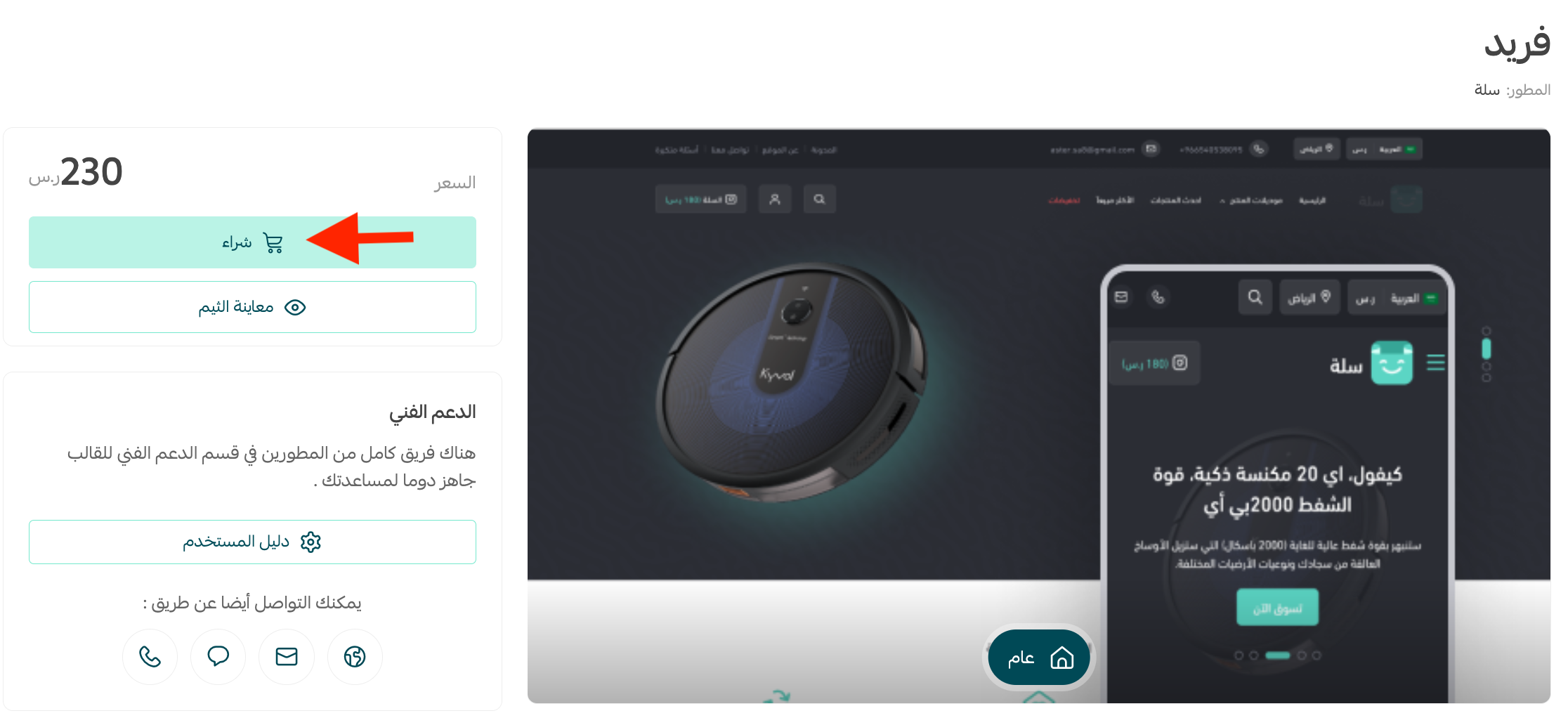
After buying the theme, customize it however you like from the store design page.
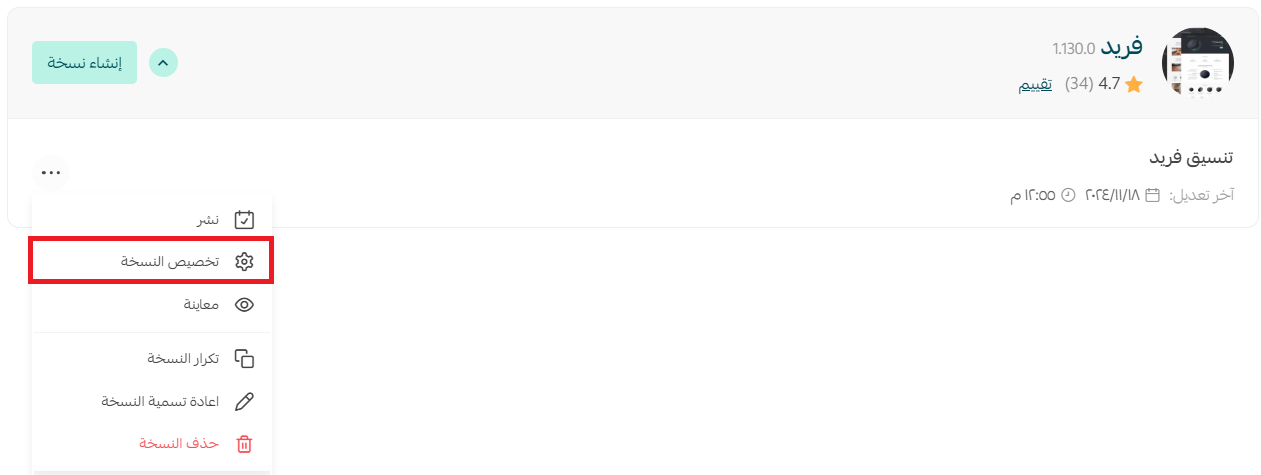
You can preview how your store looks with the theme applied from the theme customization page.
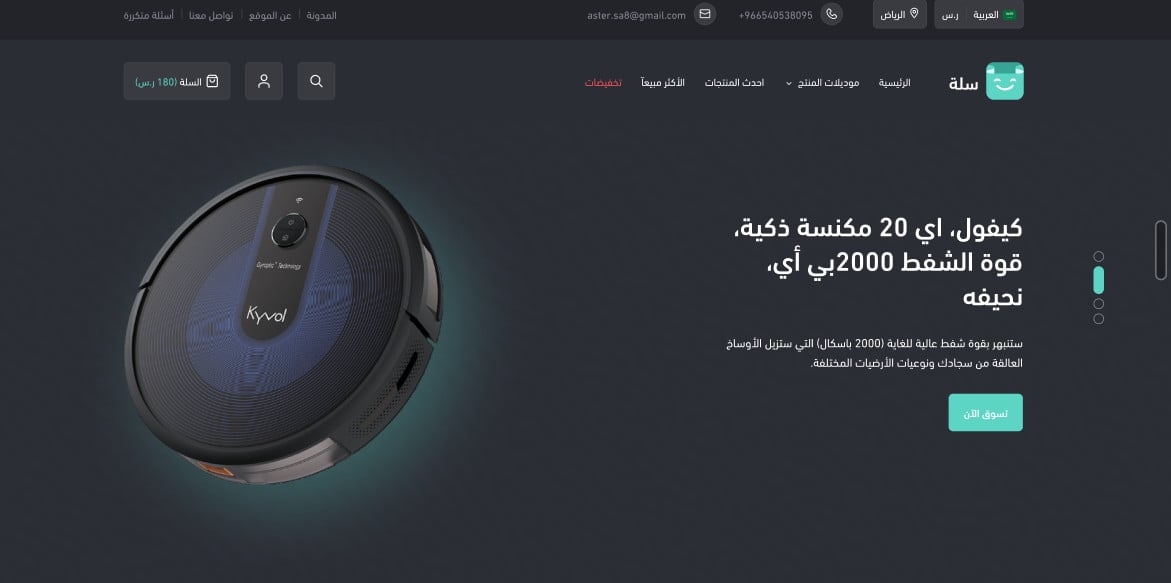
To see it live first, preview a store using the Fareed theme.
For more on:
- Managing and customizing your theme design
✅ Extra header and footer options in the Fareed theme
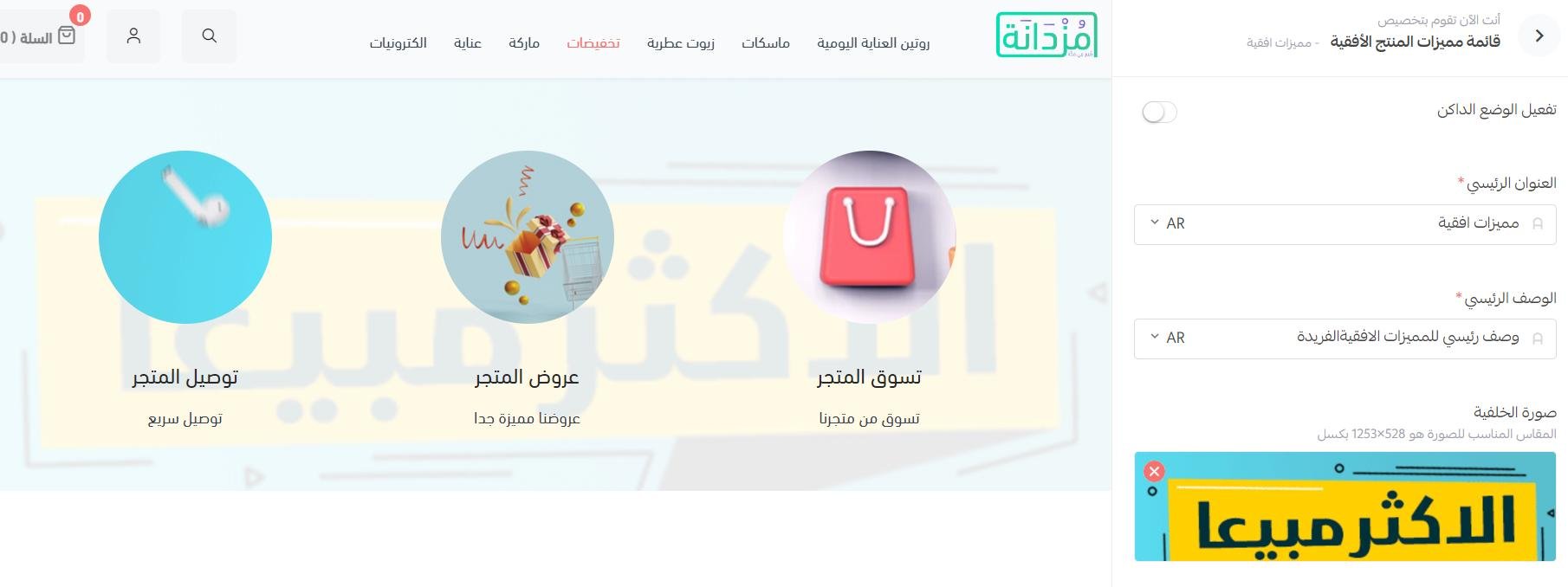
1. You can make the header transparent so the sections of the page blend into one another. This option only takes effect when the first component on the home page runs the full width of the page — an image gallery or a store announcement, for example.
2. You can show the newsletter component in the footer.
3. You can show a map at the bottom of the site.

🎯 The new components added to the Fareed theme
Fareed adds a set of improved components that make a storefront look more professional.
To add them, open the Fareed theme customization page and click (Home page components).
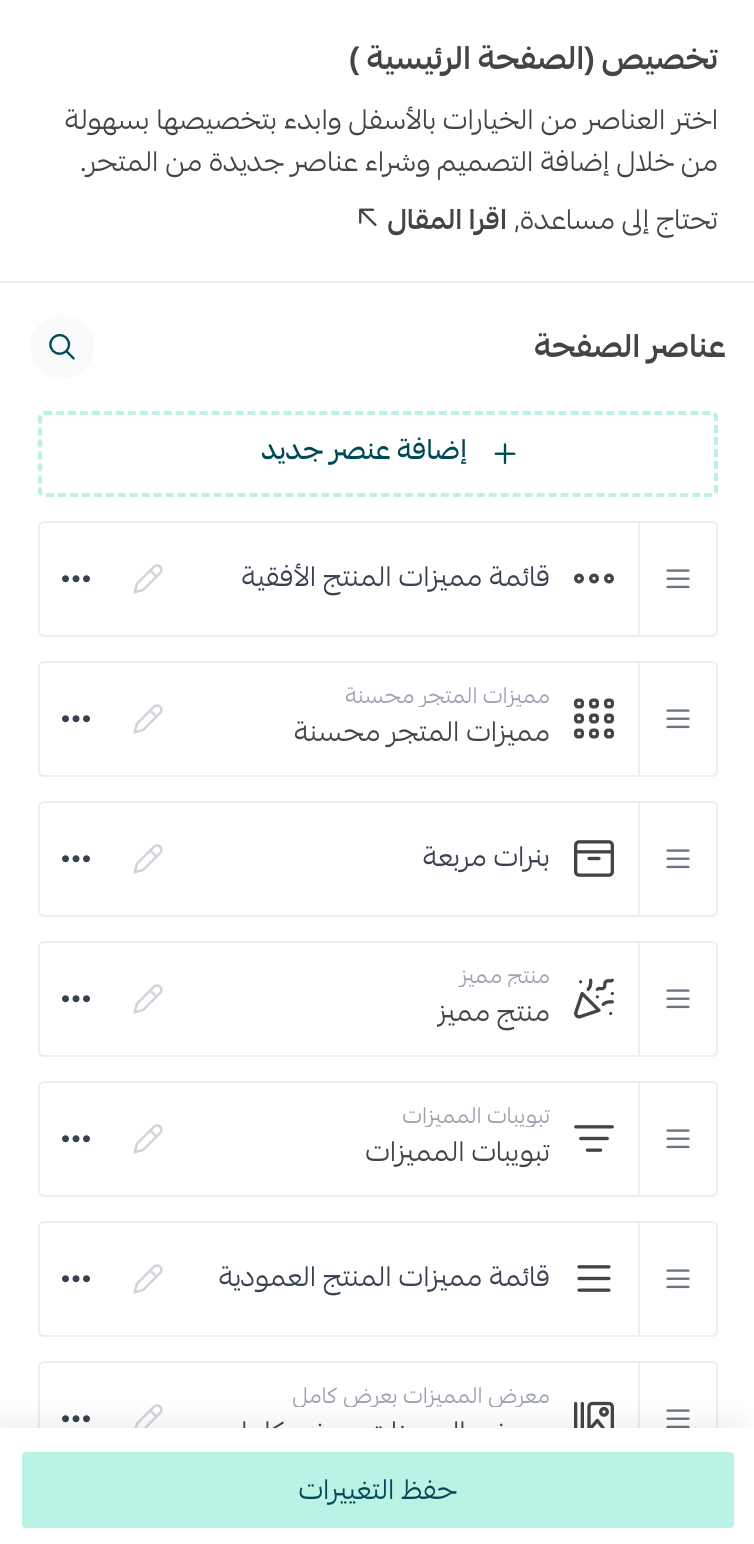
Then click (Add new component). The components you can add to your store appear.
📝 Important note: the components that belong to the theme itself are the ones marked with a star.
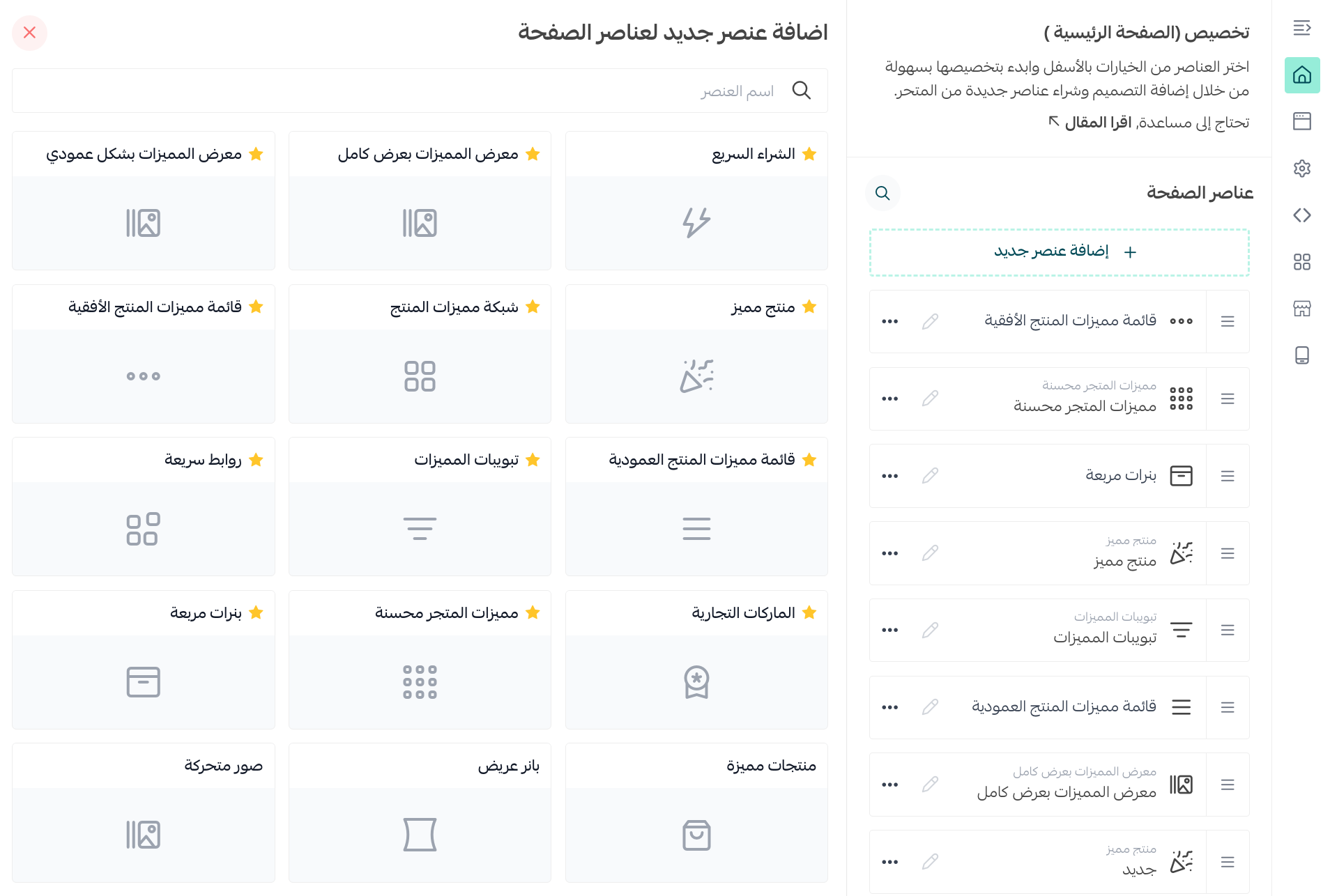
Here is how to customize the most useful ones.
1. Quick buy
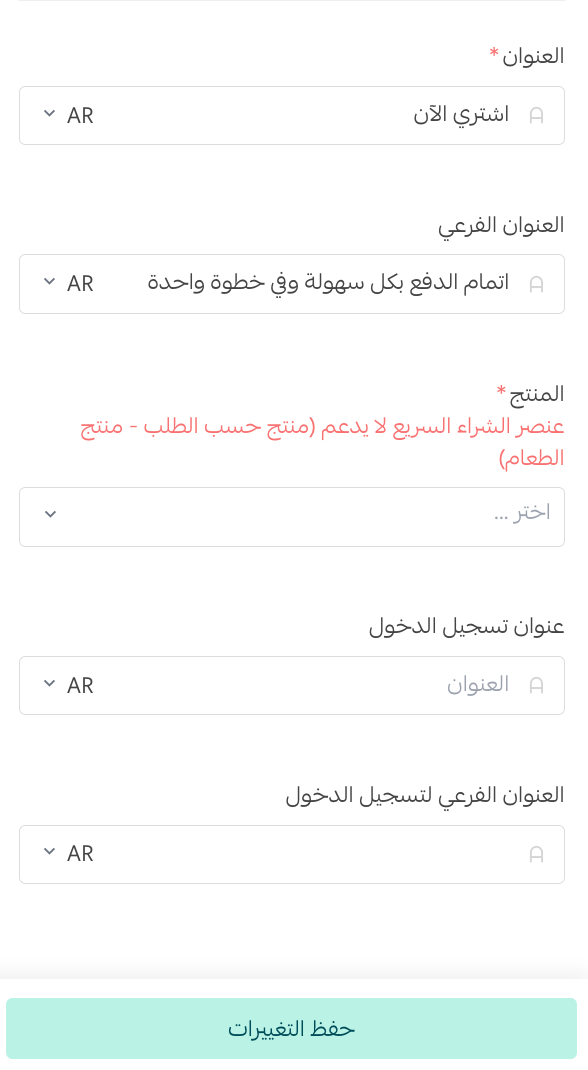
To customize the component, enter the title and subtitle that will appear on the store home page, then choose the products you want available for quick buy.
📝 Important note
The quick buy component supported in the Fareed theme is not the same thing as the quick buy window.
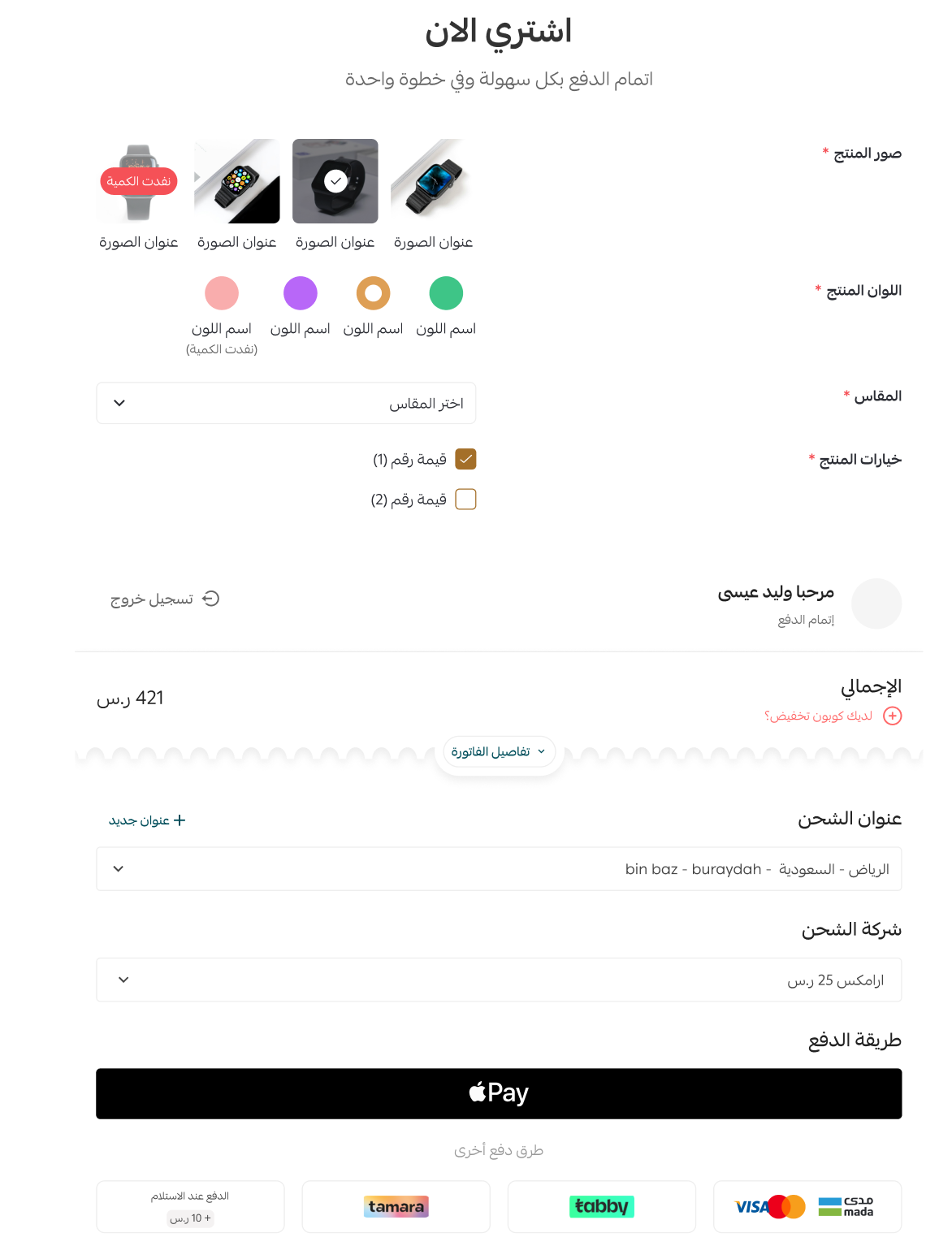
The quick buy component shows a single product prominently and lets the customer set the quantity, choose a delivery method, and pay, all from the same page.
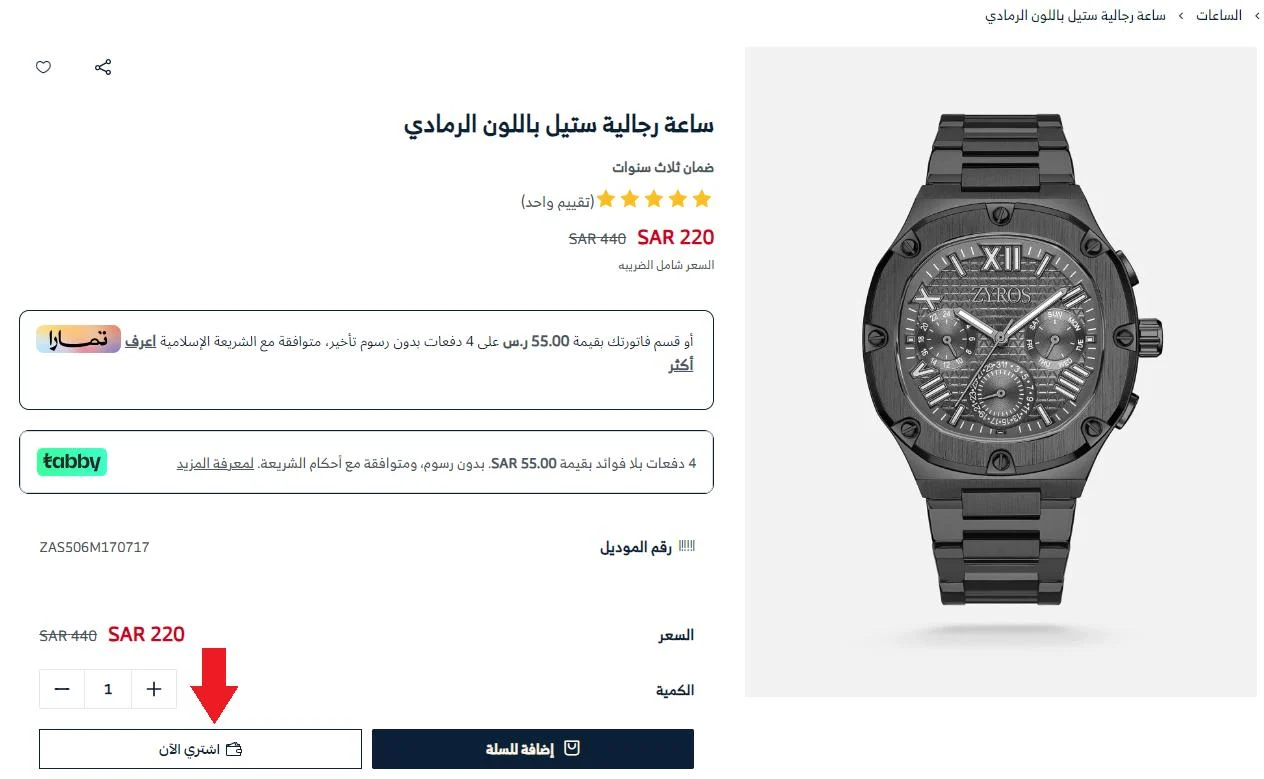
The quick buy window moves customers straight from the product page to payment: a pop-up opens on the same page so they can complete the purchase without passing through the cart.
For more on enabling quick buy.
2. Featured product
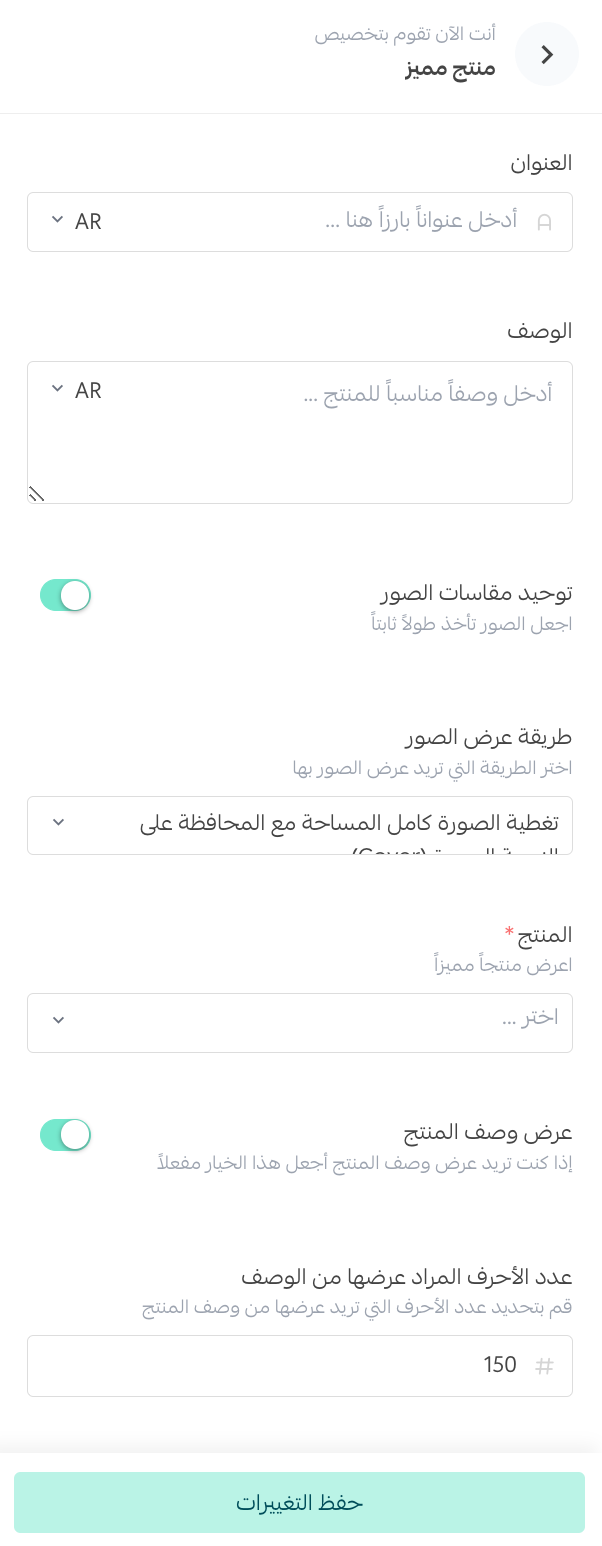
This component shows one product's details, images, and options on the home page, so it pulls more attention than a normal product card.
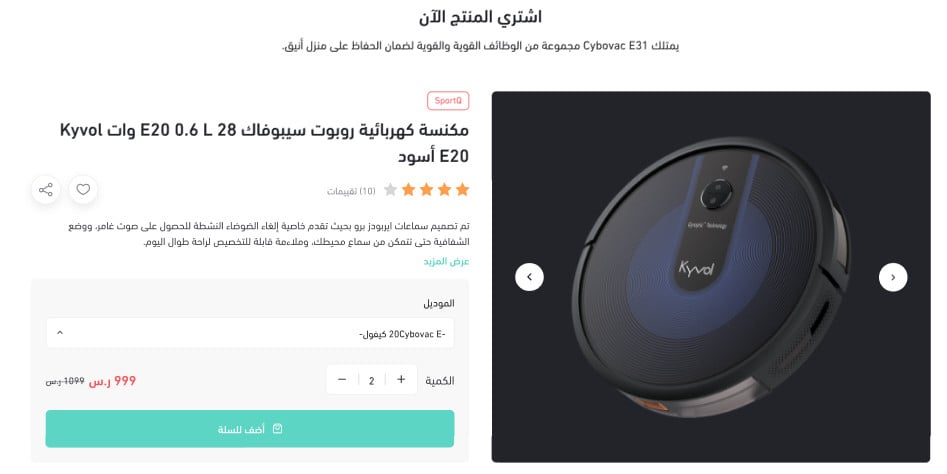
The product then appears like this:
3. Feature tabs
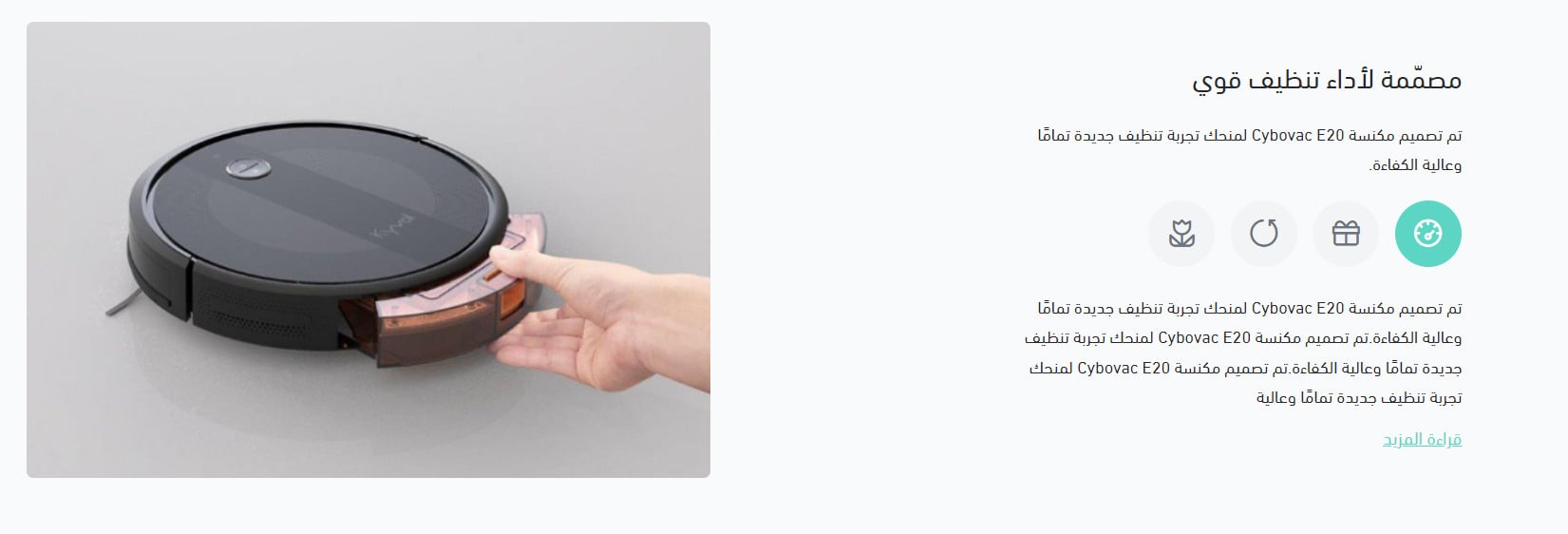
Feature tabs show a product's features as a set of tabs, with an image beside each one.
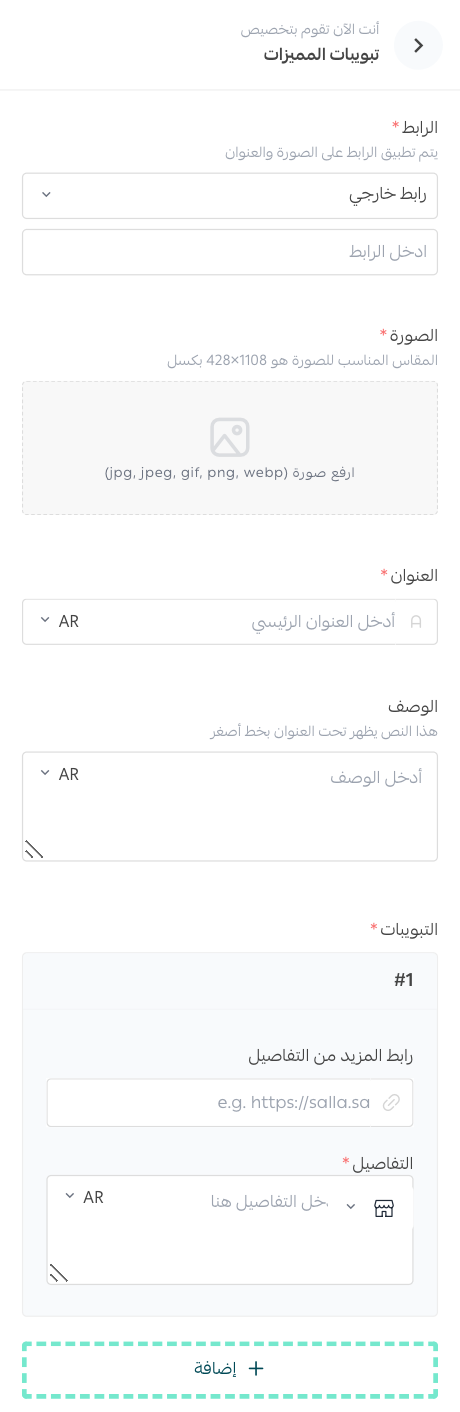
Customers open each tab from the storefront to read what it covers, which makes going through a long feature list far easier.
4. Horizontal product feature list
This component lays the product's features out horizontally, in either a light or a dark style.
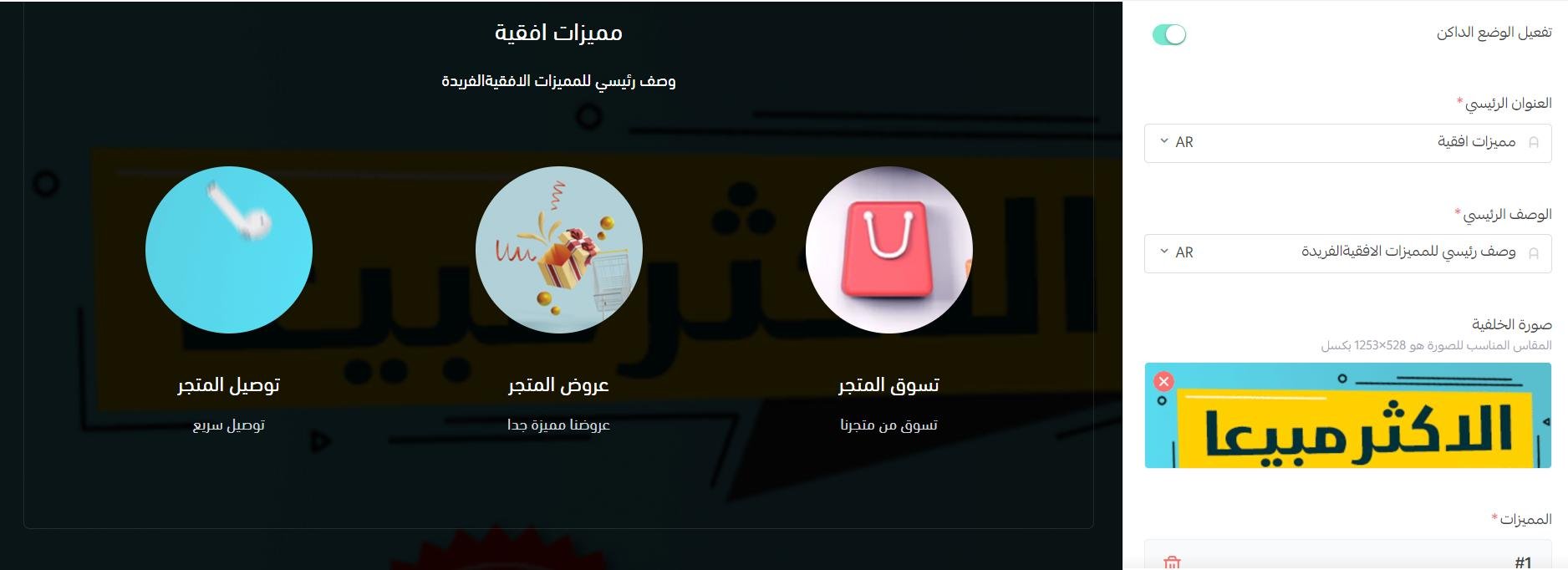
Switching the component between dark and light mode gives customers a completely different look.
5. Product feature grid
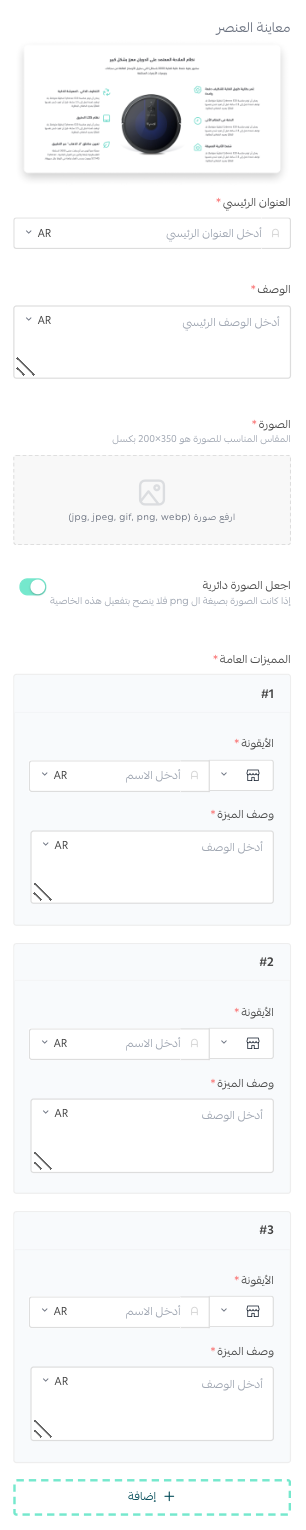
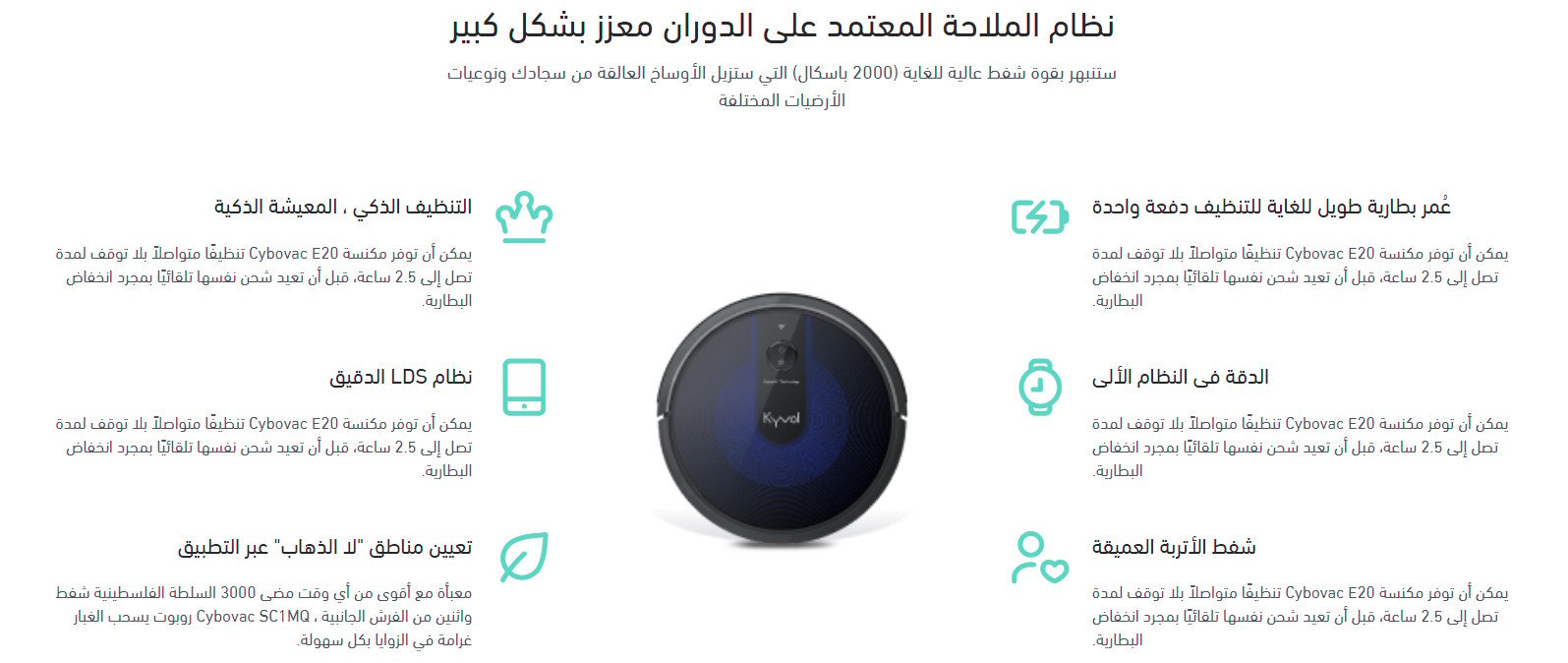
The feature grid presents the product and its main features in a grid with the product image in the middle.
In the storefront, the grid centers on the product image with a short line on each of its main features, like this:
6. Full-width feature gallery
Use this one to run the feature gallery across the full screen.

The components that follow already existed in earlier themes and come to Fareed in an improved form.
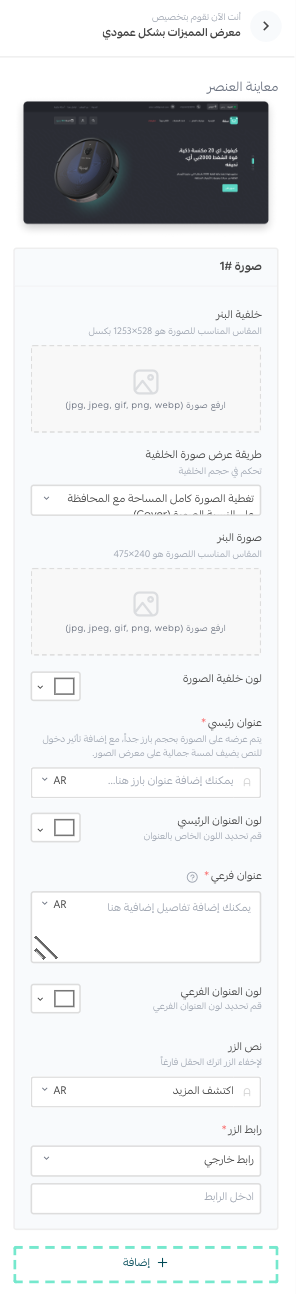
7. Vertical feature gallery
This tool displays the product's features, with each feature carrying an image, a background image, a main heading, a detailed heading, and a call-to-action button.
8. Vertical product feature list
This tool alternates images and text down the page, which helps customers focus on the explanation that goes with each image.

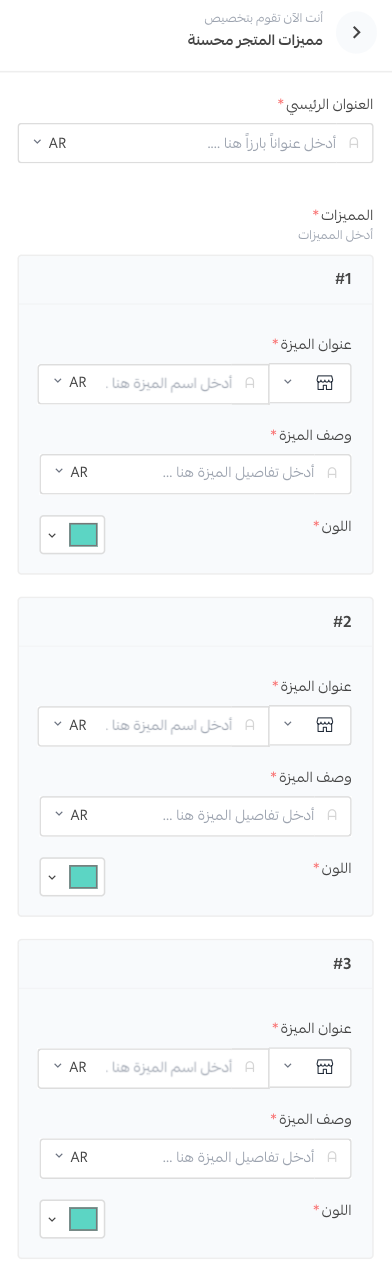
9. Enhanced store features
Here you can pick a color and an icon for each item.
✅ Changes to the product page and to how products are displayed
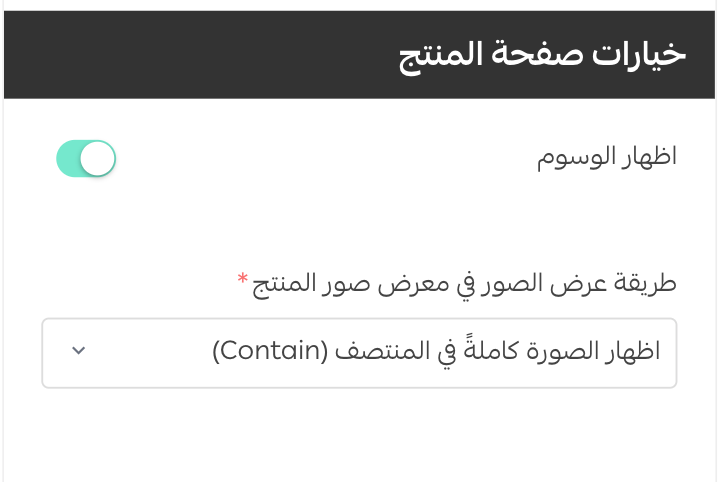
1. The product page
- A wider product image gallery, so the photos carry more weight.
- Control over how product images are displayed inside the gallery.
- The product's brand is shown, which tells customers who made it and says something about its quality.
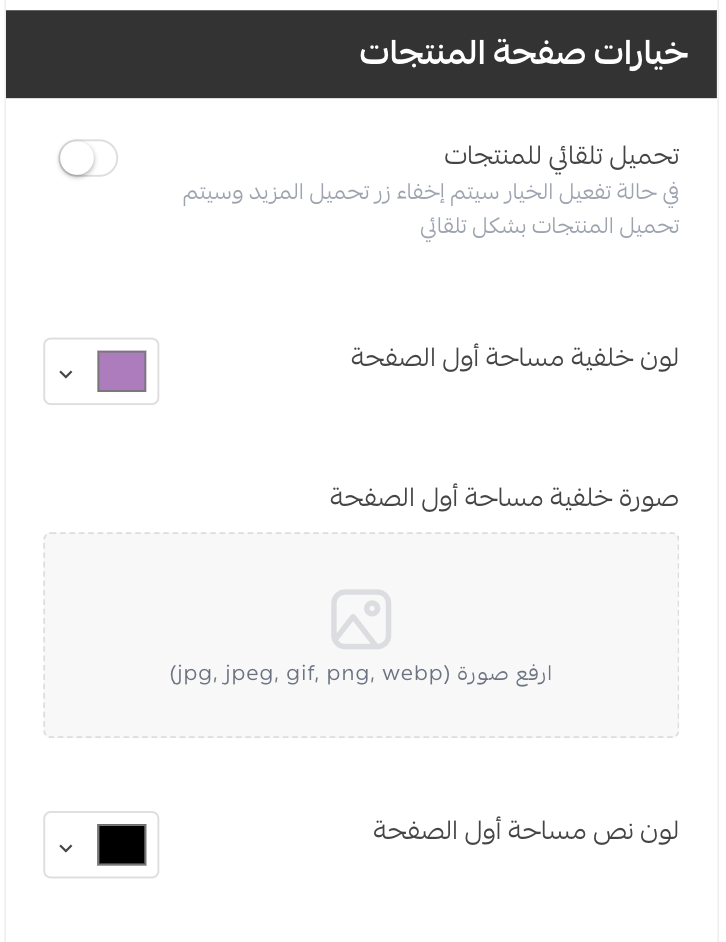
2. The product listing page
You can give the top of the page its own background image, its own background color, and its own text color.
3. The rest of your store pages
Every other page in the store has been redesigned to match the theme's overall look.
❓ Frequently asked questions
Is the Fareed theme only for stores that sell one product?
No. It is designed to focus on a single product and show off its features, but it also supports displaying many products on the home page, so it suits a multi-product store too.
How do I tell which home page components belong to the theme?
In the (Add new component) list, the theme's own components are marked with a star.
What is the difference between the quick buy component and the quick buy window?
The component shows one product on the home page and lets the customer set a quantity, pick a delivery method, and pay without leaving the page. The window is a pop-up on the product page that takes the customer straight to payment, skipping the cart.
Why is my transparent header not showing?
The transparent header only applies when the first component on the home page spans the full width of the page, such as an image gallery or a store announcement.
Can I switch the feature components between light and dark?
Yes. The horizontal product feature list can be set to a light or a dark style.
✅ Extra support resources
If you need a hand with your store's design, merchant services covers work such as logo design, banner and divider design, and color coordination, delivered by service providers verified by Salla.
✅ Other learning resources
Learn with trainer Mohammed Al Badr how to improve the user experience and design an online store that draws visitors in, moves them to buy sooner, and leaves an impression that lasts.