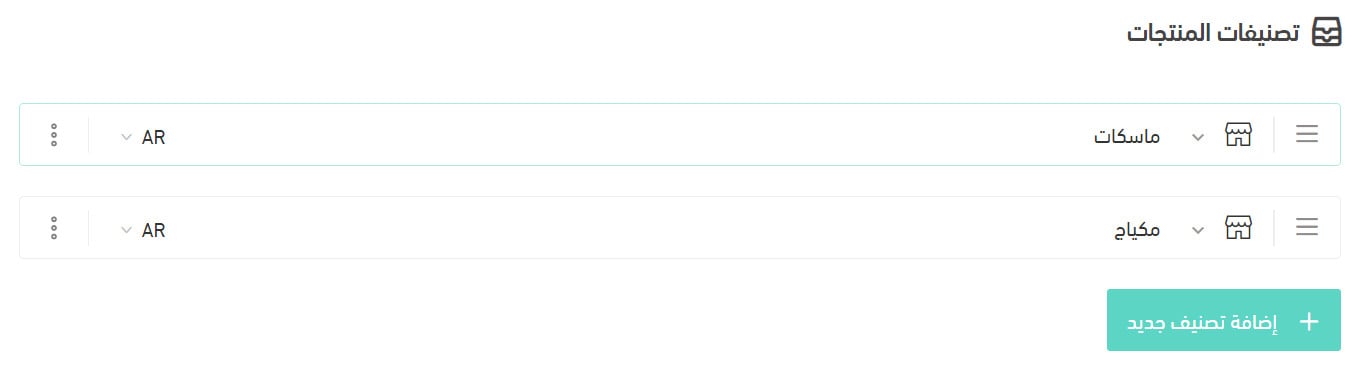
Your store speaks more than one language — does your product data?
Entering your store data in multiple languages means every text a customer sees — storefront elements, menus, products, categories, branches, special offers, announcements — can appear in whichever language they choose while browsing. Salla translates each field for you when instant translation is on, and you edit the result so it matches your store's voice. In this guide, you'll learn how to enter products and pages in more than one language, and which other data you can translate.
Enter your data in the default language first and save it. Then pick another language from the language list on any translatable field, let the instant translation fill it in, edit the wording to suit your store, and repeat for every language your store supports before saving.
📝 Important notes
Always enter your data in the default language before you move on to any other language, then save it all at once.
📌 Article overview
- How to enter products in more than one language
- What happens when you leave a field empty in another language
- How to enter your information pages in more than one language
- Which fields you can translate in special offers
- How to customize your store page and its elements
- What other data you can enter in more than one language
👣 How to enter products in more than one language
1. Enter the details in your default language — Arabic, for example — then click (Save).
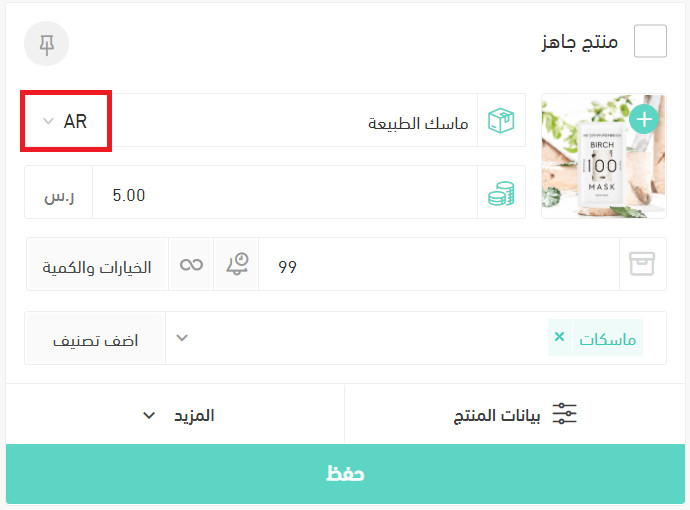
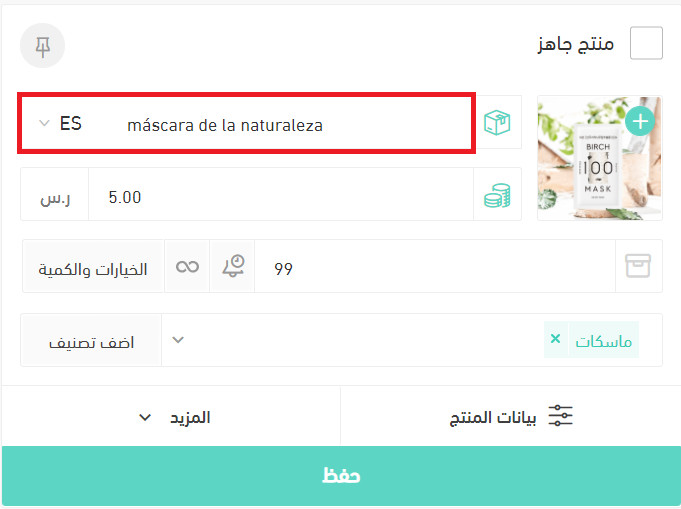
2. Choose the language you want from the language list on any translatable field.
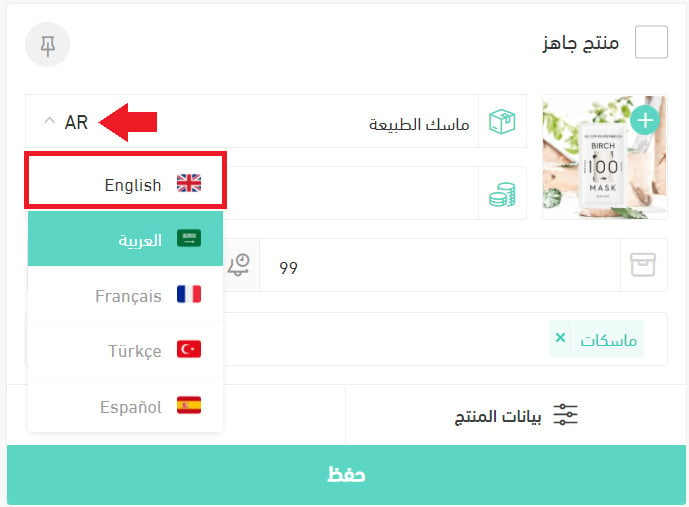
3. The text you wrote in the default language appears translated, as long as the target language is set to instant translation.

4. Edit the translated text so it fits your needs and your store's character. The default-language text stays visible in light gray behind the field to guide you.
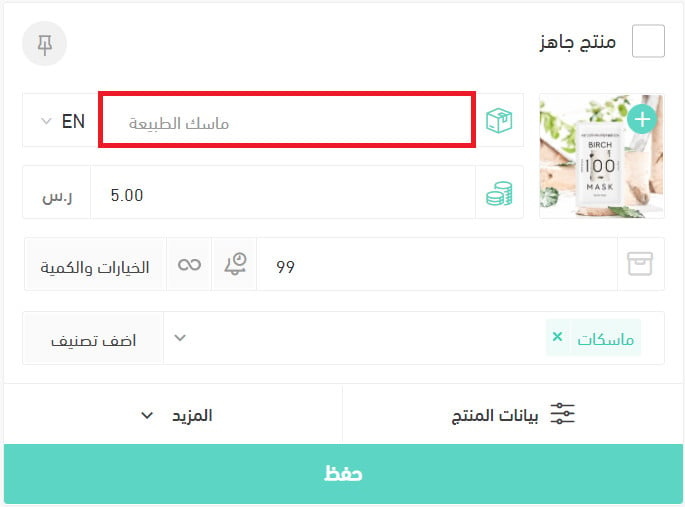
Once you've written the text you want, the product card looks like this:
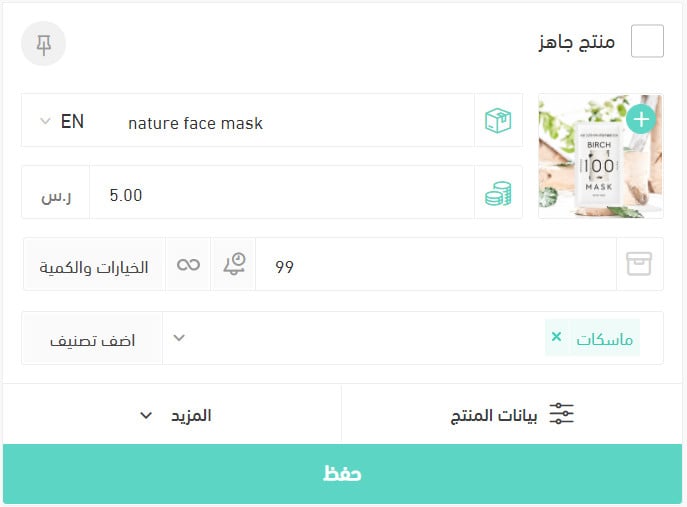
5. Repeat steps 2 to 4 for every language your store supports.
❓ Frequently asked questions
These are the questions this section answers:
- What happens if I leave a field empty in one of the other languages?
- How do I enter my information pages in more than one language?
- Which fields can I translate when I set up special offers in more than one language?
- Can I customize my store page and its elements?
- What other data can I enter in more than one language?
What happens if I leave a field empty in one of the other languages?
If you don't enter text in the other language, the text from your default language is used automatically.
For example, say your store has three languages enabled: Arabic (the default), French and English. You add a product and fill in:
- The Arabic name in Arabic.
- Book in English.
- Nothing at all in French.
Here's the product name each customer sees, depending on the display language they pick:
- Arabic: the Arabic name.
- English: Book.
- French: the Arabic name, because you left that field empty.
How do I enter my information pages in more than one language?
1. Enter the page details in your default language — Arabic, in this example — then click (Save).
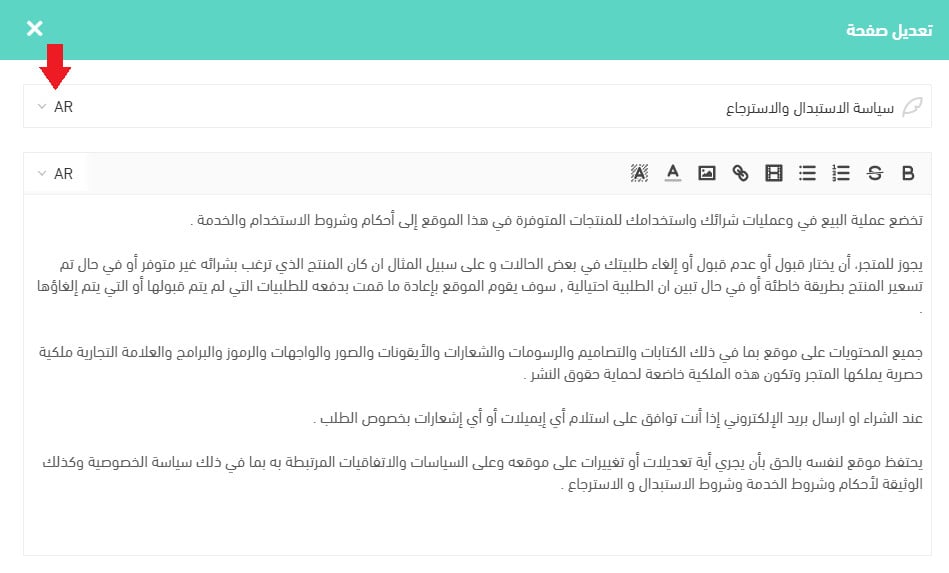
2. Choose the language you want from the language list on any translatable field.
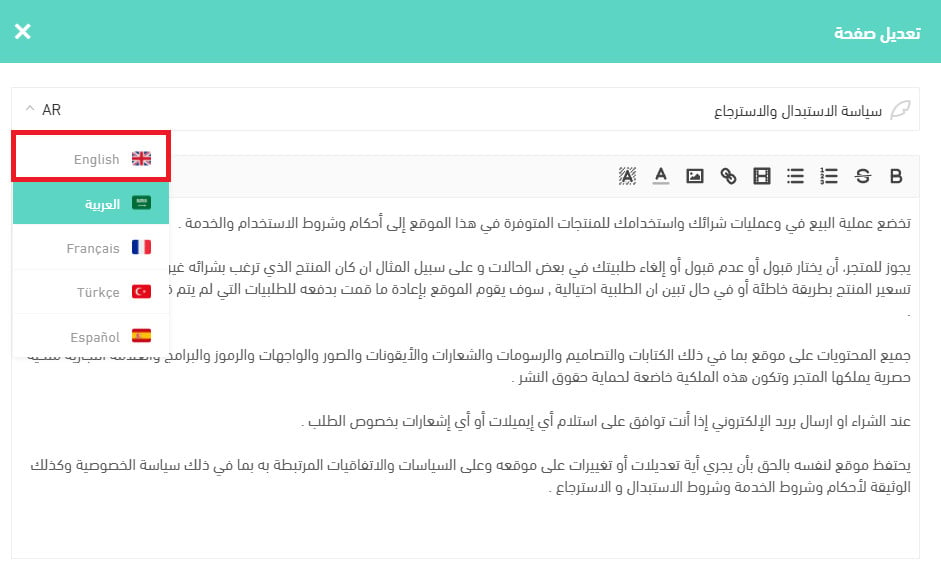
3. The text you wrote in the default language appears translated, as long as the target language is set to instant translation.
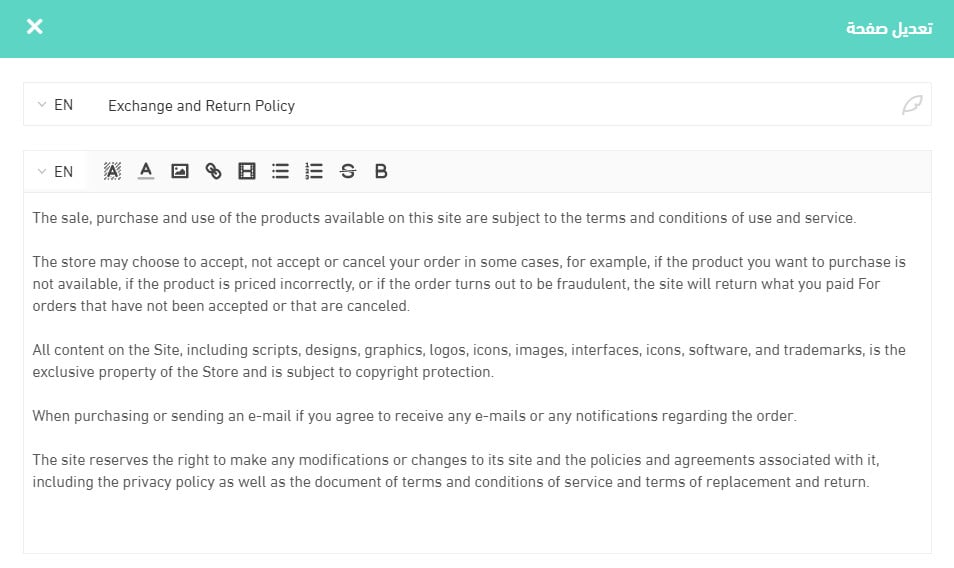
Edit the translation however you like, then click (Save). Repeat steps 2 and 3 for every language your store supports.
Which fields can I translate when I set up special offers in more than one language?
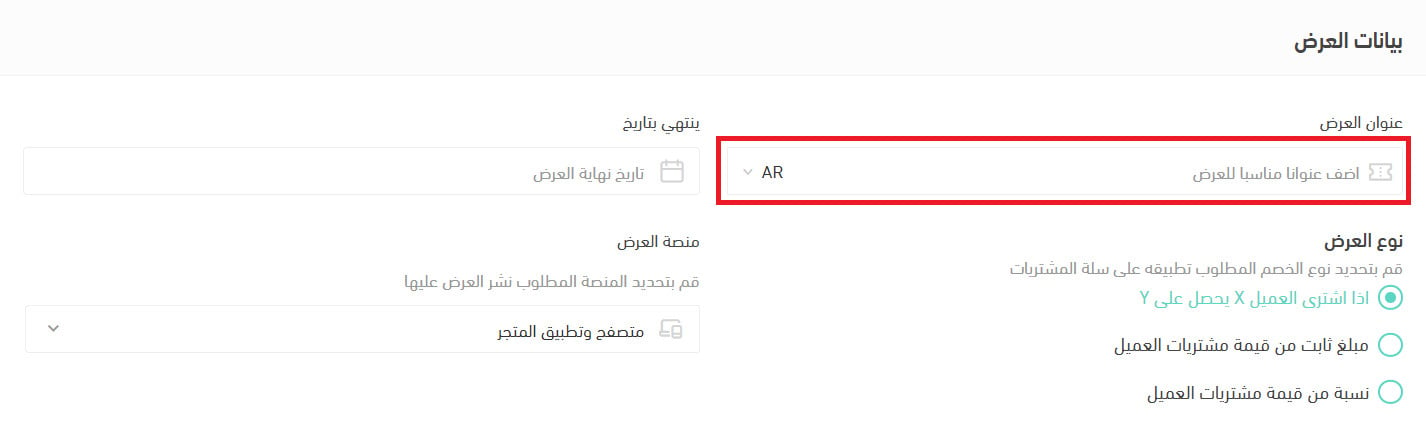
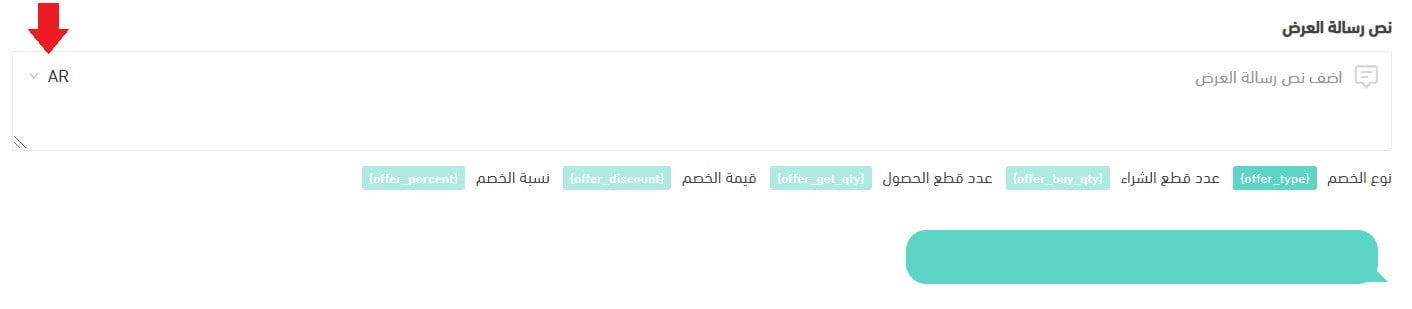
You can customize the fields your customers see and translate them into every language your store supports. For special offers, these are:
The offer title.
The offer message text.
Can I customize my store page and its elements?
Yes. You have several ways to customize your store page and its elements. The main ones are:
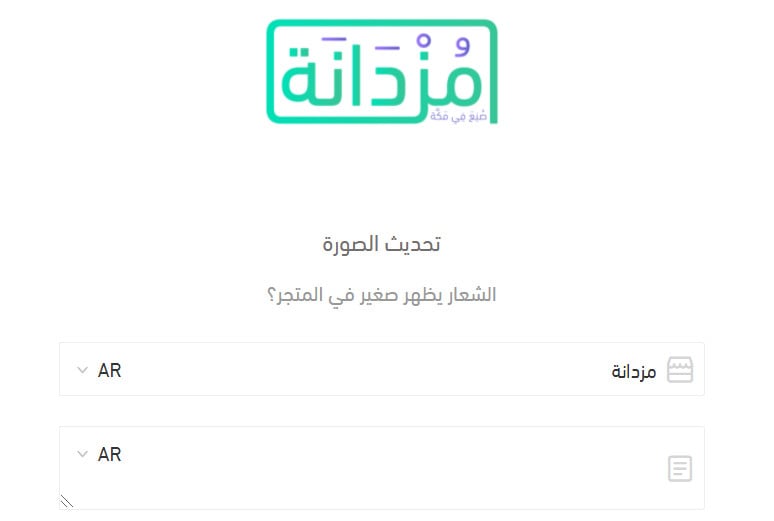
1. Customize your store name and description
From your store's basic settings.
2. Customize your store pages from the text editor

💡 Example: change the word Search to Search Now under general sections / page header in the English text editor.

Customers then see the phrase like this when they visit your store:

📝 Important notes
You can control the storefront elements in your default language too. For example, with Arabic set as the default language, you can adjust your storefront elements to suit you through the text editor.
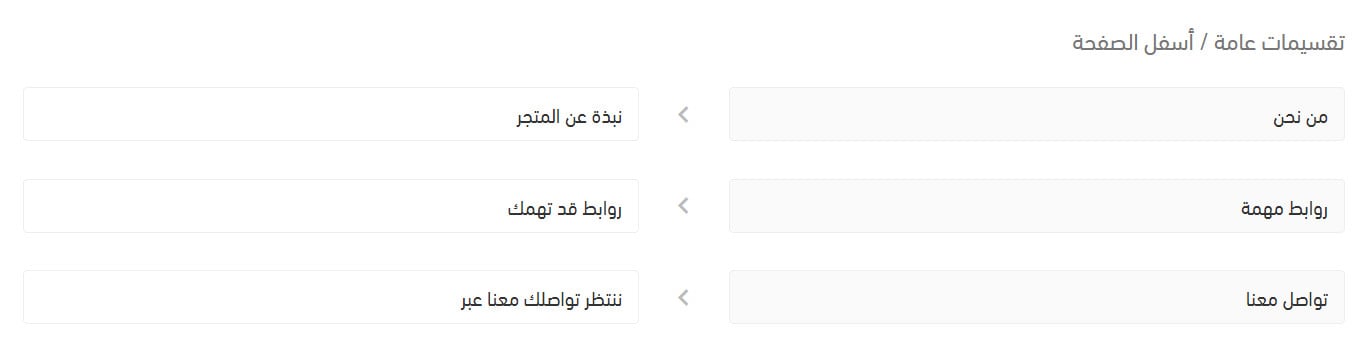
They then appear like this:

What other data can I enter in more than one language?
Any text a customer sees can be customized and translated into the language they choose while browsing your store. For example:
1. Branch and warehouse names and addresses.
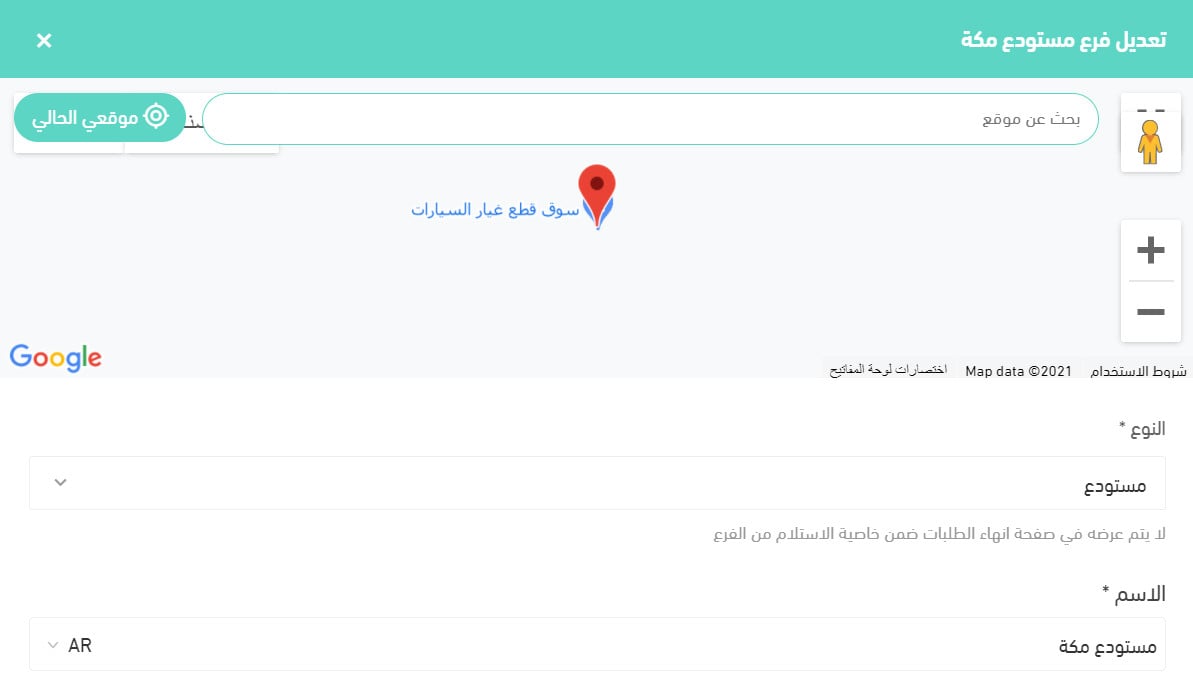
2. The shipping companies and couriers the customer sees.

3. The brands you add.
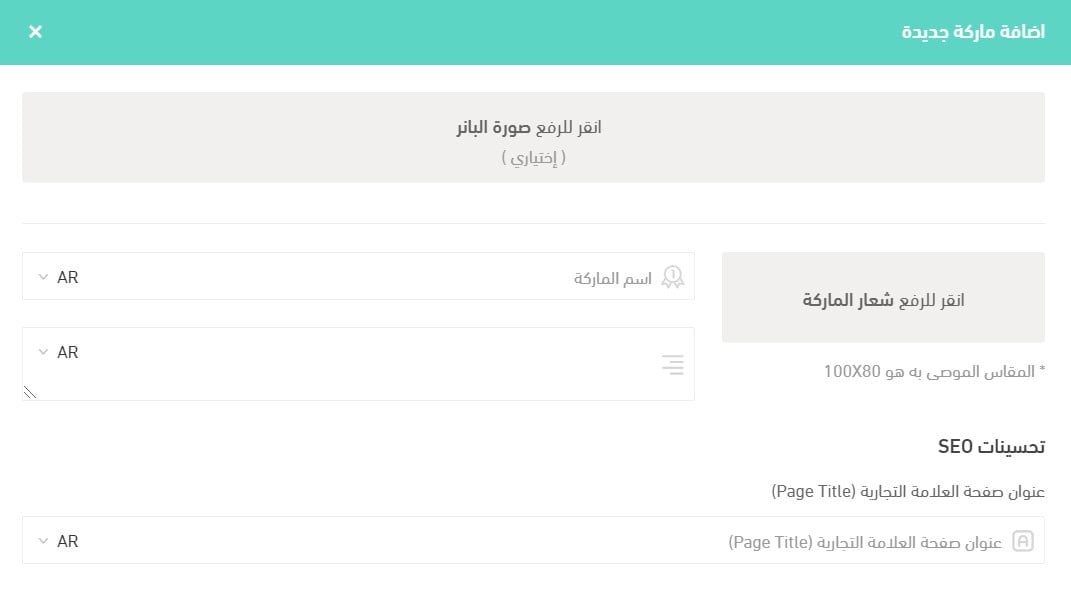
4. The order options you set from your store options.
Receiving orders.
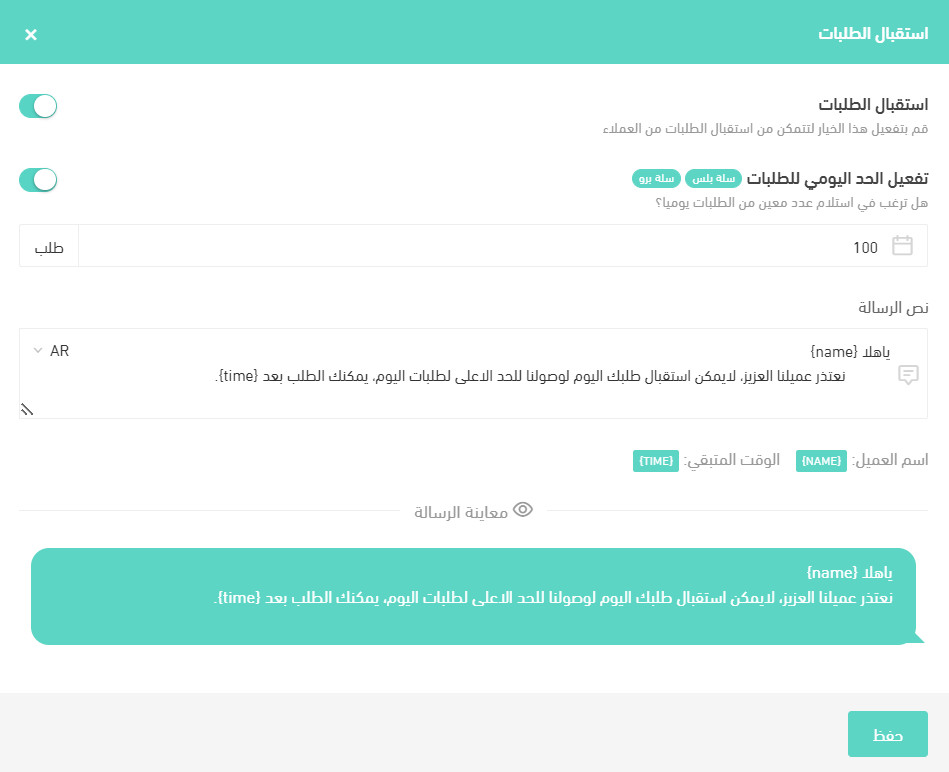
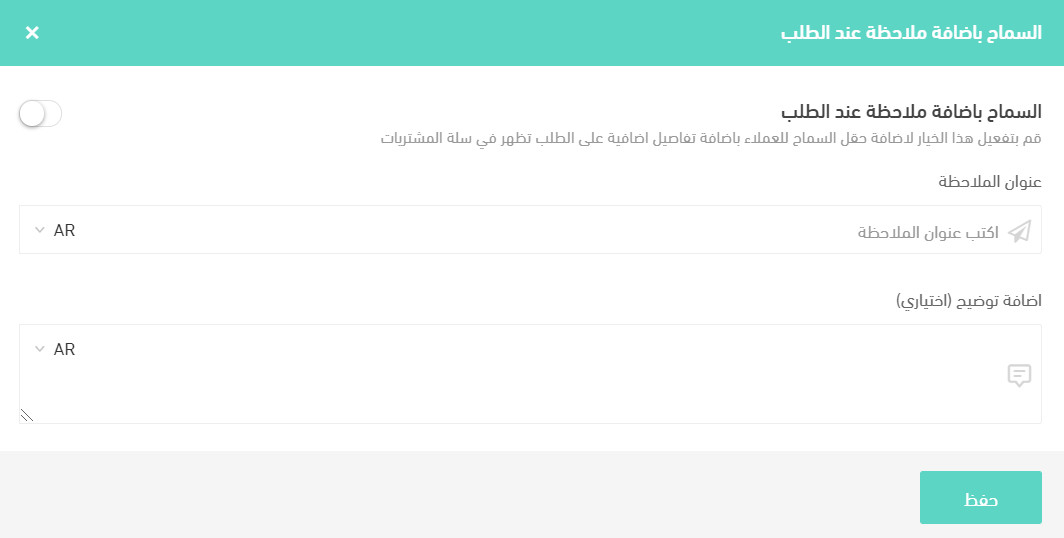
Allowing a note to be added with an order.
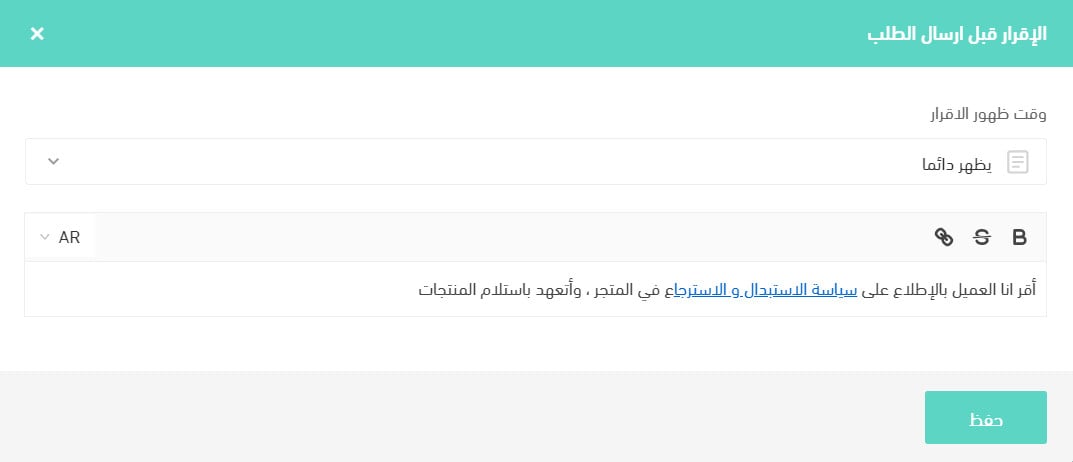
The acknowledgment shown before an order is submitted.
5. Product categories.