Are you having difficulty monitoring electronic payment transactions in your store? This can make revenue tracking more complex and increase the risk of financial errors.
The electronic payment transactions log provides a complete solution that allows you to track every transaction, refund pending amounts, and confirm incomplete orders with ease.
In this guide, you’ll learn how to manage the log effectively to improve the security and efficiency of your store’s financial operations.
📌Article overview
- What is the purpose of the electronic payment transactions log?
- Managing the payment transactions log
- Frequently asked questions
What is the purpose of the payment transactions log?
The log enables merchants to search for electronic payment transactions completed in their store within the last 15 days, and to:
- Refund amounts for cancelled orders
- Confirm orders that were paid but not completed
Managing the electronic payment transactions log
1. Viewing the payment transactions archive
To access the log:
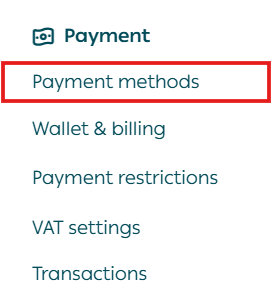
- From the main menu, open the All tab.
Under Payments, click Payment methods.
2. On the Payment page, click Transactions.
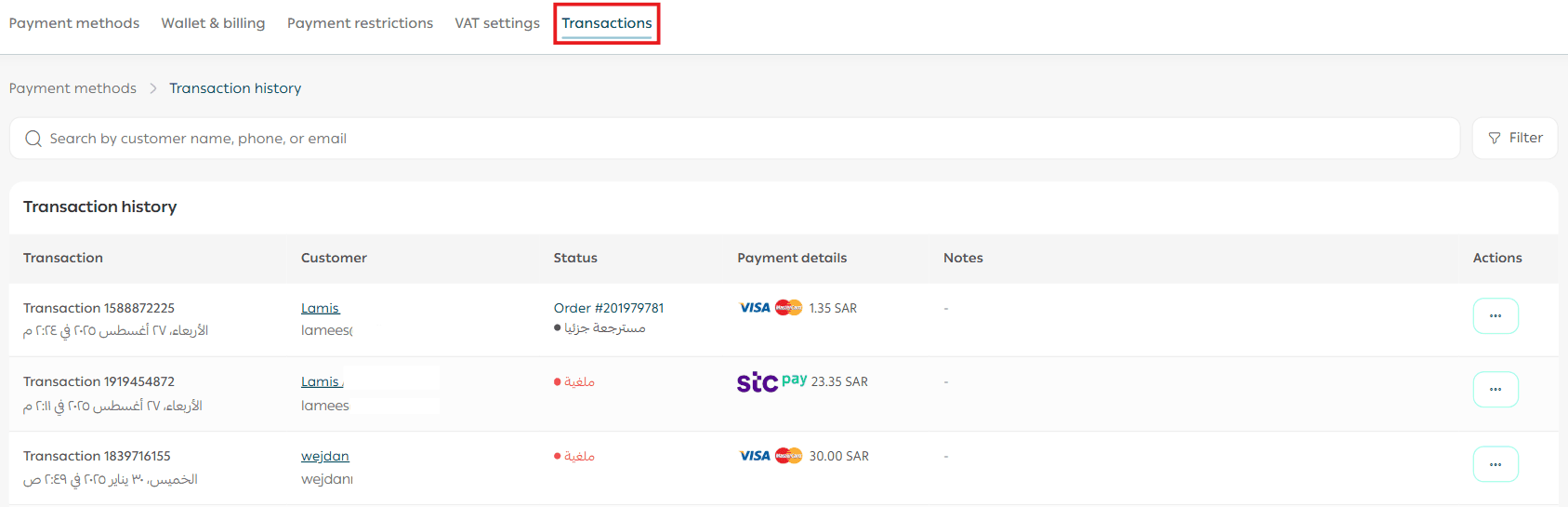
The log displays the following information:
- Transaction number
- Transaction date
- Customer name
- Amount
- Payment gateway
- Transaction status
(New – Pending Confirmation – Confirmed – Payment Failed – Refunded)
- Notes
- Transactions that include the option to confirm an order from the search results
2. Refunding a transaction amount
If a transaction has been cancelled and you want to return the amount to the customer:
- From the transactions list, click Refund.

3. Printing a transaction record
To print a specific transaction:
- From the transactions list, click Print.
The transaction will be generated in a printable format.
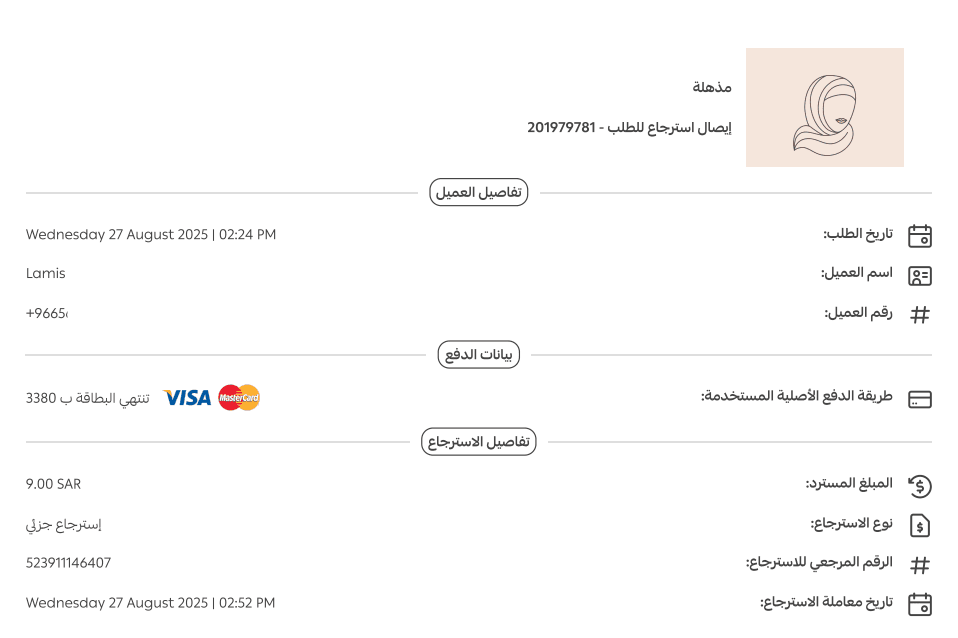
4. Confirming an order from the transactions log
In some cases, payment may be completed but the order is not successfully created.
When this happens, a Confirm order button will appear next to the transaction.
By confirming the order:
- It will be added to your Orders table
- You can proceed with fulfillment and delivery normally

5. Filtering and searching for specific transactions
Searching for a single transaction
Using the search field, you can look up transactions by:
- Payment method
- Order number
- Total amount
- Last 4 digits of the credit card

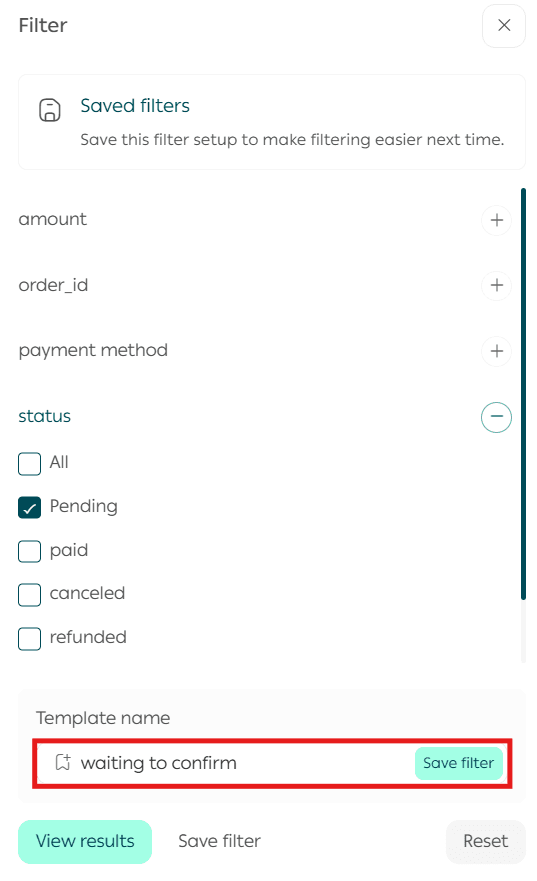
Filtering multiple transactions
To filter the log:
- On the Transactions page, click Filter.

2. Select the required filter criteria and enter the search values.
3. Click Show Results.
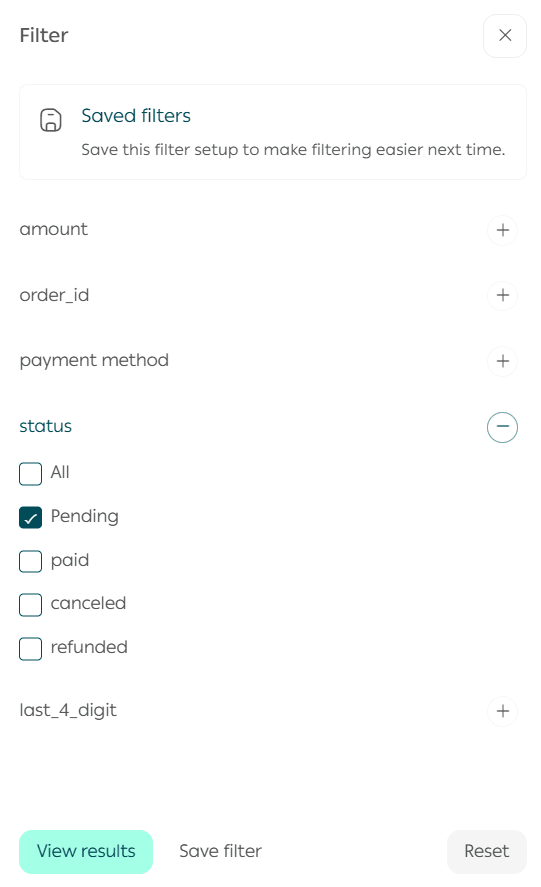
You can also save your filter settings as a template to reuse later and save time.
Frequently asked questions
If a customer’s payment fails, will it still appear in the log?
Yes. Failed transactions are recorded in the log, along with a note explaining the reason for failure.
When are electronic payment amounts transferred to the merchant account?
Invoices are usually issued at 12:00 AM (midnight), and the amounts are transferred to the merchant account the following morning.