Many high quality products do not get the attention they deserve simply because their reviews are hard to find. By displaying all product reviews in one dedicated page through theme customization, reviews become clear, visible, and easy to browse. This helps customers make faster purchase decisions and directly increases merchant sales.
📌 Article overview
- How the product reviews page appears in the store
- Review card contents
- Adding customer reviews to a new menu
- Displaying a menu that contains customer reviews
- Practical use cases for product reviews
🔍 How Does the Product Reviews Page Appear in the Store?
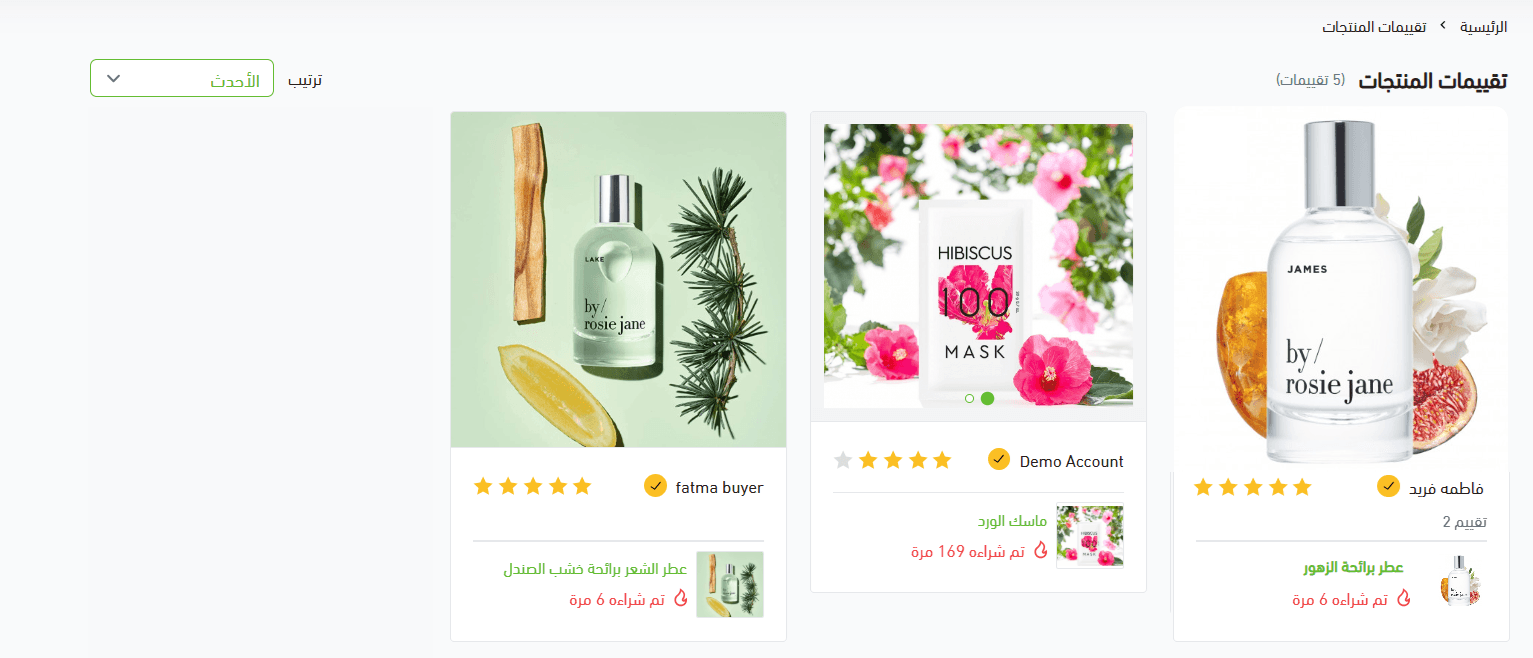
The customer reviews section appears at the top of the page in this format:

The reviews page displays customer feedback for your store’s products in a card based layout.
Customers can browse through review images if multiple images are attached and can directly navigate to the product page being reviewed. Each review card includes:
- Product name, product image, and number of purchases
- Star rating
- Review text
- Attached images
- Product image related to each review
Note: Review images and text are displayed exactly as submitted by the customer during the review process.
When a customer clicks on any review card, the product page opens and the reviews section is visible within the product details.
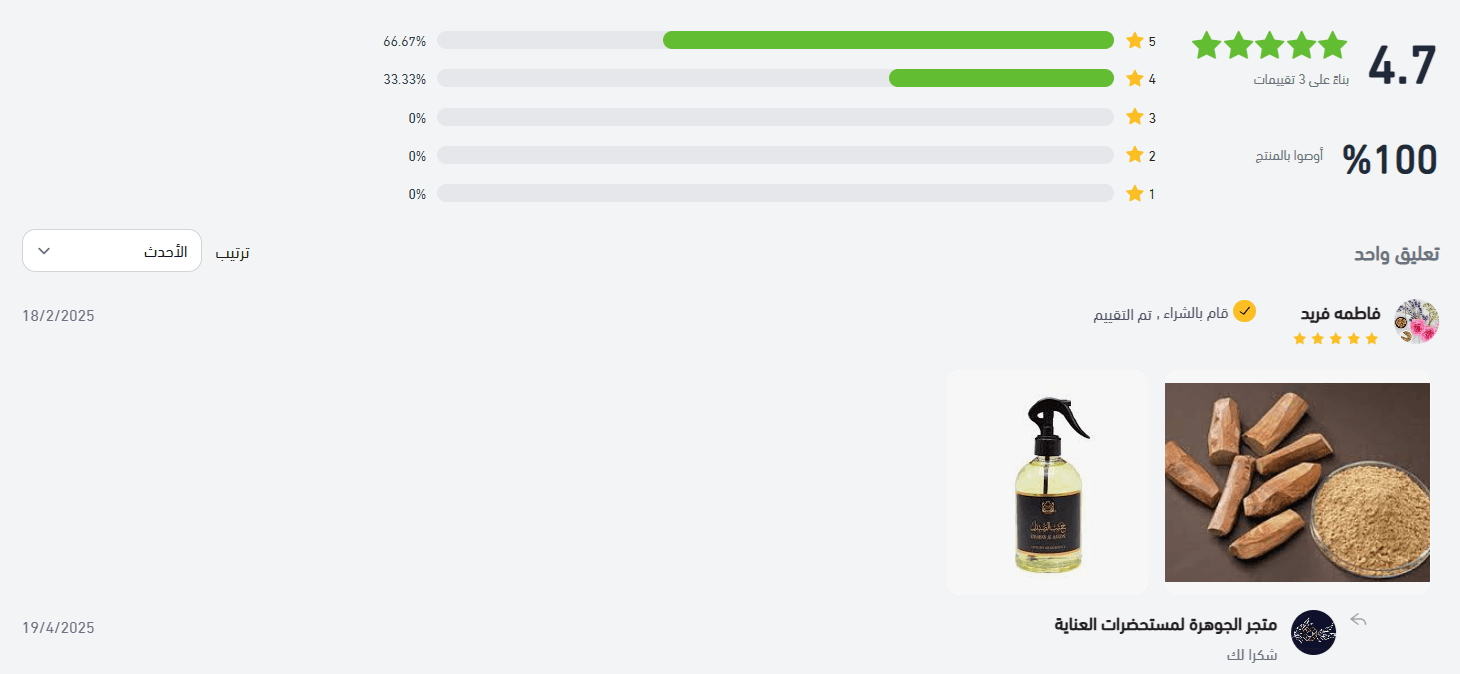
Depending on your store design settings, the customer reviews section can also appear at the bottom of the page.
🌟 Adding Customer Reviews to a New Menu
- From the main menu, go to Store & Channels, then click Store Design.
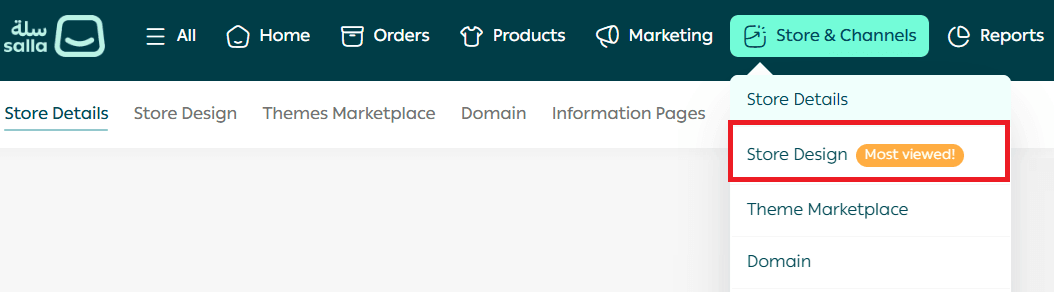
2. From the Store Design page, click Customize Version.
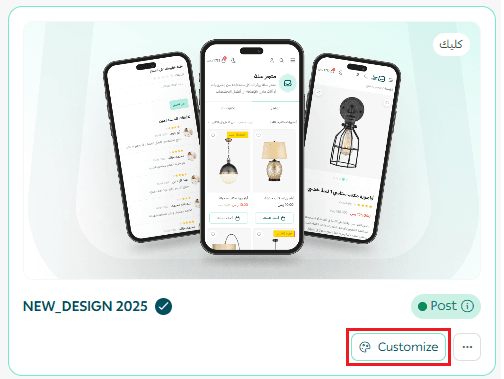
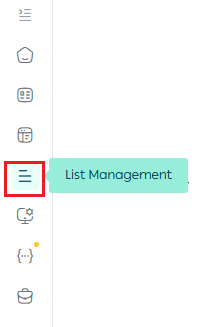
3. From the side menu, click List Management.
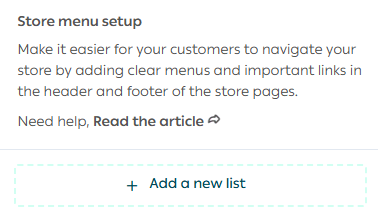
4. From the store menu settings, click Add new list.
5. To add customer review items to the menu, click Edit.

6. Click Add New Item.

Enter the item title, choose whether it opens in a new window, add an image if needed, and select the link type as Customer Reviews.
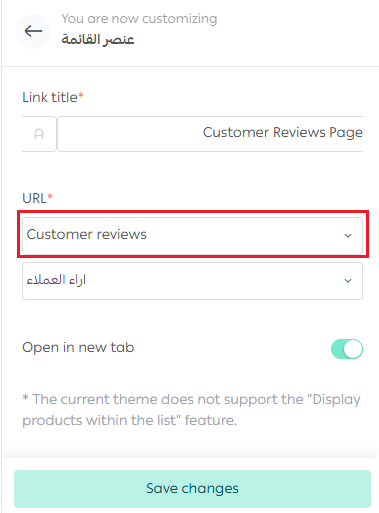
Then choose the type of reviews you want to display:
- Store Reviews: Displays overall customer reviews for the store
- Product Reviews: Displays reviews for individual products
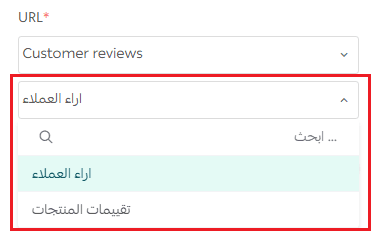
The item will appear in the menu as shown, and you can add additional menu items if needed.
🎯 Important Note
You can add the customer reviews item to any existing menu, not only new menus.
Looking for a flexible way to organize your store menus in the header and footer for each season or campaign? Learn how to create a customized browsing experience that highlights your offers professionally.
🧭 Displaying a Menu That Contains Customer Reviews
- From the main menu, go to Store & Channels, then click Store Design.
2. From the theme card, click Customize.
3. Open the Header and Footer Customization tab.
You have two options to display customer reviews:
- Display customer reviews in the header
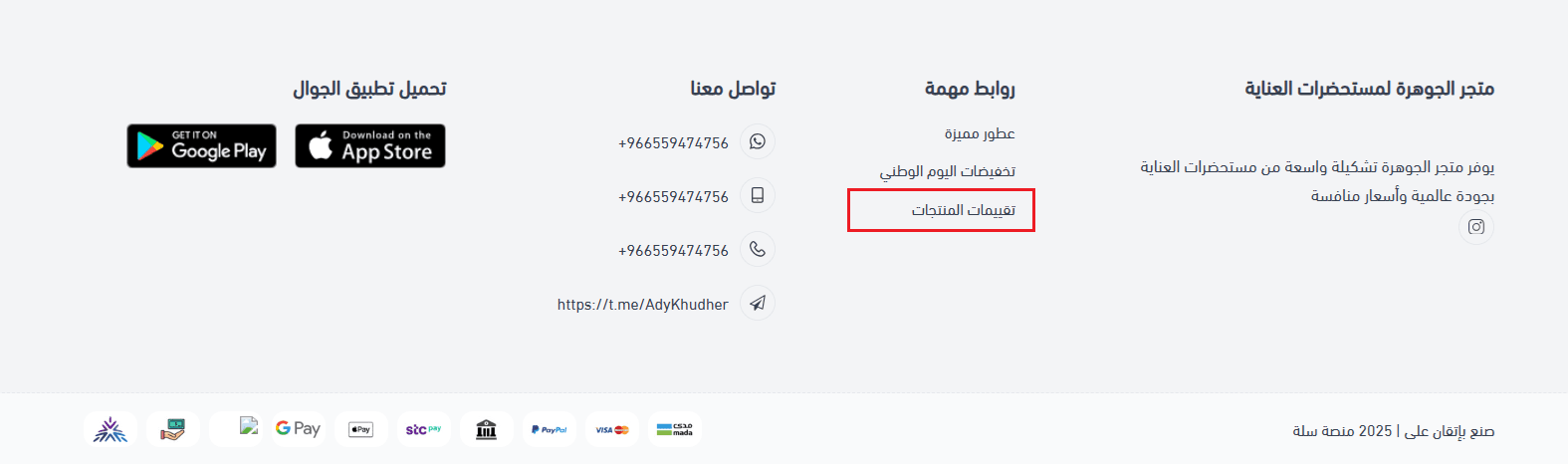
- Display customer reviews in the footer
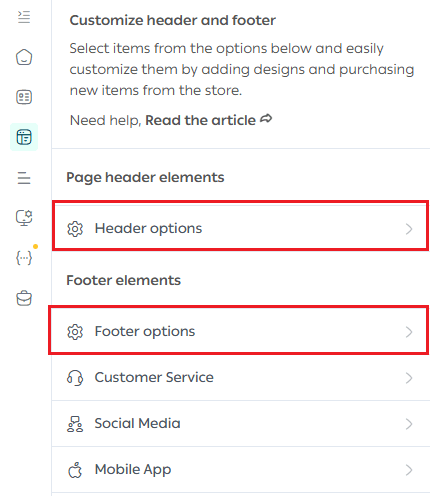
Example
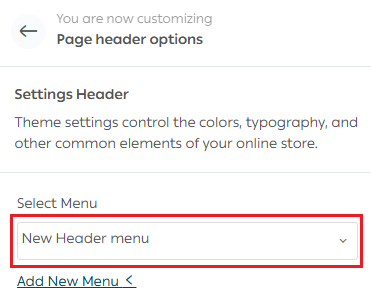
To display customer reviews in the header menu, click Header Settings,
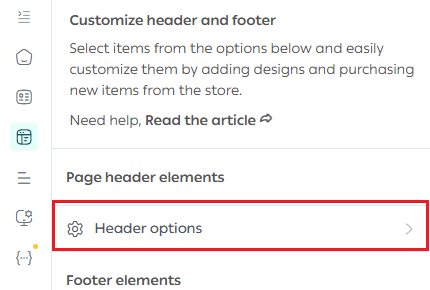
then select the menu that contains the customer reviews item.
📊 Practical Use Cases for Product Reviews
🍽️ 1. Kitchen Tools Store
Highlight real usage
Customer reviews with images showing real cooking usage are displayed in the header.
Result:
Customers can easily imagine the product in their own kitchen, which increases purchase intent.
📚 2. Book or Cultural Products Store
Build credibility and trust
The reviews section displays real reader opinions with detailed feedback about the book’s value or content.
Result:
This strengthens the buying decision for customers who rely on recommendations and thoughtful reviews.
Frequently Asked Questions
How can I enable the display of purchase count on the product card inside the reviews section?
From Product Settings, go to the Customize Purchase Count Display section and click Customize.
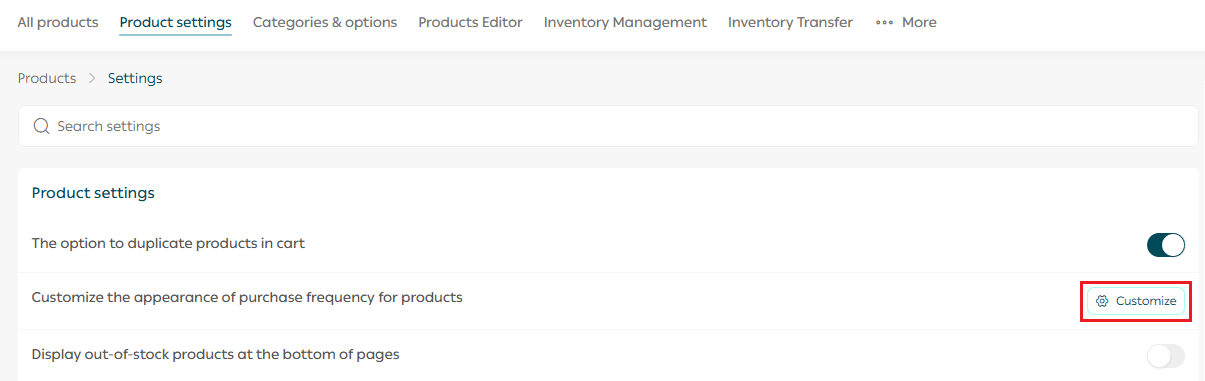
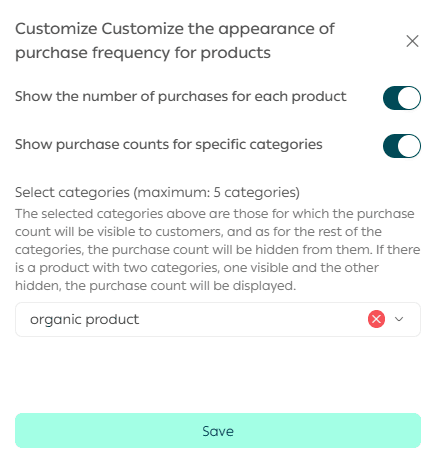
Adjust how purchase counts appear for products, then click Save.
Make your store look professional from the very first glance. Learn how to design your header and footer in a structured way that builds customer trust and increases sales opportunities.
🔧 Additional Support Resources

If you need help designing your store, you can use Merchant Services, which provide professional services such as logo design, banners, separators, and color coordination through verified Salla service providers.