Want customers to view a purchased PDF without receiving an ordinary copyable file?
Digital product PDF protection provides customer-specific browser access while disabling text selection and copying.
Digital product PDF protection on Salla gives each customer a private viewing link that renews after every visit and disables text selection and copying. Enable it under Store settings and Store options, then upload the PDF directly from your device. Customers open the protected file from the order details in their account.
📌 Article overview
- Enable digital product PDF protection
- Upload the PDF correctly
- Understand the customer viewing experience
- Check plan availability
- Frequently asked questions
How to enable digital product PDF protection
1. From the dashboard side menu, click Store settings.

2. On the Store settings page, click Store options.

3. Under Product options, enable Digital product protection mode for PDF files.

Salla displays a message explaining the feature.
For product setup steps, see (add a digital product).
Upload a PDF for protected viewing
To apply the documented protection, upload the digital product file directly from your device.
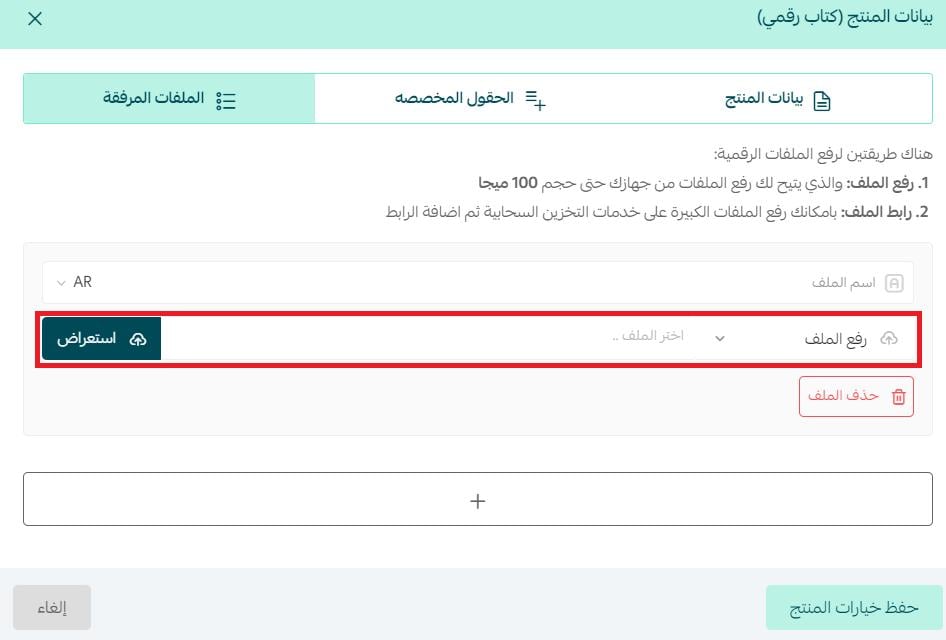
📝 Important notes
The protected file format documented in the source is PDF.
The feature provides a customer-specific link that renews after every visit and disables text selection and copying.
The source lists the Plus, Pro, and Special plans as eligible.
How customers view a protected PDF
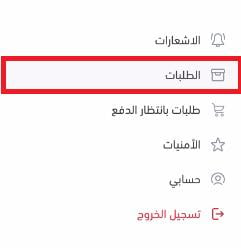
1. From the account menu, the customer clicks Orders.
2. The customer opens the relevant order.

3. On the order details page, the customer clicks View file.

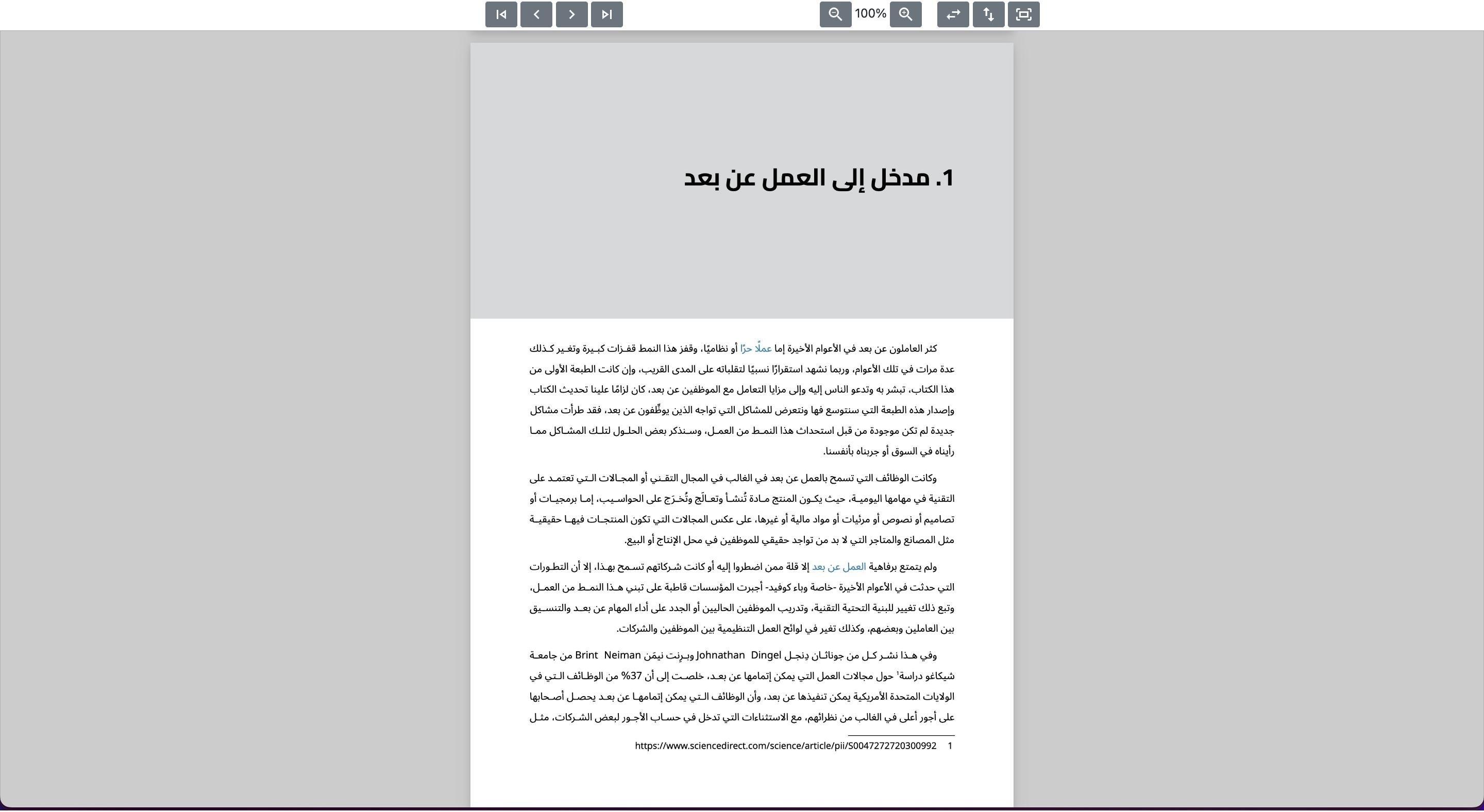
The PDF opens in the browser.
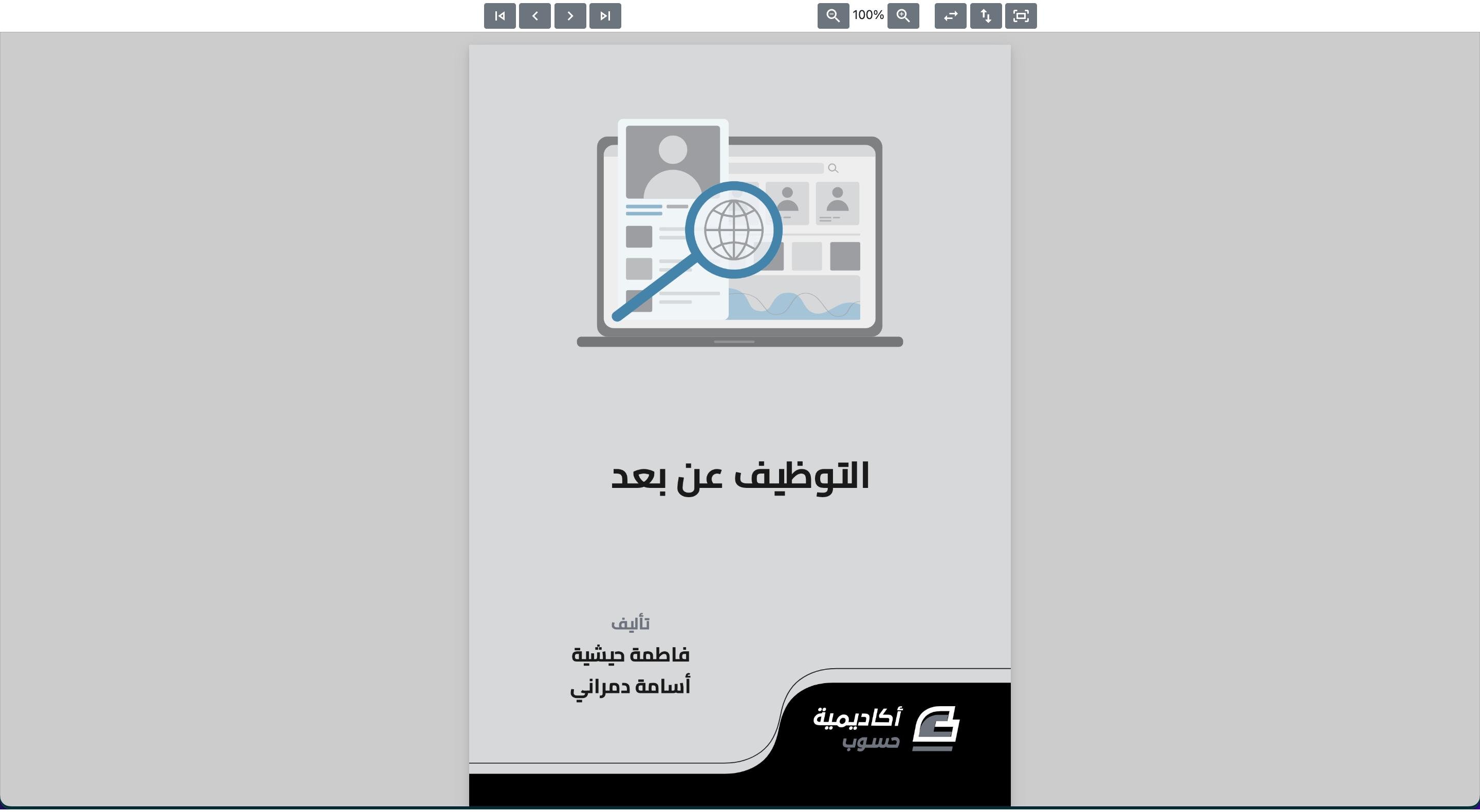
The customer can continue through the remaining pages in the browser viewer.
Frequently asked questions
What does digital product PDF protection do?
It gives each customer a private viewing link that renews after every visit and disables text selection and copying in the browser viewer.
Which file type is covered by this setting?
The source documents this protection setting for PDF files.
How must I upload the protected digital product file?
Upload the file directly from your device so the documented protection can apply.
How does a customer open the protected PDF?
The customer opens Orders from their account, selects the relevant order, and clicks View file on the order details page.
Which Salla plans include the feature?
The source lists Plus, Pro, and Special. Confirm current plan availability before publication.
This setting adds controlled browser access for eligible digital-product PDFs while keeping the viewing path simple for customers.