Still rebuilding your sales figures in a spreadsheet at the end of every month?
Accounting is where a growing store quietly loses hours: invoices raised by hand, orders re-typed, tax reports assembled from exports. The Daftra app links your Salla store to the Daftra accounting software so the two systems share the same data. In this guide, you'll learn what the Daftra integration syncs, how to create a Daftra account, how to connect it to your store, how to manage your subscription, and how to remove the app.
The Daftra app connects your Salla store to Daftra accounting software. It syncs your orders, issues compliant e-invoices and credit notes, and gives you live reports on sales, profit, and inventory, along with financial statements and tax reports, all without manual data entry.
📝 Note: The app subscription covers the integration service only. It does not include a subscription to the Daftra accounting software itself.
📌 Article overview
- What the Daftra integration syncs
- How to connect Daftra to your Salla store
- Manage the Daftra app
- How to delete the Daftra app
- Frequently asked questions
✅ What the Daftra integration syncs
- Automatic product updates: whenever you add a product or edit an existing one.
- Automatic product category updates: the category attached to a product syncs with it.
- Automatic updates for products with variants: on both creation and edit.
- Automatic updates for grouped products: on both creation and edit.
- Full control over automatic syncing: every automatic update is optional in the integration settings. You can sync from Salla, sync to Salla, or turn automatic updates off completely.
- Better product creation from synced invoices: an improved way of creating a product for the first time when invoices are pulled in and automatic updates are switched off.
- Retry failed invoices: records that did not complete during a manual or automatic sync can be retried.
- Support for invoices containing deleted products: invoices sync successfully even when they include products that were previously deleted from Salla.
- Clearer connection details: the connected Daftra site and the connected Salla store are both labeled, so merchants running several stores or sites do not mix them up.
- Stop a manual sync: you can cancel a sync while it is still running.
🚀 How to connect Daftra to your Salla store
Step 1: create a Daftra account
⚠️ Skip this step if you already have a Daftra account.
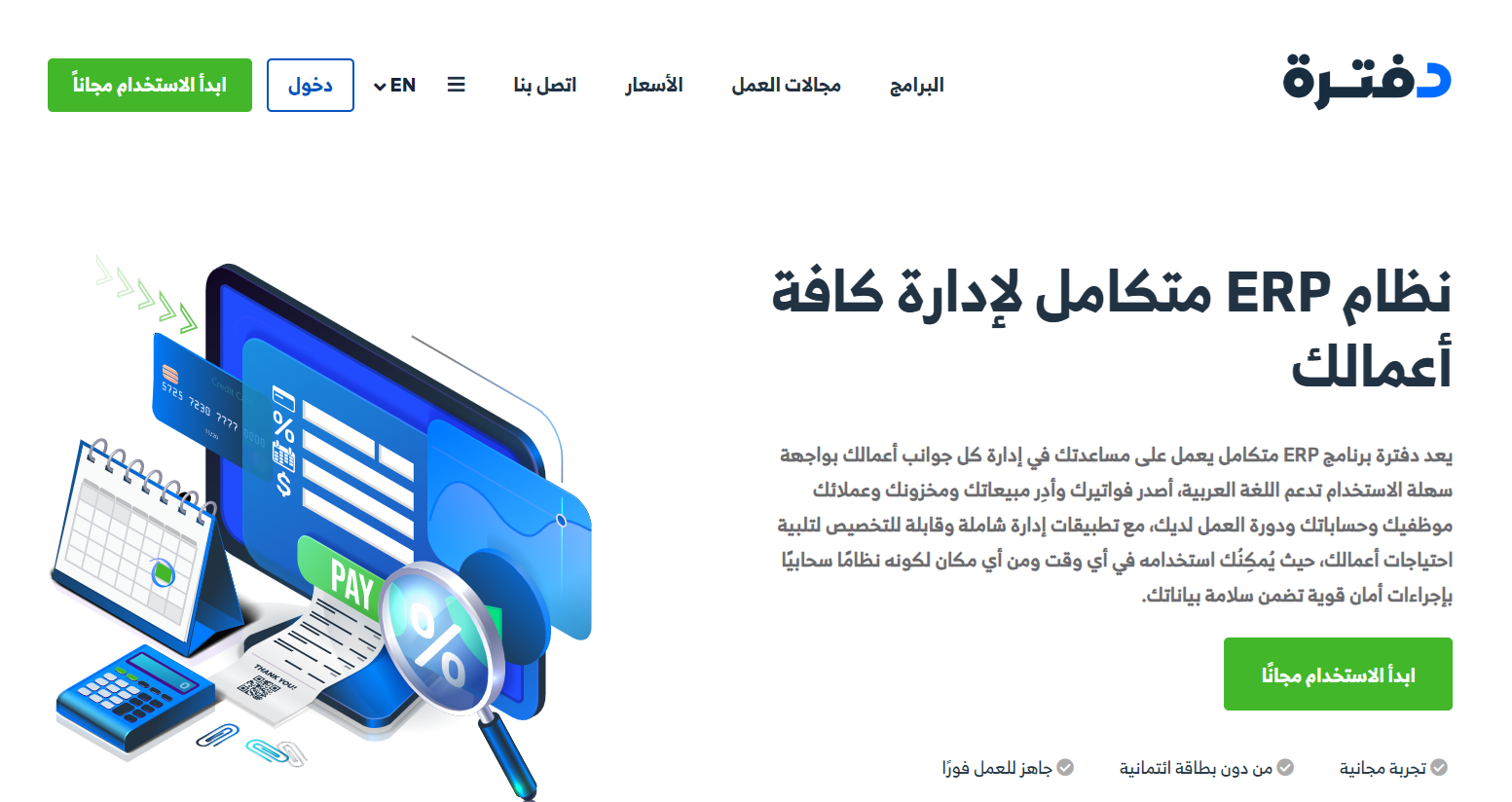
1. On the Daftra home page, click (Start using it for free).
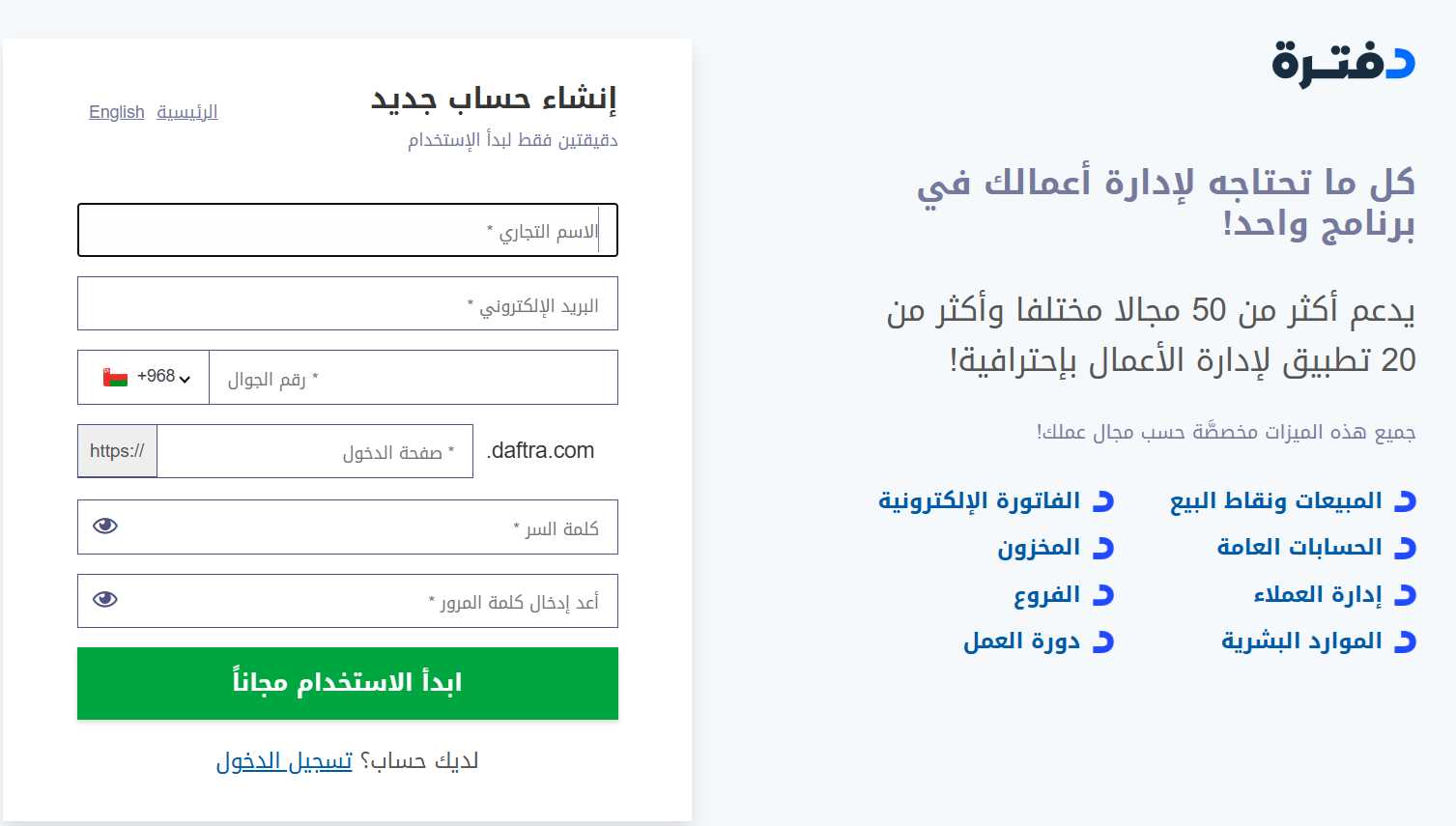
2. Enter the details requested: business name, store email address, phone number, your Daftra login page name, and a password. Then click (Start using it for free).
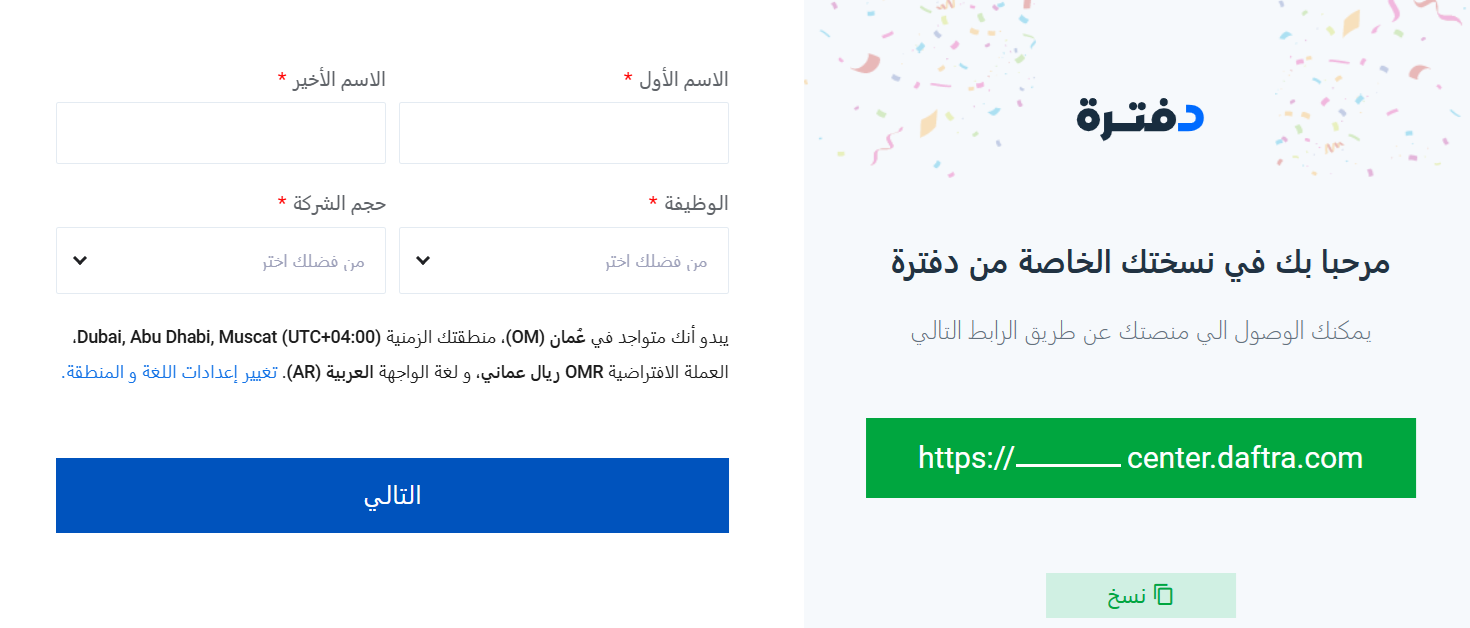
Complete the remaining information.
3. Click (Yes, continue).
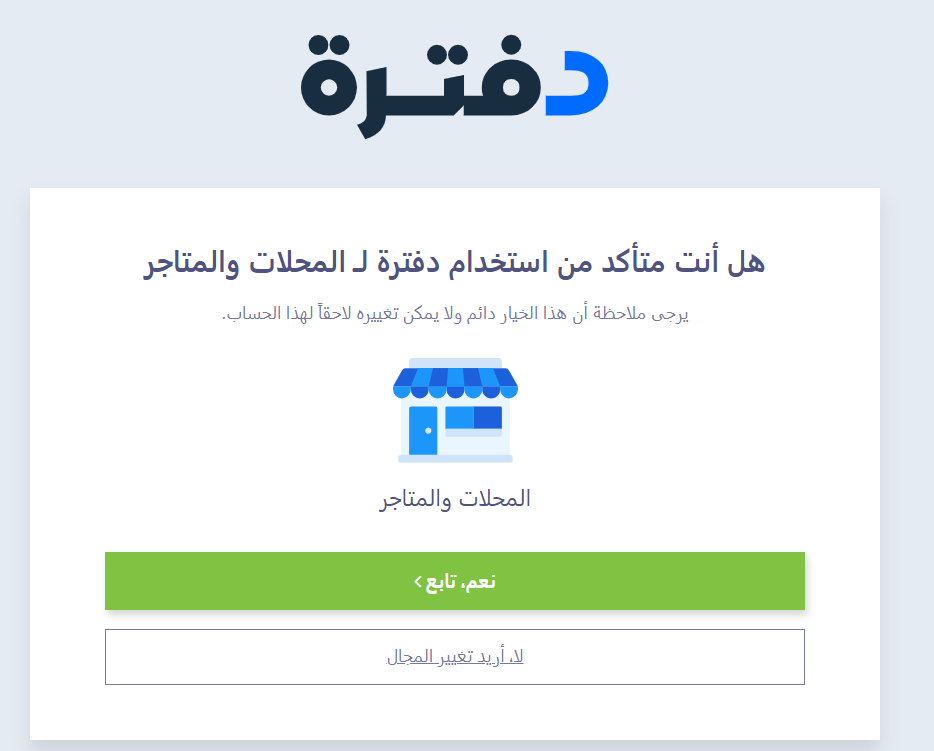
Your store now has a Daftra account.
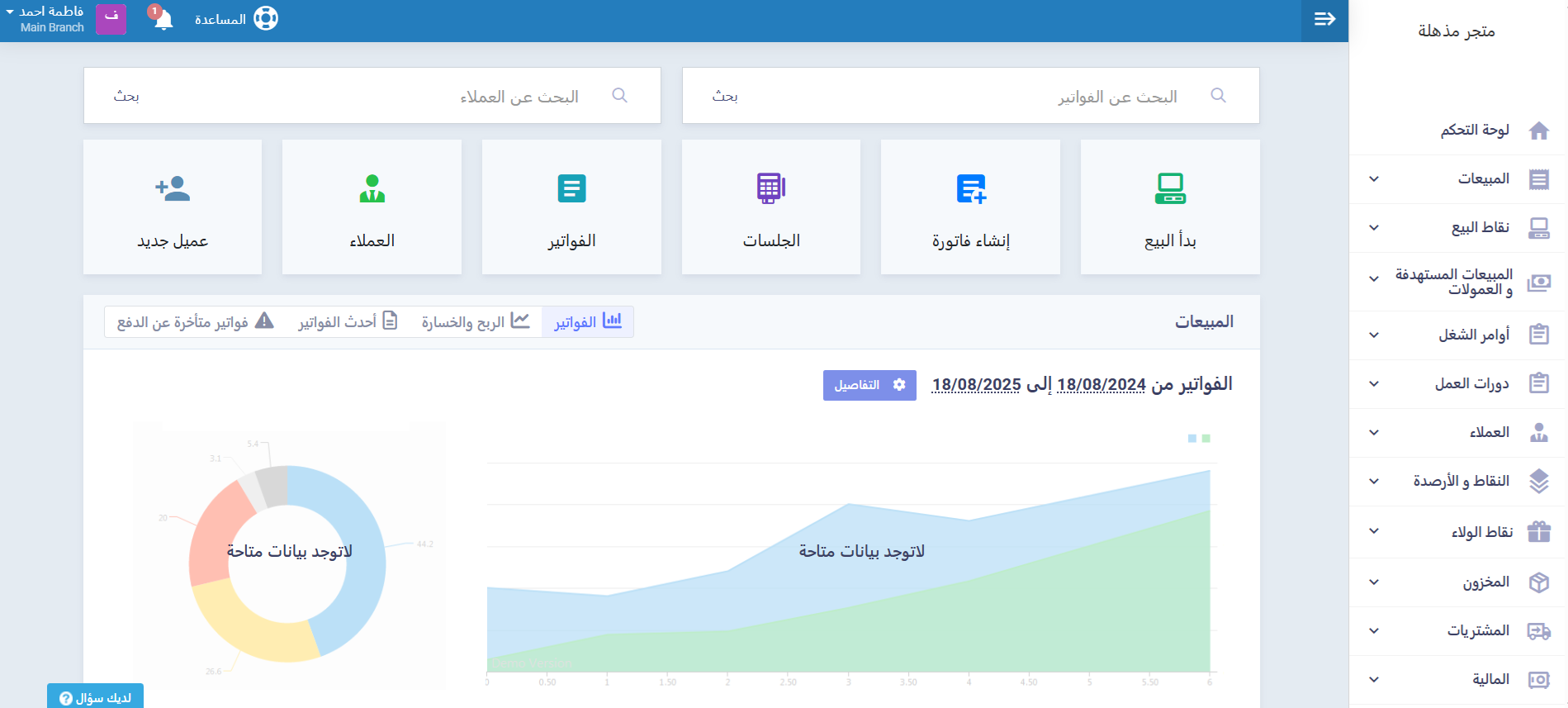
Step 2: connect your Salla store from Daftra
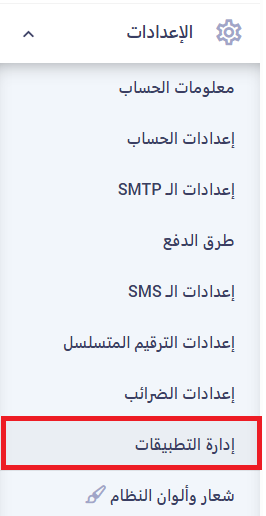
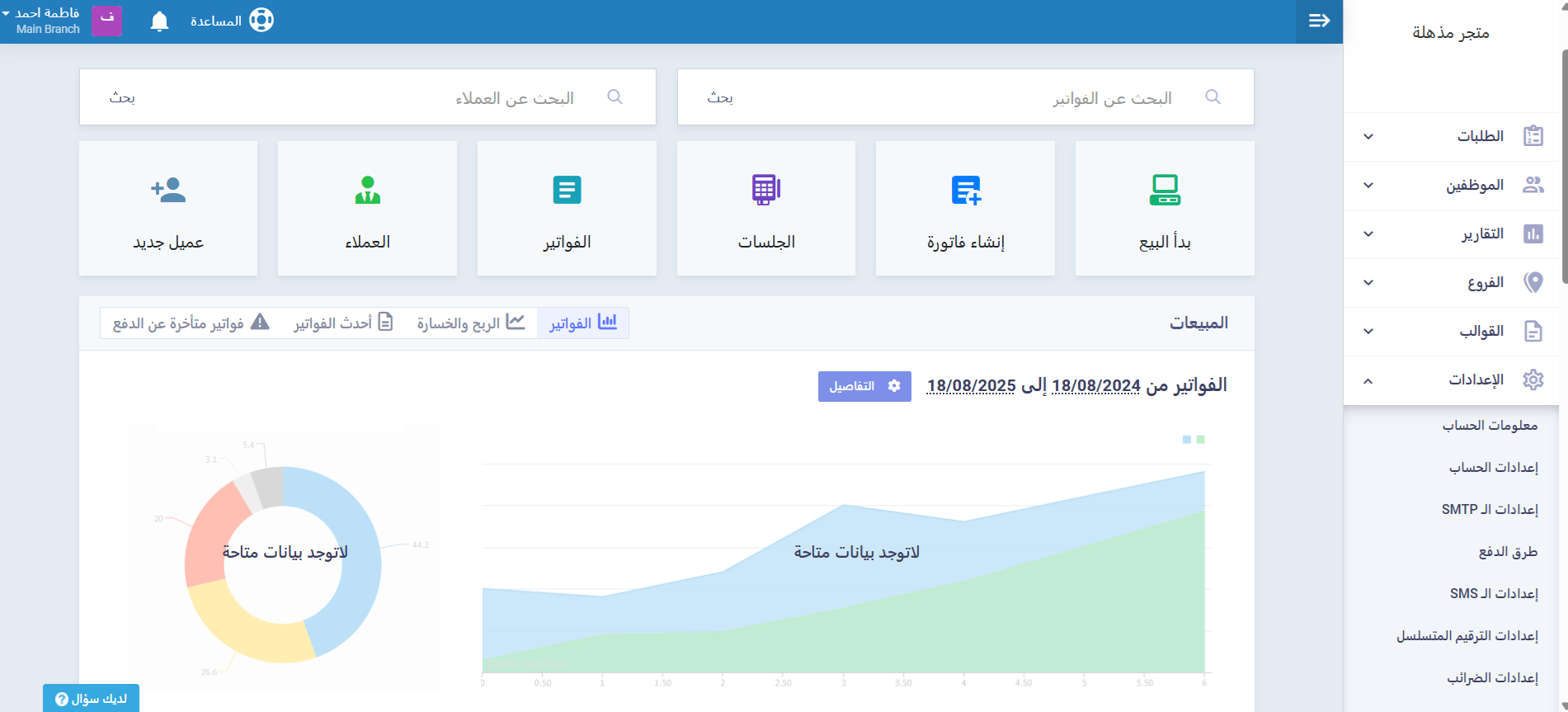
1. In the side menu of your Daftra account, open settings and click (App management).
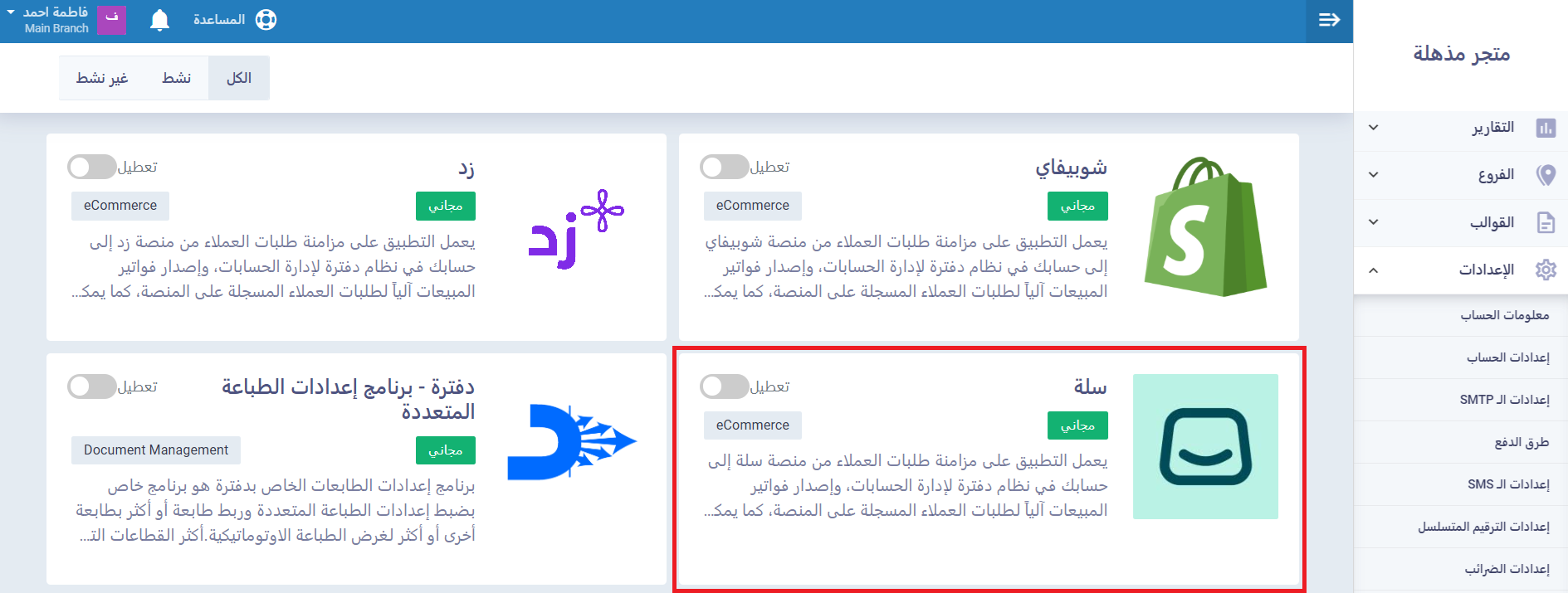
2. On the app management page, click (Manage external apps).

3. Click the (Salla) app.
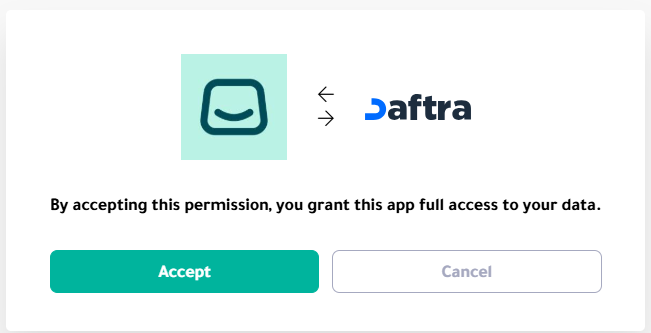
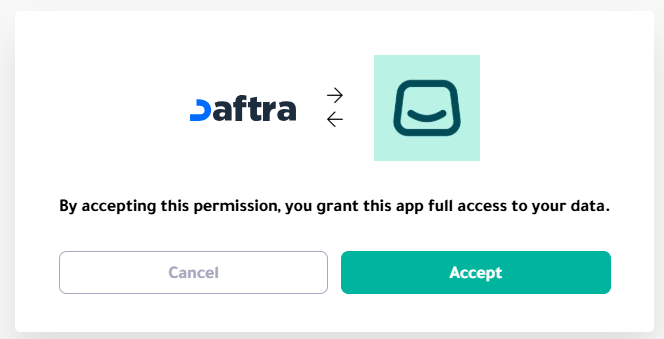
4. Click (Accept) to approve the permissions requested.
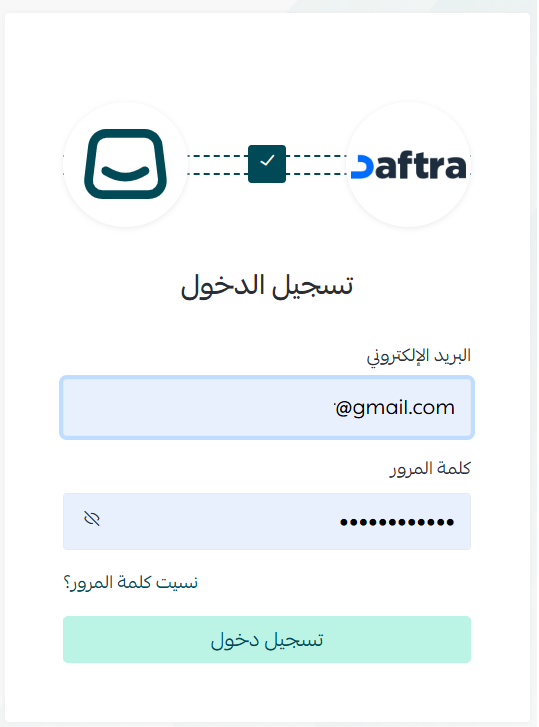
5. Sign in to your Daftra account.
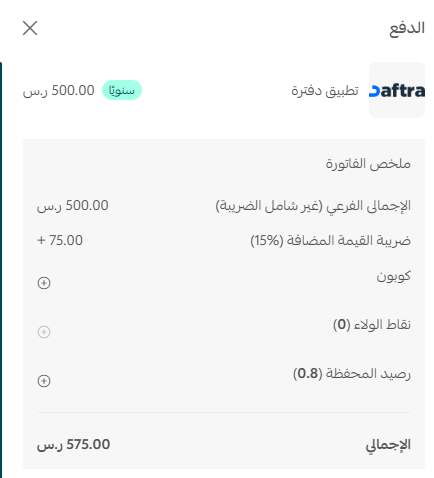
6. Complete the payment.
7. Click (Accept) to approve the permissions requested.
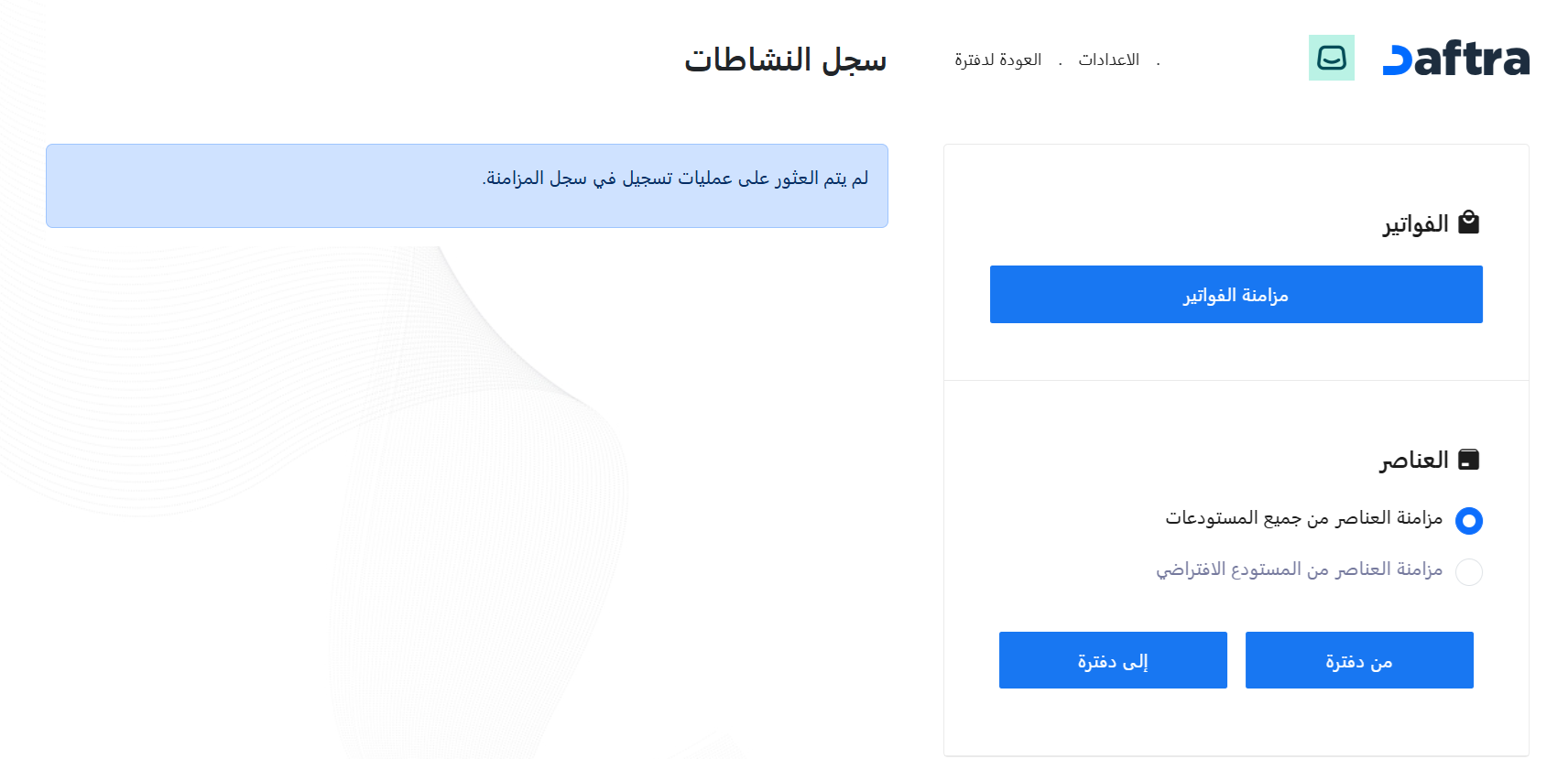
Your Salla store activity can now be synced with your Daftra account.
[Verify: the Arabic source ends with an empty numbered step before this screenshot, so the final action shown here is undocumented.]
🚀 Manage the Daftra app
Your Daftra app plan
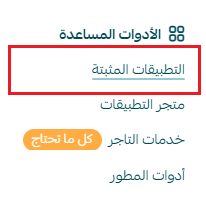
To review your Daftra app subscription from your store dashboard, go to the main menu, click (All), then under the helper tools section, click (Installed apps).
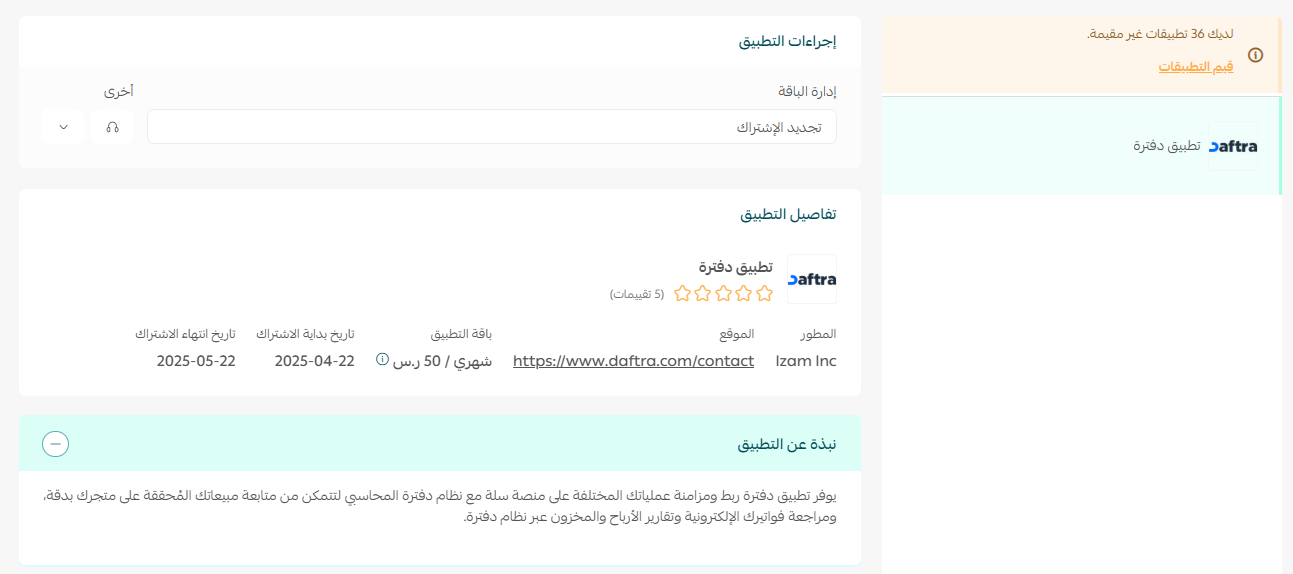
Then search for the app using the search field.

From the app actions section you can manage your Daftra plan.
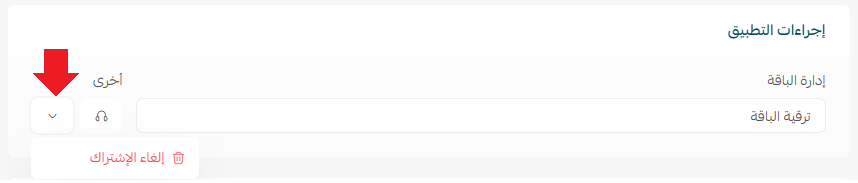
This is also where you cancel or renew the subscription.
Delete the Daftra app
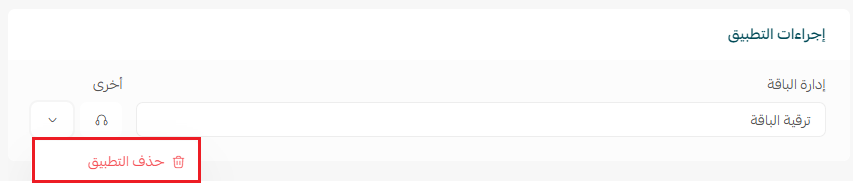
Once you have canceled the Daftra subscription, you can delete the app from the app actions section.
For more details, see Daftra's terms and conditions.
❓ Frequently asked questions
Which business types does Daftra support?
Daftra supports a wide range of business activities, and its partnership with Salla makes it a good fit for e-commerce merchants in particular. Supported activities include:
- Online stores of every kind: clothing, accessories, electronics, digital products, and more
- Small and medium online businesses
- Wholesale and retail stores
- Home businesses and new stores
- Selling through social media
Alongside the sectors it already supported:
- Construction and real estate investment companies
- Maintenance and technical support centers
- Law firms and consultancies
- Educational centers and schools
- Gyms and health clubs
- Clinics and medical centers
What does Daftra offer Salla merchants?
- A direct, simple connection to your Salla store
- Invoices created and managed automatically from your orders
- Automatic syncing of customer and product data
- Advanced inventory tracking
- Detailed financial and tax reports
- Support for partial and advance payments
- A dedicated view for following orders and invoicing records
- Invoices customized to your store's branding
- Supplier and purchase order management
- The option to add your team and manage their permissions
What do the options offered when activating the Daftra connection mean?
When you connect your Salla store to Daftra, you have two main options:
1. Create financial invoices automatically
- Turned on: the order is posted to Daftra and an invoice is created automatically, marked as paid.
- Turned off: the order is posted as unpaid only.
2. Set a default customer account
- Turned off: orders are posted with the real customer's details.
- Turned on: orders are posted under a single default customer.
Does inventory sync automatically between Daftra and Salla?
No. Inventory is not synced automatically between the two platforms. Inventory management in Daftra follows its accounting structure, so contact technical support for details on setting it up.
What information moves from Salla to Daftra when an order is posted?
- Customer details
- Product details and quantities
- The VAT amount
How are orders synced?
Automatic sync: orders are posted automatically once their status is (Completed).
Manual sync: from the orders page, select the orders you want and click (Send to Daftra).
📝 Note: syncing can be delayed at busy times. Do not repeat the action unless you see a failure notice.
What happens if I disconnect and reconnect?
Orders that were already posted are not posted again automatically. Take care with manual posting to avoid duplicates, and check with technical support if you are unsure.
How do I confirm an order was posted successfully?
Open the order page and review the order log at the bottom, where the posting status and its details appear. If it failed, the reason is shown.
Are orders placed before the connection synced automatically?
No. Orders placed before you connected the app have to be posted manually.