Does "completed" mean shipped, out for delivery, or already in your customer's hands?
An order status tells your customer exactly which stage their order has reached after checkout — but the same label can mean different things in different stores. In one store, "completed" means the order has shipped; in another, it means it was delivered. That's why Salla lets you customize order statuses to match how your store actually works. In this guide, you'll learn how to view, rename, color-code, and extend your order statuses, and how the changes reach your customers.
To customize order statuses on Salla, open (Orders) from the dashboard's side menu, click (Services), then (Customize statuses). You can rename any of the ten basic statuses, change its icon and color, edit the notification message customers receive, and add sub-statuses for finer detail — then click (Save).
📌 Article overview
- Managing and customizing order statuses
- Customizing order statuses step by step
- Disabling a sub-status
- Viewing orders by status
- Frequently asked questions
🚀 Managing and customizing order statuses
Viewing your customized order statuses
Your statuses appear at the top of the orders page, as shown here:

Adding more detailed levels to any order status
The statuses you can customize in your store fall into two groups:
1. Basic statuses — ten in total: under review, awaiting payment, in progress, completed, delivering, delivered, shipped, canceled, restored, and restoring.
2. Sub-statuses — designed to describe the order's stage with more precision.
👣 Customizing order statuses
1. From the side menu of your dashboard, click (Orders).

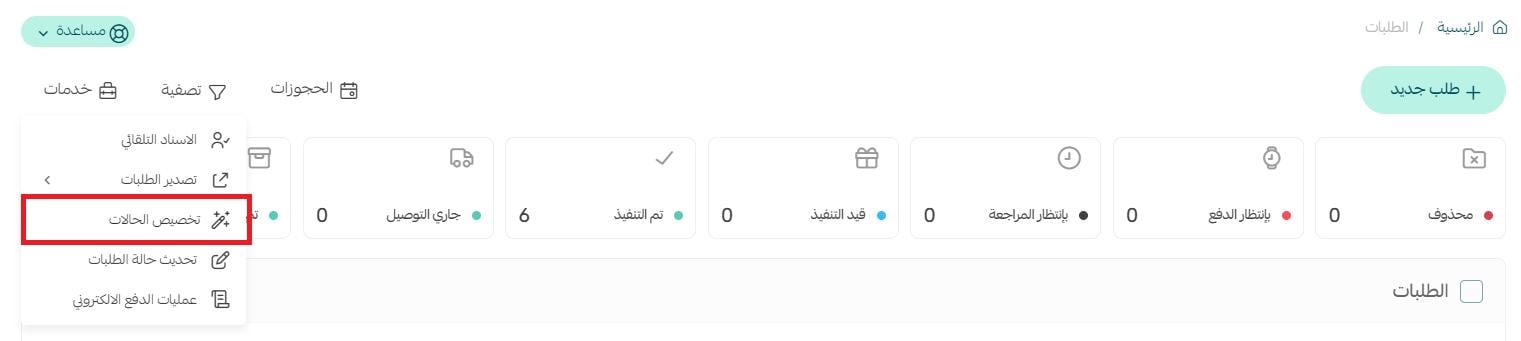
2. From the orders page, click (Services), then click (Customize statuses).
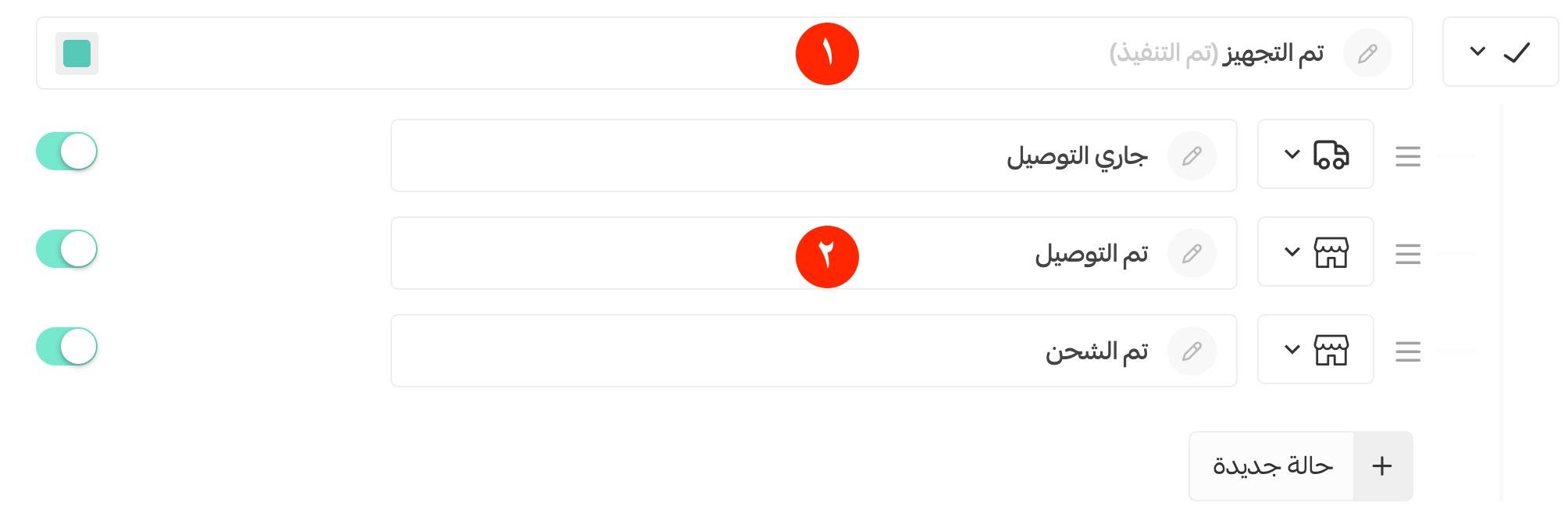
3. Review the existing basic statuses and edit them, as shown here:

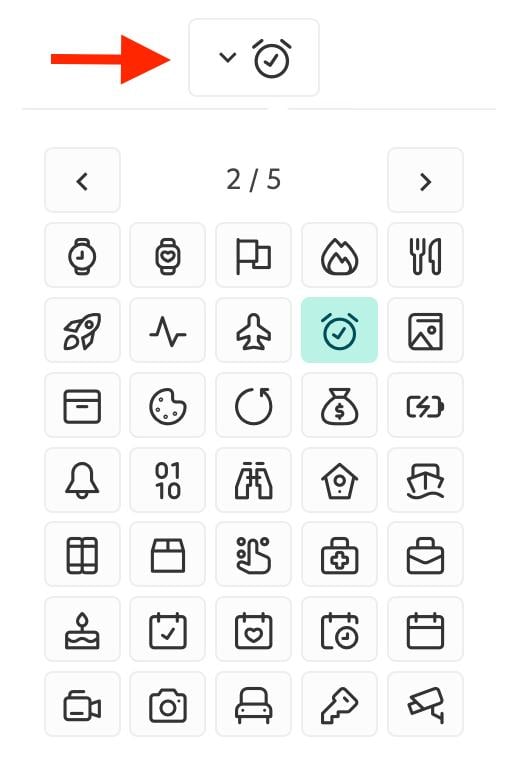
1. Customize the basic status icon.
2. Status name — write a name that fits how your store works and states exactly what this stage means for the customer's order.
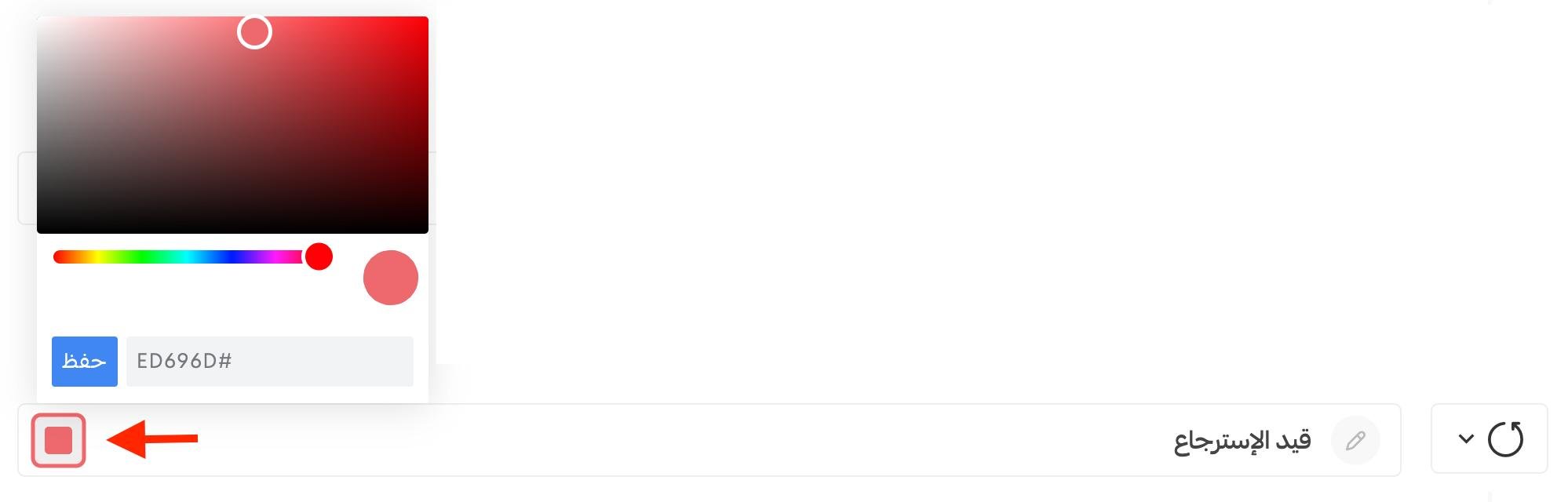
3. Change the status color to make it easier to tell apart.
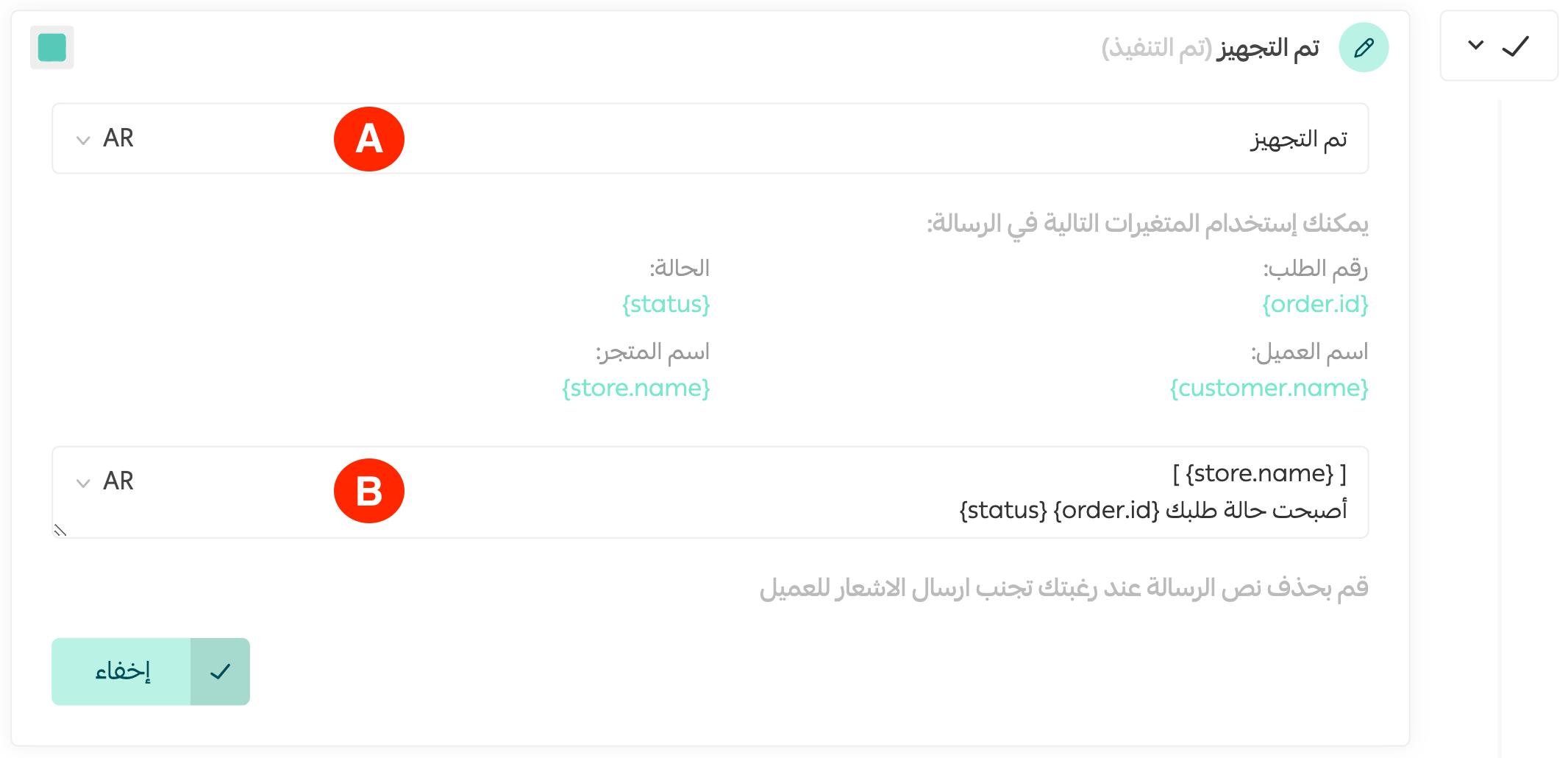
A. The order status name — keep it short and expressive.
B. The message the customer receives, describing the stage their order has reached.
4. Set up the sub-statuses for each basic status.
To add a new sub-status, click (+ New status).
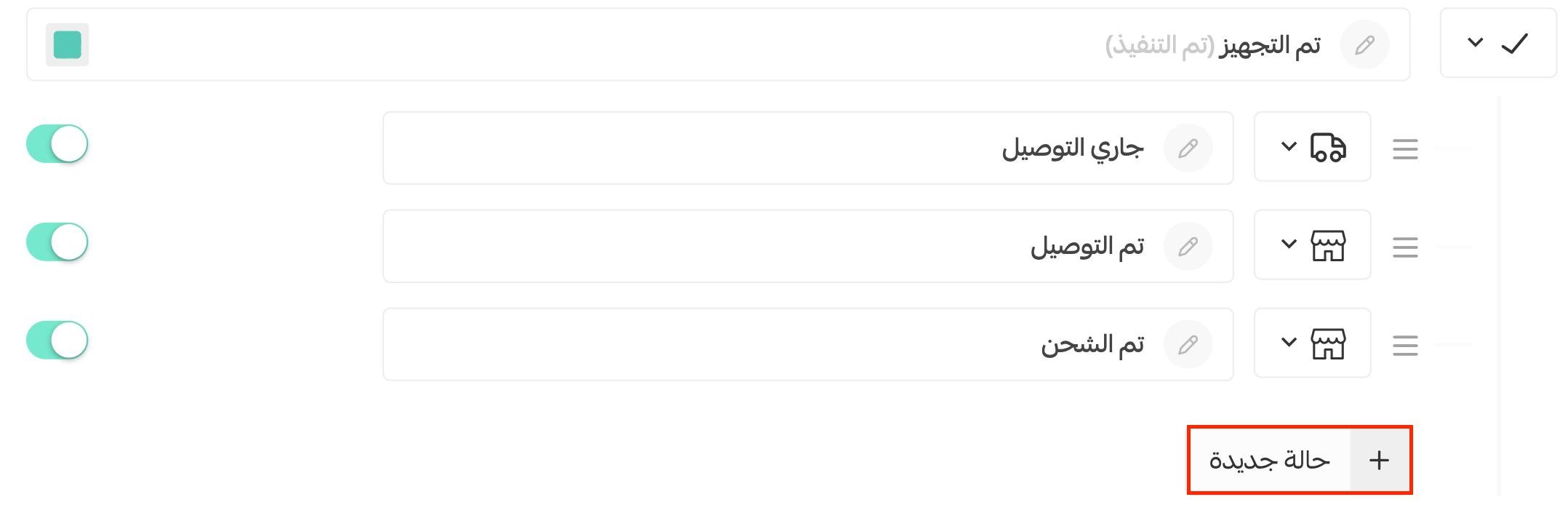
Write the status name and the text of the order status notification the customer will receive, then click (Hide).
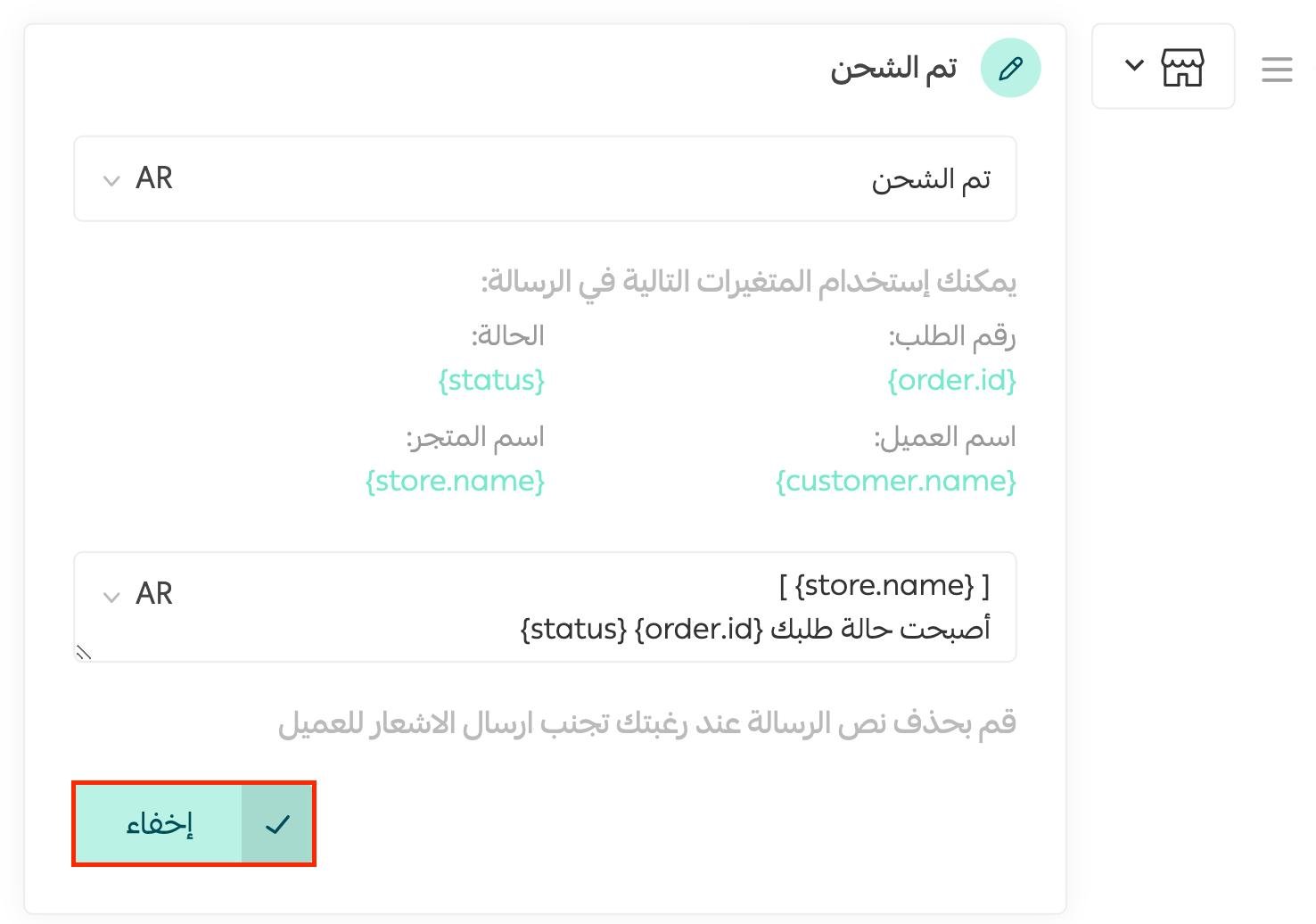
5. Click (Save) to save your status changes.

Disabling a sub-status
Sub-statuses cannot be deleted, but you can stop one from appearing in your store by toggling its visibility on or off, as shown here:
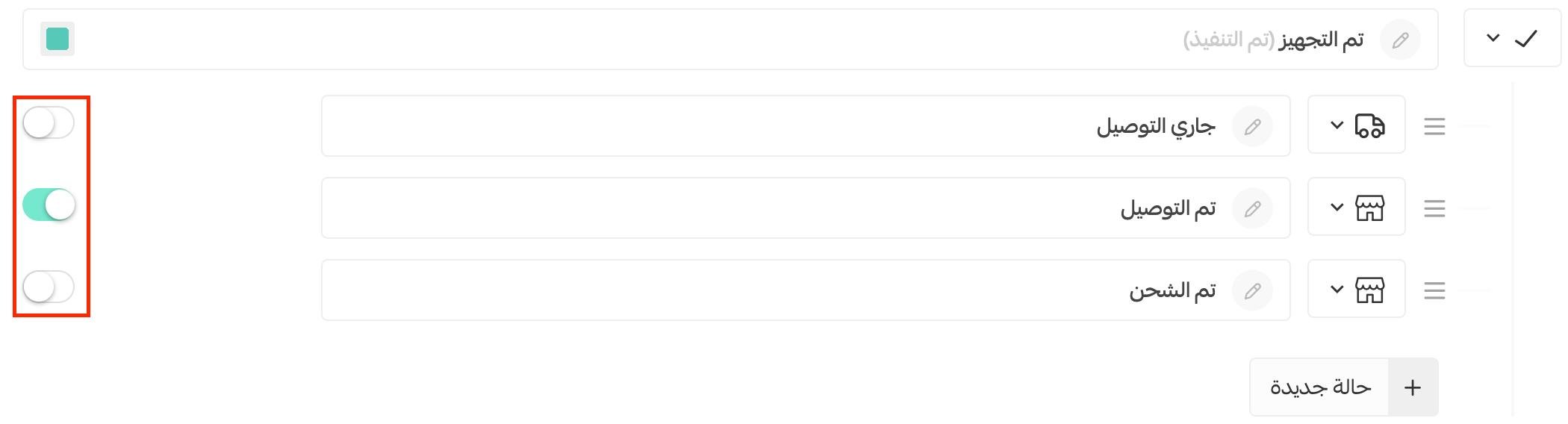
Viewing the orders under one status
Click any status at the top of the orders page — for example, click (Under review) to display all orders awaiting review, as shown here:

To go back to viewing all orders, click the (X) on the status you filtered by, as shown here:

❓ Frequently asked questions
Will this customization affect previous orders?
Yes. The changes apply to previous orders as well as current and future orders in your store.
How do I customize a status icon?
Click the icon of the status (basic or sub-status) and a list of icons appears — pick the one that best represents the status.
How do I customize a status color?
Click the status color box, choose the color and its shade, then click (Save).
After assigning colors, the order statuses summary looks like this:

What does the hide button do?

It only collapses the sub-status panel, giving you a clearer, fuller view of the basic and sub-status groups.
Can I delete one of the basic statuses?
No. Basic statuses cannot be deleted — you can only change their names and descriptions.
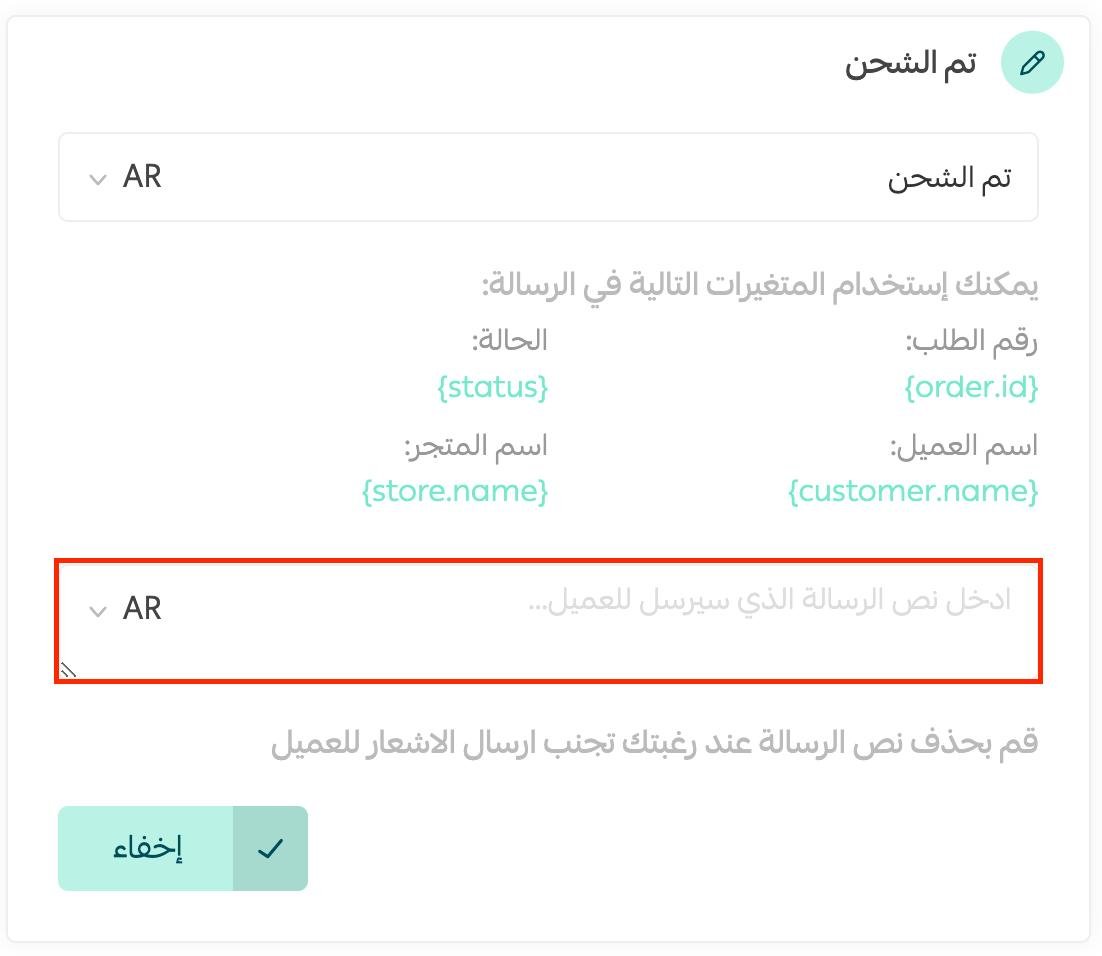
How do I avoid sending the customer a notification about their order status?
Simply delete the message text for that status, as shown here:
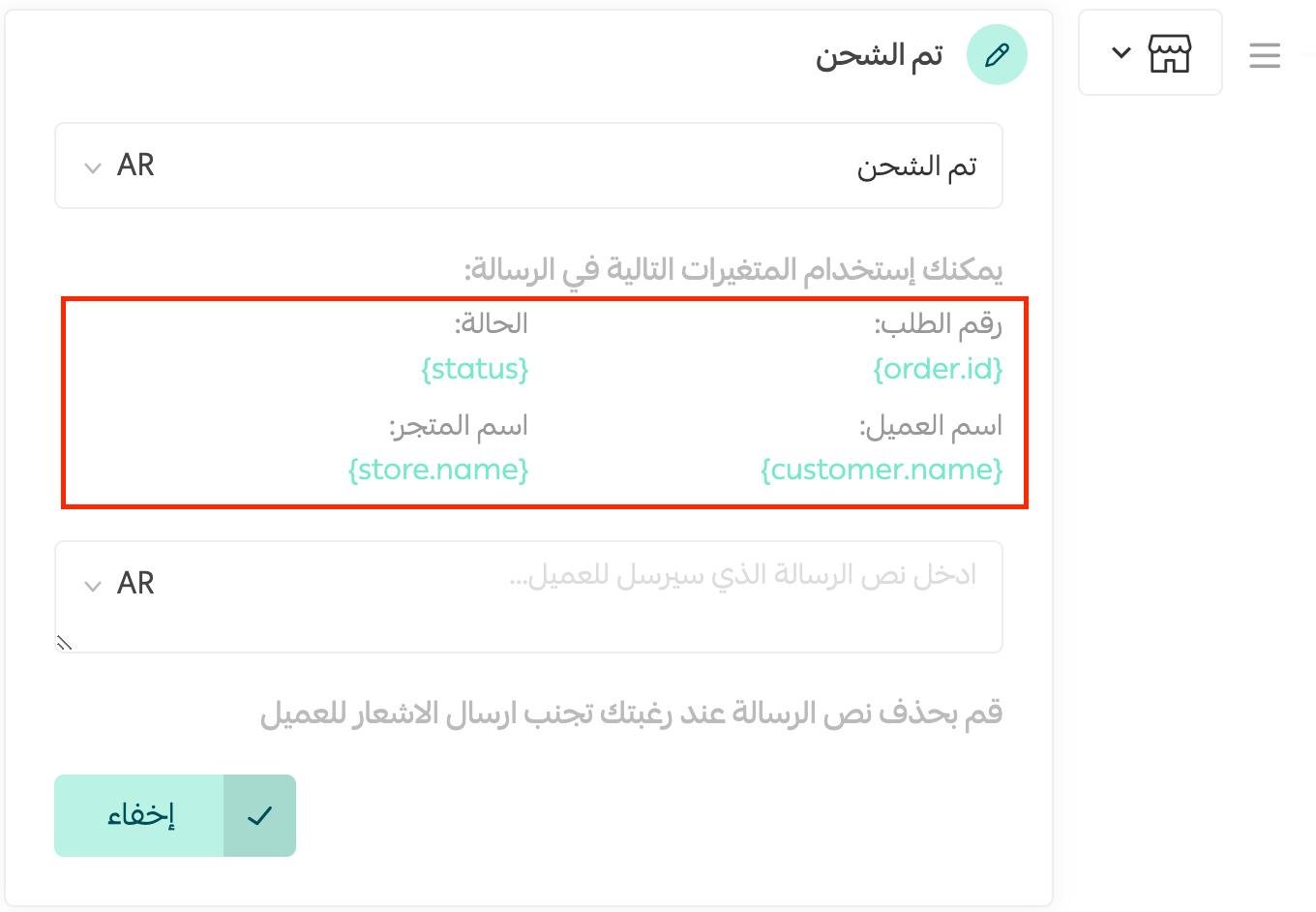
How do I customize the order status message the customer receives?
You can personalize the order status message by inserting the right placeholders into the text: order number, status, customer name, and store name.
Which plans include this feature?
Order status customization is available on the Plus and Pro plans.
Clear, well-named order statuses save your team explanation time and spare your customers the "where is my order?" anxiety — a few minutes of customization that pays off on every single order.