Need an order preparation list that shows the details your fulfillment team actually uses?
The order pick list can be customized to match your store's preparation workflow. In this guide, you'll learn where to find the setting, how to select the available details, and how to save your changes.
To customize the order pick list, open Store settings, select Store options, and find the pick-list customization setting under Order options. Choose which available details should appear, save the setting, then save the Store options page. The selected fields shape the list used by your fulfillment team.
📌 Article overview
- Why customize the order pick list?
- How to customize the order pick list
- What the setting changes
- Frequently asked questions
✅ Why customize the order pick list?
Customizing the list lets you choose the available information that supports your team's order preparation process.
👣 How to customize the order pick list
1. From the dashboard sidebar, click Store settings.

2. Click Store options.

3. Under Order options, find the order pick-list customization setting, then click Assign.

4. Enable or disable the available options to match your workflow, then click Save.
5. On the Store options page, click Save again.

🎯 What the order pick list setting changes
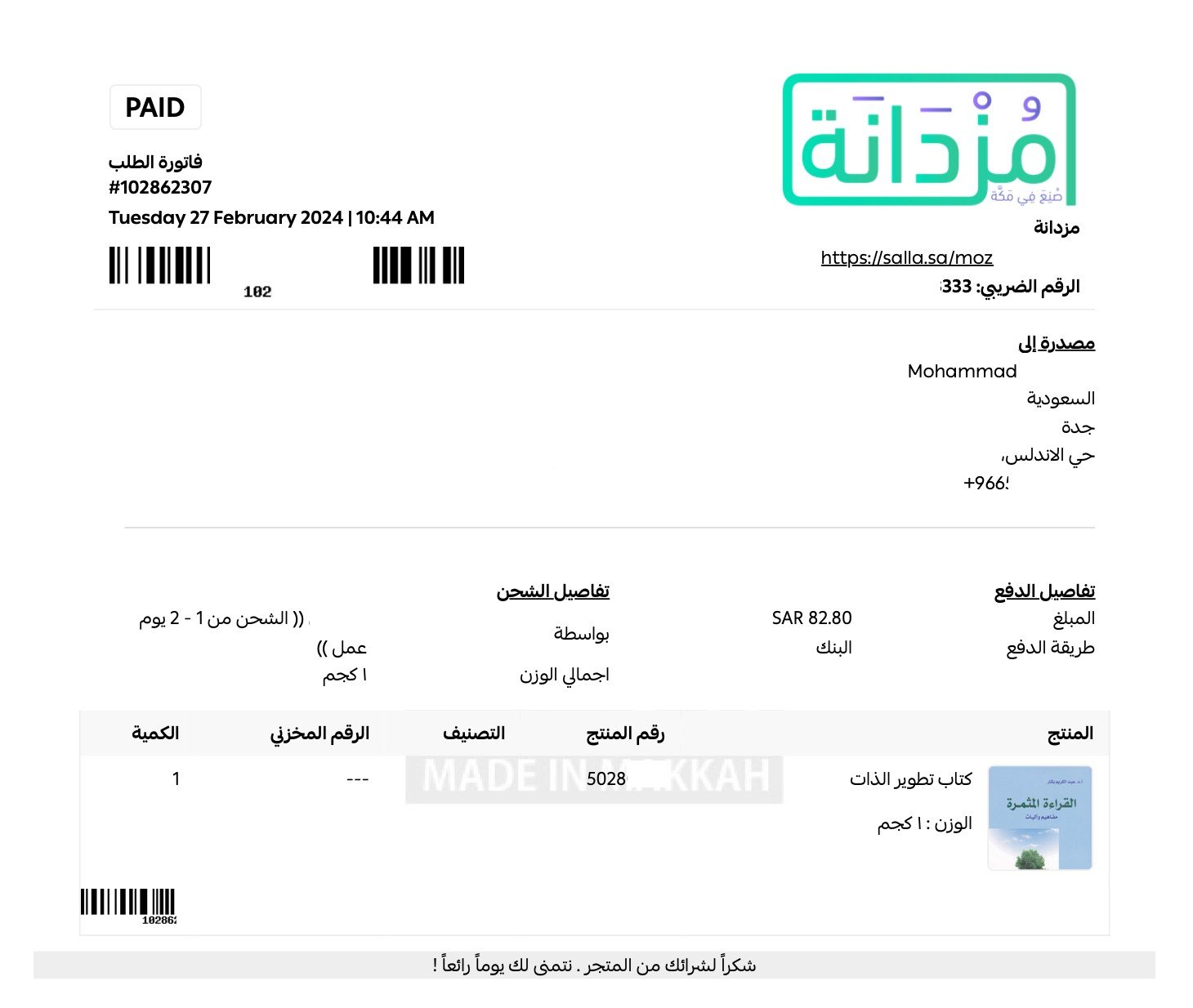
You can control which available details appear on the list by enabling or disabling its options. The setting also displays the stated effect each enabled option has on the customer invoice.
📝 Important notes
Review the note shown under each option before enabling it so you understand its stated invoice effect.
Frequently asked questions
❓ Where can I customize the order pick list?
Go to Store settings, open Store options, then find the pick-list customization setting under Order options.
❓ Can I choose which details appear on the list?
Yes. Enable or disable the available options based on the information your preparation workflow needs.
❓ Do the options affect the customer invoice?
The source states that each option shows its invoice effect beneath the setting. Review that note before enabling the option.
A focused order pick list helps your team prepare orders with the information selected for your store's workflow.