Want more control over how your categories look, and the freedom to rebuild the categories page around the browsing experience you actually want to give customers?
With categories page customization, you manage every component on that page directly from the theme editor.
The categories page is where most shoppers decide whether your store is worth exploring, and until now it was largely fixed. Now you can add components to it, reorder them, and apply your changes across every category or to a single one. In this guide, you'll learn how to customize the categories page design and manage its components.
Open Store design from the main menu, click (Customize) on your theme, then open the (Page components) tab and choose (Categories page). Pick whether to customize all categories or a single one, click (+ Add new component), adjust its settings, then click (Save changes).
📌 Article overview
- About categories page customization
- How to customize the categories page design
- How to manage categories page components
- Frequently asked questions
About categories page customization
This feature gives you far more room to shape the categories page around the way you present your content. You can create and edit components by picking them from your theme's components, from add-ons you already have or have bought, or through AI tools. You can also reorder components on the page freely, which makes it much easier to build a browsing experience that feels organized and moves smoothly.
What categories page customization gives you
✨ Add new components to the categories page in a few clicks.
⚙️ Full control over categories page components and their settings from inside the design editor.
🔄 Reorder page components to match how you want the store to read.
🎯 Choose whether a component appears across all categories or in one specific category.
🚀 A more flexible, better-organized way to design the categories page.
🚀 How to customize the categories page design
1. From the main menu, click (Store and sales channels), then click (Store design).
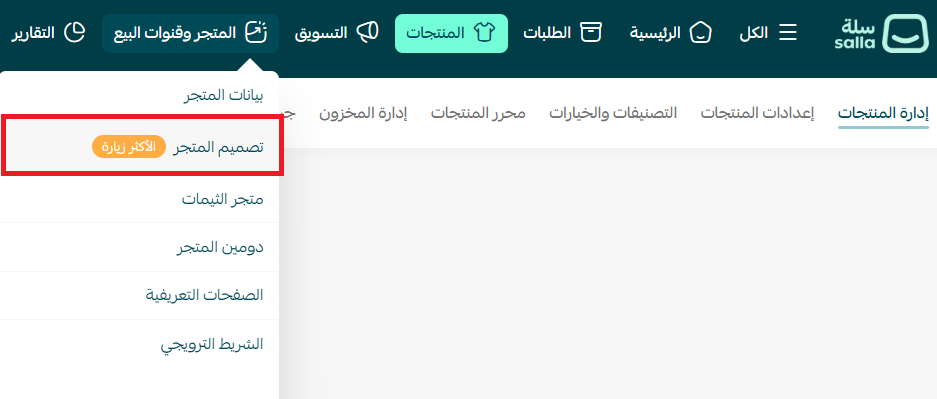
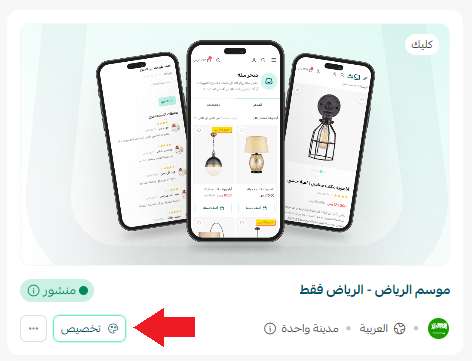
2. On the Store design page, click (Customize) to start editing the theme.
3. Open the (Page components) tab, then choose (Categories page).
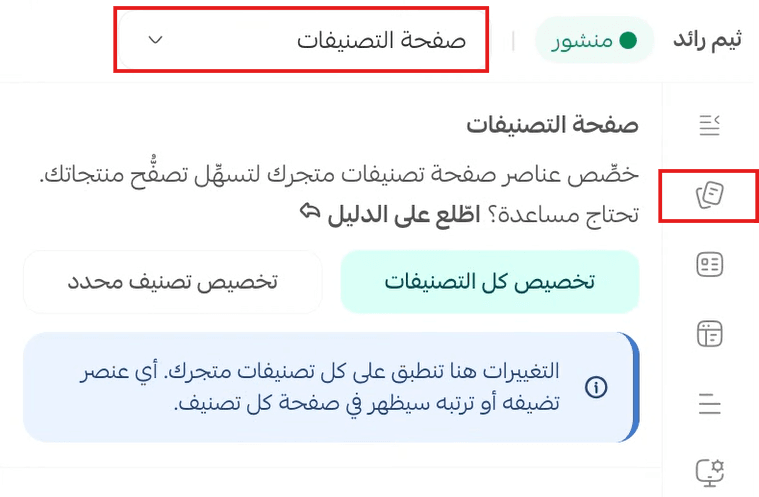
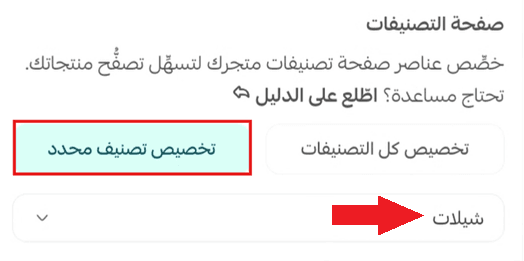
4. Choose the scope of your changes — all categories, or one specific category:
- Customize all categories: your changes apply to every categories page.

- Customize a specific category: your changes apply to that one category only.
5. Click (+ Add new component) and pick what you want to add from the component list.
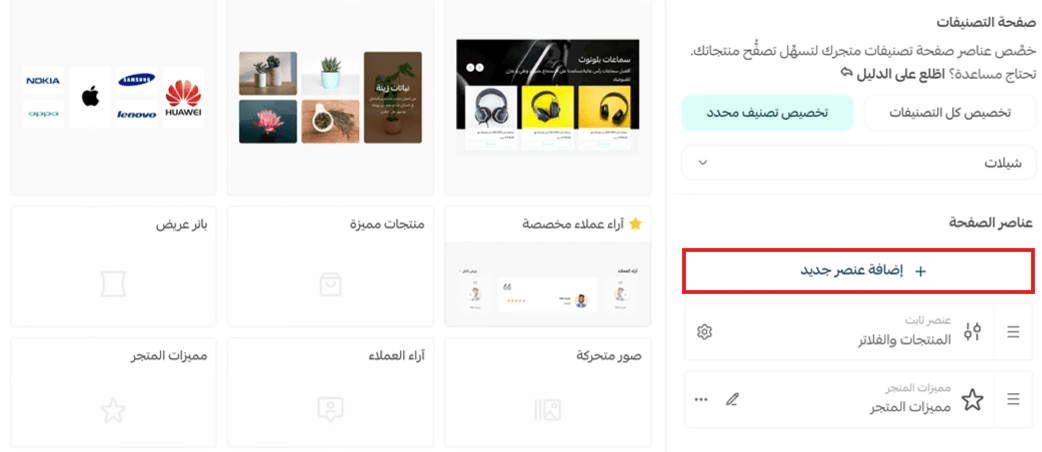
6. Customize the component you added, then click (Save changes).
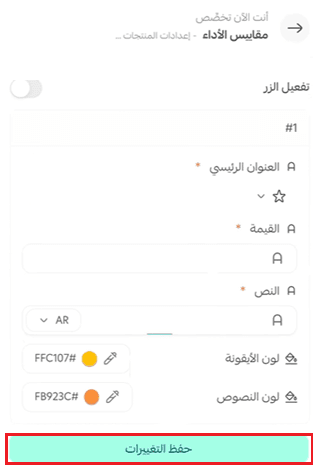
How to manage categories page components
Fixed components
These are added to the categories page automatically. They cannot be deleted, and their order cannot be changed.
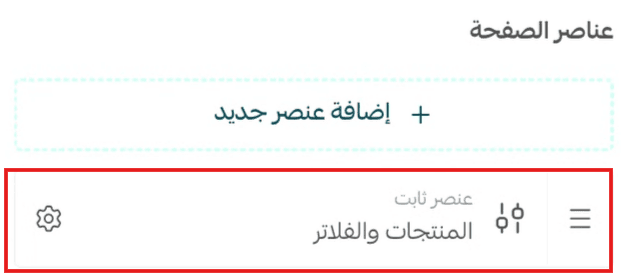
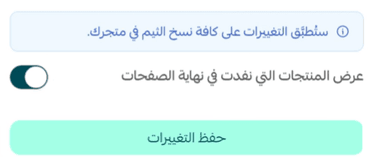
Customize the (Products and filters) component
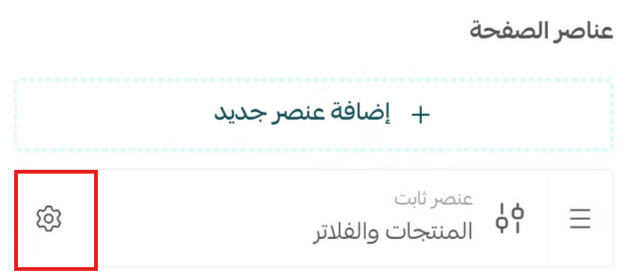
1. Open the component using the (settings button).
2. Adjust the settings you need, then click (Save changes).
Add-on components
These are the components you add to the categories page yourself. You can reorder them or delete them at any time.
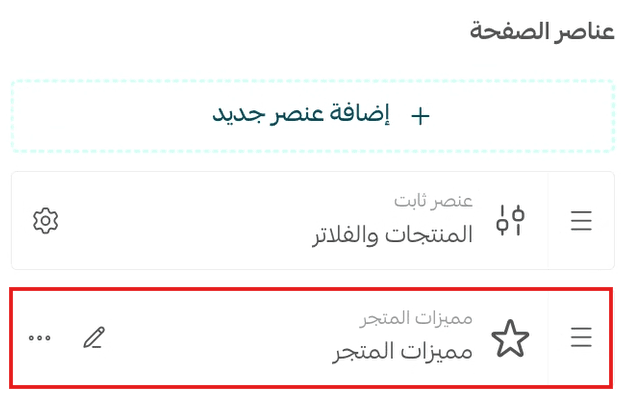
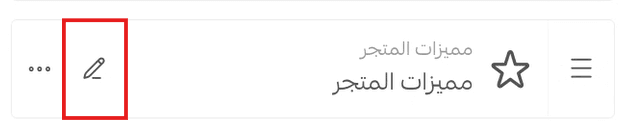
Customize an add-on component
Open any add-on component for editing using the (edit button).
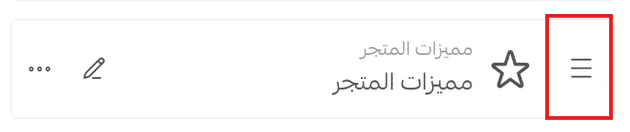
Reorder add-on components
Drag and drop an add-on component to change where it sits on the page.
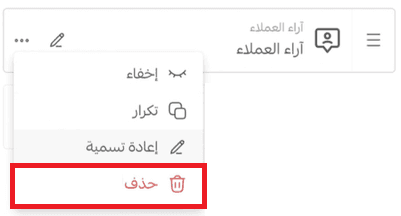
Delete an add-on component
Click the three dots on the component, then choose (Delete).
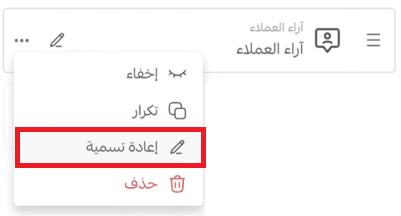
Rename an add-on component
Click the three dots on the component, then choose (Rename).
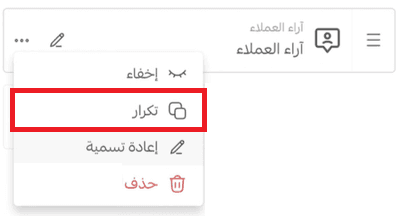
Duplicate an add-on component
Click the three dots on the component, then choose (Duplicate).
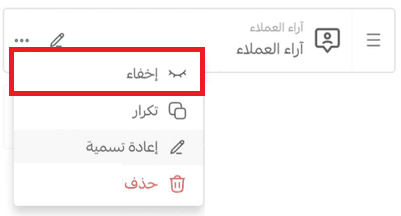
Hide an add-on component
Click the three dots on the component, then choose (Hide).
📝 Important notes
Fixed components stay in place so the categories page keeps working correctly, so plan your layout around them.
Hiding an add-on component keeps it in the editor but removes it from the storefront, which is useful for seasonal sections.
❓ Frequently asked questions
Are categories page component settings tied to a design version?
No. These changes are not tied to a specific design version — they apply across your pages.
Can I hide or delete the fixed components on the categories page?
No. The core components stay in place so the page keeps functioning correctly.
Can I change the order of the fixed components?
No. The order of fixed components cannot be edited. Only add-on components can be reordered.
Can I customize just one category instead of all of them?
Yes. At step 4, choose (Customize a specific category) and your changes apply to that category alone.
How do I move a component up or down the page?
Drag and drop it. This works for add-on components only.
💪 Give your categories pages room to breathe.
Try categories page customization and take real control of the page's components and settings, so browsing your store feels easier and more professional for your customers. 🚀