Effective customer management is essential for the success of any online store. The Customer Profile feature allows you to store customer data, track their orders, and understand their purchasing behavior in one place.
With this feature, you can personalize customer experiences, update customer details, communicate directly with them, and organize customers into groups for smarter targeting. In this guide, you’ll learn how to create a new customer profile and use the available tools to strengthen customer relationships and improve store performance.
📌 Article overview
- Customer management page
- Creating a new customer profile
- Searching for specific customers
Customer management page
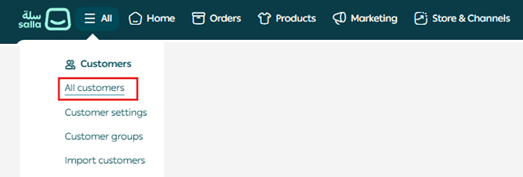
- From the main menu, click All, then under Customers select All customer.
The Customer Management page will appear as follows:
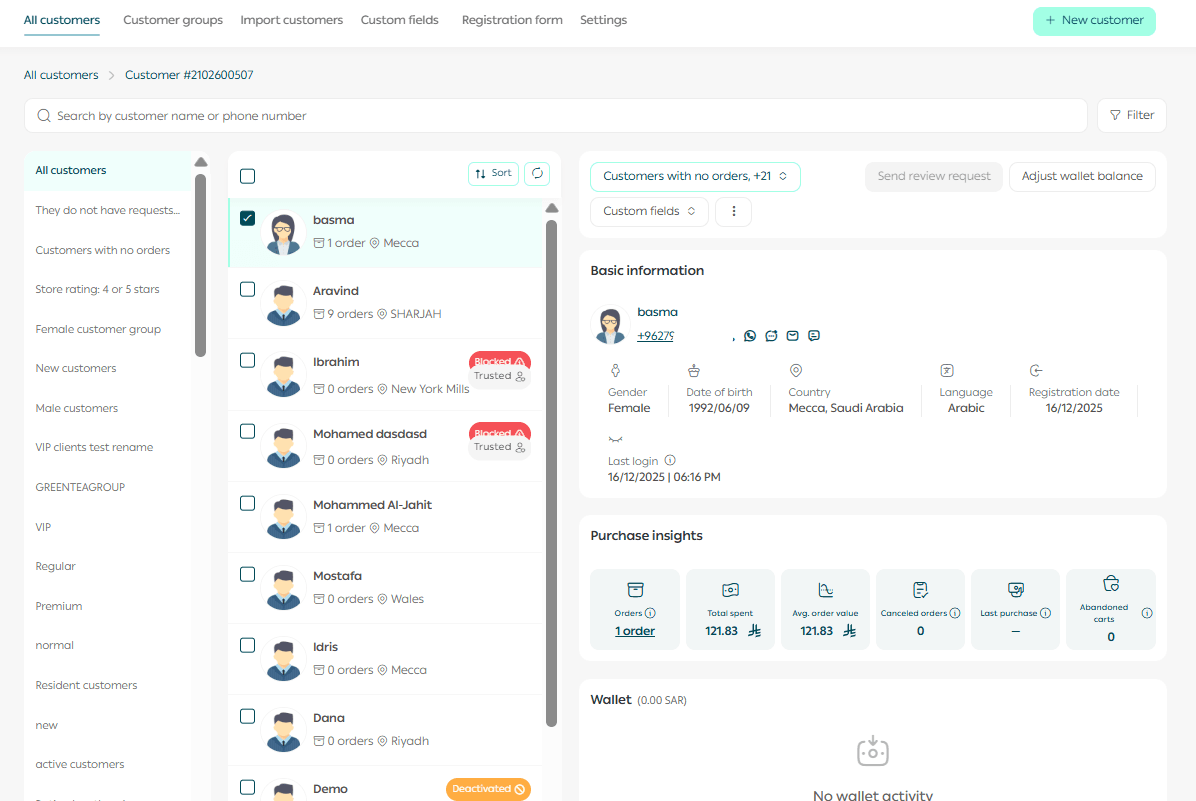
Main navigation tabs
The top navigation bar includes the following tabs:
- Customer management
View customers by status with multiple editing options.
- Group management
View and manage customer groups or create new ones.
- Import customers
Import customer data in bulk.
- Custom fields
Create and manage additional fields to store custom customer information based on your store’s needs.
- Registration form
Customize the required fields when customers register.
- Settings
Control general customer-related settings.
Additional page components
- Search and filter bar
Search for a specific customer or multiple customers using advanced filters.

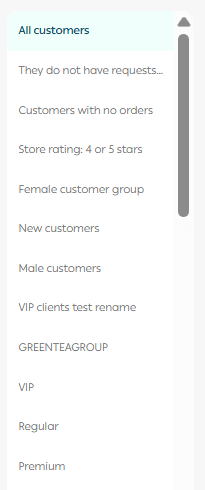
2. Customer groups list
View existing groups with options to edit or create new groups.
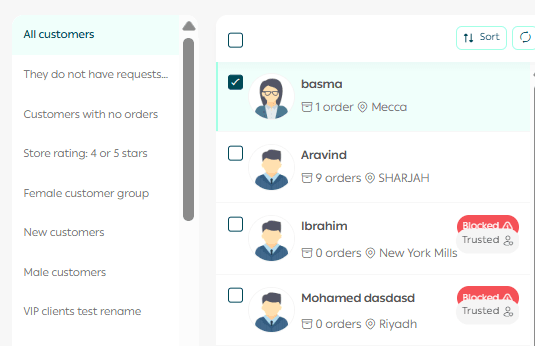
3. Customer list
Displays customers within the selected group, with sorting options.
4. Customer actions
Actions available for the selected customer.

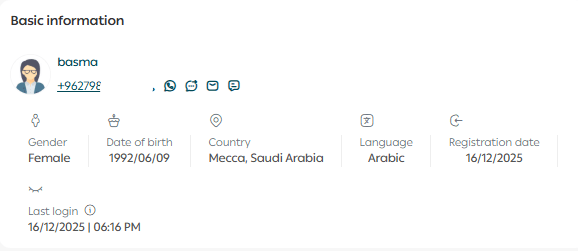
5. Basic information
Displays essential details of the selected customer.
6. Purchase behavior indicators
Provides insights into the customer’s order history:
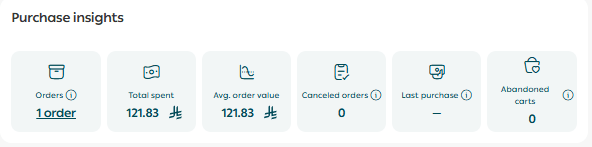
- Number of orders
Total completed orders excluding quotations, canceled, and returned orders.
- Total order value
Total value of completed orders excluding quotations, canceled, and returned orders.
- Average order value
Average value of completed orders.
- Canceled orders rate
Percentage of orders canceled by the customer. Helps assess customer commitment and response priority.
- Last purchase date
Date of the most recent completed order. Useful for reactivating inactive customers.
- Abandoned carts
Number of abandoned items. Helps optimize checkout experience and increase conversions.
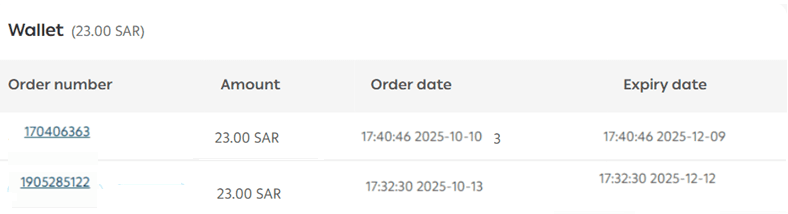
7. Customer wallet
Displays the available balance in the customer’s wallet.
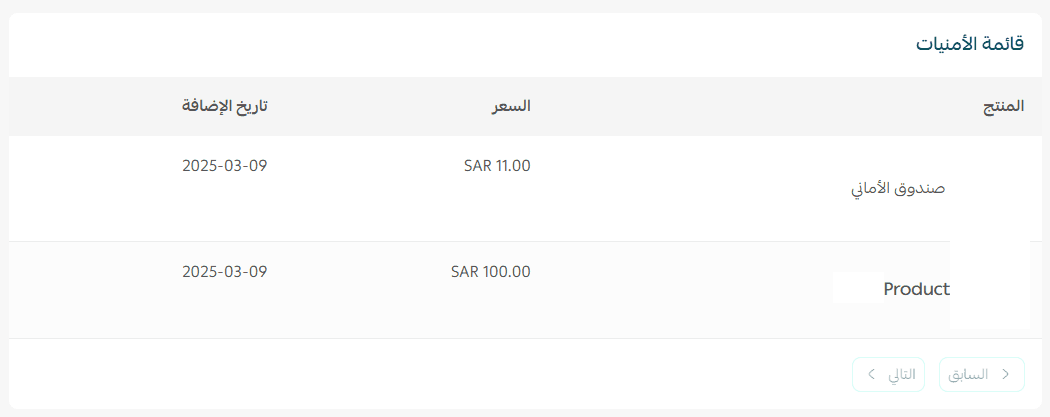
8. Wishlist
Shows items the customer has added to their wishlist.
Take full control of your customers and increase sales.
Discover Salla’s tools for wallet management, order tracking, and handling inactive or non-serious customers.
Creating a new customer profile
- Click + New Customer.

2. Enter the customer details, then click Create Customer.
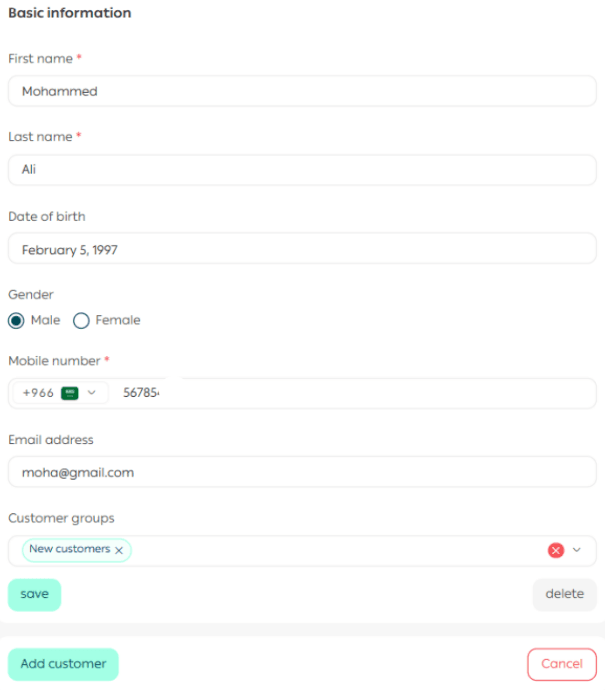
The customer profile will appear as follows:
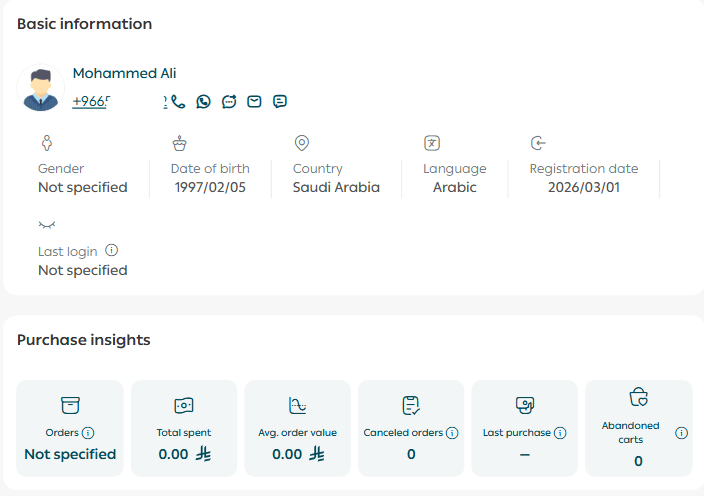
Note: From the customer profile, you can easily view key information such as registration date and contact details.
Searching for specific customers
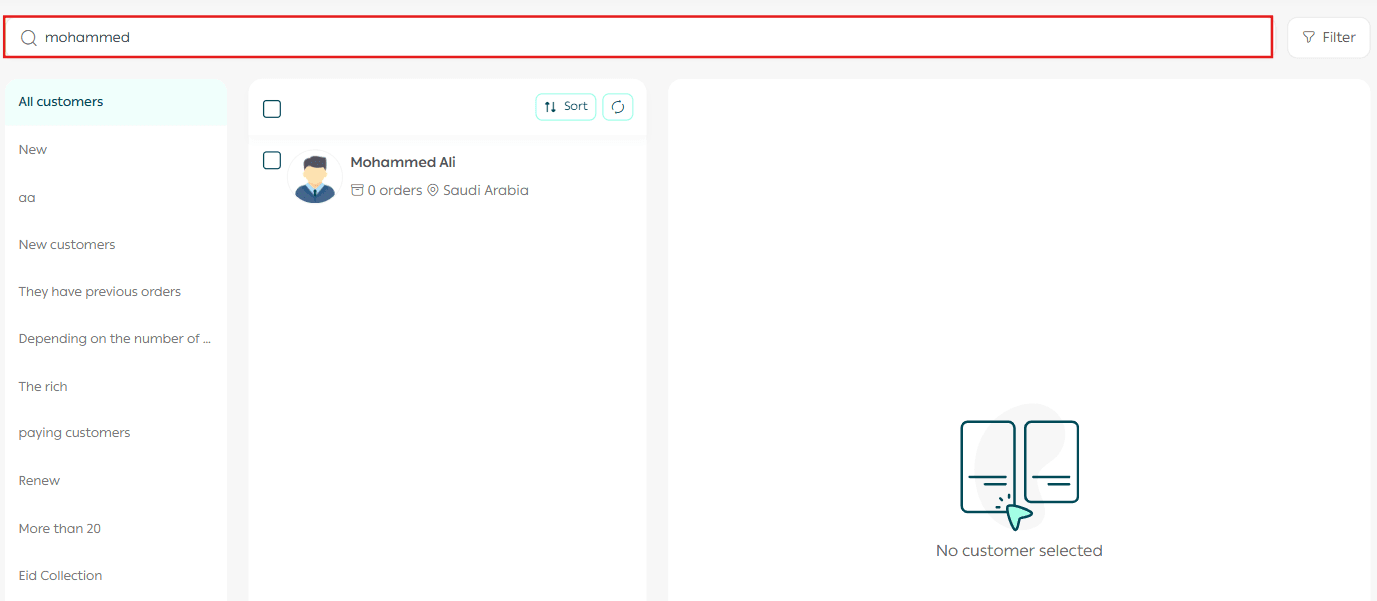
Method 1: Search field
Use the search bar to find customers by entering their name or mobile number, then press Enter.
Method 2: Filters
- From the Customers page, click Filter.

2. Define your filtering conditions, then click Show Results.
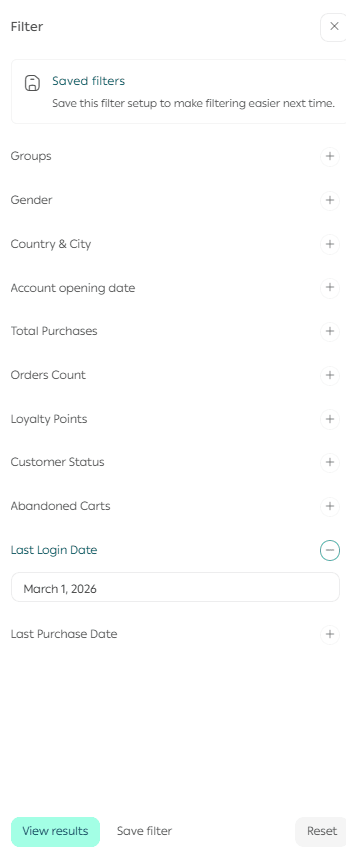
Advanced filtering options include:
- Loyalty points
Filter customers by loyalty points using exact match, greater than, less than, or range values.
For more details, see how to install and activate the loyalty program.
- Number of orders
Filter by order count using flexible conditions.
- Total purchases
Filter customers based on total purchase value.
- Last purchase date
Filter by the date of the most recent purchase.
- Abandoned carts
Identify customers who left items in their carts without completing checkout.
- Customer status
Filter by customer status such as blocked or disabled.
- Last login date
Filter customers based on their most recent login activity.
Important notes
- Loyalty points data appears only after installing the Loyalty Points app.
- When filtering by Last Purchase Date, data before 1 August 2025 will not appear.
- When filtering by Last Login Date, data before 15 June 2025 will not appear.
- You can define precise filter conditions using sub-rules for more accurate results.
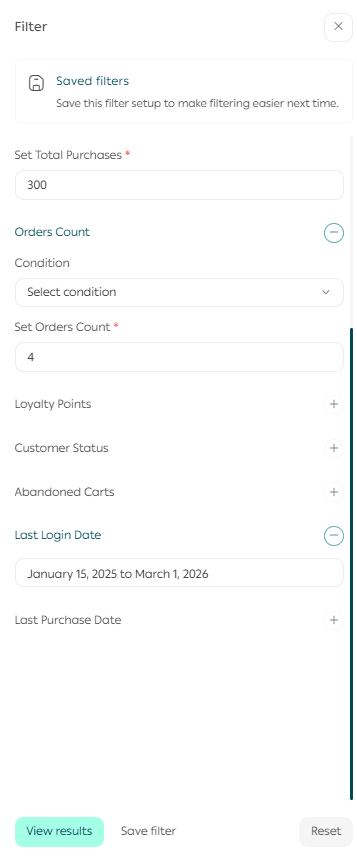
- To return to the full customer list, click X in the filter window.
