Do you treat your most loyal customers exactly the same as a visitor who has never placed an order?
Segmenting your customers into groups makes them easier to manage and far more efficient to market to. With customer groups on Salla, you can sort customers automatically by their behavior or classify them manually, then give each group its own advantages: the payment methods it sees, the shipping companies available to it, and the discount coupons it receives. A customer can even belong to more than one group at a time. In this guide, you'll learn how to create and manage customer groups from your store's dashboard.
Customer groups let you segment your store's customers automatically, using conditions such as order count, total purchases, or store rating, or manually. Each group can have its own payment methods, shipping companies, and coupons, and one customer can belong to several groups at once.
📌 Article overview
- Create a new customer group
- Set the condition that adds customers automatically
- Control the payment methods shown to a group
- Control the shipping companies shown to a group
- Delete a customer group
- Change a customer group's icon
- Frequently asked questions
🚀 Create a new customer group
1. From the main menu of your dashboard, click (Customers).

2. From the customers page, click (+ New group).
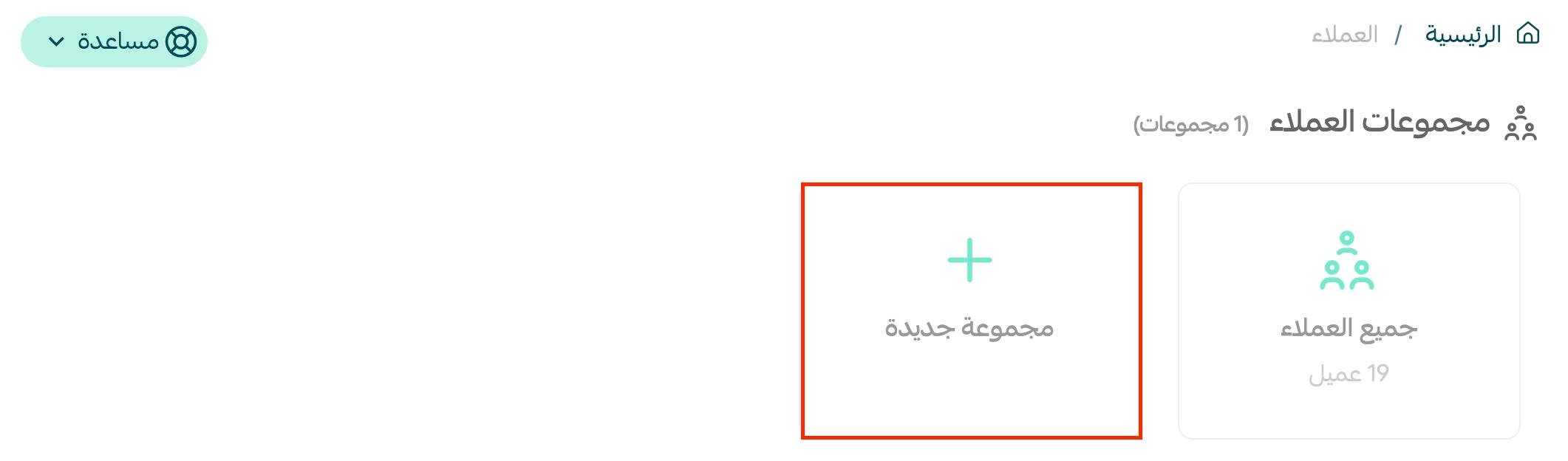
3. Enter the group's details, then click (Save).
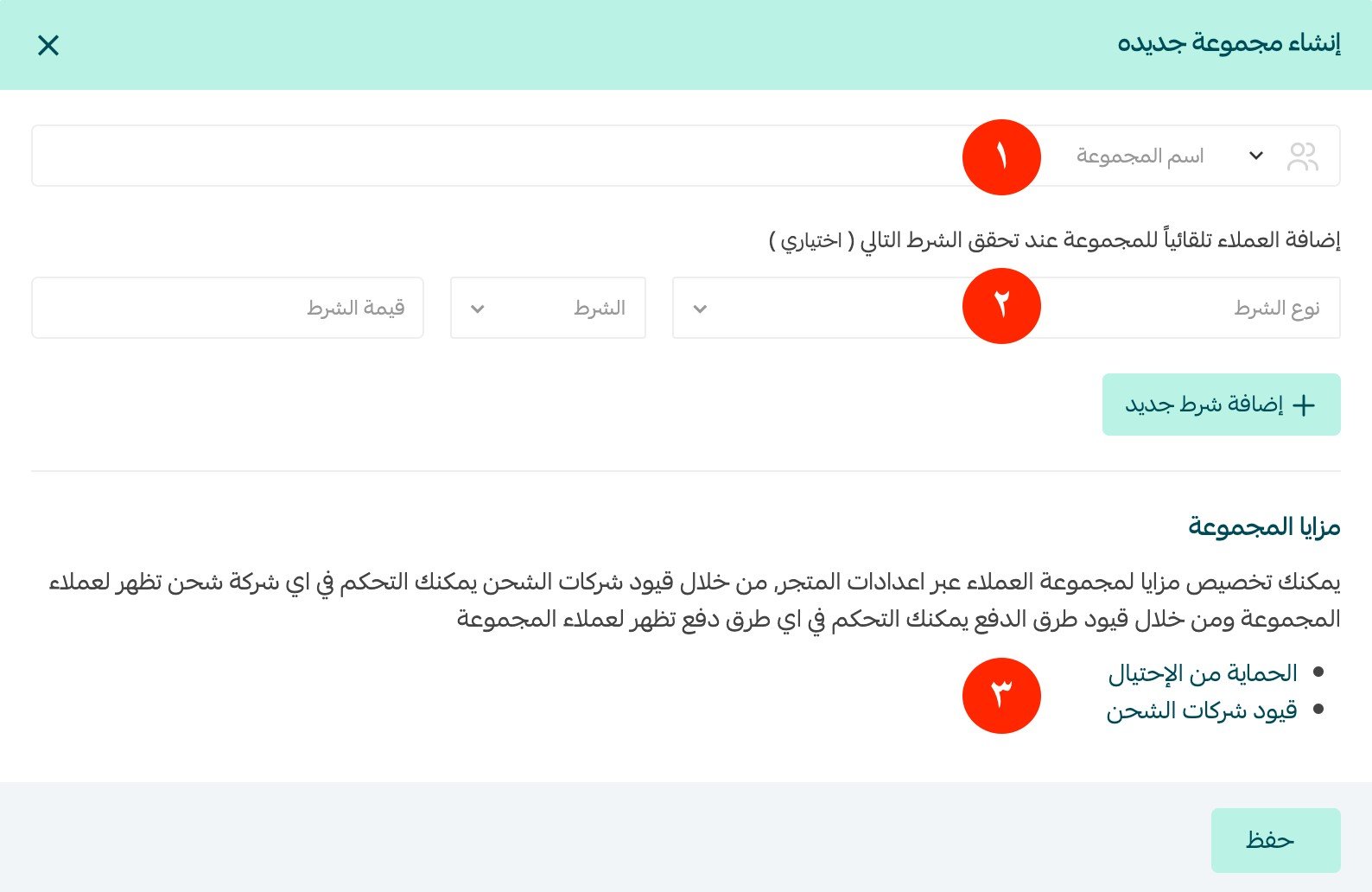
The group's details are:
1. Group icon and name: enter a short, expressive name for the group and pick a suitable icon.
2. Automatic-addition condition: any customer who meets the condition is added to the group automatically. You can leave the condition empty, but then you will have to add customers to the group manually.
3. Group advantages, which include:
- Fraud protection: control which payment methods appear to the group's customers.
- Shipping company restrictions: control which shipping companies appear to the group's customers.
💡 Tip: for a deeper understanding of your store's customers, their needs, and what they expect from you, read Use your resources effectively through customer segmentation.
👣 Set the condition that adds customers automatically
The automatic-addition condition is made up of three parts:

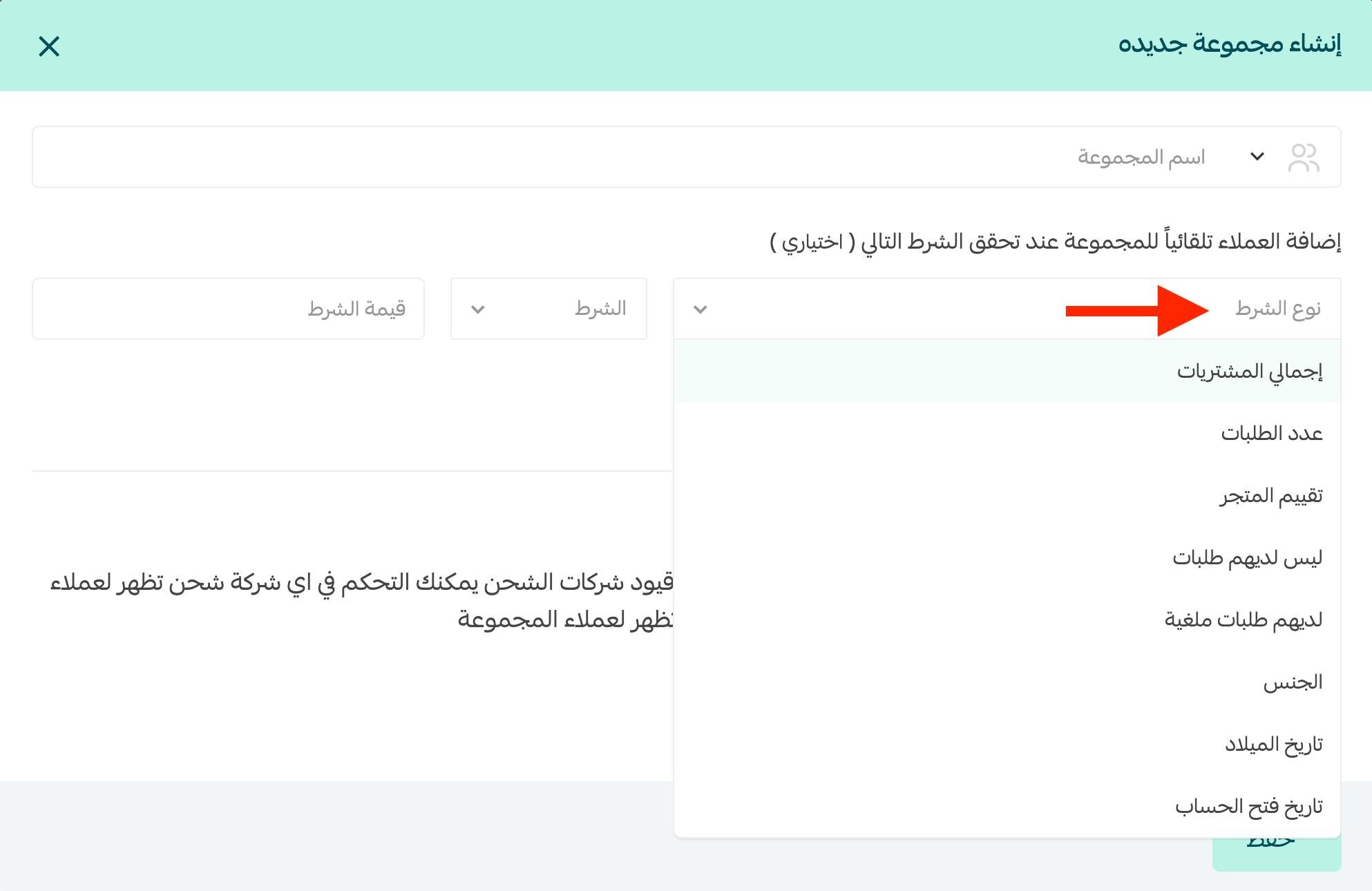
1. Condition type
Choose what the condition is based on: the customer's number of orders, the customer's total purchases, the customer's rating of the store, or customers with no orders.
For example, here we set the condition type to: number of orders.
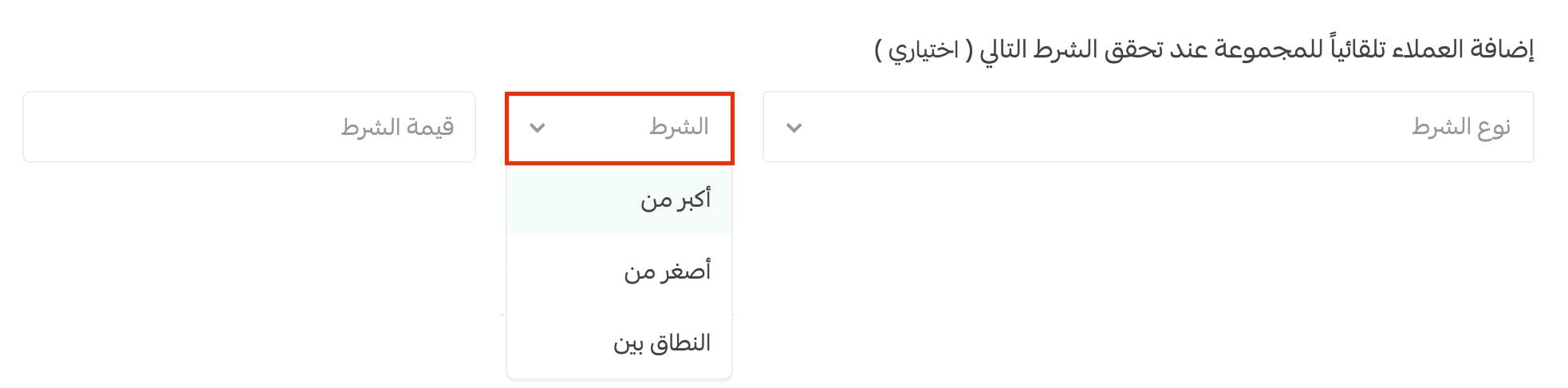
2. Condition operator
Choose the operator: (greater than), (less than), or (within a range).
3. Condition value
Enter the value for the condition.
With the (within a range) operator, enter the lowest and highest values that satisfy the condition, as shown below:

With the (greater than) or (less than) operators, enter the single value that satisfies the condition.
In the example below, we set the value to 5, so any customer with more than 5 orders meets the condition.

💳 Control the payment methods shown to a group
From the page of the customer group you want, click (Fraud protection).
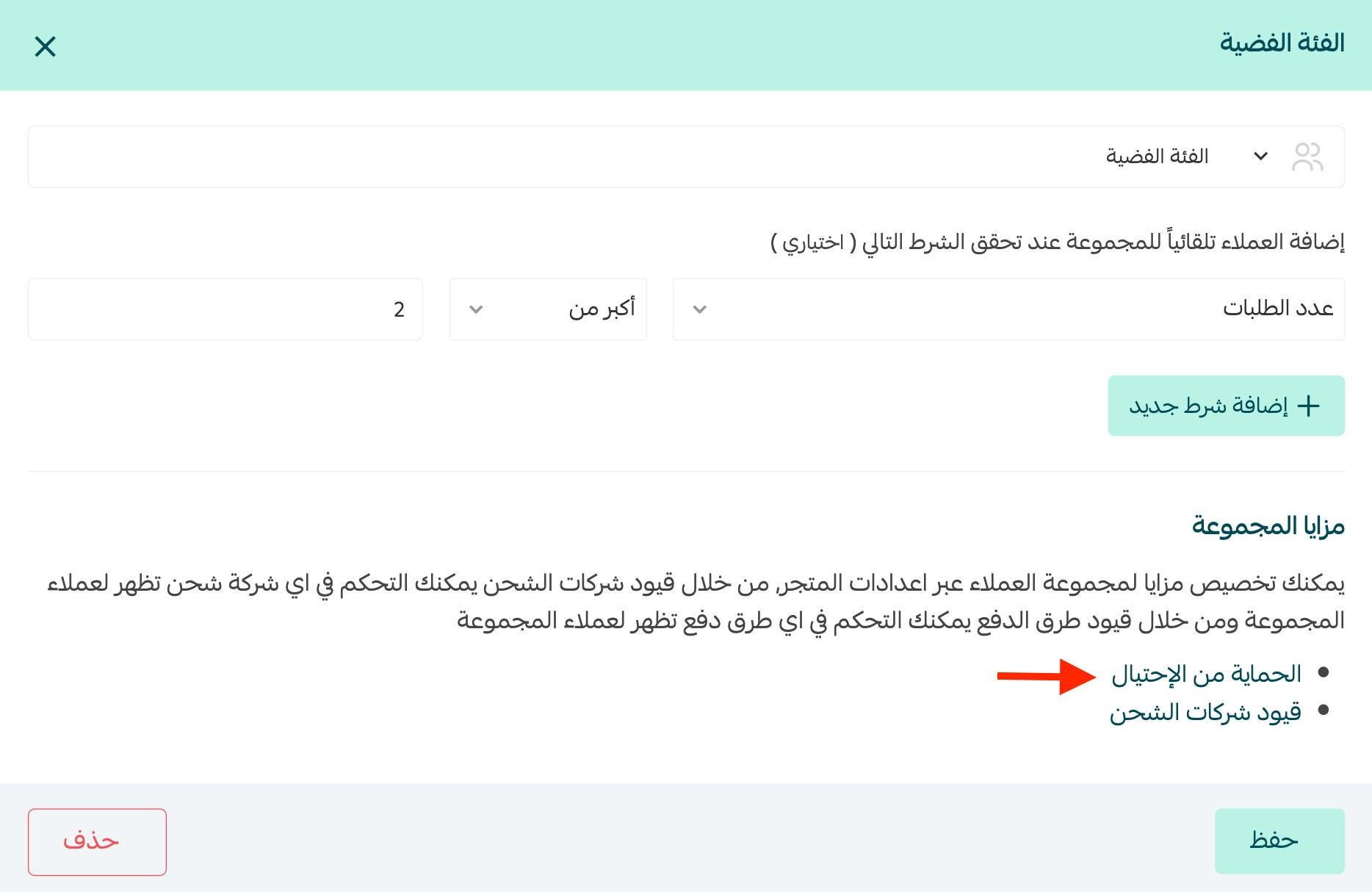
Enter a new payment restriction for that customer group, then click (Save).
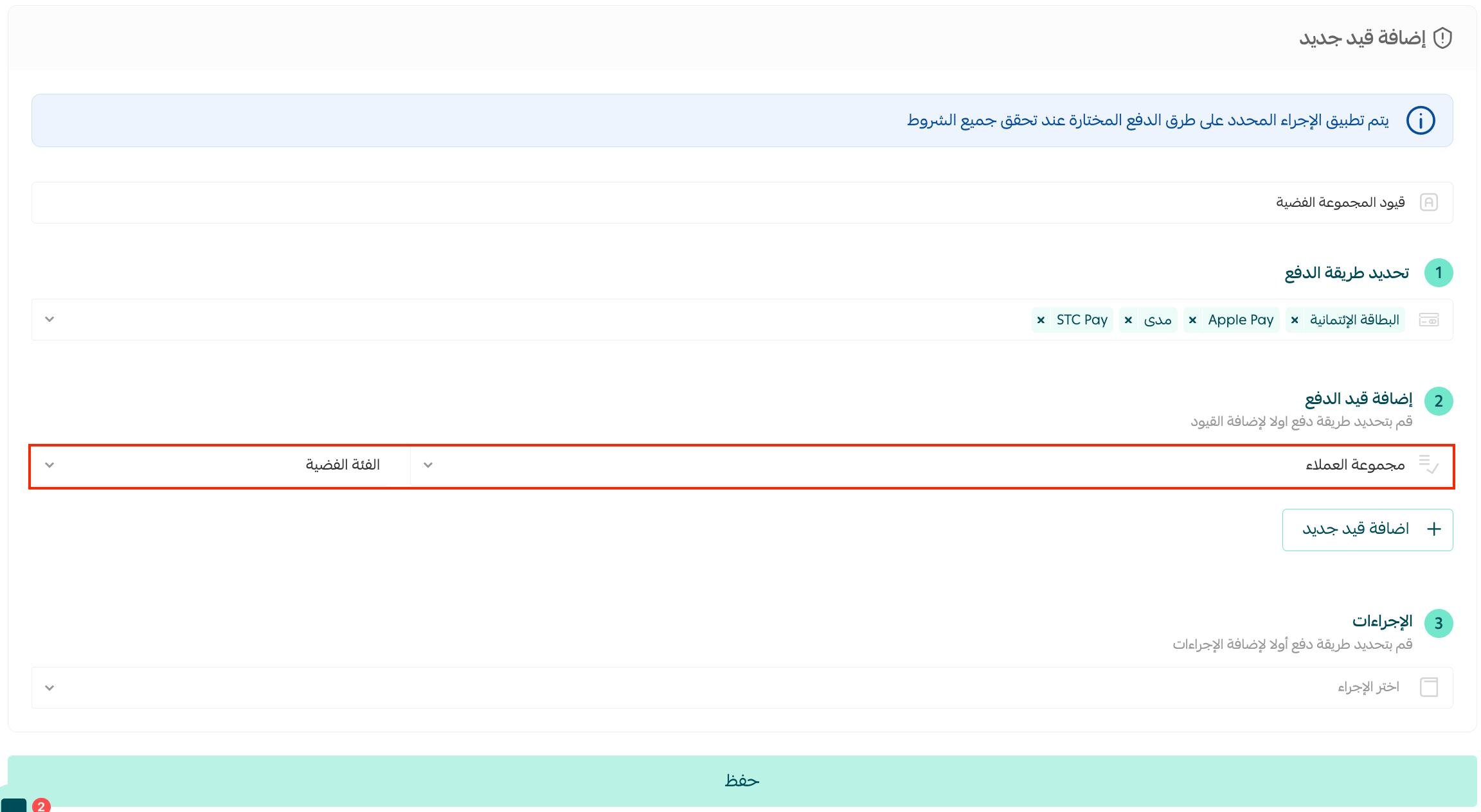
For more details, see Fraud protection settings.
📦 Control the shipping companies shown to a group
From the page of the customer group you want, click (Shipping company restrictions).
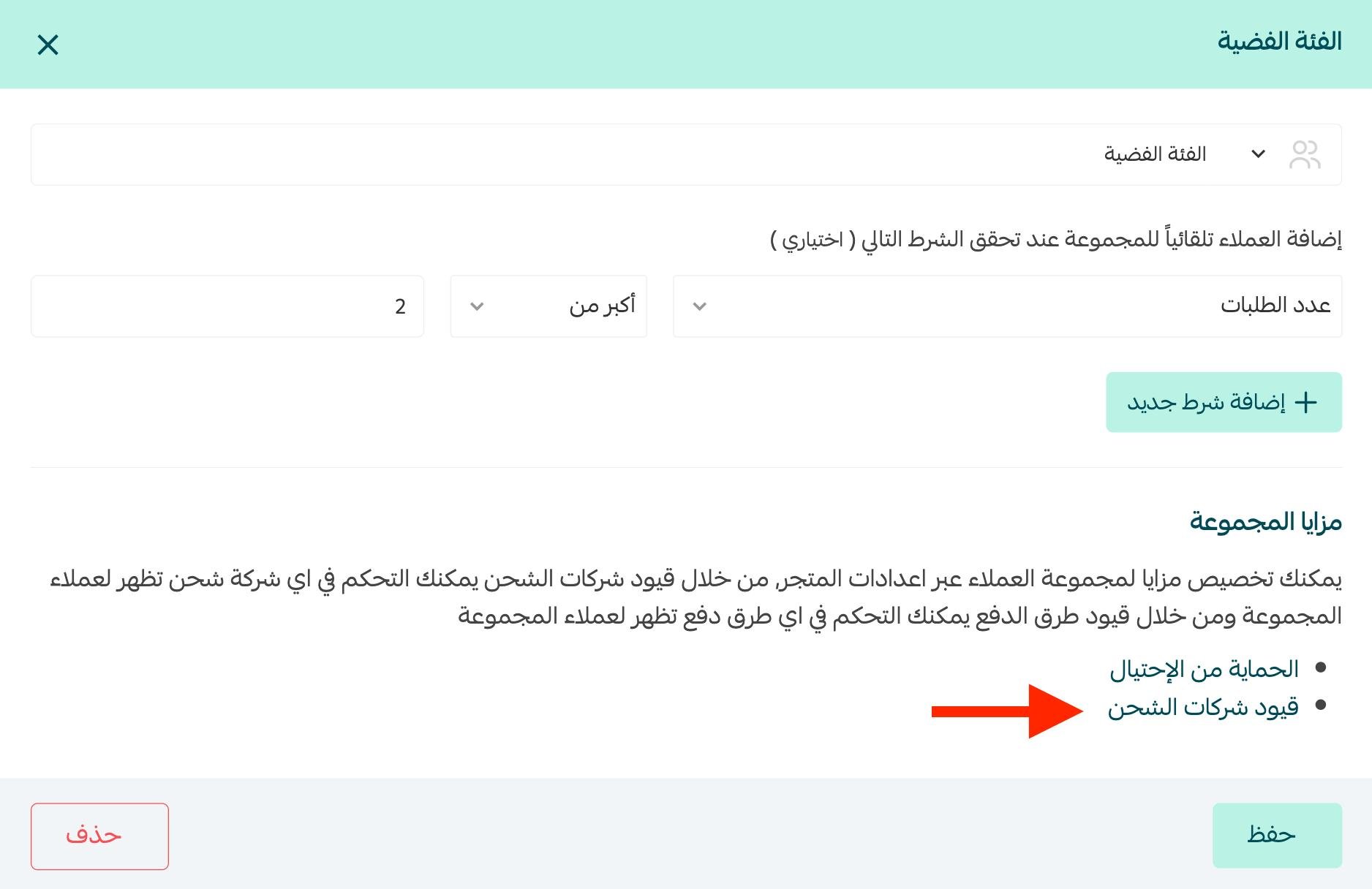
Enter a new shipping company restriction for the customer group, then click (Save).
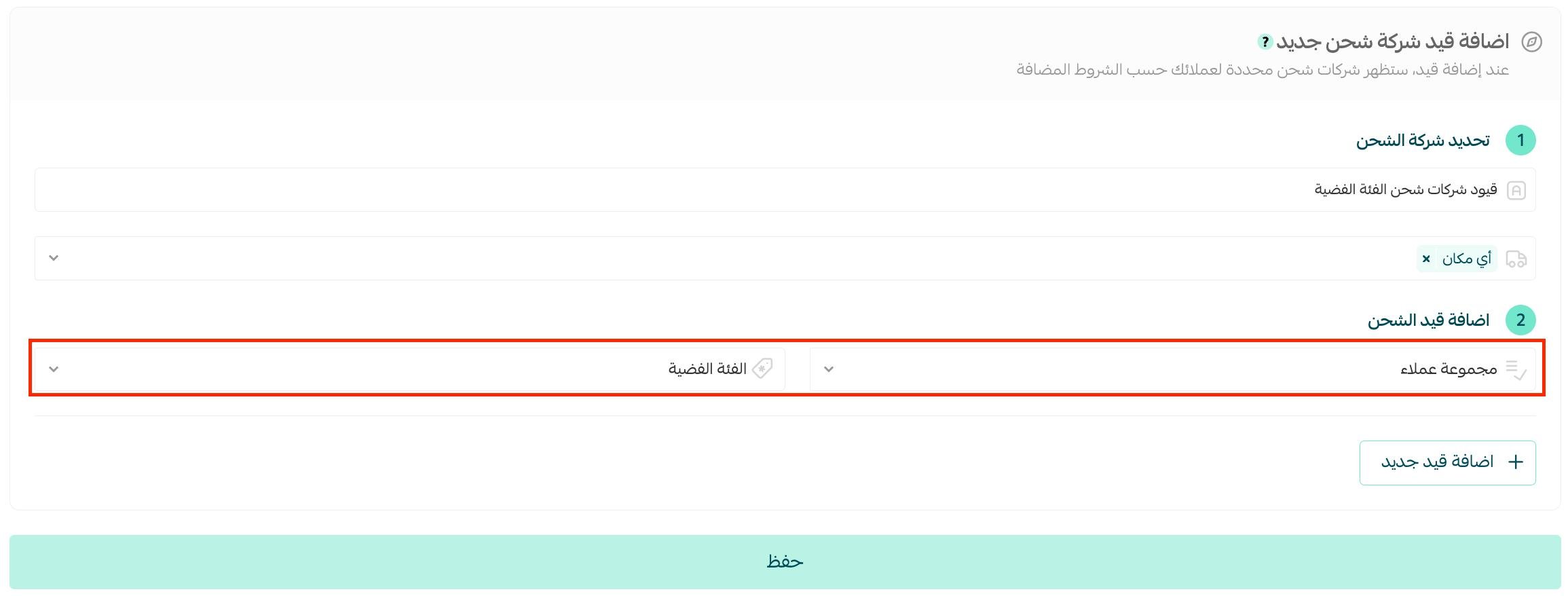
For more details, see Shipping company restrictions.
🗑️ Delete a customer group
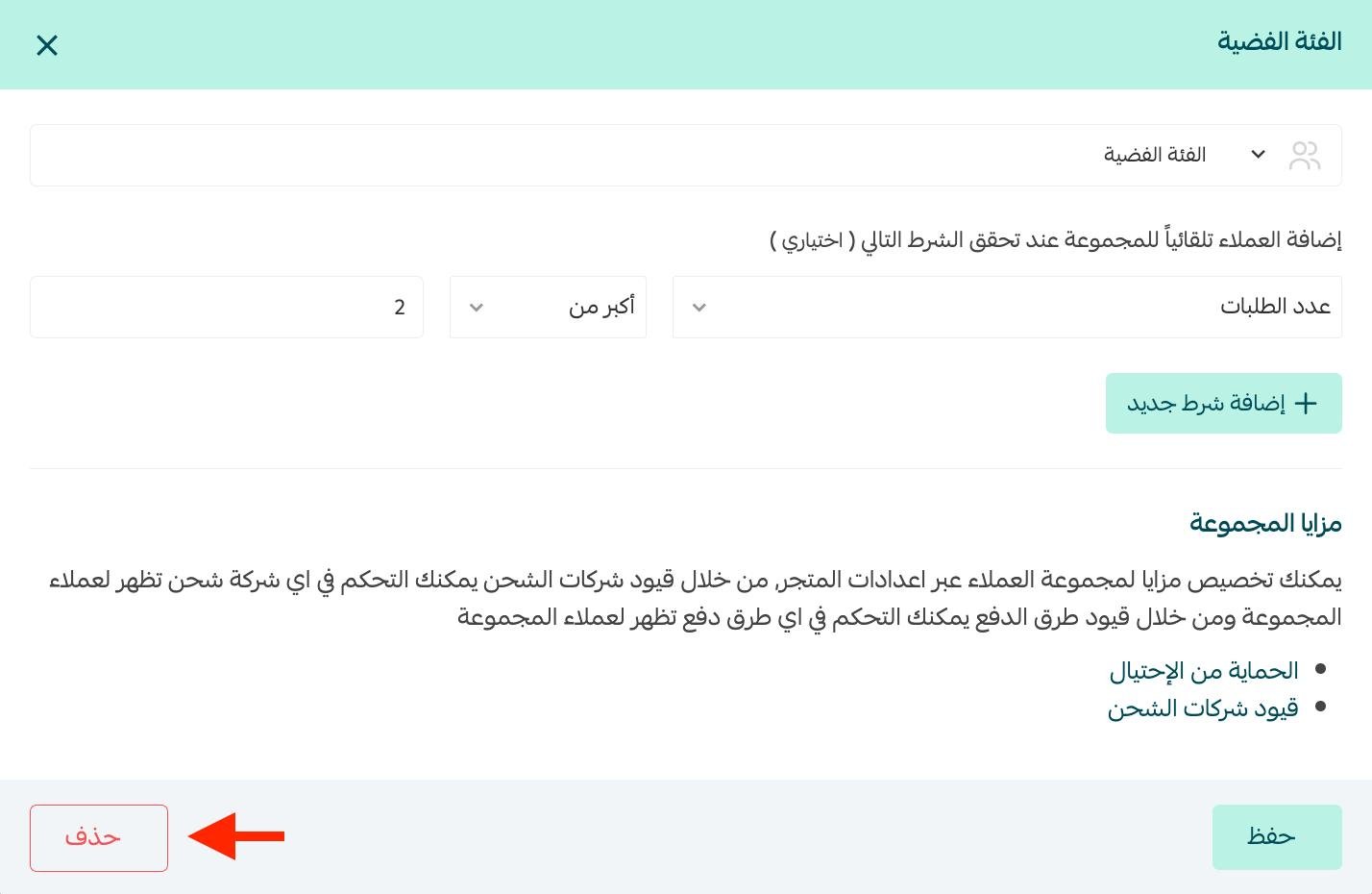
Click (Delete) at the bottom of the group page's tab.
📝 Important notes
Deleting a customer group does not delete the records of the customers who were in it.
🎨 Change a customer group's icon
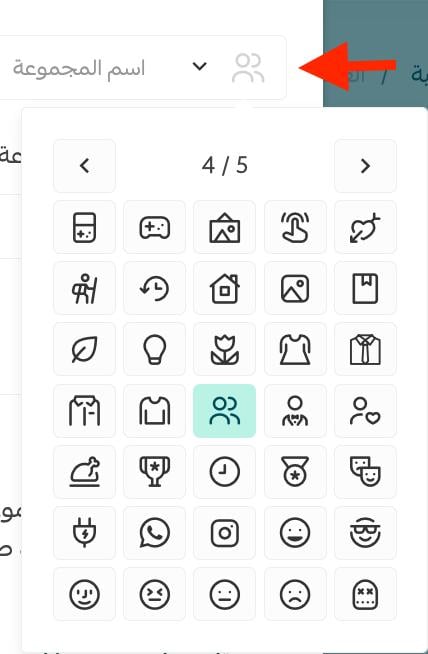
From the group page, go to the group's icon and choose a suitable icon from the list of symbols.
❓ Frequently asked questions
When are customer groups updated?
Customer group lists are updated, and new customers are added, within 24 hours. For example, if you have a group for customers with 5 or more orders, a customer who completes their fifth order is added to the group within 24 hours.
Can one customer belong to more than one group?
Yes. A customer can be included in more than one group at the same time, so you can get the most out of every segment they fit.
Do I have to set an automatic-addition condition?
No. You can leave the condition empty and add customers to the group manually instead.
What happens to customers when I delete their group?
Nothing is lost. Deleting a group removes only the group itself; the records of the customers who were in it stay untouched.
Customer groups turn one broad audience into segments you can actually act on. Set the conditions once, and let every new customer land in the right group on their own.