Creating an Apple Developer Account gives you access to Apple’s iOS development platform and allows you to publish apps on the App Store. To complete the setup successfully, it’s essential to understand the basic requirements, the correct payment process, and how to handle any issues that may occur during checkout.
This guide walks you through everything you need to know to complete payment and activate your Apple Developer account smoothly.
📌 Article overview
- Basic requirements for creating an Apple Developer account
- Steps to create an Apple Developer account and complete payment
Basic requirements for creating an Apple Developer Account
Before starting, make sure you have the following:
- A credit card with a balance of at least USD 99 (approximately SAR/AED 420)
- An active Apple ID linked to a valid phone number to receive verification codes
- Ability to use Apple Pay if you’re creating the account via the mobile app
For more details, refer to the guide on creating an Apple Developer account via the mobile app
Steps to create an Apple Developer Account and complete payment
1️⃣ Visit the Apple Developer website
Go to the official Apple Developer Program website and click Account.

2️⃣ Sign in with your Apple ID
Log in using an active Apple ID.

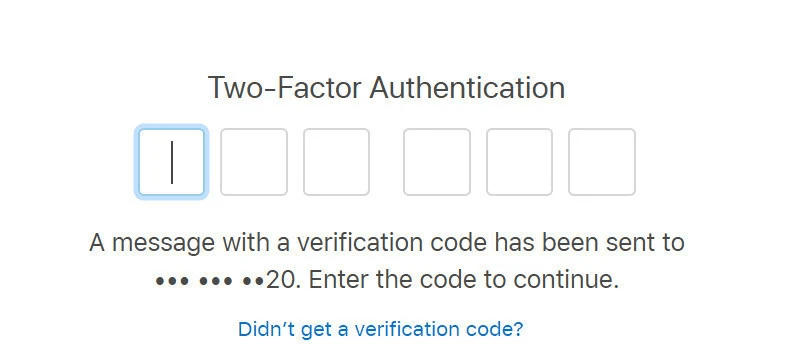
3️⃣ Enter the verification code
You may be prompted to enter a verification code sent to the phone number associated with your Apple ID.
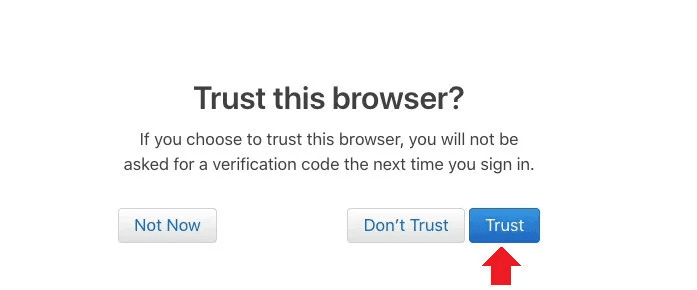
4️⃣ Trust the browser
When prompted, select Trust to continue.
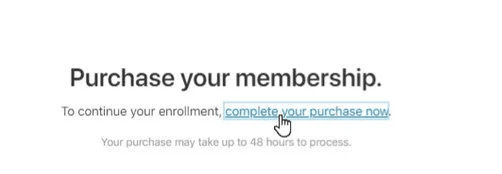
5️⃣ Start the payment process
Click Complete your purchase now to proceed with payment.
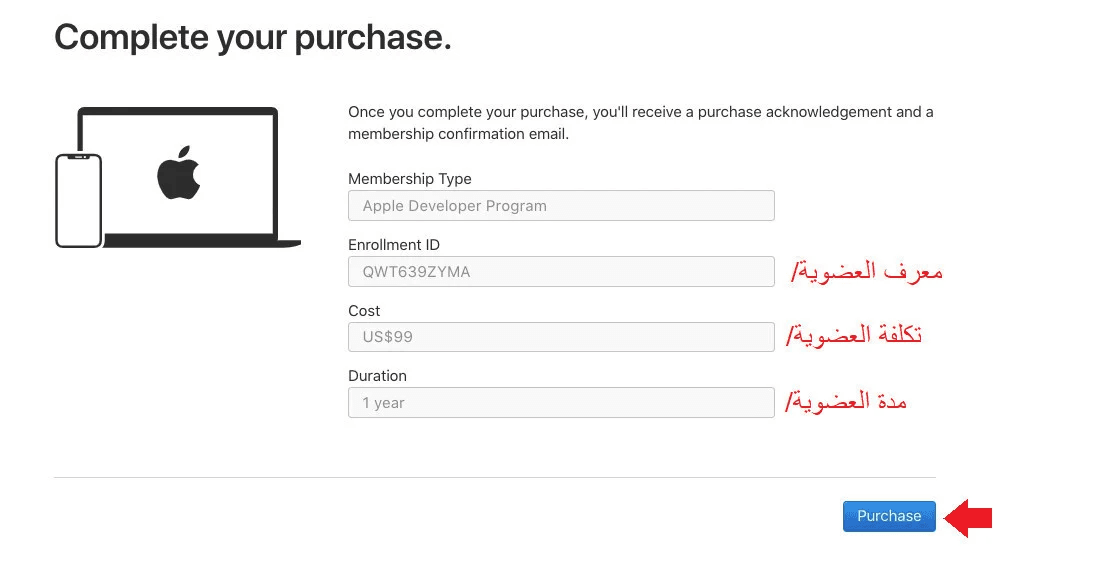
6️⃣ Confirm purchase
On the payment page, click Purchase.
7️⃣ Enter your payment details
Fill in the required billing information, then click Continue to complete your iOS Developer account setup.
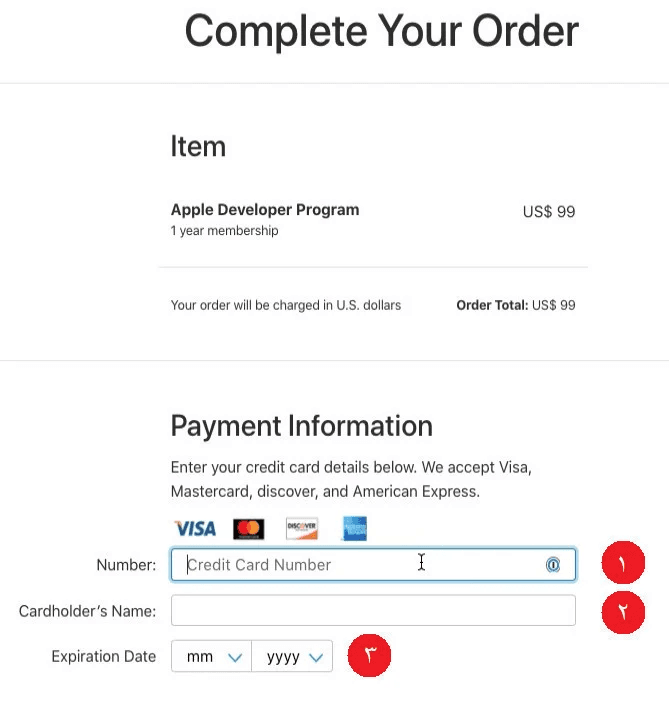
Required details include:
- Card number
- Cardholder name
- Preferably matches the Apple ID account holder (recommended but not mandatory)
- Card expiration date
Complete the remaining billing address details.
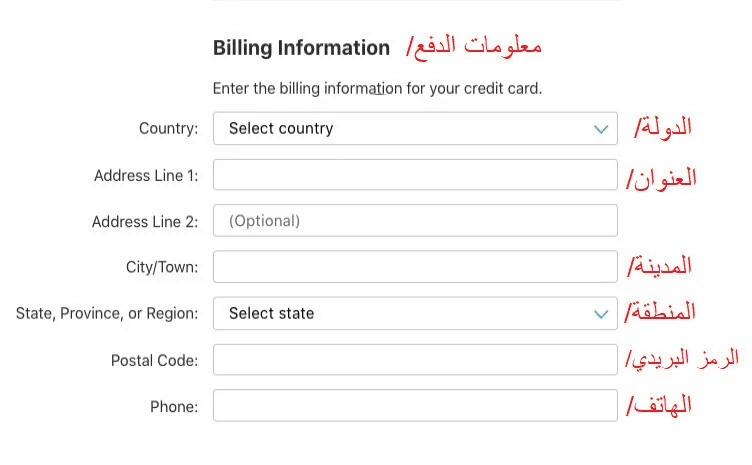
For best results, ensure the billing address matches the information registered with the card issuer.
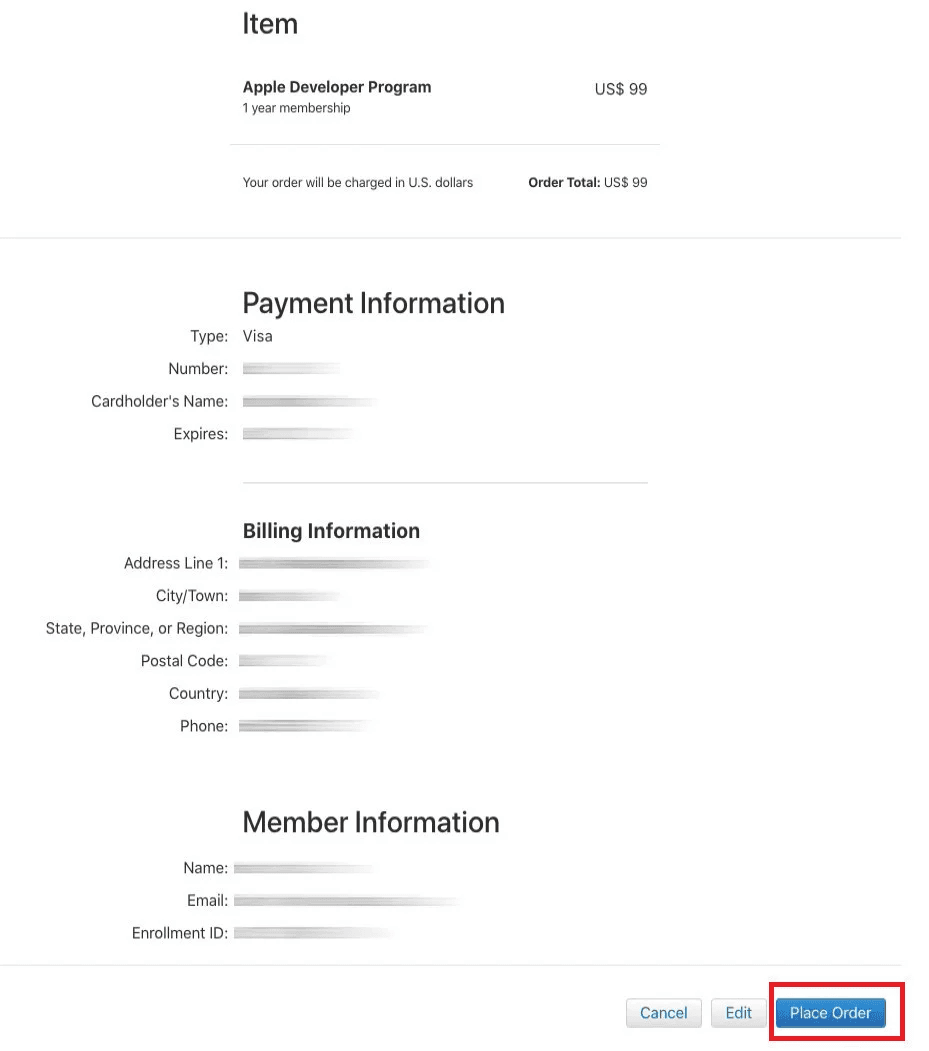
8️⃣ Confirm the order
Review the payment details, then click Place Order to confirm.
✅ Payment confirmation
You’ll see a confirmation message stating that your payment is being processed and may take up to two business days.
Once processing is complete, Apple will send you a confirmation email containing:
- Payment invoice details
- Confirmation that your Apple Developer account has been successfully activated
Frequently asked questions
Does the cardholder name need to match the Apple Developer account owner?
No. The cardholder name does not need to match the Apple Developer account owner.
What types of cards are usually accepted?
Credit cards only (not prepaid or debit cards)
The card must:
- Be enabled for online purchases
- Have been used successfully for online payments before
- Contain at least USD 99, plus a small buffer for currency conversion
Two business days have passed and the amount was not charged. What should I do?
This usually means the first payment attempt failed.
You can: Log in again and retry using a different credit card
Apple emailed me saying they couldn’t charge my card. What should I do?
Contact your bank and ask why the transaction was declined. In many cases, the bank can:
- Remove a temporary block
- Approve Apple’s charge manually
If the bank confirms there’s no issue:
- Wait one day and try again
- Or contact Apple Support for further assistance
You may find these guides helpful:
- Requesting Apple Support via Email
- Requesting Apple Support via Phone